



How to Fix Pool Corruption in File Area on Windows
Pool corruption in file area can leave Windows restarting unexpectedly. Start with recent driver changes, then choose checks that match your symptoms. Learn when system repair helps and when missing files need separate recovery.

By Ivy Updated on November 2, 2026


A "pool corruption in file area" blue screen will interrupt your work, and it can keep haunting you after a restart. Did it start right after a driver update? If so, roll back that driver first. If not, use the symptoms below to choose your next check.
You don't need to run every repair in this guide. Whether you're on Windows 10 or 11, we'll help you separate driver glitches from failing hardware, and explain exactly when you need to recover your files.
What Does Pool Corruption in File Area Mean?
POOL_CORRUPTION_IN_FILE_AREA, with stop code 0x000000DE, means a driver corrupted pool memory used to hold pages destined for disk. “Pool” here refers to Windows memory allocation, not a storage pool containing your files.
The code alone doesn’t identify the responsible driver or prove that your hard drive is failing. It also doesn’t establish that personal files were deleted. Those questions need separate checks.
Choose Where to Start
Match your situation to one of the methods below to get started.
| 👁🗨 What you see | ✅ Where to start |
|---|---|
| Crashes began after a driver update | Method 1: Roll back the driver |
| A device or driver is linked to the crashes | Method 2: Update the suspected driver |
| Windows features malfunction or system-file checks report corruption | Method 3: Run DISM and SFC |
| Different stop codes appear, or memory problems are suspected | Method 4: Check RAM |
| Crashes followed system changes and a restore point exists | Method 5: Use System Restore |
In addition, if crashes occur only with one external drive connected, safely disconnect it and check the connection and device driver; If the drive clicks, repeatedly disconnects, or isn't detected at all, stop running scans and investigate hardware issues.
If you're sure the files were actually deleted and the drive remains readable, try a software scan to find them instead.
Method 1: Roll Back a Recently Updated Driver
👍 Best for: Blue screens that started immediately after a particular driver update.
Returning to the previous driver can undo a problematic change. You need administrator permissions. If your computer does not boot, restart to safe mode first.
Step 1. Right-click Start, select Device Manager, and expand the category containing the recently updated device.
Step 2. Right-click the device, select Properties, and open the Driver tab.
Step 3. Select Roll Back Driver, choose a reason, and confirm.

Restart Windows and check whether the crashes return during normal use.
If the button is unavailable or grayed out, Windows doesn’t have a previous driver available for rollback. Check the device manufacturer’s support page for an appropriate version rather than downloading an arbitrary older package.
Method 2: Update the Driver Linked to the Crashes
👍 Best for: A suspected device or driver without a clear update-related trigger.
A compatible driver update may address the fault behind pool corruption in file area. Focus on evidence such as a named driver, device error, or repeatable crash when using specific hardware.
Step 1. Open Device Manager, right-click the suspected device, and check Properties.
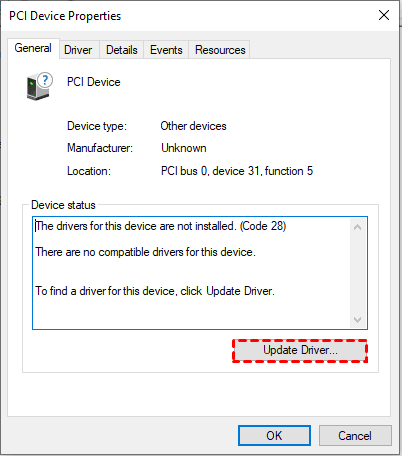
Step 2. Under the General tab, scroll down to check the device status. Then, click Update driver below.
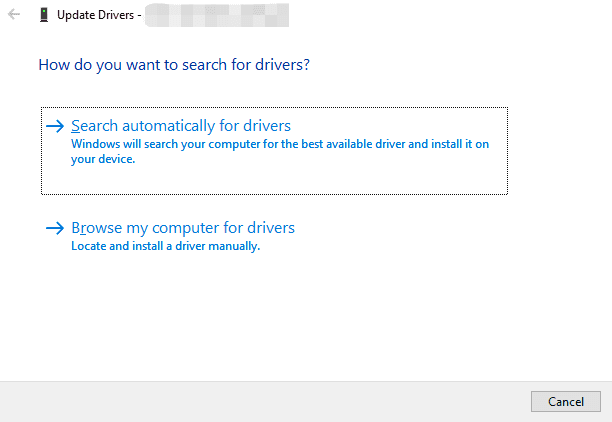
Step 3. Choose Search automatically for drivers.
If Windows doesn't find an update, check the support page of your PC, motherboard, or device manufacturer. Make sure to download the driver that matches your exact model and Windows version, then install it.
Method 3: Repair Windows with DISM and SFC
👍 Best for: Suspected Windows component or protected system-file corruption.
DISM repairs the underlying Windows image that SFC relies on. Run them in that order, as Microsoft recommends doing so on Windows 8, 8.1, 10, and 11. This increases your chances of a successful repair.
Step 1. Start Windows normally if possible. Search for Command Prompt, right-click it, and select Run as administrator.
Step 2. Enter DISM.exe /Online /Cleanup-image /Restorehealth and wait for completion.
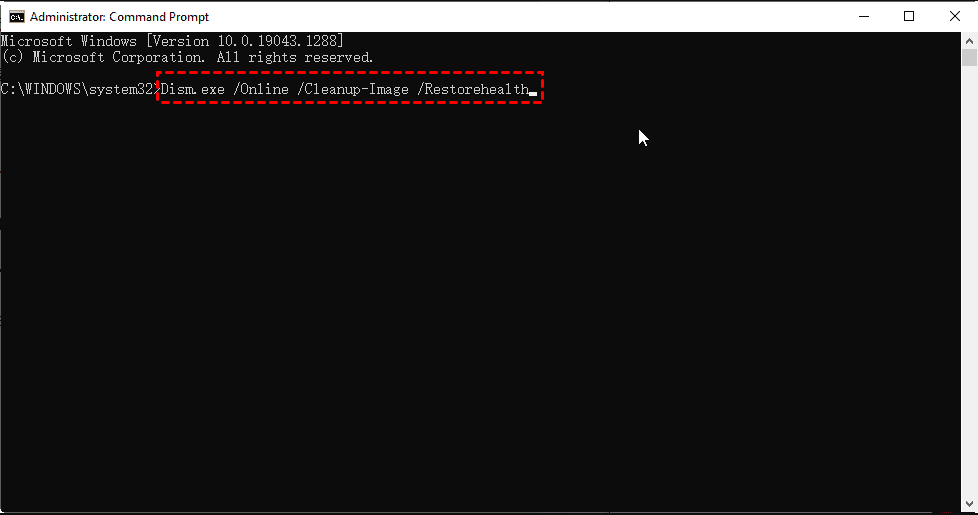
Step 3. After DISM reports success, enter sfc /scannow. Keep the window open until verification finishes.
Read the result and restart if repairs were made. “No integrity violations” means SFC found no problems in the protected files.
If DISM fails or SFC cannot repair some files, save the exact message for further troubleshooting.
Method 4: Check RAM with Windows Memory Diagnostic
👍 Best for: Repeated crashes with varying stop codes or other memory-related symptoms.
A memory check can help identify hardware errors that require a different response from software repair.
Step 1. Save your work. Press Win + R, enter mdsched.exe, and press Enter.
Step 2. Select Restart now and check for problems (recommended).
Step 3. Let the diagnostic finish and Windows restart. Open Event Viewer > Windows Logs > System, then look for MemoryDiagnostics-Results.
If errors are reported, arrange further hardware diagnosis through your PC manufacturer or a qualified technician. A passing result doesn’t conclusively exclude intermittent RAM or other hardware problems. Microsoft includes memory diagnostics among its stop-code troubleshooting checks.
Method 5: Undo Recent Changes with System Restore
👍 Best for: Crashes following system changes when an earlier restore point exists.
System Restore rolls back relevant system changes without affecting your personal files. However, it may remove recently installed applications, drivers, and updates.
Step 1. Search for Create a restore point, open it, and select System Restore.
Step 2. Choose Next, then select a restore point from before the crashes began. Click Scan for affected programs if needed.
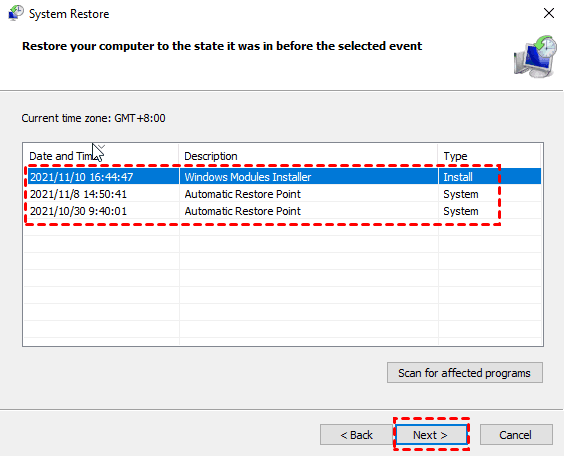
Step 3. Select Next > Finish and let the process complete.
If Windows won’t start, go to Windows Recovery Environment. Then, select Troubleshoot > Advanced options > System Restore. Encrypted devices may require the BitLocker recovery key.
How to Recover Deleted Files After a Blue Screen
If files were deleted and aren’t in the Recycle Bin, try AOMEI FastRecovery, a dedicated Windows data recovery software. It can scan hard drive for deleted files and select what you want from a user-friendly interface.
AOMEI FastRecovery- 🧩 Scenario matching: Pick the mode that fits your problem, whether it's deleted files, system crashes, formatted drives, or something else.
- ⚡ Two Scan Modes: Quick Scan finds deleted files fast, while Deep Scan offers a more thorough search.
- 🗂️ Flexible browsing: Browse by Type or Path, and use search or sort to narrow down the results.
- 📚1000+ file types: Recover deleted images (JPG, PNG, TIF), videos (MP4, MOV, AVI), audio files (MP3, CDA, WAV), and more.
- 💰 Free recovery: The Free edition provides thumbnail preview and saves up to 500MB.
 100% Secure
Step 1. Download and install AOMEI FastRecovery on a different drive from the one where files were deleted. Doing so also writes data and may overwrite deleted files. Open this software and select Deleted Files Recovery.
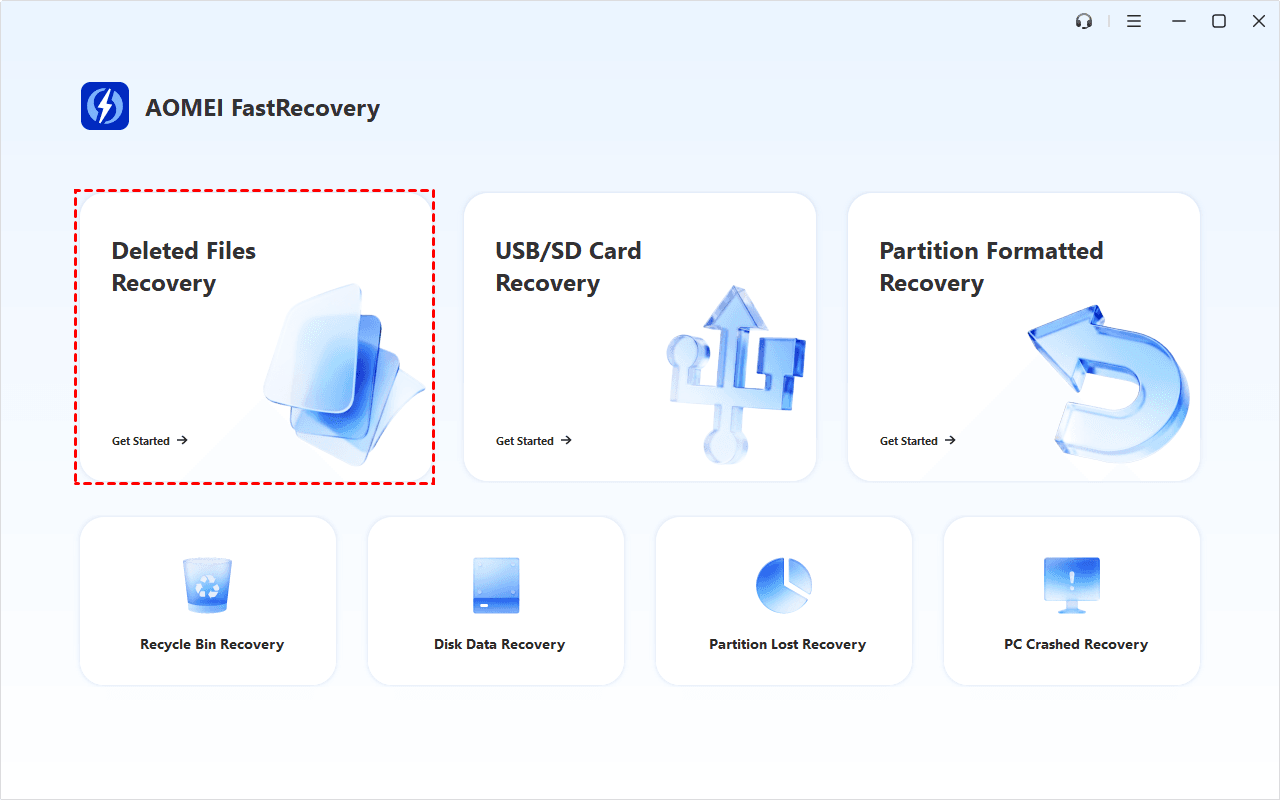
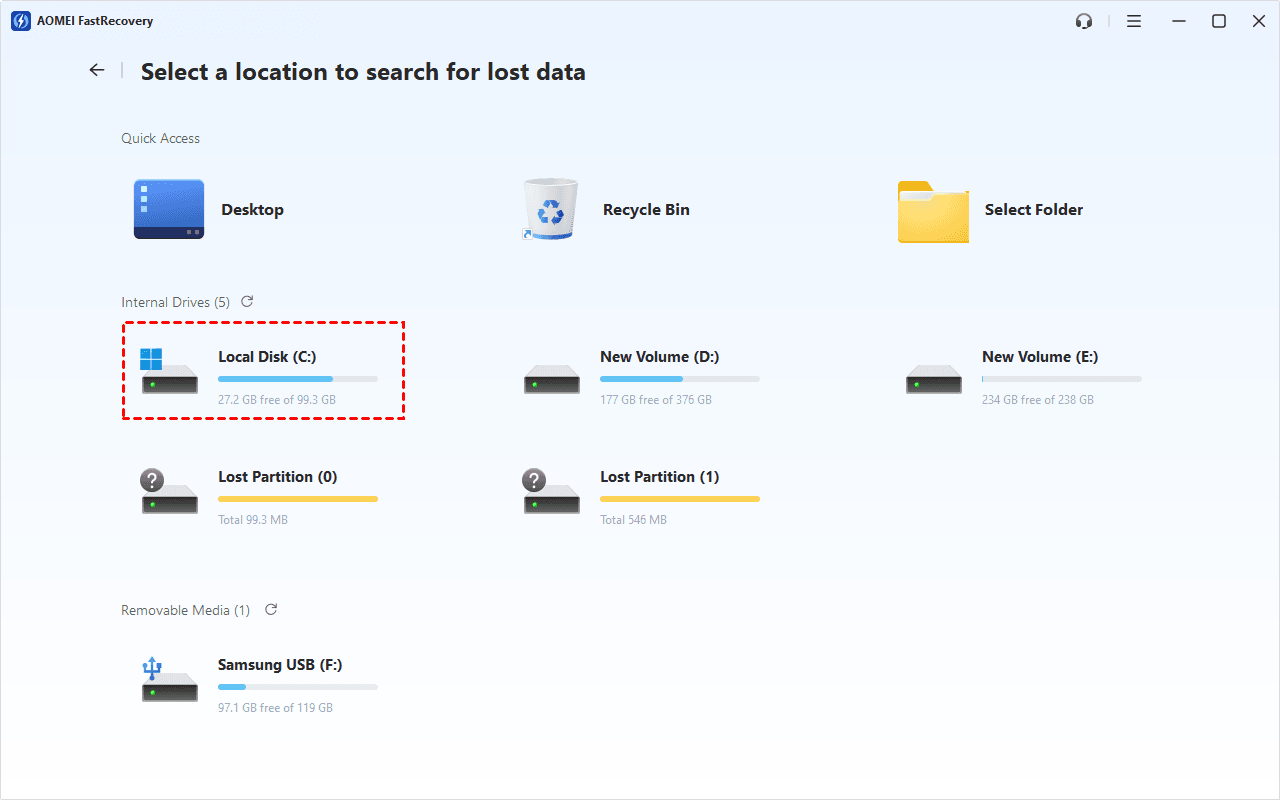
Step 2. Select the drive where the files were stored, and click Scan. Quick Scan runs by default.
Step 3. Browse the results by Type or Path, then search for file name or extension, or click the arrow next to Date modified, Type, Size, etc., to narrow the results.
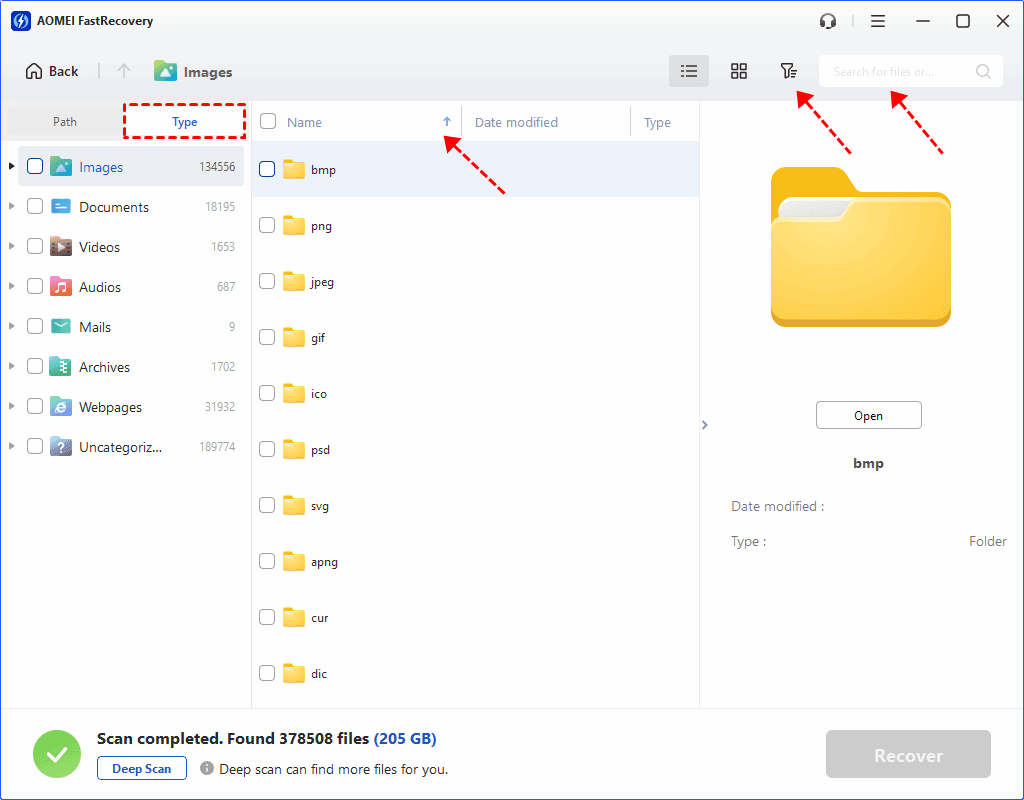
Step 4 (Optional). If files are missing, click Deep Scan for a more thorough search.
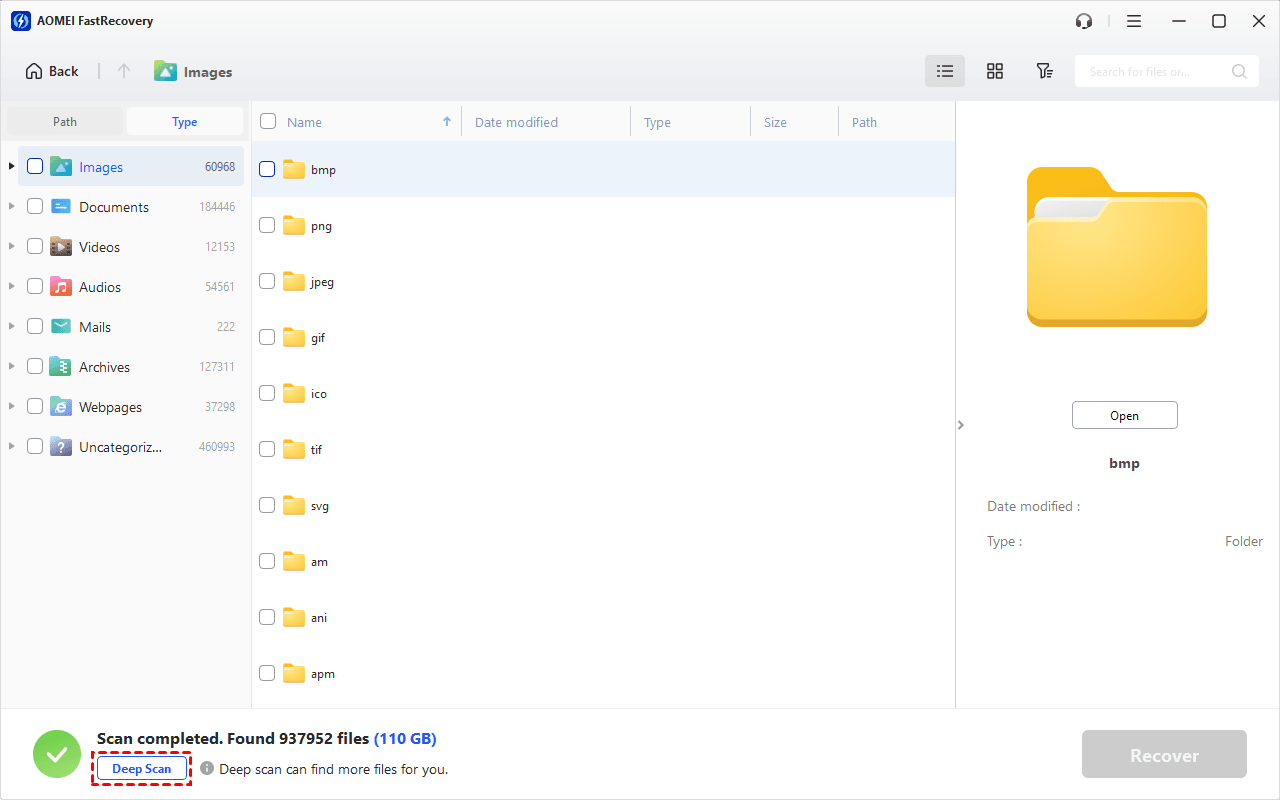
Step 5. Select the files you want and click Recover. Save them to a different drive; another folder on the original drive isn’t a safe destination.
Open the recovered files to check that they're complete, for example, make sure all pages are present in your documents. Overwriting and SSD TRIM can limit results.
- The free edition recovers up to 500MB; larger recovery requires an upgrade.
- If Windows cannot start, try the PC Crashed Recovery feature to creates a bootable USB and recover data from unbootable Windows 10, 11, 8, etc.
FAQs
Does this error mean my hard drive is failing?
No. The code identifies memory corruption involving a driver. Clicking, repeated disconnections, or detection failures require separate hardware investigation.
Why does the blue screen return after SFC repairs files?
The repaired files may not have caused the crashes. A defective driver or hardware problem can remain, so use recent changes and crash evidence to choose the next check.
What if none of these methods works?
Preserve available crash dumps and record what you tried. Ask your PC manufacturer or a qualified technician to investigate rather than repeatedly resetting Windows.
For pool corruption in file area, start with the strongest driver evidence and change one thing at a time. Recover files separately only when actual data loss makes that necessary.

 as a preferred
source on Google