




P2 Card Data Recovery: How to Recover Files from P2 Card Easily
You can find the best P2 card data recovery method among all of them, from data recovery software to service, OneDrive, CMD, etc. Scroll down 👇 to explore more.

By Ivy Updated on May 6, 2026


Panasonic P2, the high-definition video recording camera from Panasonic, captures MXF video file types and stores them on a P2 memory card, making it easy and efficient for users to edit them.
- It does not require file type conversion or any transcoding.
- Notably, P2 cards enable tapeless recording of various streams on solid-state flash memory, including DVCPRO-HD, DVCPRO25, DVCPRO50, DV, DVCPRO, and AVC Intra streams.
- In addition, you can also use it to store photos and audio files.
However, just like other SD cards, they are fragile and prone to data loss. Don't worry too much, we will describe several methods to recover data from P2 card, from which you can find the best one.
Can I Recover Lost Data from P2 Card?
Yes, in most cases, your lost data is recoverable, and there are several methods. Here are some possible reasons, with varying data recovery success rates.
- Accidentally deleted files on P2 cards.
- Format p2 cards unconsciously. Sometimes, when you connect this card, Windows will ask you to format the disk before using it.
- Take photos or videos with a low battery.
- Use the same card on different devices, or from one camera to another, without formatting in the new one.
- Plug the card reader into a virus-infected PC.
- Abruptly remove the card reader while transferring files, or files or folders are open.
- Insert a second P2 card without closing or removing the first one.
- Physical damage due to shock or drop.
Preparing for P2 Card Data Recovery
To get ready for P2 card data recovery, do the following:
- Stop using this card immediately, as long as you realize data loss, which may cause data overwriting. At the same time, it’s crucial to avoid adding new data to the P2 card or formatting it again.
- Prepare a P2 card reader for recovery: Prepare a P2 card reader and insert the P2 card into the reader gently, ensuring it's recognized. Meanwhile, handle the card carefully to avoid physical damage.
- Prepare a computer with recovery software: Download reliable software designed for recovering deleted or lost files on your computer, and be sure it's compatible with different memory cards.
By following these steps, you'll be well-prepared to perform P2 card data recovery.
However, every attempt reduces the success rate of data recovery. Please try data recovery software or services, with a high success rate.
2 Best Ways to Recover Lost MXF Files on P2 Card
Here we will introduce you to the top 2 methods with the highest success rate. Try Panasonic P2 card data recovery software if it's not severe physical damage.
Way 1: Use P2 Card Data Recovery Software 🥇
AOMEI FastRecovery is one of the best memory card data recovery software in Windows 7, 8, 10, 11, etc, and servers, which can recover deleted MXF video files from P2 cards successfully in 3 easy steps.
AOMEI FastRecovery- Recover deleted or lost MXF files from Panasonic P2 Cards, whether they are healthy, damaged, or formatted.
- It has a free edition that recovers up to 500MB.
- Integrate Quick & Deep Scan to find all recoverable data thoroughly.
- Support 1000+ data types, from videos to images, audio files, etc.
- Organize data by type and path, along with options to sort, search, filter, and preview files.
- Selectively recover files instead of all.
- Compatible with different types of memory cards, e.g., SD card, MicroSD card, XQD card, miniSD card, SDHC, etc., regardless of their brands.
 100% Secure
Step 1. Download and install the Panasonic P2 card data recovery software - AOMEI FastRecovery. On the main interface, click USB/SD Card Recovery.
Step 2. Select the P2 card saved deleted files, and click Scan. It will start the deep scanning process to find all recoverable data.
Step 3. Under the Type section, specify the Video data type and expand it to find MXF files. You can sort them or search the name for quick recovery.
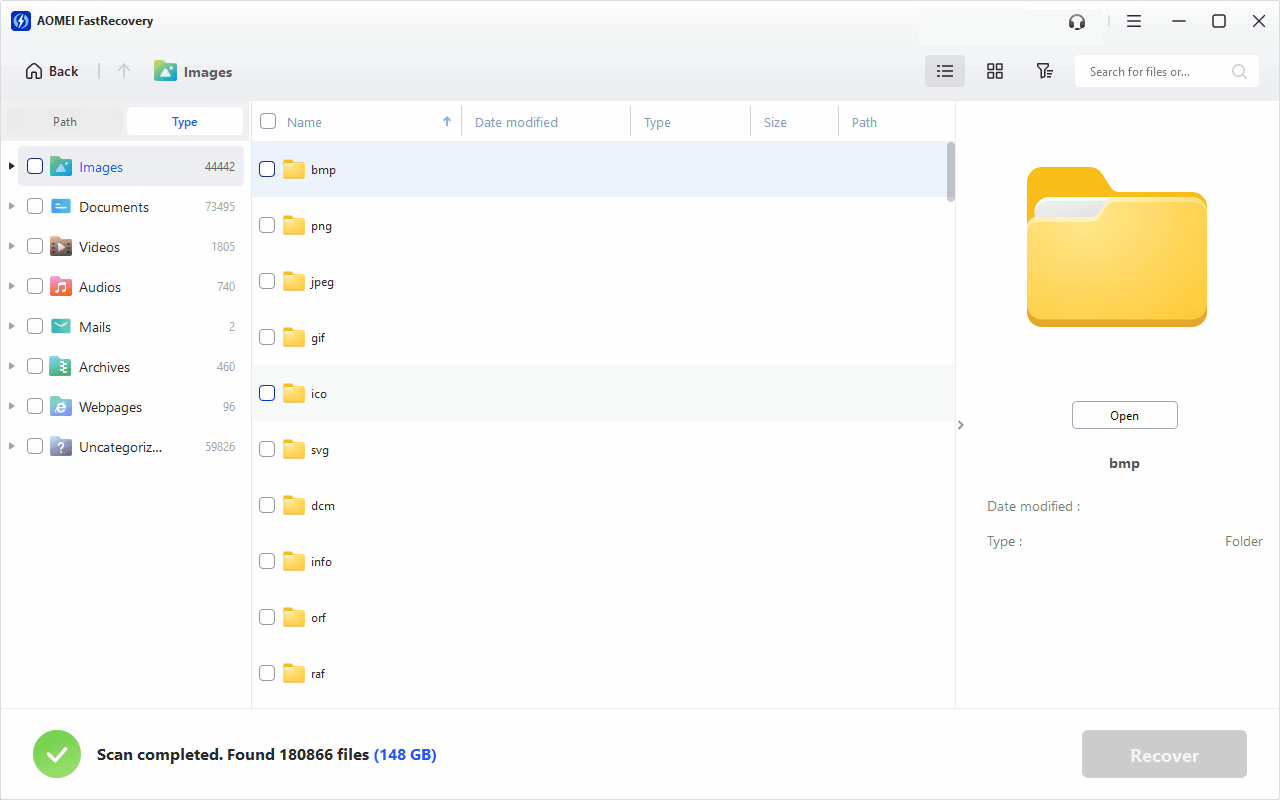
Step 4. Select the mxf files and click Recover. Please select a new location instead of the original location to prevent potential data overwriting.
-
You can also locate deleted files by Path if you remember this.
-
You can perform P2 card recovery for free, up to 500MB. To recover more data, please upgrade to the advanced edition of AOMEI FastRecovery.
In addition, you can still use it to recover MXF, MOV, MP4, MKV, HD, JPG, TIF, GIF, AMR, WAV, AC3, MP3, etc., from SD cards, USB drives, or external disks.
Way 2: Seek Help from a Professional Data Recovery Service
If your P2 card has physical damage, such as shock, overheating, etc., it may become unreadable or not show up in File Explorer. At this time, you’d better seek assistance from a reliable data recovery service. They usually offer highly skilled technicians with professional expertise and advanced recovery equipment for data recovery.
You can do your research to find and contact a professional data recovery service, e.g., Geek Squad, DriveSaver, SalvageData, etc., for data recovery. The overall steps are:
- claim the disk problems and offer some basic information, such as email address, phone, etc.
- Then, they will evaluate your disk and make a quote, asking for your opinion.
- If it’s ok, they will start the recovery task and return your data with the final bill.
3 Other Ways to Recover Lost Files from P2 Card
You can also try the following 3 methods to recover lost files from P2 card.
Way 1: Check Your OneDrive
Windows 10 and 11 will automatically backup your files to OneDrive and save a copy of them online as long as you log in with your Microsoft account and set up the backup task. So you can check if your files are there and download them from onedrive.com.
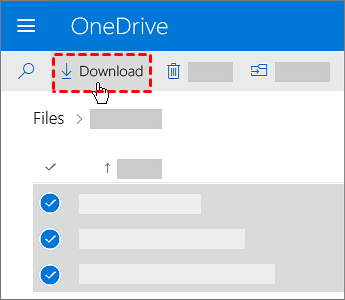
Step 1. Go to https://onedrive.com/ and log in with your Microsoft OneDrive account.
Step 2. Navigate to the folder containing deleted files. Select the files or folders you want to restore and click the Download button to retrieve deleted files from P2 card.
Way 2: Try the Atrrib Command
If your files suddenly disappear, they may be hidden instead of deleted. To exclude this possibility, try the attrib command and show hidden files or folders.
Step 1. Connect your P2 card to a PC using a card reader. Type cmd in the search box and select Run as administrator.
Step 2. In the Command Prompt window, type attrib -h -r -s /s /ddrive letter:\*.* and press Enter to show hidden files or folders. Please replace the drive letter with your own.
Way 3: Run a Full Scan for Viruses
You may insert a P2 card into a virus-infected PC, which will hide all your files. To address this issue, avoid using the card reader in the infected PC and thoroughly scan your PC with reliable antivirus software. Here, take Windows Defender as an example.
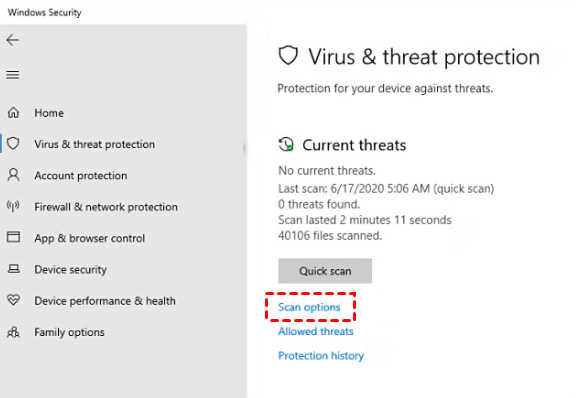
Step 1. Go to Windows Settings > Update & Security > Windows Security and select Virus & threat protection.
Step 2. Click the Scan options under Current Threats.
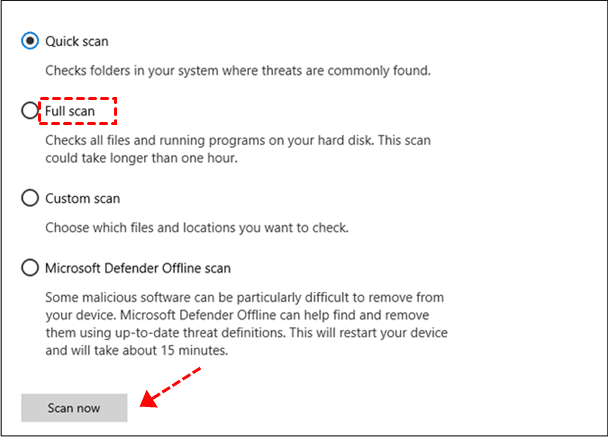
Step 3. Check the Full scan and click Scan now. It will start to scan and remove viruses currently on the P2 card.
Bonus Tips to Prevent Data Loss on P2 Card
You may not want to lose MXF videos, images, or audio files on the P2 card. But sometimes you will experience data loss due to bad habits, accidental deletion, etc. To prevent this from happening again, here are some useful tips you can follow:
- Double-check before deleting anything or formatting the P2 card.
- Always back up your files or folders regularly. Use reliable backup software - AOMEI Backupper Standard and an external hard drive to set a scheduled backup task.
- Scan your PC regularly with anti-virus software, such as Windows Defender.
- Avoid using a P2 card with a low battery or on different devices.
- Don’t remove P2 cards while transferring files or when they are open.
- Wait until your image is completely written to the P2 card before turning off the camera or taking another image.
Final Words
This is a Panasonic P2 card data guide with multiple methods. You can choose them based on your scenarios. Among them, the data recovery software can resolve most of the problems, except for physical damage.
However, there is no method that is 100% guaranteed to get your data back. To protect your data safely, it’s recommended to schedule automatic backup of your files daily, weekly, or monthly, depending on how often you change them.

 as a preferred
source on Google
as a preferred
source on Google