



How to Recover an MBR Partition Table in Windows
This MBR partition table recovery guide shows how to retrieve important files from a readable disk before writing changes, verify and restore original partitions, and repair Windows boot code if a legacy BIOS system still needs it.

By Ivy Updated on November 17, 2026


Disk Management still lists your disk, but the space where a volume should be is marked Unallocated. Windows may also ask you to initialize the disk. If you need the files on it, leave it as is for now - recover data to another drive before start MBR partition table.
Check What Windows Can Still See
On an MBR disk, the partition table is stored in the first logical sector (LBA 0). Its entries record where each partition starts and how large it is. If an entry is missing or damaged, Windows may be unable to locate the original volume even when the data is still on the disk.
Check which situation matches yours, then pick a method below:
|
👁🗨 What you see |
📍 Where to start |
|---|---|
|
Disk Management detects the disk, but the original volume is missing. |
Retrieve the files you still need |
|
The space holding the MBR partition table shows as "Unallocated" |
Search the disk for partition with missing MBR partition table. |
|
Windows won't start, with an "Invalid partition table" error, or a black screen with a blinking cursor |
Repair master boot code using bootrec |
If File Explorer prompts you to initialize the disk, dismiss it and recover data from drive not initialized first. Don't format the disk or create a new volume while you still need the data inside it.
How to Recover Missing MBR Partition Table
AOMEI FastRecovery is a dedicated Windows data recovery tool whose Partition Recovery feature works for MBR partition table recovery. Better yet, it recovers the partition and the data inside it together - no separate data recovery needed.
It offers two search modes:
- Fast Search is recommended because it can find deleted or lost partitions quickly.
- Full Search scans the disk sector by sector and generally takes longer. Only use this when Fast Search fails.
Step 1. On the main interface of AOMEI FastRecovery, click Disk Data Recovery > Partition Recovery.

Step 2. Select the entire affected disk by its number, capacity, model, and layout. Click Next to continue.
Step 3. Select Fast Search to find missing partition quickly and click Next. If the partition you need is still missing, go Back and try Full Search. It examines the disk more thoroughly.
Step 4. Compare the capacity, file system, starting and ending sectors, and partition type with what you know about the original partition. Select the one holding partition table and click Proceed.
When recovery finishes, check Disk Management for the volume. Open a few important files to confirm you can access them.
Only Need the Data? Recover It First
AOMEI FastRecovery is primarily a data recovery tool, whatever the scenario. Its Partition Lost Recovery feature can recover data from unallocated partition, running a Deep Scan automatically for a more thorough search.
It supports 1,000+ data types, from documents to images, videos, audio, and more. To find deleted files quickly, start with Type or Path, depending on what you know. Search, sort, and thumbnail previews help narrow down the results.
- Download AOMEI FastRecovery installer to a different drive and install it on a drive other than the lost partition. Otherwise, new data can overwrite what's on that partition.
- The free edition recovers up to 500 MB. Beyond that, prioritize the files you care most about or upgrade for more.
Step 1. Open AOMEI FastRecovery after install and select Partition Lost Recovery.
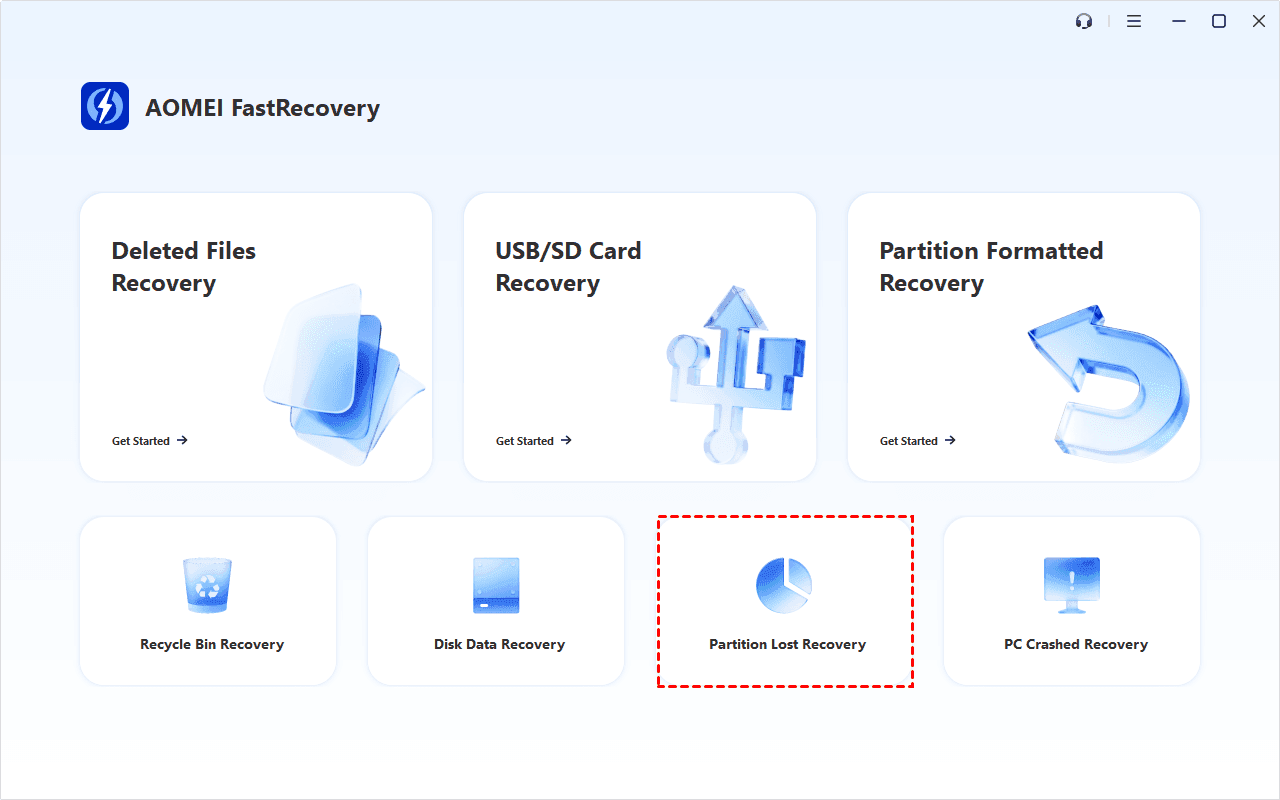
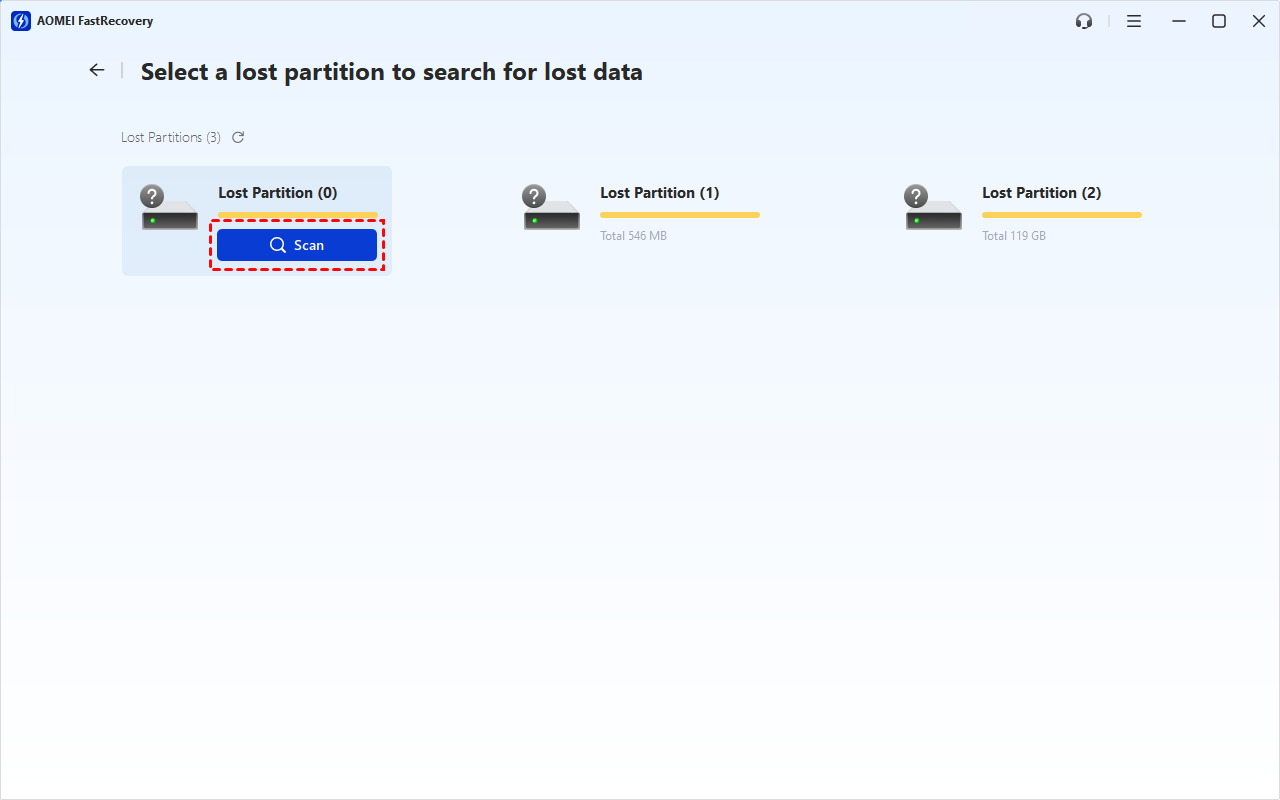
Step 2. Select the lost partition using its capacity and disk info, then click Scan. This mode uses Deep Scan by default.
Step 3. To find files quickly, start with Path or Type, whichever fits what you know. Under Type, select the data types you want to recover; Under Path, expand Deleted Files to find what you're looking for. Start with the files you can't replace.
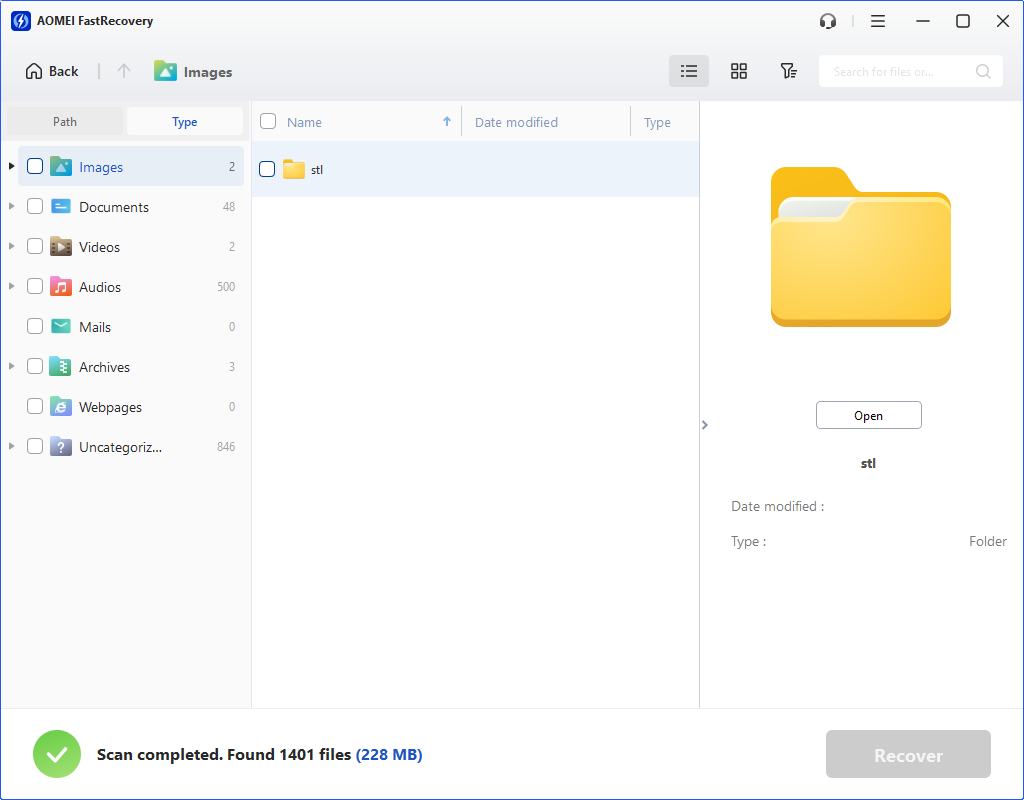
- You can go beyond Path or Type if you know the name or extension. Just search for it to find what matters most.
- Click the column headers to sort long result lists, making it easy to find deleted files by date, type, name, and more.
Step 4. Select the files you want and click Recover. Save the files to a different physical drive to avoid data overwriting.
Open a few of the most important files from the destination to check that the copies work.
What If Windows Still Won’t Boot?
If your computer won't boot and you see an error like "Invalid partition table", a sign of damaged master boot code, try the bootrec command to repair it. You may also need Windows installation media to start Windows.
Step 1. Plug the Windows installation USB into the problematic PC and restart it. Press the BIOS/UEFI key to enter BIOS setup, move the USB drive ahead of the internal drive in the boot order, then save and restart.
Step 2. Once Windows Setup loading, select Repair your computer, then go to Troubleshoot > Advanced options > Command Prompt.
Step 3. In the Command Prompt window, type the following commands in order. Press Enter after each line.
- bootrec /fixmbr
- bootrec /fixboot
- bootrec /scanos
- bootrec /rebuildbcd
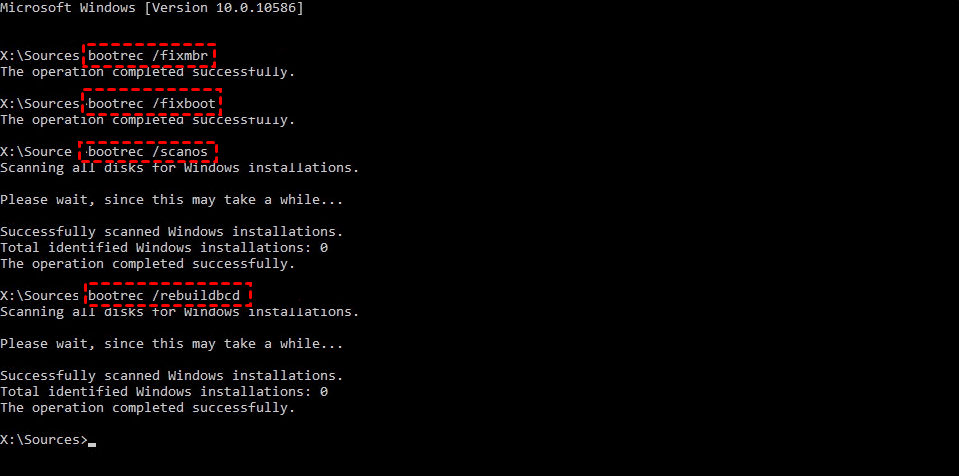
Step 4. Type exit and press Enter. Then, restart your computer and check if Windows starts from the system disk.
FAQs About MBR Partition Table Recovery
Does Unallocated Mean the MBR Partition Table Is Damaged?
Unallocated means Windows currently sees no partition covering that space. A missing or damaged partition entry is one possible cause. Check the disk’s previous partition style and compare the scan results with what you know about the original layout.
Can I assign a drive letter to unallocated space?
Drive letters can be assigned to eligible existing volumes. If the area is Unallocated, Windows has no volume there to receive a letter. Search for the original partition before making changes to that space.
Can a partition table backup restore my files?
A matching partition table backup can help Windows find the original volumes again if their contents are still on the disk. The table backup stores the layout. Your file contents must come from the original disk or a separate data backup.
Conclusion
If important files are missing from your backup, recover them to a separate drive before writing changes to the disk. After MBR partition table recovery, confirm that Windows recognizes the original volumes and open a few key files to verify access. If a legacy BIOS/MBR system still won’t start and the master boot code is damaged, repair it with bootrec /fixmbr.

 as a preferred
source on Google