




How to Get Back Videos Deleted from Recycle Bin
To get back videos deleted from Recycle Bin, first identify whether a usable copy still exists. This guide explains when to restore a backup, when to scan the original drive, and how to check recovered videos.

By Ivy Updated on November 5, 2026


You can sometimes get back videos deleted from Recycle Bin, even after emptying it. Recovery depends on whether a backup exists or the original video data remains available on the drive. Emptying the Recycle Bin removes the normal Restore option, but it doesn’t tell you whether another recovery method will work.
If the videos are still visible in the Recycle Bin, restore them directly. For videos already removed, use an existing backup or consider AOMEI FastRecovery to scan for recoverable files. The guide below helps you pick a method that fits what you actually have, so you don't waste time on ones you can't use.
Which Recovery Method Fits Your Videos?
Choose by what remains available. You don’t need to complete every method in order.
| 🎒 What you have | 🏆 Best Method | 🔑 Key requirement |
|---|---|---|
| Videos still listed in the Recycle Bin | Method 1: Recycle Bin Recovery | Files haven’t been removed from the Recycle Bin |
| Videos removed from the Recycle Bin | Method 2: Scan drive with AOMEI FastRecovery | Recoverable video data remains on the drive |
| A File History copy | Method 3: Restore from File History | The video folder was backed up before deletion |
| Videos previously stored in OneDrive | Method 4: Check Your OneDrive | An online copy or recoverable deleted copy exists |
| An older Windows file backup | Method 5: Use Backup and Restore | The backup contains the deleted videos |
If you get the "deleted files too big for Recycle Bin" error when deleting files, those files are deleted permanently. Directly skip to Method 2.
Method 1: Restore Videos Still in Recycle Bin
👍 Best for: Videos you can still see in the Recycle Bin.
When you delete a video through File Explorer, Windows usually moves it to the Recycle Bin. If it’s still listed there, you can restore deleted videos to the original folder.
Step 1. Open Recycle Bin from the desktop. Search for the video filename, or sort by Date Deleted. Check Original Location to distinguish similarly named recordings.
Step 2. Select the videos, right-click them, and choose Restore. Afterward, open their original folder and play the restored videos.

If the files aren’t listed, reopening the bin won’t reveal videos already removed from it.
Method 2: Get Back Videos Deleted from Recycle Bin with AOMEI FastRecovery
👍 Best for: Videos removed from the Recycle Bin, but you don't have an available copy.
AOMEI FastRecovery is a powerful video recovery software that can scan and get back videos deleted from Recycle Bin in Windows 7, 8, 10, 11, etc., and Windows Server. Its dedicated Recycle Bin Recovery feature can find files still in the Recycle Bin, as well as files deleted from the Recycle Bin.
 AOMEI FastRecovery
- 🧩 Scenario matching: Offers dedicated modes for different situations, whether it's empty Recycle Bin, deleted files, formatted drives, etc.
- ⚡ Two Scan Modes: Quick Scan finds deleted videos fast, while Deep Scan offers a more thorough search.
- 🎬 Wide Range of Video Formats: Recover deleted or lost videos, including MP4, MOV, AVI, and more.
- 🗂️ Flexible browsing: Browse by Type or Path, then use search or sort to narrow down the results.
- 🎁 Free recovery: The Free edition provides thumbnail preview and saves up to 500MB.
 100% Secure
Step 1. Open AOMEI FastRecovery after installing and select Recycle Bin Recovery.
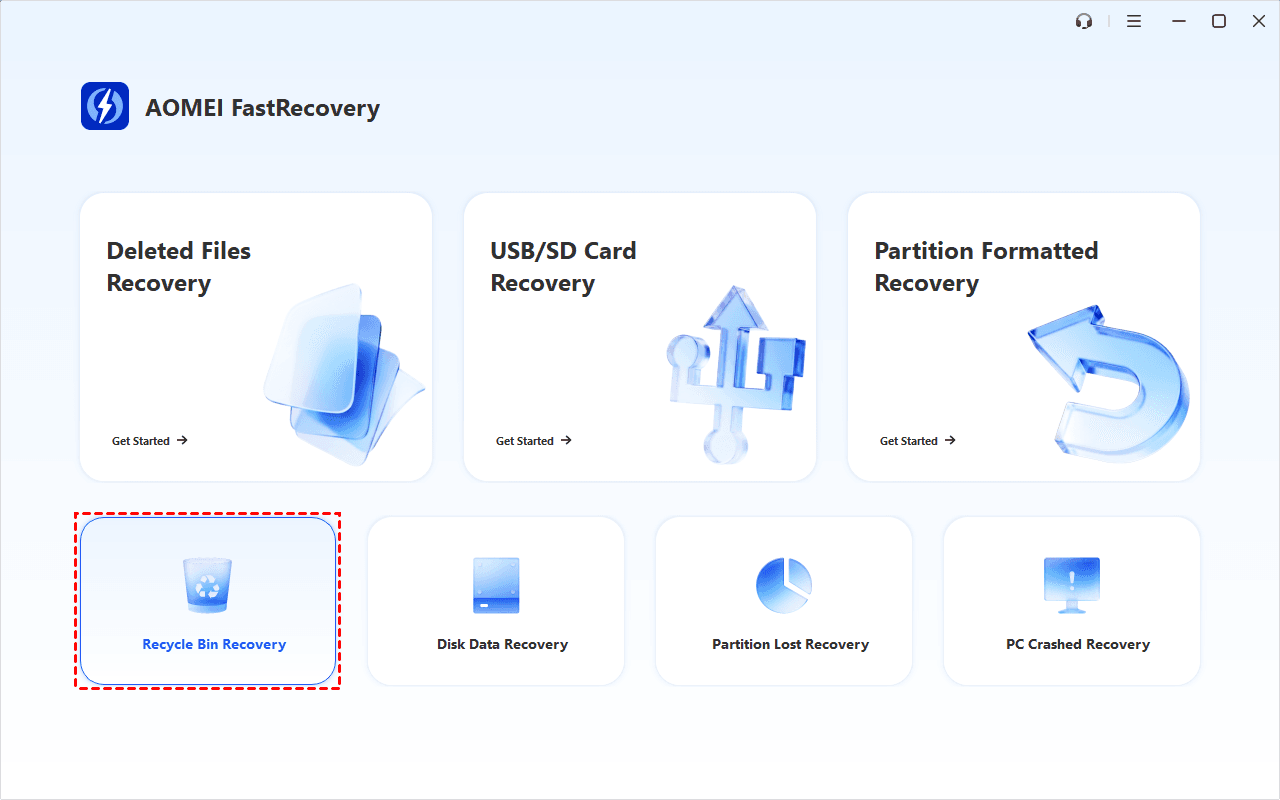
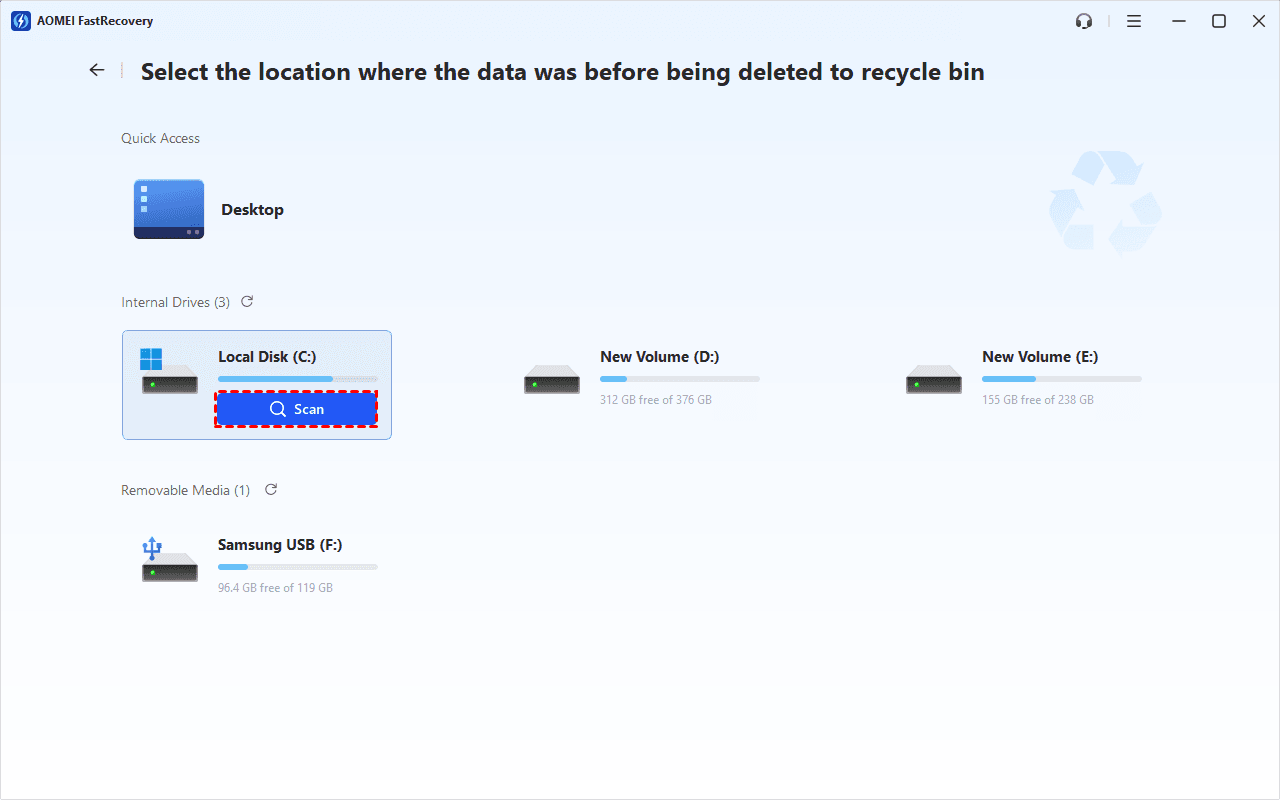
Step 2. Select the drive where the videos were stored before deletion and click Scan. It will start Quick Scan automatically to find deleted videos.
Step 3. Under Type, expand Videos to see the available formats and pick the one you want. Or search by file name or extension, such as .mp4, .mov, .avi, etc., to find delete videos faster. Clicking the column headers (size, date modified, etc.) helps identify the recordings.
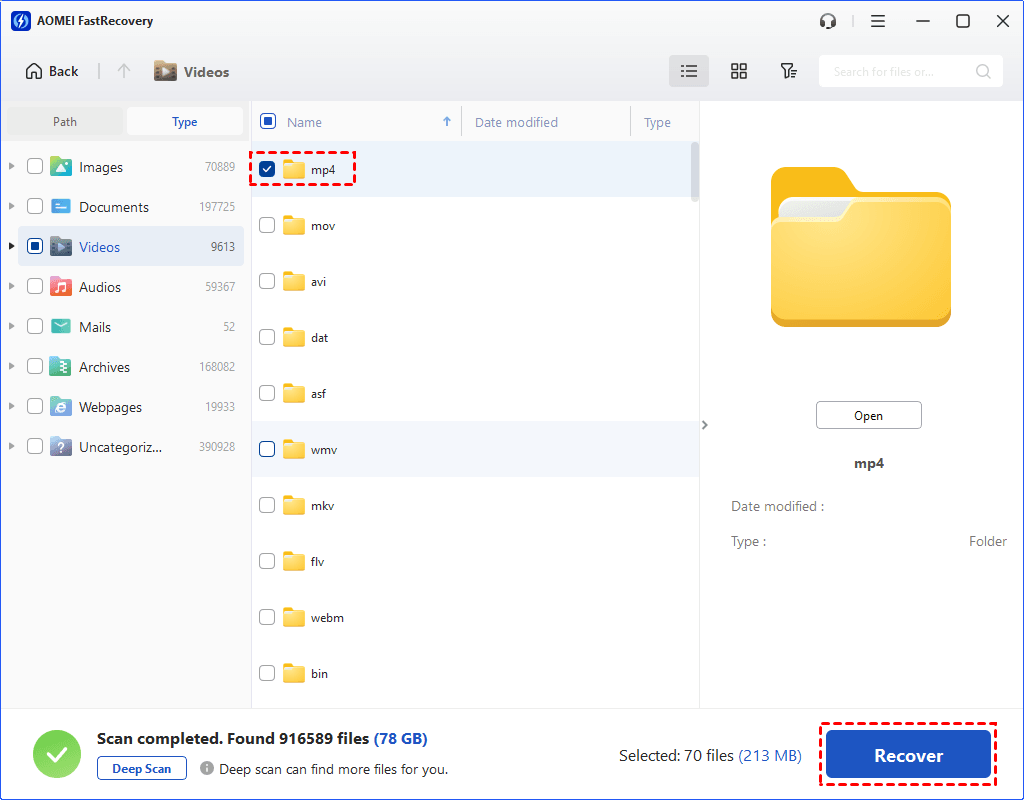
Step 4. Select the videos and click Recover. Save them to a different drive from the one being scanned; another folder on the original drive isn’t a safe destination.
-
If it doesn’t find the videos you need, click Deep Scan to search more thoroughly. This can take longer.
-
The free edition can recover up to 500MB. Recovering more requires an upgrade.
Finding a filename doesn't guarantee the full recording survived. After recovery, run the playback checks later in this guide.
Method 3: Recover Videos After Emptying Recycle Bin with File History
👍 Best for: A video folder included in File History before deletion.
File History is a Windows backup feature that regularly saves copies of your Users folders. If it backed up your videos before deletion, they may still be there, even after you empty the Recycle Bin. You can browse them in the Previous Versions interface and retrieve deleted videos from there.
Step 1. Connect the drive containing your File History backup. In File Explorer, locate the folder that contained deleted videos. Right-click it and select Restore previous versions.
Step 2. Choose a folder version from before deletion. Expand Open and select Open in File History to check for the videos.
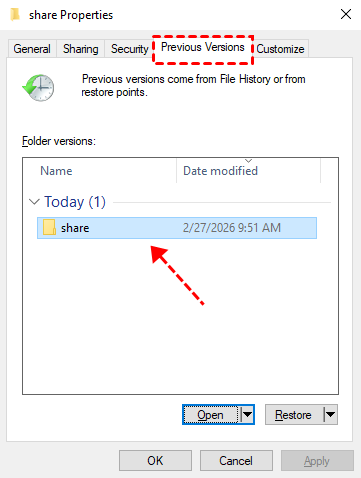
Step 3. Select the videos you need and click Restore > Restore to to save them to a folder on another drive and keep the current folder unchanged.
An empty Previous Versions list means no usable version is available. Turning on File History now won’t bring back videos deleted before the backup began.
Method 4: Restore Deleted Videos from OneDrive
👍 Best for: Videos previously uploaded or synced to OneDrive;
Videos deleted from the Windows Recycle Bin may still be recoverable online if they were uploaded or synced to OneDrive. Check both the OneDrive folder and its online Recycle Bin.
Step 1. Sign in to OneDrive in your browser using the account that stored the videos.
Step 2. Search your video files. If it remains available, select it and choose Download.
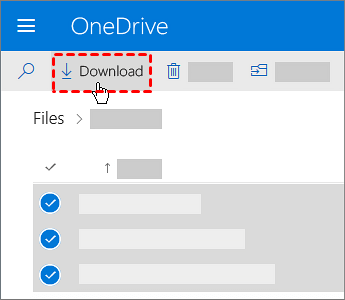
Step 3. If not, click Recycle bin to find it. Then, select the video, and click Restore to get it back.
Method 5: Restore Permanently Deleted Videos from a Windows Backup
👍 Best for: An existing backup created with Backup and Restore (Windows 7) that contains the videos.
Backup and Restore (Windows 7) is an older Windows backup tool that can back up and restore your Users folder. If your videos are in one of those folders, you can use it to restore permanently deleted videos.
Step 1. Connect the storage device containing the backup. Open Control Panel > System and Security > Backup and Restore (Windows 7).
Step 2. Click Select another backup to restore files from, then select the backup containing your videos.
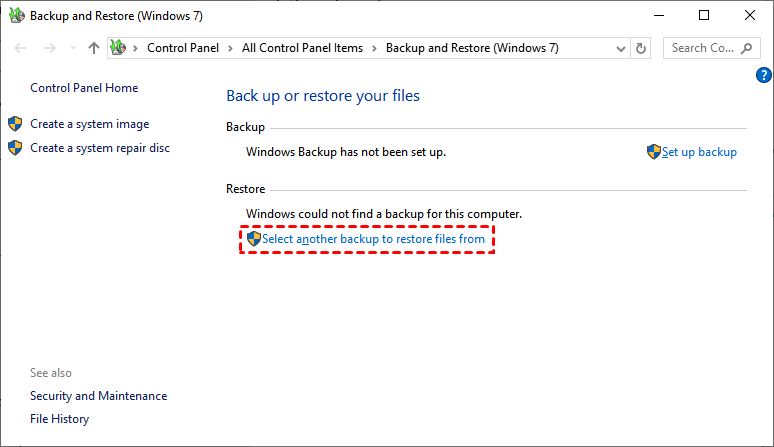
Step 3. Follow the restoration wizard to locate and select the video files. Remember to select a different drive as destination. Otherwise, the videos on original drive may be overwritten.
Backup and Restore also works in Windows 7, see recovering deleted videos on Windows 7.
Check That the Recovered Videos Are Complete
Before treating recovery as finished, check the actual recordings:
- Open each important video and compare its duration with what you remember.
- Play beyond the opening seconds, then jump to the middle and near the end.
- Check for frozen frames, missing sections, and audio that stops or falls out of sync.
A file with the expected name and size may still be incomplete. Keep any working copy on a separate device before deleting recovery results or reusing the original drive.
FAQs
Can I recover videos deleted from Recycle Bin for free?
Yes, if a usable backup or cloud copy exists. AOMEI FastRecovery also offers up to 500MB of free recovery. A single long recording may exceed that allowance.
Why do recovered videos have filenames but won’t play?
Some video data may be missing, overwritten, or otherwise unavailable. Recovery software can sometimes find file info even when the full recording can't be restored. It lets you target specific video types, say, deleted FLV video recovery, but finding one doesn't guarantee it will play.
Does emptying Recycle Bin erase videos immediately?
It removes the normal restoration path and makes storage space available for reuse. Some data may remain recoverable, but SSD TRIM and later drive activity can make it unavailable. There is no guaranteed recovery window.
Conclusion
To get back videos deleted from Recycle Bin, restore an available copy or scan the original drive for recoverable data. Choose the method whose conditions match your situation, then check that the recovered recordings play completely before considering the job finished.

 as a preferred
source on Google