




Best Way to Recover CHK Files to The Original Format
The best way to recover CHK files depends on whether they contain complete files or fragments. Learn when renaming helps, where UnCHK fits, and when to recover missing originals from the source drive.

By Ivy Updated on October 26, 2026


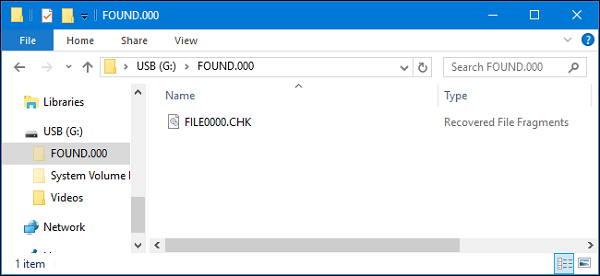
You open a FOUND.000 folder and find files named FILE0000.CHK, FILE0001.CHK, and so on. The names don’t reveal their original formats, and double-clicking them doesn’t open the files as expected.
The best way to recover CHK files depends on what they contain. A complete file may open after you restore its correct extension. An incomplete fragment needs more than a name change, and recovering the original file from the source drive may be a better option.
Stop saving new files to that drive and copy the FOUND.000 folder to another drive before testing. Then use the guide below to choose between renaming copies, identifying unknown formats, and scanning for missing originals.
Choose a Method Before Changing Extensions
CHKDSK can save lost allocation chains as .chk files during file system repair. A CHK file may contain usable file data, but its extension does not identify the original format.
Choose according to what you have:
| 🎒 What you have | 🛠️ Suitable method | 🔑 Key requirements |
|---|---|---|
| A few CHK files with a known original format | Method 1: Rename individual copies | Test one file first |
| Several CHK files confirmed as the same format | Method 2: Use CMD or BAT | Keep mixed formats out of the batch |
| Numerous CHK files with unknown formats | Method 3: Try UnCHK conditionally | Legacy compatibility and format recognition apply |
| Missing originals and unusable CHK results | Method 4: Scan with AOMEI FastRecovery | The source drive must remain readable |
An existing intact copy is also worth checking. A previous import or backup may already contain the original files.
Method 1: Test a Known Extension in File Explorer
👍 Best for: A small number of CHK files whose original type you know.
Start with one copied file. For example, a folder previously containing only JPEG photos gives you a reason to test .jpg. A folder containing documents and videos does not.
Step 1. Open the folder containing chk files on another drive. In Windows 11, select View > Show > File name extensions. In Windows 10, enable File name extensions on the View tab.
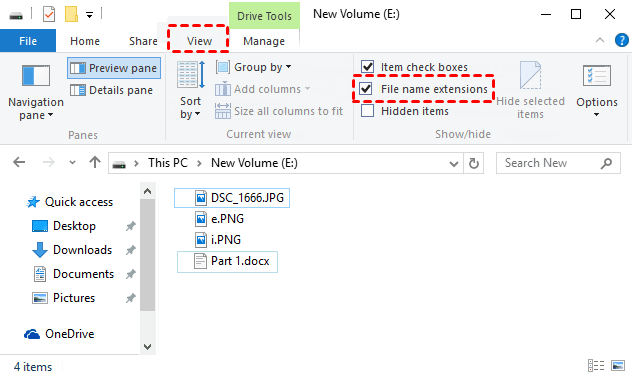
Step 2. Right-click one CHK copy and choose Rename. Change FILE0000.CHK to FILE0000.jpg, using the known original extension.
Step 3. Accept any prompt and open it to check if the file is complete.
- For a photo, look for missing areas or display errors.
- For a document, check that all pages are present.
Method 2: Batch Rename CHK Files with CMD or BAT
👍 Best for: Renaming multiple CHK copies when you know they all had the same original file extension.
Test one copy using Method 1 first. Only batch rename files with the same known original format. Changing extensions does not repair missing or damaged data.
Batch Rename CHK Files in CMD:
Step 1. Copy the CHK files to a dedicated folder on another drive. Keep an untouched copy elsewhere. This example uses E:\CHK-Copies.
Step 2. Type cmd in the Search box and select Command Prompt > Run as administrator. Enter the following commands and press Enter.
- cd /d "E:\CHK-Copies"
- dir *.chk
- ren *.chk *.jpg
- Replace the example path with the actual folder where your .chk files are saved and verify the list contains only the files you want to change.
- Replace .jpg with the known original extension. If you're dealing with a batch of mixed formats, don't apply the same extension to all of them.
Open the renamed files in their usual app and check that they are complete.
Save the Commands as a BAT File:
Step 1. Prepare a dedicated folder containing CHK copies with the same known original extension. Store this folder on another drive and keep an untouched copy elsewhere.
Step 2. Open Notepad and paste:
- @echo off cd /d "E:\CHK-Copies" || exit /b
- ren *.chk *.jpg
- pause
Replace E:\CHK-Copies with the acutual folder where your .chk files are saved.. Replace .jpg with the known original extension. The script stops if it cannot open the specified folder.
Step 3. Select File > Save As. Set Save as type to All files, enter rename-chk.bat, and save it on the drive containing your CHK copies.
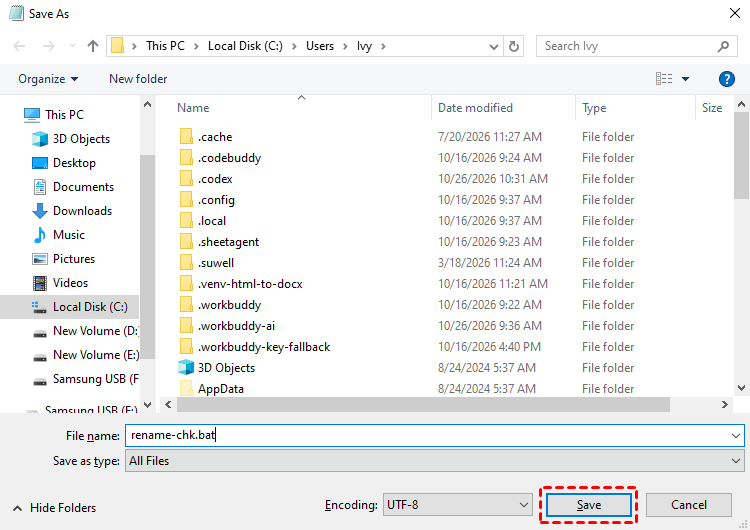
Step 4. Double-click rename-chk.bat to run it. Read any messages in the command window before pressing a key to close it.
Method 3: Identify Unknown CHK Files with UnCHK
👍 Best for: Numerous CHK files with unknown types in a compatible environment.
UnCHK checks what format a CHK file originally used, then creates a copy with the matching extension. You can choose the source folder and where to save the results. However, it cannot restore the original filename, and the recovered file may still be incomplete or fail to open.
Step 1. Download and install the UnCHK software on your computer and run it.
Step 2. Select the folder containing your CHK copies. Choose a separate output folder for the identified files.
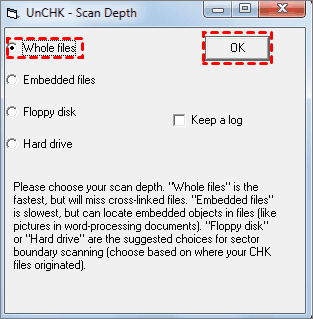
Step 3. Choose the Whole files option to scan and click on OK. After recovery, check the resulting files in their normal applications.
Method 4: Recover Missing Originals Files with AOMEI FastRecovery
👍 Best for: Recovering lost original files when the CHK copies cannot be opened or contain incomplete data.
AOMEI FastRecovery is an easy-to-use Windows data recovery software that can scan the device where the original files were stored. It offers another option when the .chk copies are unusable.
 AOMEI FastRecovery
- ♻️ Deleted Files Recovery: Start a Quick Scan to find deleted files quickly, with a Deep Scan available for a more thorough search.
- 📚 1000+ file types: Search for original files across documents, images, videos, audio files, archive, and more formats.
- 🔎 Flexible browing: Browse by Type or Path, then use search, sort or filter to narrow the results.
- 🎁 Free to Try: Recover up to 500MB for free. Need more? Upgrade for unlimited photo recovery.
 100% Secure
Step 1. Download and install AOMEI FastRecovery on a different drive from the one containing the original files. Open the program and select Deleted Files Recovery.

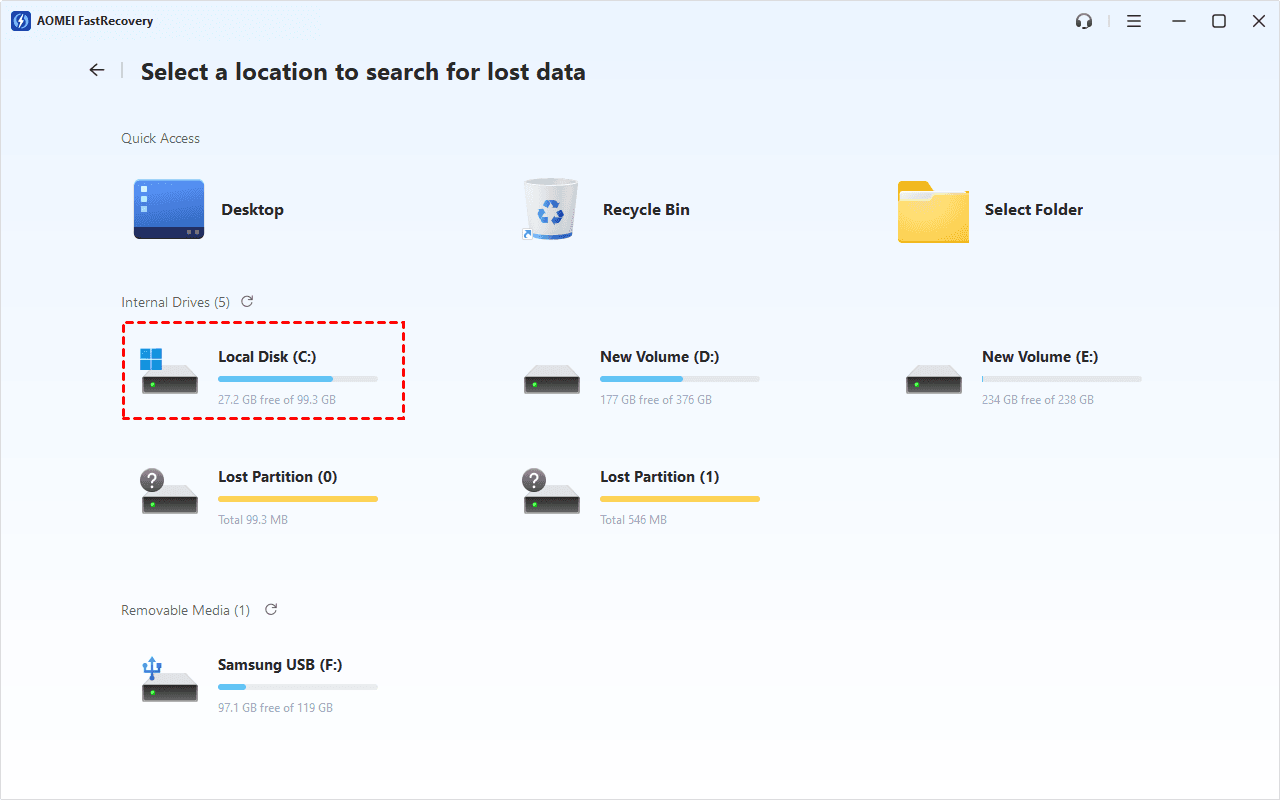
Step 2. Choose the partition where the original files were stored, then click Scan.
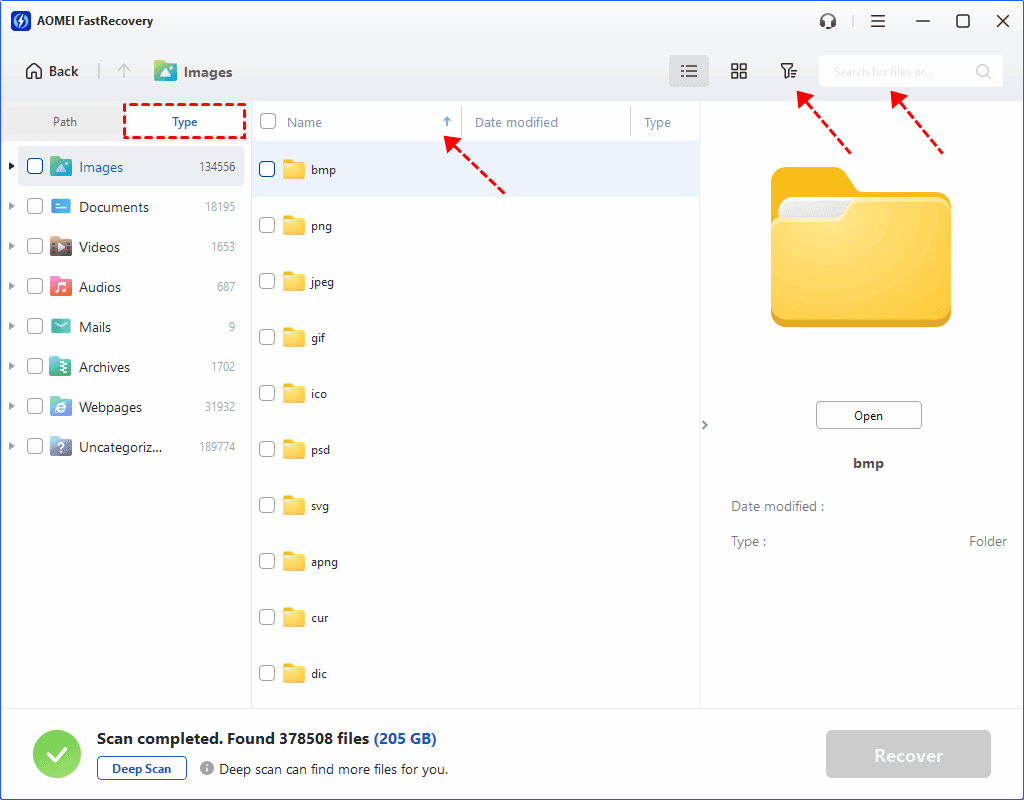
Step 3. Review the default Quick Scan results. Search for file name or its original extensions such as .jpg or .pdf, rather than restricting the search to .chk.
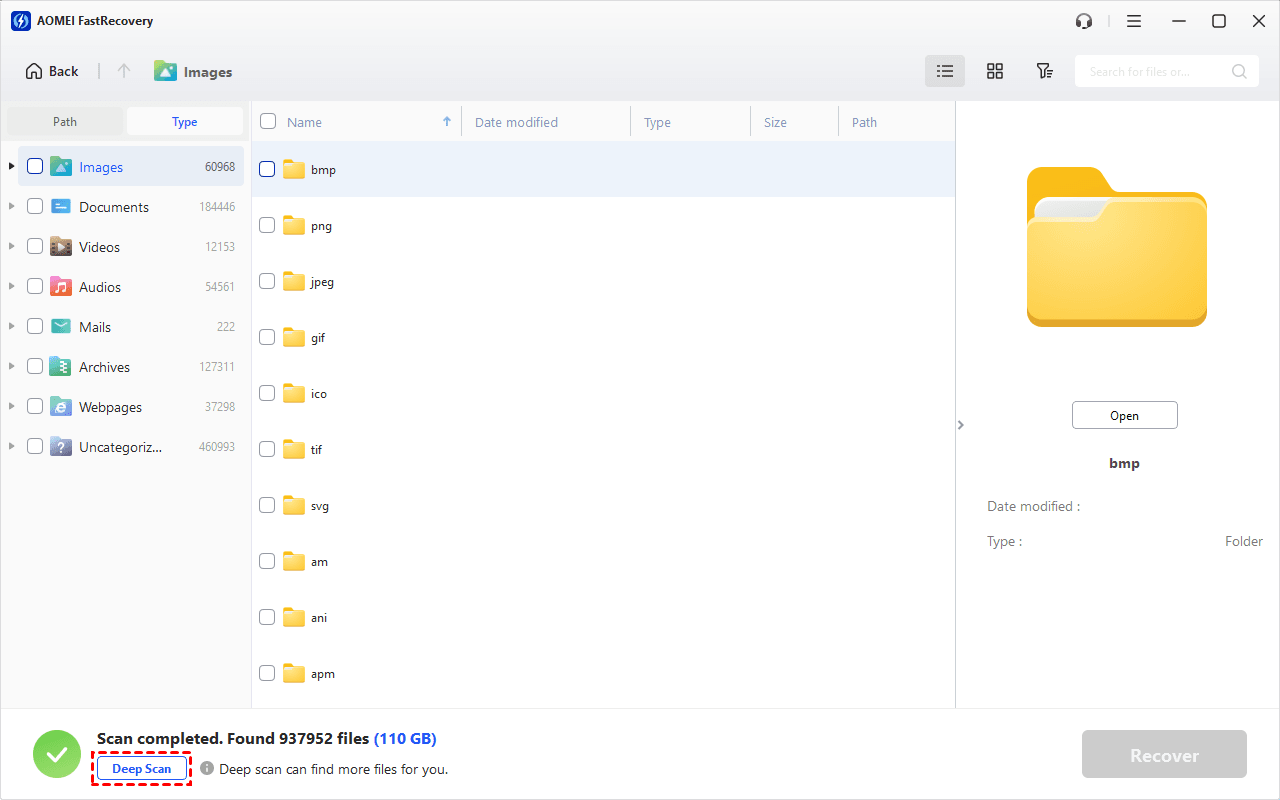
Step 4. Click Deep Scan if the original files are missing from the results. This searches more thoroughly and may take longer.
Step 5. Select the original files and click Recover. Save them to another drive. Another folder on the same source drive is not a separate destination.
- The free edition recovers up to 500MB. Recovering more requires an upgraded edition.
- It also applies to different data loss scenarios, such as recover deleted files from USB drive, recover files from formatted hard drive, etc.
What If the Recovered Files Still Do Not Open?
A renamed file may remain incomplete. Try opening another untouched CHK copy with the correct extension, but avoid repeatedly guessing extensions across the entire folder.
Check results according to the format. Play videos through several points, check spreadsheets for missing sheets, and open documents to confirm no pages are missing.
Scanning cannot guarantee recovery after overwriting or SSD TRIM. A clicking or repeatedly disconnecting drive needs professional assessment rather than repeated software scans.
FAQs
Can CHK files recover their original names?
Changing extensions does not restore original names. UnCHK also does not recover them. A storage scan may find names when relevant file-system records remain, but this is not guaranteed.
Is changing CHK to JPG a conversion?
No. Renaming changes the filename, not the underlying bytes. It helps only when those bytes already represent a usable JPEG.
Should I run CHKDSK again?
Do not rerun repair solely to convert CHK files. Preserve the available files first. File-system repair and original-file recovery serve different purposes.
Do I need recovery software for every CHK file?
No. A complete file with a known format may work after renaming a copy. Consider file recovery software when the original files remain missing and the CHK copies are unusable.
Conclusion
The best way to recover CHK files begins with identifying what remains. Test one known-format copy before batch renaming. Use UnCHK only within its documented limits. If the originals are still missing, scan the source drive and recover results to another drive.

 as a preferred
source on Google
as a preferred
source on Google