




Accidentally Deleted SanDisk Secure Access? How to Recover Your Files
If you accidentally deleted SanDisk Secure Access, first identify whether the program or vault is missing. Your recovery options depend on the remaining files, an existing backup, and access to the original password.

By Ivy Updated on October 15, 2026


You removed something from your SanDisk USB drive, and now your protected files won’t open. Before reinstalling anything, check whether you deleted the SecureAccess program, its vault folder, or files inside the vault.
If you accidentally deleted SanDisk Secure Access, your data isn’t necessarily gone. An existing vault backup may provide a recovery method. AOMEI FastRecovery can also scan the USB drive for deleted files. However, retrieving encrypted files does not automatically make their contents accessible.
Stop copying files to the USB drive. Don’t format it or create a replacement vault there during recovery. Start by matching your situation to the options below.
Check What Was Deleted Before Choosing a Method
SecureAccess stores protected data in a vault. Its executable starts the application; deleting that executable is different from deleting the stored vault.
For SecureAccess v3, look for the program file, SanDiskSecureAccess Vault, and SanDiskSecureAccess Settings. Earlier versions use different names.
| ❓ What happened | ✅ What to do next | 🔑 Key requirement |
|---|---|---|
| Only the program file disappeared | Preserve the remaining vault and settings | Access to a compatible, trusted existing program |
| The vault or its files were deleted | Consider a software scan with AOMEI FastRecovery | Detectable drive and remaining file data |
| A pre-deletion vault backup exists | Restore through the existing SecureAccess application | Working application, backup, and original password |
| The vault opens but files display incorrectly | Consider Repair Vault in SecureAccess v3 | Existing vault with an index problem |
| You forgot the password | Check the saved password hint or independent file copies | A hint that helps you remember the password |
SanDisk has ended SecureAccess support and downloads. Its replacement, SANDISK App, does not directly support SecureAccess Vault. Installing the replacement app alone will not reopen your old encrypted files.
Method 1: Scan Deleted SanDisk Files with AOMEI FastRecovery
👍 Best for: Searching a detected SanDisk USB drive after file deletion, especially without a usable backup.
Easy-to-use USB data recovery software, AOMEI FastRecovery helps you scan a SanDisk drive for deleted files in Windows 11, 10, 8, 7, etc., and Windows Server.
 AOMEI FastRecovery
- 🔎 Targeted scanning: Deleted Files Recovery starts with Quick Scan, with Deep Scan available for a more thorough search.
- ✅ Flexible browsing: Browse by Type or Path, then use search, sort, filters, and thumbnail preview to narrow the results.
- 📂 Selective recovery: Save the required files without entire scanned result.
- 📚 1000+ data types: Recover deleted files, from documents to images, videos, audios, archive files, and more.
- 💰 Free Tier: Recover data up to 500MB for free. Need more? Upgrade for unlimited recovery.
 100% Secure
Step 1. Download and install AOMEI FastRecovery on your computer, away from the SanDisk USB drive. Prepare another drive with enough free space for the recovered files. Then, launch this software and select Deleted Files Recovery.

Step 2. It will load all available drives. choose the SanDisk drive, and click Scan. Quick Scan begins by default.
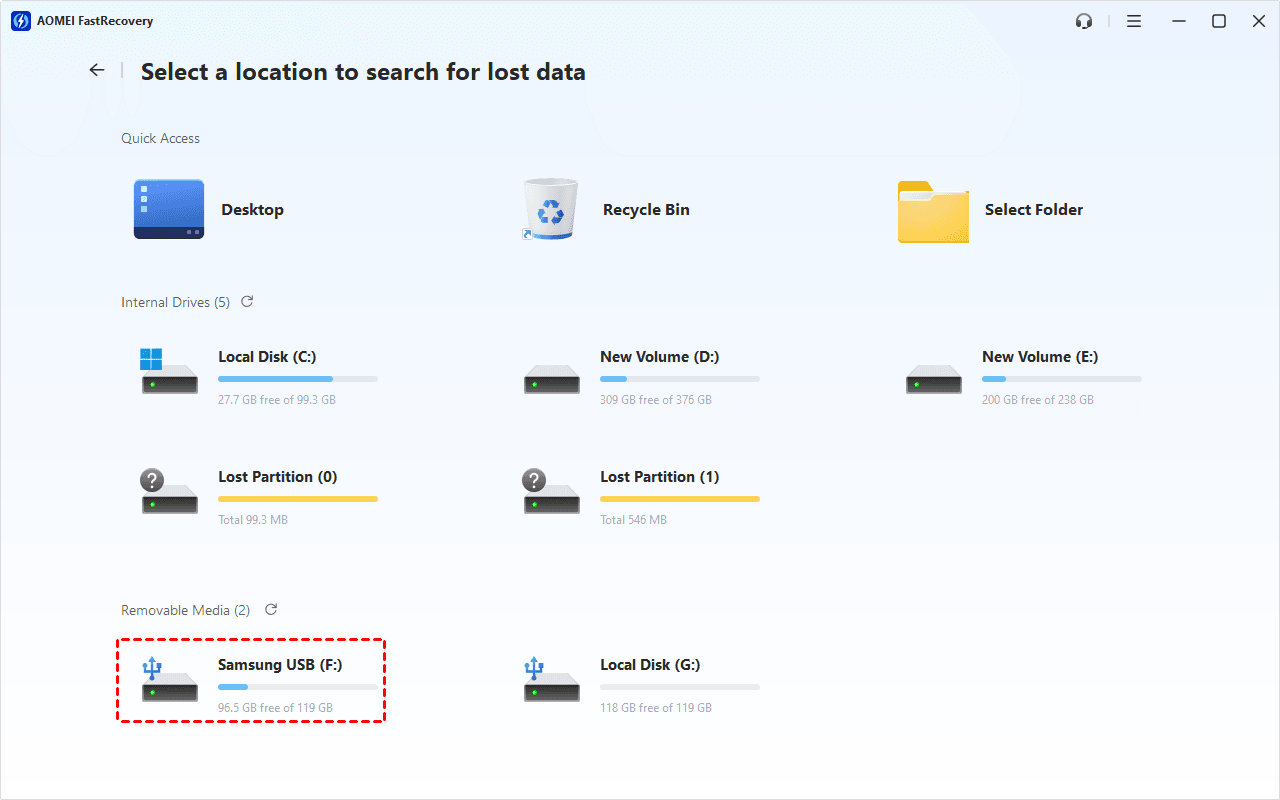
Step 3. Select Path to look for the deleted folder and files. Use search, sorting, or filters to narrow the results as needed.
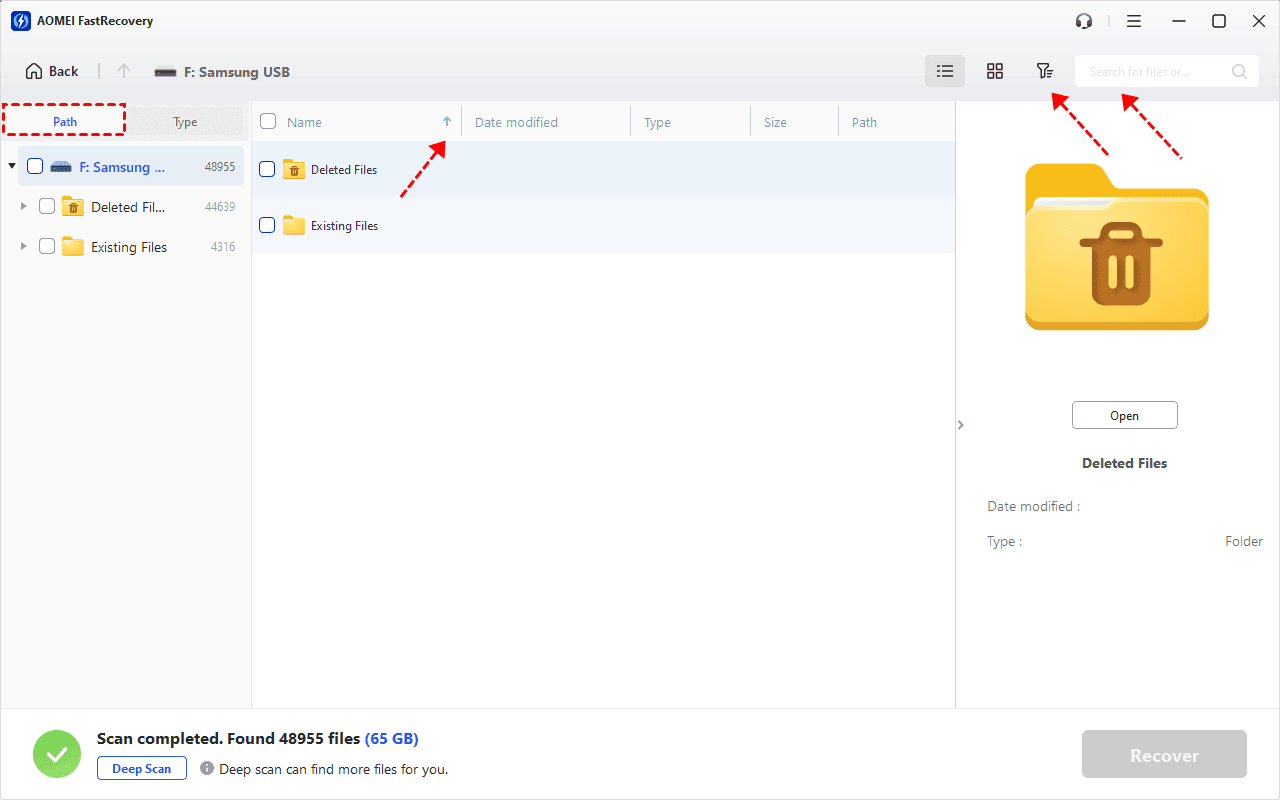
Step 4. Select the relevant results and click Recover. Save them to your computer or another storage device, never back to the SanDisk USB drive.
-
After Quick Scan finishes, click Deep Scan if the required files are missing. This search may take longer.
-
The free edition can recover up to 500 MB. Recovery beyond that allowance requires an upgraded edition.
Open recovered ordinary files to check their contents. Keep encrypted vault files together for further assessment; their presence alone does not establish a usable vault. For unencrypted files, it's easier, check: recover deleted files from USB drive.
Method 2: Restore an Existing SecureAccess Vault Backup
👍 Best for: Restoring a pre-deletion backup through a working SecureAccess application with the original vault password.
SecureAccess backups contain encrypted copies of vault data, so restoration still requires the relevant password. Be sure you know it.
Before you start:
- Locate a backup created before deletion. Check your configured backup destination, including %LOCALAPPDATA%\ENC Security Systems BV\SandiskSecureAccess\Backup.
- Save any accessible files from the destination vault elsewhere. Restoration replaces its current contents, so prepare an empty vault, preferably on another compatible USB drive.
Step 1. Open your existing SecureAccess application. Create a new empty destination vault and log in.
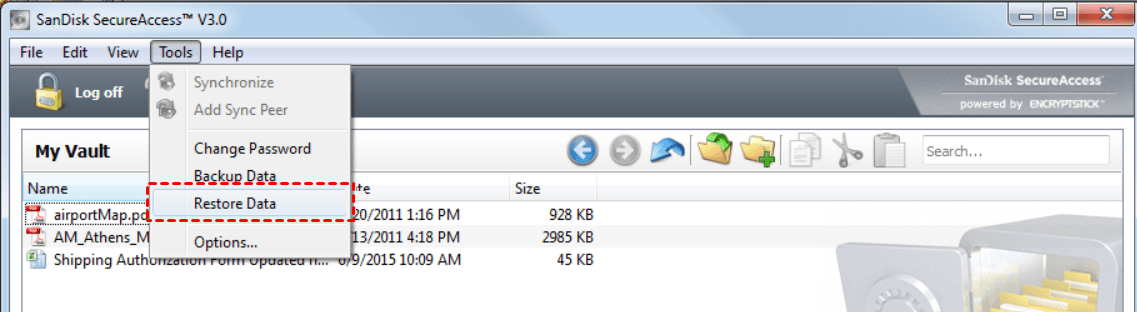
Step 2. Select Tools > Restore Data.
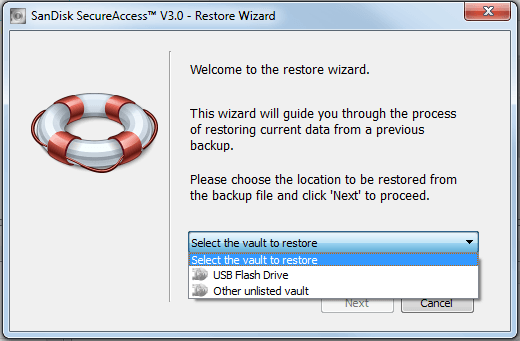
Step 3. Select USB Flash Drive for the same vault or Other unlisted vault for another vault or USB drive. Click Next.
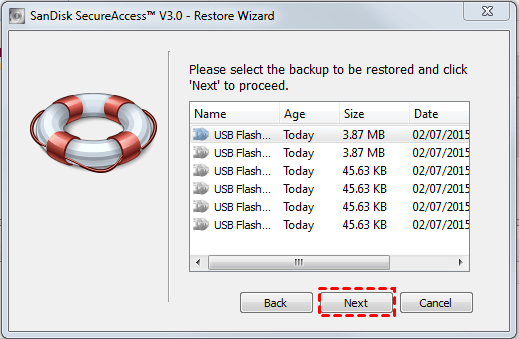
Step 4. Select the backup you want to restore and click Next.
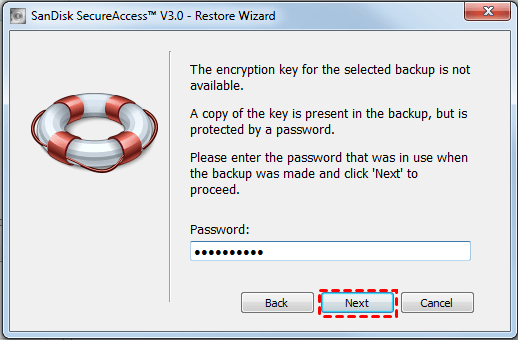
Step 5. Enter the vault password used for the backup and click Next > Restore to continue. Afterward, open the vault. Check that the required files are present and accessible.
Method 3: Repair an Existing SecureAccess Vault
👍 Best for: Checking an existing SecureAccess v3 vault with files that do not display correctly.
Repair Vault rebuilds the vault index; it cannot restore deleted files.
Step 1. Copy the existing vault and settings to another drive before making changes.
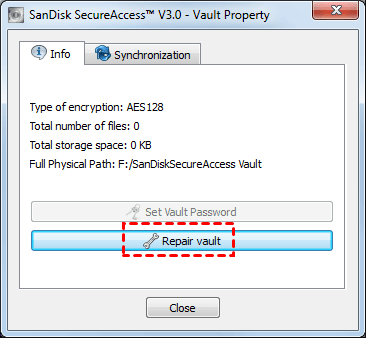
Step 2. Log into SecureAccess v3. Then, select Go Home, right-click the vault and select Properties.
Step 3. Click Repair Vault and let the process finish. Click OK to confirm.
Why Recovered Vault Files May Still Be Unreadable
If you accidentally deleted SanDisk Secure Access, a scan may return encrypted vault files rather than recognizable photos or documents. That result differs from recovering ordinary files stored outside the vault.
Recovery has two separate goals: retrieve the deleted files, then regain access through the compatible application. Missing supporting files or damaged data can prevent the second goal, even with the correct password.
Keep recovered files and their available folder structure together. Don’t rename encrypted files to .jpg or .docx; changing an extension does not decrypt their contents.
If only unencrypted files are missing, the general SanDisk USB data recovery guide addresses that simpler situation.
FAQs
Does deleting the executable erase the vault?
Deleting only the executable differs from removing the entire SecureAccess setup. SanDisk’s full removal procedure also deletes the vault and supporting files. Preserve whatever remains before making further changes.
Can recovery software recover a forgotten password?
File recovery does not reset a SecureAccess password. The application’s Forgot your password? option only displays a previously configured hint. SanDisk confirms that it cannot reset or recover the password.
Can SANDISK App open the old vault?
It does not directly support SecureAccess Vault. Official migration requires opening the old vault and exporting its contents to an unencrypted folder first. You then copy those files into the new encrypted folder.
What if the USB keeps disconnecting?
Stop repeated scans and preserve the device. Recovery software cannot repair damaged USB hardware. Consider professional recovery help for important data on an unstable or physically damaged drive.
In the End
If you accidentally deleted SanDisk Secure Access, identify the missing component before attempting recovery. Restore a usable backup through the existing application, or scan confirmed file deletion with AOMEI FastRecovery. Use Repair Vault only for an existing vault’s display problems.
Once your files open correctly, save an independent backup before migrating or reusing the USB drive.

 as a preferred
source on Google
as a preferred
source on Google