




Best 2 Windows Deployment Software for Fast OS Deployment
Need to deploy Windows to multiple PCs fast? Discover the best software for the job – including AOMEI Cloner and Microsoft Deployment Toolkit – and get every system up and running quickly.

By Lily Updated on August 12, 2026


Deploying Windows across multiple computers manually can be time-consuming, repetitive, and prone to configuration errors, especially for businesses, schools, and IT teams managing dozens or even hundreds of devices. Whether you are setting up new office PCs, upgrading systems to Windows 11, or maintaining consistent environments across a network, using reliable Windows OS deployment tools can dramatically simplify the entire process.
Best Windows Deployment Software for Home and Business
Choosing the right Windows deployment software depends on your technical experience, deployment scale, and management requirements. Below are two popular options for different deployment scenarios.
1. AOMEI Cloner
AOMEI Cloner is a user-friendly deployment and disk cloning solution suitable for both home users and small businesses. It simplifies Windows migration and system deployment by allowing users to clone a Windows disk to multiple destination disks simultaneously.
 AOMEI Cloner
- Various cloning solutions: It offers System Clone, Disk Clone, and Partition Clone to meet your different needs.
- Flexible cloning methods: It supports intelligent cloning that skips unused sectors and sector-by-sector cloning for exact disk copies.
- Practical cloning options: It allows you to adjust partition size during cloning via Edit Partitions and improve SSD performance via SSD Alignment.
- Wide compatibility: It works with various disk brands (Samsung, Intel, WD, etc.), multiple disk types (HDD, SSD, SSHD), and interfaces (SATA, NVMe, and more).
 100% Secure
2. Microsoft Deployment Toolkit (MDT)
Microsoft Deployment Toolkit (MDT) is a free deployment solution from Microsoft designed for IT professionals and enterprise administrators. It helps automate Windows operating system deployment using scripts, task sequences, and imaging technologies.
Key features of MDT include:
- Automated Windows deployment and imaging
- Centralized deployment management
- Task sequence customization
- Driver, application, and update integration
- Network deployment support with PXE boot
- Integration with Active Directory and WDS
Overview of 2 Windows OS Deployment Tools
|
Feature |
AOMEI Cloner |
Microsoft Deployment Toolkit |
|
Best For |
Home users, small businesses, simple deployment tasks |
IT administrators, medium to large enterprises |
|
Ease of Use |
⭐⭐⭐⭐⭐ |
⭐⭐ |
|
Deployment Method |
Disk cloning and system migration |
Image-based network deployment |
|
Network Deployment Support |
No |
Yes, supports PXE and WDS integration |
|
Driver and Application Deployment |
Yes |
Yes |
|
Bootable Media Creation |
Yes |
Yes |
|
Cost |
Cost-effective (from $39.95/year) |
Free from Microsoft |
|
Ideal Use Case |
Migrating or cloning Windows to multiple PCs quickly |
Large-scale enterprise Windows deployment |
How to Deploy Windows to Multiple Computers Step by Step
Now let’s see how to perform Windows image deployment via AOMEI Cloner and Microsoft Deployment Toolkit separately.
Method 1: Using AOMEI Cloner
Step 1: Prepare the Source Computer
Before cloning Windows to multiple computers, configure one computer exactly the way you want. You can:
- Install Windows and all necessary drivers
- Configure system settings
- Install required applications and updates
- Remove unnecessary files and temporary data
This computer will act as the master device for deployment.
Step 2: Clone Windows to Multiple Disks
💡 Note: This method applies to Windows 11/10 and Server 2025/2022/2019/2016. If you installed Windows old versions on the source computer, you may use AOMEI Image Deploy to clone Windows to multiple computers without driver issues.
1. Detach the hard drives from the target computers and attach them to the source computer. You can pick the connection method that best fits your setup:
- Internal Connection: Mount the drives inside the computer using SATA cables, M.2 connectors, or PCIe adapter cards.
- External Connection: Connect the drives externally through USB hubs, docking stations, or multi-bay USB enclosures.
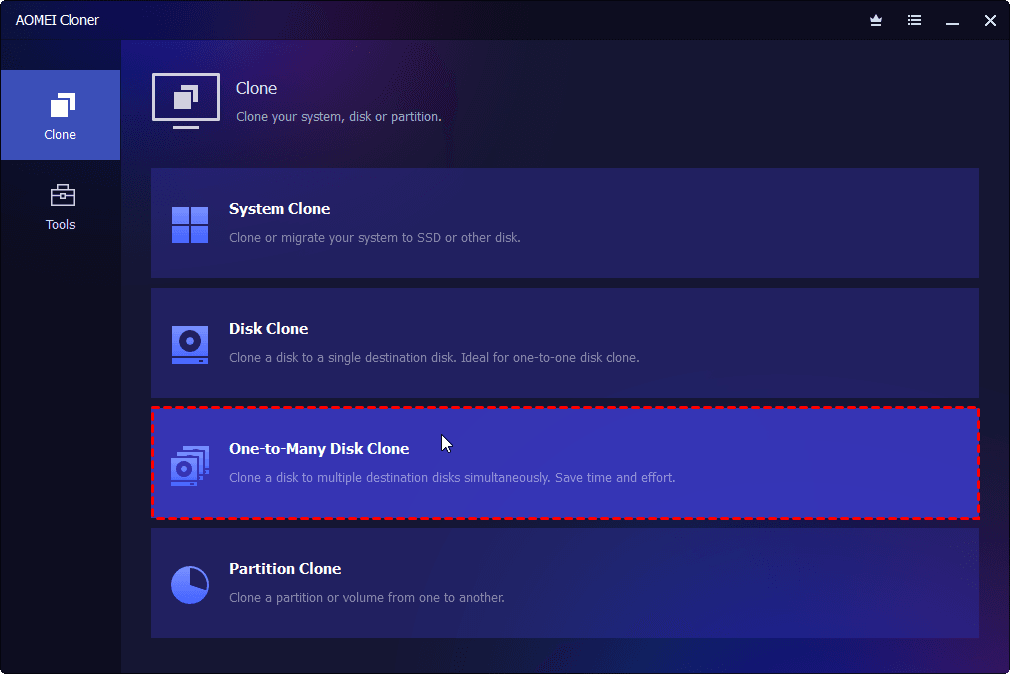
2. Download and install AOMEI Cloner on your source computer. Open AOMEI Cloner and go to Disk Clone.
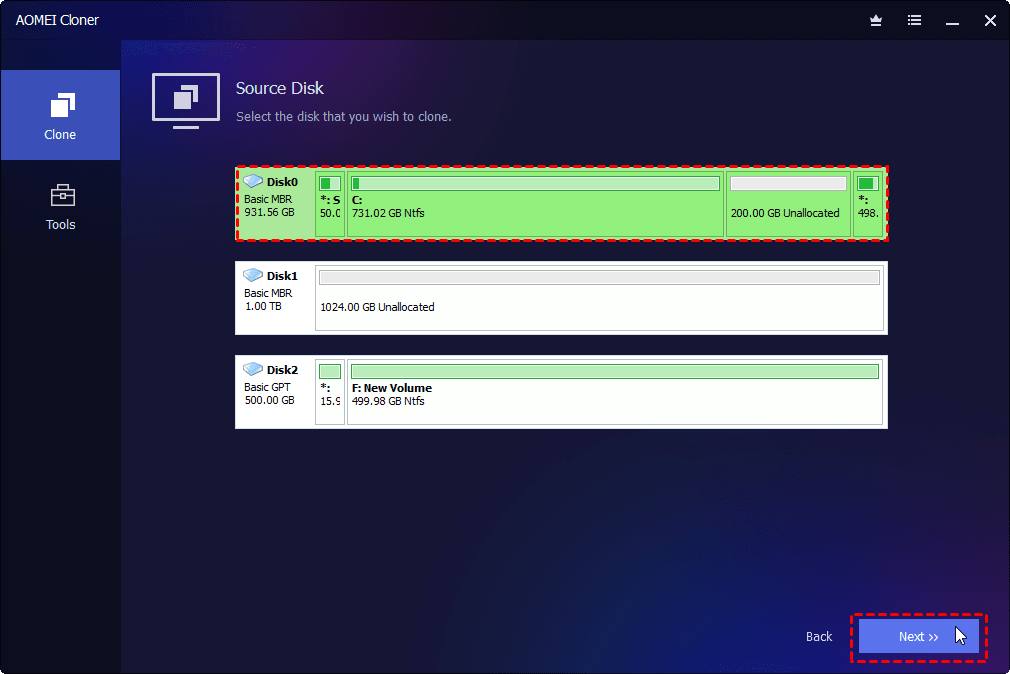
3. Click Select Source Disk. In the pop-up window, select the source computer’s hard drive to copy data from and click Next.
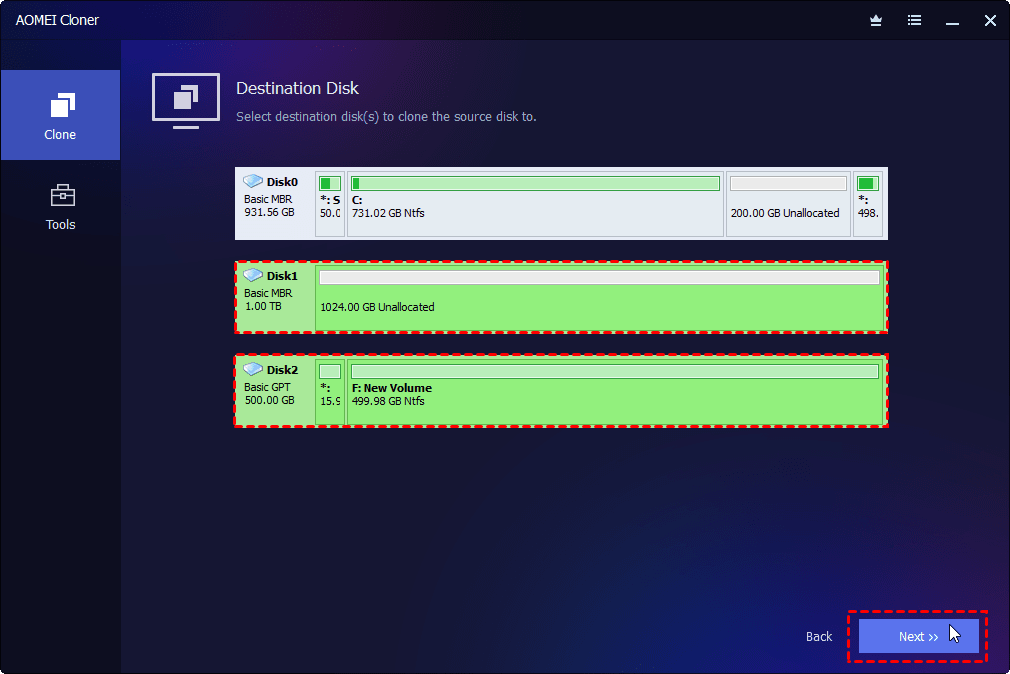
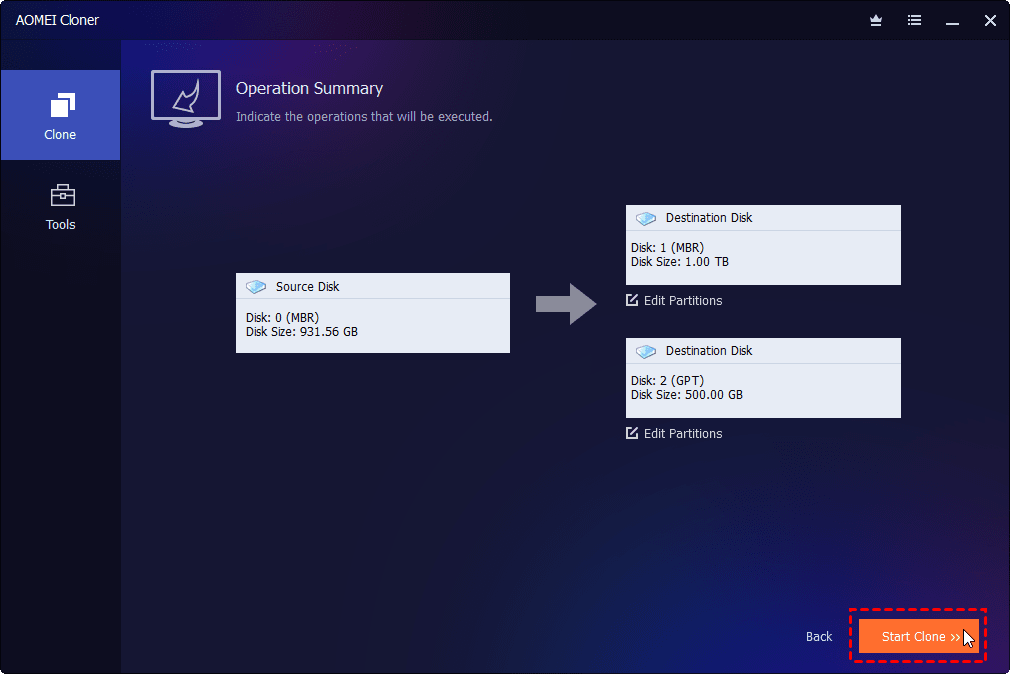
4. Click Select Destination Disk. In the pop-up window, tick One-to-Many Disk Clone, select all the destination disks you connected, and click Next.
5. Configure cloning options for each destination disk:
- If the destination disk is an SSD, check SSD Alignment to enhance the SSD performance.
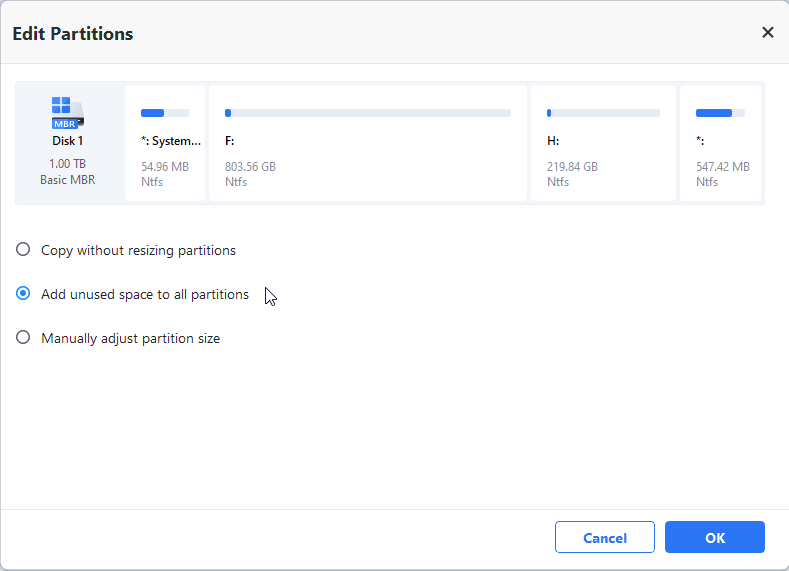
- If the destination disk is larger than the source disk, click Edit Partitions > Add unused space to all partitions to fully use the disk capacity.
6. Confirm the cloning operation and click Start Clone. In the Data Safety Notice window, click Start Clone again to launch the cloning process.
Step 3: Install Cloned Disks on Target Computers
After the cloning process is complete:
1. Install the cloned drive into another computer.
2. Boot the computer from the cloned disk. Verify that Windows starts correctly.
3. Repeat the process for additional computers as needed.
Method 2: Using Microsoft Deployment Toolkit
Step 1: Prepare the Deployment Environment
Before starting, make sure you have the following:
- A Windows Server or Windows PC for hosting MDT
- Windows ADK (Assessment and Deployment Kit)
- Microsoft Deployment Toolkit
- Windows ISO installation files
- Network access for all target computers
- Sufficient storage for deployment images
Install the Windows ADK first, then install MDT on the deployment computer.
Step 2: Create a Deployment Share
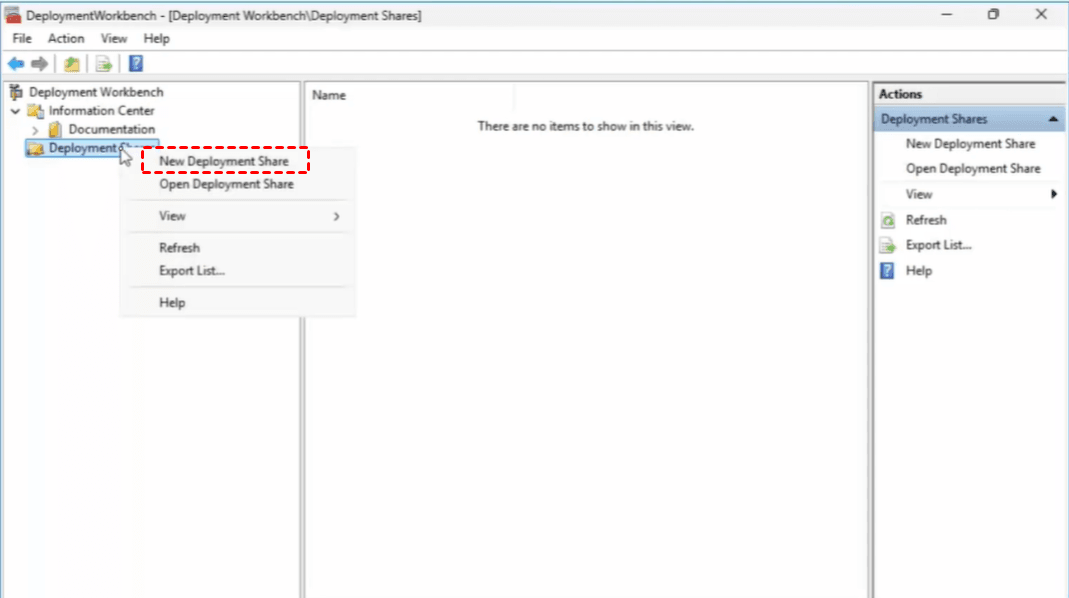
1. Launch MDT and open Deployment Workbench.
2. Right-click Deployment Shares and select New Deployment Share.
3. In the New Deployment Share Wizard, choose a folder location for storing deployment files.
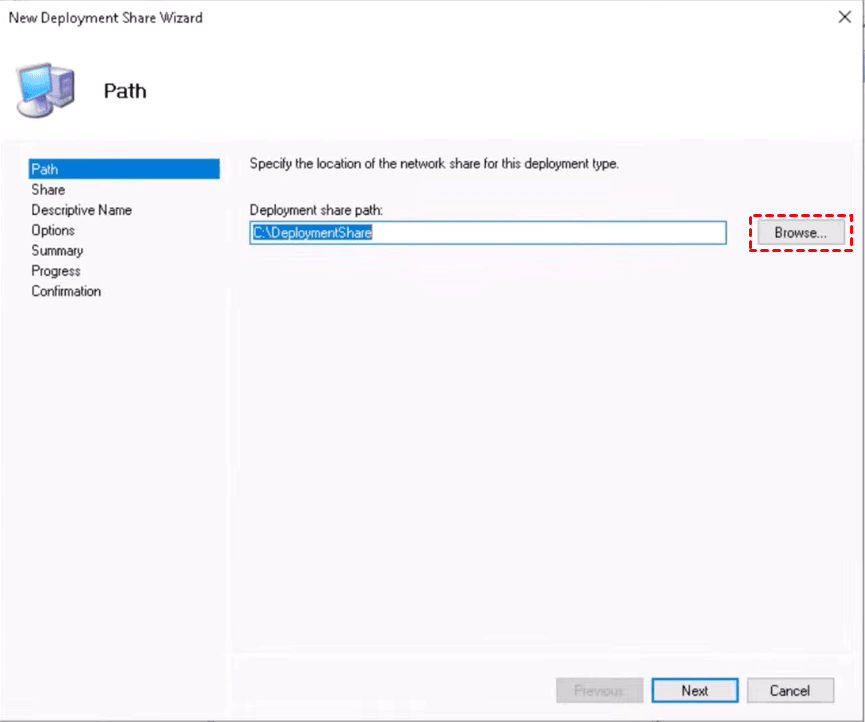
4. Set a share name and description. Finish the wizard.
Step 3: Import the Windows Operating System
1. Expand your deployment share. Right-click Operating Systems and select Import Operating System.
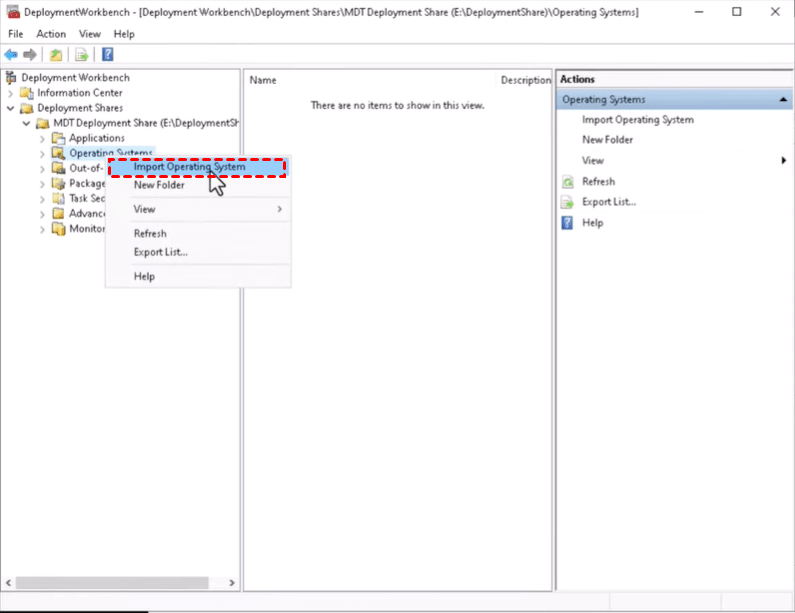
2. In the Import Operating System Wizard, choose Full set of source files.
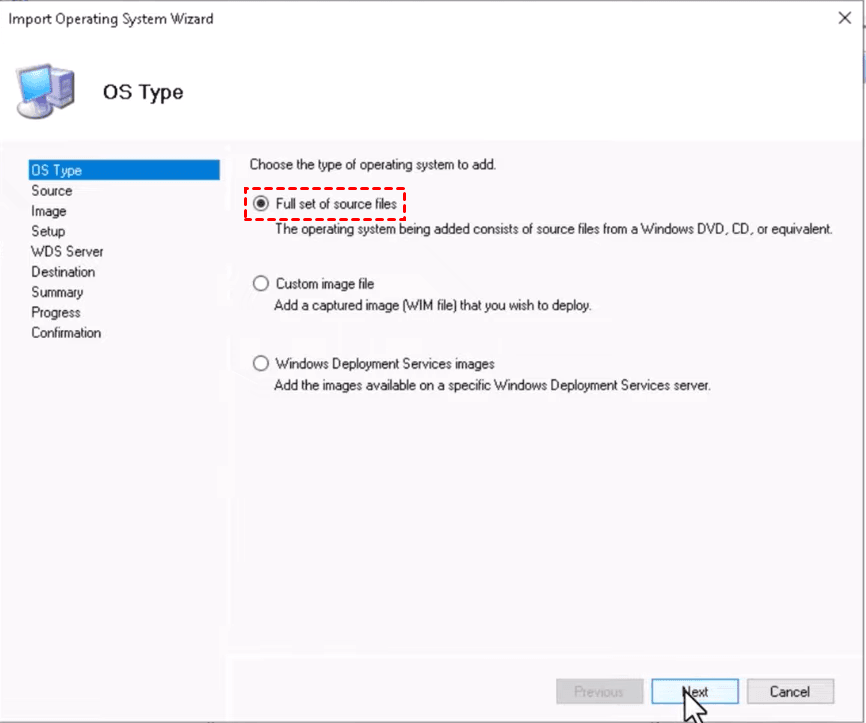
3. Browse to the mounted Windows ISO. Follow the wizard to complete the import process.
Step 4: Add Drivers and Applications
You can optionally import device drivers and commonly used applications.
- To add drivers, right-click Out-of-Box Drivers and select Import Drivers to choose the driver folder.
- To add applications, right-click Applications and select New Application. Follow the setup wizard.
This helps ensure deployed systems are fully functional after installation.
Step 5: Create a Task Sequence
1. Right-click Task Sequences and select New Task Sequence.
2. In the New Task Sequence Wizard, enter a task sequence ID and name.
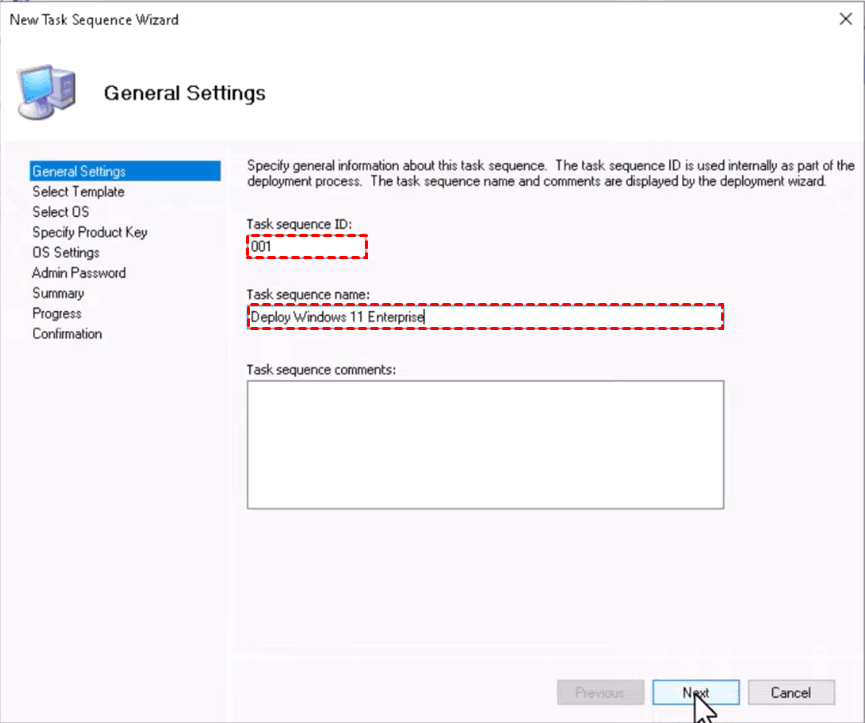
3. Keep the default template Standard Client Task Sequence.
4. Choose the Windows image you imported.
5. Configure product key, administrator password, and settings. Finish the wizard.
Step 6: Update the Deployment Share
1. Right-click the deployment share and select Update Deployment Share.
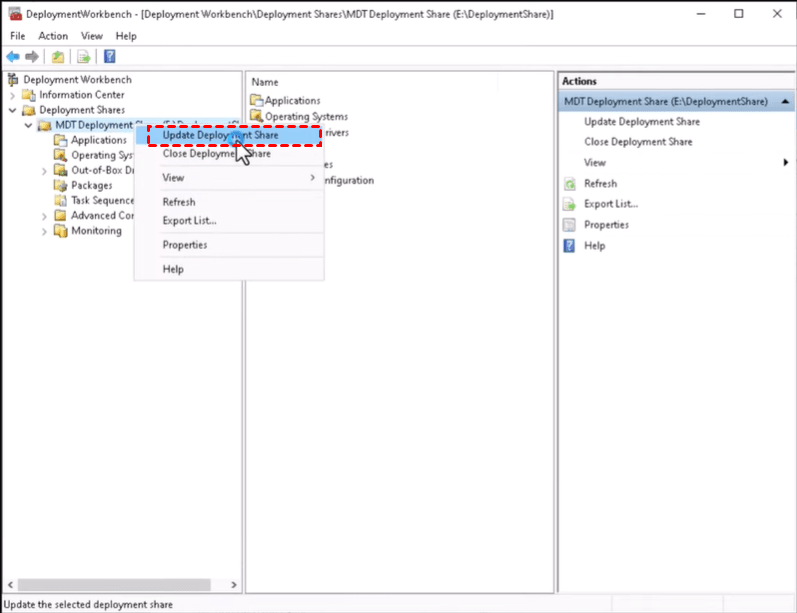
2. In the Update Deployment Share Wizard, choose Optimize the boot image updating process to complete the update.
Step 7: Configure PXE Boot (Optional)
For network deployment to multiple PCs:
1. Install Windows Deployment Services (WDS).
2. Import the MDT LiteTouch boot image into WDS.
3. Enable PXE boot on target computers in BIOS/UEFI. This allows computers to boot directly from the network and start deployment automatically.
Step 8: Deploy Windows to Target Computers
On each target computer:
1. Boot from the MDT boot media or PXE network.
2. When Microsoft Deployment Toolkit opens, select Run the Deployment Wizard to install a new Operating System.
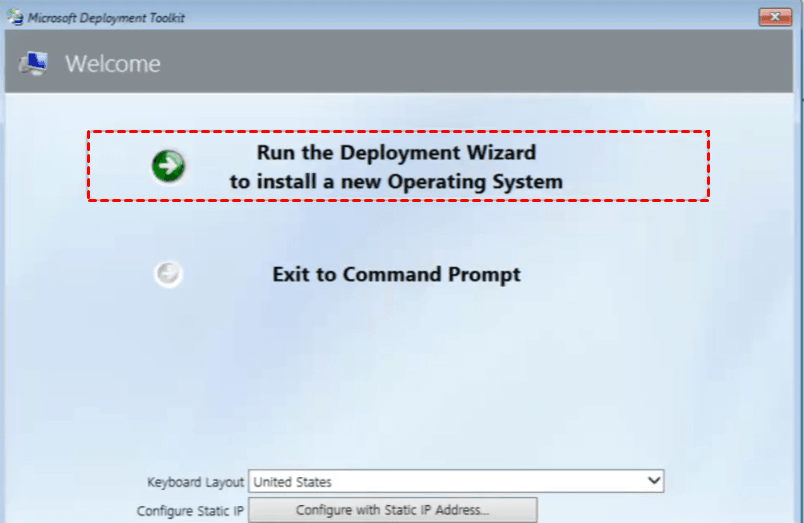
3. Specify credentials to connect to network shares.
4. In the Windows Deployment Wizard, select the deployment task sequence.
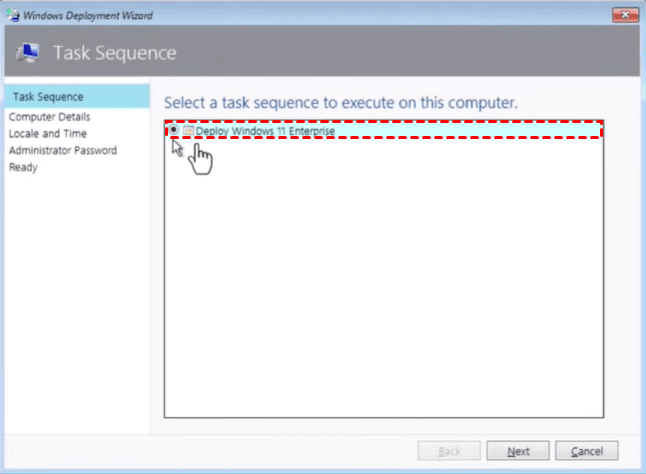
5. Follow the wizard to start the deployment process. MDT will automatically install Windows, apply drivers, configure settings, and reboot the computer when finished.
FAQs About Windows Deployment Software
1. Are free Windows deployment software tools reliable enough?
Yes, many free Windows deployment software tools are reliable for basic and even advanced deployment tasks. Solutions like Microsoft Deployment Toolkit and Windows Deployment Services are widely used in enterprise environments for automated Windows installation and imaging.
2. Which Windows deployment software integrates with Azure best?
Microsoft Intune and Microsoft Configuration Manager offer the strongest integration with Microsoft Azure and cloud-based management services. These tools support modern deployment methods such as Windows Autopilot, cloud provisioning, device enrollment, and remote management through Azure Active Directory.
3. What are best practices for Windows deployment software?
To achieve stable and efficient deployments, follow these best practices:
- Create and maintain a clean master image
- Test deployments on different hardware models
- Keep drivers, Windows updates, and applications current
- Use automated task sequences whenever possible
- Backup important user data before deployment
- Standardize system configurations across departments
- Verify Windows licensing and activation compliance
- Regularly update deployment tools and boot images
- Document deployment procedures for troubleshooting and consistency
Verdict
Windows deployment software helps simplify the process of installing and configuring Windows on multiple computers. In this guide, we explored how to deploy Windows to multiple computers using AOMEI Cloner and Microsoft Deployment Toolkit.
To clone Windows to multiple PCs quickly, pick AOMEI Cloner. For large-scale enterprise Windows deployment, choose MDT. AOMEI Cloner offers all-around cloning solutions for different scenarios. Download it now!

 as a preferred
source on Google
as a preferred
source on Google