



How to Clone NTFS Drive Easily in Windows 11/10/8/7
Need to clone an NTFS drive in Windows but worried about problems? This guide walks you through the process with reliable software and helps you troubleshoot common cloning issues.

By Lily Updated on August 20, 2026


If you're looking to migrate your Windows system, upgrade to a larger hard drive, or create an exact replica of an NTFS drive for backup purposes, cloning is the most efficient solution. Cloning an NTFS drive goes beyond simple copying—it duplicates the entire file system, including boot sectors, partition tables, file permissions, and hidden system files.
In this guide, you’ll learn how to copy NTFS partition step by step, including the best tool to use and essential preparation tips.
Preparations Before Cloning an NTFS Drive
Before you clone NTFS drive, taking a few minutes to prepare can prevent data loss, compatibility issues, or cloning failures.
✅ Check Disk Size and Compatibility
- The target disk should have enough capacity to hold all the data from the NTFS drive.
- Ensure your PC supports the new drive type (SATA, NVMe, or PCIe).
- Confirm available ports or use a reliable USB-to-SATA/NVMe adapter if needed.
✅ Clean Up Source Drive
If you plan to clone to a smaller drive, clean up unnecessary files on the source NTFS drive:
- Delete temporary files and unused programs
- Empty the Recycle Bin
- Consider running Disk Cleanup to free up additional space
✅ Connect Target Drive
Make sure the destination disk is correctly connected and recognized by your system:
- Install the SSD or HDD internally, or connect it via an external adapter
- Open Disk Management in Windows to confirm the drive appears
- Initialize the disk if prompted (choose the appropriate partition style such as MBR or GPT)
✅ Backup Critical Data
Although cloning is generally safe, unexpected errors like power failure or connection issues can occur. It’s always wise to back up important files to an external drive or cloud storage before proceeding.
✅ Choose Reliable Cloning Software
When it comes to choosing reliable software to clone NTFS drive, you can’t miss AOMEI Cloner Free. It is a professional disk cloning tool designed for both beginners and advanced users.
 AOMEI Cloner
- Disk/Partition Clone: Copy the entire disk to transfer everything or copy the specified NTFS partitions to transfer certain data volumes.
- Sector By Sector Clone: Copy all sectors of the source drive to the destination drive, whether in use or not.
- SSD Alignment: Automatically aligns partitions during cloning to improve SSD speed and extend lifespan.
- Wide File System Support: Supports NTFS, FAT32, exFAT, and more, ensuring compatibility with most Windows storage configurations.
- Flexible Disk Support: Works with HDDs, SSDs, USB drives, RAID arrays, and supports both MBR and GPT partition styles.
 100% Secure
Don’t hesitate to download AOMEI Cloner and install it on your PC.
How to Clone NTFS Partition Step by Step
In this part, you’ll learn how to copy NTFS partition using AOMEI Cloner. Let’s get started.
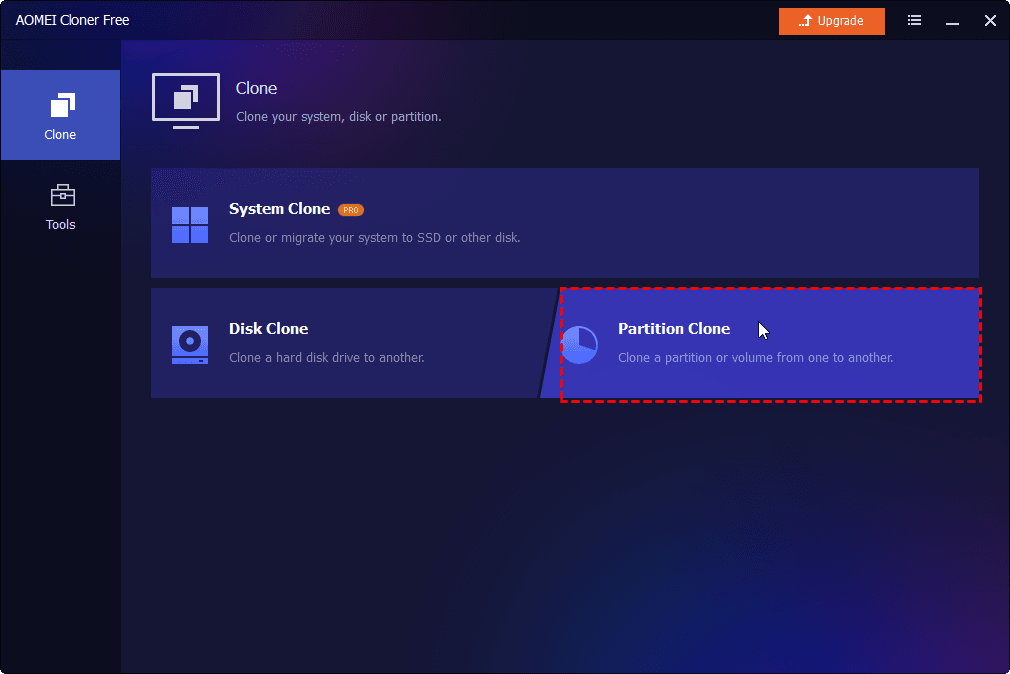
Step 1. Launch AOMEI Cloner. In the left tab page, select Partition Clone.
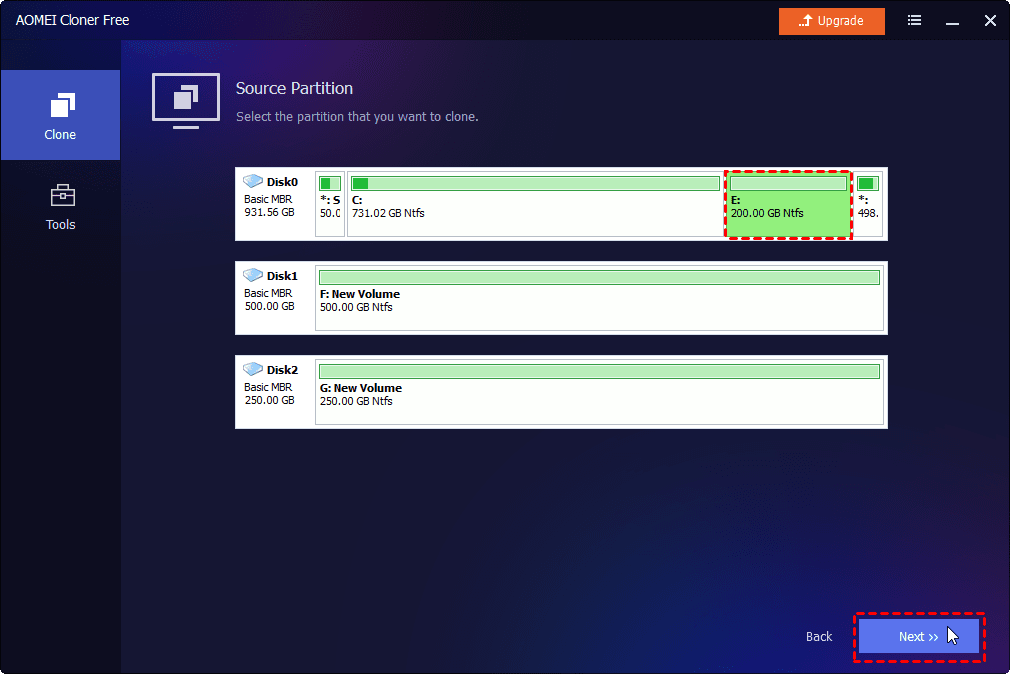
Step 2. Click Select Source Partition to select the NTFS partition you want to clone, and click Next.
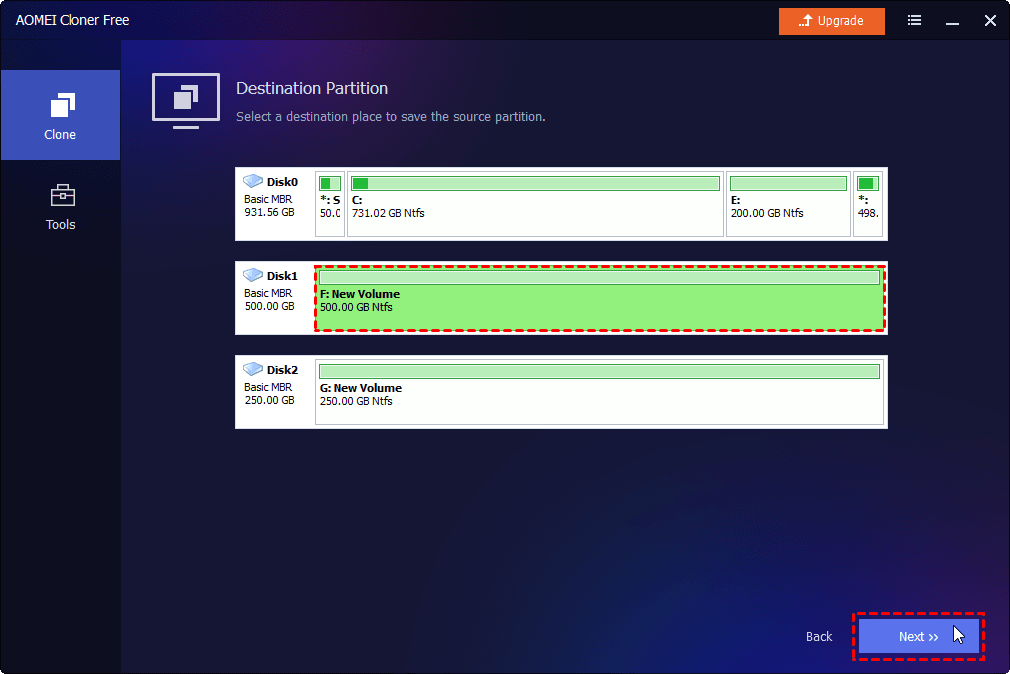
Step 3. Click Select Destination Partition to select unallocated space or an existing partition on the destination disk you connected, and click Next.
Step 4. If the destination disk is an SSD, check SSD Alignment to optimize SSD performance. Then, click Start Clone.
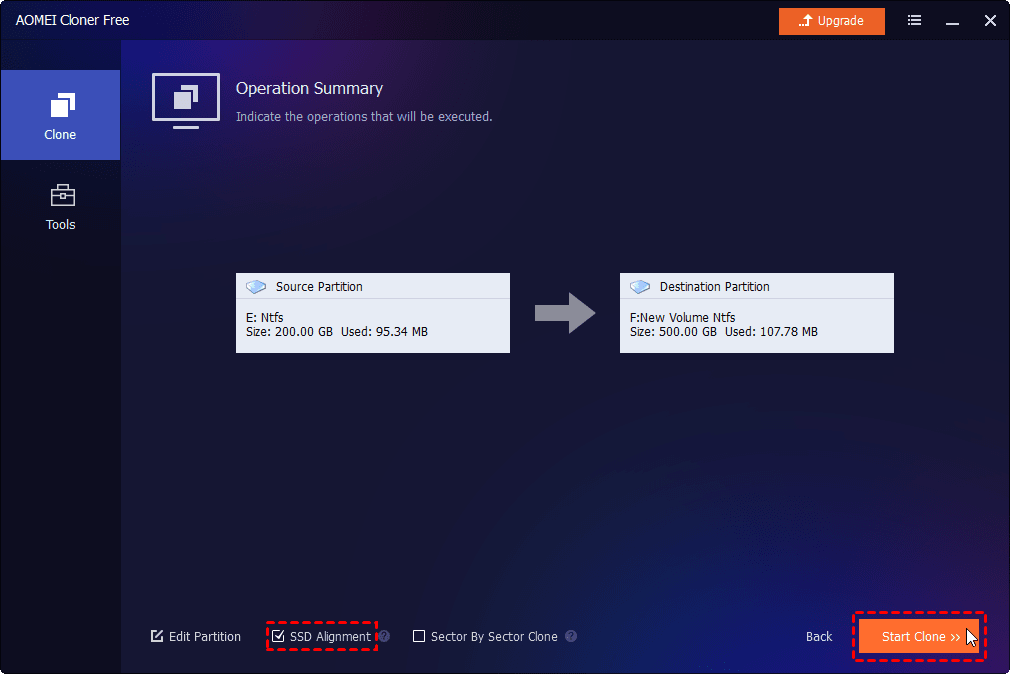
💡 Note: If needed, use the Edit Partitions option to assign a drive letter, set the partition type (primary or logical), and adjust partition size.
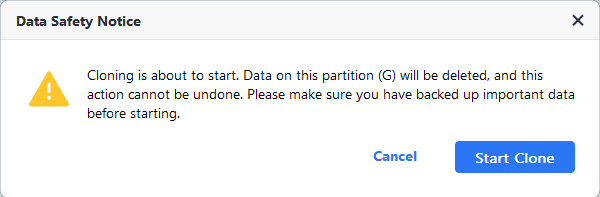
Step 5. If the destination partition contains any data, you'll be prompted that all data on it will be deleted after cloning. If you have already made a backup, click Start Clone and wait for the process to complete.
Troubleshoot Common Issues When Cloning NTFS Drives
Even when you use reliable software, problems can still occur when you clone NTFS drive. Following are the most common issues and how to fix them.
1. Disk Not Recognized After Cloning
Sometimes the cloned drive may not appear in File Explorer or Disk Management.
Possible causes:
- Loose or faulty connection
- Drive not assigned a letter
- Outdated drivers
How to fix it:
- Reconnect the drive or try a different port/cable
- Open Disk Management and assign a drive letter
- Update storage controller drivers in Device Manager
2. Slow Cloning Speed
Cloning can take longer than expected, especially with large NTFS drives.
Possible causes:
- USB 2.0 connections instead of faster interfaces
- Running background applications
- Bad sectors on the source disk
How to fix it:
- Use faster connections like SATA or USB 3.0/3.1
- Close unnecessary programs during cloning
- Check the disk for errors using built-in tools
- Avoid using the computer heavily during the process
3. Missing or Incorrect Partition Sizes
After cloning, the destination disk may not fully utilize available space.
Possible causes:
- Partitions were copied without resizing
- Unallocated space left unused
How to fix it:
- Use Disk Management to extend partitions
- Choose “Edit Partition” during cloning to adjust sizes
- Re-clone the disk with proper partition alignment and resizing options
FAQs About Cloning NTFS Drives
1. Does cloning delete data on the destination disk?
Yes. In most cases, cloning will overwrite all existing data on the destination disk. That’s because the process creates an exact replica of the source drive. Be sure to back up any important files on the target disk before starting.
2. Can I clone only one NTFS partition instead of the whole disk?
Absolutely. Many cloning tools allow you to clone a single NTFS partition instead of the entire disk. This is useful if you only want to transfer specific data volumes or move a non-system partition to another drive.
3. Is the cloned NTFS drive bootable?
Yes, if you clone a system disk, the cloned NTFS drive will be fully bootable—provided the cloning process includes all required boot partitions and system files. After cloning, you may need to adjust the boot order in BIOS/UEFI to boot from the new drive.
To Sum Up
Now you know how to clone NTFS drive step by step, including the best tool to use, essential preparation tips, and how to avoid common pitfalls. AOMEI Cloner is a great helper. It handles NTFS drives seamlessly while offering a balance of simplicity and powerful features. Why not give it a shot?

 as a preferred
source on Google
as a preferred
source on Google