



Samsung Data Migration BitLocker: How to Clone Encrypted Drives Safely
You can easily fix the Samsung Data Migration BitLocker issue and clone encrypted drive in two proven methods, along with step by step instructions. Scroll down to learn more.

By Ivy Updated on August 11, 2026


What Is Samsung Data Migration and How Does It Work?
Samsung Data Migration is a dedicated disk cloning utility developed by Samsung to help users transfer all data, including the operating system, applications, and personal files, from an existing HDD or SSD to a new Samsung SSD.
Common scenarios for Samsung SSD cloning:
📌 Upgrading to a Samsung SSD: Many users rely on Samsung Data Migration when switching from a traditional hard drive to a faster Samsung SSD. It allows for a seamless transition with minimal downtime and no need to reinstall Windows or applications.
📌 Replacing old or failing drives: If your current drive is aging or showing signs of failure (slow performance, errors, or bad sectors), cloning it to a new Samsung SSD ensures data continuity and improved system reliability without complex recovery steps.
Can Samsung Data Migration Clone BitLocker Drives?
Samsung Data Migration can work with BitLocker drives, but only under certain conditions. If BitLocker is suspended, cloning is more likely to succeed because the drive is temporarily unlocked. If it is fully enabled and locked, the tool may fail to access all data properly, as it uses full drive encryption and requires a password or recovery key to unlock the drive.
Cloning a system drive is more complex and more likely to cause issues (e.g., drive not detected, clone incomplete, boot issues, etc) if BitLocker is active. Data drives are sometimes easier, but encryption can still interfere with the process.
How to Use Samsung Data Migration with BitLockerDrive
Since BitLocker can restrict access to partitions and data, it’s important to properly suspend encryption before cloning and re-enable it afterward to ensure a smooth, bootable migration to your Samsung SSD.
Step 1: Suspend or Turn Off BitLocker
Before you start cloning, you must unlock the drive. BitLocker encrypts all data on the drive. If it stays active, Samsung Data Migration may fail to access system files, which can lead to incomplete or failed cloning.
1. Press Win + S and search for Manage BitLocker. Then, click Open to access BitLocker Drive Encryption.
2. Under the Operating system drive section, click Suspend protection or Turn off BitLocker. Confirm the action when prompted

Step 2: Run Samsung Data Migration
After BitLocker is suspended or disabled, you can begin the cloning process.
1. Download Samsung Data Migration from the official page. Then, install and open it for Samsung SSD data migration.
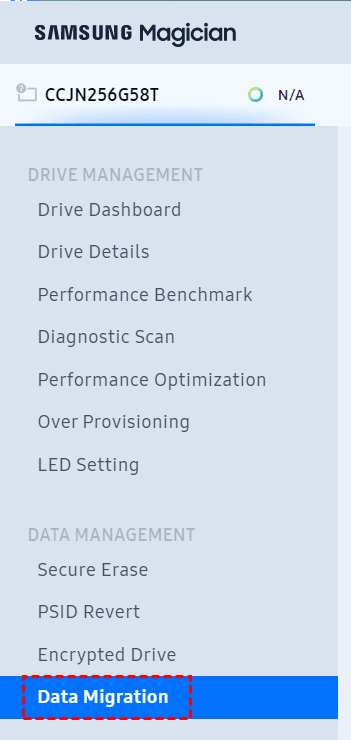
2. Click the Data Migration tab.
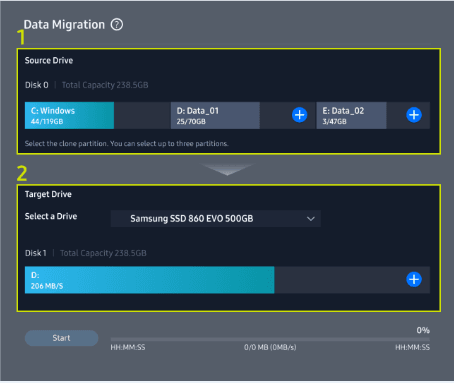
3. On the Data Migration window, select your Samsung SSD and click Start to begin migration. The software will automatically detect your current system drive as the source disk.
Step 3: Boot from Cloned Samsung SSD
After the cloning process is complete, you need to start your computer using the newly cloned Samsung SSD to ensure everything works correctly.
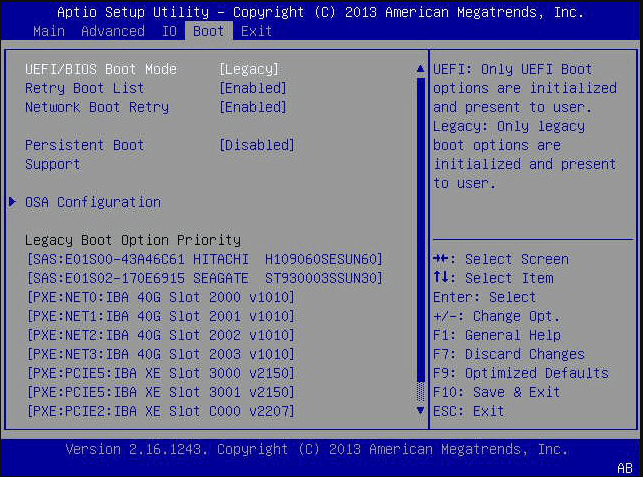
1. Shut down your computer completely. Turn it back on and immediately press the BIOS/UEFI key, commonly F2, F10, F12, DEL, etc., depending on your PC brand.
2. Enter the Boot menu, set your Samsung SSD as the first boot device. Press 10 to save changes and restart.
Step 4: Re-enable BitLocker After Cloning
Once accessing the new SSD, you can restore BitLocker encryption for security.
1. Open Control Panel. Locate and click BitLocker Drive Encryption.
2. Under the Operating system drive section, click Turn on BitLocker.
3. Select a way to save the recovery key and click Next. You have 3 options in the following:
- Save to your Microsoft account
- Save to a file
- Print the recovery key
4. Select to encrypt used space only or the entire drive. Click Next.
5. Select a new or compatible encryption mode. Click Next and Start encrypting.
Best Alternative to Clone BitLocker Encrypted Drive without Hassle
If you run into issues with Samsung Data Migration and BitLocker, using a more flexible cloning tool - AOMEI Cloner can save time and avoid errors, especially when dealing with BitLocker-encrypted drives.
While Samsung Data Migration is convenient, it has some clear limitations:
- Limited compatibility: It only works with Samsung SSDs and may struggle with encrypted or complex disk setups
- Lack of advanced cloning options: It offers minimal control over partitions, disk layout, and cloning methods
Use AOMEI Cloner for BitLocker Drive Cloning
AOMEI Cloner is a more versatile alternative that works smoothly with BitLocker drives (with proper handling)and supports a wide range of disks, from HDD to SSD, or MBR to GPT.
 AOMEI Cloner
- Sector by sector clone: Clone all sectors of a drive, even if it’s encrypted.
- SSD optimization (4K alignment): Improve the read and write speed of the SSD disk for smooth system responsiveness and extend its lifespan.
- Auto-resize partition: Automatically resize partitions without any additional steps, making the most of your disk space.
- MBR2GPT conversion: Convert between MBR and GPT without losing data, clone GPT to MBR, for example.
 100% Secure
Steps to Clone BitLocker Drive with AOMEI Cloner
Cloning a BitLocker encrypted drive with AOMEI Cloner is straightforward.
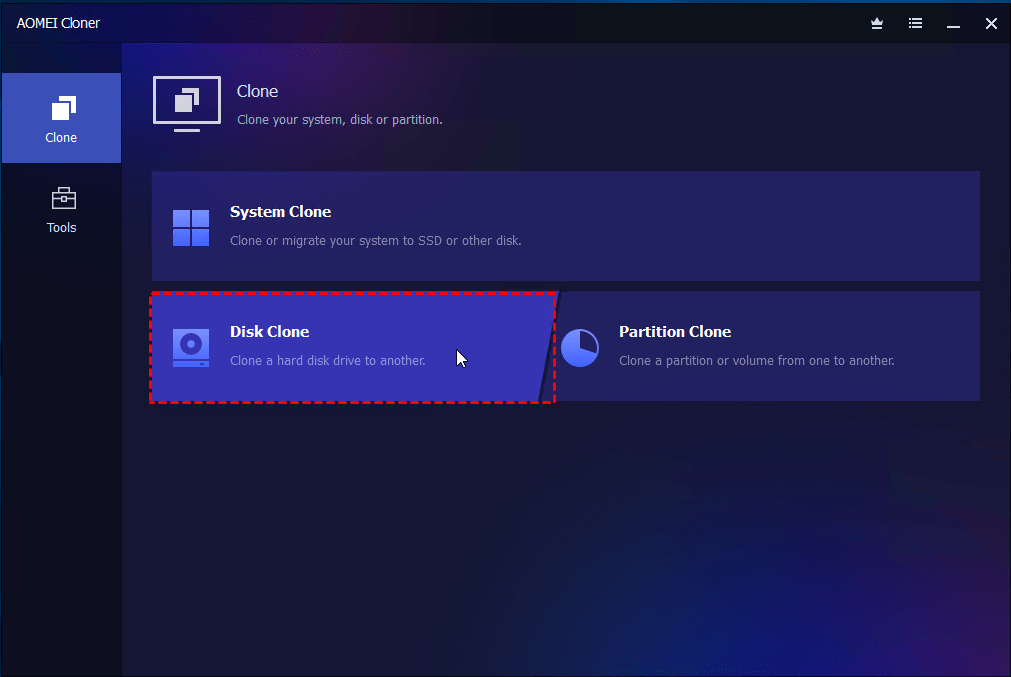
Step 1. Connect the new Samsung SSD to your computer. Meanwhile, download and install AOMEI Cloner for data migration. Click Disk Clone to get started.
Step 2. Click Select Source Disk and Select Destination Disk to choose your BitLocker drive and the Samsung SSD, respectively. It supports all major SSD brands, not just Samsung.
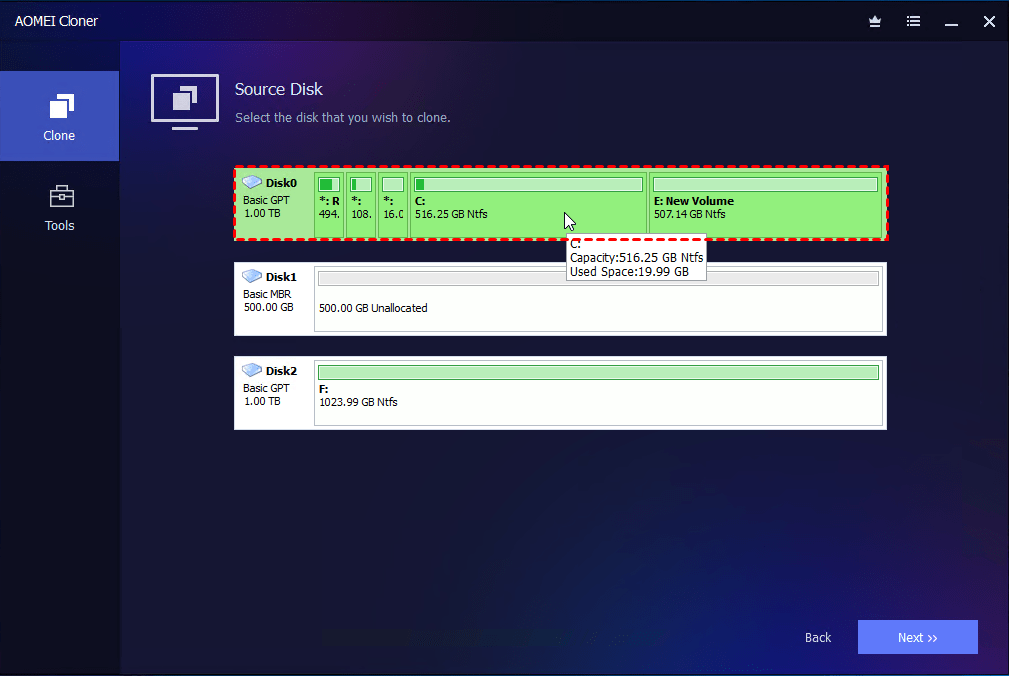
Step 3. Check the SSD Alignment option for better performance while enabling Sector by Sector Clone to handle BitLocker drive. At last, click Start Clone to begin the process.
Conclusion
Samsung Data Migration is a convenient tool for upgrading to a Samsung SSD, but it has clear limitations when working with BitLocker drives. Without proper handling, encryption can lead to cloning errors or boot issues.
To ensure a smooth process, it’s essential to suspend BitLocker drive encryption before cloning and re-enabling it afterward. This simple step can significantly improve compatibility and success rates. AOMEI Cloner is a strong alternative, with more flexibility and reliability.

 as a preferred
source on Google
as a preferred
source on Google