




Lenovo Transfer to New Laptop: Move Data with Best 2 Tools
Easily move your files, settings, and system to a new Lenovo laptop. This tutorial covers two effective methods. Scroll down to learn more.

By Lily Updated on August 13, 2026


That moment of unboxing a sleek new Lenovo is pure tech joy—right up until you remember the daunting task ahead. Moving your files, programs, and digital life can feel like a monumental chore. But what if it didn’t have to be? In this article, you’ll find two dependable migration tools to help you transfer data from Lenovo to Lenovo laptop.
Best migration tools for Lenovo transfer to new laptop
When moving your files, settings, and system from an old Lenovo device to a new one, using the right transfer tool makes all the difference. Below are two excellent options—one designed specifically for Lenovo users and another powerful disk-cloning solution.
1. Lenovo Migration Assistant
Lenovo Migration Assistant is a dedicated tool from Lenovo that simplifies the transfer process between Lenovo laptops.
|
🌟 Key Benefits |
✔ Designed for Lenovo devices – Optimized for compatibility and reliability. ✔ User-friendly interface – Ideal for beginners and non-technical users. ✔ Automatic data migration – Moves documents, pictures, and selected settings with minimal input. |
|
🙁 Limitations |
✘ Not all programs or system components may transfer fully. ✘ Requires Wi-Fi or USB for connection between laptops. |
2. AOMEI Cloner
AOMEI Cloner is a full-featured disk and system cloning tool that excels at transferring everything from one drive to another.
|
🌟 Key Benefits |
✔ Full disk cloning – Transfers the entire drive, including OS, applications, files, and settings. ✔ Supports multiple storage types – Works with HDDs, SSDs, and external drives. ✔ Flexible cloning options – Choose between sector-by-sector cloning or intelligent cloning. |
|
🙁 Limitations |
✘ Requires manually removing and installing the hard drive. |
 AOMEI Cloner
A reliable disk cloning software to safely clone your system, disk, or partitions with boot support.
Way 1: Lenovo transfer to new laptop using Lenovo Migration Assistant
If your goal is to transfer personal files and basic settings, Lenovo Migration Assistant is a good choice. Learn how to transfer data from old Lenovo laptop to new Lenovo laptop using Lenovo Migration Assistant step by step below.
💡 Note: Most desktop programs, licensed software, and system-level components will still need to be reinstalled on the new Lenovo laptop.
Step 1. Download and install Lenovo Migration Assistant on both your old Lenovo laptop and your new one. Make sure both devices are updated and connected to the same network.
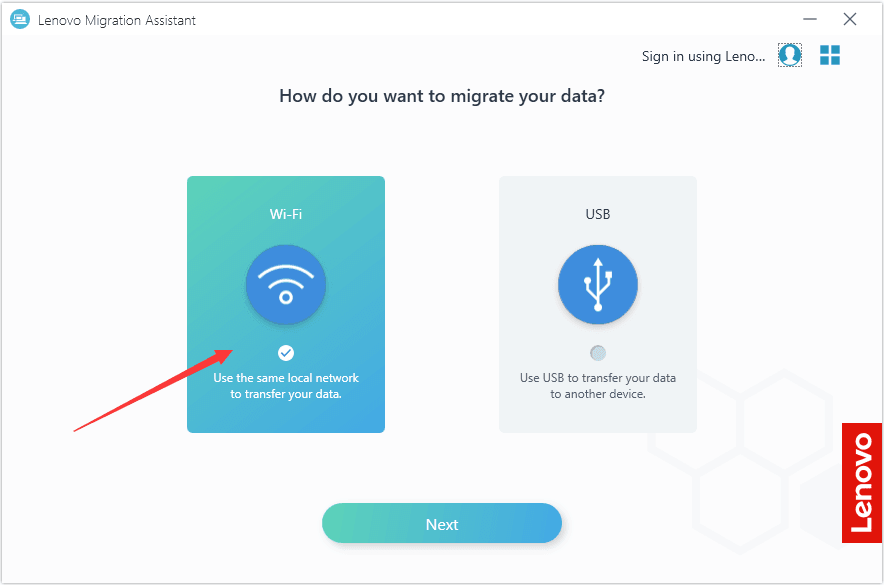
Step 2. Run the program on both devices. Select Wi-Fi and click Next.
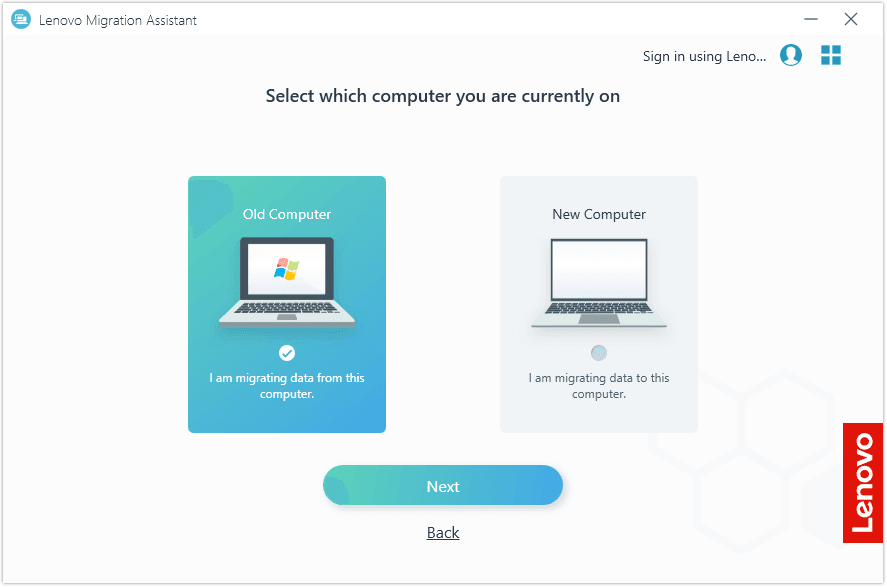
Step 3. Select Old Computer on the source computer and New Computer on the target Lenovo computer.
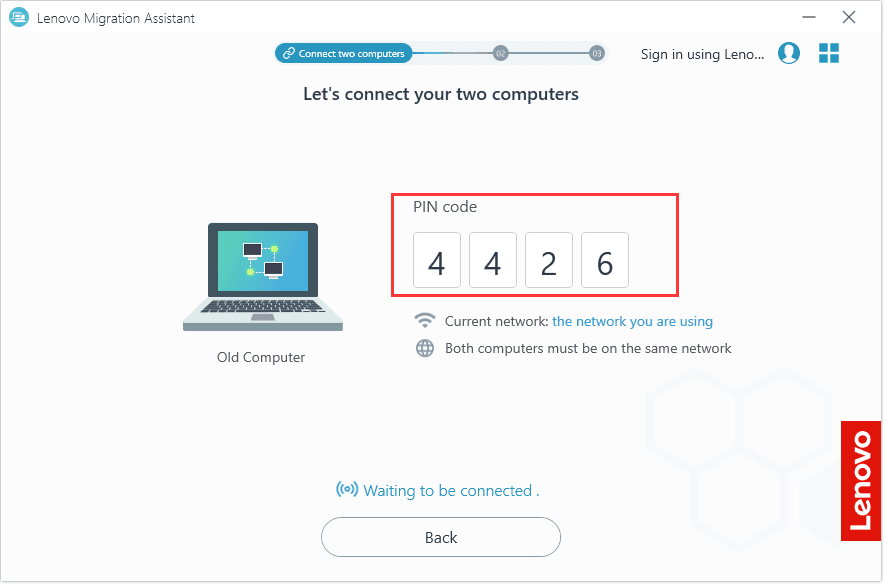
Step 4. Then, a PIN code will appear on the old laptop for pairing the devices. Input and confirm the code on the new laptop to establish a secure connection.
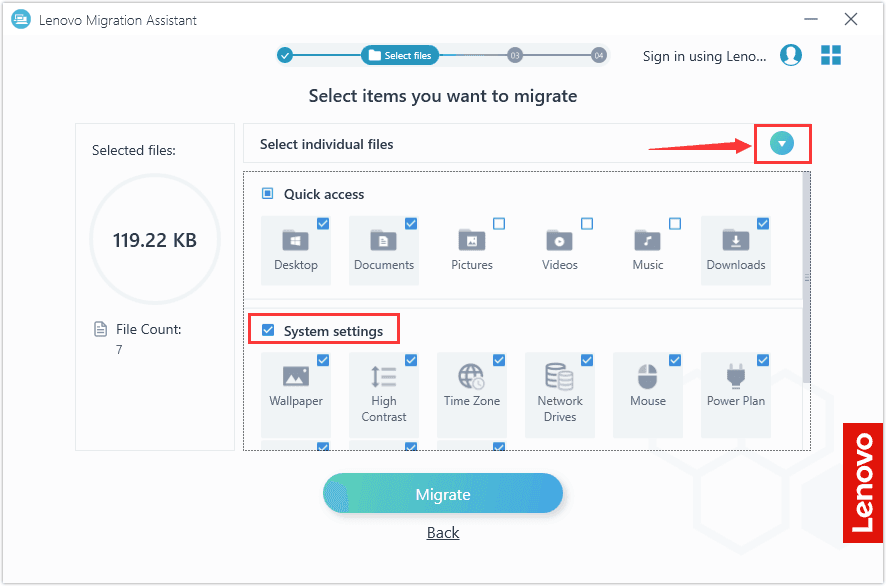
Step 5. After connection, Lenovo Migration Assistant will scan your old laptop. Choose the files, folders, and Windows settings you wish to move and click Migrate.
Step 6. Keep both laptops powered on and connected during data migration. Once completed, confirm that your files and settings were successfully transferred to your new laptop. Reinstall any missing applications manually.
Way 2: Lenovo transfer to new laptop via AOMEI Cloner
If you want your new Lenovo laptop to look and work exactly like your old one, AOMEI Cloner is a far more powerful option. Learn how to transfer everything from old Lenovo laptop to new Lenovo laptop in detail below.
💡 Notes:
◆ For modern Windows (11/10, Server 2025/2022/2019/2016), the cloned drive will be bootable on the new laptop, regardless of whether the hardware is identical or different.
◆ For older Windows versions with different hardware, you may use AOMEI Backupper to backup Windows and restore on another computer to ensure a successful boot.
Step 1. Remove the hard drive from the new Lenovo laptop. Connect it to your old Lenovo laptop using a USB adapter or enclosure. Make sure the drive has enough capacity to hold your system data.
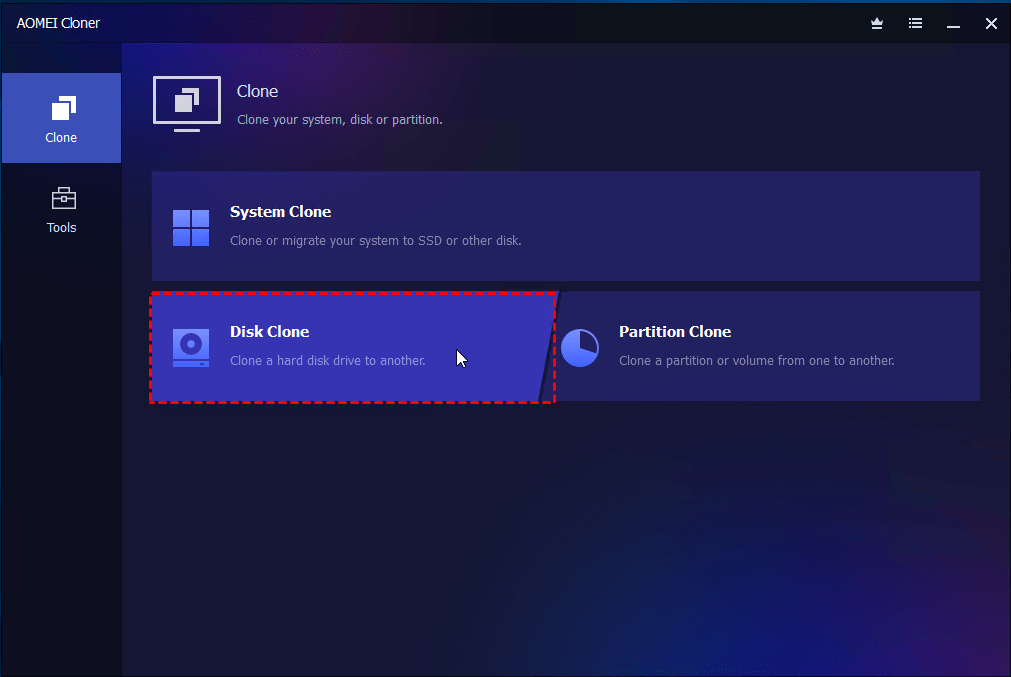
Step 2. Install AOMEI Cloner on your old Lenovo laptop and open the software. Choose Disk Clone to migrate the entire drive.
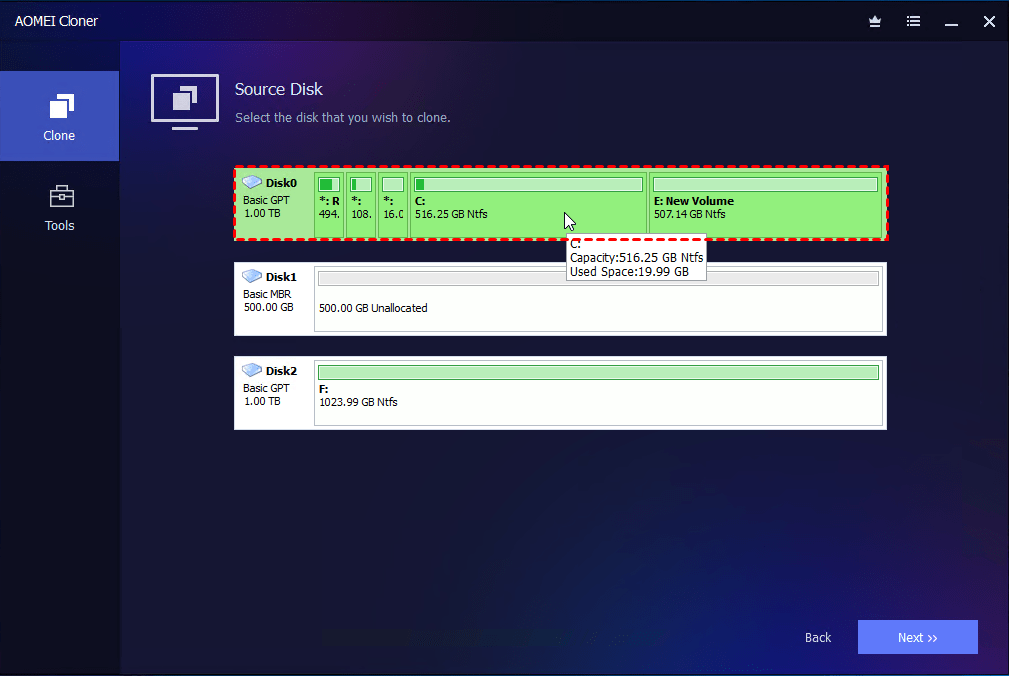
Step 3. Choose the old laptop’s system disk as the source and select the new laptop’s disk as the destination.
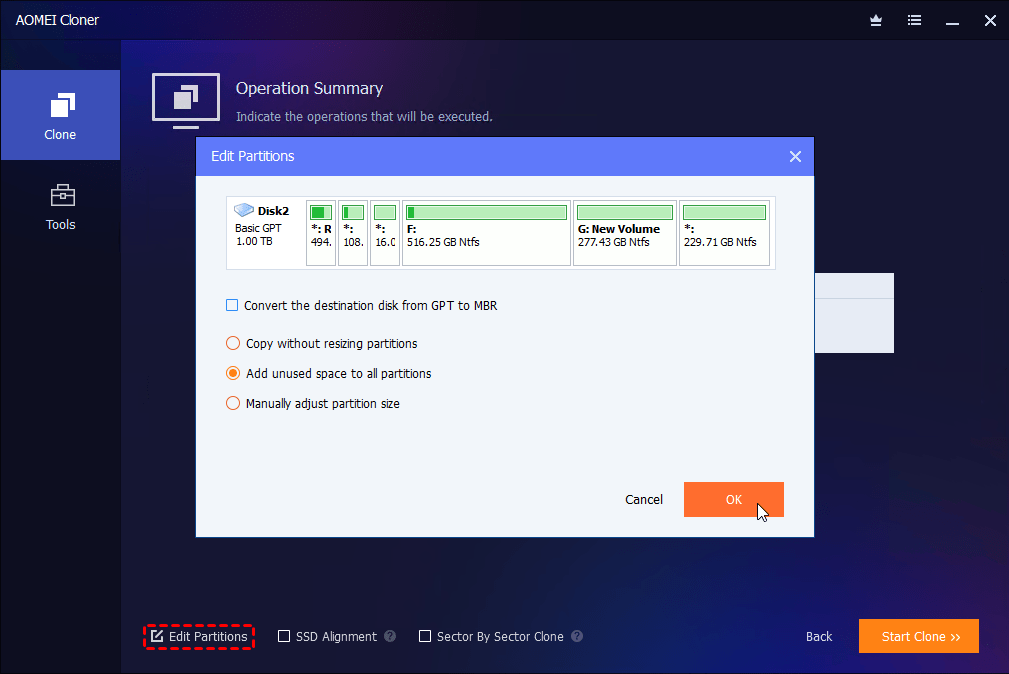
Step 4. Customize your clone settings:
- For an SSD target, check the SSD Alignment option to optimize performance and longevity.
- For a larger target disk, click Edit Partitions, then select Add unused space to all partitions to utilize the full capacity of your new drive.
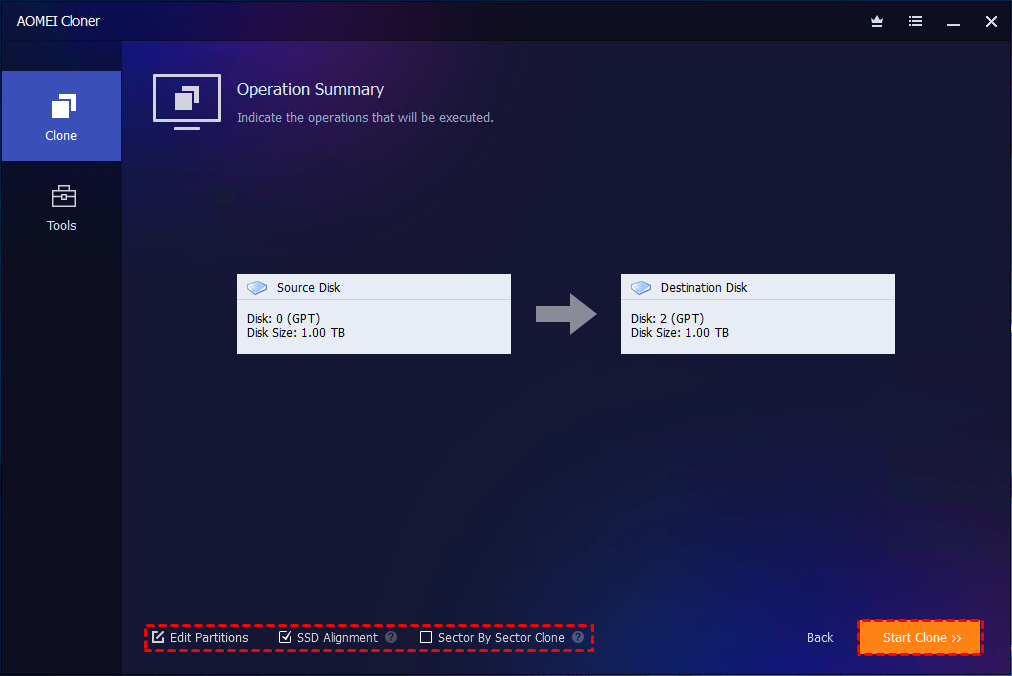
Step 5. Confirm your settings and click Start Clone. In the Data Safety Notice window, click Start Clone again to start the cloning process. AOMEI Cloner will copy all necessary data while keeping the system bootable.
Step 6. Boot the new Lenovo laptop:
- Install the cloned drive into your new Lenovo laptop.
- Power on the new laptop and enter BIOS/UEFI if needed to set the cloned drive as the first boot option.
- Save changes and restart. Windows should load exactly as it did on the old Lenovo laptop.
FAQs about Lenovo transferring data to new laptop
1. What data can be transferred during a Lenovo laptop transfer?
You can typically transfer documents, photos, videos, music, and user folders without issues. With advanced migration tools, you can also transfer the Windows operating system, installed applications, system settings, and user accounts.
2. Can I transfer data from a non-Lenovo laptop to a Lenovo laptop?
Yes. While Lenovo-specific tools work best between Lenovo devices, third-party migration or cloning software allows you to transfer data, applications, and even the operating system from other brands to a new Lenovo laptop.
3. How long does it take to transfer data to a new Lenovo laptop?
Transfer time varies based on data size and the method used. Small file transfers may take minutes, while full system cloning can take anywhere from 30 minutes to several hours, especially if large amounts of data are involved.
Verdict
This guide provides two tools to help you perform Lenovo transfer to new laptop.
- For users who only need to move personal files and basic settings, the official tool - Lenovo Migration Assistant offers a simple solution.
- For users who want the new Lenovo laptop to work exactly like the old one, AOMEI Cloner provides the most reliable results.
Actually, AOMEI Cloner is applicable to various cloning scenarios. You can use it to clone Dell laptop hard drive, upgrade Alienware SSD, etc. Don’t hesitate to give it a try!

 as a preferred
source on Google
as a preferred
source on Google