




[2 Feasible Ways] to Install Windows on Multiple Computers
Need to install Windows on several PCs? Learn two fast, efficient methods – using a USB drive or cloning software – to get every computer up and running quickly.

By Lily Updated on August 13, 2026


Can I Install Windows on Multiple Computers?
Yes, you can install Windows on multiple computers, but the process and licensing requirements depend on how many devices you need to deploy and the type of Windows license you own. Microsoft allows you to use the same Windows installation media on multiple computers, but each computer typically requires its own valid Windows license for activation.
In this article, I’ll introduce two effective ways to install Windows on multiple computers:
- USB installation media: Create a bootable USB drive and install Windows on each PC manually.
- Disk cloning software: Clone the current Windows image to multiple destination disks simultaneously and install them on the target computers.
Method 1: Install Windows 10 on Multiple Computers Using Installation Media
Using installation media is one of the most straightforward ways to install Windows 10 on multiple computers. This method is ideal for home users, small offices, or anyone deploying Windows to a limited number of PCs. Follow the instructions below:
Step 1: Prepare a Bootable Windows 10 USB Drive
1. Insert a USB drive with at least 8GB of storage into your computer. If it is not empty, backup files in advance to avoid data loss.
2. Download the Media Creation Tool from Microsoft's official website.
3. Run the Media Creation Tool and select Create installation media (USB flash drive, DVD, or ISO file) for another PC.
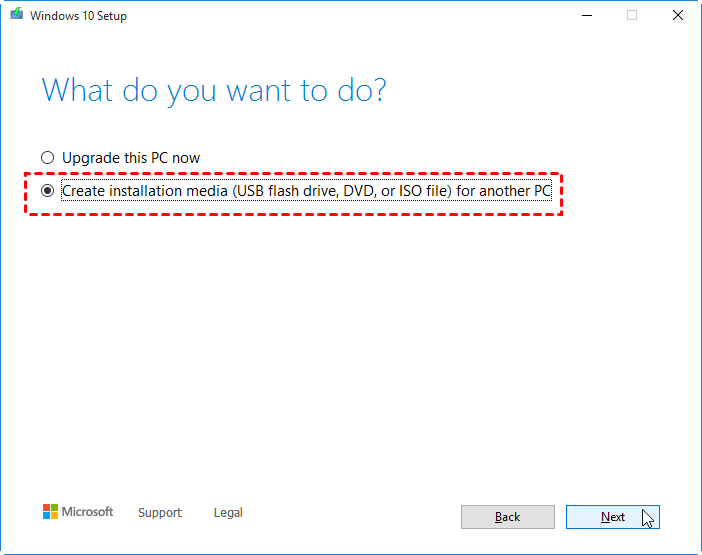
4. Choose the language, edition, and architecture for Windows 10.
5. Select USB flash drive as the media type.
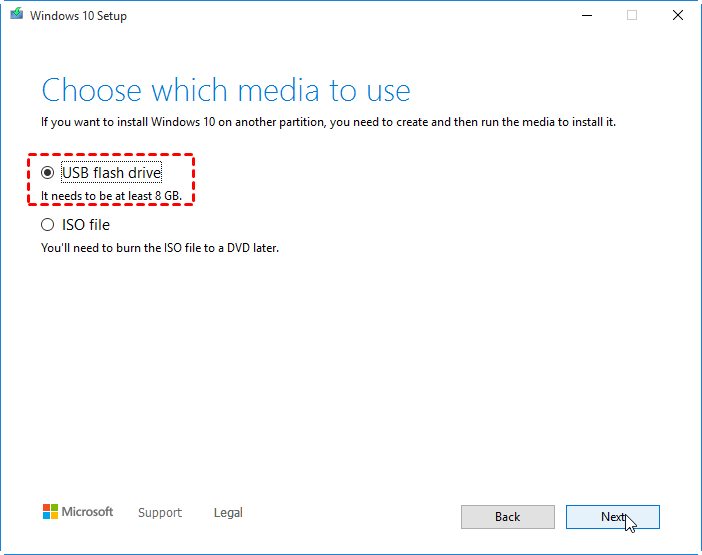
6. Follow the on-screen instructions to complete the process.
Step 2: Install Windows 10 on First Computer
1. Boot your first computer. Enter the BIOS or boot menu by pressing the required key during startup, such as F2, F12, ESC, or DEL.
2. Set the USB drive as the first boot device. Save changes and restart the computer.
3. When the setup screen appears, select your language and keyboard settings and click Next. Then click Install Now.
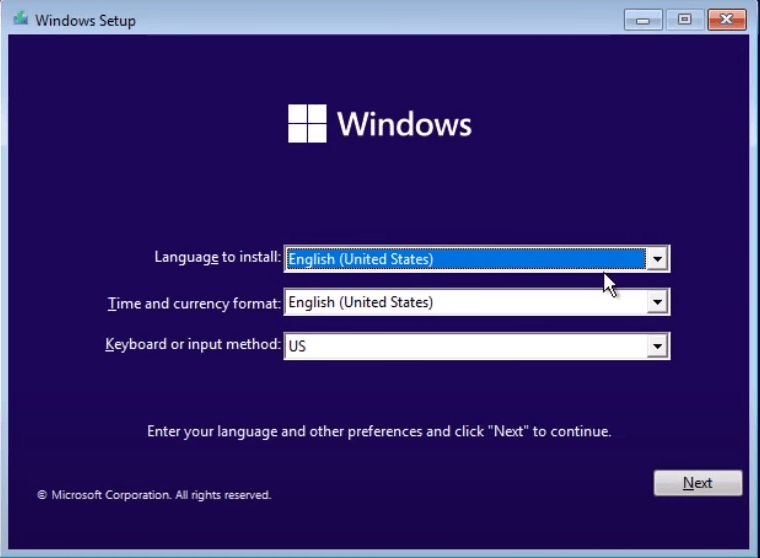
4. Enter the Windows 10 product key if prompted.
5. Choose the Windows edition you want to install.
6. Accept the license terms.
7. Select Custom: Install Windows only (advanced).
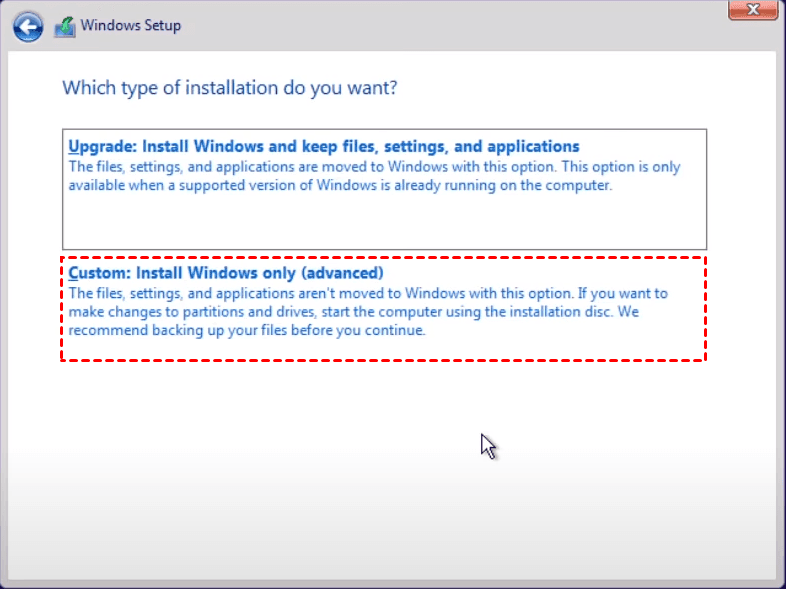
8. Choose the target drive or partition and click Next to begin installation.
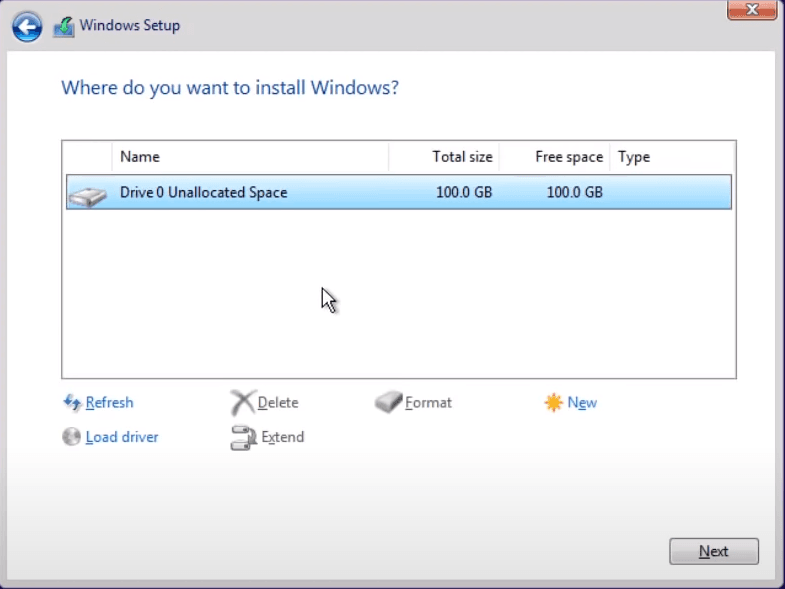
9. Windows will copy files, install features, and restart several times during the process.
Step 3: Repeat the Process on Other Computers
After the first installation is complete, repeat the same process on the remaining computers. Since the installation files are already stored on the USB drive, you can quickly move from one device to another.
Method 2: Deploy Windows 10 Image to Multiple Computers via Clone Software
If you need to install Windows 10 on multiple computers quickly and keep the same system configuration across all devices, using clone software is a more efficient solution. AOMEI Cloner comes to help.
 AOMEI Cloner
- Disk Clone – You can clone one disk to another disk or clone one disk to multiple disks simultaneously as you want.
- System Clone – Migrates only the operating system to a new disk.
- Intelligent Clone – Copies only the sectors that actually contain data, allowing you to clone a larger drive to a smaller one with ease.
- Offline Clone – Enables cloning even when the system fails to boot, using a bootable USB, CD, or DVD.
- SSD Alignment – Automatically aligns partitions during the cloning process to enhance SSD performance and prolong its lifespan.
- Edit Partitions – Adjusts partition sizes on the destination disk automatically or manually.
 100% Secure
Now let’s see how to deploy Windows 10 image to multiple computers via AOMEI Cloner below.
Step 1: Prepare the Source Computer
Before cloning Windows 10 to multiple computers, configure one computer exactly the way you want. You can:
- Install Windows 10 and all necessary drivers
- Configure system settings
- Install required applications and updates
- Remove unnecessary files and temporary data
This computer will act as the master device for deployment.
Step 2: Clone Windows 10 to Multiple Disks
1. Remove hard drives on the target computers and connect them to the source computer. You can choose a connection method according to your situation:
- Internal Connection: Install drives internally via SATA cables, M.2 slots, or PCIe expansion cards.
- External Connection: Connect drives externally via USB hubs/docks or multi-bay USB enclosures.
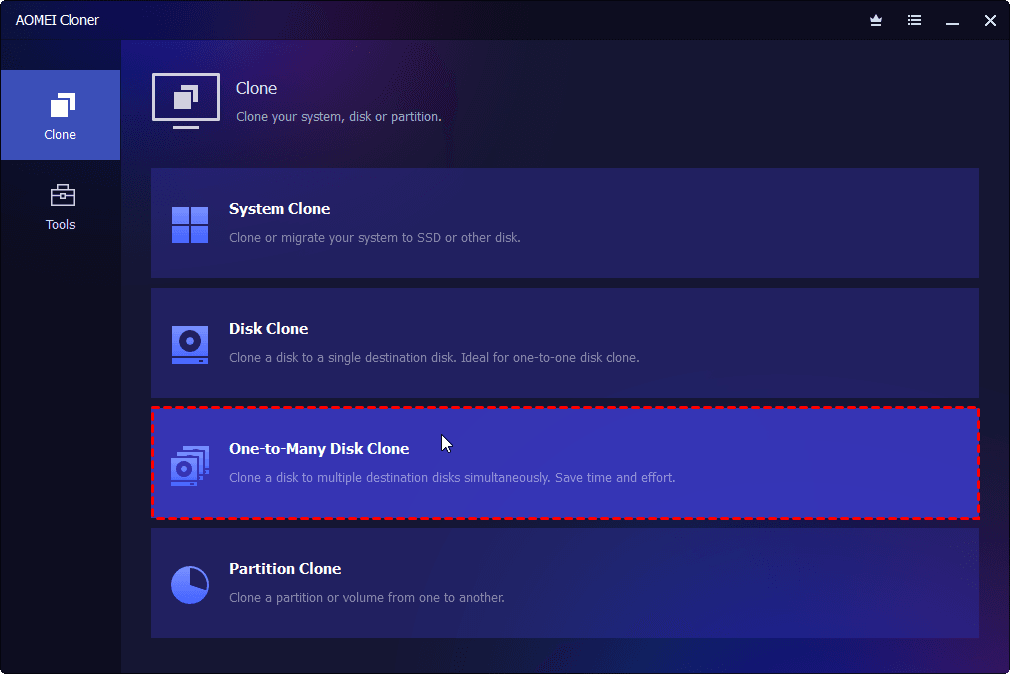
2. Download and install AOMEI Cloner on your source computer. Open AOMEI Cloner and go to Disk Clone.
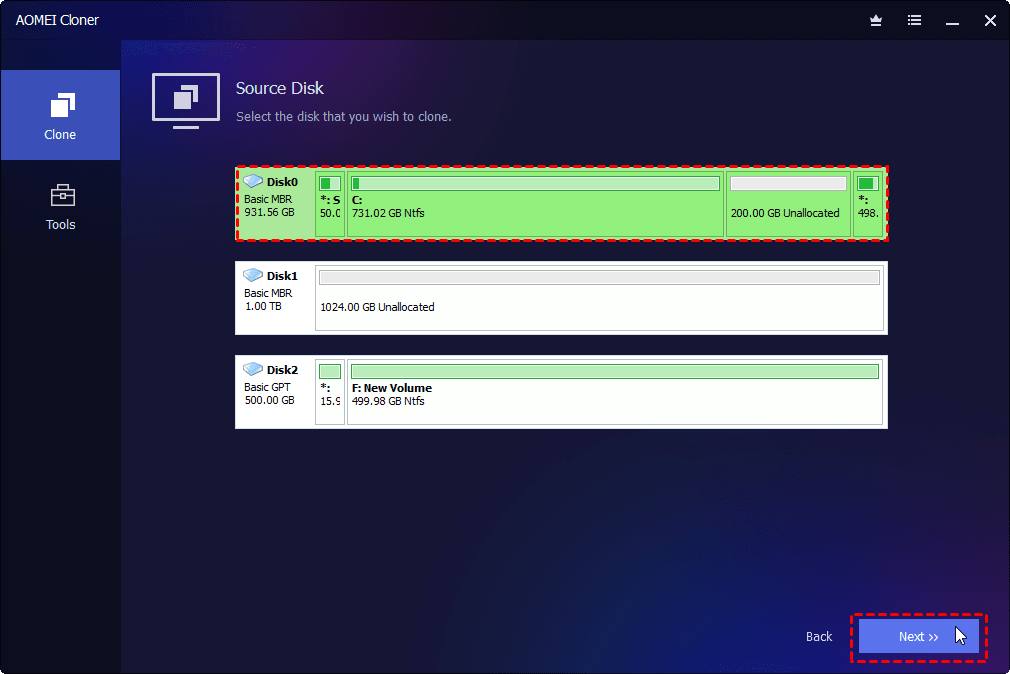
3. Click Select Source Disk. In the pop-up window, select the source computer’s hard drive to copy data from and click Next.
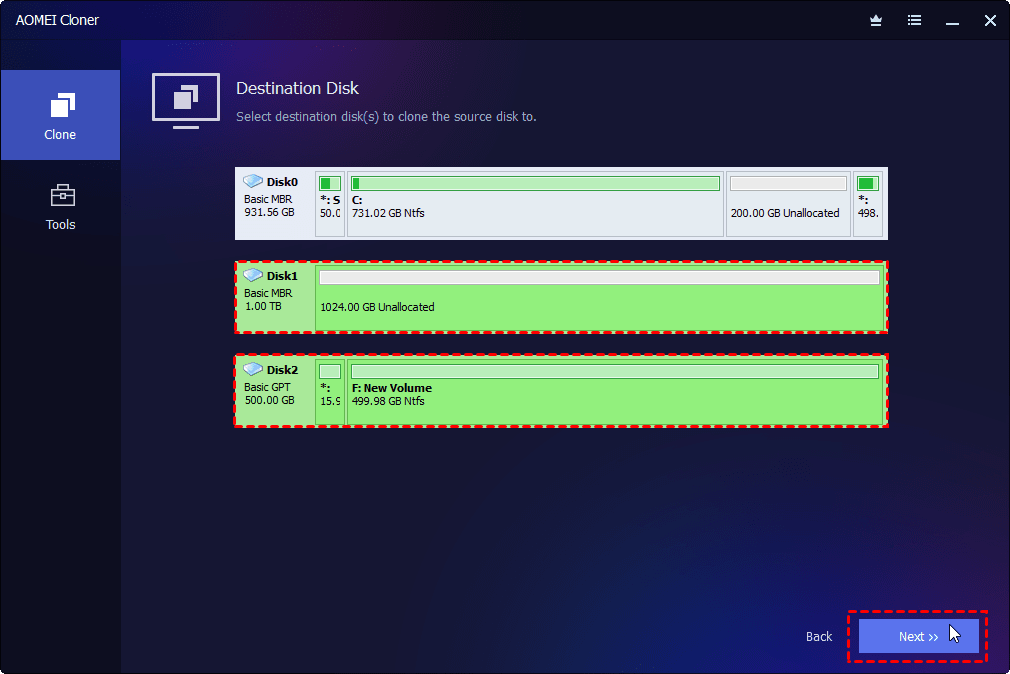
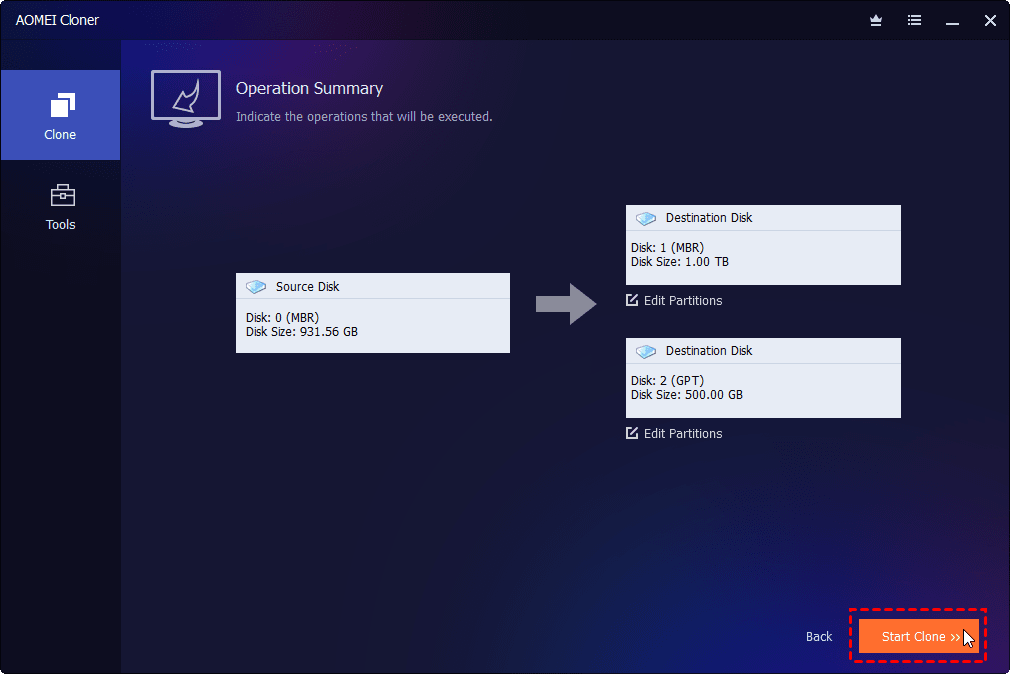
4. Click Select Destination Disk. In the pop-up window, tick One-to-Many Disk Clone, select all the destination disks you connected and click Next.
5. Configure cloning options for each destination disk:
- If the destination disk is an SSD, check SSD Alignment to enhance the SSD performance.
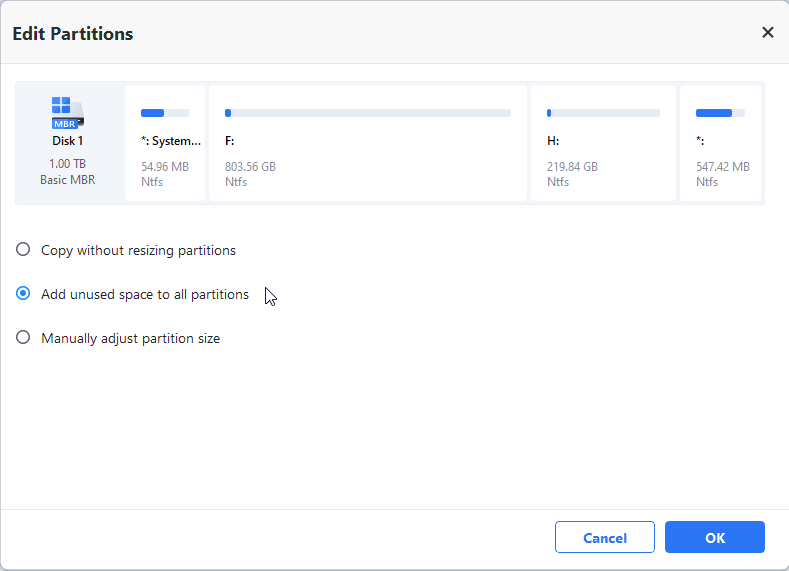
- If the destination disk is larger than the source disk, click Edit Partitions > Add unused space to all partitions to fully use the disk capacity.
6. Confirm the cloning operation and click Start Clone. In the Data Safety Notice window, click Start Clone again to launch the cloning process.
Step 3: Install Cloned Disks on Target Computers
After the cloning process is complete:
1. Install the cloned drive into another computer.
2. Boot the computer from the cloned disk. Verify that Windows 10 starts correctly.
3. Repeat the process for additional computers as needed.
Tips for Successfully Deploying Windows to Multiple PCs
Deploying Windows to multiple computers can save a significant amount of time, but careful preparation is essential to avoid deployment failures, driver conflicts, or activation issues. Here are some best practices:
🌟 Create a Clean and Updated Master System
Before capturing or cloning a Windows image:
- Install the latest Windows updates
- Remove temporary files and unnecessary software
- Configure system settings and applications
- Run antivirus scans to ensure the system is clean
🌟 Use Similar Hardware Whenever Possible
Deploying the same Windows image to computers with identical or similar hardware reduces compatibility problems. Systems with different chipsets, storage controllers, or motherboard drivers may require additional configuration after deployment.
🌟 Back Up Important Data Before Deployment
Installing or deploying Windows may overwrite existing files on the target computers. Always create backups of important documents, applications, and user data before starting the deployment process. This step is especially important in business environments where accidental data loss can interrupt productivity.
🌟 Verify Windows Licensing and Activation
Each deployed computer usually requires a valid Windows license. For larger deployments, consider:
- Volume licensing
- Digital licenses
- Organization-based activation methods
Proper licensing ensures your Windows installations remain activated and compliant.
FAQs About Installing Windows on Multiple Computers
1. What is the fastest way to install Windows on multiple computers?
The fastest method depends on the number of devices and your environment. For small deployments, a bootable USB drive works well. For larger deployments, cloning software or network deployment solutions are much faster because they allow you to deploy a preconfigured Windows image to multiple computers simultaneously or with minimal manual work.
2. Can I deploy the same Windows image to different hardware?
Yes, but compatibility issues may occur if the hardware differs significantly. Different motherboards, storage controllers, and chipsets may require additional drivers after deployment. Some professional deployment and cloning tools support hardware-independent restore/clone.
3. Will installing Windows erase existing data on the computers?
Yes, a clean Windows installation or disk cloning process may overwrite the existing data on the target drive. It is strongly recommended to back up important files before starting deployment to avoid accidental data loss.
Conclusion
This article offers you two effective ways to install Windows on multiple computers: use USB installation media and perform one-to-many disk clone. If you need a clean, driver-fresh installation, try USB installation media. If you need to replicate a fully configured system (apps, settings, files) across multiple machines, try the best disk cloning software – AOMEI Cloner. AOMEI Cloner offers all-around cloning solutions for different scenarios. Why not give it a shot?

 as a preferred
source on Google
as a preferred
source on Google