




5 Best Gigabyte SSD Clone Software | FREE Download
This article includes the 5 best Gigabyte SSD clone software for Windows, such as AOMEI Cloner, Clonezilla, Macrium Reflect, etc., along with the advantages and disadvantages. Pick one that best suits your needs.

By Ivy Updated on August 11, 2026


Does Gigabyte Have SSD Clone Software?
While Gigabyte doesn't provide any SSD cloning software, you can consider using a dedicated cloning software to create an exact copy of your existing drive and transfer it to Ga igabyte SSD without reinstalling.
This includes the operating system, boot files, installed programs, user profiles, system configurations, and all personal data - exactly as they were, ready to boot and run immediately, just faster and more responsive.

It significantly simplifies the process through guided workflows, preset features like auto-resize partition, intelligent clone, etc., without complex setup. In addition, these tools can effectively recognize SSD-specific requirements, such as sector alignment, partition structure, and hardware compatibility, thereby ensuring overall performance.
Which Cloning Software Is Best for Gigabyte SSD?
We’ll introduce you to the 5 best Gigabyte SSD clone software below. Select one based on your needs.
AOMEI Cloner (for Smooth Cloning Experience)
AOMEI Cloner is a dedicated disk cloning software for Windows that integrates with full system and disk cloning solutions, alongside a suite of cloning features, making the process simple and efficient. The wizard-style interface makes it easy for beginners to get started.
✅ Pros:
- Beginner-friendly and easy to follow
- Full disk and system cloning
- Auto-resize partition during cloning
- Support 4k alignment
- Bootable media creation
❌ Cons:
- This software currently supports Windows only.
Acronis True Image (for All-in-One Solution)
Acronis True Image is a premium tool that goes beyond simple cloning. Alongside its disk migration capabilities, it provides built-in ransomware protection, cloud backup options, and flexible system imaging. The interface is polished and suitable for both beginners and experienced users.
✅ Pros:
- Combines cloning with strong data protection
- Allows cloning while Windows is running
- Polished, user-friendly interface
❌ Cons:
- Subscription-based pricing can be expensive
Clonezilla (100% Free)
Clonezilla is a free, open-source cloning tool for advanced users. It runs from bootable USB/CD media and supports disk-to-disk, partition-to-partition cloning, network cloning, etc. While it’s powerful, it lacks a graphical interface, making it less accessible for beginners.
✅ Pros:
- Free and open-source
- Network cloning
- Support a wide range of file systems
❌ Cons:
- Text-based interface can bechallenging
- No incremental or differential backups
DiskGenius (for Cloning and Disk Management)
DiskGenius is a versatile utility that combines cloning, partition management, and data recovery. The free version handles basic cloning well, while additional features cater to users who want more control over partitions.
✅ Pros:
- Free and feature-rich
- Sector-by-sector cloning
- Includes partition management tools
❌ Cons:
- Dated interface
- Slower cloning operations
Macrium Reflect (for Advanced Users)
Macrium Reflect is highly reliable and popular among IT professionals. It supports full disk and partition cloning with immediate bootability. The paid version unlocks features like differential backups, rapid delta restore, and bootable rescue media. It’s particularly strong for frequent migrations and mission-critical systems.
✅ Pros:
- Extremely reliable and robust
- Advanced imaging and cloning features
- Rescue media supportfor safe recovery
❌ Cons:
- Free version is discontinued for new users
How to Use Gigabyte SSD Clone Software
Select the Gigabyte SSD cloning software that best suits your needs to perform the cloning process. The steps are similar: select the cloning solution, both drives, configure cloning settings, and start cloning. Here, we’ll take AOMEI Cloner as an example.
✅ What To Do First:
- Backup files to external hard drive for data safety. Cloning will overwrite data on the target Gigabyte SSD.
- Prepare a Gigabyte SSD with enough space. For optimal performance, double or triple is best.
- Connect the Gigabyte SSD using a SATA cable or insert it into the M.2 slot, depending on the type of SSD you are using.
- Prepare a proper adapter or enclosure for a laptop with one slot.
Steps to Clone Hard Drive to Gigabyte SSD (Bootable)
Step 1. Select a Cloning Solution
Launch the best Gigabyte SSD cloning software - AOMEI Cloner. Choose Disk Clone or System Clone depending on your needs.
Step 2. Select the Old Drive and Gigabyte SSD
Click Select Source Disk to choose your current system drive - this includes the OS, system files, installed programs, and personal data. Then, click Select Destination Disk and choose the Gigabyte SSD as the target for migration.
Step 3. Configure Cloning Settings and Start Clone
In the Disk Clone Confirmation window, check SSD Alignment for faster reading & writing speed and extended lifespan, and click Edit Partitions to convert disk partition styles (if needed). At last, click Start Clone.
⚠️Notes:
✅ Edit Partitions: The Add unused space to all partitions is automatically checked to resize new, larger Gigabyte SSD and avoid cloned hard drive show wrong size. No manual intervention is required.
❌Sector by Sector Clone: This mode allows you to clone all sectors, including empty and bad sectors. Keep this unchecked, and it will use Intelligent Clone mode to copy only the used sectors, especially for cloning to smaller SSDs.
Perform a First Boot Check
When finished, power off the computer completelyand attempt the first boot.
🖥For a desktop with two slots:
Since your SSD is installed internally, you can directly change the boot order to boot from the Gigabyte SSD. You can also disconnect the old SSD and restart your computer to boot from the new one.
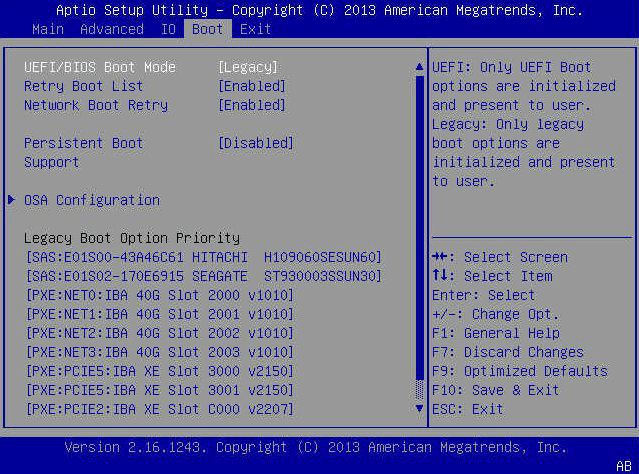
Step 1. Restart the PC and repeatedly press the BIOS key, usually F2, F10, F12, DEL, etc., to access the BIOS/UEFI settings.
Step 2. Under the Boot tab, set the Gigabyte SSD as the first boot device and press F10 to save changes. It will reboot from the new SSD, exactly as it was, but with faster speed and more responsiveness.
💻 For a laptop with one slot:
Your SSD is often connected externally and requires a physical swap of the drive before attempting the first boot.
Step 1. Remove all screws from the back panel and open the case.
Step 2. Then, locate the SSD slot, remove the screws securing the old SSD, and take it out carefully.
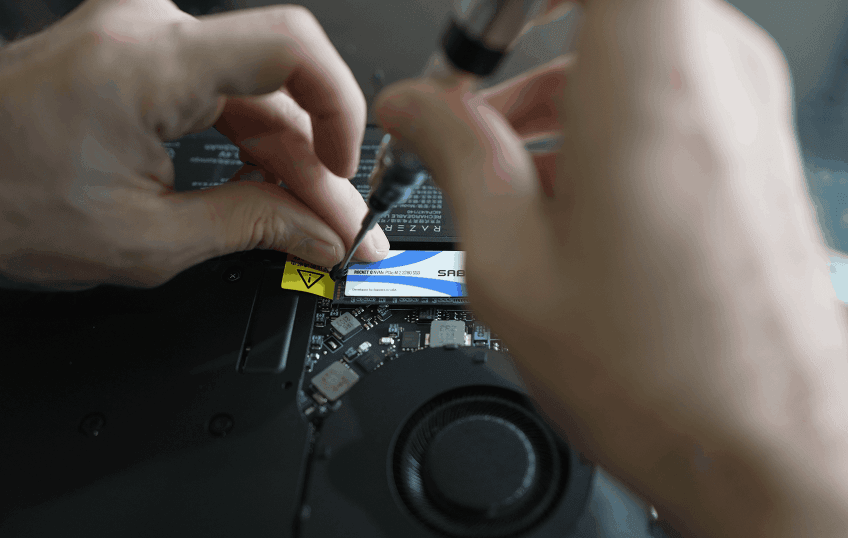
Step 3. Install the Gigabyte SSD into the slot and secure it tightly. Reassemble the PC and perform the first boot check.
Final Result
The best Gigabyte SSD clone software can significantly boost the computer performance, e.g., faster boot times, quicker browsing, improved responsiveness, etc., for scenarios like replacing a failing drive, upgrading PC storage, migrating Windows installation from one hard drive to another, and more. Select one based on your needs.

 as a preferred
source on Google
as a preferred
source on Google