




Can I Clone a 500GB HDD to a 250GB SSD? Sure!💡
Are you considering replacing your HDD with an SSD, but your HDD has more storage capacity than the SSD? This guide will answer you: can I clone a 500GB HDD to an 250GB SSD?

By Jonna Updated on August 10, 2026


Can I Clone a Larger HDD to a Smaller SSD?
There is no doubt that SSDs offer numerous advantages over HDDs: much faster boot times, quicker file transfers, and smoother overall performance. But when upgrading HDD to SSD, common questions pop up like: can I clone a 500GB HDD to a 250GB SSD? or, can I clone 2TB HDD to 1TB SSD?
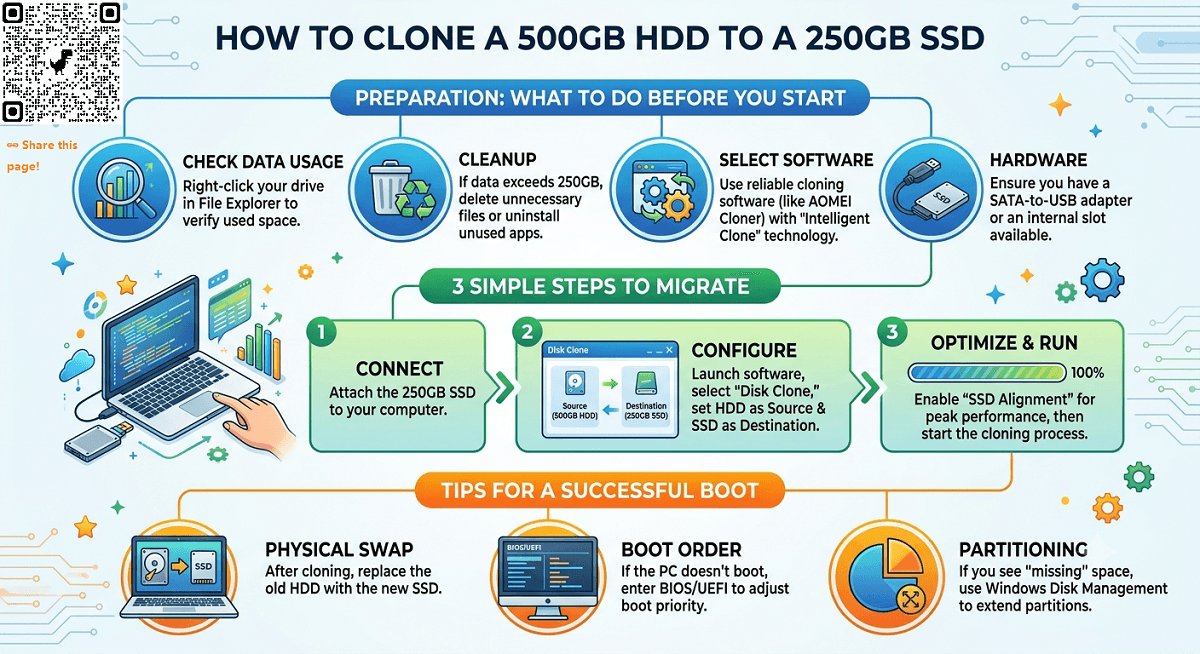
Yes, you can clone a bigger HDD to a smaller SSD as long as the used space on the HDD is less than the capacity of the target SSD. For instance:
1️⃣ If your 500GB HDD has only 150GB of files and system data, then it can fit nicely onto a 250GB SSD. You can clone the entire larger HDD to smaller SSD.
2️⃣ If your HDD contains more than 250GB, like 400GB of data, you may need to free up space by deleting unnecessary files or uninstalling unused applications, or you can only move some partitions of the old HDD, like transferring only OS to SSD.
Don't worry, we'll cover how to do this without losing important files.
🌟 To check more scenarios about cloning to a smaller drive, please refer to this complete guide: Clone Larger Drive to Smaller Drive.
Best Cloning Software to Clone to Smaller SSD Free Download
To make cloning HDD to smaller SSD possible, you can try AOMEI Cloner, a powerful and user-friendly cloning solution designed for both beginners and advanced users. It provides you with Intelligent Clone, which copies only the used sectors from the source drive instead of duplicating everything sector-by-sector.
This software ensures to perform a bootable clone to migrate OS and related files to start Windows. And here is why it's perfect for cloning hard drive to smaller SSD, like cloning 2TB HDD to 1TB SSD or cloning 500GB HDD to 250GB SSD:
 AOMEI Cloner
- Disk Clone/System Clone: It allows you to copy the entire HDD, or migrate only Windows and system-related files, skipping data-heavy partitions.
- Universal: It is capable of cloning hard drives of different sizes - cloning to smaller or larger disk, or even cloning to new computers with different hardware - transferring Windows 11 to new PC.
- Wide compatibility: It works with HDDs and SSDs from all popular brands, and runs smoothly on Windows 11, 10, 8, 7, and all Windows Servers.
- Alignment and resizing: Align and optimize the performance of the target SSDs and resize disk partitions as needed.
- MBR and GPT disk conversion: Easily clone a disk while converting its partition style from MBR to GPT or from GPT to MBR.
- Bootable USB disk cloning: Clone your disk from bootable USB when Windows cannot start or when you need to perform offline disk migration.
 100% Secure
How to Clone a 500GB HDD to a 250GB SSD
Here is how to clone a larger HDD to a smaller SSD using AOMEI Cloner step by step.
Step 1. Attach the 250GB SSD to your computer using a SATA-to-USB adapter or directly through the motherboard.
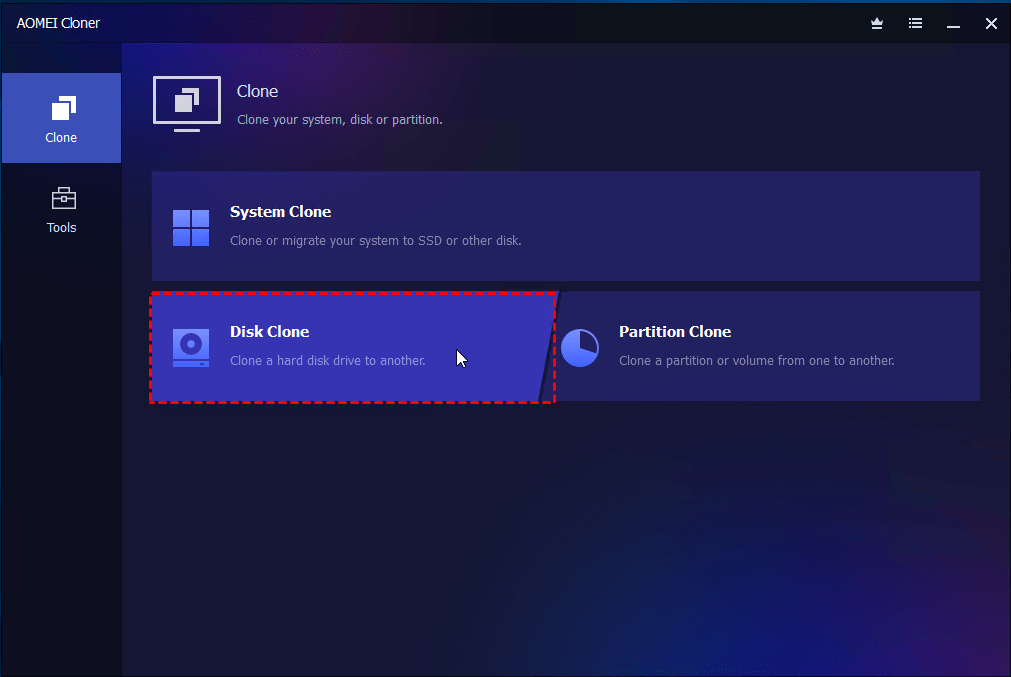
Step 2. Install and run AOMEI Cloner on your PC. Select Disk Clone to copy your entire hard drive.
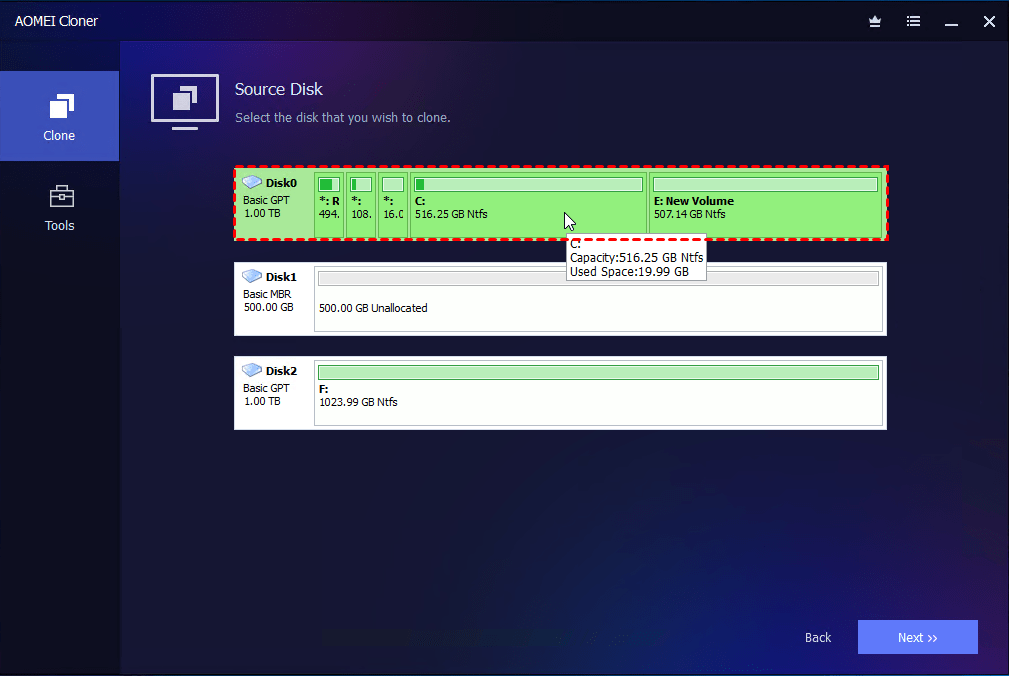
Step 3. Click Select Source Disk to pick your 500GB HDD as the source disk. Click Select Destination Disk and choose your 250GB SSD as the target drive.
❗ Warning: All existing data on the SSD will be erased. Backup crucial files to an external drive or cloud storage beforehand.
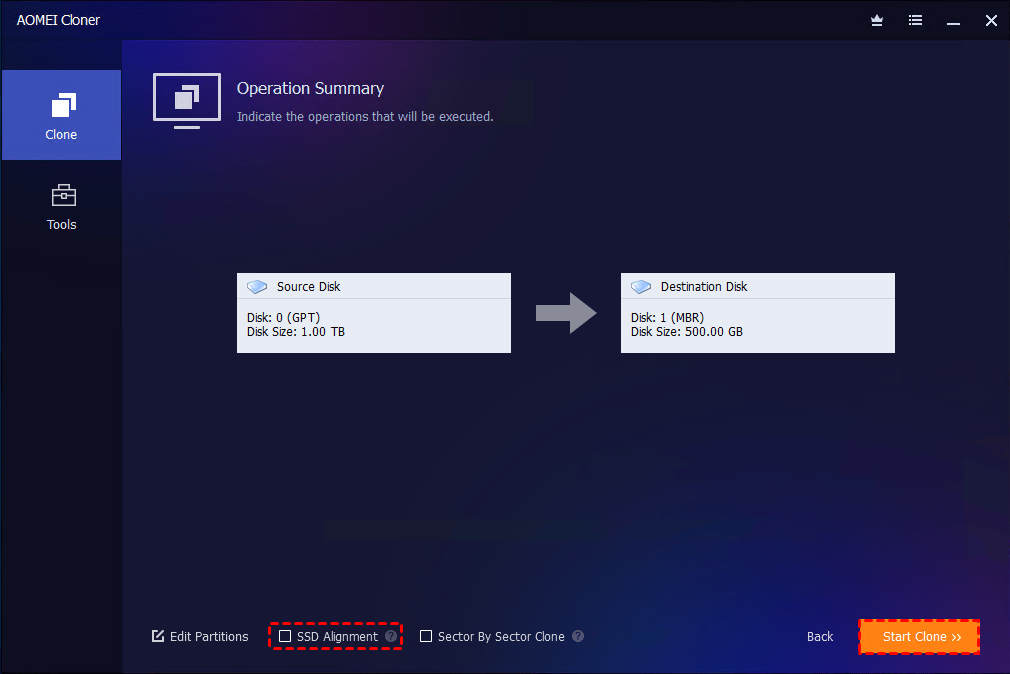
Step 4. Check the SSD Alignment option to enhance the SSD's best performance. Then click Start Clone to begin cloning the larger drive to the smaller drive.
Step 5. To boot your PC from the cloned smaller SSD, you can replace your HDD with the SSD to ensure booting up from it. If the cloned SSD won't boot, check the boot priority, run Bootrec.exe, etc.
Notes:✎...
- Edit Partitions: You can resize partitions with this function, which is especially useful to clone SSD to larger SSD and convert disk partition styles.
- Sector By Sector Clone: It will clone every sector, no matter if it is used or not, even if it’s a blank sector or a logically bad sector, so don’t check it unless you clone hard drive to larger SSD or clone SSD to larger SSD.
FAQs on Cloning 500GB HDD to 250 GB SSD
#1. Can you clone two different size hard drives?
Yes, you can clone two different size hard drives.
- Cloning a smaller drive to a larger drive: Usually straightforward, and you can expand partitions to utilize the extra space.
- Cloning a larger drive to a smaller drive: Possible if the used space on the source drive is smaller than the capacity of the destination drive. Intelligent cloning technology can help by copying only the used sectors instead of every sector on the disk.
#2. What happens if the used space on the HDD exceeds 250GB?
If the used space on the HDD exceeds 250GB (the capacity of the target SSD), the cloning process will fail. You'll need to free up disk space, move large files to another drive, or use a larger SSD.
#3. Can I boot Windows from the cloned 250GB SSD?
Yes, you can boot Windows from the cloned 250GB SSD if the cloning process is completed successfully. After cloning, you may need to change the boot order in BIOS/UEFI or replace the old HDD with the SSD.
#4. Why is my SSD capacity smaller after cloning?
This often happens because hidden recovery or reserved partitions take up space. Additionally, when you clone a larger HDD to a smaller SSD, resizing may leave some space unallocated. You can fix this by extending partitions using disk management tools.
Conclusion
So, can I clone a 500GB HDD to a 250GB SSD? Absolutely! The most important thing for this is ensuring your data usage is less than 250GB and using the right software, like AOMEI Cloner, for an intelligent clone. With features like SSD alignment, system cloning, and automatic partition resizing, this software makes the process painless.
Besides, it is also a reliable bootable USB clone utility. You can use it to copy hard drive to USB flash drive, copy USB to USB, clone bootable USB to external hard drive, etc. Just give it a try yourself!

 as a preferred
source on Google
as a preferred
source on Google