



Best Apricorn SSD Cloning Software | What You Need to Know
Z Gig IV with Data Select for Windows is the primary Apricorn SSD cloning software, but it has been disconnected since November 30, 2023. For better compatibility with modern systems and SSD technologies, try the best alternative - AOMEI Cloner.

By Ivy Updated on August 10, 2026


Apricorn SSD Cloning Software- EZ Gig IV with Data Select
Apricorn’s primary cloning utility, EZ Gig IV with Data Select, was designed to simplify disk upgrades and data migration. It allowed users to clone the entire drive, including the operating system, applications, and personal files, to a new HDD or SSD without reinstalling Windows. Typical use cases:
- Upgrade HDD to SSD for better performance
- Replace a failing drive
- Migrate OS to a larger disk
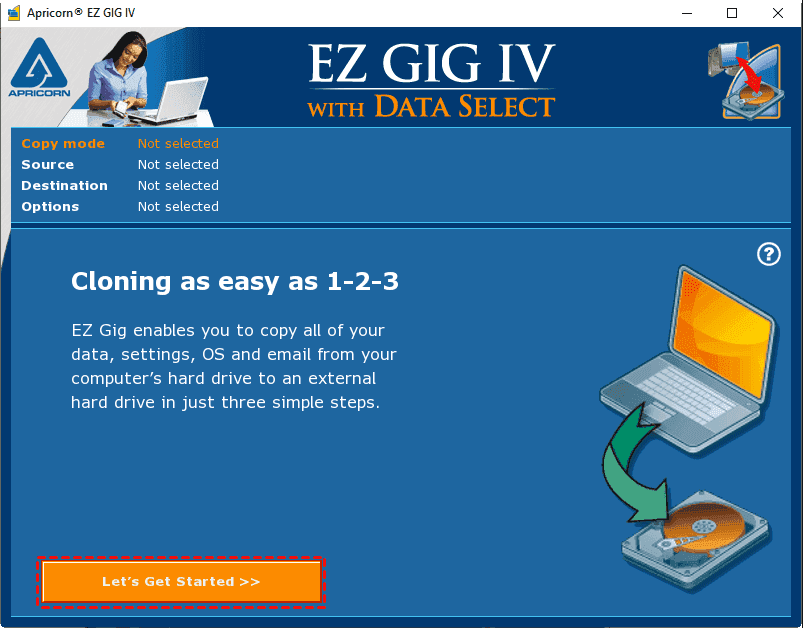
The tool was especially popular when bundled with Apricorn hardware kits. However, it’s important to note that EZ Gig IV has been officially discontinued, with no downloads or support available after November 30, 2023. Even prior to this, many users report compatibility issues with Windows 10/11 and modern SSDs.
Best Alternative to Apricorn SSD Cloning Software
Modern systems are far more complex than those legacy tools were designed for. Today’s PCs rely on UEFI firmware and GPT partition structures instead of traditional BIOS and MBR, which require more advanced cloning support. New storage technologies, such as NVMe SSDs and high-capacity drives, also require better compatibility and optimization.
AOMEI Cloner is a modern SSD cloning software that can easily transfer everything from HDD to SSD, clone SSD to SSD, etc., all without reinstalling Windows and while ensuring the cloned drive remains bootable.
 AOMEI Cloner
- Intelligent Clone: Only copies used sectors, making the process faster while preserving OS and EFI/system reserved partition.
- Bootable Clone: Guarantees that the cloned SSD can boot properly without additional configuration.
- SSD Alignment: Significantly improve SSD disk performance (e.g., clone NVMe to NVMe) and ensure smooth system responsiveness after cloning.
- Edit Partitions: Resize partitions and convert between MBR and GPT to optimize disk space and keep the boot mode consistent.
 100% Secure
Apricorn SSD Cloning Software vs AOMEI Cloner
Here’s a clear comparison table summarizing the key differences between EZ Gig IV vs. AOMEI Cloner. Consider trying AOMEI Cloner, better suited for modern systems and newer storage technologies.
|
Feature |
EZ Gig IV |
AOMEI Cloner |
|
Ease of Use |
Basic interface, limited guidance |
Modern, user-friendly interface |
|
System Compatibility |
Designed for older systems |
Fully supports Windows 10/11, UEFI/GPT, NVMe SSDs |
|
Cloning Performance |
Struggle with newer hardware |
Optimized with intelligent clone & SSD alignment |
|
UEFI/GPT Support |
Limited or inconsistent |
Fully supports UEFI boot and GPT disks |
|
Boot Success Rate |
Higher risk of boot failure |
High success rate with bootable clone |
|
Software Updates |
Discontinued (no updates after 2023) |
Actively maintained with regular updates |
|
Reliability |
May cause errors or an incomplete clone |
Stable and reliable across modern environments |
How to Clone Hard Drive to Apricorn SSD Step by Step
Before cloning, make sure everything is ready:
- Backup yourdata first to avoid accidental loss.
- Prepare a new Apricorn SSD, along with a USB cable or adapter to connect it.
- Be sure the Apricorn SSD has enough space to store data on the old SSD.
After preparation, follow the steps below to clone hard drive to Apricorn SSD.
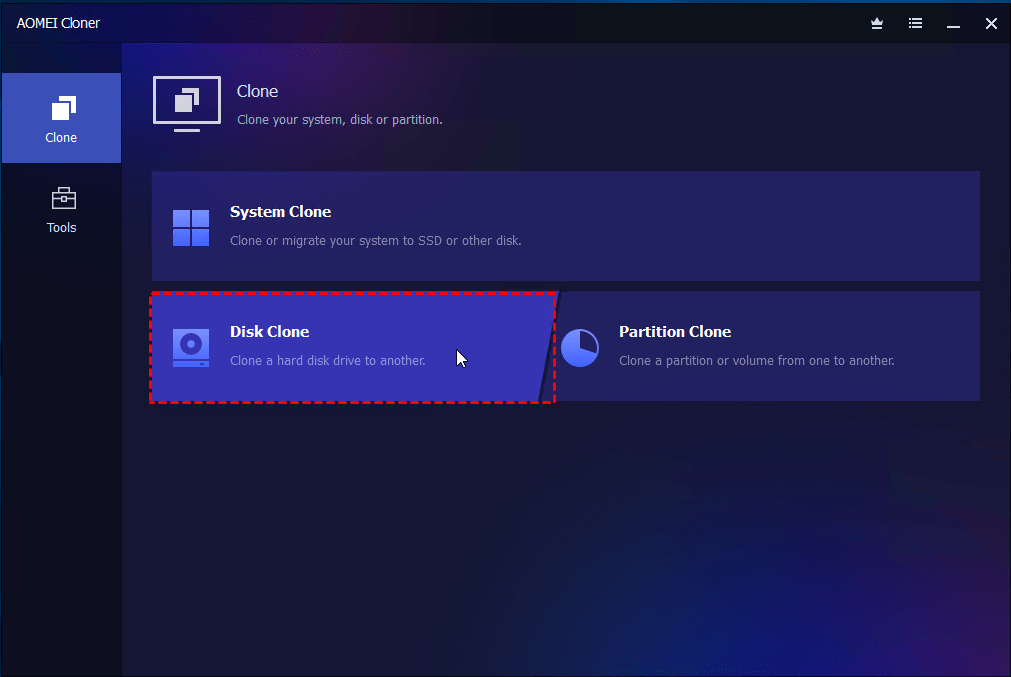
Step 1. Connect your Apricorn SSD using the included USB cable or adapter. Open AOMEI Cloner after installing and click Disk Clone to get started.
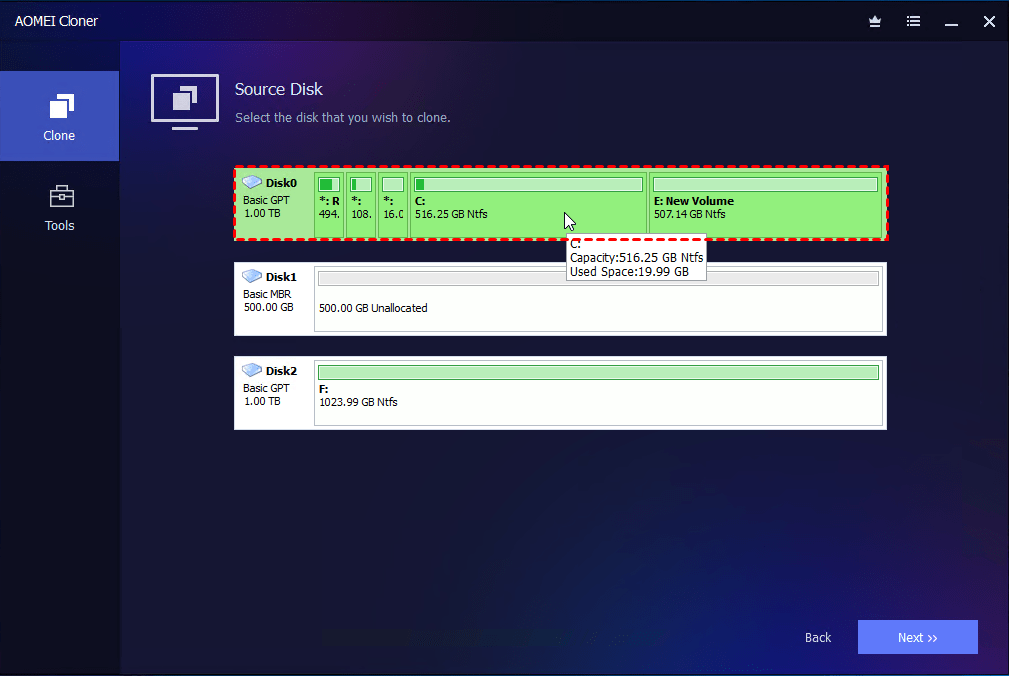
Step 2. Select your current system drive as the source drive and Apricorn SSD as the destination drive. Click Next after each selection.
Step 3. Be sure to check SSD Alignment for high performance and click Start Clone to clone hard drive to Apricorn SSD.
Warning: The destination drive will be overwritten or deleted. Make sure to select the right disk and backup your important data (if there is any) in advance. Then, click OK to continue.
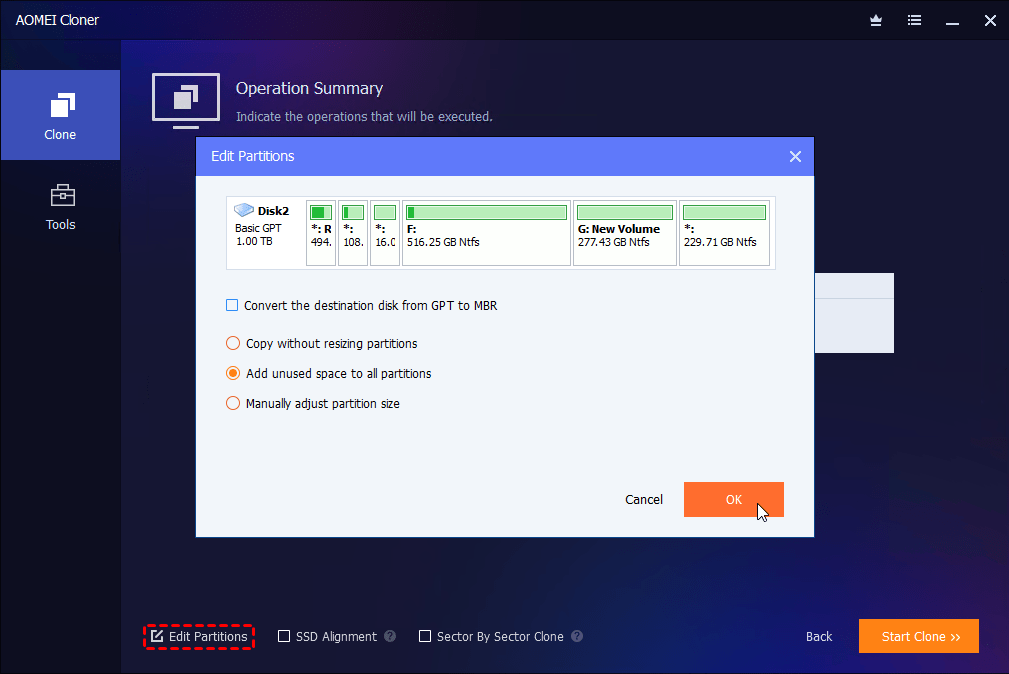
- This software will automatically resize new SSD to full capacity (if it’s large). Click Edit Partitions to confirm this and optionally convert disk types if the two disks are of different types.
- Don’t check Sector by Sector Clone, especially while cloning larger HDD to smaller SSD. In this mode, not all system partitions, such as the EFI system partition and BCD, may be cloned, leading to a cloning failure.
After cloning, set the new SSD as the boot drive and perform a boot test to see if the cloned drive will boot successfully.
- Press Del, ESC, F2, F12, etc., during startup to access the BIOS/UEFI settings window.
- Locate the Boot menu and set the new SSD as the first boot device.
- Press F10 to save changes and restart.
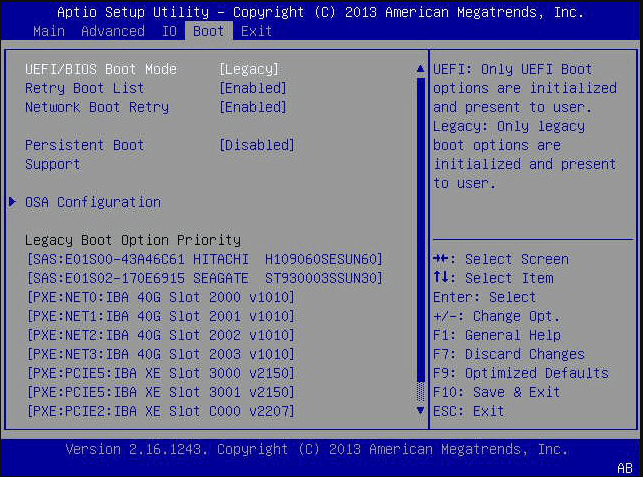
If the cloning was successful, Windows should boot normally from the new SSD. If not, check: cloned SSD won’t boot.
Conclusion
EZ Gig IV with Data Select for Windows is the primary Apricorn SSD cloning software, which is designed for old systems and disconnected after November 30, 2023. So you cannot download EZ Gig IV cloning software or get any support.
Meanwhile, Apricorn SSDs are primarily used to create full system backups or clones for disaster recovery, not as primary boot drives. To boot from a failing computer, you need to prepare an internal SSD and clone the Apricorn SSD again. Consider trying AOMEI Cloner, which offers better compatibility with Windows 10/11, UEFI/GPT systems, and NVMe SSDs, ensuring a smoother and more secure cloning process.

 as a preferred
source on Google
as a preferred
source on Google