




SSD Freezing in Windows 11/10: 5 Fixes + 1 Tip
Is your SSD freezing in Windows 11 or 10? Follow our step-by-step guide for effective solutions. There is also a free backup tool to help protect your files.

By Lily Updated on January 21, 2026


Main Causes of SSD Freezing in Windows 11/10
When an SSD frequently freezes Windows 11 or Windows 10, the issue is rarely random. In most cases, system lockups are triggered by software conflicts, misconfigured settings, or early signs of drive instability. If your SSD freezes computer, it can be caused by:
📍 Loose or Faulty Hardware Connections
📍 Incorrect BIOS/UEFI Configuration
📍 Unoptimized System and Power Settings
📍 Outdated SSD Drivers or Windows Builds
📍 File System Corruption and Disk Errors
 AOMEI Backupper
When your SSD starts freezing, it is recommended to backup your SSD immediately to avoid data loss.
How to Fix SSD Keeps Freezing on Windows 11/10
If your system keeps freezing and the SSD is often at 100% usage or becomes unresponsive, please work through the fixes below in order.
Fix 1: Check hardware connections
Loose or unstable connections are one of the most common reasons for SSD freezing. Follow the steps below to reconnect your SSD:
1. Power off the PC completely and unplug it.
2. Choose one way to reconnect your SSD:
- For SATA SSDs: reconnect both the SATA data cable and power cable, and try a different SATA port or cable if possible.
- For NVMe SSDs: remove the drive, clean the slot gently, then reseat it firmly and secure it with the screw.
- If you use an external SSD, try a different USB port or cable.
Fix 2: Check BIOS/UEFI settings
Incorrect or outdated BIOS/UEFI settings can prevent Windows 11/10 from communicating properly with your SSD. Here’s how to fix it:
1. Restart your PC and press Del, F2, F10, or Esc (depending on your motherboard) to enter BIOS/UEFI.
2. Change BIOS/UEFI settings:
- For SATA SSDs: navigate to storage or advanced settings and ensure the controller mode is set to AHCI.
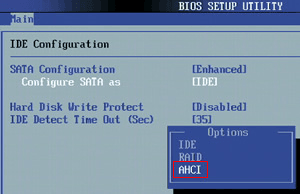
- For NVMe SSDs: verify that NVMe support is enabled and that the SSD is set as the primary boot device.
3. Save changes and reboot. Many SSD freezing problems caused by low-level conflicts are resolved at this stage.
Fix 3: Optimize system settings
Unoptimized Windows settings can overload disk operations or trigger power-related SSD interruptions, which often leads to freezing in Windows 11/10. Adjusting the following options can significantly improve SSD stability and overall system responsiveness.
1. Set power mode to best performance
👉 In Windows 11
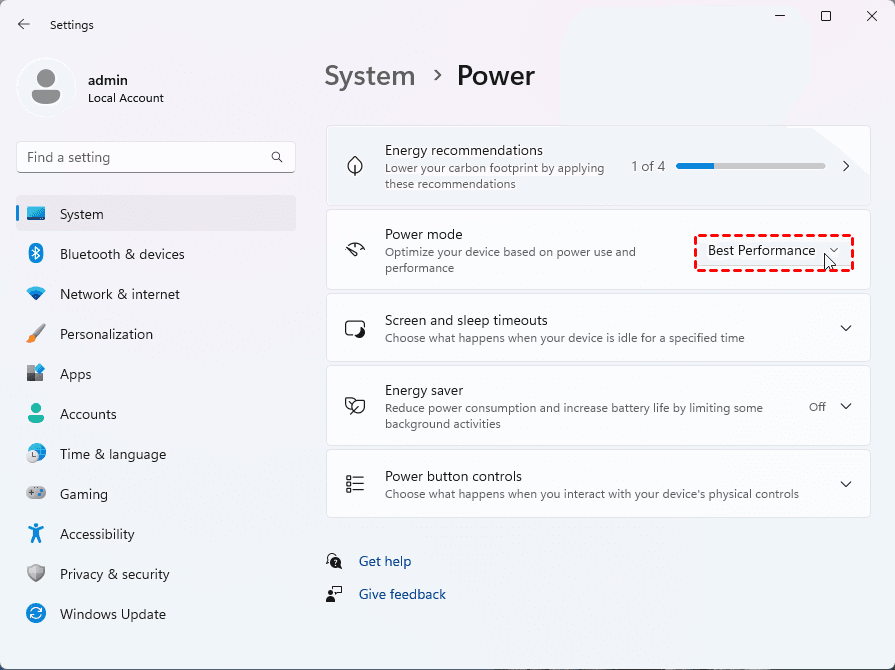
- Go to Settings > System > Power.
- Locate the Power mode dropdown menu and change it to Best Performance.
👉 In Windows 10
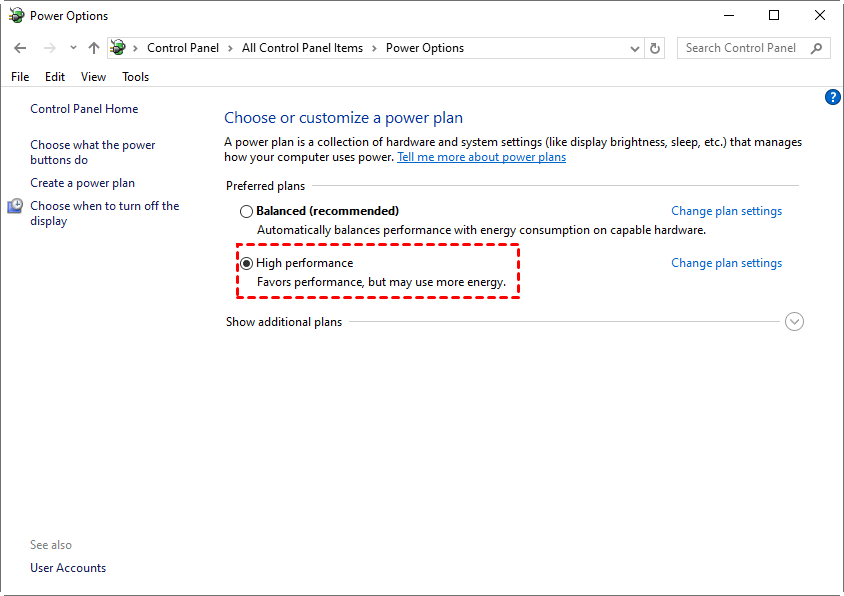
- Go to Control Panel > Power Options.
- Under “Choose or customize a power plan”, choose High performance.
2. Disable unnecessary startup programs and background services
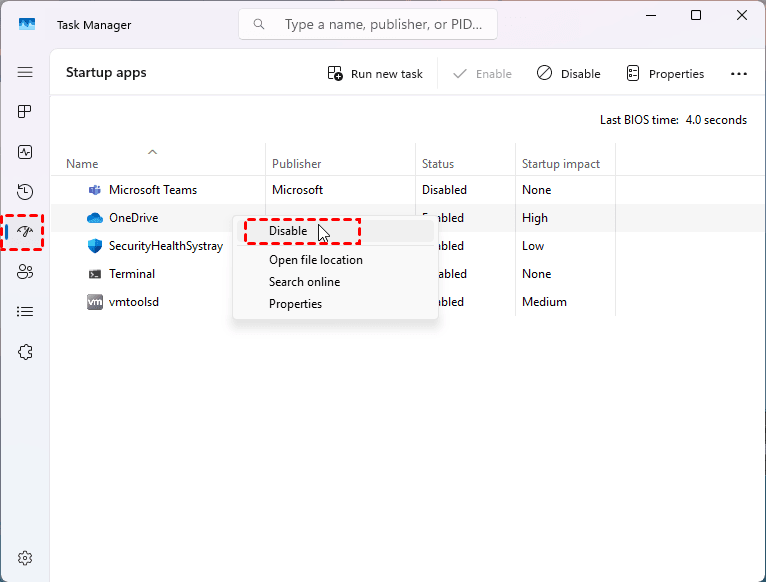
Press Ctrl + Shift + Esc to open Task Manager, go to the Startup apps tab, and disable non-essential programs. Fewer background processes reduce sudden disk spikes that can make the SSD appear unresponsive.
3. Optimize virtual memory (paging file)
- Press Windows + R, type sysdm.cpl, and open Advanced > Performance > Settings > Advanced > Virtual memory.
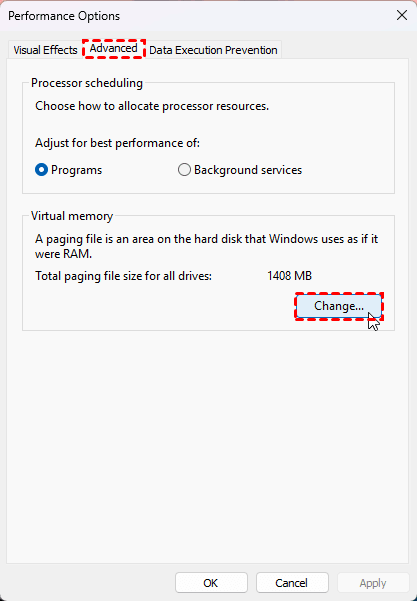
- Set a custom paging file size (commonly 1.5–2× your installed RAM) to avoid abrupt disk usage surges that contribute to freezing.
Fix 4: Update SSD drivers and Windows
Outdated storage drivers and unfinished Windows updates are a major cause of SSD freezing in Windows 11/10. Follow the instructions below to fix it:
1. Update Windows first
Go to Settings > Windows Update and install all available updates, including optional driver and cumulative updates.
2. Install universal drivers
- Press Windows + X > Device Manager.
- Expand Disk drives and Storage controllers.
- Right-click your SSD, choose Update driver, and select Search automatically for drivers to let Windows find newer versions.
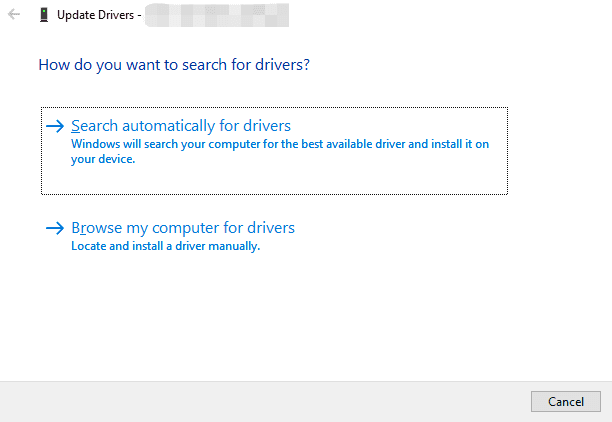
- Right-click the controller and update the driver in the same way.
3. Install manufacturer-specific SSD drivers
Visit the official website of your SSD brand (such as Samsung, WD, Crucial, Kingston, etc.) and download the latest NVMe or SATA driver and management utility.
4. Restart and monitor system behavior
After updating, reboot your system and observe whether freezing still occurs.
Fix 5: Scan and repair disk errors
File system corruption and logical disk errors can cause Windows to repeatedly retry read/write operations, making the SSD temporarily unresponsive and triggering system freezes. Use these steps to fix it:
1. Type cmd in the search box, then right-click Command Prompt and select Run as administrator.
2. Type chkdsk C: /f /r /x and press Enter.
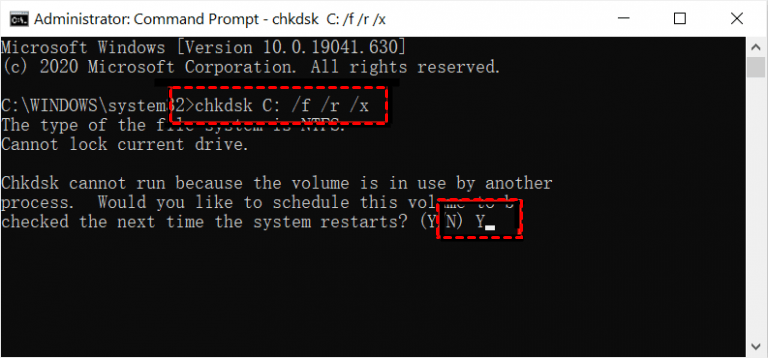
Note: Replace C: with the correct drive letter if your SSD uses a different one.
3. When prompted, type Y to schedule the scan, then restart your computer. Windows will check the SSD for errors and repair file system problems automatically.
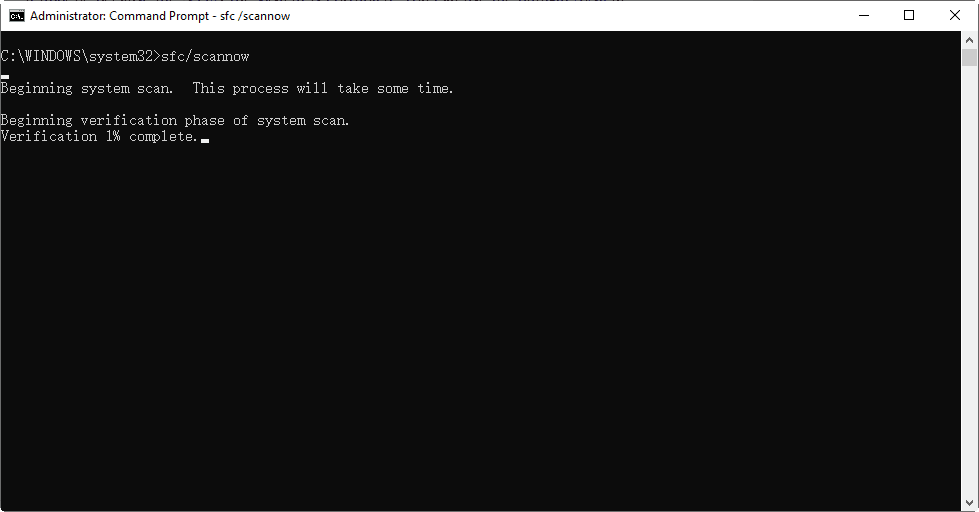
4. After Windows starts, open Command Prompt as administrator again and run sfc /scannow. This scans and repairs damaged Windows system files that may be contributing to SSD freezing.
Bonus: Backup Your SSD to Prevent Data Loss
When an SSD starts freezing in Windows 11/10, it’s often an early warning sign of file system corruption, firmware issues, or even impending drive failure. To avoid potential data loss, you may create a full backup of your SSD. The best free Windows backup software - AOMEI Backupper Standard comes to help.
 AOMEI Backupper
- Full Disk Backup for SSDs – Back up the entire SSD, including system partitions, applications, and personal files.
- System Backup Support – Create a complete image of Windows 11/10, ensuring your OS and boot files are protected.
- Automatic & Scheduled Backups – Set daily, weekly, or monthly backups to continuously protect SSD data.
- Incremental Backup Technology – Saves only changed data after the first backup, reducing backup time and SSD wear.
- Universal SSD Compatibility – Supports SATA SSDs, NVMe SSDs, M.2 drives, and external SSDs.
 100% Secure
Download AOMEI Backupper and learn how to backup an SSD in detail.
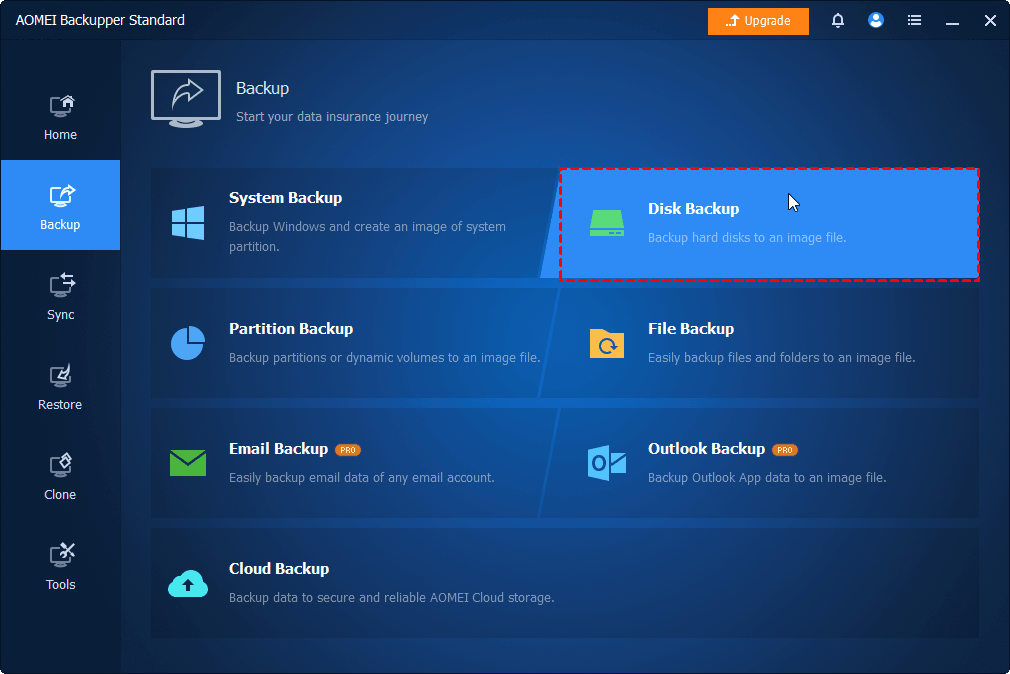
Step 1. Install and run AOMEI Backupper. Click Backup in the left menu, then select Disk Backup.
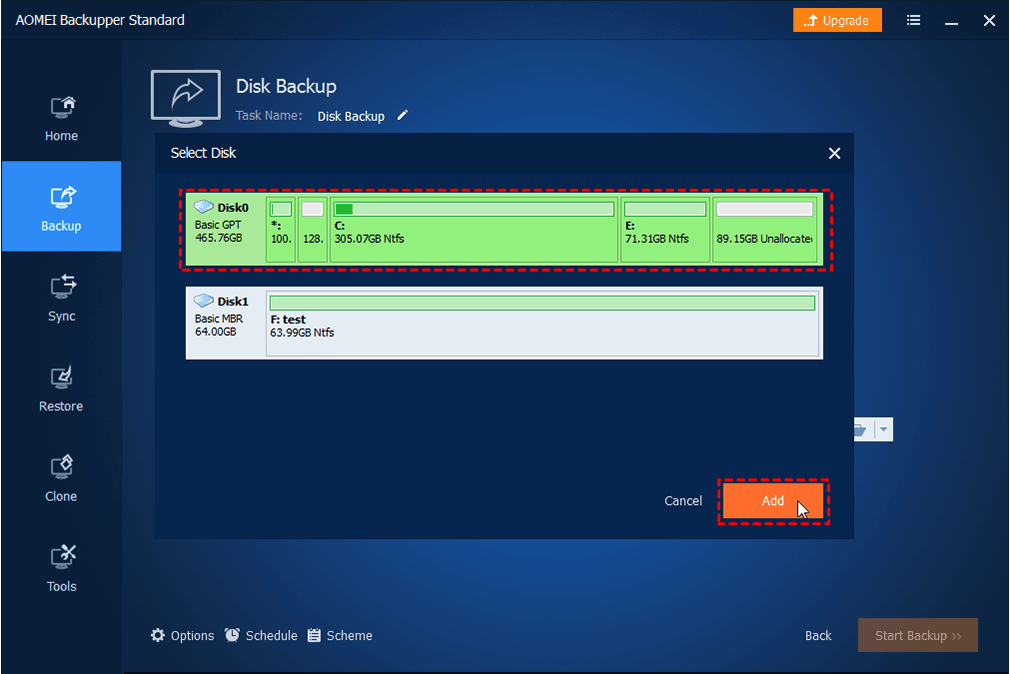
Step 2. Click Select Source. In the next window, choose the SSD that is experiencing freezingand click OK.
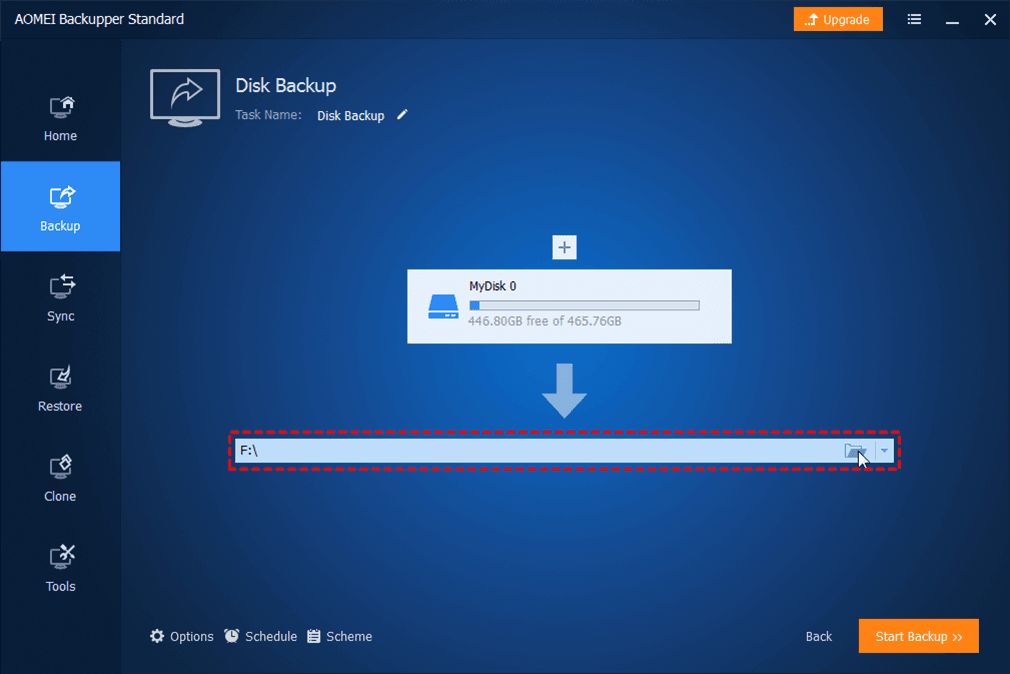
Step 3. Select an external hard drive, another internal drive, or a network location to store the backup image.
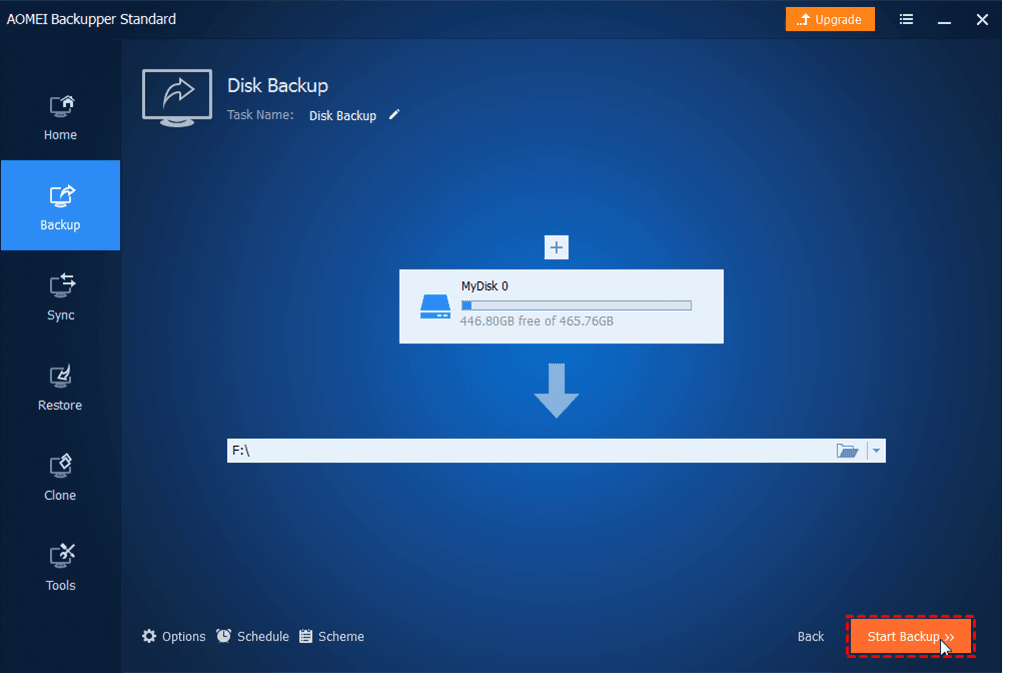
Step 4. Click Schedule and Options to enable scheduling, compression, comments, or email notifications if needed. Finally, click Start Backup and wait for the process to complete.
Wrapping Things Up
SSD freezing in Windows 11/10 is a frustrating problem that often points to deeper issues such as unstable connections, incorrect BIOS/UEFI settings, outdated drivers, unoptimized system configurations, or file system errors. Luckily, you can follow the solutions offered in this article to get it fixed.
Because repeated freezes may also signal early SSD failure, backing up your drive is essential. AOMEI Backupper makes it easy to back up your system or entire SSD. You can also use it to create a OneDrive full backup. Try it now to discover more!

 as a preferred
source on Google
as a preferred
source on Google