




Best Norton Ghost Alternative for Disk Cloning & Imaging (2026)
This article 2 best Norton Ghost alternatives, such as AOMEI Backupper and Clonezilla covering the key features and step by step instructions to clone or image NVMe SSD. Pick one that best suits your needs.

By Ivy Updated on December 31, 2025


Looking for a Norton Ghost Alternative
Norton Ghost was once one of the most trusted disk cloning and backup tools on the market. However, it’s officially discontinued on April 30th, 2013. While the software may still run on older systems, it is no longer updated to support current versions of Windows, modern file systems, UEFI firmware, GPT partitioning, NVMe, and newer SSD controllers, etc.
Without updates or security patches, Norton Ghost has become increasingly unstable and risky to rely on for critical backup or cloning tasks. Thus, many users are looking for the best Norton Ghost alternative to replace it. We'll introduce 2 best alternatives in the following.

Key Features to Look for in a Norton Ghost Alternative
When seeking an alternative to Norton Ghost, beyond basic disk cloning or imaging features, it's important to integrate modern systems and technologiesto improve performance, reliability, and convenience. The following key features should be considered:
Full Disk & System Cloning
A reliable alternative must support both Disk Clone and System Clone, allowing you to copy the entire drive or operating system to another disk without reinstalling Windows. Look for options that handle different disktypes, e.g., HDDs/SSDs, SATA/M.2/NVMe drives, 4k alignment support, auto-resize partition, etc., providing fast, efficient cloning with minimal downtime.
Full, Incremental, and Differential Backup
Advanced backup methods are essential. The software should support creating full backups for complete protection and incremental/differential backups for only changes. This combination helps optimize storage space, reduce backup time, and ensure data security.
Bootable Media for Disaster Recovery
Bootable media allows you to restore your computer to an earlier date for disaster recovery, especially when it fails to boot. Look for features like Create Bootable Media, USB or CD/DVD boot support, etc., to ensure the alternative supports it.
Compatible with Newer System and Hardware
Modern software must be compatible with the latest operating systems and hardware. Ensure the alternative supports Windows 10 or 11, handles SSDs and NVMe drives seamlessly, and works with GPT/UEFI configurations to guarantee smooth performance and prevent errors.
2 Best Norton Ghost Alternatives
Choosing the right alternativefor Norton Ghost can make a significant difference in reliability, ease of use, and data protection. Below are two top-tier options that excel in different scenarios.
AOMEI Backupper Professional - Best Overall Replacement
AOMEI Backupper Professional stands out as one of the best Norton Ghost alternatives for most users. It offers a rich feature set that balances advanced feature with intuitive design, making it suitable for both beginners and experienced users.

 AOMEI Backupper
- Full disk and system clone, with different cloning features to guarantee a secure boot and prevent errors.
- Multiple backup solutions, including disk, system, OS, file, email, and Outlook backup.
- Comprehensive backup options - full, incremental, and differential backups.
- Bootable rescue media for system recovery.
- Flexible scheduling ensures your data is consistently backed up.
- Wide hardware compatibility, including modern Windows versions, SSDs/NVMe drives, and GPT/UEFI configurations.
 100% Secure
Whether you need a reliable disaster recovery or seamless OS or disk migration, AOMEI Backupper delivers performance and peace of mind.
Clonezilla - Free & Open-Source Alternative
If you’re looking for a free disk imaging & cloning solution, Clonezillais a powerful tool worth considering. It starts from a bootable USB or CD/DVD and supports disk-to-disk, partition-to-partition cloning, network cloning, etc.
While its interface is more technical and less polished compared to commercial software, it’s highly capable and widely trusted in the tech community.
✅Highlights of Clonezilla:
◾ No cost, open-source licensing
◾ Support for full disk cloning and imaging
◾ Support network cloning
◾ Efficient cloning with multiple file systems
◾ Runs from bootable media -no installation required
Clonezilla is ideal for users with some technical experience who don’t want to invest in premium software. It may have a steeper learning curve, but it remains a strong alternative for users prioritizing functionality over ease of use.
How to Clone or Image a Disk using AOMEI Backupper
Migrating away from Norton Ghost doesn’t have to be complicated. You have two options available. Before starting the migration, take time to prepare your system:
- Clean up unnecessary filesto reduce backup size and speed up the process.
- Decide to image or clone a disk.
- Connect your target drive. It can be new HDDs/SSDs, external drives, network location, etc.
AOMEI Backupper is one of the best Norton Ghost alternatives on GitHub, integrating different cloning and imaging solutions that are compatible with modern systems and hardware. It allows you to create a bootable USB or CD/DVD, while still able to clone or backup hard drive in Windows 11, 10, 8.1/8, 7.
AOMEI BackupperUser-friendly yet powerful Windows backup and cloning software
#1: Clone NVMe SSD to NVMe SSD (Fast Migration)
Cloning NVMe SSD to a new one creates an exact copy of the old drive, ready to boot and run immediately after cloning.
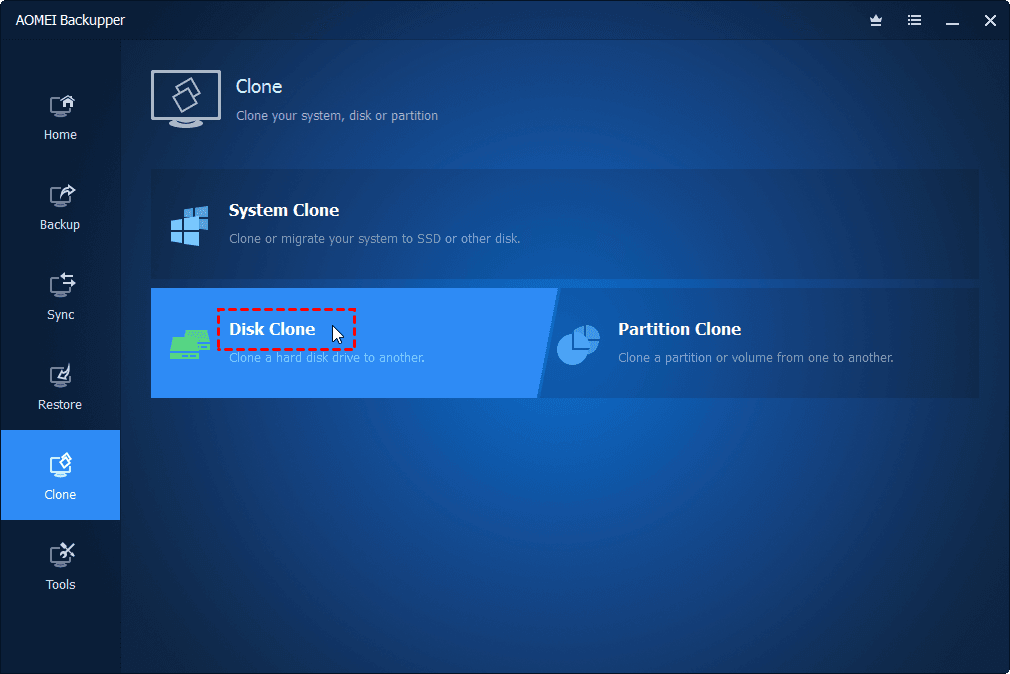
Step 1. Open AOMEI Backupper after installing. Under the Clone tab, click Disk Clone.
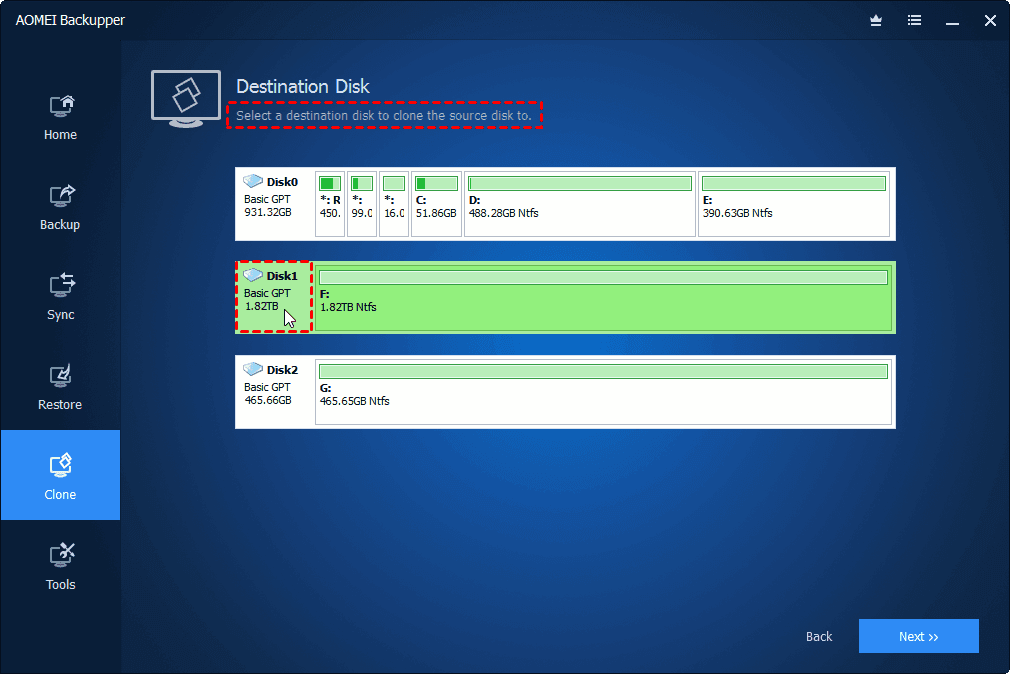
Step 2. Select the two NVMe SSDs in sequence, then click Next.
⚠️Warning: Cloning will overwrite all data on the destination drive. Please backup files to external hard drive for data safety.
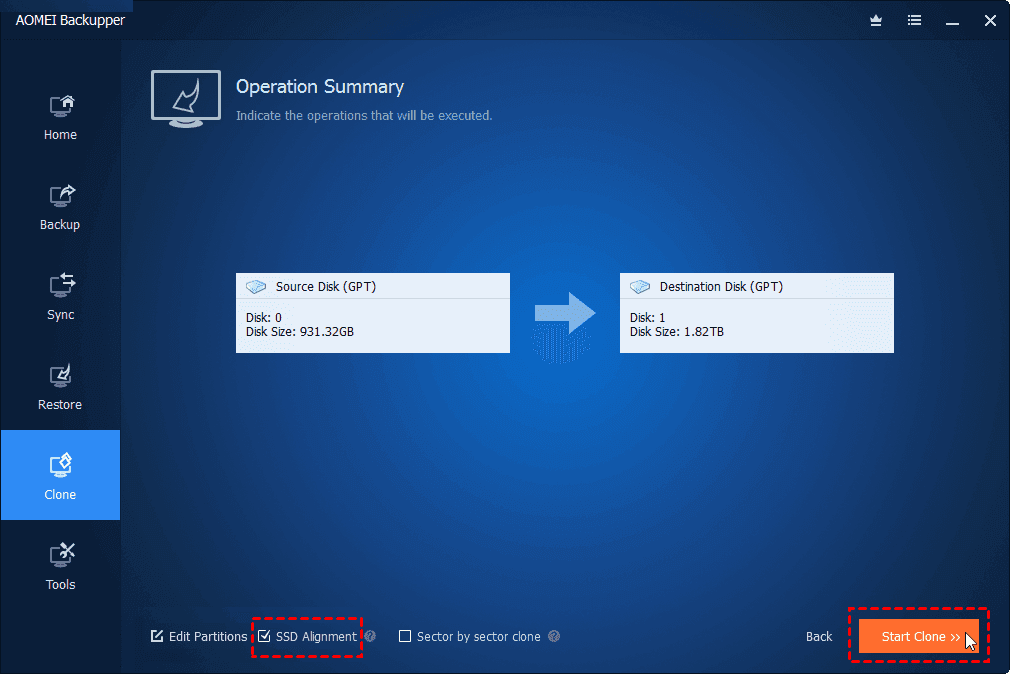
Step 3. In the Operation Summary window, check SSD Alignment for faster reading & writing speed and extended lifespan, and click Edit Partitions to convert disk partition styles (if needed). At last, click Start Clone.
⚠️Notes:
✅ Edit Partitions: The Add unused space to all partitions is automatically checked to resize new, larger NVMe SSD and avoid cloned hard drive show wrong size. No manual intervention is required.
❌Sector by Sector Clone: This mode allows you to clone all sectors, including empty and bad sectors. Keep this unchecked, and it will use Intelligent Clone mode to copy only used sectors, especially for cloning to smaller SSDs.
After the process finishes, perform a first boot and verify if the cloned SSD is bootable. This ensures a successful transition away from Norton Ghost.
#2: Imaging NVMe SSD for Comprehensive Protection
Unlike disk cloning, imaging a hard drive creates a replica that is not bootable. Before you can boot the system, you must restore image to new hard drive or SSD.
Step 1. On the main page of AOMEI Backupper, switch to the Backup tab and click Disk Backup.
Step 2. Click Select Source to add the source drive. Then, click the PC icon and select a common location (if it exists). If not, click Local Drive, NAS, or Network Share to add a new one.
Step 3. For continuous data protection, click Schedule and enable it. Select Daily, Weekly, Monthly (By week), etc. Click Backup Scheme and Options to be sure the Incremental backup, compression, splitting, etc., are enabled or adjusted as needed to optimize backup time and space. At last, click Start Backup.
How to Clone or Image a Disk using Clonezilla
Unlike AOMEI Backupper, Clonezilla boots from USB and clones or image hard drive in the bootable environment. So be sure to create a bootable USB using the latest Clonezilla Live ISO first.
#1: Clone NVMe SSD with Bootable USB
Step 1. Connect the Clonezilla bootable USB to your computer. Restart the system and press the BISO key, usually F2, F10, F12, ESC, etc., to access the BIOS/UEFI settings window. Then, change the boot priority to USBandsave changes.
Step 2. The system will reboot and load Clonezilla. Select the Clonezilla version - Other modes of Clonezilla live to boot from and then Clonezilla live (To RAM…).
Step 3. Select the language and keyboard layout. The default keyboard layout is the US Keyboard and press Enter to continue. Click Start Clonezilla to get started.
Step 4. Select device-device mode > Beginner mode.
Step 5. Choose disk_to_local_disk. Select the source and destination disks in order.
Step 6. Select whether to check the source disk, reboot or shutdown or choose later. Press Y to continue.
#2: Image NVMe SSD from Bootable USB
Step 1. Boot from Clonezilla USB. Select the default mode - Clonezilla live (VGA 800 x 600), then language and keyboard layout. You can also select Other modes of Clonezilla live.
Step 2. Click Start Clonezilla. Then, select device-image instead.
Step 3. Select the local_dev to use the local device.
Insert the device if it’s an external drive or USB drive. Once recognized, press Ctrl - C to quit the scanning process. Select the image repository and click savedisk.
Step 4. Select no-fsck to skip file system check.
Step 5. Select Beginner mode.
Step 6. Click savedisk to save the entire disk as an image.
Step 7. Specify the image a name and select the actual drive you want to back up.
Step 8. Review the imaging settings (e.g., compression, splitting, file system check, etc) and type Y to confirm. Wait until Clonezilla creates the disk image.
Final Verdict
This articledescribes 2 best Norton Ghost alternatives - AOMEI Backupper and Clonezilla. One is a simple yet powerful cloning and imaging tool, while the other is a free and open-source solution.
- For fast migration, try Disk Clone.
- For continuous data protecion, try Disk Backup.
It's recommended to use AOMEI Backupper if you are novices or not familiar with the text-based interface. For professionals who want more control, try Clonezilla.

 as a preferred
source on Google
as a preferred
source on Google