




[SOLVED] Me State in Recovery Mode HP [Elitebook, Folio, etc]
With 5 effective methods, you can easily and quickly fix “ME State in Recovery Mode”error, along with step by step instructions. Be sure to backup the entire disk to prevent any loss.

By Ivy Updated on March 25, 2026


What Does “ME State in Recovery Mode” Mean on HP?
When an HP computer displays “ME State in Recovery Mode”, it indicates a problem with the Intel Management Engine (ME) firmware. It’s a critical low-level component that runs independently of Windows and controls essential system functions, such as power management, hardware initialization, and security features. Common triggers include:
- A failed or interrupted BIOS or firmware update
- Power loss during an ME firmware upgrade
- Incompatible firmware versions after firmwareupdate
- Communication failures between BIOS and ME controller
This warning appears before Windows loads, meaning it is a firmware-level issue rather than a software or operating system problem. While the system may still boot, running in this state can lead to instability, limited hardware functionality, and long-term reliability concerns.
How to Fix ME State in Recovery Mode on HP (5Proven Methods)
The “ME State in Recovery Mode” error indicates your HP computer’s Intel Management Engine (ME) firmware is corrupted or not functioning correctly, requiring you to address the firmware or BIOS directly.
Immediately Check HP Model and BIOS Version
Before performing any firmware update, it is essential to know your exact HP model and the current BIOS version. Using incorrect BIOS or ME firmware can cause permanent damage to the system.
Step 1. Press Win + R, type msinfo32, and press Enter.
Step 2. Locate and remember your System Model, BIOS Version/Date, and Processor Information.

Step 3. Visit HP Support and search for your system model.
Step 4. Compare your current BIOS version with the latest version on HP to ensure you download the correct files.
Fix 1: Update BIOS and Intel ME Firmware
Many “ME State in Recovery Mode” issues are caused by outdated or corrupted BIOS/ME firmware. Updating both can often restore normal operation.
Step 1. Connect your laptop to AC power. Go to HP Support and enter your system model in a field labeled Enter your product name or similar.
Step 2. Navigate to Drivers & Downloads >BIOS and download the latest BIOS update package specific to your HP model.
Step 3. Close all running programs and temporarily disable the antivirus to prevent interruptions.
Step 4. Right-click the downloaded BIOS update file and select Run as administrator. The utility will check your current BIOS version and confirm compatibility. Accept any prompts to update both BIOS and Intel ME firmware.
Step 5. Select Update. During this process, your system may restart several times automatically.
A progress bar may appear. Do not interrupt. This update can take anywhere from 5 to 20 minutes, depending on your system and update size.
Fix 2: Perform a BIOS Recovery
If a standard BIOS update fails, HP systems include a built-in BIOS recovery torestore firmware from a protected backup.
Step 1. Turn off your HP computer. Press and hold Windows + B, then press the Power button for 2- 3 seconds.
Step 2. Release the Power button, but continue holding Windows + B until the BIOS recovery screen appears or you hear beeping sounds. Your screen may remain blank for 30-60 seconds, and begin the BIOS update automatically.
Step 3. Once recovery finishes, the system will restart automatically. Or click Continue Startup and press Enter.
⚠️Note: Some HP models use Windows + V instead. Consult your manual if unsure.
Fix 3: Clear CMOS and Reset Firmware Settings
Clearing CMOS resets stored BIOS/ME settingsthat may block ME initialization,resolvingconflicts causing recovery mode.
Step 1. Shut down your HP computer and unplug the AC adapter. Remove the battery if you are using a laptop.
Step 2. Press and hold the Power button for 15- 20 seconds to discharge remaining power.
Step 3. Reinsert the battery (or reconnect power) and turn on the system.
✅For desktops: Open the case and locate the CMOS coin-cell battery. Remove it for 5–10 minutes, then reinstall.
Fix 4: Reflash Intel ME Firmware using HP Tools
HP BIOS packages sometimes include a dedicated tool to reflash Intel ME firmware, which directly repairs the corrupted ME region.
Step 1. Download the latest BIOS package from HP support and extract it to a folder on your computer.
Step 2. Locate the ME firmware update utility inside the extracted files. Right-click it and select Run as administrator.
Step 3. Follow the prompts carefully. The system may reboot multiple times. Verify if the Me state in recovery mode disappears.
Fix 5: Use HP BIOS Recovery Key Combination
If the computer cannot boot normally due to ME firmware issues, the BIOS recovery key combination can restore firmware from a USB drive.
Step 1. Download the latest BIOS update package and extract it. Then, click Create Recovery USB flash drive (if it exists) to prepare a USB drive.
Step 2. Power off the computer completely and trigger HP BIOS Recovery mode.
- Hold Windows + B or V, depending on your model, and press the Power button for 2-3 seconds.
- Continue holding the keys while releasing only the Power button until the BIOS recovery screen appears.
Step 3. On the HP BIOS Recovery screen, click Restore BIOS and allow it to run without interruption. Just wait and see if this error disappears.
If all automated recovery methods fail, you can choose to manually reflash ME firmware, which is complex and not user-friendly, causing serious problems. Check your chipset to be sure you download the exactME firmware.
Create a Disk Image Before Any Repairs to Prevent Loss
When thiserrorhappens, the system forces ME into a limited recovery state to prevent further damage. While this allows the computer to boot, key management and security functions may be disabled until the firmware is properly restored. In a simple word, the system is unstable. It’s suggested to create a disk image for recovery purposes.
AOMEI Backupper Standard, as a free and reliable backup software, can help users back up the entire disk while compressing the image file to a smaller size. You can also choose to backup system and ONLY important files or folders.
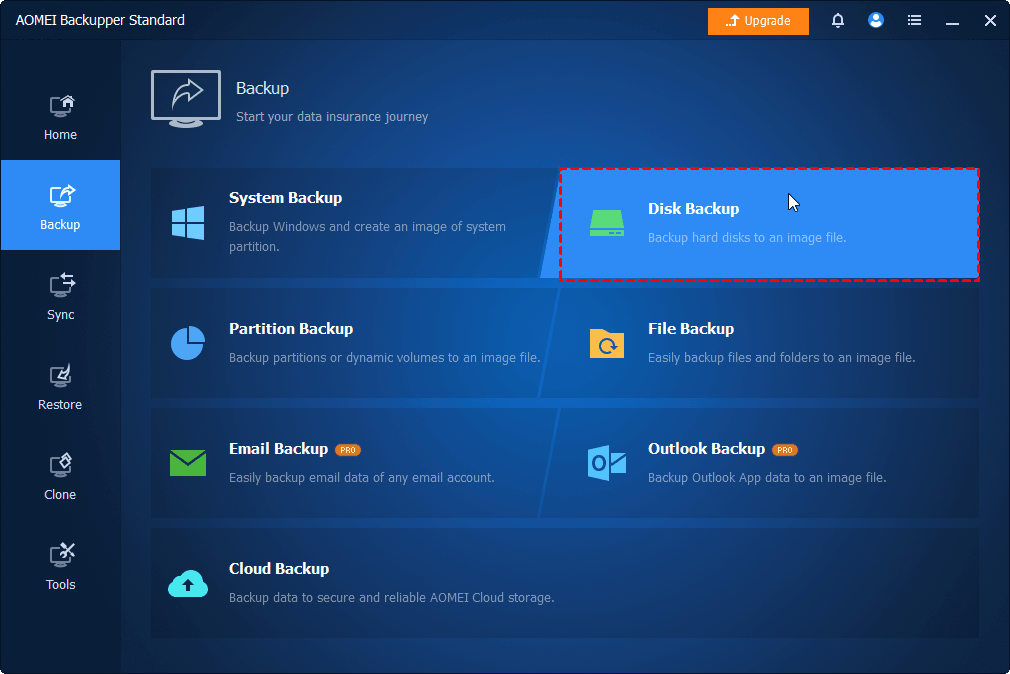
Step 1. Connect a new hard drive or SSDto your computer. Open AOMEI Backupperafter installing. Click Disk Backup under Backup.
Step 2. Click Select Source and choose the disk you want to back up. Click the PC icon > Local Drive to add the new drive as a destination.
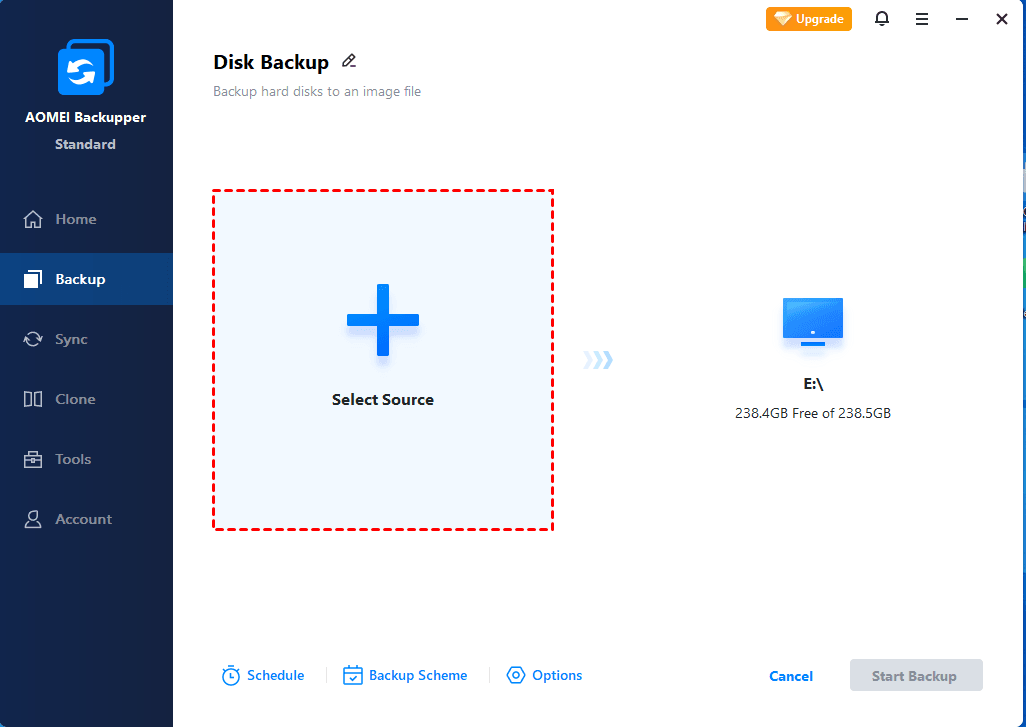
Step 3. Confirm you choose the right drive and click Start Backup. By default, it enables compression, splitting, intelligent sector backup, VSS, etc to minimize image file sizes and avoid any interruption.
📍 Notes:
✅ For continuous data protection, click Scheduleto set up continuous backup.
✅ By default, incremental backup is enabled in a scheduled task, only backing up changed files. Over time, this will significantly save time and disk space.
✅ To free up more space, click Backup Scheme to enable automatic backup cleanup, which will delete old backups automatically.
Conclusion
The “Me state in recovery mode HP” indicates a firmware issue, causing the system to be unstable. So it’s advisable to fix these issues quickly, with the above 5 practical methods, and create a disk backup before performing any repair to prevent loss.

 as a preferred
source on Google
as a preferred
source on Google