




Fixed: Lenovo Recovery USB Not Working [Windows 10/11]
You can easily fix “Lenovo recovery USB not working” with 2 effective methods, along with step by step instructions. Or directly try the best alternatives - Microsoft's MediaCreationTool or third-party software packages. Scroll down to learn more!

By Ivy Updated on March 18, 2026


What Does Lenovo Recovery USB Not Working Mean?
“I tried to create a recovery using the lenovo usb recovery creator app, downloaded the files but cant burn it. The app didnt acknowledged the usb har drives, tried reformat fat32, ntfs, exfat, and changing the partition to gpt and mbr didnt work, restarted the program and the laptop didnt work. Or this thing only work in usb flash drives? Not hardrives?”
- Question from Reddit forum

In many cases, when users can't access the Windows system at all, the recovery USB serves as the last resort for resolving deeper system issues. Lenovo has introduced the Lenovo USB Recovery Creator (for Windows only) to create a bootable USB drive for restoring a computer to factory settings, even when Windows cannot start.
However, many users find Lenovo recovery USB not working. It usually means Lenovo USB Recovery Creator cannot recognize the USB drive, nor can it create a recovery USB for system recovery, repair, or Windows reinstallation.
System Hardware Requirementsfor Lenovo USB Recovery Creator
Before starting to create a Lenovo recovery USB, it’s necessary to check the system hardware requirements for a smooth process.
- 32 GB or larger USB key, USB 2.0 or 3.0 key (Note: all data on the USB key will be deleted).
- A computer to download the recovery files and create the USB recovery key.
- At least 20 GB of free space for downloading recovery files.
- The Lenovo USB Recovery Creator Tool V 4.0.19.1 or later is only supported on Microsoft Windows® 10or 11.
- 20 Mbps Internet connection (recommended).
How to Fix Lenovo Recovery USB Not Working (2 Methods)
Be sure you know the system hardware requirements and prepare accordingly. Here are some useful tips:
- Prefer a USB drive with 32GB, not 64GB or 128GB. Otherwise, you may receive Lenovo recovery USB not working.
- If possible, consider using a USB 3.0 key, not USB 2.0 key.
- Try formatting the USB drive as NTFS or FAT32.
#1: Create a USB Recovery Key Properly
⚠️Warning: Create a recovery USB right now after downloading the recovery files. Otherwise, you will not have a .RMF file, and the recovery image will be deleted, even if you click “No, Exit” when asked during creation.
Step 1. Go to the Lenovo Recovery window, enter the serial number of your device, and follow the on-screen instructions to submit a recovery media order. Once done, click Digital Download to download this tool.
Step 2. Open lenovo USB Recovery Creator. Under the Home tab, click Start to download the recovery files and get your computer back on track.
Step 3. Type your Lenovo ID and password associated with your Digital Download order. Click Next.
Step 4. Select the Digital Download order and click Confirm.
Step 5. Click Browse and select a location to save the recover files. Click Download. This process may take several hours.
Step 6. Connect the USB drive to your computer and select it to create USB recovery key. When prompted, click Yes to delete all data.
When the USB key is created successfully, you can choose to keep or delete recovery files. It’s suggested to click “No, Exit” if you want to create another USB recovery key. Click Create under the Home tab instead of clicking Start.
#2: Create a 32GB FAT32 Partitionon a Larger Drive
It’s ok if your USB is larger than 32GB. Microsoft offers users a DiskPart tool that can completely clean USB flash drive and create a 32GB FAT32 partition, enabling smooth creation of a USB recovery key.
Step 1. Type cmd in the Start menu and select Run as administrator.
Step 2. In the Command Prompt window, type diskpart and press Enter to open this tool.
Step 3. To create a 32GB FAT32 partition, type the following commands:
- list disk
- select disk X (Replace X with thedrive letter of your USB drive)
- clean
- convert mbr
- create partition primary size=32768
- format fs=fat32 quick
- exit
After creating a 32GB FAT32 partition, you can try again using the Lenovo Recovery USB Creator.
Best Alternatives to Lenovol Recovery USB Creator
If you still have problems with Lenovol Recovery USB Creator, the best methods is to use MediaCreatorTool or tools provided by third-party software packages. Specifically, it depends on your actual needs.
Option 1: Microsoft’s MediaCreationTool (for Deep Integration)
Microsoft’s MediaCreationTool deeply integrates with Windows systems, providing full access to the entire suite of built-in repair and troubleshooting tools, including Startup Repair, System Restore, Command Prompt, Reset this PC, etc.
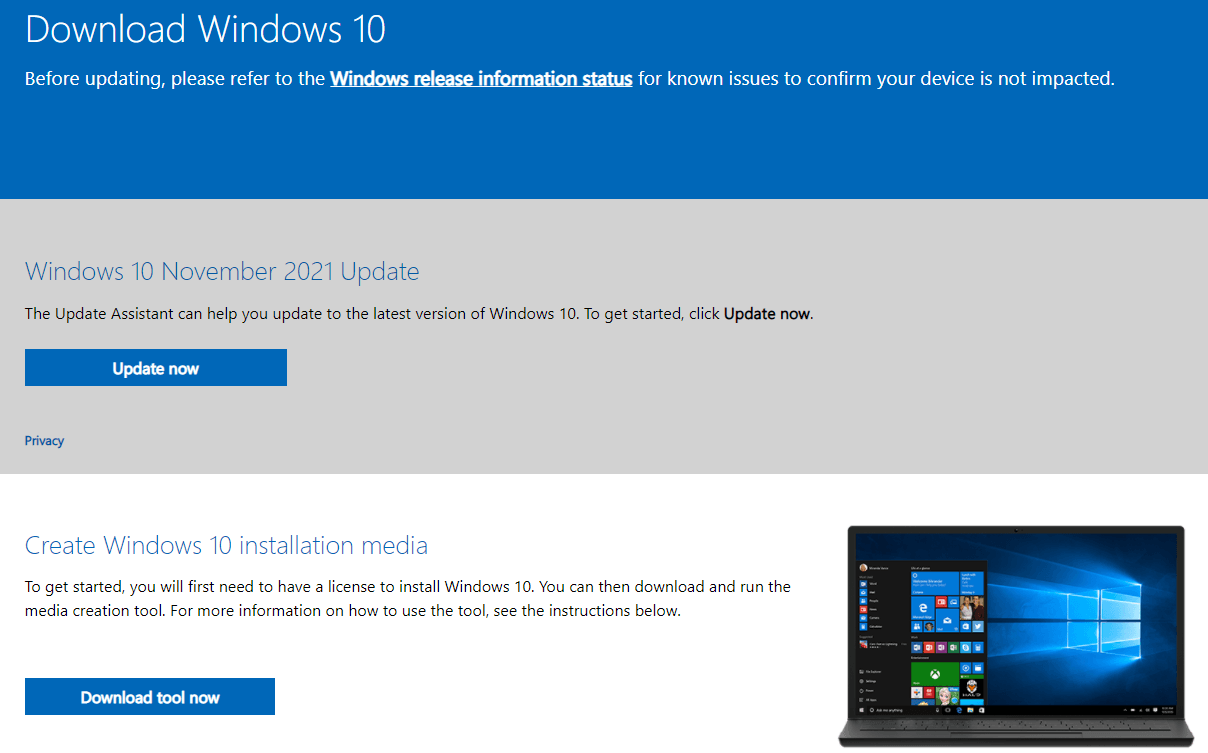
Step 1. On a working PC, download MediaCreationTool from the official Microsoft website and double-click it to run. Insert a USB flash drive (at least 8GB, empty) as well.
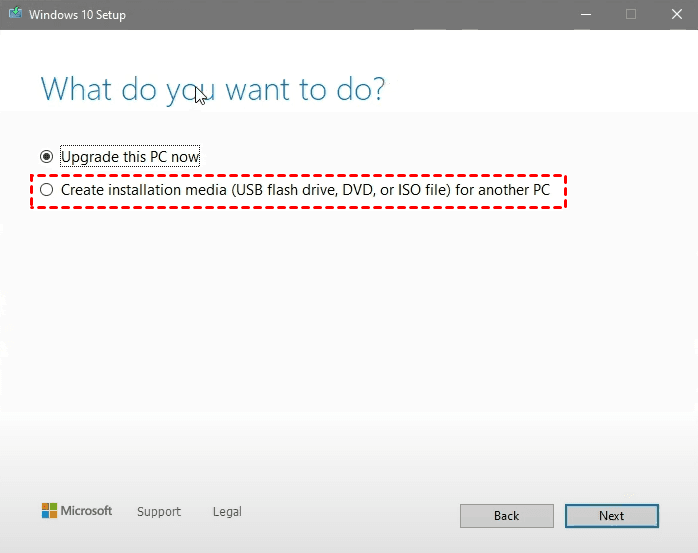
Step 2. Select Create installation media (USB flash drive, DVD, or ISO file) for another PC.
Step 3. Select your Windows language, edition, and architecture.
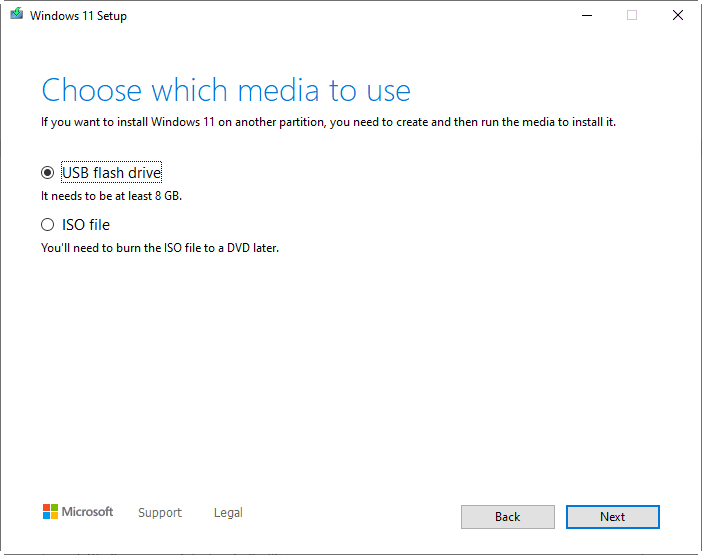
Step 4. Select USB flash drive as the media type. Then, select your USB drive to store recovery files.
Option 2: Third-Party Creator - AOMEI Backupper (for Faster Recovery)
AOMEI Backupper Standard is a third-party bootable media creator that offers a suite of backup and restore features for complete data protection.
With it, you can create a bootable USB to boot up a malfunctioning Windows system, but unlike official tools, it focuses more on prevention, requiring you to create a system or disk backup in advance to resolve issues quickly, rather than spending hours on unproven fixes.
Step 1. Launch AOMEI Backupper Standard. Then, go to Tools and click Create Bootable Media.
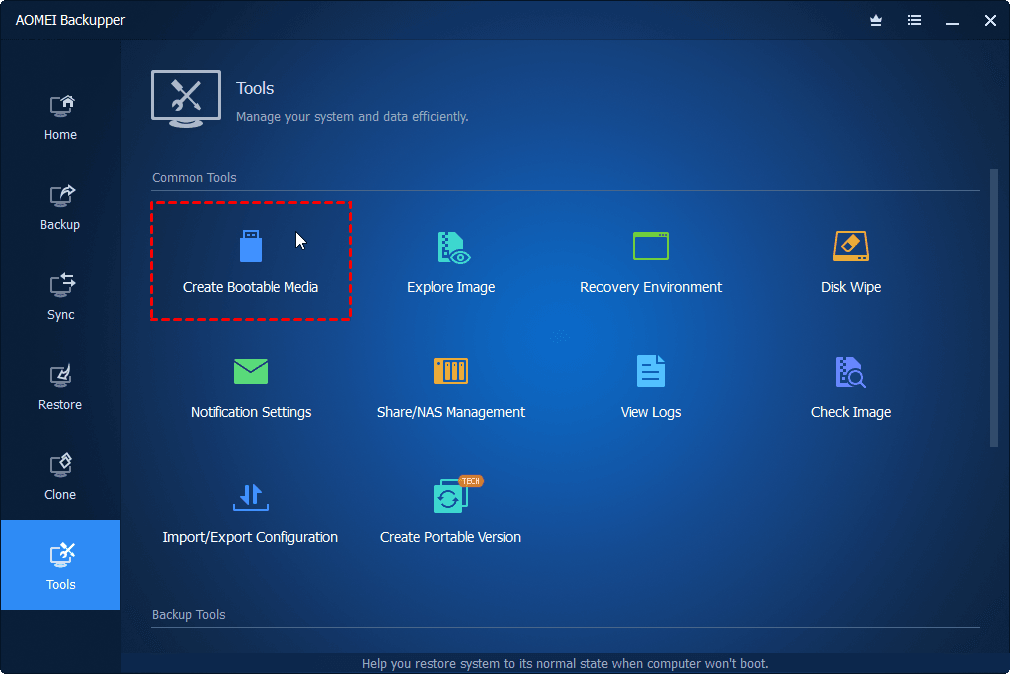
Step 2. Select USB Boot Device and click Create. It will start to automatically create Lenovo bootable USB.
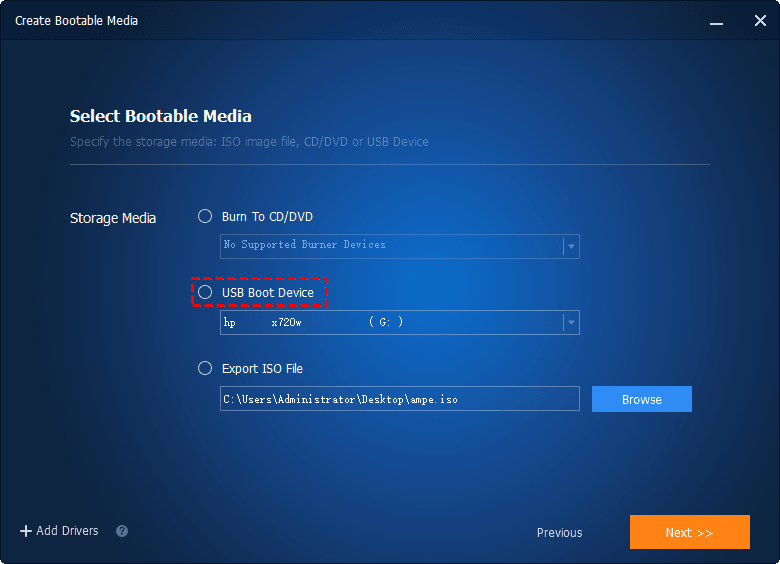
Once complete, insert the USB into the failingPC and prepare to boot from it.
- Press F1, F2, F12, etc., to access the Windows recovery environment.
- Under the Boot tab, find the USB drive and set it as the first boot option.
- Press F10 to save changes and reboot.
Final Thoughts
“Lenovo recovery USB not working” usually means Lenovo Recovery USB Creator cannot recognize the USB drive or create a bootable USB for repair or troubleshooting. Be sure you use a USB 3.0 drive, and the disk space is 32GB. If larger, create a 32GB FAT32 partition and try again.
In addition, you still can use Microsoft’s MediaCreationTool or third-party software packages as an alternative, and the choice may depend on your requirement, whether prioritizing deeply integrated tools or faster recovery. AOMEI Backupper Standard allows you to create system or disk backup and restore Windows 10/11 image to new hard drive successfully.

 as a preferred
source on Google
as a preferred
source on Google