




How to Create Image of SD Card in Window 10/11 - 2 Free Ways
Learn how to create image of SD card using Win32 Disk Imager and the free image maker AOMEI Backupper Standard, with step-by-step guidelines.

By Jonna Updated on June 4, 2026


User Case: How Can I Create a Backup Image of SD Card?
Have a 256 GB SD card with all games, settings, etc., to my liking. I like to have an image file, and it has to contain all the info from the used SD card, like ALL the partitions in one image file.
Is there any way to get a complete image of my SD card for backup reasons??? Help would be great!
Whether you use an SD card for a digital camera, Android phone, Raspberry Pi, drone, gaming console, or portable storage device, protecting the data stored on it is essential. When you create image of SD card, you capture not only files and folders but also partition information, boot records, file system structures, and hidden data. This makes image backups much more comprehensive than simply copying files manually.
Fortunately, several free tools make this process relatively simple. This guide explains 2 effective free ways to create image of SD card on Windows 11/10and helps you choose the best solution for your specific needs.
Way 1. Create Image of SD Card with Win32 Disk Imager
Win32 Disk Imager is a Windows-only disk imaging utility originally developed for writing raw .img and standard .iso disk images onto removable storage (USB flash drives, SD/microSD/CF cards) and backing up physical media into raw image files.
Because the software performs sector-level copying, it can accurately preserve bootable systems, hidden partitions, and specialized configurations. It is a great solution for cloning SD card/USB drive to another SD card/USB drive, and make image from SD card to create an entire backup. But it should be noted that this program is available only on Windows 7, 8.1, 10, or older versions. Furthermore, many users have reported encountering issues when using the program to write to USB floppy disk drives.
Here is how Win32 Disk Imager works to create SD card image on Windows 10:
Step 1. Download and install Win32 Disk Imager. Insert the SD card into your computer using a card reader.
Step 2. Launch the Win32 Disk Imager software, and select the drive letter corresponding to the SD card, which is shown in File Explorer under Device.
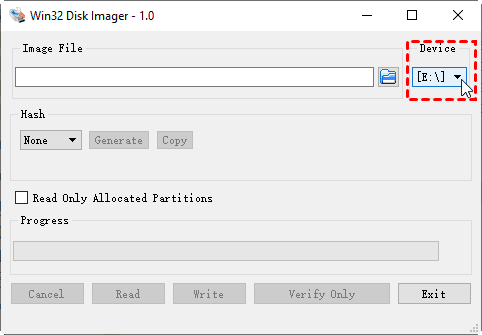
Step 3. Click on the blue folder icon next to the drive letter, and then choose a destination location and enter a file name for the SD card image file.
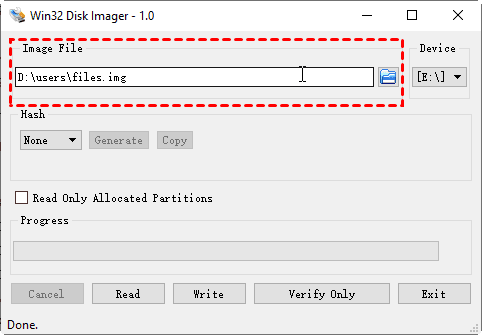
Step 4. Then, click Read to begin the process of creating image of SD card with multiple partitions.
Way 2. Use Free SD Card Image Maker - AOMEI Backupper Standard
AOMEI Backupper Standard is a free all-in-one professional backup, imaging and cloning tool that functions as a powerful SD card image maker. It offers to create full SD sector-level imaging, direct SD-to-SD cloning, scheduled automatic SD archiving and flexible image restoration.
 AOMEI Backupper
- Multiple SD image creation modes: Disk Backup to create a complete image of the entire SD card; Partition Backup to make an image only of selected single/multiple partitions on the SD card; File Backup for selective file backup.
- Direct disk clone: It skips the extra step of saving and restoring image files, but migrates all data from one SD card to another quickly.
- Automated SD card backup: It allows you to set daily, weekly, monthly, or event-triggered scheduled tasks to create SD images for frequently modified SD cards (e.g., constantly updated Raspberry Pi project SD).
- Wide compatibility: It fully supports SD, microSD, SDHC, and SDXC cards from all mainstream brands (SanDisk, Samsung, Kingston, Transcend, etc.) across Windows XP/Vista/7/8/10/11.
 100% Secure
Learn how to create image from Raspberry Pi SD card using AOMEI Backupper.
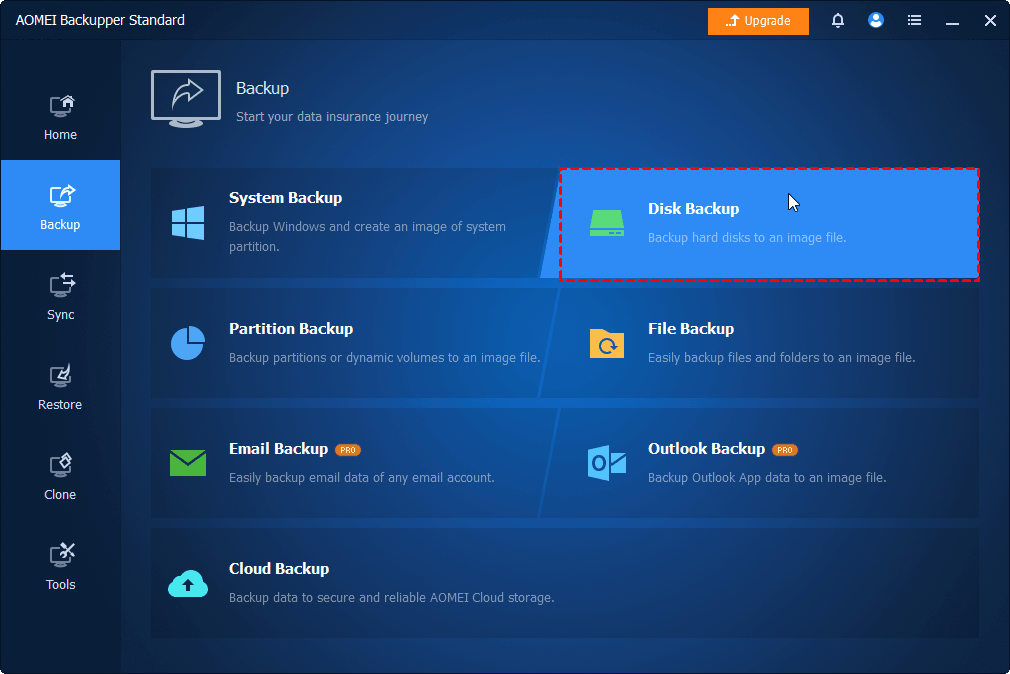
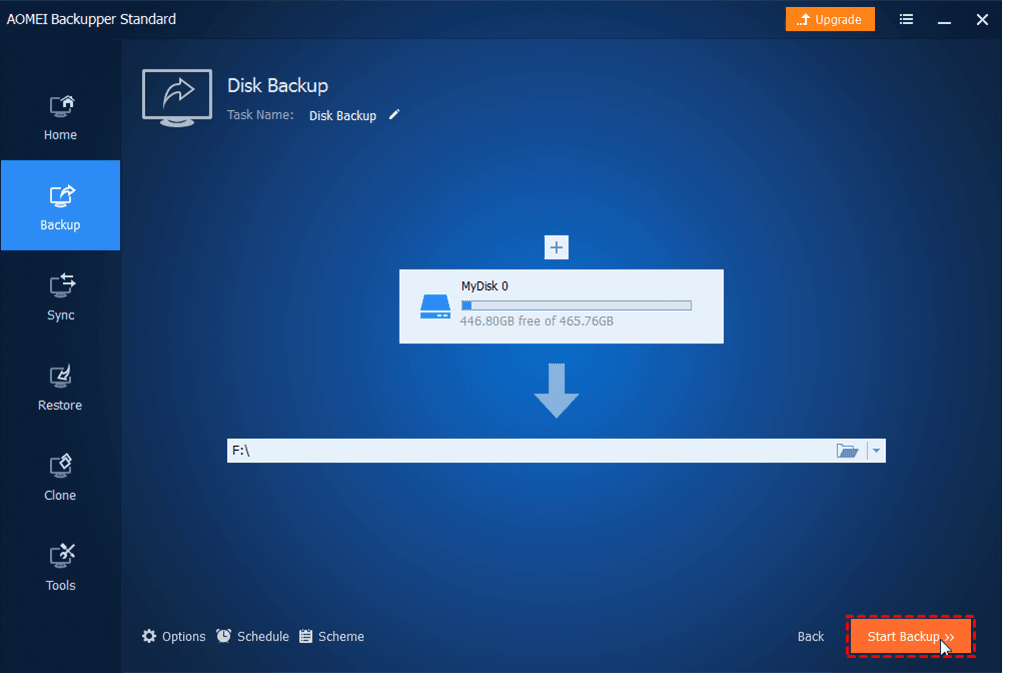
Step 1. Connect the SD card to your computer via an SD card reader. Select Backup and choose Disk Backup to create a full backup of Raspberry Pi OS, car navigation SD, or IP camera firmware SD.
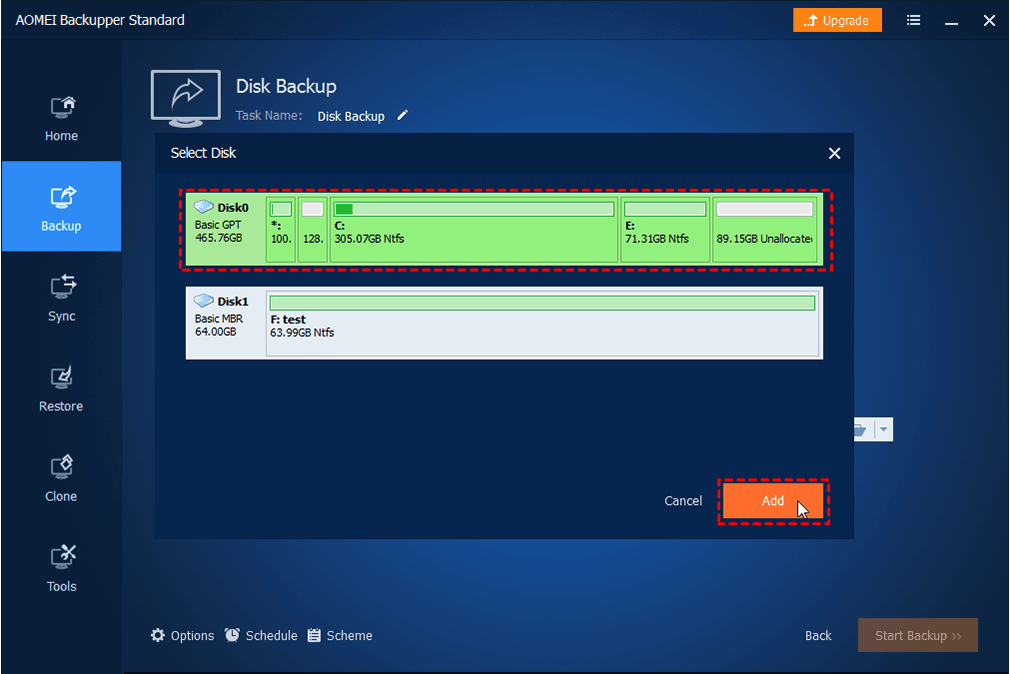
Step 2. Click on Select Source to choose the connected SD card. Then, go on to pick the destination path.
👉Tip: This software allows you to save backup image to external drive, local disk, SD card, USB flash drive, network share, etc.
Step 3. Configure advanced backup options as needed:
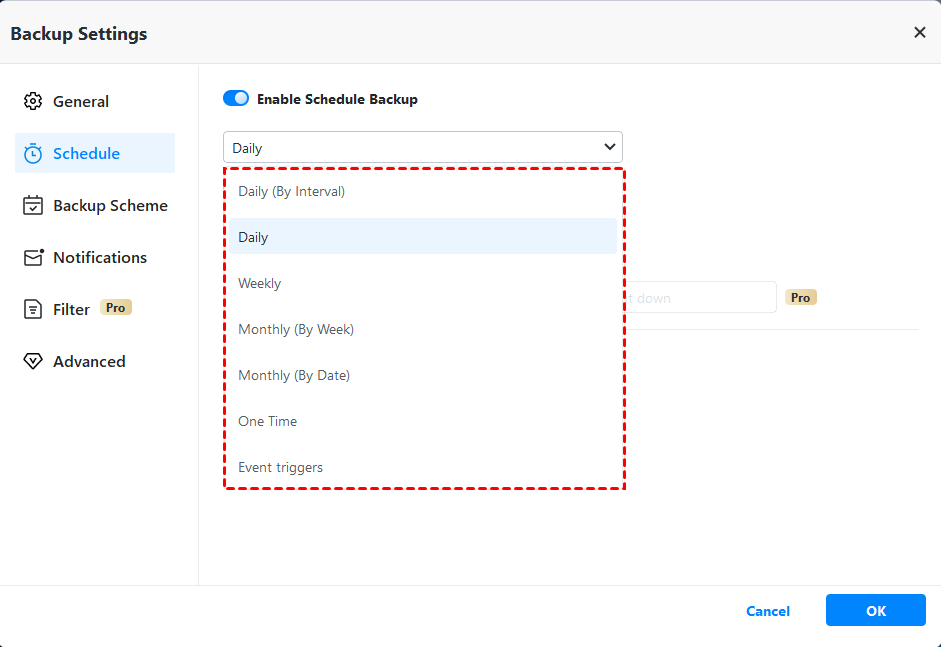
- Schedule - Offer 7 automatic backup modes, including Daily (By Interval), Daily, Weekly, Monthly (By Week), Monthly (By Date), One Time, and Event triggers.
- Backup Scheme - Help you manage the storage disk space by deleting old backups automatically (available in the Professional version).
- Options - Under Advanced, you can set backup compression level under Compression or select backup method as Intelligent Backup Method or Make an Exact Backup.
Step 4. Review your configuration and click Start Backup for Raspberry Pi to create image from SD card.
Why Need to Create SD Card Image?
An image backup of SD card offers several advantages that ordinary file copying cannot provide.
- Complete data protection: Disk image backups preserve everything on the card. It usually includes files and hidden partitions. system data, boot sectors, and file allocation structures.
- Faster disaster recovery: When problems occur, restoring an image is often much faster than rebuilding systems manually.
- Long-term archiving: Organizations and professionals often preserve complete storage environments for future reference. This ensures data remains available even if the original media becomes unusable.
Concluding Words
SD cards remain one of the most widely used storage formats across cameras, smartphones, drones, gaming systems, single-board computers, and portable devices. Despite their convenience, they remain vulnerable to corruption, accidental deletion, hardware failure, and other risks that can result in permanent data loss. So, creating image of SD card is important. Win32 Disk Imager and AOMEI Backupper Standard are simple to use for this purpose.
For users seeking more advanced backup capabilities, AOMEI Backupper Standard is more comprehensive. It offers features such as scheduling, compression, and flexible recovery options. For a bit copy of SD card, you can try its cloning function.

 as a preferred
source on Google
as a preferred
source on Google