



How to Clone Hard Drive on Windows 10 | 2026 Update
Are you looking for the best way to clone hard drive on Windows 10? This guide walks you through the cloning process and answers some FAQs.

By Lily Updated on August 11, 2026


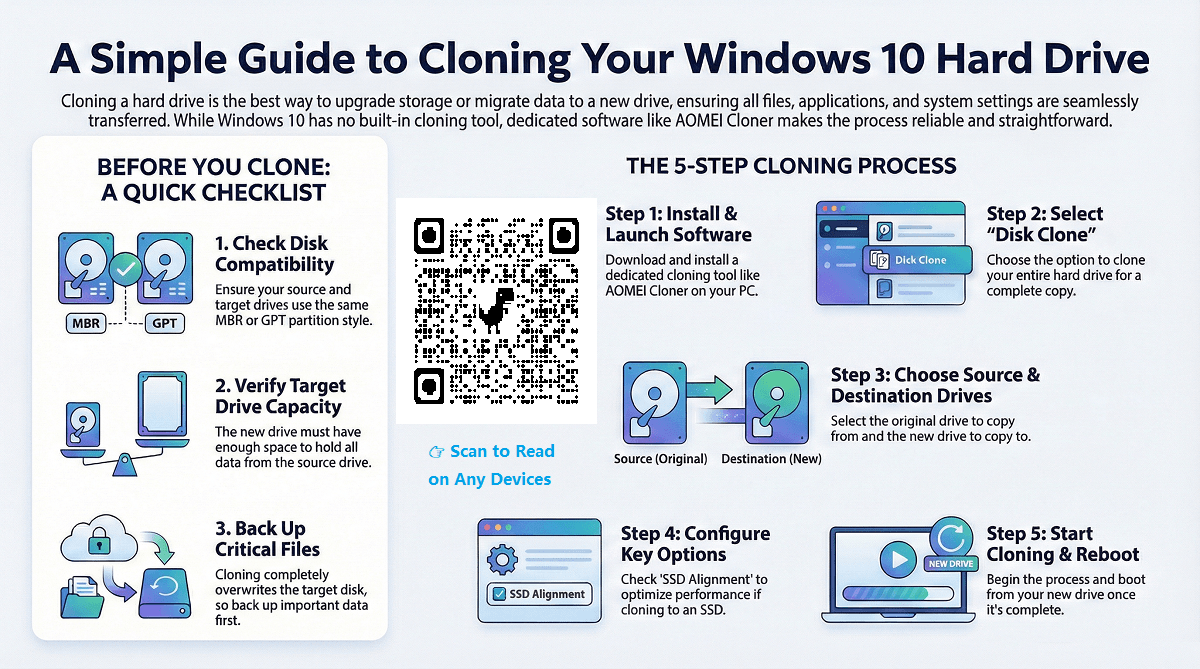
Cloning a hard drive on Windows 10 is a crucial task for those upgrading their storage or migrating data to a new drive. Whether you're a tech enthusiast, a business professional, or simply someone looking to back up important data, cloning your drive is a great way to ensure that all your files, applications, and system settings are seamlessly transferred. In this article, we will explore the best methods to clone a hard drive on Windows 10.
🌟To check various cloning scenarios, please refer to this complete guide: Clone Hard Drive to SSD.
Case: What Is the Best Way to Clone Hard Drive in Windows 10?
Preparing to upgrade to a larger and faster SSD. What do you guys think would be the best way to proceed?"
- Question from Reddit
When it comes to cloning a hard drive on Windows 10, users often seek the most reliable and straightforward solutions. In this Reddit thread, users discuss various methods, including using built-in Windows tools, third-party software, and even manual techniques like disk imaging.
The consensus is clear: while some free methods might work, dedicated cloning software is considered the most reliable option.
Best Disk Cloning Software for Windows 10
If you’re looking for reliable disk cloning software for Windows 10, AOMEI Cloner consistently stands out as one of the best options. It combines ease of use with the advanced features most users need when migrating or backing up a drive.
 AOMEI Cloner
-
Several cloning modes: The tool offers disk cloning, partition cloning and system cloning to cater to different needs.
-
Clone to smaller disk: By default, this software only copies used sectors, making it possible to clone larger drive to smaller drive.
-
Clone to larger disk: If you are cloning to a larger drive, you can use “Edit Partitions” to take advantage of full disk capacity.
-
SSD Alignment: Supports 4K partition alignment to enhance SSD read/write performance and extend its lifespan.
-
Wide Compatibility: Support various disk brands (Samsung, Intel, WD, etc.), disk types (HDD, SDD, SSHD, etc.), disk interfaces (SATA, NVMe, etc.).
 100% Secure
Download the cloning software for Windows 10 - AOMEI Cloner now to get started.
Quick Checklist for Cloning Hard Drive on Windows 10
Use this checklist to avoid common problems before you start cloning:
1. Disk Compatibility (MBR vs GPT)
Check whether your source disk uses MBR or GPT and confirm the target drive supports the same layout. Also verify your system boots in Legacy (BIOS) or UEFI mode, as this affects boot success after cloning.
2. Target Drive Capacity
The destination disk must have equal or larger usable space than the data stored on the source disk. If you’re cloning to a smaller SSD, ensure the used space fits and the cloning tool supports intelligent sector cloning.
3. Backup Important Data First
Cloning overwrites the target disk completely. Always backup critical files before starting, in case of accidental selection or unexpected interruption.
How to Clone a Hard Drive on Windows 10
Cloning a disk on Windows 10 with AOMEI Cloner is a simple process. Follow these steps to clone HDD to SSD in Windows 10:
Note: These steps also apply to clone hard drive in Windows 11/8/7 and Windows Server 2025/2022/2019.
Step 1. Download, install and launch AOMEI Cloner
Start by downloading AOMEI Cloner and installing it on your Windows 10 PC. Then run the program.
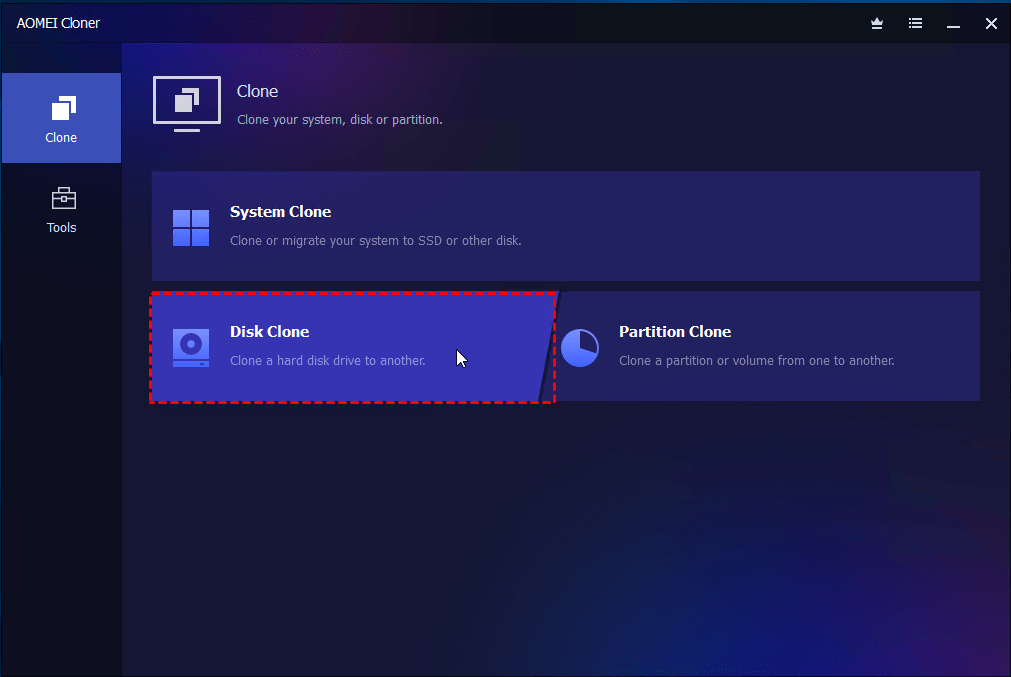
Step 2. Select Clone Type
Choose "Disk Clone" to clone your entire hard drive. You can also select "System Clone" to clone only system partitions.
Step 3. Select Source and Destination Drives
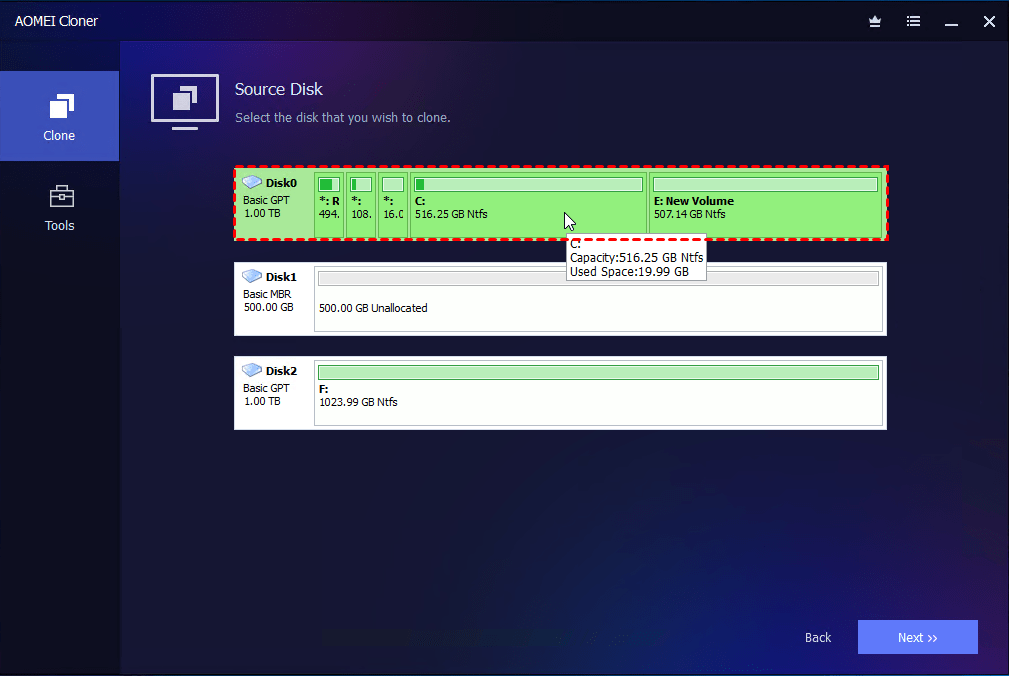
- Click Select Source Disk to select the HDD you wish to clone.
- Click Select Destination Disk to choose the new SSD where the data will be transferred. Ensure the destination drive has enough space for the data.
Step 4. Configure Cloning Options
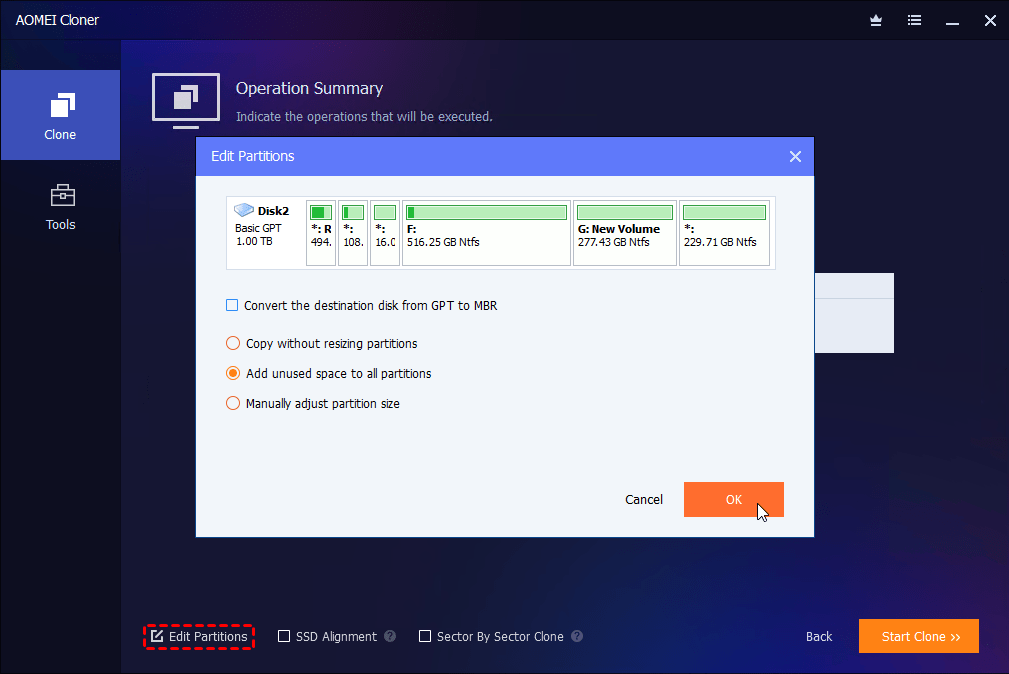
- Check the "SSD Alignment" option to optimize the target SSD performance.
- If two drives use different partition styles (one MBR, one GPT), click “Edit Partitions” > “Convert the destination disk from MBR (GPT) to GPT(MBR)” to make the two disks coincide, thus avoiding Legacy/UEFI boot issues.
- If the new SSD is larger, click “Edit Partitions” > “Add unused space to all partitions” so the full capacity is usable.
Step 5. Start Cloning and Reboot
After reviewing your settings, click "Start Clone". In the Data Safety Notice window, click "Start Clone" again to begin the cloning process. The program will copy all data, including the operating system, applications, and files, to the destination drive.
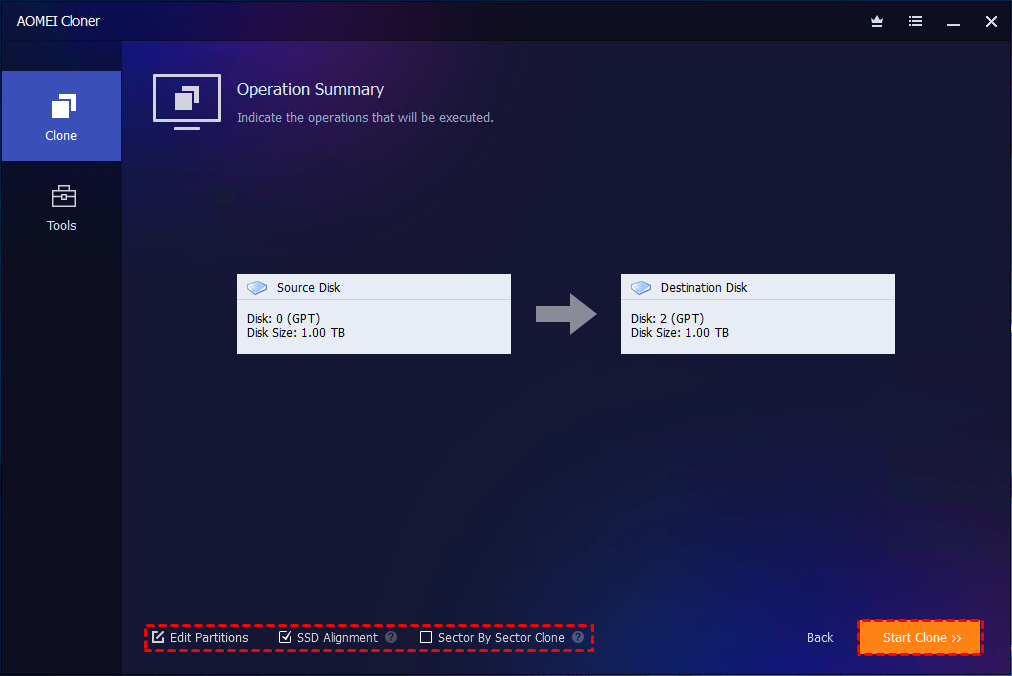
Once the cloning is complete, shut down your PC, replace the old drive with the newly cloned one (if applicable), and boot up your PC.
FAQs about Cloning Disk in Windows 10
1. Does Windows 10 have a cloning tool?
Windows 10 does not come with a built-in cloning tool. However, you can use third-party software such as AOMEI Cloner for this task. The tool is user-friendly and offers reliable cloning features.
2. Will cloning a disk also clone Windows 10 and make the new drive bootable?
Yes, if done correctly with suitable software, the cloned disk will include Windows 10 and be bootable.
3. How long does disk cloning take?
It depends on:
-
Disk size
-
Amount of used data
-
Speed of both source and target drives (e.g., HDD vs SSD)
On average, it may take 15 minutes to a few hours.
Conclusion
Cloning a hard drive on Windows 10 doesn’t have to be complicated. By following the steps outlined in this article and using AOMEI Cloner, you can easily clone your drive and ensure your data is safely transferred.
Whether you’re upgrading your storage or creating a backup, this disk cloning software offers a reliable and efficient solution. Download it today and experience seamless cloning with a trusted tool.

 as a preferred
source on Google
as a preferred
source on Google