



Bitdefender Ransomware Protection - Full Guide & Alternative
Looking for powerful ransomware protection? This article explores Bitdefender ransomware protection in detail, including its anti-ransomware technologies, data protection, and advanced security tools. We explain how it blocks and removes ransomware, and how to set it up properly.

By Jonna Updated on May 13, 2026


Does Bitdefender Offer Ransomware Protection?
Ransomware remains one of the most dangerous cyber threats today, targeting home users, small businesses, and enterprises alike by encrypting photos, documents, and critical data until a ransom is paid. Bitdefender does offer robust, industry-leading ransomware protection across its premium antivirus and security suites.
Bitdefender ransomware protection is among the most reliable solutions available, combining multi-layered defense, behavioral detection, and automatic remediation to block attacks and recover files without paying hackers. This guide explains how Bitdefender stops ransomware, what features it offers, and how to set it up easily.
Full Guide on Bitdefender Ransomware Protection
Bitdefender does not just detect ransomware, and it uses multiple layers of security to block attacks and keep your files safe.
#1. Ransomware Remediation
Bitdefender Ransomware Remediation is a flagship anti-ransomware tool and the most critical feature for data recovery. Unlike basic detection tools that only block known ransomware, this feature proactively protects your files by creating temporary backups and automatically restoring them if an attack is detected. Here is how to enable it:
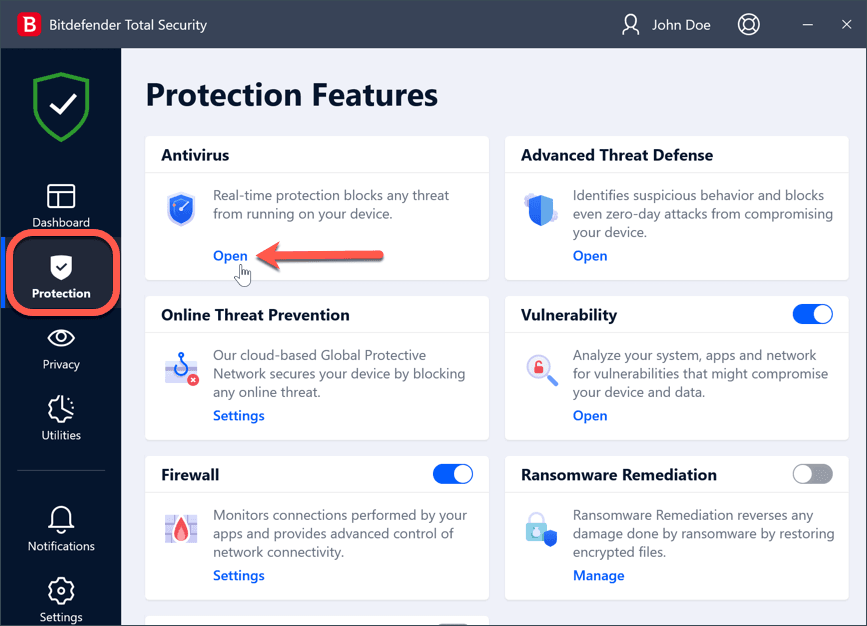
Step 1. Launch the Bitdefender app, and click Protection on the left menu.
Step 2. Under Antivirus, click Open. Find the Ransomware Remediation section, turn the switch ON, and make sure Automatic Restore is enabled.
#2. Safe Files (Protected Folders)
Safe Files (also called "Protected Folders" in some Bitdefender versions) is a folder-level security tool that locks your most sensitive directories, allowing only trusted applications to modify or access them. This prevents ransomware from encrypting your critical files, even if it manages to bypass other defenses.
- Restricts write and encryption access to approved applications only
- Blocks unknown or malicious processes from modifying files in protected folders
- Allows you to whitelist trusted apps (such as Microsoft Office, Photoshop, or accounting software) to avoid false positives
- Provides real-time alerts when an untrusted app attempts to access protected data
By default, Bitdefender protects common sensitive folders: Desktop, Documents, Pictures, Downloads, and Videos. You can also add custom folders (e.g., external drives, work folders, or cloud-synced folders) to the protected list. Any untrusted application attempting to modify files in these folders will be blocked automatically, and you’ll receive an alert to approve or deny access.
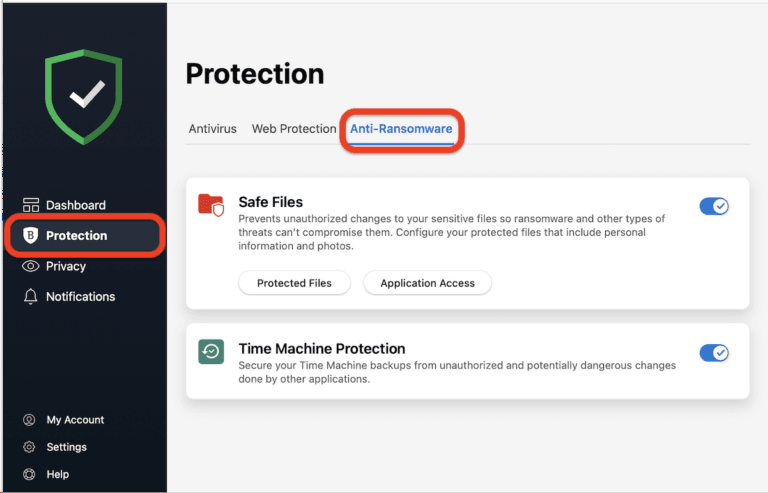
Step 1. Under the Protection section, open the Anti-Ransomware tab at the top. Then, click Safe Files, and toggle Safe Files to ON.
Step 2. Click Protected Files to protect your important directories. Then, click the button labeled with the plus sign (+), and choose the file, folder or volume to be protected in case ransomware attacks will try access them.
#3. Real-Time Protection
Bitdefender’s Real-Time Protection is the foundation of its ransomware defense, continuously monitoring system processes, file downloads, email attachments, and application behavior for signs of ransomware activity. Unlike signature-based detection that only catches known threats, this module uses machine learning and behavioral analysis to identify zero-day ransomware strains that have never been seen before. Core capabilities of Real-Time Protection for ransomware:
- Scans files for access to block malicious payloads before they execute
- Monitors for suspicious file encryption patterns, a hallmark of ransomware
- Blocks malicious scripts and macro-enabled documents that deliver ransomware
- Prevents ransomware from spreading across networked drives and connected devices
#4. Ransomware Mitigation
Ransomware Mitigation focuses on stopping attacks at their source by neutralizing the techniques ransomware uses to infect systems and spread. This module targets common attack vectors, including exploit kits, brute-force attacks, and lateral movement across network endpoints.
For business users, this feature is critical for protecting entire endpoint fleets. For home users, it adds an extra layer of security against drive-by downloads and malicious email links that often deliver ransomware.
#5. Anti-Phishing & Anti-Exploit
Most ransomware infections start with phishing emails, malicious links, or exploited software flaws. Bitdefender’s Anti-Phishing and Anti-Exploit modules close these entry points before ransomware can reach your system, making them essential frontline defenses.
Anti-Phishing protections:
- Scans emails and web pages for fake login portals, malicious attachments, and ransomware download links
- Blocks access to known phishing websites that distribute ransomware
- Warns users about suspicious email senders and deceptive content
Anti-Exploit protections:
- Shields vulnerable applications (browsers, PDF readers, office suites) from code-execution exploits
- Patches virtual security gaps in outdated software without requiring manual updates
- Stops memory-based attacks that ransomware uses to gain system access
Together, these modules reduce the risk of initial infection by targeting the most common ways ransomware enters Windows devices.
Alternative Ransomware Protection Software for Windows Computers
Except for Bitdefender, there is another ransomware protection software for you - AOMEI Backupper. Specialized in backup and restore, this tool offers comprehensive backup options and quick PC recovery. The key features of AOMEI Backupper include:
 AOMEI Backupper
- System/Disk/Partition/File Backup - It allows you to create full Windows OS images, disk images, partition images, or file/folder images.
- Scheduled Backup - You can set it to create daily, weekly, or monthly backups to external hard drive, network drive, NAS, USB, or various locations.
- Ransomware Protection - It protects backup files created with AOMEI Backupper, and your important file types & file/folder paths from ransomware.
- Quick Recovery: It allows you to restore OS, disk, or files/folders from ransomware with ease.
 100% Secure
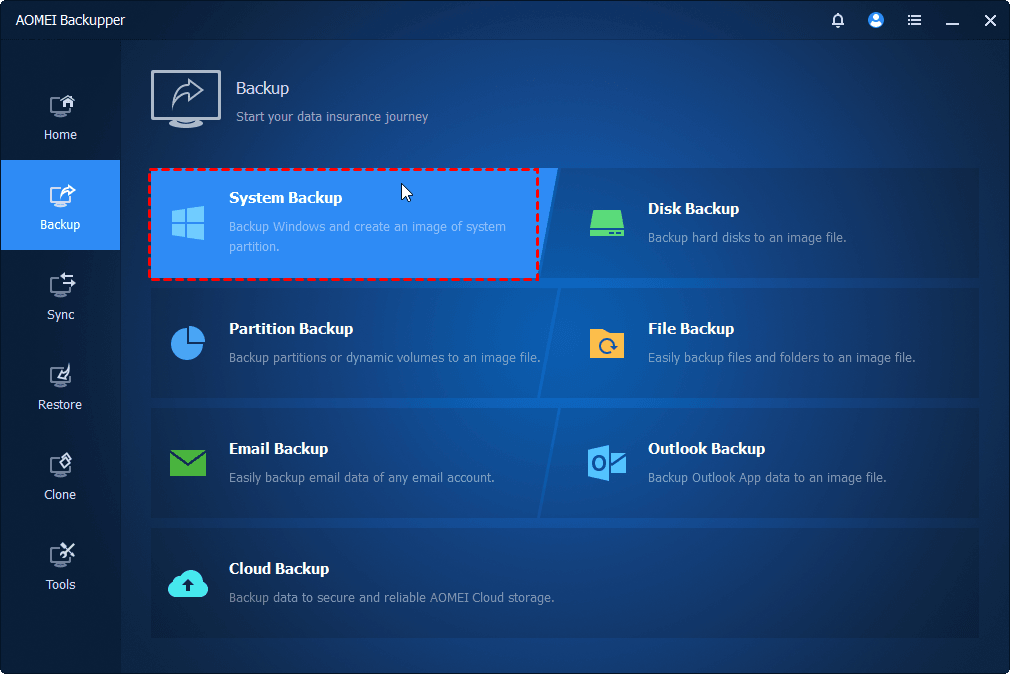
Step 1. Download and run AOMEI Backupper, then click on Backup and choose a backup option, such as System Backup, to create a system OS backup.
Step 2. Head to Tools > Ransomware Protection to enable it.
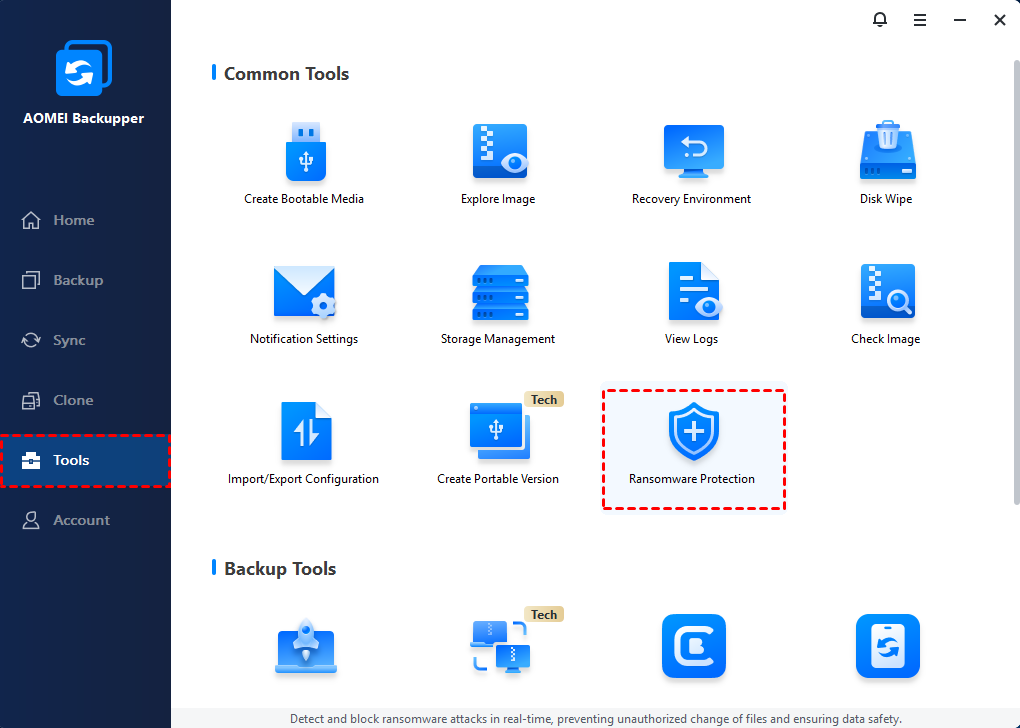
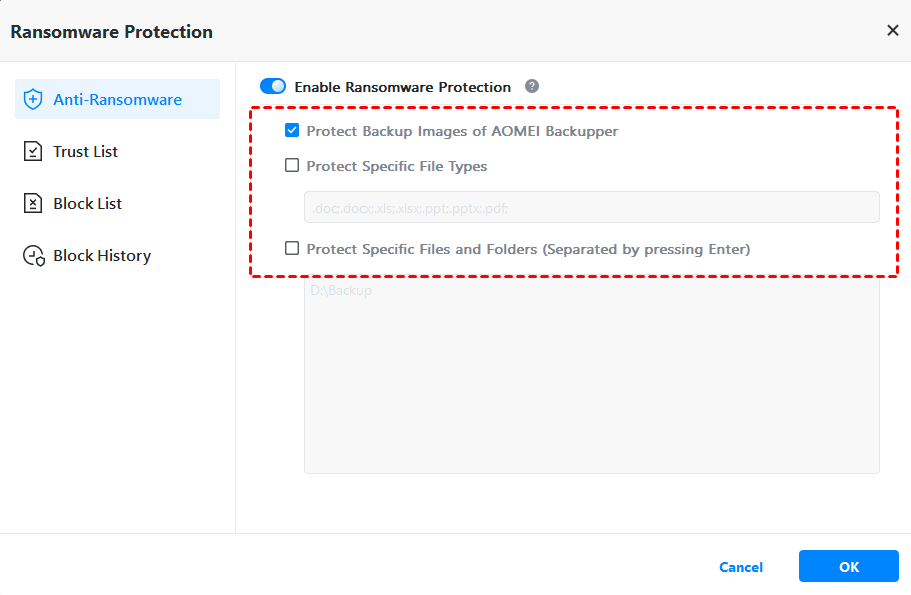
Step 3. On the pop-up screen, you can choose the 3 sub-options as needed, and click OK to save them.
- Protect Backup Images of AOMEI Backupper: Ticked by default to protect backup image files you have created with AOMEI Backupper.
- Protect Specific File Types: Protect specific file types by adding file extensions like .doc, .pdf, .ppt, etc.
- Protect Specific Files and Folders: Protect some important files or folders by adding their paths, like C:\ProgramData, etc.
In the End
Bitdefender Ransomware Protection delivers a comprehensive, easy-to-use defense that covers every stage of a ransomware attack, from prevention to recovery. Its combination of real-time behavioral detection, protected folders, automated remediation, and anti-phishing tools makes it one of the most reliable solutions for Windows users seeking robust protection without complex setup. Whether you’re a home user protecting personal files or a small business owner safeguarding client data, Bitdefender’s layered approach ensures you are not reliant on a single security measure.
For users seeking alternatives, tools like AOMEI Backupper offer excellent backup-focused ransomware defense, while other antivirus suites provide specialized detection or lightweight performance. No matter which tool you choose, pairing software protection with the 3-2-1 backup rule and proactive security habits is the key to avoiding ransomware disaster.

 as a preferred
source on Google
as a preferred
source on Google