




Transfer iPhone 15 Photos to PC: 5 Best Ways
Need to transfer photos from iPhone 15 to PC? This guide compares 5 methods, from USB cable to cloud services, and shows you why Method 1 is the fastest, most flexible option. No Wi‑Fi, no quality loss. Start here.

By Ivy Updated on July 9, 2026


You've just taken hundreds of photos with your iPhone 15, stunning landscapes, family moments, or that perfect shot you've been trying to get for weeks.
Now your phone is running out of space. You need to transfer photos from iPhone 15 to computer, but you're not sure where to start.
Should you use a cable? iCloud? Google Drive? Something else?
Here's the good news: there are several ways to do it. The not-so-good news? Not all of them are fast, simple, or free.
In this guide, we'll walk you through 5 ways to transfer photos from iPhone 15 to PC - starting with the fastest and most flexible option.
Whether you're in a hurry, only need a few photos, or prefer a wireless solution, there's a method here for you. Read on, and you'll find the one that fits.
Which Method Should You Use?
Not every method suits everyone. The right way to transfer photos from iPhone 15 to PC depends on a few simple factors: how many photos you have, whether you have Wi‑Fi, and what you plan to do with the photos afterward.
Here's a quick guide to help you decide:
| Your Situation | Best Method | 👍 Best For |
|---|---|---|
| Lots of photos, need them fast, want full quality | Method 1: AOMEI FoneBackup (Free) | Small transfers — fast, full quality, no Wi‑Fi, 30/day free |
| Just a few photos, no extra software | Method 3: File Explorer | Quick transfer - simple drag‑and‑drop, no installation |
| Want a full backup of everything | Method 2: iTunes | Full backup - backup the entire iPhone, not just photos |
| Photos already in iCloud | Method 4: iCloud | Wireless download - if you already use iCloud (5GB) |
| Prefer Google Drive, NOT Apple | Method 5: Google Drive | Wireless - with 15GB free storage |
If you're still unsure, here's a simpler rule:
-
Start with Method 1. It's the fastest, most flexible, and works offline - no uploads, no quality loss, no limits.
-
Use Method 3 if you only have a few photos and don't want to install anything.
-
Use Method 2, 4, or 5 only if you specifically need a full backup or a wireless transfer.
5 ways to transfer photos from iPhone 15 to PC
Method 1: AOMEI FoneBackup - Best Free Option for Small Transfers
AOMEI FoneBackup is the fastest way to transfer photos from iPhone to PC using a USB cable. It transfers at full resolution - no file size limits, no Wi-Fi. You can also choose exactly which photos to move and save them directly to an external drive, USB stick, or SSD.
The free version allows 30 file transfers per day, ideal for quick, small transfers or testing and deciding whether to upgrade.
 AOMEI FoneBackup
- 3 Transfer Modes: Transfer data from iPhone to PC, from PC to iPhone, and from iPhone to iPhone in a few clicks - No iCloud or Wi-Fi required.
- Fast transfer speeds: Hundreds of full‑resolution photos or videos in under 20 seconds.
- Cross-Apple ID: Transfer data between iPhones with different Apple IDs. No need to log in to the same account.
- Full or selective backup: Choose exactly what to back up -photos, videos, contacts, messages, music, and more. Preview files before transferring.
- iCloud Manager: Upload, download, delete, and sync iCloud photos, videos, contacts, and Drive files across multiple accounts.
- Wide compatibility: Works well with iPhone 15/16/17, including the latest iOS version.
 100% Secure
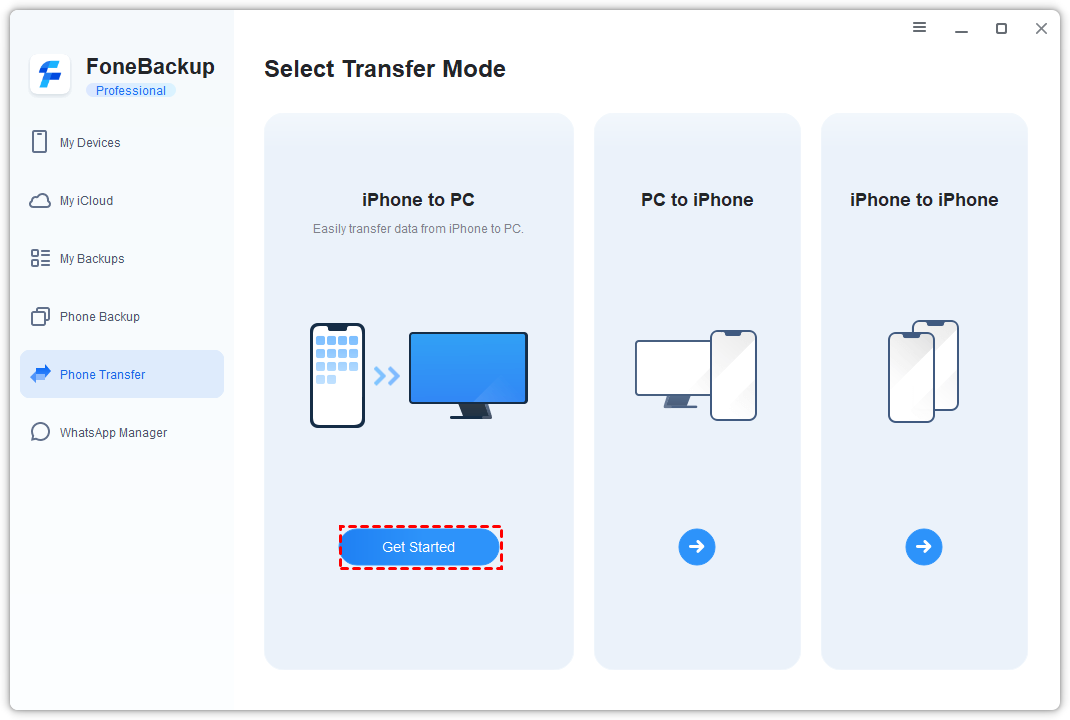
Step 2. Under the Phone Transfer tab, choose iPhone to PC and click Get Started.
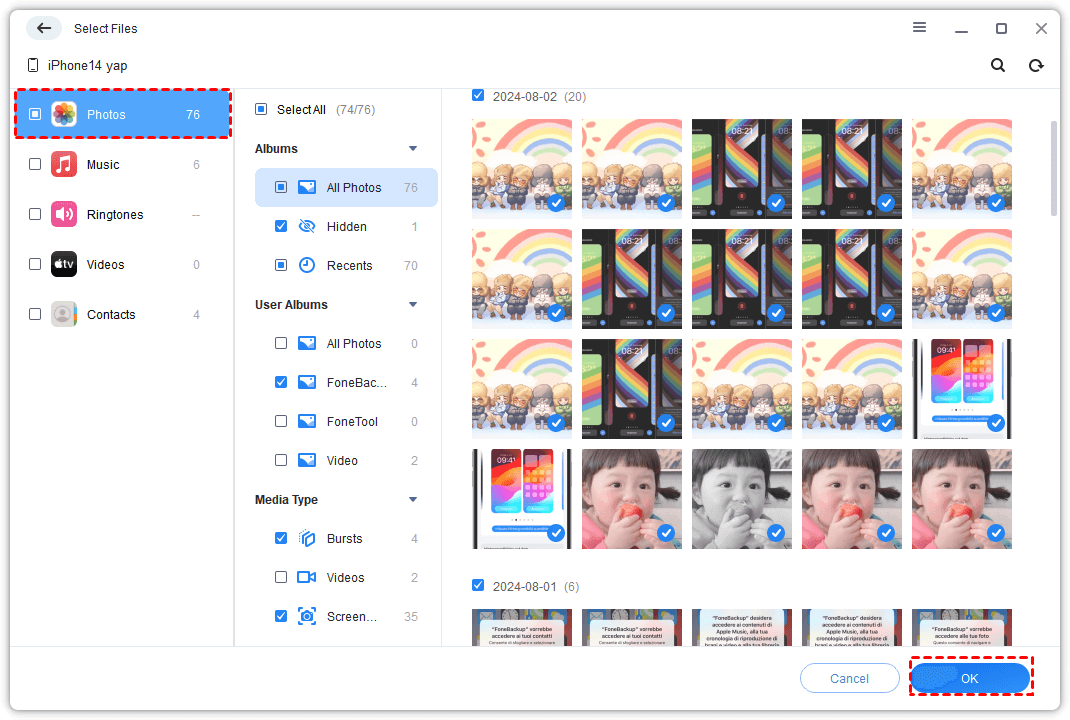
Step 3. Under the Photos directory, preview and select the pictures you want to transfer, and click OK. Click the Videos icon if you want to transfer videos from iPhone to PC.
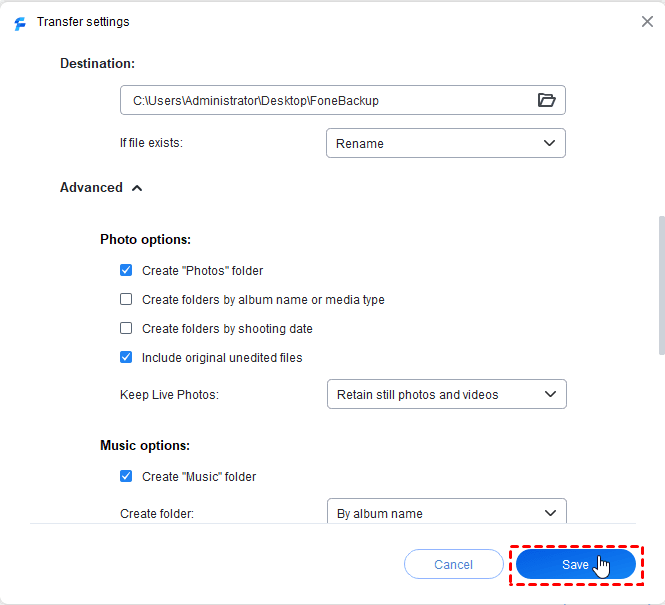
Step 4. Click Transfer Settings to choose where to save. Adjust other settings as needed and click Save.
Step 5. Back to the main screen, click Start Transfer to transfer photos from iPhone 15 to PC.
Method 2: File Explorer - For Quick USB Transfer (Unlimited, No Install)
Windows File Explorer provides a straightforward way to access your iPhone's DCIM folder. It's free, requires no extra software, and works without Wi‑Fi. However, files are organized in time‑based folders, making selection cumbersome, and transfer speed is noticeably slow. Also, you can only access photos and videos, no other file types
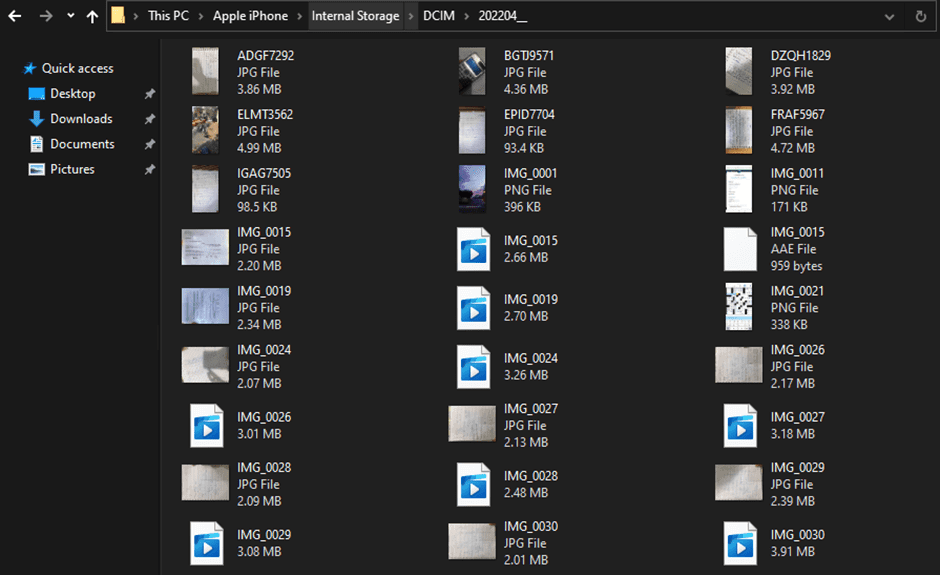
Step 1. Connect your iPhone to the PC using a USB cable. Go to This PC, where your iPhone will be listed as a Portable Device. Click on your iPhone to access its contents.
Step 2. Within the Portable Device, enter the Internal Storage folder to locate and select the pictures you wish to transfer.
Method 3: iTunes – For Full Device Backup (Not Just Photos)
iTunes backs up your entire iPhone to your PC, including photos. It's a good option if you want a complete copy of your device, not just photos. However, you can't view or select individual photos from the backup.
The interface can be confusing, transfer speed is slow, and there's a risk of overwriting existing data. It also doesn't let you save photos to an external drive or a custom folder
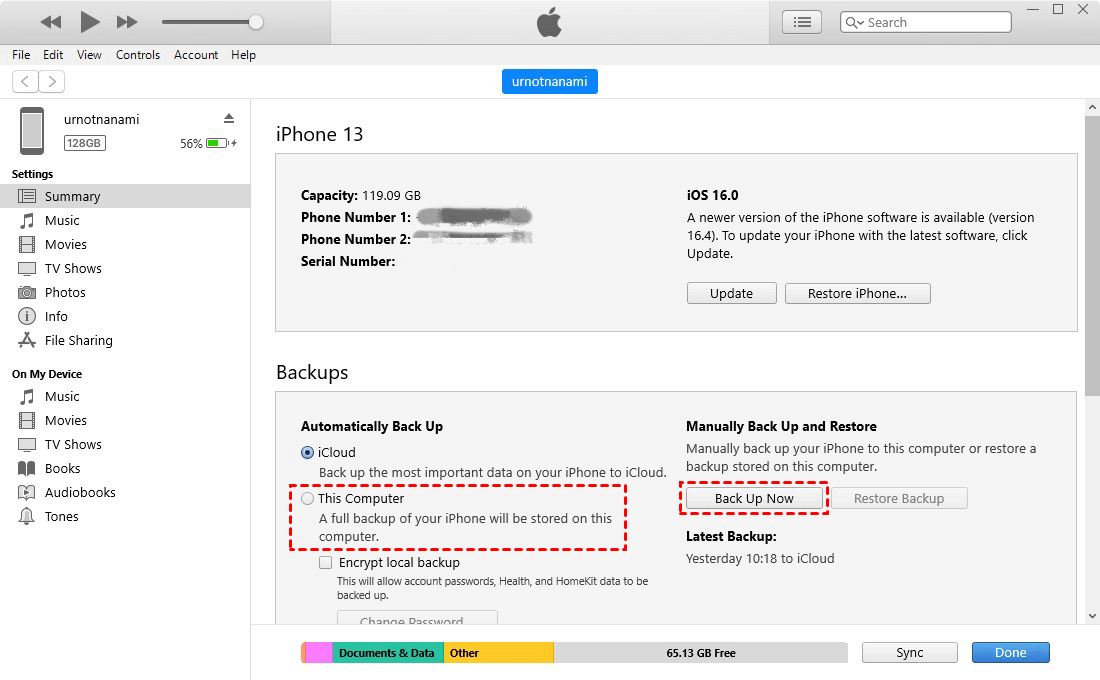
Step 1. Connect your iPhone 15 to your PC with a USB cable and open iTunes. If needed, download iTunes and install it first.
Step 2. Click the device icon and choose Summary on the screen.
Step 3. In the Backup section, check This computer and tap on Back Up Now to transfer data to iPhone 15.
Method 4. Download from iCloud - Wireless Transfer with 5GB Free
Option 1: Download from iCloud Web
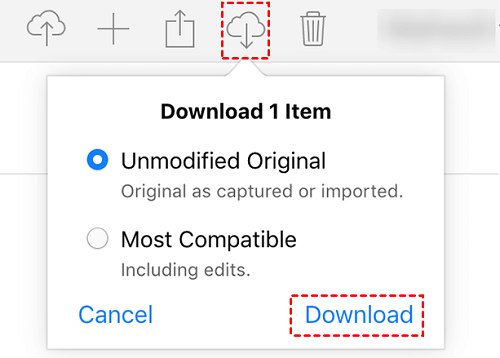
If you already have iCloud Photos enabled on your iPhone, your photos are automatically synced to the cloud. You can then download them to your PC via the iCloud website. The process is wireless and convenient. But free storage is limited to 5GB, uploads and downloads can be slow, and you need to remember your Apple ID and password
Step 1. Open the iCloud website on your PC and log in with your Apple ID.
Step 2. Tap on the Photos icon to browse all uploaded photos. Once found, click the Download icon to save photos to your PC.
Option 2. Import photos to PC using iCloud Manager
If you find the iCloud web interface slow or cumbersome, you can also use FoneBackup, the same tool mentioned in Method 1, to manage and download your iCloud photos directly. Its iCloud Manager feature supports bulk download, two-factor authentication, and works with both iCloud Photos and iCloud Drive.
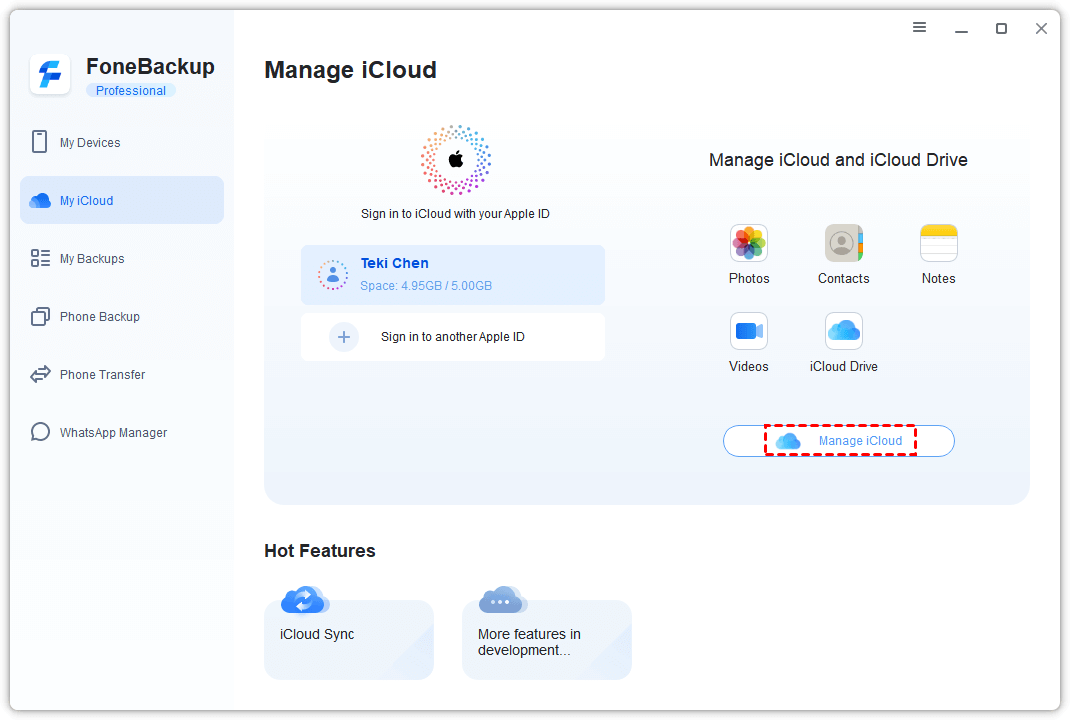
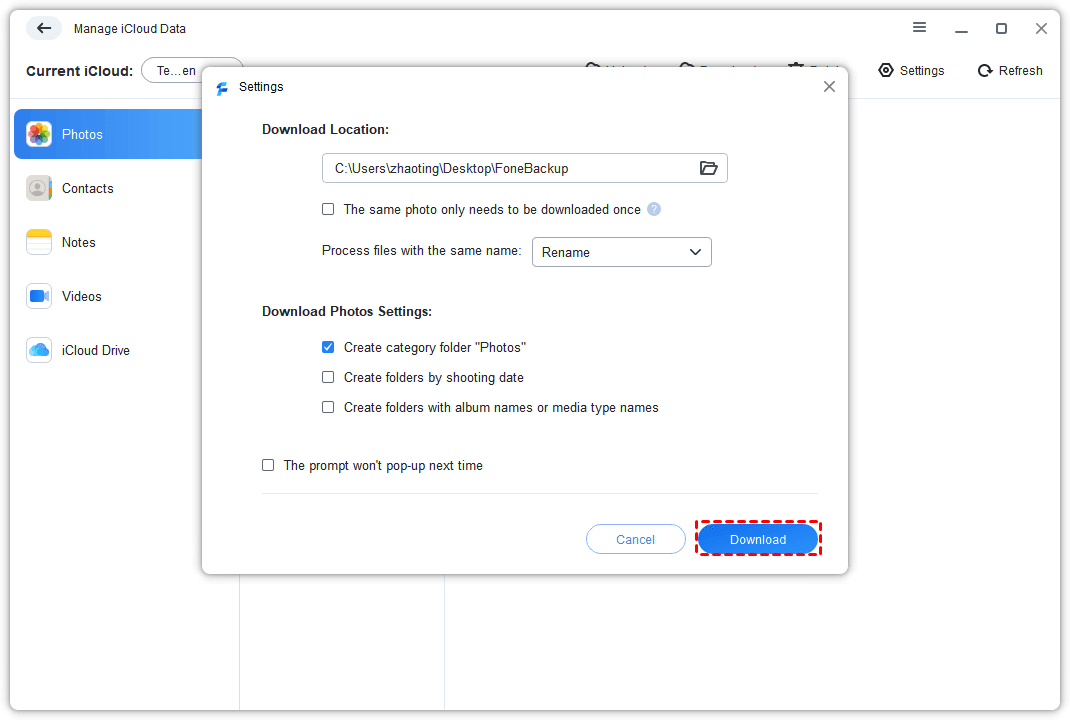
Step 1. Launch AOMEI FoneBackup. Under the My iCloud tab, log in with your Apple ID. Click Manage iCloud in the right panel.
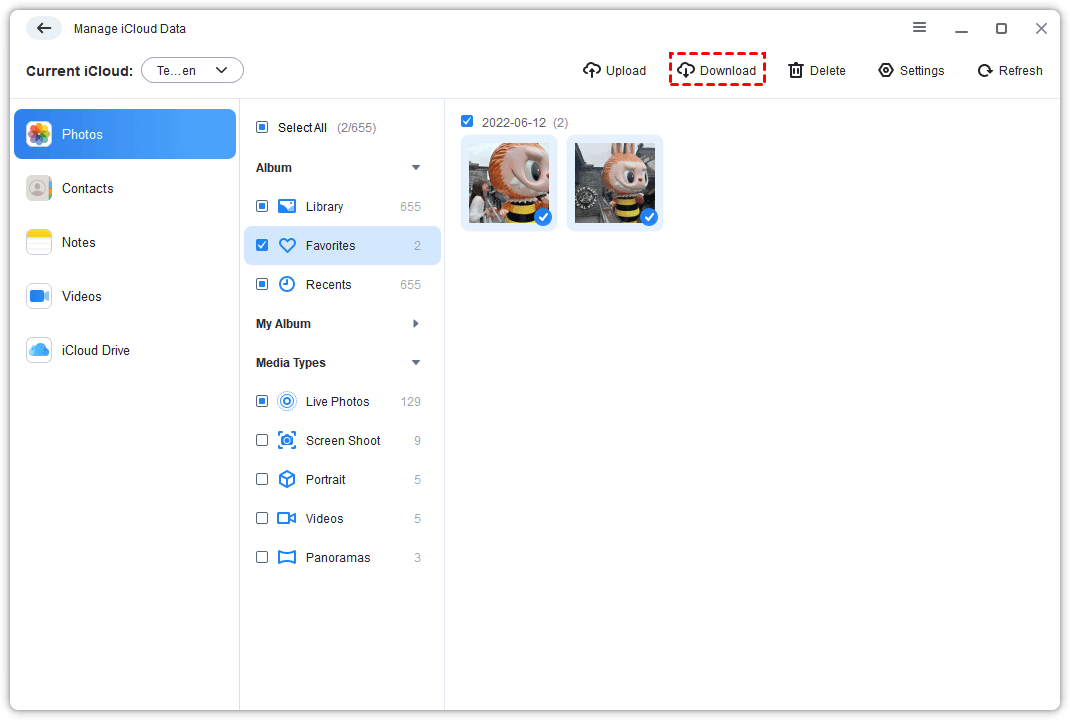
Step 2. Under the Photos directory, select the photos you need and click Download.
Step 3. In the Settings window, click the folder icon to choose where to save. Adjust Photos settings as needed and click Download.
Method 5: Google Drive – Wireless Transfer with 15GB Free
Similar to iCloud, Google Drive lets you upload photos from your iPhone and download them to your PC. It offers 15GB of free storage - more than iCloud. The process is wireless, but involves both upload and download steps, can be affected by network quality, and requires a Google account
Step 1. Download Google Drive from the App Store. Launch it and sign in with your Google account.
Step 2. Tap the Plus icon > Upload > Photos and Videos. Then, select the specific images you want to AirDrop.
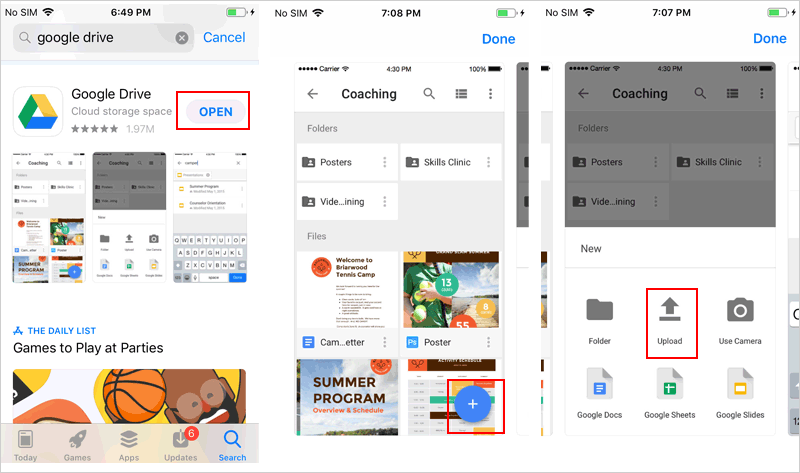
Step 3. Access the Google Drive website through your PC's browser and proceed to download the chosen pictures.
Final words
Based on the instructions provided above, we believe you now have a clear understanding of how to transfer photos from iPhone 15 to PC, whether using a USB cable or wirelessly. The outlined pros and cons can help you find the most suitable ways to complete the process. And FoneBackup mentioned in Method 1 might be the best way.
Except for downloading photos from iPhone 15 to PC, you can also use it to backup iPhone 15 to PC. Hope you can achieve a smooth and quick moving process after the reading.

 as a preferred
source on Google
as a preferred
source on Google