




How to Transfer Data from iPhone to iPhone without Apple ID
This guide explains how to transfer data from iPhone to iPhone without Apple ID access, including direct, computer-based, and wireless methods plus important account limitations.

By Ivy Updated on August 27, 2026


You’ve got a new iPhone ready, but the old one uses an Apple Account you no longer want or can’t sign in to. Your photos and other files are still on the old device, so you need a way to move them without losing anything.
You can transfer data from iPhone to iPhone without Apple ID access when the content is stored locally on the old device. AOMEI FoneBackup can move data through a Windows PC, while AirDrop works for a small number of photos or files. However, neither method can bypass Activation Lock or transfer ownership of purchases tied to the old account.
What Can You Transfer without Apple ID?
You can usually transfer photos, videos, music, and files that are stored locally on the old iPhone. However, purchases, subscriptions, iCloud-only content, and Activation Lock remain linked to the original Apple Account.
Choose a method based on your situation:
| 🧩 Your situation | ✅ Recommended method | 📃 What you can transfer |
|---|---|---|
| You want to move most local data through a Windows PC | AOMEI FoneBackup direct transfer | Supported local data and settings |
| You only need selected photos, videos, or music | AOMEI FoneBackup through a PC | Selected local files |
| You need to send a few nearby files | AirDrop | Photos, videos, documents, and links |
| You want a normal full-device setup and still control the old account | Quick Start | Apps, settings, and supported device data |
| You cannot unlock the old iPhone or it shows iPhone Locked to Owner | Recover the account or contact the previous owner | No accessible device data |
No transfer tool can remove Activation Lock or move ownership of App Store purchases to a different Apple Account.
Method 1. Transfer Data from iPhone to iPhone with AOMEI FoneBackup
👍 Best for: Moving local data through a Windows PC without using iCloud - direct iPhone to iPhone transfer requires the Pro Edition.
AOMEI FoneBackup is an iPhone backup and transfer tool for Windows PCs. It can move data directly between two iPhones or use your computer as a middleman.
 AOMEI FoneBackup
- 📱Direct Transfer: Move photos, music, videos, contacts, and more between two iPhones. Existing data on the target device will be replaced.
- 🎯Selective Transfer: Pick what you want and transfer through a PC - export to PC, then import to iPhone.
- 👁🗨 Preview before transfer: See exactly what you're about to move.
- 🔌 Local Transfer: Move files via USB cable - no cloud upload or Wi-Fi required.
- 💰 Free Tier: Transfer up to 30 files per day between PC and iPhone.
 100% Secure
Option 1: Transfer Directly from iPhone to iPhone
Step 1. Connect both iPhones to the Windows PC with USB data cables. Unlock both devices and tap Trust if prompted.
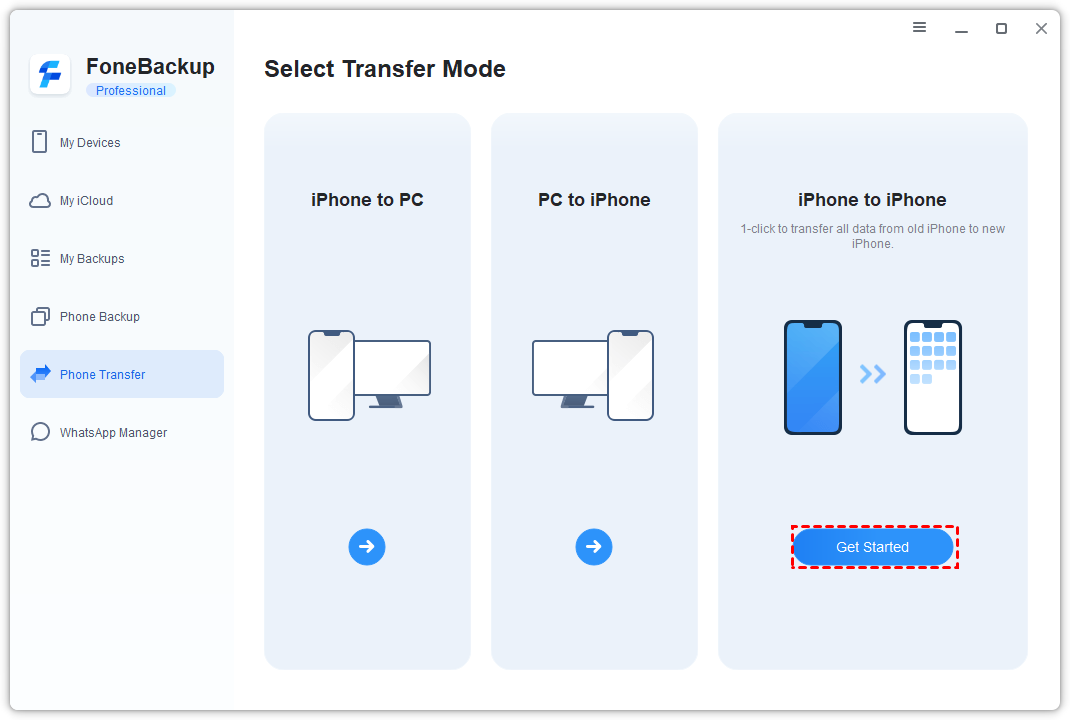
Step 2. Open AOMEI FoneBackup, select Phone Transfer > iPhone to iPhone, then click Get Started.
Step 3. Check that the old iPhone is the source and the new iPhone is the target. Enable Backup encryption if you need to include private data and lick Start Transfer.
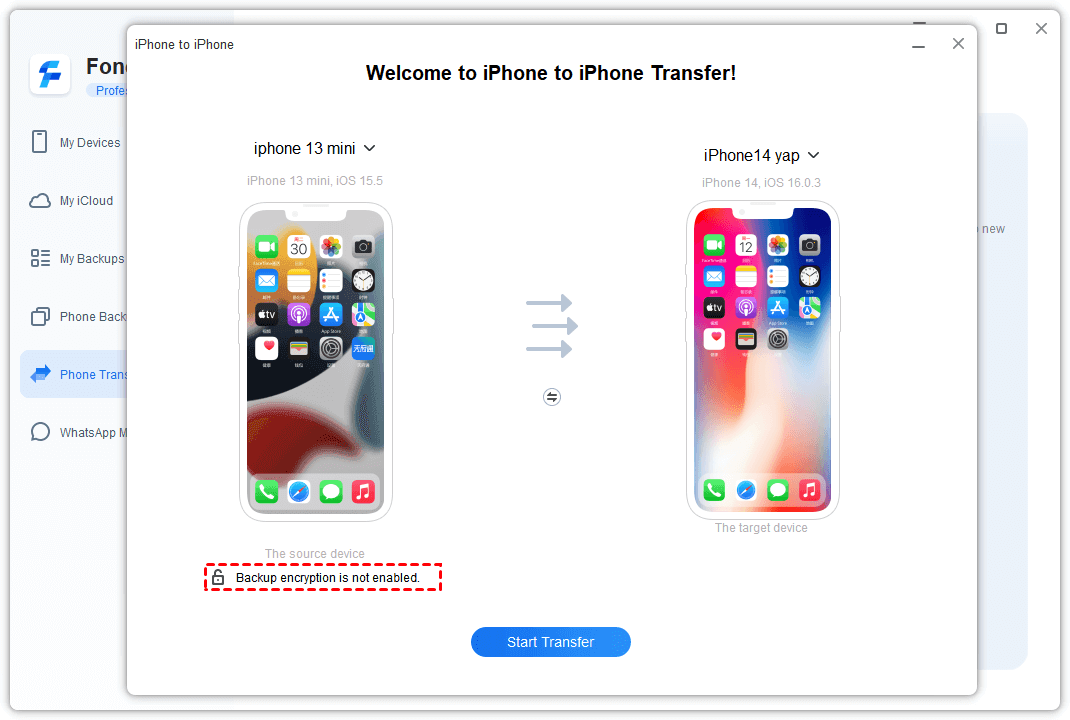
Keep both iPhones connected until the process finishes.
Option 2: Move Selected Files through a PC
This 2-stage route is useful when the new iPhone is already set up or you only want specific photos, videos, or music.
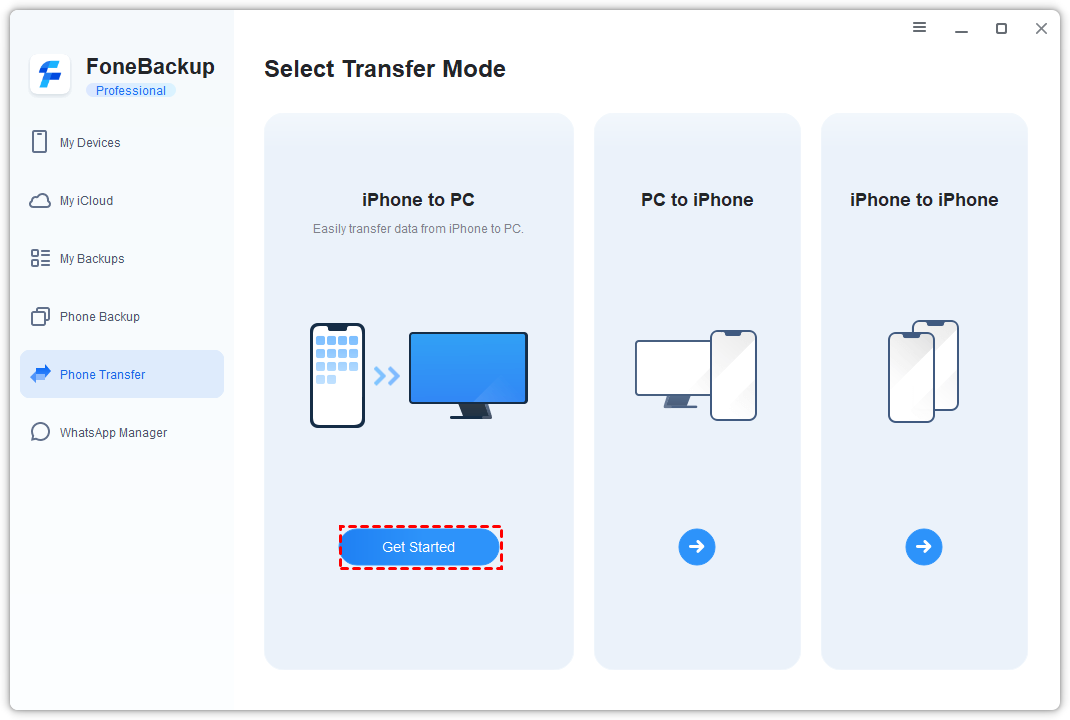
Step 1. Connect the old iPhone to your Windows PC. Open AOMEI FoneBackup, go to Phone Transfer > iPhone to PC and click Get Started.
Step 2. Choose the photos, videos, music, contacts, or other items you want. You can preview them before making your selection.
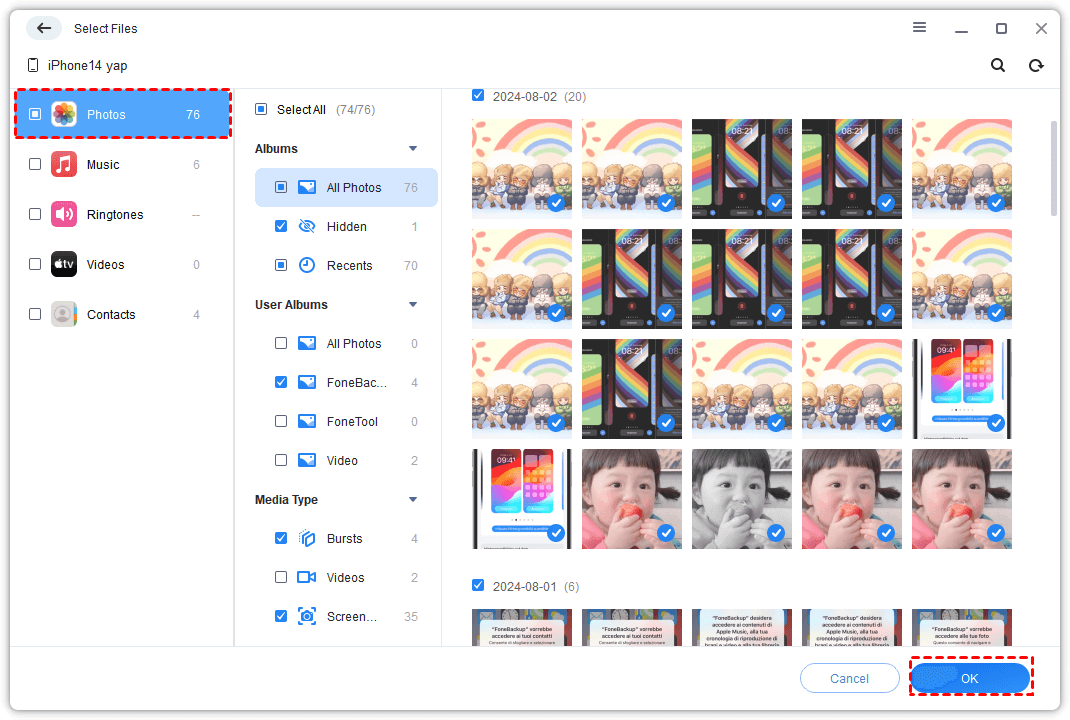
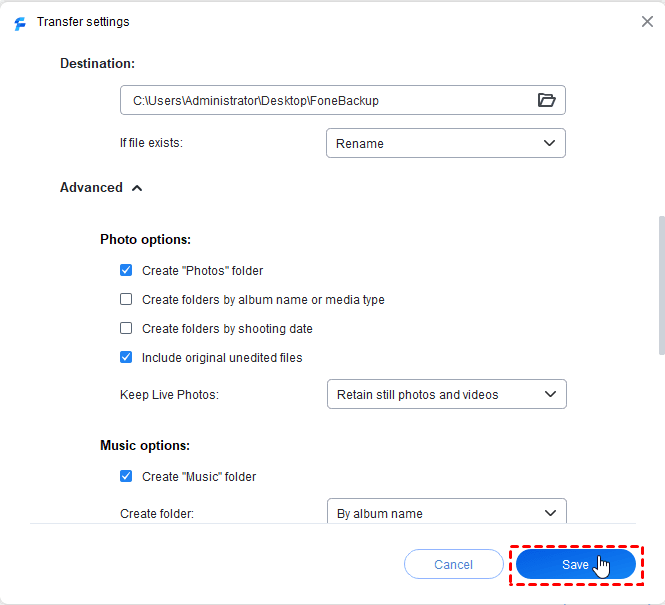
Step 3. Open Transfer Settings to choose a storage path, and click Start Transfer.
Step 4. Disconnect the old iPhone, then connect and trust the new iPhone.
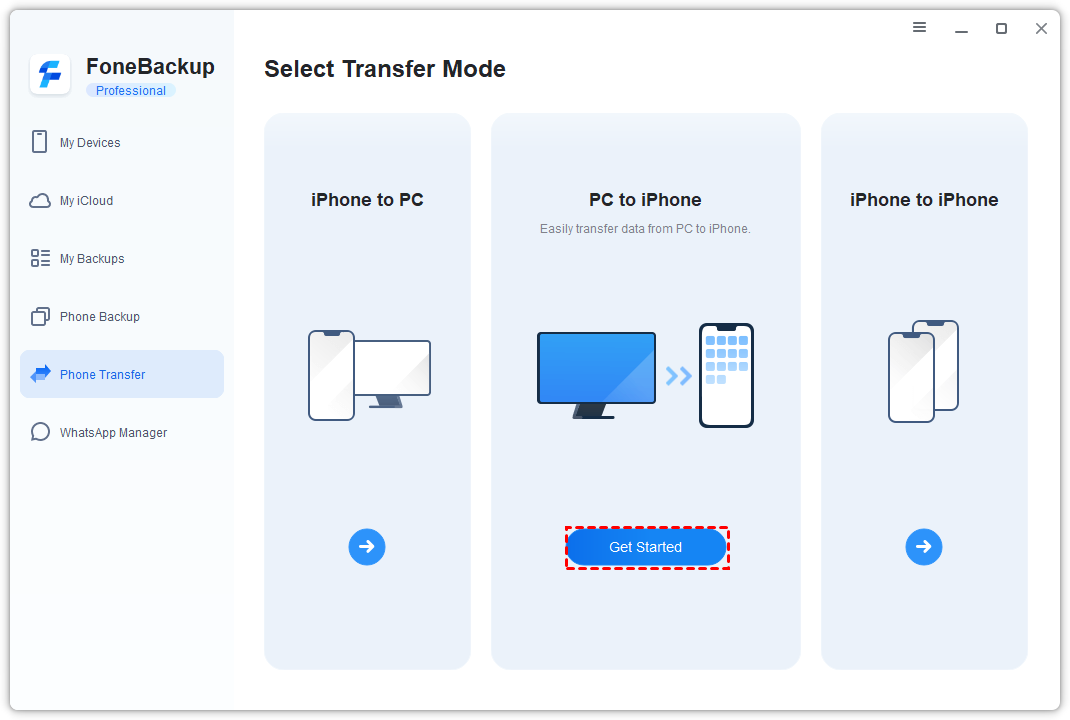
Step 5. In AOMEI FoneBackup, select Phone Transfer > PC to iPhone and click Get Started.
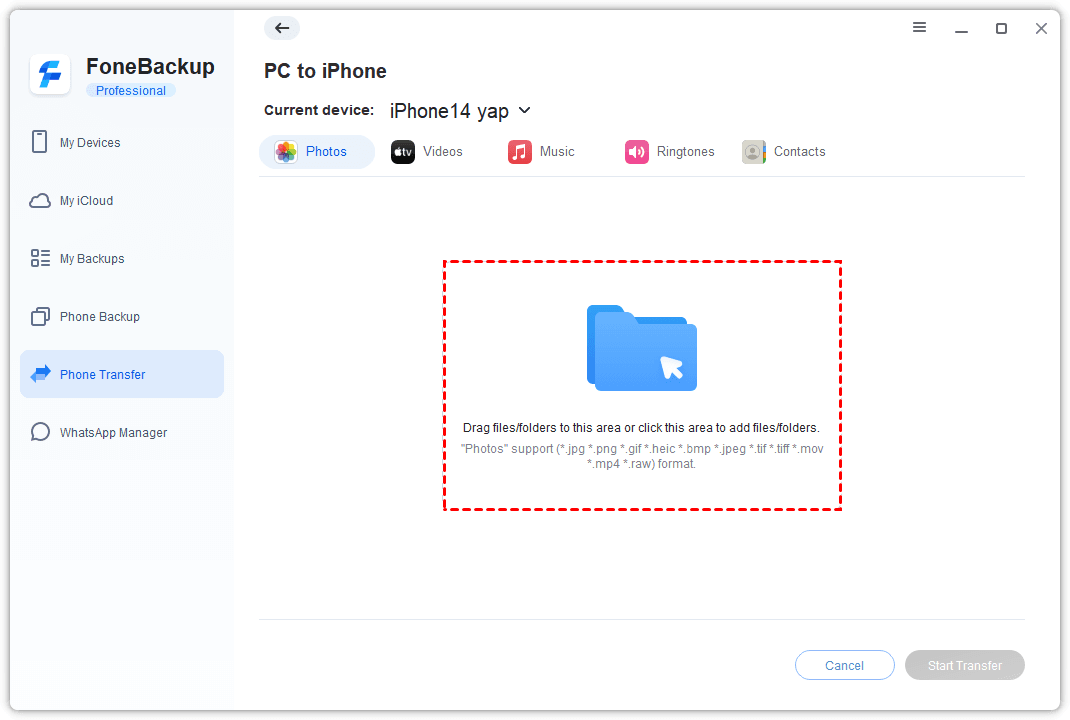
Step 6. Click the blue folder icon to add the exported files, and click Start Transfer.
Method 2. Transfer Selected Files from iPhone to iPhone with AirDrop
👍 Best for: Sending a small number of photos, videos, documents, or links nearby - it does not transfer apps, settings, or the entire iPhone.
AirDrop does not require both iPhones to use the same Apple Account. Both devices need Wi-Fi and Bluetooth, and Personal Hotspot should be off.
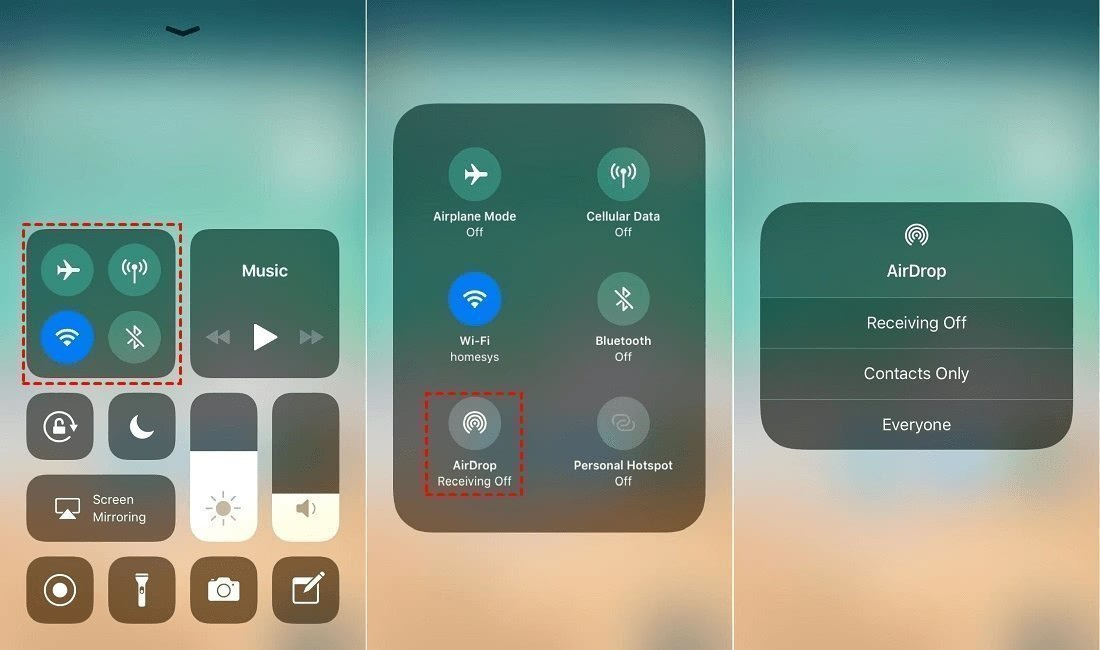
Step 1. On the receiving iPhone, open Control Center and press and hold the connectivity controls. Tap AirDrop, then select Everyone for 10 Minutes. On newer systems, the devices may ask for an AirDrop code when the sender is not a contact.
Step 2. On the old iPhone, open Photos, Files, or another supported app. Select the items, tap Share, and choose AirDrop.
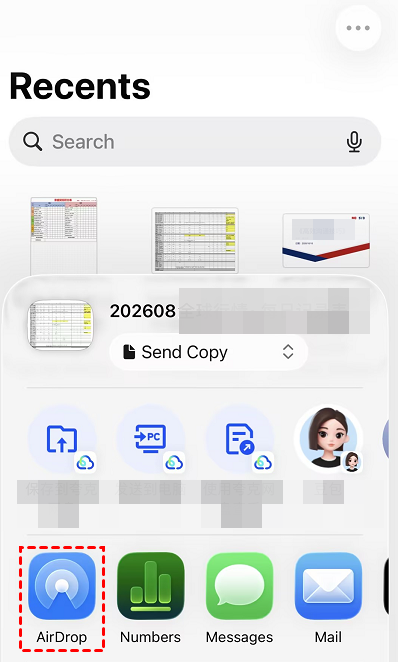
Step 3. Tap the receiving iPhone, then tap Accept on that device if asked.
AirDrop works well for selected content, but sending thousands of files can be slow and difficult to verify. Use the computer method when you have a large library.
💬 Check the transfer before erasing the old iPhone:
- Open several transferred photos and videos, not just their thumbnails.
- Check that important files can open without an internet connection.
- Compare key contacts, messages, and calendars when the chosen method supports them.
- Confirm that required apps can be downloaded and updated.
- Check which Apple Account appears under Settings.
- Keep the old iPhone untouched if anything is missing, then repeat the transfer or try another method.
Compare the Transfer Methods
| Method | 👍 Best for | Account requirement | Key limitation |
|---|---|---|---|
| AOMEI FoneBackup direct transfer | Moving local data through Windows | No shared Apple Account required | Direct transfer is Pro-only |
| AOMEI FoneBackup via PC | Selected photos, videos, and music | No shared Apple Account required | Free Edition limits each direction to 30 files daily |
| AirDrop | A few photos or documents | No shared Apple Account required | Not a complete migration |
| Quick Start | Setting up a new iPhone | Account may still be involved | Usually requires a new or erased target iPhone |
Use AOMEI FoneBackup when you have a Windows PC and need controlled local transfer. Use AirDrop for a few items. Choose Quick Start only when you still have normal access to the old device and its Apple Account.
What If You Forgot the Apple Account Password?
Recovering the account is the safest path if important content exists only in iCloud or you need to remove Find My.
If the old iPhone is your trusted device, try changing the password from its Apple Account settings. If that is unavailable, use Apple’s account recovery process. Recovery may take time because Apple must confirm that the account belongs to you.
If the iPhone shows iPhone Locked to Owner, contact the previous owner and ask them to remove the device from their account. Data transfer software cannot legitimately bypass Activation Lock.
FAQs
1. Can I transfer everything without knowing the old Apple Account password?
Not always. Locally stored data may transfer, but purchases, iCloud-only content, security settings, and Activation Lock remain connected to the old account.
2. Can I transfer data between iPhones with different Apple Accounts?
Yes, supported local files can be moved with AOMEI FoneBackup or AirDrop. The transfer does not move ownership of App Store purchases or subscriptions to the new account.
3. Can I transfer data without erasing the new iPhone?
Yes. A selective AOMEI FoneBackup transfer or AirDrop can add supported files to an already configured iPhone. A full setup transfer such as Quick Start usually requires a new or erased target device.
4. Does Quick Start work without iCloud?
Quick Start offers direct device-to-device transfer, so a full iCloud backup is not required. The setup can still involve the Apple Account signed in on the old iPhone.
5. Can AOMEI FoneBackup remove Activation Lock?
No. Activation Lock is an Apple security feature. You need the linked Apple Account, help from the previous owner, or an Apple-approved support process.
6. Does Quick Start work without Apple ID?
Quick Start can transfer data directly without creating a full iCloud backup, but it is not completely independent of your Apple Account. Setup, apps, purchases, and Apple services may still request the account used on the old iPhone.
Summary
Here are methods on how to transfer data from iPhone to iPhone:
- Choose AOMEI FoneBackup direct transfer when you want to move local data between 2 iPhones through a Windows PC.
- Choose AOMEI FoneBackup via PC when you only need selected photos, videos, or music.
- Choose AirDrop when you need to send a small number of items.
- Choose Quick Start when you still control the old Apple Account and are setting up a new or erased iPhone.
- Recover the account first when your required data exists only in iCloud or Activation Lock blocks the device.

 as a preferred
source on Google
as a preferred
source on Google