




How to Transfer Contacts from iPad to Computer in 4 Ways
This guide explains how to transfer contacts from iPad to computer as vCard or CSV files. Compare 4 methods for exporting selected contacts, complete lists, or contacts already stored in iCloud.

By Ivy Updated on September 4, 2026


You may want to reset your iPad, change your Apple Account, or keep a separate copy of important phone numbers. In each case, you need to move the contacts somewhere safe before making changes to the device.
There are several ways to transfer contacts from iPad to computer.
- AOMEI FoneBackup is a practical choice when you want to select contacts or save them as CSV files on a PC.
- If you prefer an Apple method, download a vCard through iCloud, export a list from the Contacts app, or sync contacts with iTunes.
Which Contact Transfer Method Should You Choose?
The right method depends on where your contacts are stored, how many you want to export, and which file format you need.
| 🧩 Your situation | ✅ Recommended method | ❌ Key limitation |
|---|---|---|
| Export selected contacts or create a CSV file | AOMEI FoneBackup | Requires a Windows PC and USB cable |
| Download contacts already stored in iCloud | iCloud.com | Exports contacts as a vCard |
| Export a contact list without computer software | iPad Contacts app | You must send or save the file yourself |
| Continue using an existing iTunes setup | iTunes | Contact options depend on your account settings |
Before choosing a method, open Contacts > Lists on your iPad. Your contacts may belong to iCloud, Gmail, Exchange, or another account. Contacts from Gmail, for example, can appear on your iPad without appearing on iCloud.com.
You should also choose the right format.
- A vCard, usually saved as a .vcf file, is suitable for backup and later import.
- A CSV file is more convenient when you want to open, sort, or edit contact details in Excel.
Method 1. Transfer Contacts from iPad to Computer with AOMEI FoneBackup
👍 Best for: Exporting selected or all contacts to a Windows PC as CSV or vCard files.
AOMEI FoneBackup is an easy-to-use iOS data transfer and backup tool. For this task, it lets you directly transfer contacts from iPad to computer without syncing them to iCloud first.
 AOMEI FoneBackup
- 🔄3 Transfer Modes: Transfer contacts from iPad to computer, computer to iPad, or between two iPads - no iCloud or Apple ID required.
- 🎯Flexible Selection: Preview and select individual contacts or your entire address book. Also supports photos, videos, ringtones, and more.
- 📤Export Options: Save contacts as CSV for Excel or vCard for later import.
- 💾Save Anywhere: Choose any folder on your PC, external drive, USB drive, NAS, or other device.
- 💿Both Copies: Contacts are saved to both your iPad and computer - nothing is removed from your iPad.
 100% Secure
AOMEI FoneBackup Free Edition allows you to export up to 30 files per day. Go Pro version for unlimited transfer.
Follow these steps to transfer contacts from iPad to PC:
Step 1. Download, and install AOMEI FoneBackup on your Windows PC. Meanwhile, connect the iPad with a USB data cable, unlock it and enter its passcode if asked.
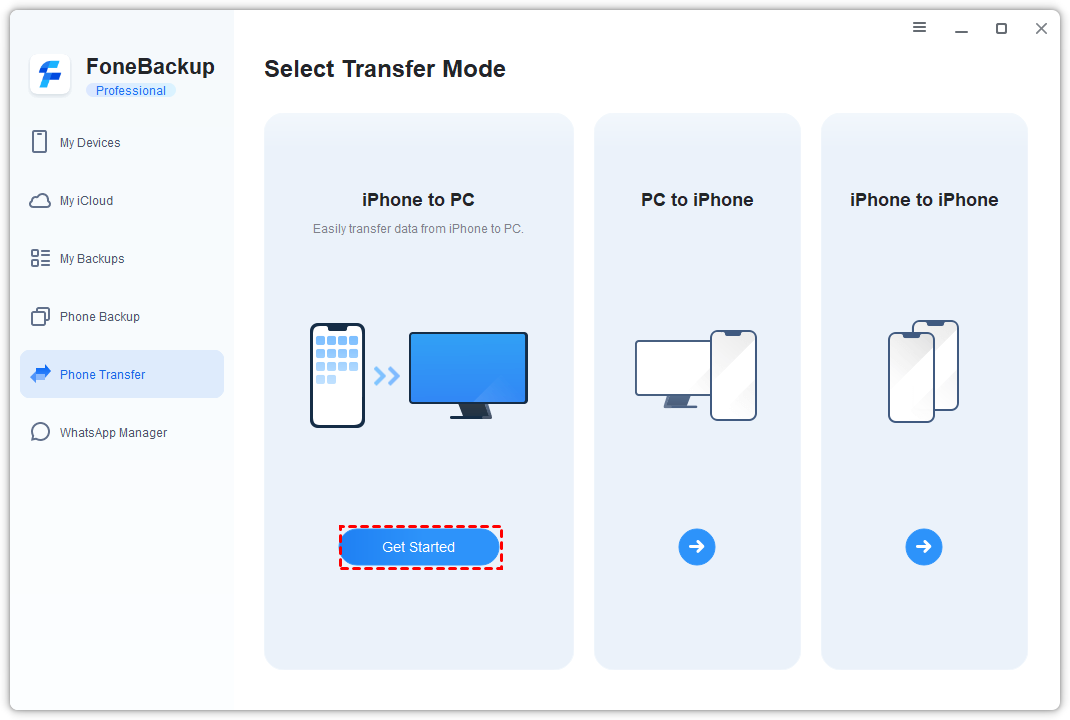
Step 2. Choose Phone Transfer from the left panel. Go to iPhone to PC and click Get Started.
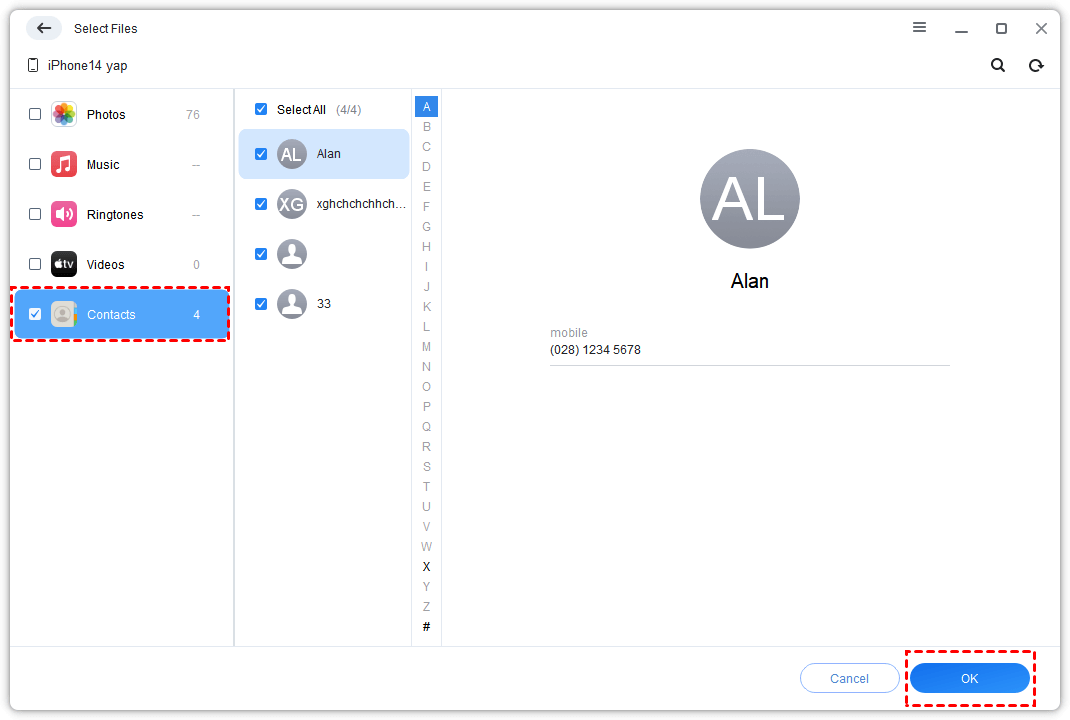
Step 3. Click the Contacts icon to preview and select the contacts you want to export. Click OK to confirm your choice.
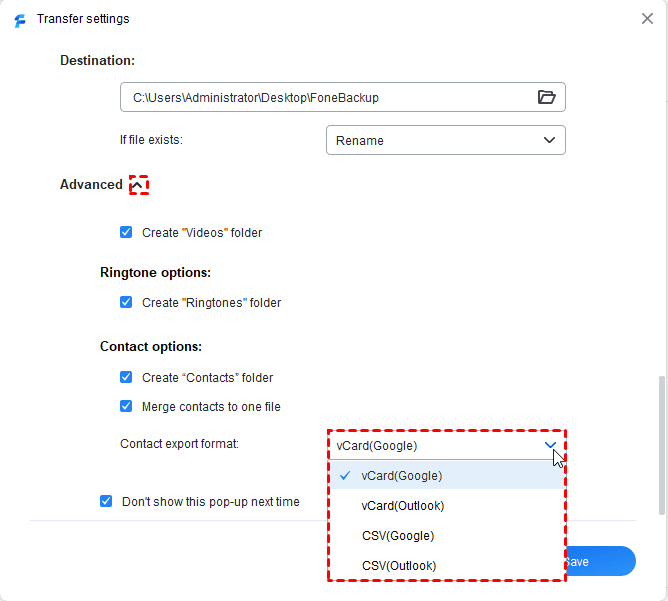
Step 4. Click Transfer Settings to choose where you want to save your contacts. Then, click Advanced > Contact options and select CSV or vCard as the export format.
- Choose CSV if you want to view or organize your contact list in Excel.
- Choose vCard if you plan to import the contacts into another phone, tablet, Apple Account, or contact app.
Step 5. Click Start Transfer to proceed. When the transfer finishes, open the destination folder and check the exported file.
Method 2. Download iPad Contacts to Computer with iCloud
👍 Best for: Wirelessly exporting contacts that are already synced with iCloud.
This method works on Windows and Mac. First, make sure the contacts are being saved to iCloud. You can then download selected or all contacts through a browser.
Turn on iCloud Contacts on the iPad
Step 1. Open Settings, tap your name, and select iCloud.

Step 2. Tap See All next to Saved to iCloud. Then, turn on Contacts and allow time for the contact list to sync.
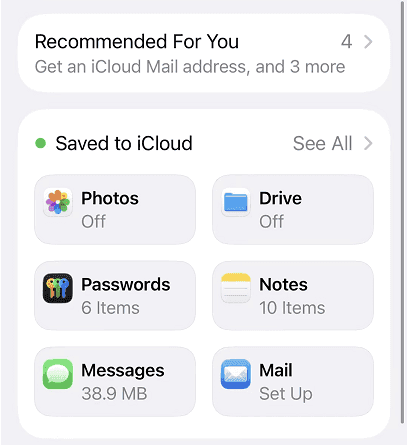
Turning on this option does not necessarily move contacts from Gmail or Exchange into iCloud. If some names remain missing, check Contacts > Lists to find the account that holds them.
Export the contacts from iCloud.com
Step 1. Go to iCloud.com on your computer, sign in to your Apple Account, and select Contacts.
Step 2. Preview and select the contacts you want to exprt:
- To export several contacts, hold Control on Windows or Command on Mac while selecting each name.
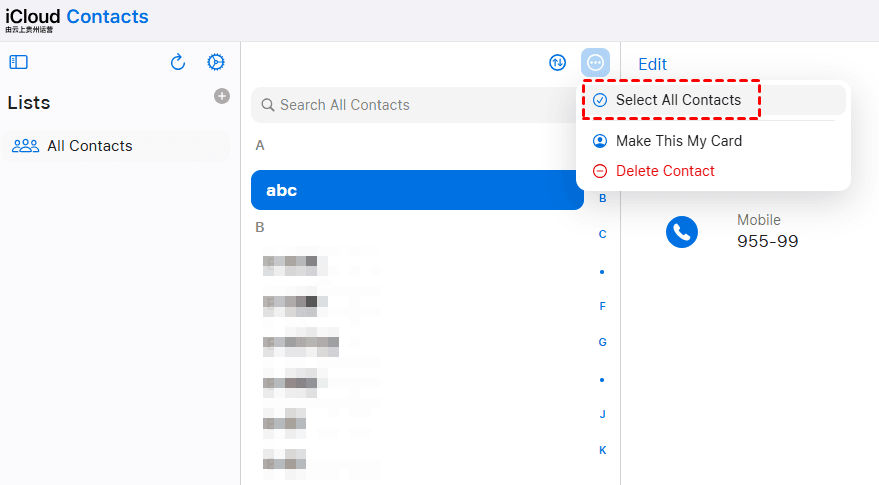
- To export the complete list, select the Actions button at the top and choose Select All Contacts.
Step 3. Select the Share button on the right and choose Export vCard.
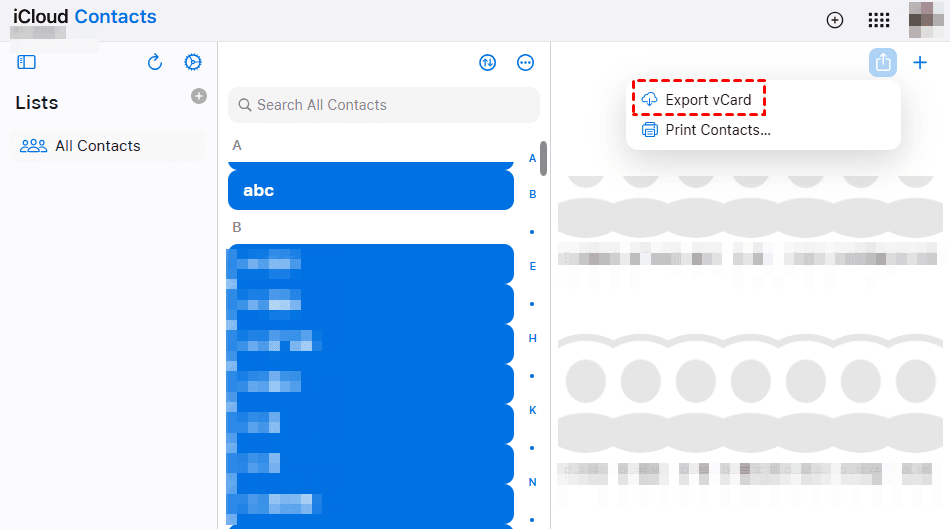
The browser will download a .vcf file. When you export multiple contacts, Apple places their contact cards in one vCard file.
Method 3. Export Contacts from iPad to Computer with the Contacts App
👍 Best for: Exporting a contact list without installing software or using iCloud.com.
Current iPadOS versions let you export some or all contacts from a list. You can then send the vCard to yourself and download it on your computer.
Step 1. Open the Contacts app. The Lists window will disappear by default.
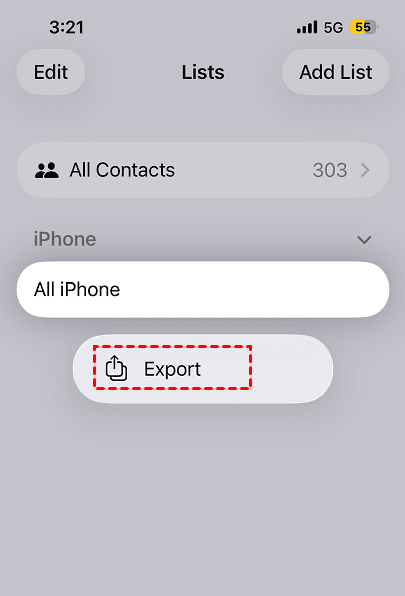
Step 2. Touch and hold the list you want to export, then tap Export. If needed, tap Add List first and place the required contacts in it.
Step 3. Choose the contact fields you want to include, and confirm it.
Step 4. Choose Mail to send or save the exported contact cards.
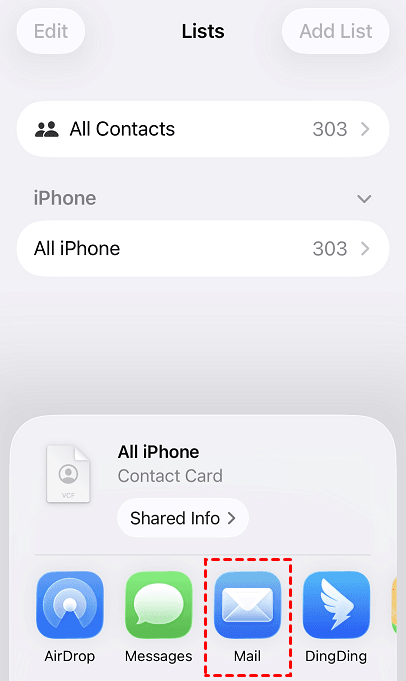
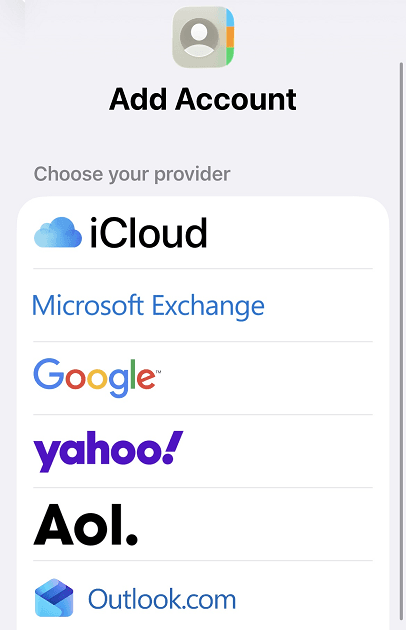
Step 5. You may be aked to add account. Select it and sign in to your account. After transfer, open the email on your computer and download the attached .vcf file.
Mac users may also see AirDrop as an option when both devices have Wi-Fi and Bluetooth turned on.
Method 4. Sync iPad Contacts to a PC with iTunes
👍 Best for: An existing Windows setup that already uses iTunes and a compatible address book.
iTunes can sync contacts between an iPad and a Windows address book. However, it is mainly a syncing method rather than a simple way to create a portable contact file.
Step 1. Install or update iTunes on the Windows PC. Connect the iPad with a USB data cable, unlock it and approve the connection if asked.
Step 2. Open iTunes, click the Device button, then select Info.
Step 3. Check Sync Contacts with and select Windows Contacts. You can choose to select All contacts or selected group and click Apply to start syncing.
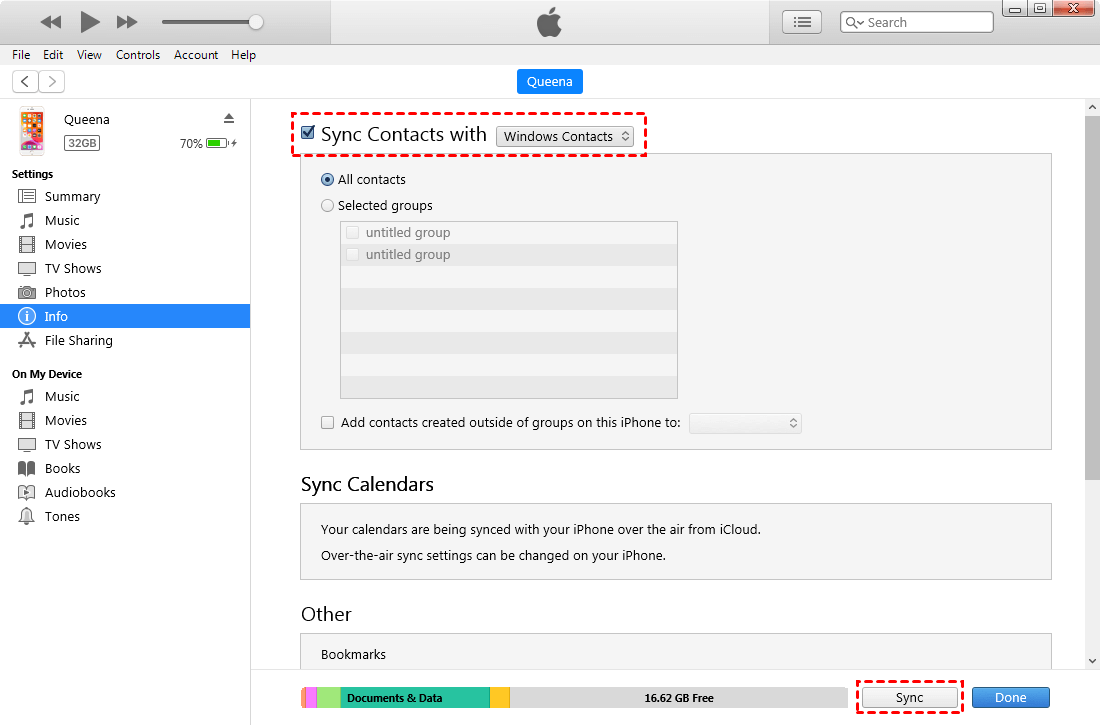
After the sync, open the selected address book and make sure the contacts appear. If you need a separate CSV or vCard file, one of the first 3 methods will usually be more direct.
📃 Check your contacts before you finish:
- Confirm that the exported file appears in the folder you selected.
- Make sure the file is not empty.
- Open it with a compatible contact app or spreadsheet program.
- Check several names, phone numbers, and email addresses.
- Compare the approximate number of contacts with the original list.
- Keep the contacts on the iPad until you know the exported copy works.
If the check fails, repeat the export without deleting or changing the original contacts. You can also try another method before resetting the iPad or signing out of an account.
Why Are Some iPad Contacts Missing?
A missing contact usually belongs to a different account or list.
Contacts are missing from iCloud.com: Open Contacts > Lists on the iPad. Check whether the missing names belong to Gmail, Exchange, or another account instead of iCloud.
Only 1 contact was exported: You may have opened an individual card and selected Share Contact. To export more, return to Lists, touch and hold the required list, and tap Export.
The vCard appears to contain only 1 person: Some programs show only the first card in a vCard that contains several contacts. Try opening or importing it with an app that can read multi-contact vCards.
The contact options do not appear in iTunes: iCloud may already be managing the contact list. Use iCloud.com or another export method.
The file is difficult to use in Excel: Apple’s export methods create a vCard. Export the contacts as CSV with AOMEI FoneBackup when you need an Excel-friendly file.
Compare the 4 Ways to Export iPad Contacts
| Method | 👍 Best for | Result | Connection |
|---|---|---|---|
| AOMEI FoneBackup | Selected contacts or CSV export | CSV or vCard | USB |
| iCloud.com | Contacts already in iCloud | vCard | Internet |
| Contacts app | Built-in list export | vCard | Mail, Messages, or another sharing option |
| iTunes | Existing contact-sync setup | Synced address book | USB or configured Wi-Fi sync |
AOMEI FoneBackup offers more choice over contact selection, format, and destination on a Windows PC. iCloud.com is the simplest wireless option when the entire contact list is already in iCloud. The Contacts app is useful when you prefer to start the export directly on the iPad.
FAQs
1. Can I export all contacts directly from an iPad?
Yes. Open Contacts > Lists, touch and hold the list, and tap Export. Select the fields you want to include, then choose how to send or save the vCard.
2. How can I transfer iPad contacts to Excel?
Export them as a CSV file with AOMEI FoneBackup, then open the file in Excel. Apple’s built-in methods normally export contacts as a vCard.
3. Can I transfer contacts from iPad to computer without iCloud?
Yes. You can export a list through the Contacts app or connect the iPad to a Windows PC and copy the contacts with AOMEI FoneBackup.
4. Does exporting contacts remove them from the iPad?
No. Exporting creates a copy and normally leaves the original contacts in place. Check the exported file before changing any account settings.
5. Why don’t all my iPad contacts appear in iCloud?
They may be stored in Gmail, Exchange, or another account. Open Contacts > Lists to check where each group is stored.
6. Can I transfer iPad contacts to a Mac?
Yes. You can download them from iCloud.com or export a contact list directly from the iPad. AirDrop may also be available when both Apple devices are set up to receive files.
Summary
Transferring contacts from iPad to computer is straightforward, but the right method depends on where your contacts are stored and which file format you need.
- AOMEI FoneBackup is suitable for exporting selected or all contacts to a Windows PC as CSV or vCard files.
- iCloud.com works well when the contacts are already synced with iCloud and you prefer a wireless download.
- The iPad Contacts app is a convenient choice for exporting a contact list without installing computer software.
- iTunes may fit an existing setup that syncs the iPad with a compatible Windows address book.
Whatever method you choose, open the exported file and check several names, phone numbers, and email addresses before deleting contacts, signing out of an account, or resetting your iPad.

 as a preferred
source on Google
as a preferred
source on Google