



iPhone Video Downloader: 6 Best Apps Compared
Need the best iPhone video downloader for 2026? This guide compares 6 top apps - VD Browser, Documents, 4K Video Downloader+, and more, plus how to transfer videos from PC to iPhone with AOMEI FoneBackup. Keep reading.

By Ivy Updated on July 20, 2026


You're scrolling through YouTube, Facebook, or Instagram, and you come across an amazing video you want to save for offline viewing. But there's no download button. The website won't let you save it directly to your iPhone.
That's where an iPhone video downloader comes in. These apps let you save videos from popular platforms and watch them anytime, anywhere, even without an internet connection.
But with so many options out there, which one should you choose? This guide compares the 6 best iPhone video downloader apps for 2026, from free iOS apps to powerful PC tools, so you can pick the right one for your needs. We'll also show you how to transfer downloaded videos from your PC to your iPhone.
Quick Guide: Which Video Downloader Should You Choose?
| ❓ Your Situation | 🛠️ Best Tool | 💡 Why |
|---|---|---|
| Want to download videos directly on your iPhone | VD Browser or Documents | iOS-native, no computer needed |
| Need to download high-quality (4K/8K) videos on PC | 4K Video Downloader+ or SnapDownloader | Supports up to 8K resolution |
| Need an all-in-one download manager for iPhone | Downloader Pro or Easy Downloader | Multi-tab browsing, background downloads |
| Already downloaded videos on PC and need to transfer to iPhone | AOMEI FoneBackup | Fast USB transfer, no iTunes required |
If you're still unsure, start with VD Browser for on-device downloads, or AOMEI FoneBackup if you already have videos on your PC and want to move them to your iPhone.
Why Download Videos to Your iPhone?
Before we dive into the tools, let's quickly cover why you might want a video downloader in the first place:
-
Watch offline: No Wi-Fi, no cellular data, no problem. Save videos for commuting, travel, or areas with poor connectivity.
-
Save space on your phone: Download videos to your computer first, then selectively transfer the ones you really want to your iPhone.
-
Backup important videos: Keep a copy of your favorite content before it gets removed from the original platform.
-
Share videos easily: Once downloaded, you can share videos via AirDrop, messaging apps, or other platforms.
6 Best iPhone Video Downloader Apps Compared
1. VD Browser - Best All-in-One Downloader for iPhone
👍 Best for: Downloading videos directly on your iPhone with a built-in browser.
VD Browser is a free iOS app that combines a web browser, video downloader, file manager, and even a free proxy into one tool. It allows you to browse the internet and save videos from virtually any website with just a few taps. Since it works entirely on your iPhone, you don't need a computer to download videos.
✅ Pros:
-
All-in-one tool (browser + downloader + file manager)
-
No computer needed
-
Free to use
❌ Cons:
-
iOS only (no PC version)
-
May not support all video formats
2. Documents by Readdle - Best File Manager with Video Download
👍 Best for: Users who want a file manager that also downloads videos.
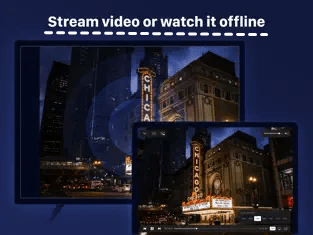
Documents doesn't sound like a video downloader app, but it's actually one of the best YouTube video downloaders for iPhone. This app is a powerful file hub that lets you download videos from the web, manage all your media files, and play videos directly within the app.
✅ Pros:
-
Free and user-friendly
-
Built-in media player
-
Also manages documents, PDFs, and other files
❌ Cons:
-
The download feature is not the app's primary purpose
-
May require some learning to find the download function
3. 4K Video Downloader+ - Best for High-Quality PC Downloads
👍 Best for: Downloading 4K and 8K videos on your computer.
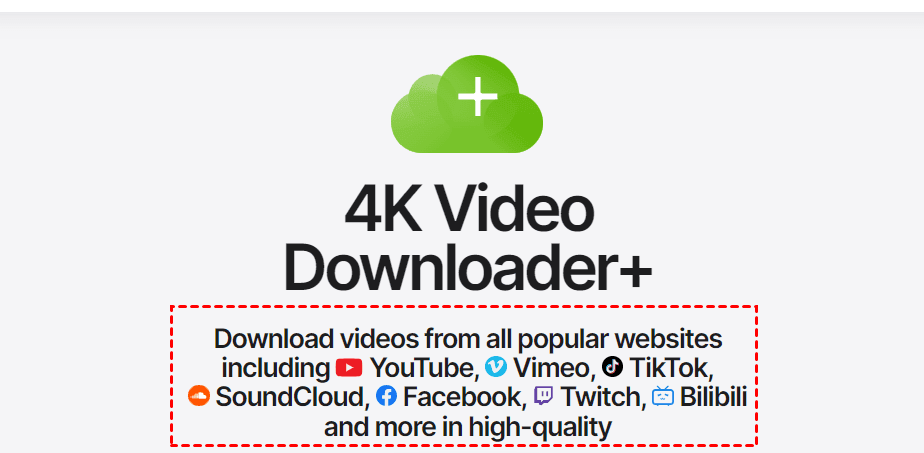
4k Video Downloader + is known for its ability to capture and save media files in high quality, including 4K resolution, from platforms like YouTube, Facebook, and Vimeo. It features a user-friendly interface that makes downloading simple and intuitive.
✅ Pros:
-
Supports up to 8K resolution
-
Works with multiple platforms
-
Easy to use
❌ Cons:
-
PC only (not an iOS app)
-
Free version may have download limits
4. SnapDownloader - Best for 8K Video Downloads
👍 Best for: Downloading ultra-high-definition (8K) videos from 900+ websites.
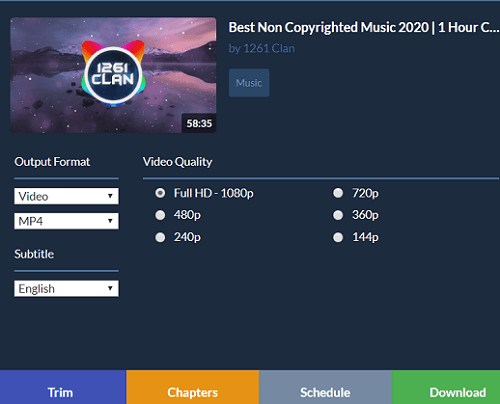
SnapDownloader stands out as one of the best video downloaders for downloading videos in resolutions as high as 8K from a wide range of 900+ websites, including YouTube, Facebook, and Twitter. You can also convert downloaded videos to MP4 or MP3 format.
✅ Pros:
-
Supports 8K resolution
-
900+ supported websites
-
Built-in format conversion
❌ Cons:
-
PC only (no iOS app)
-
Free trial limited to 24 hours
5. Downloader Pro - Best All-in-One Download Manager for iPhone
👍 Best for: Users who want a full-featured download manager directly on their iPhone.
Downloader Pro is an iPhone video downloader app that provides a convenient multi-tab browsing feature to simplify the process of downloading videos. It's compatible with all YouTube-like sites and stands out as one of the top choices for downloading videos to an iPhone.
✅ Pros:
-
Multi-tab browser
-
Works with all video sites
-
iOS native
❌ Cons:
-
May have in-app purchases
-
Some features may require a premium version
6. Easy Downloader - Best for Fast, Unlimited Downloads
👍 Best for: Users who need fast download speeds and unlimited simultaneous downloads.
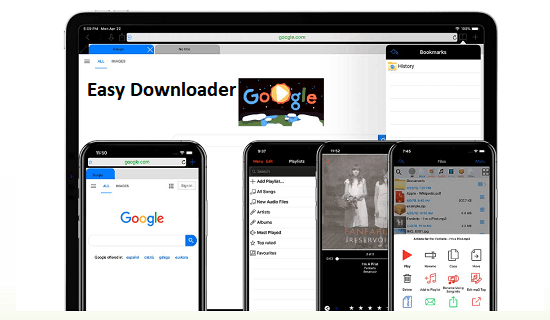
Easy Downloader is an all-in-one download manager app that offers fast downloading speed and unlimited simultaneous downloads. It also supports multitasking - downloads continue in the background. You can pause, cancel, or resume downloads anytime.
✅ Pros:
-
Fast download speed
-
Unlimited simultaneous downloads
-
Background downloading support
❌ Cons:
-
May include ads in the free version
-
Some advanced features may require payment
Quick Comparison: Which App Is Right for You?
| App | Platform | Max Resolution | Free Version | 👍 Best For |
|---|---|---|---|---|
| VD Browser | iOS only | 1080p | ✅ Free | On-device downloading |
| Documents | iOS only | 1080p | ✅ Free | File management + downloads |
| 4K Video Downloader+ | PC only | 8K | ⚠️ Limited free | High-quality PC downloads |
| SnapDownloader | PC only | 8K | ⚠️ 24-hour trial | Ultra-HD video downloads |
| Downloader Pro | iOS/PC | 1080p | ✅ Free (with IAP) | All-in-one download manager |
| Easy Downloader | iOS/PC | 1080p | ✅ Free (with ads) | Fast, unlimited downloads |
How to Save Videos from PC to iPhone
If you've downloaded videos on your PC using tools like 4K Video Downloader+ or SnapDownloader, you'll eventually want to transfer them to your iPhone for portable viewing.
AOMEI FoneBackup is the easiest way to transfer videos from PC to iPhone without iTunes. It offers fast, high-quality transfers regardless of network connection.
 AOMEI FoneBackup
- 🖱️User-Friendly Interface: Simple, intuitive design. No technical skills needed.
- 🔄 3 Transfer Modes: Transfer videos from PC to iPhone, iPhone to PC, or directly between two iPhones. No iTunes required.
- 🎯 Selective Transfer: Choose exactly what to move: videos, photos, music, contacts, and more.
- 🎬 High-Quality Video Transfer: Support MP4, 4K, HD, and more. No compression, no quality loss. 🛠️ All-in-One Data Management: Backup and restore of videos, contacts, photos, and more.
- 📱 Works with All iPhones: Compatible with all iPhone models and iOS versions, including the latest iPhone 17 and iOS 26.
 100% Secure
How to transfer videos from PC to iPhone with AOMEI FoneBackup:
Step 1. Download and install AOMEI FoneBackup on your Windows PC. Connect your iPhone to your computer using a USB cable.
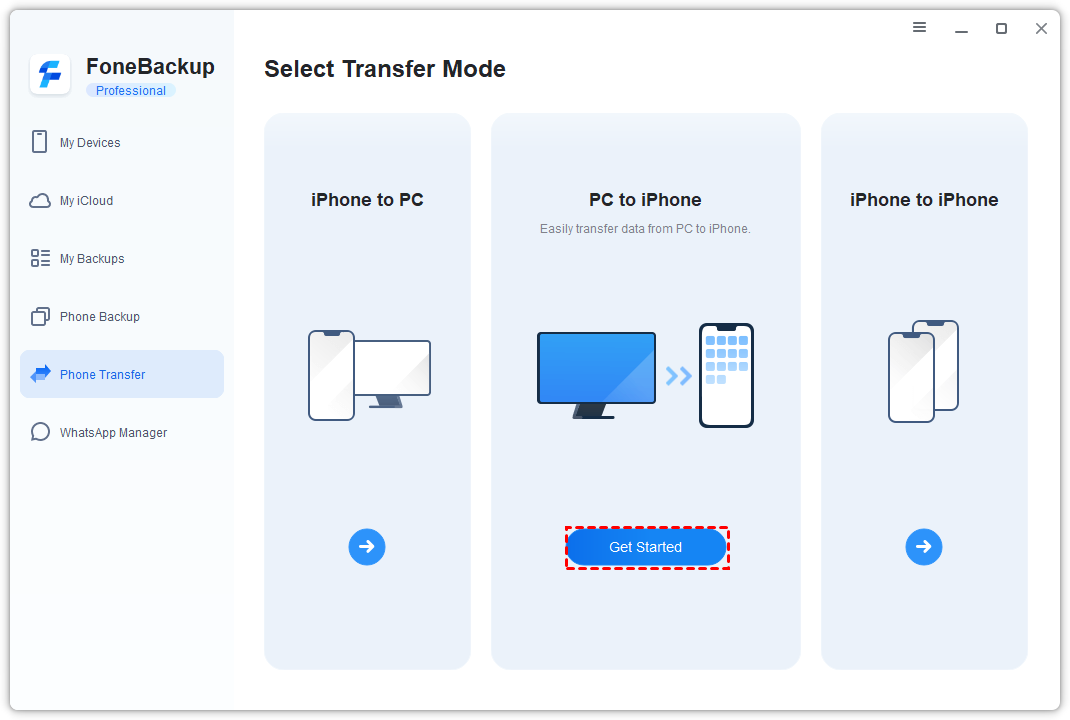
Step 2. Launch AOMEI FoneBackup. Under the Phone Transfer tab, select PC to iPhone, then tap on Get started.
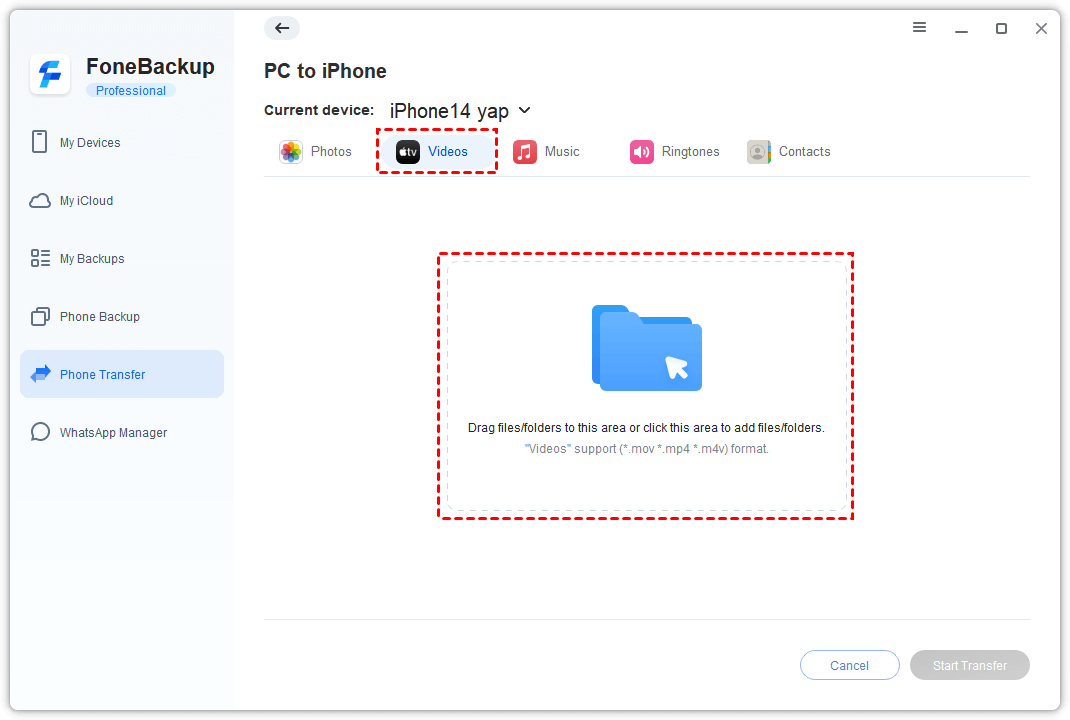
Step 3. Click the folder icon to browse and select the videos you want to transfer from your PC. At last, click Start Transfer and wait for the process to complete.
AOMEI FoneBackup also supports transferring video from iPhone to PC, and even transferring everything from iPhone to iPhone.
Frequently Asked Questions
1. Can I download YouTube videos directly to my iPhone?
Yes, apps like VD Browser and Documents allow you to download YouTube videos directly to your iPhone. However, note that YouTube's terms of service generally prohibit downloading videos for offline use outside of their official app.
2. Why won't some videos download?
Some platforms have restrictions that prevent downloading. This could be due to copyright protection, regional restrictions, or the platform's terms of service. If a video won't download, try using a different app or download it on your PC first and then transfer it to your iPhone.
3. Where do downloaded videos go on my iPhone?
Downloaded videos are typically stored within the app you used to download them (e.g., VD Browser, Documents). To watch them, open the app and navigate to your downloads folder. Some apps also allow you to export videos to your Camera Roll.
4. How much storage do downloaded videos take up?
Video file sizes vary widely depending on resolution and length. A 5-minute 1080p video can take 100-300 MB, while a 4K video can exceed 1 GB per minute. Always check your available iPhone storage before downloading large videos.
5. Is it safe to use free video downloader apps?
Most reputable apps are safe, but always download from official app stores (Apple App Store, Microsoft Store) rather than third-party websites. Read the app's privacy policy to understand how your data is handled.
6. Can I transfer downloaded videos from my iPhone back to my PC?
Yes, you can use AOMEI FoneBackup's iPhone to PC transfer feature to move videos from your iPhone back to your computer.
Final Words
Downloading videos to your iPhone is easy when you have the right tools. Whether you prefer downloading directly on your iPhone with VD Browser or Documents, or downloading high-quality 4K/8K videos on your PC with 4K Video Downloader+ or SnapDownloader, there's a solution for every need.
If you've already downloaded videos on your PC and need to transfer them to your iPhone, AOMEI FoneBackup provides the fastest, most reliable way - no iTunes required, no quality loss, no hassle.
Here's the simple rule:
-
Download on your iPhone: Use VD Browser or Documents
-
Download 4K/8K videos on PC: Use 4K Video Downloader+ or SnapDownloader
-
Transfer videos from PC to iPhone: Use AOMEI FoneBackup
Start downloading your favorite videos today and enjoy them anywhere, anytime, even without an internet connection.

 as a preferred
source on Google
as a preferred
source on Google