



iPhone Hotspot Not Working? 19 Quick Fixes to Try
iPhone hotspot not working? Try 19 quick fixes, toggle settings, update carrier, reset network, and more. Plus a tool to backup your data before troubleshooting.

By Kelsey Updated on May 14, 2026


You're sitting at a coffee shop, laptop open, ready to work. No Wi‑Fi. No problem, you'll just use your iPhone's personal hotspot. You toggle it on, connect your laptop, and... nothing. No internet. The hotspot says it's on, but nothing loads. You're stuck.
If this sounds familiar, you're not alone. iPhone hotspot not working is one of those frustrating issues that can pop up for all kinds of reasons - cellular data glitches, outdated carrier settings, even something as simple as the phone's name having a space in it. The good news? Most of these problems are fixable with a few taps. This guide walks you through 19 ways to get your hotspot back up and running.
Why Is My iPhone Personal Hotspot Not Working?
Before diving into fixes, it helps to know what might be causing the problem:
- Cellular data is turned off. Hotspot requires mobile data to be on.
- Insufficient data remaining. If you've used up your plan's hotspot allowance, it won't work.
- Outdated iOS or carrier settings. Old software can break hotspot functionality.
- APN settings missing. Some carriers require specific APN configurations.
- Compatibility issues. On iPhone 12 and later, 5G can sometimes interfere with hotspot connections.
19 Ways to Fix iPhone Hotspot Not Working
Try these in order. Most are quick and won't affect your data.
Tip 1. Make Sure Personal Hotspot Is Actually On
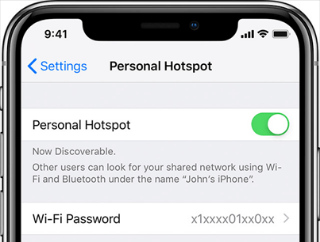
It sounds obvious, but it's worth checking. Go to Settings > Personal Hotspot and confirm the toggle is green. If it's off, turn it on.
Tip 2. Toggle Personal Hotspot Off and On
Turn it off, wait a few seconds, then turn it back on. Sometimes a fresh connection is all it needs.
Tip 3. Toggle Cellular Data Off and On
Go to Settings > Cellular. Turn off Cellular Data, wait a few seconds, then turn it back on.
Tip 4. Change Your iPhone's Name
Extra spaces in your iPhone name can sometimes prevent devices from finding your hotspot.
Step 1. Go to Settings > General > About.
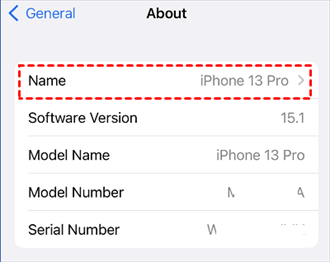
Step 2. Tap the first line (your iPhone's name) and delete any extra spaces. Keep it simple—something like "iPhone" or your name without spaces.
Tip 5. Restart Both Your iPhone and the Connecting Device
A restart clears out temporary glitches.
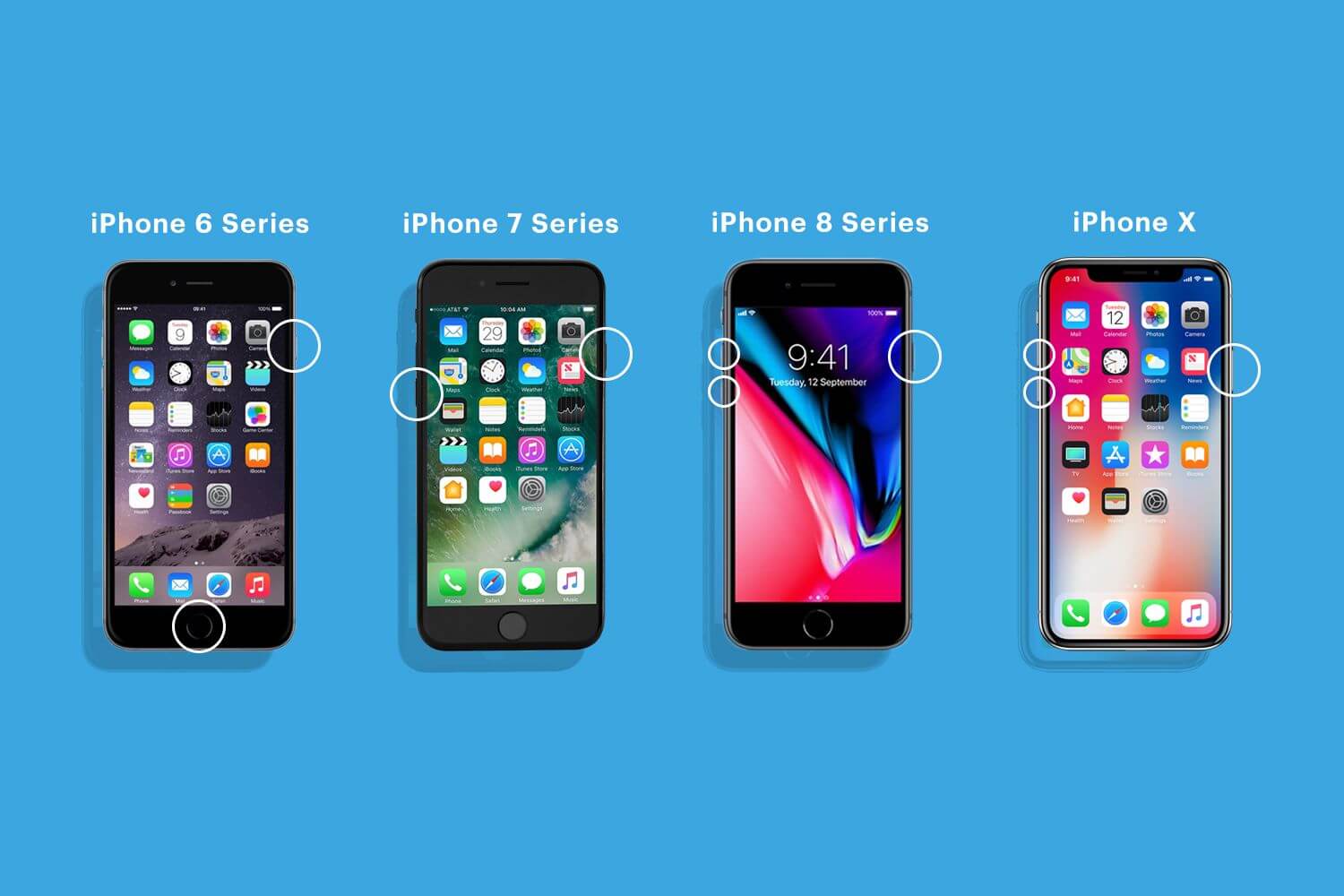
- For iPhone 8 and later: Press and quickly release Volume Up, then Volume Down. Press and hold the Side button until you see the Apple logo.
- For iPhone 7/7 Plus: Press and hold the Side button and Volume Down button until the Apple logo appears.
- For iPhone 6s and earlier: Press and hold the Top (or Side) button and the Home button until the Apple logo appears.
Also restart the device trying to connect (laptop, iPad, etc.).
Tip 6. Enable Maximize Compatibility (iPhone 12 and Later)
On iPhones with 5G, turning on Maximize Compatibility can fix hotspot issues.
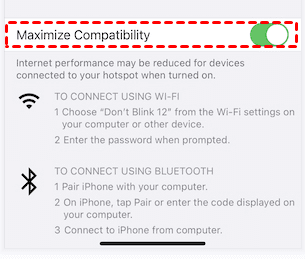
Step 1. Go to Settings > Personal Hotspot.
Step 2. Toggle on Maximize Compatibility. This switches to 2.4GHz Wi‑Fi, which has better range and compatibility.
Tip 7. Update iOS
An outdated iOS can cause all kinds of connection problems.
Step 1. Go to Settings > General > Software Update.

Step 2. If an update is available, tap Download and Install.
Tip 8. Update Carrier Settings
Carrier settings updates improve network connectivity.
Step 1. Go to Settings > General > About.
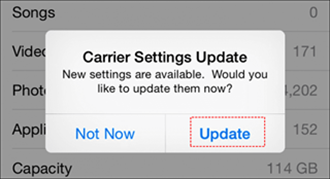
Step 2. If an update is available, a pop‑up will appear within 10–15 seconds. Tap Update.
Tip 9. Confirm Your Phone Plan Includes Hotspot
Some carriers especially prepaid or older plans, don't include hotspot access. Call your carrier or check your account online to confirm.
Tip 10. Reset Network Settings
This clears saved Wi‑Fi passwords and Bluetooth connections but can fix stubborn hotspot issues.
Step 1. Go to Settings > General > Transfer or Reset iPhone > Reset > Reset Network Settings.
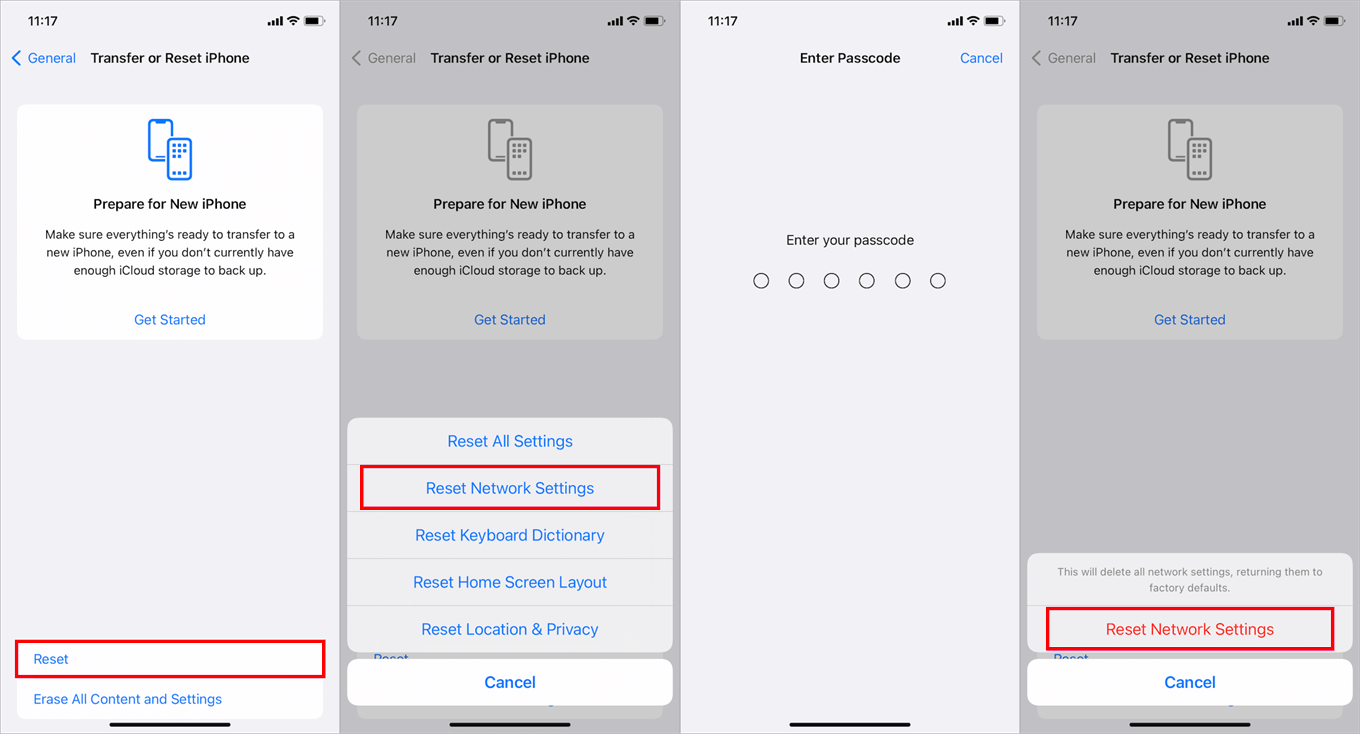
Step 2. Enter your passcode to confirm. Your iPhone will restart. Reconnect to Wi‑Fi and try the hotspot again.
Tip 11. Check with Your Carrier
Sometimes the problem is on your carrier's end, an account issue, an outage, or a misconfiguration. A quick call can save a lot of troubleshooting.
Tip 12. Try a Different Connection Method
If Wi‑Fi isn't working, try Bluetooth or USB.
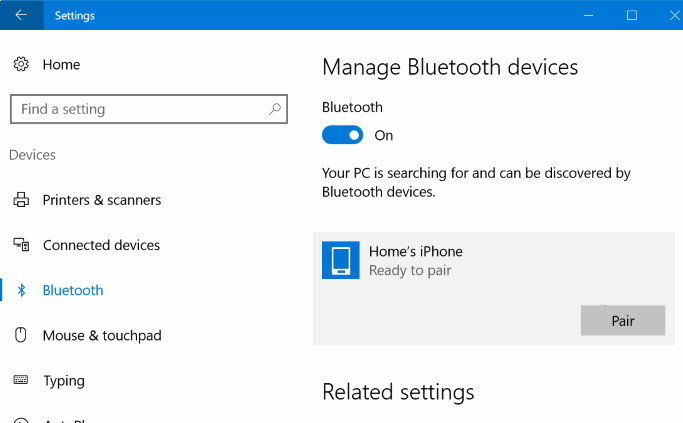
📱Bluetooth: On your iPhone, go to Settings > Bluetooth and turn it on. On your computer, pair via Bluetooth and connect.
🖥USB: Connect your iPhone to your computer with a USB cable. On Windows, open iTunes or go to Network settings and select iPhone USB. On Mac, go to System Preferences > Network and select iPhone USB.
Tip 13. Sign Out of iCloud and Back In
It's an odd fix, but it has worked for some users.
Step 1. Go to Settings > tap your name at the top > scroll down and tap Sign Out.
Step 2. After signing out, restart your iPhone, then sign back in.
Tip 14. Turn Off Low Power Mode
Low Power Mode can disable hotspot to save battery.
Step 1. Go to Settings > Battery.
Step 2. Toggle off Low Power Mode.
Tip 15. Toggle Airplane Mode On and Off
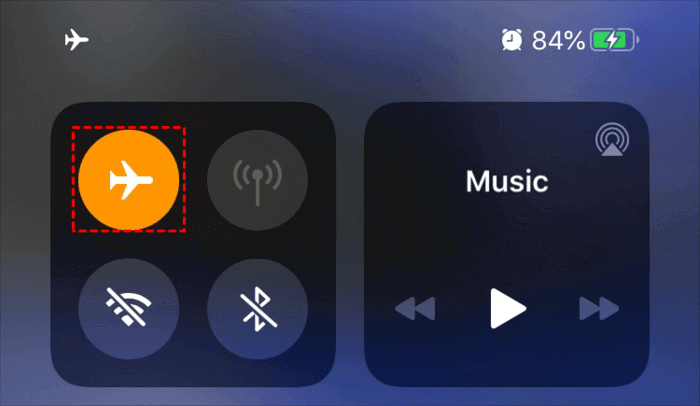
Swipe into Control Center, tap the airplane icon, wait 10 seconds, then tap it again. This refreshes your cellular connection.
Tip 16. Check APN Settings
Missing or incorrect APN settings can block hotspot functionality.
Step 1. Go to Settings > Cellular > Cellular Data Network.
Step 2. Under Personal Hotspot, enter the APN provided by your carrier (often just "internet"). Leave username and password blank unless your carrier specifies otherwise.
Tip 17. Reset Your iPhone (Full Erase)
If nothing else works, a full factory reset might help, but it erases everything on your iPhone.
Step 1. Back up your iPhone first (see the section below).
Step 2. Go to Settings > General > Transfer or Reset iPhone > Erase All Content and Settings.
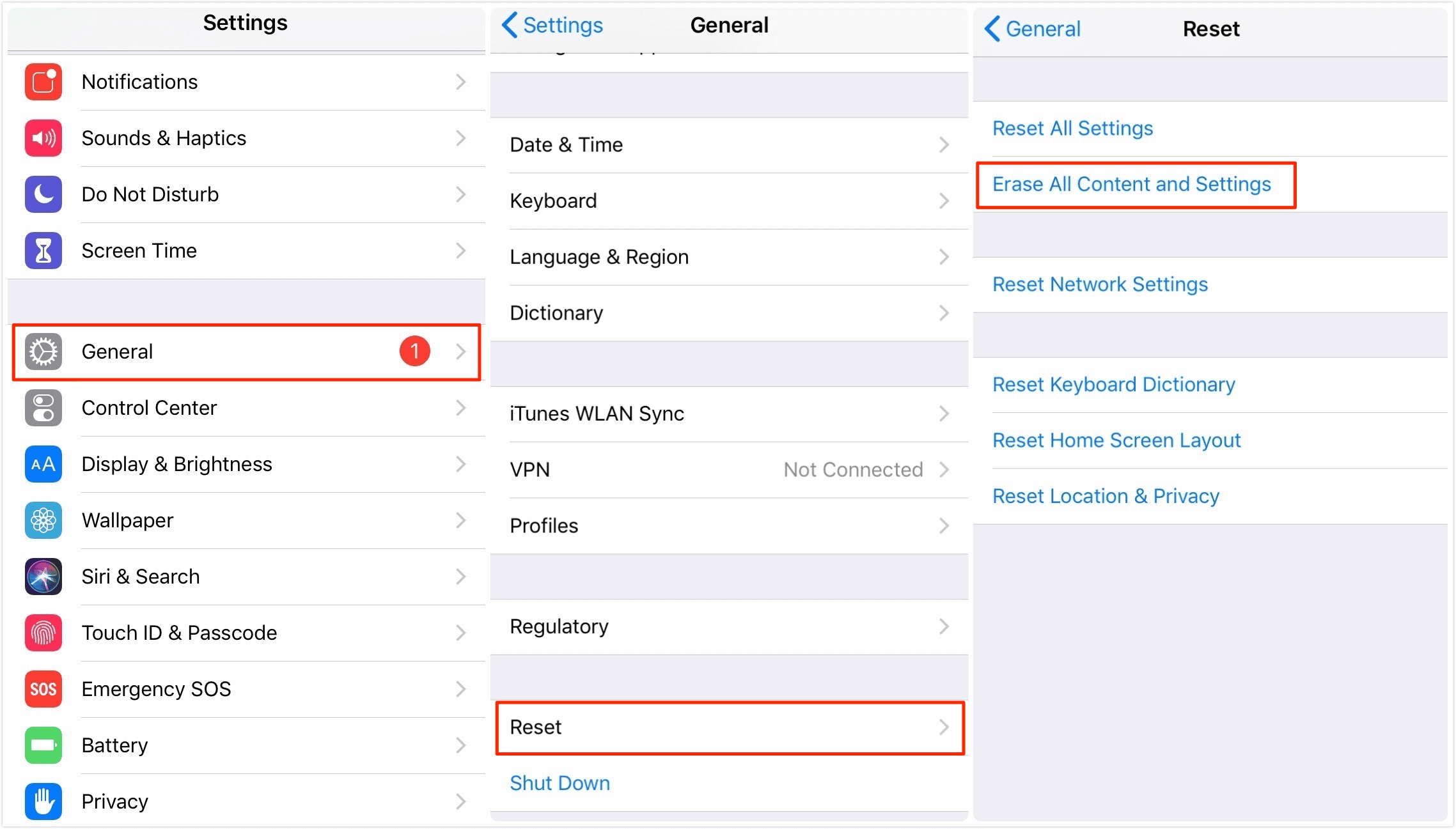
Step 3. Set up your iPhone as new and test the hotspot before restoring data.
Tip 18. Restore with DFU Mode
DFU (Device Firmware Update) mode is the deepest type of restore. It's a last resort and also erases your device.
Step 1. Connect your iPhone to a computer and open iTunes (or Finder).
Step 2. Enter DFU mode according to your model. (Search for specific steps, they vary by model.)
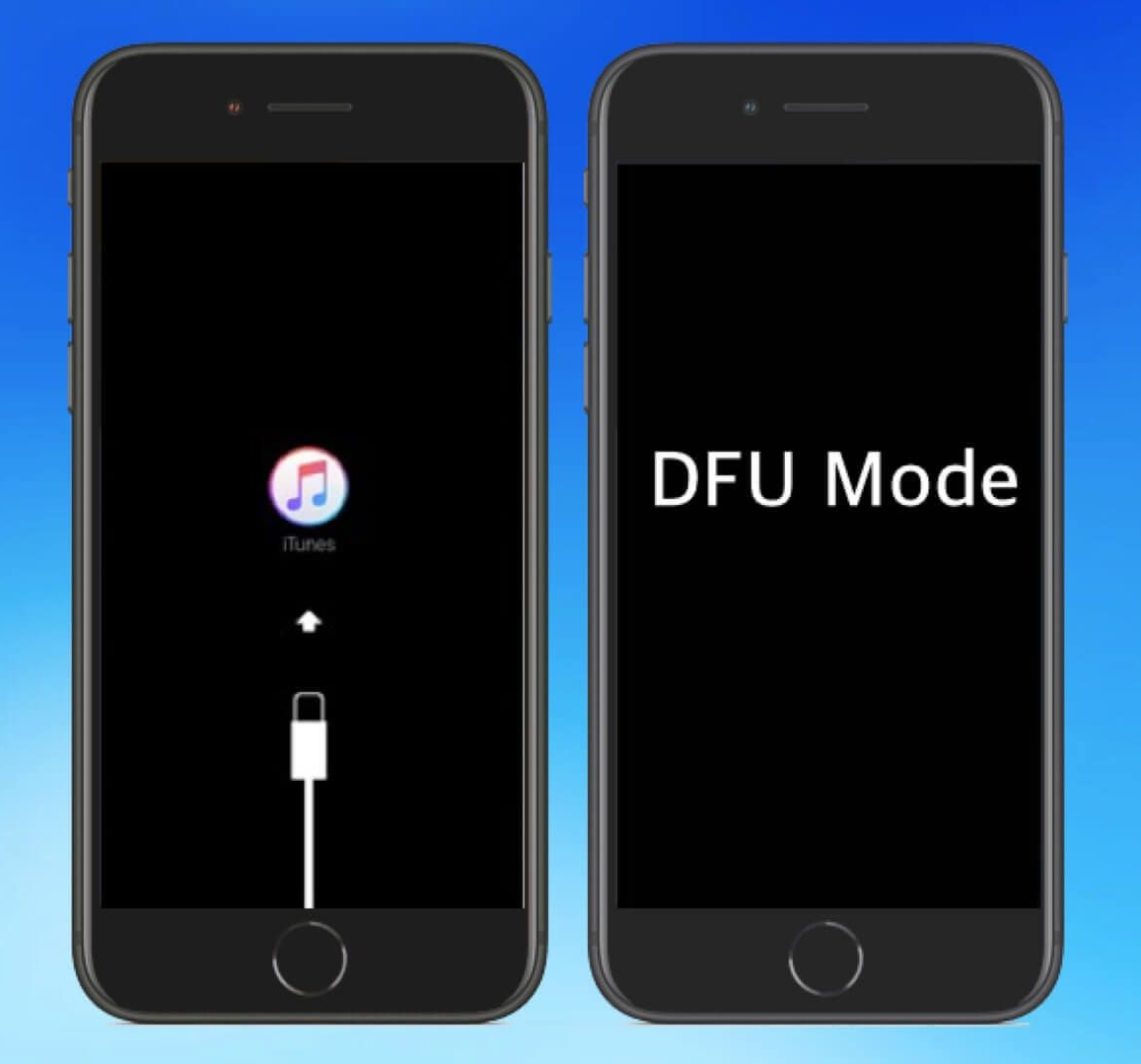
Step 3. When iTunes detects a device in recovery mode, click Restore.
Tip 19. Contact Apple Support
If you've tried everything and hotspot still won't work, the issue might be hardware‑related. Make an appointment at an Apple Store or contact Apple Support online.
How to Backup Your iPhone Before Troubleshooting
Several of these fixes especially resetting network settings, factory reset, and DFU mode, won't erase your data. But factory reset and DFU will. Before you try them, back up your iPhone.
AOMEI FoneBackup is a free Windows tool that lets you back up your iPhone to your computer selectively or fully, without relying on iCloud.
 AOMEI FoneBackup
- You can fully back up all iPhone data to PC via a USB cable in one click.
- Or you can selectively back up photos, videos, contacts, etc. as you like.
- Fast backup speed allows you to back up GBs of data in minutes.
- The operation method is simple and easy to use.
 100% Secure
Step 1. Download and install AOMEI FoneBackup on your Windows PC. Connect your iPhone with a USB cable and tap "Trust This Computer" when prompted.
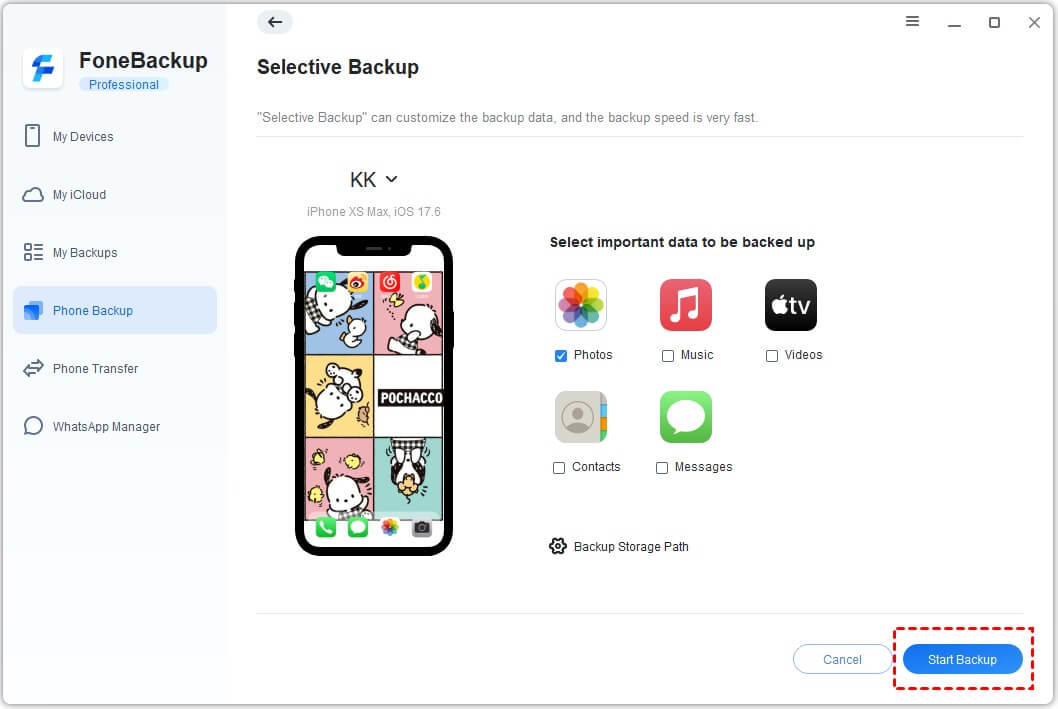
Step 2. Open AOMEI FoneBackup. Click Phone Backup, then choose Full Backup (for everything) or Selective Backup (to pick specific files).
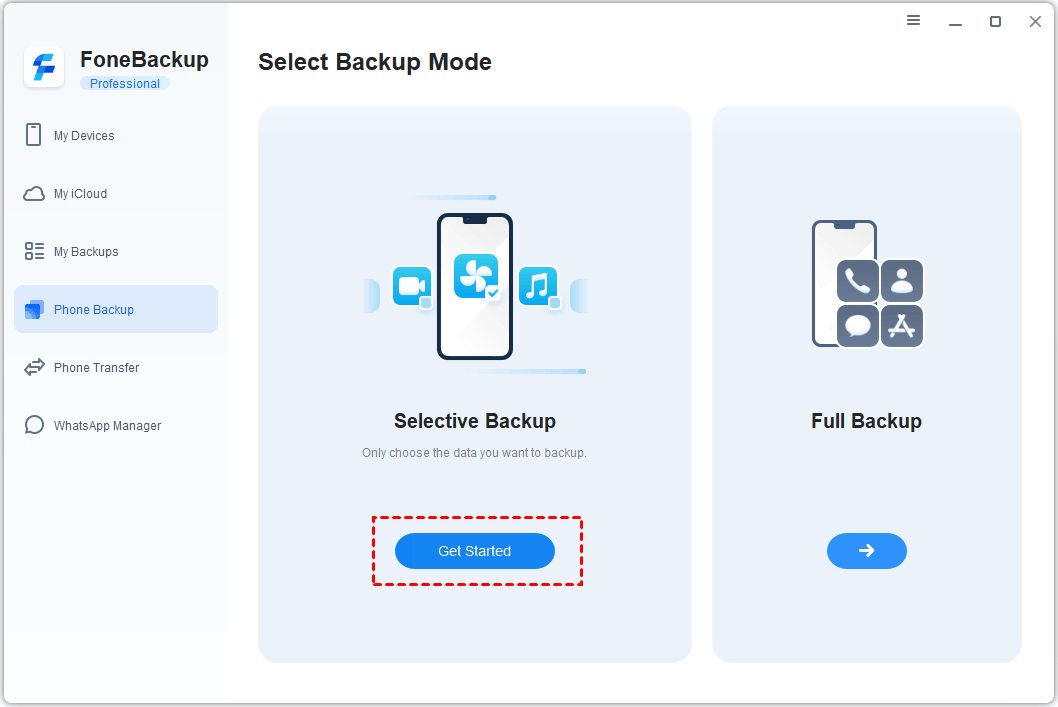
Step 3. If you chose Selective Backup, select the data types you want to save. Click OK.
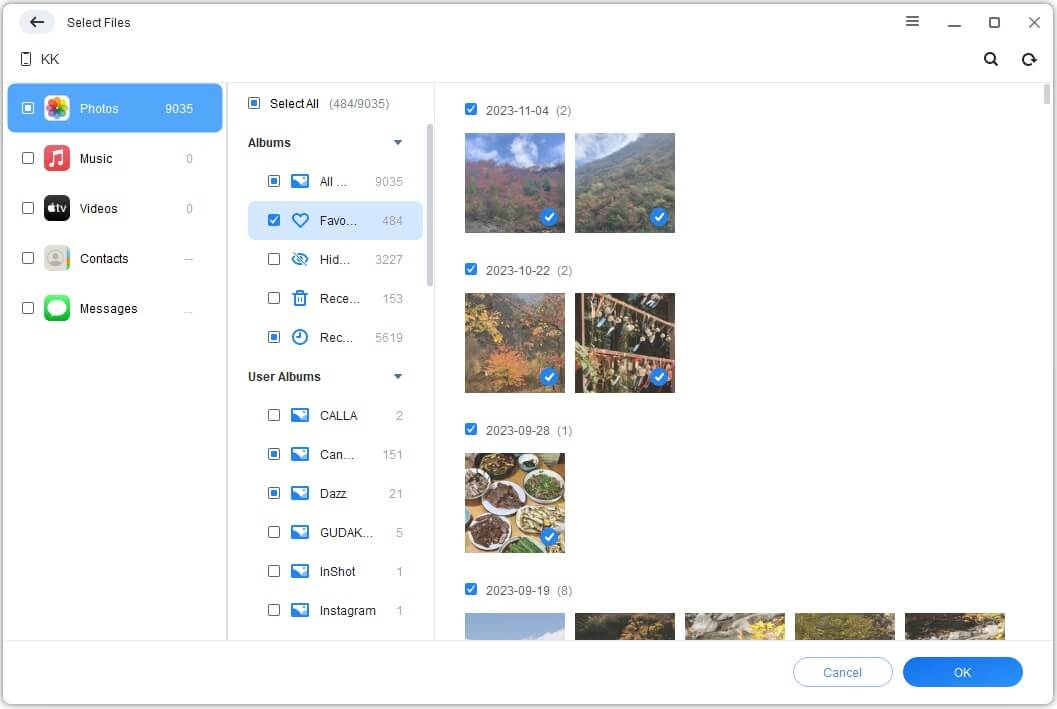
Step 4. Choose a location on your PC to save the backup. Click Start Backup. Wait for it to finish, your data is now safe.
Conclusion
When you find iPhone Hotspot not working in iOS 26/18, you can try the 19 ways we provide for you in the article to fix the problem.
Some methods may erase your data, you can backup your files with iCloud or iTunes, or backup your iPhone with AOMEI FoneBackup, which allows you to backup your iPhone data to a safe place as soon as possible when iCloud and iTunes are not available.

 as a preferred
source on Google
as a preferred
source on Google