




How Long Does It Take to Sync Apple Music Library?
How long does it take to sync Apple Music library? This guide helps you judge whether it is still progressing, fix a stalled library, or transfer local music another way.

By Ivy Updated on August 24, 2026


You turn on Sync Library, open Apple Music on your iPhone, and wait for your songs and playlists to appear. A few minutes pass, then an hour, but the app still says “Syncing Your Library”. Is that normal?
Apple does not publish a fixed completion time. A small library change may appear quickly, while the first upload of a large collection of local music can take several hours. The better way to judge the process is to check whether it is still making progress. If nothing changes for hours, you may need to troubleshoot it instead of waiting longer.
How Long Does It Take to Sync Apple Music Library?
The answer depends on what Apple Music needs to do.
Adding 1 Apple Music song or changing a playlist is different from uploading thousands of local music files from a computer. When you first turn on Sync Library, Apple Music may need to scan the computer library, match available songs with its catalog, and upload music it cannot match. Your other devices then need to load the updated cloud library.
The process may take longer when:
- Your computer library contains many local music files.
- Many songs must be uploaded instead of matched.
- Your internet connection has a slow upload speed.
- Apple Music finds an unsupported, missing, or damaged file.
- Your computer goes to sleep or Apple Music is closed.
- Apple Music is experiencing a temporary service problem.
- You have recently signed out, reinstalled the app, or turned Sync Library off and back on.
A long wait does not always mean the process has failed. If the number of available songs is increasing or the cloud activity is changing, let it continue.
If a small test change never reaches another device or the status remains unchanged for hours, begin checking for a problem.
Is Apple Music Still Syncing or Stuck?
Do not judge the process only by how much time has passed. Check whether the library is still changing. On a Windows PC or Mac, look for Updating Cloud Library at the bottom of the Apple Music sidebar. You can also add 1 test song or make a small playlist change, then check whether it appears on another device.
- If songs and playlists continue to appear, the library is probably still loading. Keep the computer online and leave Apple Music open.
- If the activity message changes, Apple Music is still matching or uploading files.
- If only certain songs are missing, check those songs for a cloud status problem.
- If nothing changes on 1 device, check the account, Sync Library setting, network, and software on that device.
- If several devices stop updating at the same time, check Apple System Status before resetting anything.
- If a small test change never appears, the library may be stuck rather than simply slow.
Apple Music for Windows supports a cloud library of up to 100,000 songs, excluding music purchased from the iTunes Store. Individual files must not exceed 200 MB. A library or file limit can prevent some local songs from uploading.
Choose the Right Way to Get Your Music on iPhone
Sync Library and USB transfer solve different problems. Use this guide to choose before changing your settings.
| 🧩 Your situation | 🎯 Recommended option | 💡 Why |
|---|---|---|
| You want Apple Music songs, playlists, and library changes on every device | Sync Library | Keep the cloud library available across devices |
| You are uploading a large local library for the first time | Sync Library, then check its status on the computer | The computer shows more upload info than the iPhone |
| You only need several local music files on your iPhone now | AOMEI FoneBackup | Copy files from a Windows PC through a USB connection |
| Apple Music is having a service outage | Wait before changing account or library settings | Repeated resets are unlikely to solve a server problem |
Method 1. Sync Your Apple Music Library with Sync Library
👍 Best for: Keeping Apple Music songs, playlists, favorites, and eligible local music available across your devices requires Apple Music or iTunes Match.
Before you begin, make sure every device uses the same Apple Account. Sync Library requires an active Apple Music or iTunes Match subscription. Apple Music is not a backup service, so keep a separate copy of music files you own before making major library changes.
Turn on Sync Library on iPhone or iPad
Step 1. Open the Apple Music app, tap your photo, and check that it shows the Apple Account used for your subscription.
Step 2. On a recent iOS or iPadOS version, open Settings > Apps > Music and turn on Sync Library. On an older version, you may find Music directly under Settings > Music.
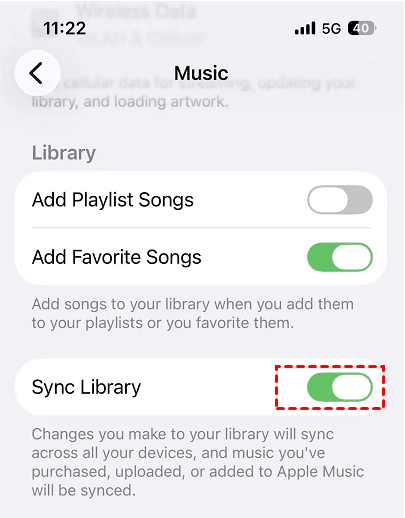
Now, Keep Apple Music opem and leave the device connected to the internet. You can also click Updating Cloud Library at the bottom to check the activity.
The cloud library should begin loading. Music becoming visible in the library does not mean every song has been downloaded for offline listening.
Turn on Sync Library on a Windows PC
Step 1. Open the Apple Music app for Windows. At the bottom of the sidebar, click your name and confirm the correct Apple Account.
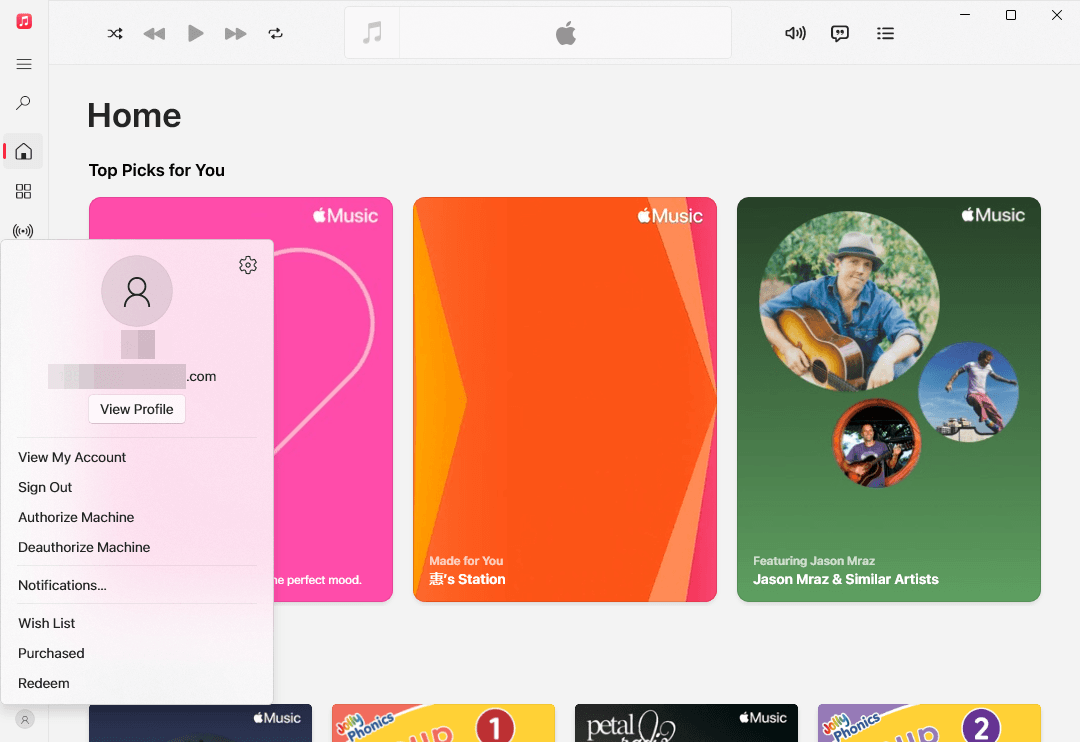
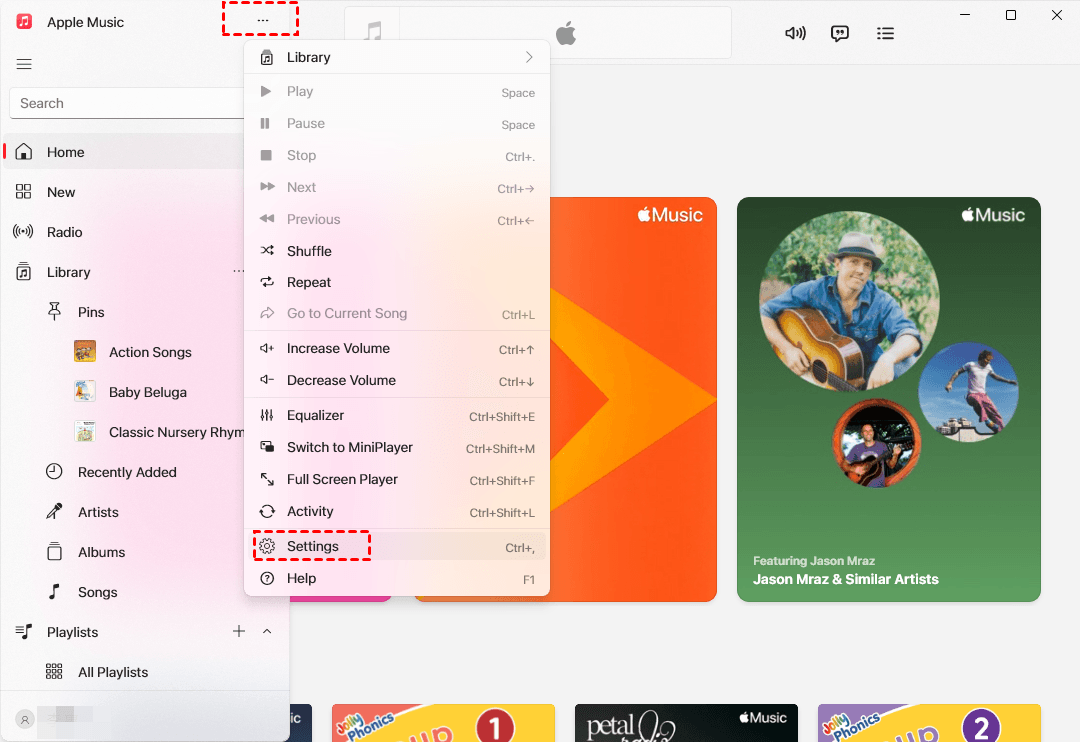
Step 2. Click Sidebar Actions at the top of the sidebar, then choose Settings.
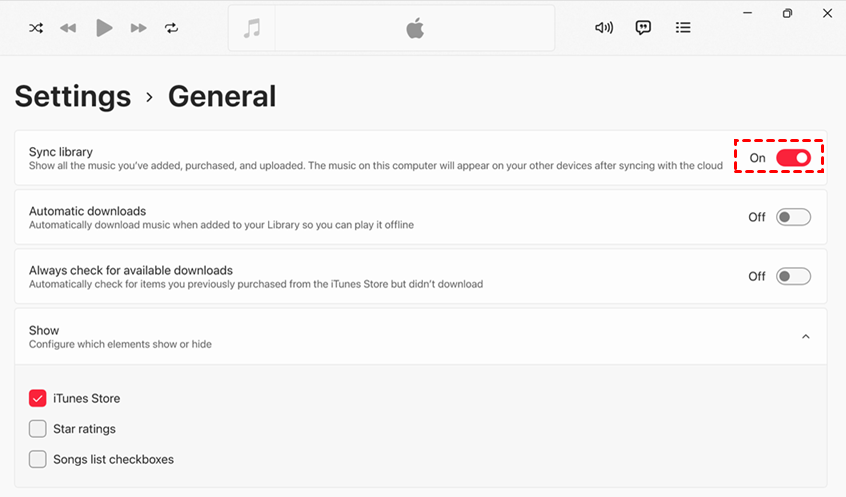
Step 3. Select General and turn on Sync Library. Keep Apple Music open while it processes your library.
Turn on Sync Library on a Mac
Step 1. Open the Music app and confirm that you are signed in to the Apple Account used for Apple Music.
Step 2. Choose Music > Settings, then open General.
Step 3. Select Sync Library and click OK.

Method 2. Transfer Local Music to iPhone with AOMEI FoneBackup
👍 Best for: Moving local music files from a Windows PC to an iPhone without waiting for the Apple Music cloud library - does not transfer Apple Music subscription downloads or repair Sync Library.
If you only need music files stored on your computer, try iPhone backup and transfer tool for Windows PCs - AOMEI FoneBackup. It provides a direct PC to iPhone transfer through a USB connection.
- Direct transfer: Add local music from your Windows PC to your iPhone.
- Selective transfer: Choose the files you want instead of processing an entire cloud library.
- No cloud wait: The transfer does not depend on Apple Music matching or uploading your library.
- Free boundary: The free transfer workflow is limited to 30 files per day.
 AOMEI FoneBackup
iPhone backup and transfer tool for Windows PCs
Step 1. Download and install AOMEI FoneBackup on your Windows PC. Connect the iPhone to the Windows PC with a USB data cable. Then, unclock it and click Trust if prompted.
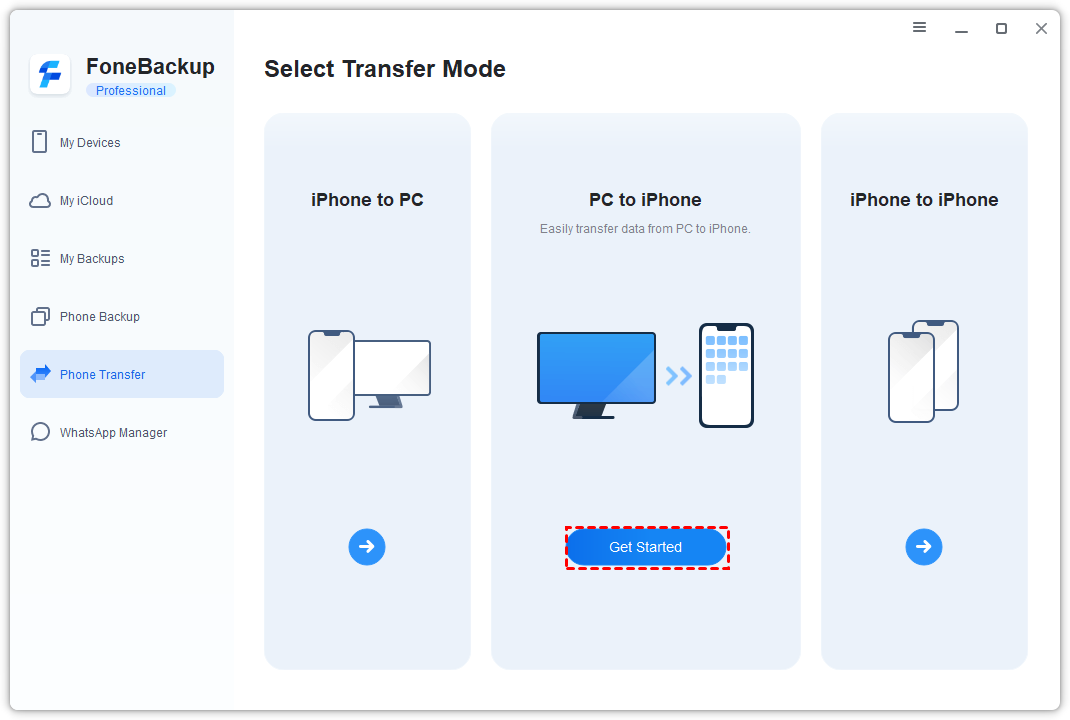
Step 2. In AOMEI FoneBackup, choose Phone Transfer > PC to iPhone, and click Get Started.
Step 3. Click the Music icon, then drag and drop your local music files into the file area to add them for transfer. At last, click Start Transfer.
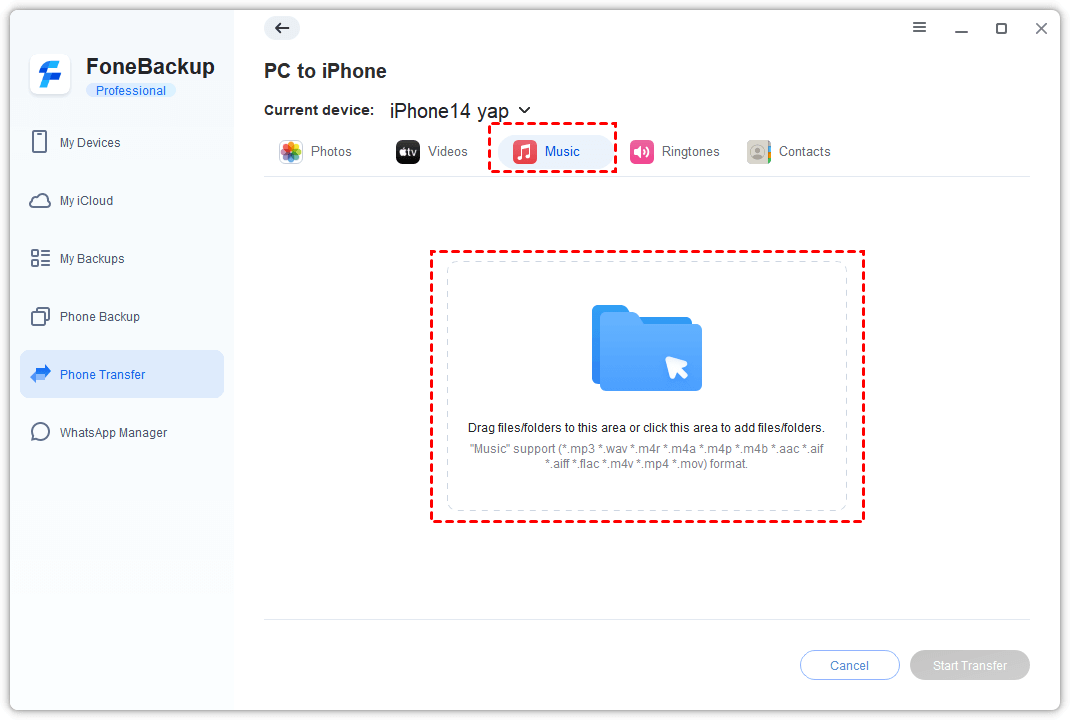
After the transfer finishes, check that the selected music is available on the iPhone before disconnecting it. If the iPhone is not recognized, reconnect it with a working data cable and confirm the Trust prompt on the device.
Check the result:
- Confirm that the transfer reports completion.
- Open the relevant app on the iPhone and check several transferred files.
- Keep the original computer files until you confirm they work.
- If files are missing, reconnect the device and retry a small selection before transferring the rest.
Sync Library vs Local USB Transfer
| Option | 👍 Best for | Internet required? | Main limitation |
|---|---|---|---|
| Apple Sync Library | Keeping an Apple Music library consistent across devices | Yes | No guaranteed completion time |
| AOMEI FoneBackup | Moving selected local files from Windows to iPhone | No cloud upload required | Does not sync Apple Music cloud data |
Top recommendation:
- Use Sync Library when you need the same Apple Music collection across your devices.
- Choose AOMEI FoneBackup when the immediate goal is to place local music files from a Windows PC on your iPhone.
What to Do If Apple Music Keeps Syncing
When the progress does not change, start with low-risk checks. Avoid immediately signing out, deleting the app, or switching Sync Library off, because these actions can remove downloaded Apple Music content from the device and force the library to load again.
Nothing appears on the iPhone or iPad
Your iPhone or iPad may be using a different Apple Account, or Sync Library may be turned off. Open Apple Music and confirm that you are signed in with the account used for your subscription. Then go to Settings > Apps > Music and make sure Sync Library is on. Check these settings before assuming the library only needs more time.
The computer stays on Updating Cloud Library
Apple Music may still be matching a large collection or trying to process a problematic local file. Keep the app open and check whether the activity or available song count continues to change. You can also add 1 test song and see whether it reaches another device. If it appears, the library is still working and may need more time.
Only some songs are missing
The affected songs may show a cloud status such as Waiting, Ineligible, Removed, or Error. Apple Music may also be unable to find an original local file. Check the songs in the Apple Music app on your computer. If a file is missing or damaged, restore it from your backup, confirm that it plays, and add it to the library again.
Every device stops updating
When several devices stop syncing at the same time, Apple Music may be experiencing a service problem. Check Apple System Status before changing your account or library settings. If Apple reports an issue, wait for the service to recover. Signing out or rebuilding the library during an outage is unlikely to help and may restart the loading process.
FAQs
1. Can I close Apple Music while it is syncing?
For a large first-time upload, it is safer to keep Apple Music open and prevent the computer from sleeping until the current activity finishes. Your iPhone or iPad can continue loading the cloud library when it is online.
2. Does Sync Library download every song to my iPhone?
No. Sync Library makes your collection available in Apple Music, but it does not automatically download every item for offline listening. Downloads are a separate action and require local device storage.
3. Why is Apple Music stuck on “Syncing Your Library”?
The device may have an account, network, software, song-status, or Apple service problem. First check whether the computer’s Updating Cloud Library status is changing and whether other devices are also affected.
4. Will turning off Sync Library delete my music?
It can remove synced Apple Music content and downloads from that device. Files you own should remain in their original computer storage, but Apple Music is not a backup service. Back up your local library before changing the setting.
5. Why does 1 song sync quickly while my full library takes hours?
A small change needs little processing. A large local library may require Apple Music to inspect each file, find a catalog match, and upload files it cannot match.
6. Can AOMEI FoneBackup make Apple Music sync faster?
No. AOMEI FoneBackup does not speed up or repair Sync Library. It offers a separate USB method for moving eligible local music files from a Windows PC to an iPhone.
Summary
Apple provides no universal answer to how long it takes to sync Apple Music Library. Watching the actual cloud status is more useful than watching the clock. If Sync Library does not suit your immediate local-file transfer, use the USB option that matches that narrower task.
The simple rule is:
- Use Sync Library when you want Apple Music songs, playlists, and library changes available across all your devices.
- Keep waiting when the cloud activity or number of available songs is still changing.
- Start troubleshooting when a small test change fails or the progress remains completely unchanged.
- Check Apple’s service status before signing out, reinstalling the app, or rebuilding the library.
- Use AOMEI FoneBackup when you only need to transfer selected local music files from a Windows PC to an iPhone without waiting for a cloud upload.

 as a preferred
source on Google
as a preferred
source on Google