



How to Export a Playlist from iPhone to iTunes or PC
Need to export playlist from iPhone to iTunes before changing devices? Learn how to sync Apple Music, save XML or TXT, or copy actual songs to a PC.

By Ivy Updated on August 17, 2026


You have created a carefully organized playlist on your iPhone. Now you want to save it on a computer before changing phones, rebuilding your music library, or losing access to the playlist.
The correct method depends on what you want to keep. Use Sync Library to make an Apple Music playlist appear on your computer. Use Export Playlist to save the playlist information as an XML or text file. If you need the actual audio instead of a song list, transfer the accessible music files to your PC separately.
What Happens When You Export an iPhone Playlist?
A playlist and the songs inside it are not the same thing.
When iTunes or Music exports a playlist, it creates an XML, TXT, M3U, or M3U8 file. This file may contain song titles, artists, playlist order, and references to file locations. It does not include the actual audio.
For example, an XML file can help you rebuild a playlist in another iTunes or Music library. However, the corresponding songs must already exist in that library. If the songs are unavailable, the imported playlist may be incomplete.
If you want playable music files on the computer, you need to transfer the songs instead of only exporting the playlist information.
Which Way Should You Use to Export an iPhone Playlist to PC?
| Your goal | Recommended method | Result |
|---|---|---|
| Access an Apple Music playlist on Windows | Sync Library | The playlist appears in Apple Music for Windows |
| Save a playlist for another iTunes library | Export as XML | A file containing playlist information |
| Create a readable song list | Export as TXT | A text file that can be opened or organized |
| Copy accessible music to a Windows folder | AOMEI FoneBackup | Playable music files when the tracks can be transferred |
| Protect a playlist that exists only on an old iPhone | Check Sync Library before syncing | Reduces the risk of replacing the only copy |
This guide focuses on exporting an iPhone playlist to a Windows PC. Mac users can export an existing playlist through the Music app, but the Windows workflow and available applications are different.
Method 1. Sync an iPhone Playlist with Apple Music for Windows (Cloud Sync)
👍 Best for: Apple Music or iTunes Match subscribers who want their iPhone playlist to appear on a Windows PC.
Choose this method when the playlist comes from Apple Music. Sync Library displays the playlist in Apple Music for Windows through the same Apple Account, but it does not create a separate backup file.
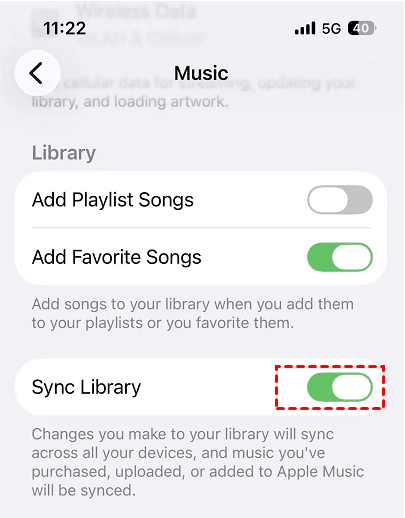
Turn on Sync Library on iPhone
Step 1. Open the Apple Music app and tap your profile. Confirm that you are signed in with the correct Apple Account.
Step 2. Open Settings, tap Apps, and select Music.
Step 3. Turn on Sync Library.
Turn on Sync Library on Windows
Step 1. Open Apple Music on the Windows PC and sign in with the same Apple Account used on the iPhone.
Step 2. Open the sidebar actions menu and select Settings > General, then turn on Sync Library.
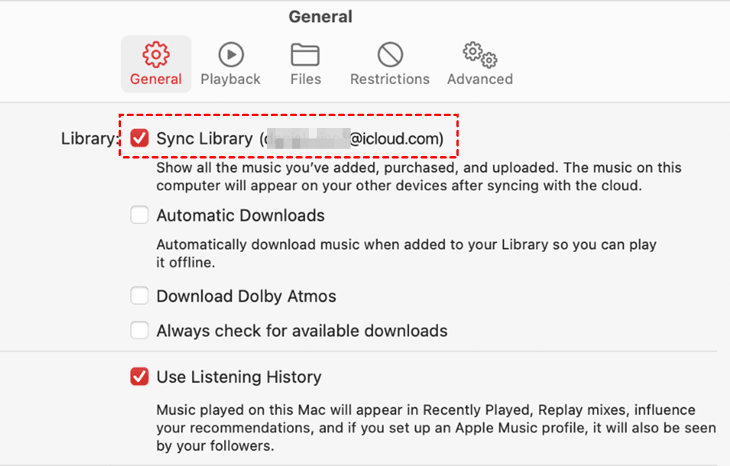
Step 3. Wait for the cloud music library to finish updating. Open Playlists and check whether the iPhone playlist appears.
Sync Library is convenient when you want to access a playlist on several devices. However, it is a synchronization service rather than an independent backup. Changes may appear across devices, so consider exporting a separate playlist file if you need a fixed copy.
Method 2. Export an iPhone Playlist with iTunes for Windows
👍 Best for: Saving playlist information as XML or TXT, moving a playlist between iTunes libraries, or creating a readable song list.
Choose this method when the playlist already appears in iTunes on the PC. The exported file keeps the playlist structure or song information, but it does not include the actual audio.
Export the playlist from iTunes
Step 1. Open iTunes and select the required playlist in the sidebar.
Step 2. Choose File > Library > Export Playlist. Enter a name for the playlist file and select a destination folder.
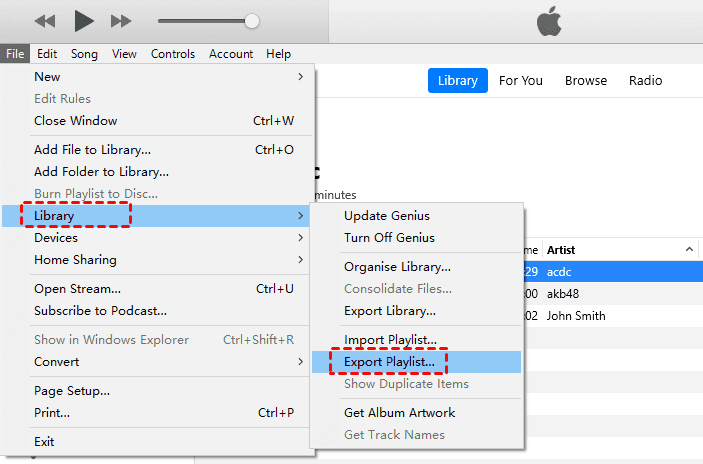
Step 3. Choose a format based on how you plan to use the file and click Save.
- XML: Use it to import playlist information into another iTunes library.
- Text files: Use it to view song information or organize the list in a spreadsheet.
- M3U or M3U8: Use it with a compatible media player that can access the referenced music files.
To save information about every playlist in the library, choose File > Library > Export Library instead.
Import the XML playlist into iTunes
Step 1. Open iTunes on the destination Windows PC.
Step 2. Choose File > Library > Import Playlist, then select the exported XML file.
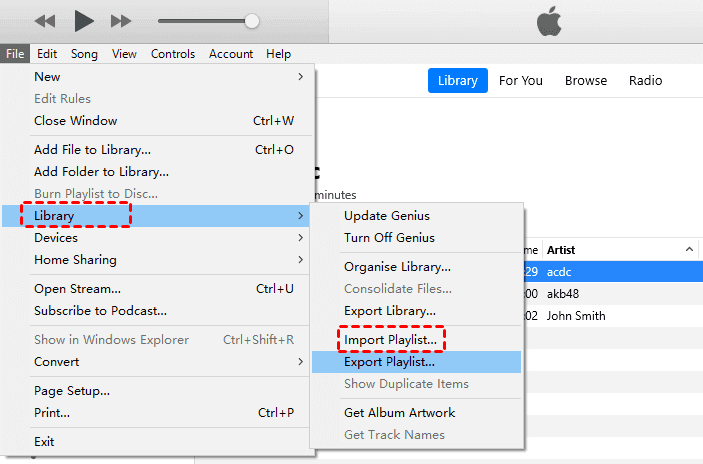
iTunes matches the playlist entries with songs in the destination library. Songs that do not already exist in the library will not appear in the imported playlist.
Method 3. Transfer iPhone Playlist Songs to Windows PC (Music Files)
👍 Best for: Saving accessible iPhone music as playable files on a Windows PC or external drive.
Choose this method when you need actual music files instead of an XML or text playlist. AOMEI FoneBackup can copy selected, accessible songs to a Windows folder.
 AOMEI FoneBackup
- 3 Transfer Modes: iPhone to PC, PC to iPhone, iPhone to iPhone.
- Select the music you want, not entire library.
- Save music to any folder on a Windows PC, external drive, NAS, etc.
- Transfer music through a USB cable without cloud or Apple ID required.
- Preview photos before transferring - see exactly what you're moving
- The free version can transfer up to 30 files per day
 100% Secure
Step 1. Download and install AOMEI FoneBackup on your Windows PC. Connect your iPhone, unlock it, and tap Trust when prompted.
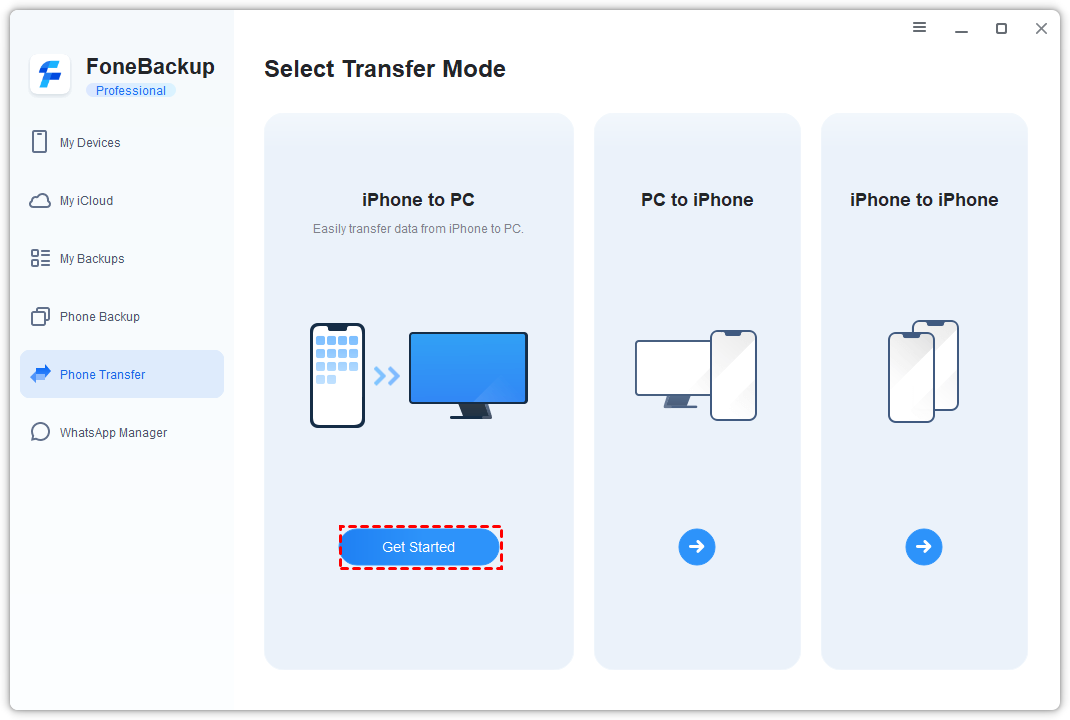
Step 2. On the main screen, select Phone Transfer > iPhone to PC, then click Get Started.
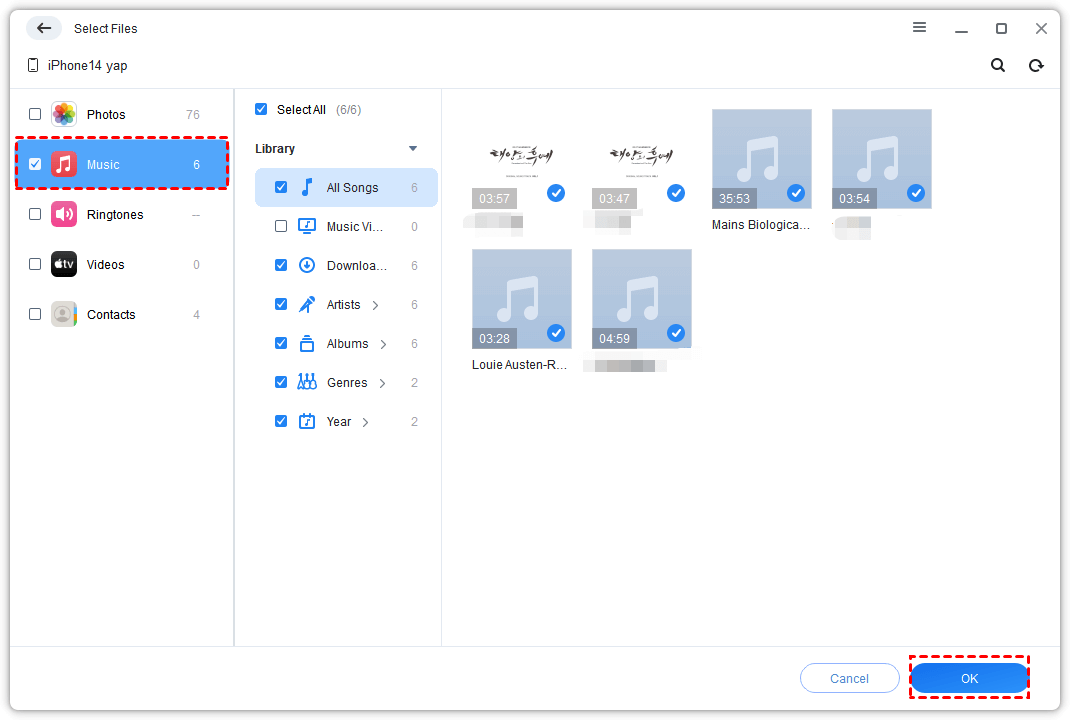
Step 3. Click the plus icon to preview and select Music you want and OK.
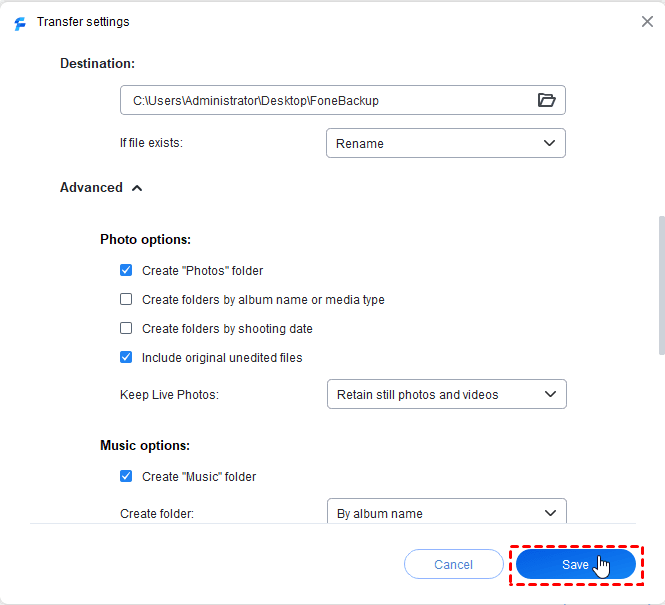
Step 4. Open Transfer Settings tochoose where you want to save the songs, a local folder, NAS, etc., and click Save.
Step 5. Confirm your settings and click Start Transfer.
After the transfer, check the result before deleting or changing anything on the iPhone:
- Open the destination folder.
- Play several transferred files.
- Compare the number of exported files with your selection.
- Check the title, artist, and album information.
This software also applies to transferring non-purchased music from iPhone to computer.
Compare Ways to Export a Playlist from iPhone to Windows PC
| Factor | Sync Library | iTunes for Windows | AOMEI FoneBackup |
|---|---|---|---|
| 🔥 Best for | Apple Music playlists | Saving playlist information | Copying accessible audio |
| Main requirement | Apple Music or iTunes Match | Playlist visible in iTunes | Windows PC and USB connection |
| Output | Synced playlist | XML, TXT, M3U, or M3U8 | Playable music files when accessible |
| Includes audio | No separate audio export | No | Yes, for transferable tracks |
| Main advantage | Automatic access across devices | Creates a separate playlist file | Copies selected music to a chosen folder |
| Main limitation | Changes may sync across devices | The destination library needs matching songs | Does not guarantee playlist structure |
| Choose it when | You use Apple Music with the same account | You need a playlist backup or song list | You need actual music files on Windows |
Top recommendation:
- Choose Sync Library when you use Apple Music and want the playlist to appear on your PC.
- Choose iTunes for Windows when you need an XML or text copy.
- Choose AOMEI FoneBackup when you need accessible music files rather than playlist information.
Common Problems When Exporting an iPhone Playlist
Export Playlist Is Missing:
This usually happens because you are using Apple Music for Windows instead of iTunes, or the playlist has not appeared in the desktop library. You may not see Export Playlist under File > Library, while the connected iPhone’s menu provides only playback options.
Turn on Sync Library first to make an Apple Music playlist available on the PC. If you need an XML file, export it through iTunes for Windows after the playlist becomes available there.
The Imported Playlist Has Missing Songs:
An imported playlist may be empty or incomplete because XML, TXT, M3U, and M3U8 files contain playlist information rather than audio, while the destination iTunes library does not have the matching songs. Add or restore the corresponding music files in the destination library first, then import the playlist again.
iTunes Displays Remove and Sync:
This warning usually appears when the iPhone was previously synchronized with another computer library. Continuing can replace the music and playlists on the iPhone with content from the current PC. Cancel Remove and Sync, then check Sync Library or restore the original iTunes library before starting another sync.
FAQs
1. Can I export a playlist directly from my iPhone to iTunes?
Only when the playlist is available to iTunes or can be synchronized through Apple Music. Connecting an iPhone does not guarantee that iTunes can recover every playlist stored on it.
2. Which format should I choose when exporting an iTunes playlist?
Choose XML to import the playlist into another iTunes library. Choose TXT for a readable song list. Use M3U or M3U8 only with a compatible player that can access the referenced music.
3. Can I move an exported playlist to a new Windows PC?
Yes, but the playlist file does not contain the songs. The new iTunes library must also have the matching music files, or some playlist entries will be missing.
4. Can AOMEI FoneBackup transfer Apple Music subscription downloads?
Do not assume that it can. Apple Music subscription downloads may be protected and are different from ordinary audio files stored locally on the iPhone.
Summary
There are 3 ways to export an iPhone playlist on a Windows PC:
- Use Sync Library to show an Apple Music playlist in Apple Music for Windows.
- Use iTunes to save the playlist information as XML, TXT, M3U, or M3U8.
- Use AOMEI FoneBackup to copy accessible music files to a Windows folder.
If the playlist exists only on the iPhone, do not select Remove and Sync. It may replace the music on the iPhone with the library from the current PC.
Choose the method based on whether you need cloud access, a playlist file, or the actual music.

 as a preferred
source on Google
as a preferred
source on Google