




7 Best Apps to Transfer Photos from iPhone to Windows 10
Moving photos from iPhone to Windows 10 doesn't have to be complicated. Here are 7 apps, from dedicated transfer tools to built-in Windows features, so you can pick the right one for your needs.

By Ivy Updated on August 6, 2026


Your iPhone is running out of storage, but moving thousands of photos to a Windows 10 PC isn't always as simple as copying a folder. You've probably tried connecting via USB and opening File Explorer, only to find a maze of folders with strange names. Not exactly convenient.
Here's the short answer: If you want the fastest, most controlled transfer with preview and selective export, AOMEI FoneBackup is the best choice. For a free built-in option, use Windows Photos. For wireless syncing, go with iCloud.
Here are 7 apps to transfer photos from iPhone to Windows 10 - each suited for different needs.
| ❓ Your situation | 🎯 Best app | 💡 Why |
|---|---|---|
| Large photo libraries, need selective transfer | AOMEI FoneBackup | Preview, select, and transfer full-quality photos |
| Don't want to install third-party software | Windows Photos | Built into Windows, no setup required |
| Want wireless syncing | iCloud | Syncs automatically over Wi-Fi |
| Need comprehensive device management | Dr.Fone | Manages photos, music, contacts, and more |
| Transfer a few photos occasionally | Simple Transfer or LocalSend | Quick wireless transfer, no account needed |
| Switch between iPhone and Android often | MobileTrans | Cross-platform data transfer |
| Need a free transfer tool with basic features | MobiMover | Simple interface, handles multiple data types |
Option 1. Windows Photos – The Built-In Free Solution
⭐⭐⭐☆☆ (3/5)
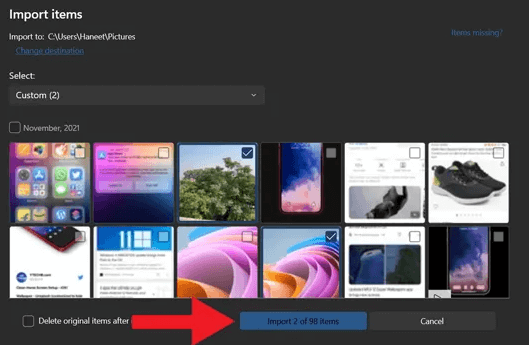
Windows Photos has been the default photo manager on Windows since Windows 8, and it's still the go-to option for many users who just want a quick import without installing anything. It's pre-installed on every Windows 10 and 11 machine, making it the most accessible option on this list.
When you connect your iPhone via USB, Windows Photos detects it as a camera device and lets you import photos directly. It's straightforward: select what you want, pick a folder, and click Import.
✅ Pros:
-
Already installed on every Windows PC - zero setup required
-
No account creation or sign-in needed
-
Free, with no hidden costs or feature limitations
-
Good for occasional small imports
-
Allows basic folder selection for destination
❌ Cons:
-
No photo preview before selecting - you're working with thumbnails
-
Struggles with HEIC format (Apple's default) unless you install extra codecs from the Microsoft Store
-
Slow and prone to stalling with large batches (1,000+ photos)
-
Limited folder organization during import - you can't create subfolders on the fly
-
Photos stored only in iCloud (not locally on iPhone) won't appear during USB import
👍 Best for:
- Quick transfer without setup or advanced features like preview, selective export, etc., required
- Good for small, occasional transfers but not for serious photo management.
Method 2. iCloud – The Official Wireless Sync Option
⭐⭐⭐⭐☆ (4/5)
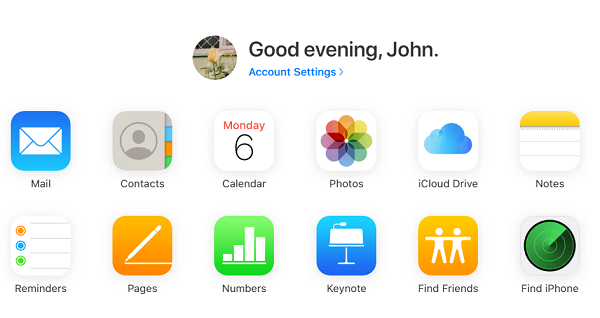
iCloud is Apple's own cloud ecosystem, deeply integrated into the iPhone experience. For Windows users, iCloud for Windows (available from the Microsoft Store) brings Apple's cloud storage to the PC desktop, allowing photos to sync automatically over Wi-Fi.
Once set up, your iPhone photos appear in File Explorer just like any other folder. You can also log in to iCloud.com from any browser to download individual photos without installing anything. It's the most seamless option for users who are already invested in Apple's ecosystem.
✅ Pros:
-
Wireless, automatic syncing - no cables or manual transfers
-
Official Apple software, regularly updated
-
Access photos from multiple devices (iPhone, PC, iPad, Mac)
-
Integrates with File Explorer for familiar file management
-
Good for keeping your entire photo library in sync across devices
❌ Cons:
-
Only 5GB of free storage - fills up quickly with any decent photo library
-
Upload and download speeds depend entirely on your internet connection
-
Much slower than USB for large batches
-
Requires Wi-Fi, not available offline
-
Paid iCloud+ subscription required for larger libraries ($0.99/month for 50GB)
👍 Best for:
- Automatic wireless syncing, already paying for iCloud storage.
- Value accessibility across multiple devices. Not ideal for large libraries without a subscription.
Method 3. Dr.Fone – Comprehensive iPhone Management
⭐⭐⭐⭐☆ (4/5)
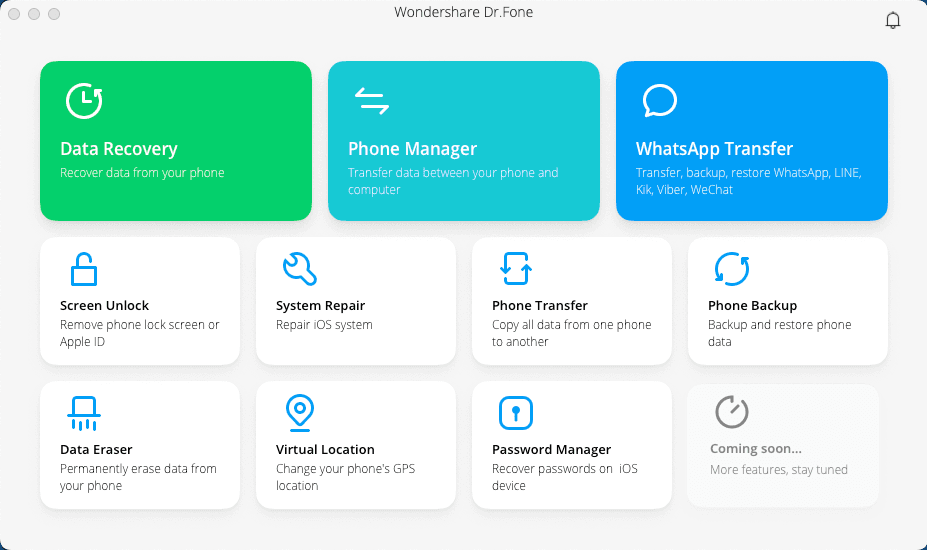
Dr.Fone, developed by Wondershare, is one of the most established names in the iPhone management space. It's a full-suite tool that goes far beyond photo transfers, it handles contacts, messages, music, app data, and even offers data recovery for deleted files.
The photo transfer module lets you view all albums, preview individual photos, select specific ones, and export them at full resolution. It also supports wireless transfer and works with iCloud and iTunes backups, making it a versatile tool for users who want complete control over their iPhone data.
✅ Pros:
-
All-in-one iPhone management (transfer, backup, restore, data recovery)
-
Supports both USB and wireless transfer
-
Works with iCloud and iTunes backups
-
Polished, professional interface with reliable transfer speeds
-
Can recover deleted photos that aren't in your current library
-
Available for both Windows and Mac
❌ Cons:
-
Free version is essentially a preview tool - export requires a paid plan
-
Overwhelming for users who only need photo transfer (too many features)
-
Pricey for one-time use (subscription-based pricing)
-
Some advanced features require technical know-how
-
Feature availability differs between Windows and Mac versions
👍 Best for:
Users who want comprehensive iPhone management beyond just photos - contacts, messages, music, app data, and backup management
Method 4. MobileTrans – Cross-Platform Data Transfer
⭐⭐⭐☆☆ (3.5/5)
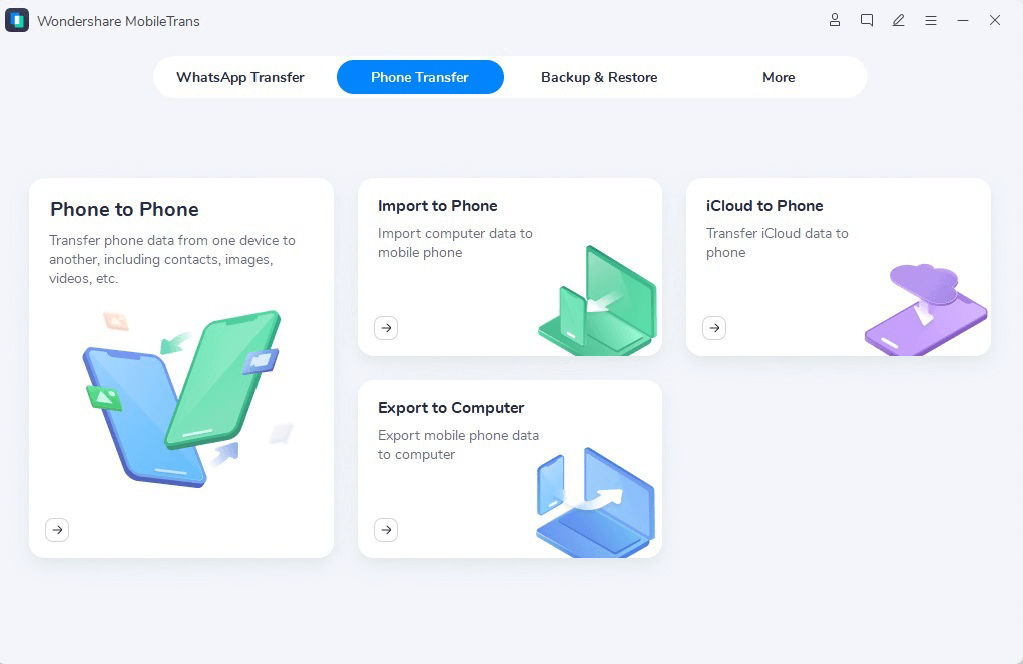
MobileTrans, from Wondershare, is built for one specific use case: moving data between different devices and platforms. It supports iPhone to Android, Android to iPhone, phone to PC, and vice versa. If you've ever struggled with switching from Android to iPhone (or the other way around), MobileTrans is designed to solve that problem.
Its photo transfer capability is straightforward: connect your iPhone via USB, select the photos you want, and export them to your PC. It also supports restoring backups to your phone and transferring WhatsApp data.
✅ Pros:
-
Excellent for cross-platform transfers (iOS ↔ Android)
-
Supports 18+ data types, including WhatsApp and social app data
-
Works with 6,000+ mobile devices across platforms
-
Clean, straightforward interface
-
Good for users who switch between ecosystems frequently
❌ Cons: Cons:
-
Free version limits export capabilities - paid version required for full features
-
Overkill for iPhone-to-Windows photo transfer only
-
Photo features are less specialized than dedicated photo tools
-
Some users report slower transfer speeds for large batches
-
Windows only - no Mac version
👍 Best for:
- Frequently switch between iOS and Android and need a single tool for cross-platform data transfers.
- Transfer data types beyond photos (messages, WhatsApp, contacts). Overkill for simple iPhone-to-PC photo transfers.
Method 5. MobiMover – Simple Free Tool with Video Support
⭐⭐⭐☆☆ (3/5)
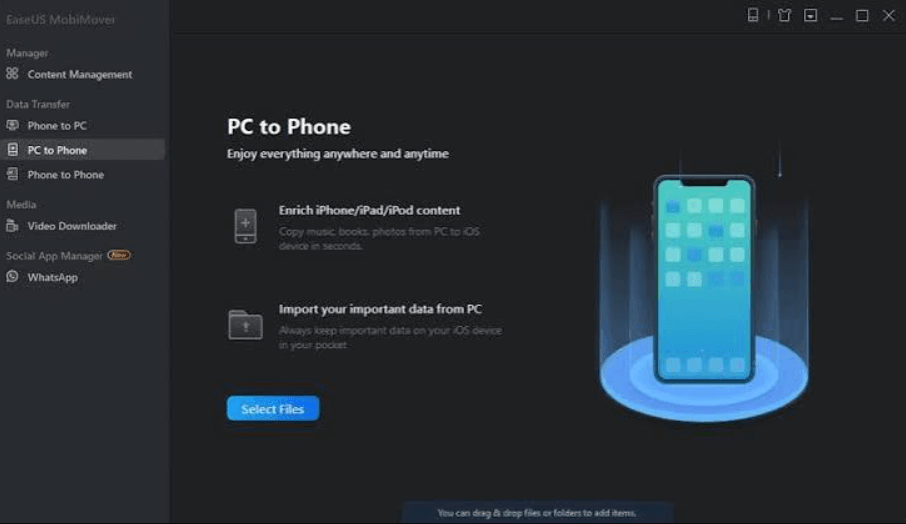
MobiMover, developed by EaseUS, is a free iPhone data transfer tool that positions itself as a simple alternative to iTunes. It supports photos, videos, music, and messages, with a focus on making transfers as straightforward as possible.
The interface is minimalist: connect your iPhone, select what you want to transfer, and click go. It also includes extra features like video downloads from 1000+ websites and a HEIC-to-JPG converter, which adds value for users who deal with Apple's photo format.
✅ Pros:
-
Genuinely free for basic transfers
-
Supports video downloads from 1000+ websites
-
Includes built-in HEIC-to-JPG converter
-
Simple, clear interface - easy for non-technical users
-
Handles multiple data types (photos, videos, music, contacts)
❌ Cons:
-
Interface feels dated compared to newer tools
-
Occasional ads in the free version
-
Large transfers can be inconsistent or slow
-
"Free" has limits - some advanced features require payment
-
May not handle encrypted iPhone backups
👍 Best for:
Users who want a free, simple tool for small to medium transfers and appreciate the extra video features.
Method 6. Simple Transfer / LocalSend – Wireless for Small Batches
⭐⭐⭐☆☆ (3/5)
These lightweight wireless tools are designed for one thing: quickly moving a handful of photos without cables, accounts, or cloud services.
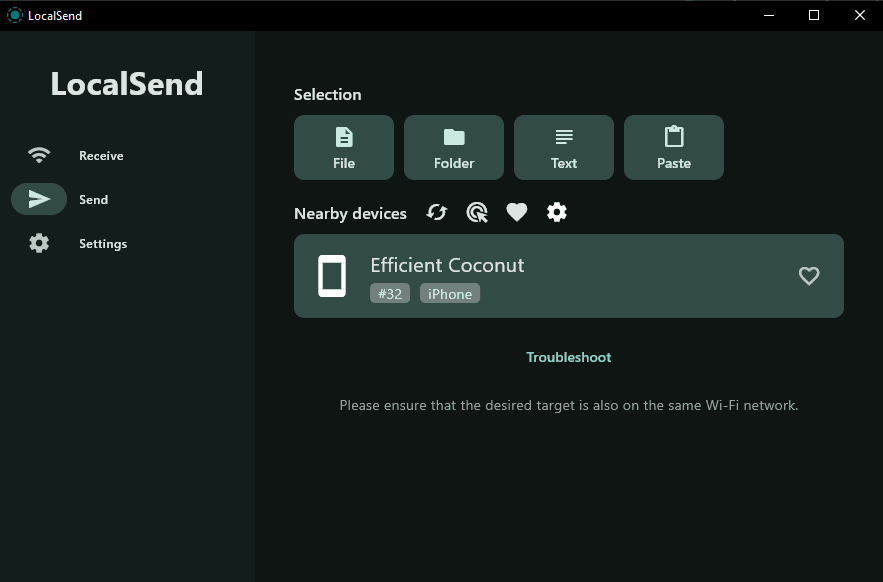
Simple Transfer is an iOS app that creates a local web server on your iPhone. You open a browser on your Windows PC, enter the URL displayed in the app, and download selected photos directly, no account required, no cloud upload.
LocalSend is an open-source alternative that works across iPhone, Windows, Android, and Mac. It uses a similar local network approach but is completely free and privacy-focused.
✅ Pros:
-
No cables, no accounts, no cloud storage - completely self-contained
-
Works over local Wi-Fi
-
Free to use for small batches
-
LocalSend is open-source and privacy-focused
-
Works across multiple platforms
❌ Cons:
-
Not suitable for bulk transfers (hundreds or thousands of photos)
-
Free version of Simple Transfer limits how many photos you can send
-
Relies on Wi-Fi speed - slower than USB and unreliable
-
Can be unstable in poor network conditions
-
Requires both devices on the same Wi-Fi network
👍 Best for:
- Quickly transfer a handful of photos wirelessly, without cables or accounts.
- Ideal for occasional, ad-hoc transfers. Not a replacement for a proper transfer tool when you have large batches to move.
Method 7. AOMEI FoneBackup – The Best for Bulk, Selective Transfers
⭐⭐⭐⭐⭐ (5/5)
AOMEI FoneBackup is a purpose-built Windows tool for iPhone data management, with a strong focus on photo transfer. Unlike many all-in-one suites, it focuses on doing a few things well, backup, restore, and transfer, rather than trying to do everything.
What sets it apart is its combination of features that matter to users with large photo libraries: preview before transfer, selective transfer, full-resolution preservation, and external drive support. It connects via USB, so it works offline and doesn't depend on your internet speed or cloud storage limits.
✅ Pros:
-
Preview photos before transferring - see exactly what you're moving
-
Transfer full-resolution originals - no compression, no quality loss
-
Supports Live Photos (save as video, JPG, or HEIC)
-
Save directly to external hard drive, USB flash drive, NAS, etc
-
Offline USB transfer - no internet required, no cloud limits
-
Organizes albums clearly for easy selection
-
One-click backup and restore for photos and other data types
❌ Cons:
-
Windows only - no Mac version
-
Learning curve for first-time users (though interface is intuitive)
-
Requires USB cable - no wireless option
-
Full features require installation (not web-based)
Best for:
- Windows users with large photo libraries who want full control over what they transfer, need to preview before exporting, and care about maintaining original quality.
- Ideal for users who want to back up photos to an external drive without relying on cloud storage.
How to Transfer Photos with AOMEI FoneBackup
Step 1. Download and install AOMEI FoneBackup on your Windows PC. Connect your iPhone via USB cable. When prompted on your iPhone, tap Trust and enter your passcode.
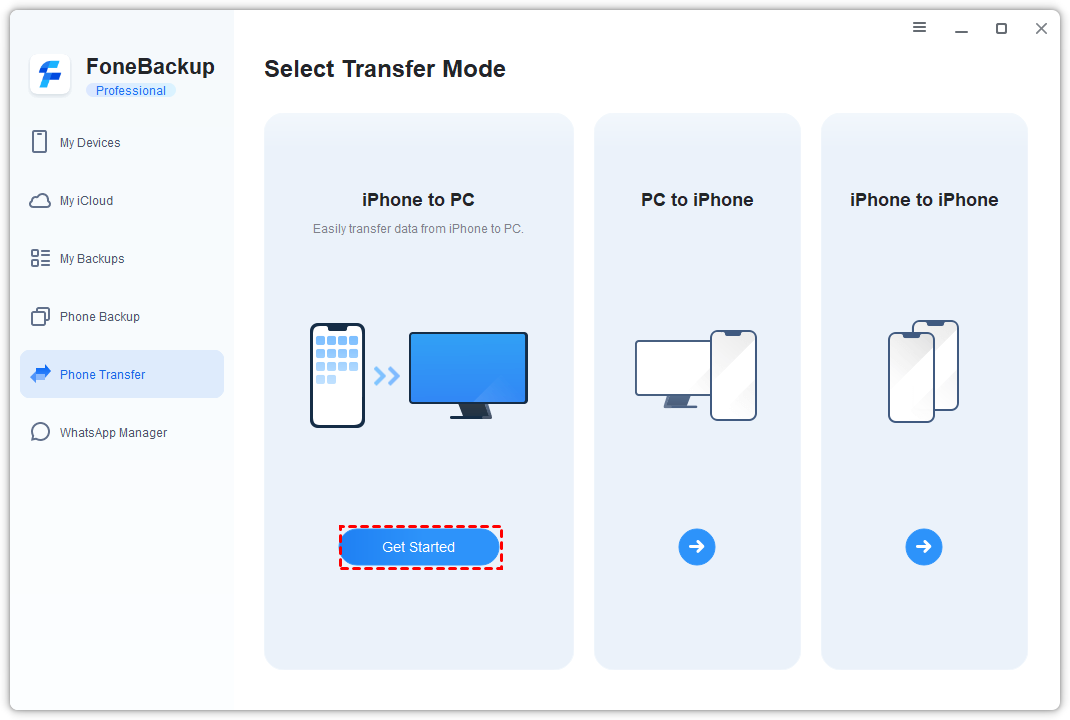
Step 2. Launch the software, select Phone Transfer > iPhone to PC. Click Get Started.
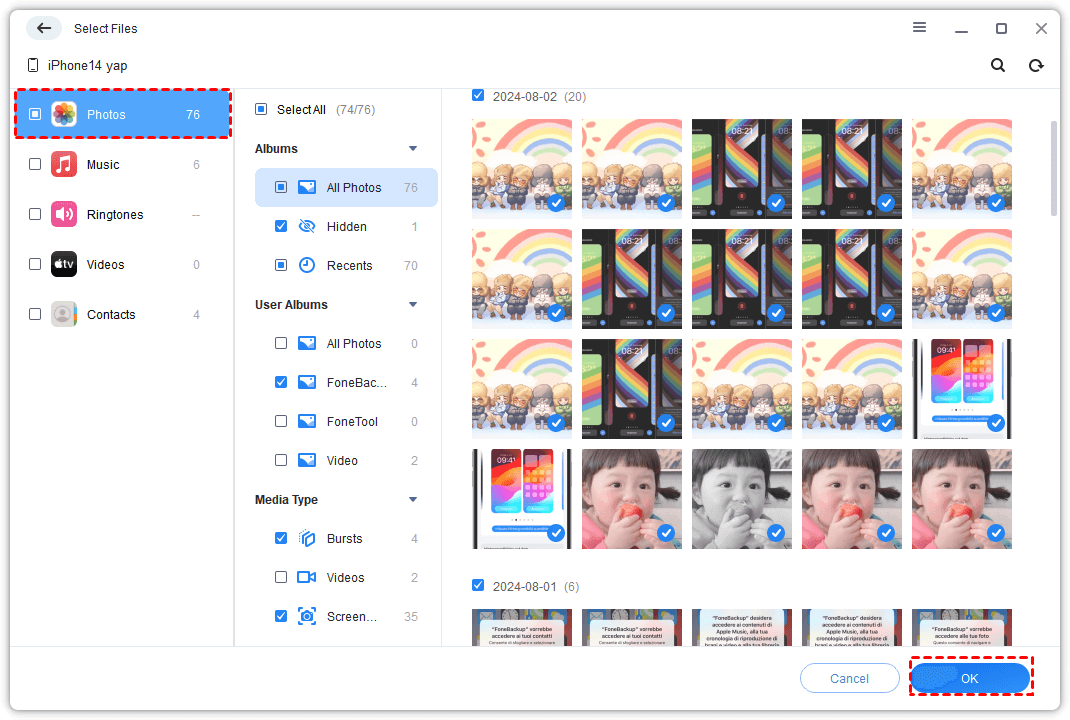
Step 3. Click the Photos icon. Browse and preview your albums, then select the photos you want to transfer.
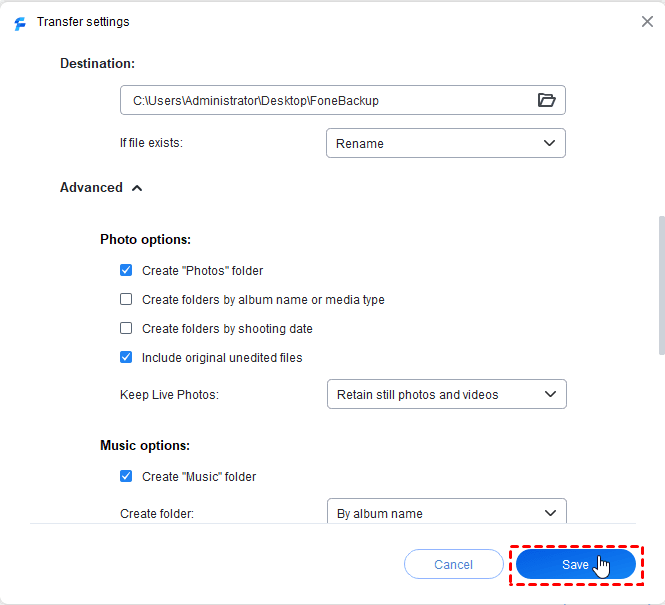
Step 4. Click Transfer Settings to choose where to save your photos. Adjust other settings if needed. Click Save to continue.
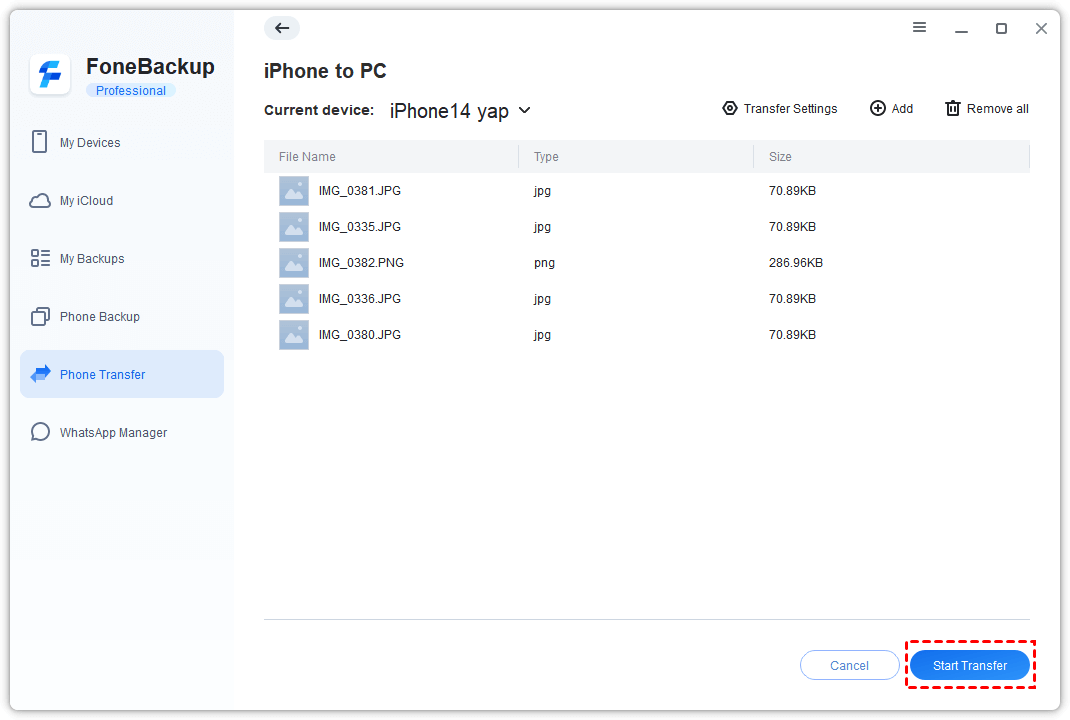
Step 5. Click Start Transfer and wait for the process to complete.
Full Comparison of All Apps
| App | Connection | Select Photos? | Bulk Transfer | Original Quality? | Internet Needed? | 🔥 Best For | Main Limitation |
|---|---|---|---|---|---|---|---|
| AOMEI FoneBackup | USB | Yes (preview) | Yes | Yes | No | Large, selective transfers | Windows only |
| Windows Photos | USB | Yes | Yes | Yes | No | Built-in free solution | No preview; HEIC issues |
| iCloud | Wi-Fi | Yes | Yes (with limits) | Yes | Yes | Wireless syncing | 5GB free storage limit |
| Dr.Fone | USB / Wi-Fi | Yes | Yes | Yes | Optional | Full device management | Paid for full features |
| MobileTrans | USB | Yes | Yes | Yes | No | Cross-platform transfers | Paid for full export |
| MobiMover | USB | Yes | Yes | Yes | No | Free tool with video support | Ads; inconsistent bulk |
| Simple Transfer / LocalSend | Wi-Fi | Yes | Limited | Yes | No | Quick wireless transfers | Free version limits quantity |
FAQs
Q: What's the fastest way to transfer photos from iPhone to Windows 10?
USB transfer with a dedicated tool like AOMEI FoneBackup is the fastest. USB 3.0 can transfer hundreds of photos in seconds, while Wi-Fi methods are slower and depend on network conditions.
Q: How do I transfer photos without losing quality?
Use a USB-based tool like AOMEI FoneBackup or Dr.Fone that transfers full-resolution originals. Avoid cloud uploads if you're concerned about compression - iCloud preserves quality but only if you have sufficient storage, and Windows Photos may compress HEIC images if you don't have the codec.
Q: Does Windows Photos transfer all my iPhone photos?
Not always. If you have iCloud Photos enabled, some photos may only exist in the cloud, not on your iPhone. Windows Photos can only transfer what's physically stored on the device. For iCloud-only photos, use iCloud for Windows or download from iCloud.com.
Q: How do I transfer Live Photos to Windows?
Use AOMEI FoneBackup - it saves Live Photos as video files or in JPG/HEIC format. Windows Photos won't preserve Live Photo functionality; it'll only transfer the still image.
Final Recommendation
If you want the fastest and most controlled way to transfer photos from iPhone to Windows 10, AOMEI FoneBackup is the best choice. It preserves original quality, lets you preview and select specific files, and works offline via USB.
In addition, you can also select other options:
-
For a quick, no-install solution: Windows Photos is free, built-in, and handles basic transfers. It won't give you preview or selective control, but it gets the job done for occasional imports.
-
For wireless syncing: iCloud is the official Apple option. It's convenient and automatic - just watch out for the 5GB free storage limit.
-
For occasional small transfers: Simple Transfer or LocalSend are perfect for quickly moving a few photos without cables or accounts.

 as a preferred
source on Google
as a preferred
source on Google