



How to Backup iPhone When iCloud Is Full: 3 Ways
iCloud storage is full, but your iPhone can still be protected. Compare 3 backup methods for Windows and Mac, and pick the best one.

By Ivy Updated on August 7, 2026


You are about to update your iPhone, replace it, or clear some storage when a warning says there is not enough iCloud space to finish a backup. Your photos, messages, and other information still matter, but you may not want to buy a larger iCloud plan.
The good news is that a full iCloud account does not prevent you from making a local backup. You can save your iPhone to a Windows PC with AOMEI FoneBackup or Apple Devices. If you have a Mac, you can use Finder.
This guide explains how to backup iPhone when iCloud is full, which method fits your situation, and how to confirm that the backup really finished.
Can You Back Up an iPhone When iCloud Is Full?
Yes. iCloud storage and computer storage are separate. If iCloud does not have enough available space, you can connect your iPhone to a computer and create a local backup instead.
Before you begin, decide what kind of backup you need:
- Choose a selective backup if you mainly want to save particular photos, videos, music, contacts, or messages to a Windows PC.
- Choose a full local backup if you want a broader copy for restoring an iPhone later.
- Use Finder if you have a modern Mac and prefer Apple’s built-in method.
Do not delete photos or files from iCloud until you confirm that another usable copy exists. When iCloud Photos is enabled, deleting a synced item may also remove it from other devices connected to the same Apple Account.
Which Backup Method Should You Use When iCloud Is Full?
The right way to back up an iPhone when iCloud is full depends on your computer, the data you want to protect, and whether you need a selective or full backup.
| ❓ Your situation | 🎯 Recommended method | 💡 Why it fits |
|---|---|---|
| You want to choose specific data on a Windows PC | AOMEI FoneBackup - Selective Backup | You can select data and destination |
| You want a complete backup on Windows | AOMEI FoneBackup - Full Backup or Apple Devices | Both create a local backup without using iCloud space |
| You prefer an Apple tool on Windows | Apple Devices | It is Apple’s current device-management app for Windows |
| You use macOS Catalina or later | Finder | Backup controls are built into macOS |
| You use macOS Mojave or earlier | iTunes | Older macOS releases still use iTunes for device backups |
Not sure where to start?
- For more control over what's saved to your Windows PC: AOMEI FoneBackup.
- For an Apple-managed full backup: Apple Devices (Windows) or Finder (Mac).
Method 1. Back Up iPhone without iCloud using AOMEI FoneBackup
👍 Best for: You want to back up selected iPhone data or create a full backup on a Windows PC. The backup features are free, but the software is not a Mac solution.
AOMEI FoneBackup provides two relevant workflows for backing up an iPhone without using iCloud storage - Full Backup & Selective Backup.
 AOMEI FoneBackup
- 💾 Full & Selective Backup: Create a full iphone backup or back up only photos, videos, contacts, messages, etc. - no iCloud or Wi-Fi required.
- 👁🗨 Preview Before Backup: See exactly what you're backing up before you start. Only back up what you actually need.
- 📂Flexible Storage: Save data to your PC, external drive, USB drive, cloud drive, and network share or NAS.
- 🔍 View Backups Anytime: Locate and view your backup files with a single click. No digging through folders.
- 💰 Totally Free: Backup what you need without paying a cent. No subscriptions, no paywalls.
- 📱 Works with All iPhones: Compatible with all iPhone models and iOS versions, including the latest iPhone 17 and iOS 26.
 100% Secure
Before starting, connect your iPhone with a reliable USB cable and make sure the destination drive has enough free space.
Option 1. Back Up Selected iPhone Data
Use this option when you want to select supported photos, videos, music, contacts, or messages instead of creating a full-device backup.
Step 1. Download and install AOMEI FoneBackup on your Windows PC. Connect your iPhone with a USB cable and tap Trust when prompted.
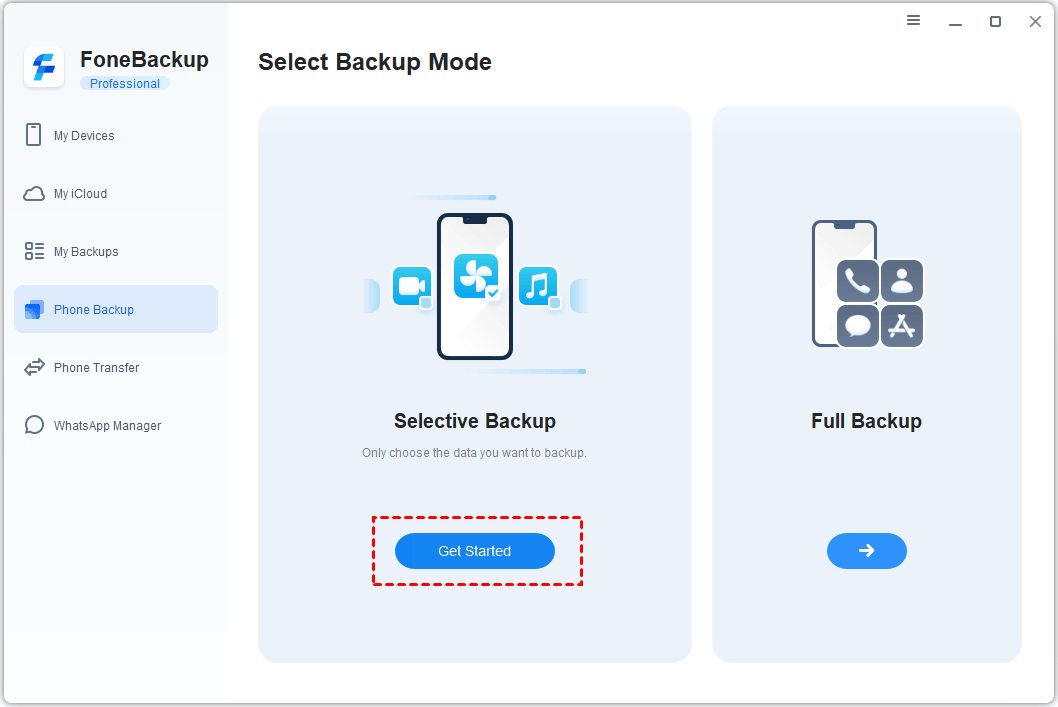
Step 2. Select Phone Backup > Selective Backup, then click Get Started.
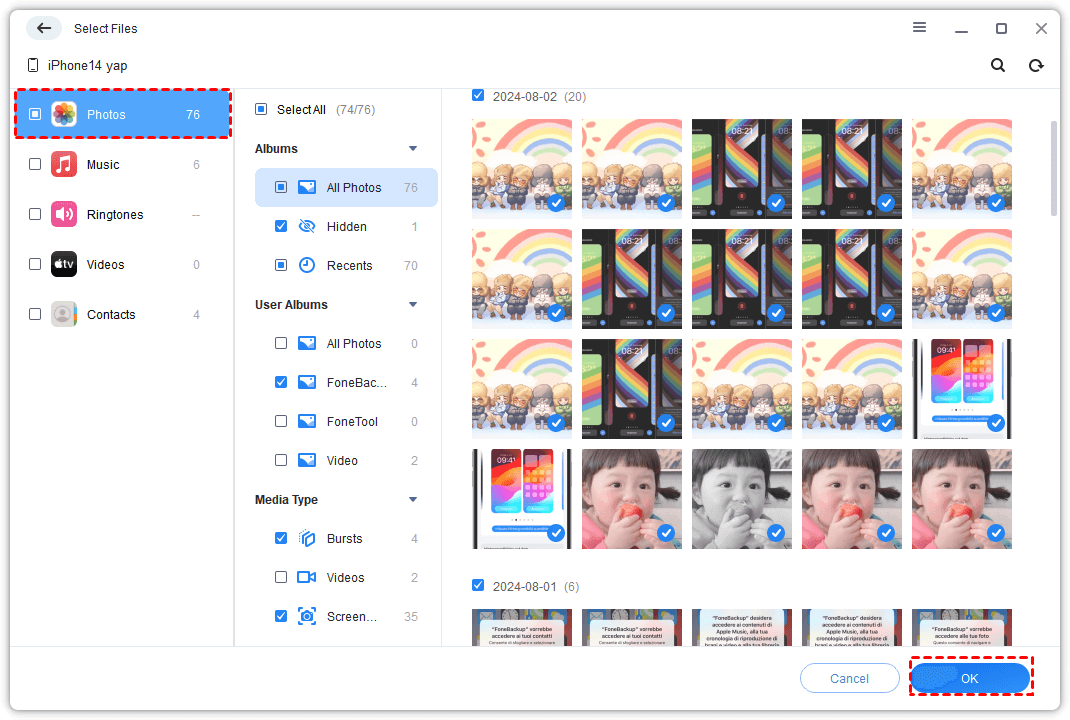
Step 3. Click the Photos icon to preview and select the photos you want to transfer. You can also select Messages, Music, etc.
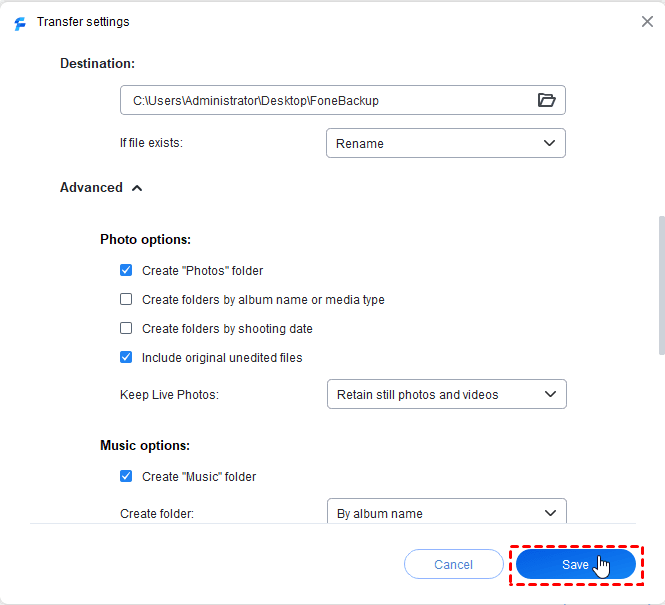
Step 5. Click Transfer Settings to choose where to save. Adjust other settings as needed and click Save > Start Backup.
Keep the iPhone connected until the task finishes. You can then open My Backups to check the saved task.
Option 2. Create a Full iPhone Backup
Choose this workflow when you want a broader backup that can be used for a later device restore.
Step 1. Connect your iPhone and open AOMEI FoneBackup.
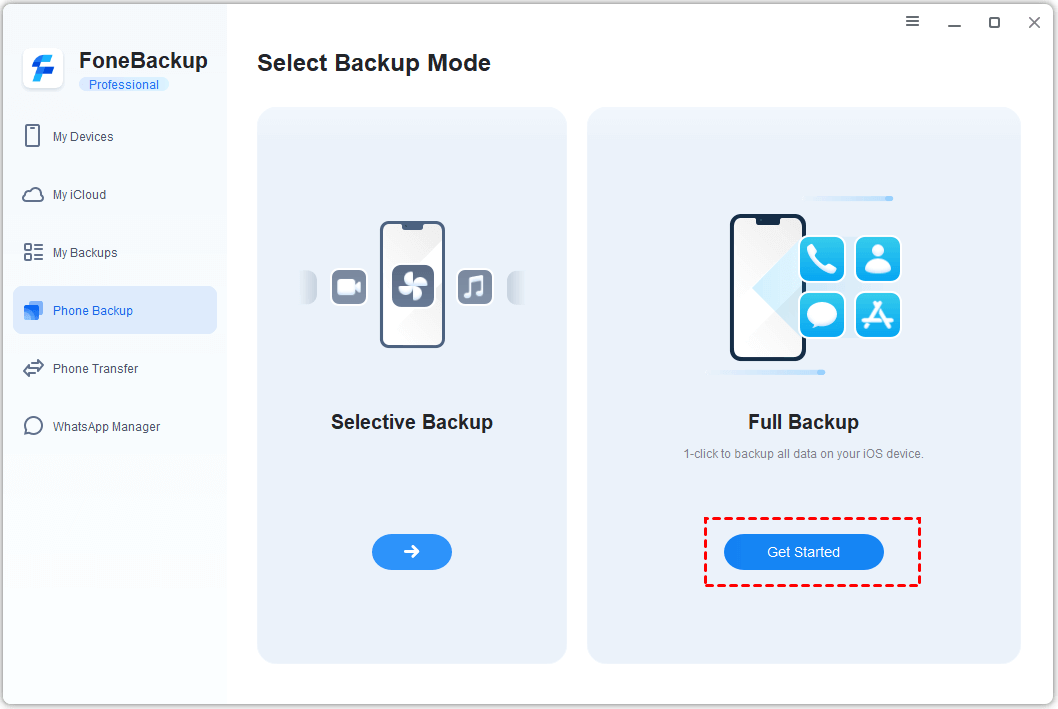
Step 2. Go to Phone Backup, select Full Backup, and click Get Started.
Step 3. Click Backup Storage Path to choose where you want to save full iPhone backup and click Start Backup. Wait for the progress to complete before disconnecting the phone.
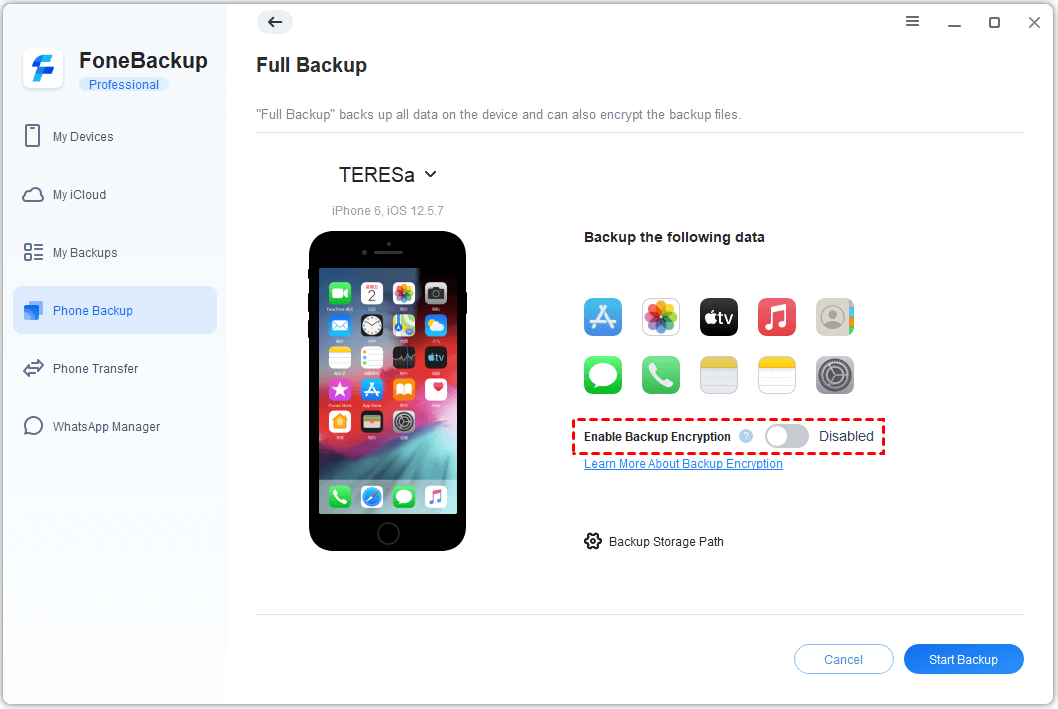
Optionally, toggle on Enable Backup Encryption to protect your privacy. Store the password somewhere secure.
Method 2. Back Up iPhone When iCloud Is Full with Apple Devices
👍 Best for: You use a Windows PC and want an Apple-managed full local backup.
Apple Devices is Apple’s current app for managing an iPhone on Windows 10 or 11. Because the backup is stored on the computer, you can use this method even when your iCloud storage is full.
If you have an older Windows setup that still relies on iTunes, the basic backup controls are similar.
Step 1. Install or update Apple Devices first. Then, connect your iPhone to the PC with a USB cable, unlock it and tap Trust when prompted.
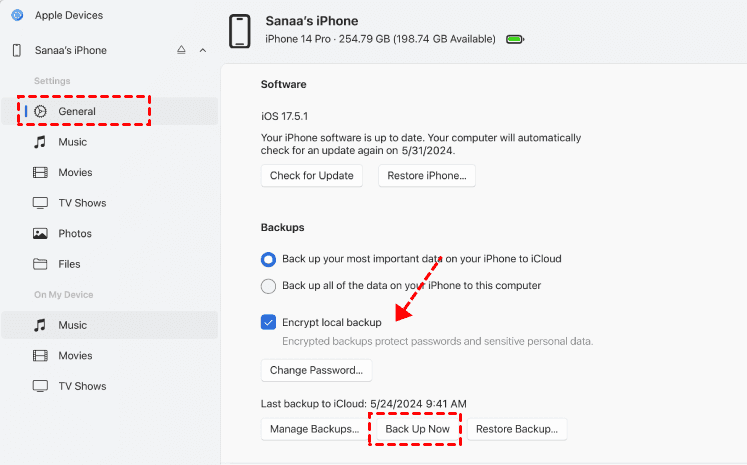
Step 2. Open Apple Devices, select your iPhone icon in the sidebar.
Step 3. Go to General, select Back up all of the data on your iPhone to this computer and click Back Up Now.
-
If you want an encrypted backup, enable Encrypt local backup and create a password. Keep this password safe because an encrypted backup cannot be restored without it.
-
After the task completes, select Manage Backups to check the backup record.
-
If you use an older iTunes installation, select the device icon > Summary> This computer and click Back Up Now.
Method 3. Back Up iPhone Without iCloud using Finder
👍 Best for: You have a Mac running macOS Catalina 10.15 or later and want a complete local backup without installing another application.
Finder replaced iTunes for iPhone management on modern versions of macOS. A Finder backup is saved locally on the Mac, so it does not depend on available iCloud storage. Macs running macOS Mojave or earlier still use iTunes.
Step 1. Connect the iPhone to your Mac with a compatible cable. Click Allow on the Mac if you are asked to allow the accessory to connect.
Step 2. Open Finder and select your iPhone under Locations.
Step 3. Under General, select the option to back up the data on your iPhone to this Mac and click Back Up Now.
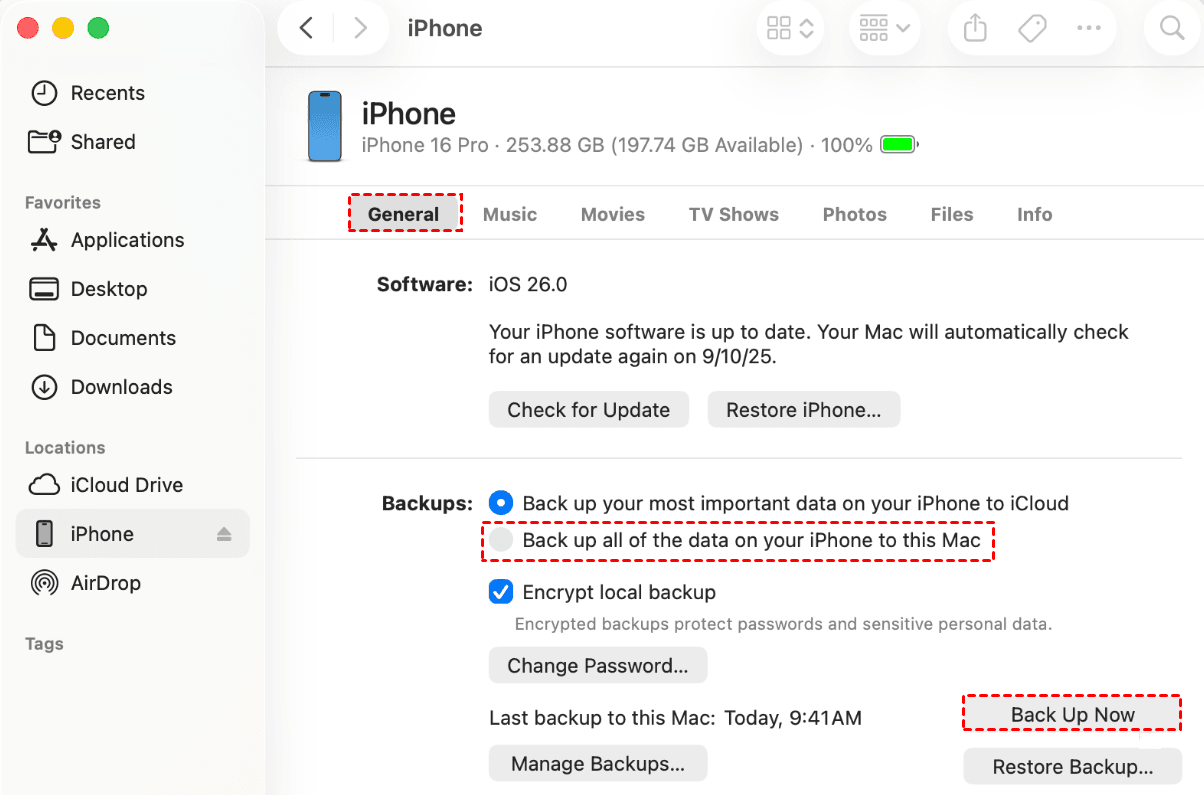
Keep the iPhone connected while Finder displays the backup progress. When the backup succeeds, Finder shows the date and time of the latest backup.
How to Verify an iPhone Backup on Windows or Mac
Whether you back up an iPhone without iCloud on Windows or Mac, do not assume the task is complete just because the progress window closed.
Use this checklist before deleting iCloud data, resetting the iPhone, or installing a major update:
- Check the completion status: Make sure the software does not show a failed, interrupted, or unfinished task.
- Check the backup record: Open My Backups in AOMEI FoneBackup or Manage Backups in Apple Devices or Finder.
- Confirm the device and date: Make sure the backup belongs to the correct iPhone and shows the expected date.
- Confirm the destination: For an AOMEI FoneBackup task, check that the selected destination drive is still available.
- Protect the password: If you created an encrypted backup, save its password separately from the computer.
If no valid backup appears, reconnect the iPhone, unlock it, confirm Trust, and check the destination drive’s free space. Then, run the backup again. Be sure:
- The Apple Devices, iTunes, or macOS is updated.
- Connect your iPhone with a reliable cable or USB port.
- If one method fails, try another.
Compare Ways to Back Up iPhone When iCloud Storage Is Full
All three methods let you back up an iPhone when iCloud storage is full, but their platforms, backup scope, and storage controls differ.
| Factor | AOMEI FoneBackup | Apple Devices | Finder |
|---|---|---|---|
| Platform | Windows | Windows | Mac |
| iCloud space usage | No | No | No |
| Selective backup | Yes, for supported data | No | No |
| Full local backup | Yes | Yes | Yes |
| Backup destination | User-selected computer path | Apple-managed local backup | Apple-managed local backup |
| Best for | Flexible Windows backup | Official Windows backup | Official Mac backup |
| Main limitation | Windows only | Only full backup supported | Mac only |
🔥 Final recommendation:
- Choose AOMEI FoneBackup when you use Windows and want to select what you want to backup and where to save them.
- Choose Apple Devices when you want Apple’s current Windows workflow.
- Choose Finder when you have a modern Mac.
Should You Free Up iCloud Storage Before Backing Up iPhone?
No. You do not need to free up iCloud storage before backing up your iPhone to a computer.
However, a local backup does not automatically remove the full-iCloud warning. If you want automatic iCloud backups to resume, you still need to reduce the next backup size, remove unneeded iCloud content, or obtain more storage.
Before deleting anything, check:
- Which device backups are still needed
- Whether iCloud Photos is enabled
- Whether the files exist somewhere outside iCloud
- Whether you still need iCloud syncing across devices
Treat iCloud cleanup as a separate task. The safer order is to create and verify another copy first, then review what can be removed.
FAQs
1. Will my existing iCloud data disappear when the storage is full?
Running out of space does not immediately remove your existing data. However, new iCloud backups and some syncing activities may stop until space becomes available.
2. Can I back up my iPhone without buying more iCloud storage?
Yes. A local backup made with AOMEI FoneBackup, Apple Devices, Finder, or an applicable iTunes installation does not consume additional iCloud storage.
3. Is a computer backup the same as an iCloud backup?
No. Both can help protect iPhone data, but they use different storage and may not contain exactly the same data. The available content also depends on whether data is already synced through iCloud and whether local backup encryption is enabled.
4. Should I use a selective backup or a full backup?
Use a selective backup when you want control over supported files such as photos, videos, contacts, or messages. Use a full backup when you want a broader device copy for a possible restore.
5. Can I delete my old iCloud backup after making a computer backup?
You can, but verify the computer backup first. Also confirm that deleting the iCloud backup will not remove the only recovery copy you may need.
Conclusion
The best method depends on your computer and the type of backup you need:
- Use AOMEI FoneBackup for selective or full iPhone backup on a Windows PC.
- Use Apple Devices for an Apple-managed Windows backup.
- Use Finder for a built-in local backup on macOS Catalina or later.
- Free up iCloud storage only after confirming that another usable copy exists.
If your iCloud storage keeps filling up and you want more control over what is saved to your Windows computer, start with AOMEI FoneBackup and verify the completed task in Backup History.

 as a preferred
source on Google
as a preferred
source on Google