



[Full Guide] Windows 10 Repair Tool Download Here
Windows repair tool is designed to help with Windows corruption and boot errors. On this page, you can know the full guide on Windows 10 repair tool download and how to use it to fix Windows issues.

By Hedy Updated on May 29, 2026


Windows 10 remains one of the most widely used operating systems worldwide, but like any software, it is not immune to problems. Users may encounter various issues, including corrupted programs, sluggish system performance, file system damage, incorrect boot configurations, startup failures, and unexpected system crashes.
These problems can affect both system stability and daily productivity. In such situations, a dependable Windows 10 repair tool becomes essential, helping users diagnose errors, repair damaged system components, and restore the computer to normal operation efficiently.
Best Windows 10 repair tool free download here
AOMEI Partition Software is a powerful and user-friendly disk management tool that can also act as a Windows 10 repair solution, especially when the system fails to boot or encounters disk-related errors.
Unlike basic Windows utilities, AOMEI provides advanced recovery functions such as Boot Repair, MBR rebuilding, and system disk fixing, making it a reliable option for both beginners and advanced users.
Why AOMEI Partition Software is a top Windows 10 repair tool?
One of its most important features is the ability to fix boot issues automatically. If your Windows 10 PC shows errors like “Operating System Not Found” black screen, or boot loop, AOMEI can help restore system startup by repairing boot configuration data and boot entries.
It also includes a Rebuild MBR (Master Boot Record) function, which can repair corrupted boot sectors in just a few clicks. This is especially useful when the system cannot detect the operating system or the disk becomes unbootable.
 AOMEI Partition Software
A safe and reliable disk partition management tool that helps you migrate OS to SSD or HDD, reorganize disk space, and improve overall PC performance.
How to use Windows 10 repair tool
It can be used to create a Windows 10 recovery USB or disc, repair system files by rebuilding the MBR, and scan for file system errors. In addition, it helps resolve common startup issues such as boot loops, black screens, and blue screen errors.
Follow the guide below to use this tool effectively and fix boot-related problems.
Feature 1. Fix Windows 10 boot error
System startup issues such as boot failures, endless reboot loops, blue screen errors, or black screen problems can be very frustrating and may prevent normal access to Windows 10. In many cases, these issues are difficult to diagnose manually.
With AOMEI Partition Software, the system can automatically detect underlying boot-related problems and apply appropriate fixes. This allows users to repair Windows 10 errors more easily, even without identifying the exact cause of the issue.
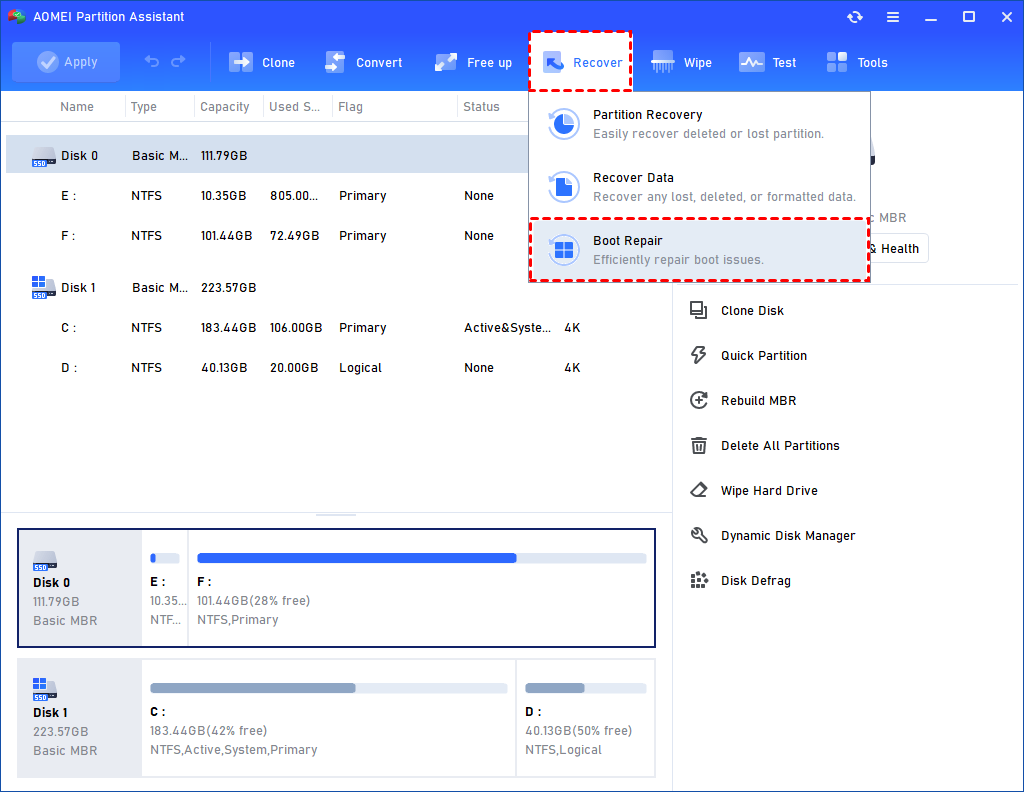
Step 1. Install and launch AOMEI Partition Software. In the Main Tab, please click the "Recover" tab and select "Boot Repair".
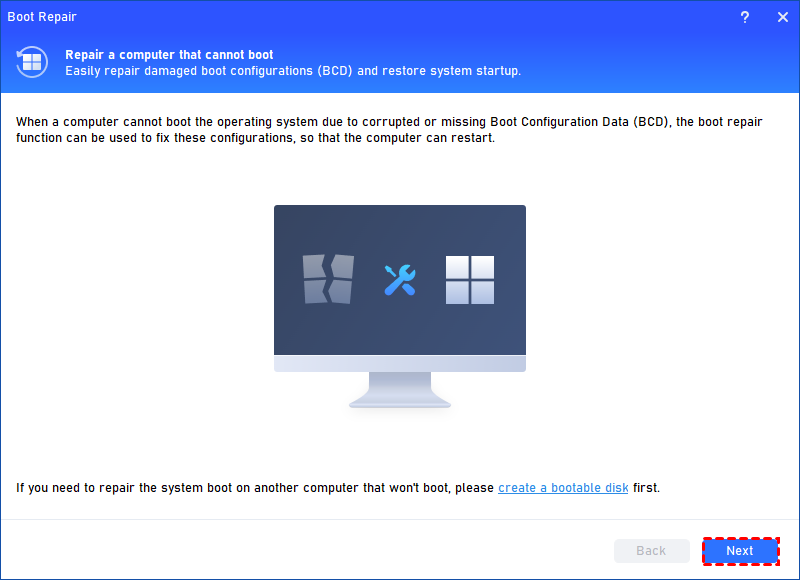
Step 2. The Boot Repair tool will pop up. If you have created a bootable media beforehand, please click "Next" to start the system’s boot entries scan process. If not, please follow the instructions to create one.
Step 3. After the process is completed, it will display the scan result: system paths, system versions, and boot status. And, all repairable boot entries will be available to select.
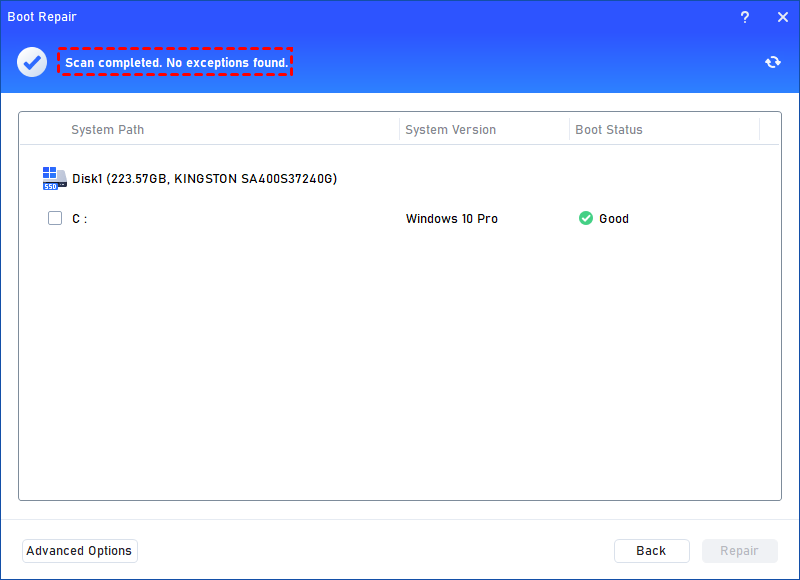
Step 4. Select one/multiple repairable boot entries you want to repair and click the "Repair" button to start the boot repair.
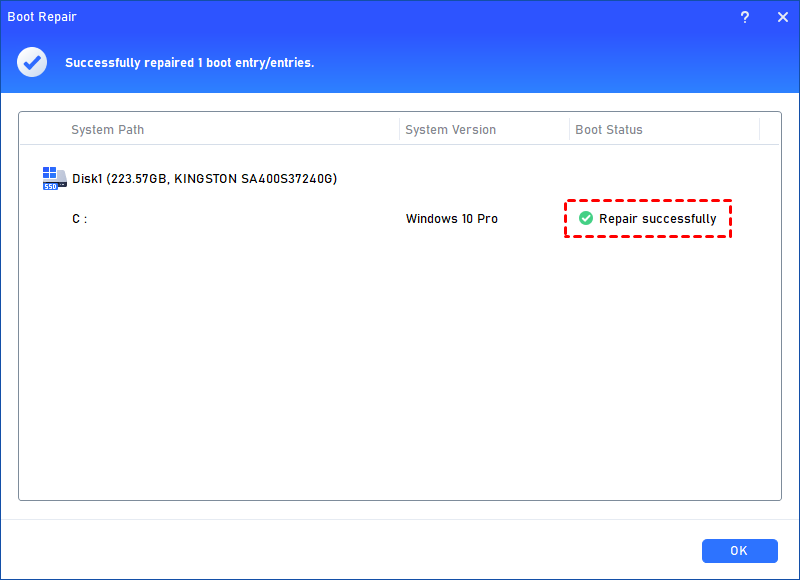
Step 5. Wait for the repair process to finish. Once it is finished, you can check the repair result. If it succeeds, you will get a "Repair Successfully" result.
Feature 2. Rebuild MBR for Windows 10
If the Master Boot Record (MBR) in Windows 10 becomes corrupted, the system may fail to start or function normally. In such cases, repairing the boot structure is essential to restore access to Windows.
AOMEI Partition Software offers a dedicated Rebuild MBR feature designed to fix issues related to damaged or missing boot records. This function helps restore the master boot code and resolve startup problems that prevent Windows from loading correctly.
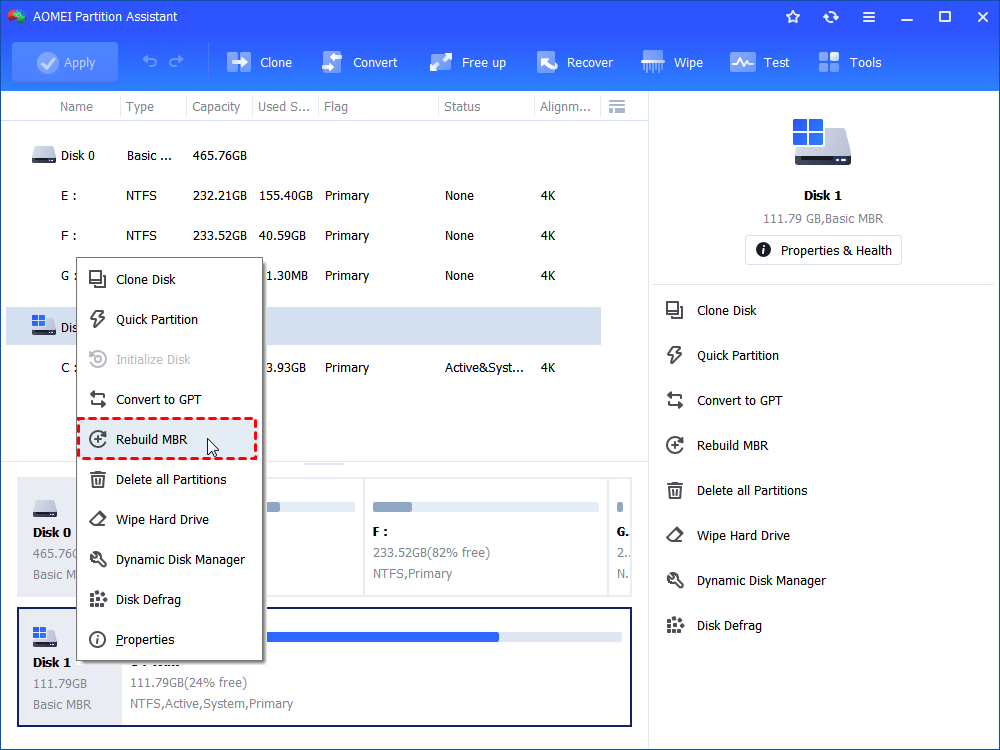
Step 1. Install and launch AOMEI Partition Software. Select the SSD and right-click it to choose “Rebuild MBR”.
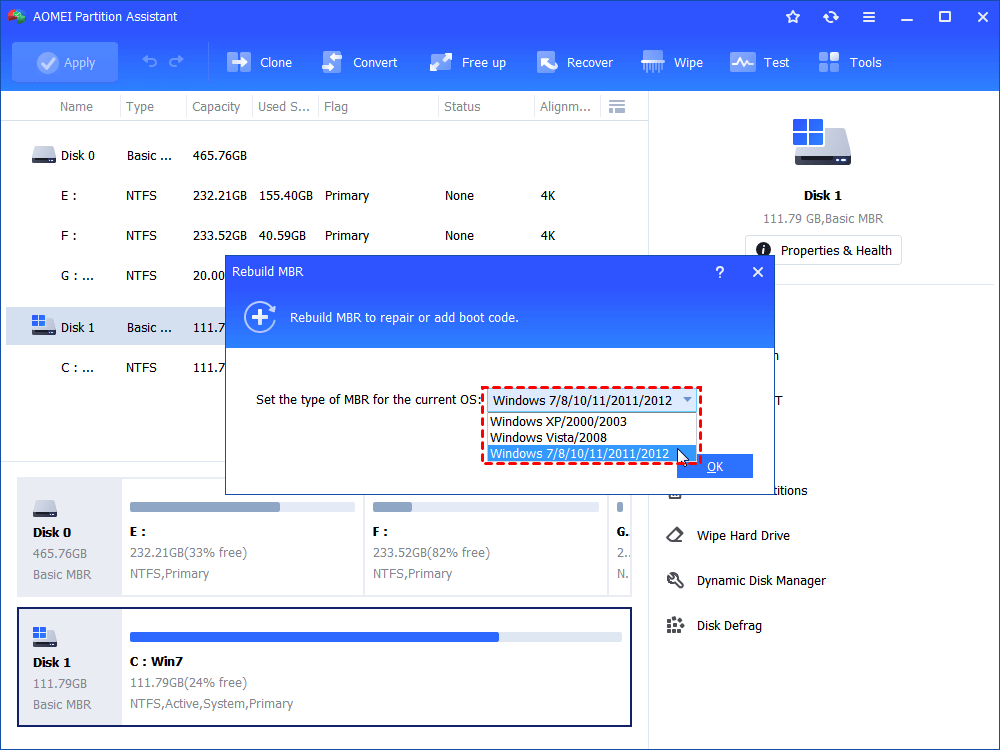
Step 2. Set the type of MBR in the pop-up window. (Choose a proper MBR type according to your operating system.)
Step 3. Click “Apply” on the toolbar to commit the Rebuild MBR operation.
Feature 3. Check and fix disk error
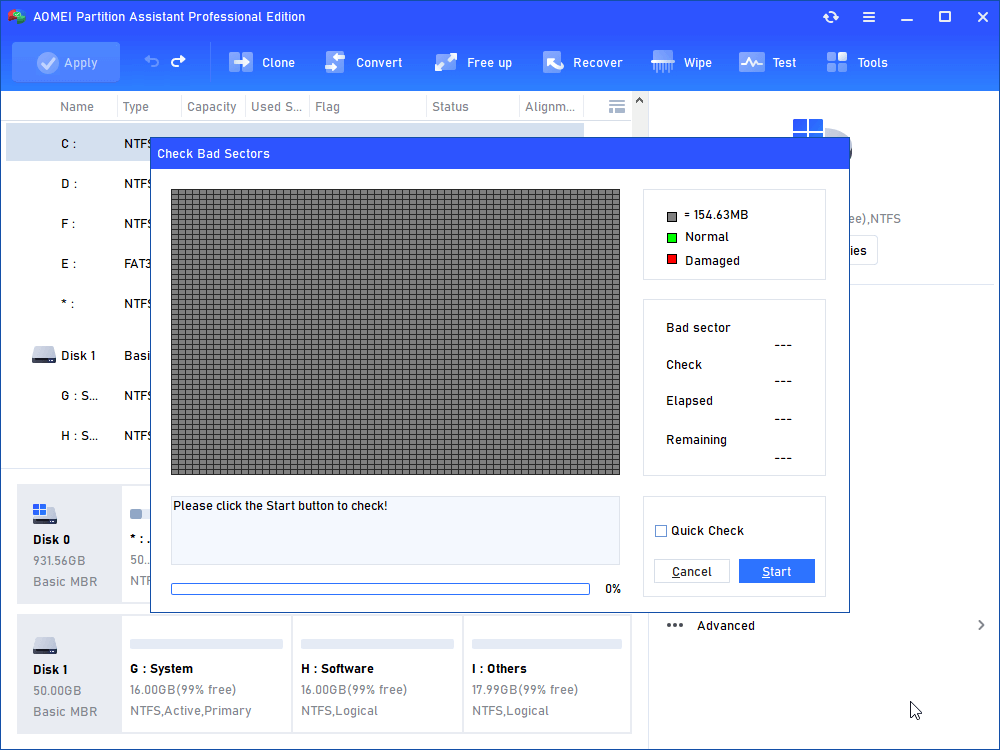
AOMEI Partition Software can scan partitions for file system errors and automatically repair detected issues. This helps fix problems caused by improper shutdowns, corrupted files, or damaged file systems.
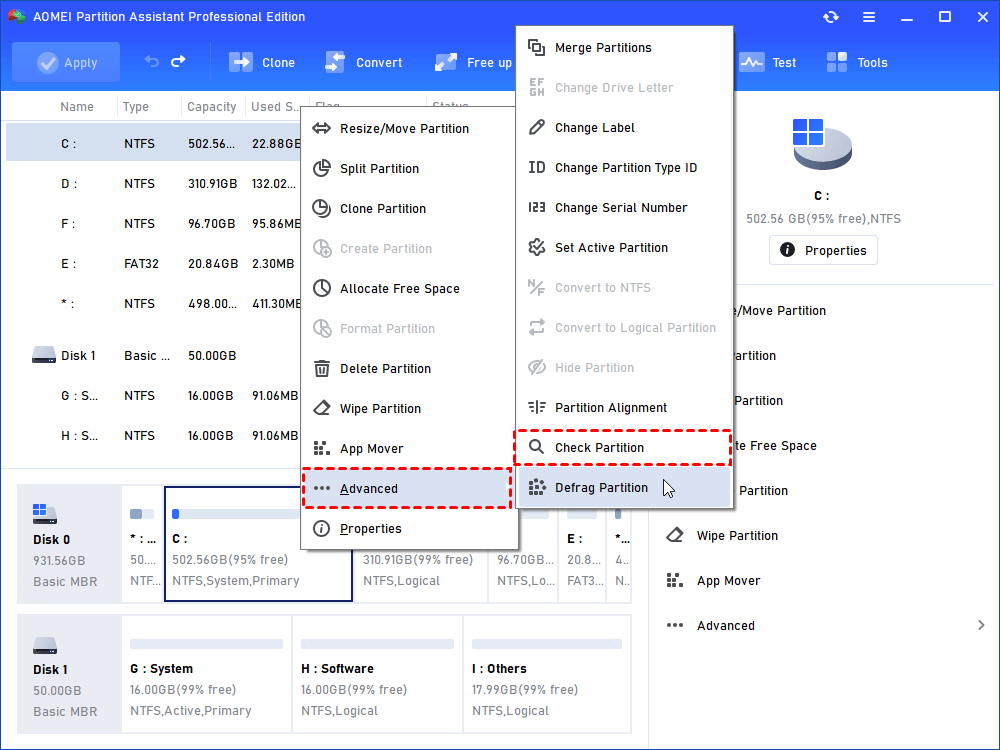
Step 1. Inside AOMEI Partition Software, right-click the problematic pen drive.
Step 2. Select Advanced and then click Check Partition.
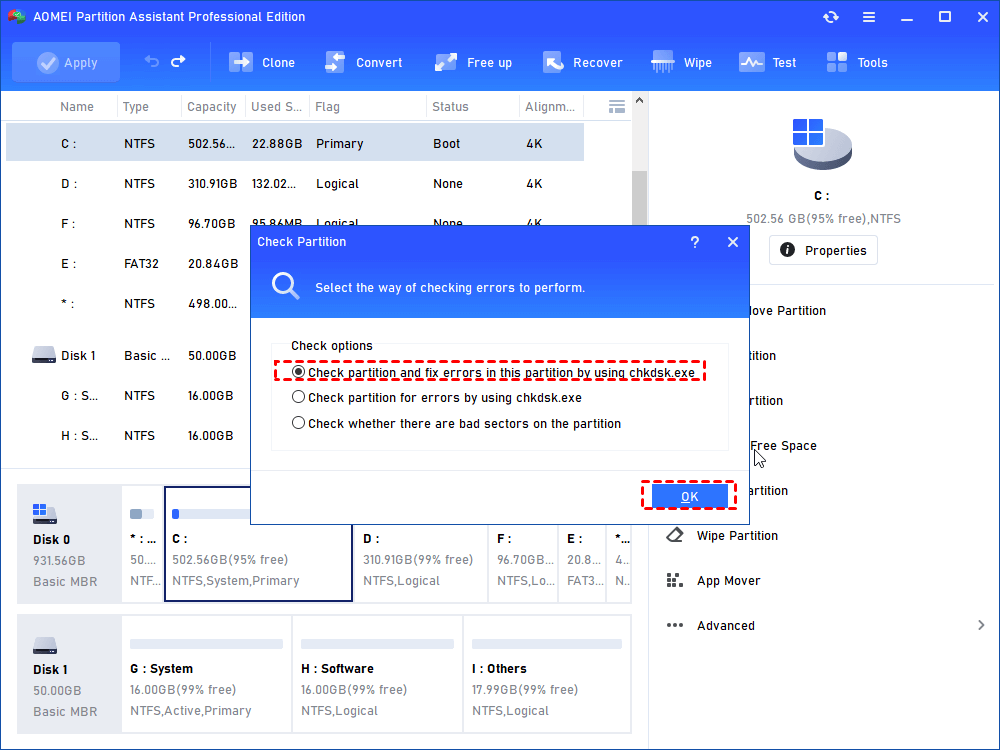
Step 3. Choose the option "Check whether there is a bad sector on the partition" and click OK.
Step 4. Click Start to run the scan. If the map turns completely green, your drive is perfectly healthy. If you see red squares, the pen drive is physically dying, and you should copy your files off it immediately.
Why need Windows 10 repair tool?
You need a Windows 10 repair tool because Windows can break in ways that are hard to fix manually—especially when system files, boot records, or updates go wrong.
A good repair tool helps when you run into issues like boot loops, blue screens, black screens, slow startup, or missing system files. Instead of guessing commands or reinstalling everything, the tool can automatically detect and fix common problems.
It’s also useful for repairing the boot sector (MBR/EFI), fixing corrupted system files, and restoring normal startup when Windows won’t load at all. Some tools even help manage disks and prevent data loss during repairs.
For example, tools like AOMEI Technology (such as AOMEI Partition Assistant) or similar utilities are designed to simplify these fixes with one-click repair options.
In short, it saves time, reduces risk, and helps you recover your PC without needing deep technical skills or a full reinstall.
FAQs
🔸 What is the best Windows 10 repair tool download?
Microsoft Startup Repair, SFC, and DISM are the most trusted built-in repair tools. For third-party options, AOMEI Partition Software and Windows Repair Toolbox are popular choices.
🔸 Is Windows 10 Startup Repair free?
Yes. Startup Repair is included with Windows 10 and does not require additional downloads or subscriptions.
🔸 Can DISM fix corrupted Windows files?
Yes. DISM repairs the Windows image itself, allowing SFC to restore corrupted system files properly afterward.
🔸 Is it safe to download Windows repair tools online?
It is safe only when downloading from official developer websites or Microsoft support pages. Avoid suspicious download portals.
🔸 Should I reinstall Windows if repair tools fail?
If Startup Repair, SFC, and DISM cannot fix the issue, reinstalling Windows may be the fastest and most reliable solution.
Conclusion
In conclusion, a reliable Windows 10 repair tool can save time and prevent data loss when startup or disk issues occur. AOMEI Partition Software stands out with powerful features like Boot Repair, Rebuild MBR, and disk error checking, making system recovery simple for both beginners and advanced users. Whether facing boot loops, black screens, or corrupted boot records, it provides an effective and user-friendly solution to restore Windows 10 stability quickly.

 as a preferred
source on Google
as a preferred
source on Google