



Error 0x80070570 Guide: Fix The File or Directory is Corrupted and Unreadable
Stop panicking over broken folders and lost documents. Learn how to solve error 0x80070570 the file or directory is corrupted and unreadable safely and easily.

By Lucas Updated on November 4, 2026


Run a CHKDSK command or use professional data recovery software to immediately fix the file or directory is corrupted and unreadable error. This frustrating pop-up, often displaying as error 0x80070570 the file or directory is corrupted and unreadable, happens when your computer tries to open a damaged storage sector or a virus-infected folder.
You can solve this by scanning for malware, moving the files to a new drive, or running the Windows Startup Repair tool. If the system tools fail, you must use professional partition software to rescue your trapped files and format the broken drive back to a healthy state.
Why You See Error 0x80070570 on Your Windows?
Hard drives use a hidden map to find your saved photos and documents. If this map gets damaged, the computer loses access to your data and throws an error. When the file directory is corrupted and unreadable, the physical hard drive is usually fine. The software map is just broken. Here are the main reasons this happens:
Unsafe Ejection: Pulling a USB drive out of the computer while files are still copying breaks the directory map instantly.
Malware Infections: Computer viruses often lock or destroy file directories to hide their malicious code.
Bad Health Sectors on Disk: The physical disk platter is wearing out, causing the computer to drop data.
System Crashes: A sudden power loss while Windows is updating can corrupt the main file system.
How to Fix a Corrupted and Unreadable File Directory
You can repair minor file system bugs using the built-in Windows tools. We will start with simple virus scans and move to command-line repairs.
Method 1: Scan for Viruses and Malware
A hidden virus might be blocking your access to the folder. Running a quick Windows Defender scan can remove the threat and unlock your files.
Step 1: Click the Windows Start button, type Windows Security, and press Enter.
Step 2: Click on Virus & threat protection on the left side of the screen.
Step 3: Click the Scan options button.

Step 4: Select Full scan and click the Scan now button.
Step 5: Let Windows remove any viruses it finds. Restart your computer and try to open your folder again.
Method 2: Move Files to a Different Drive
Sometimes only the specific folder location is broken. Moving the file to a completely different hard drive often bypasses the error.
Step 1: Open File Explorer and find the corrupted file or folder.
Step 2: Right-click the file and select Copy.
Step 3: Navigate to a different hard drive or plug in a USB flash drive.
Step 4: Right-click inside the new drive and select Paste. If the file copies successfully, you can open it from the new location.
Method 3: Run CHKDSK via Command Prompt
The Check Disk tool scans the hard drive map and attempts to fix broken links. This is the most common native fix for directory errors.
Step 1: Click the Start button, type cmd, right-click Command Prompt, and select Run as administrator.
Step 2: Type chkdsk E: /f /r /x into the black screen. Change the letter E to match the drive letter of your corrupted drive.
Step 3: Press Enter. Windows will scan the drive and attempt to fix the broken file system.
Step 4: Once the scan hits 100 percent, close the window and check your files.
Method 4: Perform Windows Startup Repair
If this error stops your computer from turning on, you cannot use the normal desktop tools. You must use the hidden Windows recovery menu to fix the startup files.
Step 1: Turn your computer on and force it off by holding the power button as soon as the Windows logo appears. Repeat this three times to trigger the blue recovery screen.
Step 2: Click Troubleshoot, select Advanced options, and click Startup Repair.
Step 3: Windows will scan your system drive and attempt to fix the corrupted directory automatically.
Method 5: Perform Boot Repair
Before you make any major changes to a broken drive, you should check your drive. AOMEI Partition Software includes a powerful tool to check and repair corrupted directories. Windows system tools often fail to fix heavily damaged drives and can sometimes delete files during the repair process. AOMEI Partition Software can check and resolve boot-related problems. The process is straightforward and designed for quick repair.
 AOMEI Partition Software
A safe and reliable disk partition management tool that helps you migrate OS to SSD or HDD, reorganize disk space, and improve overall PC performance.
Step 1. Install and open the software on a functioning computer. Connect a USB drive or insert a blank CD/DVD.
Step 2. From the main interface, navigate to the “Boot Repair” feature under the “Recover” section.
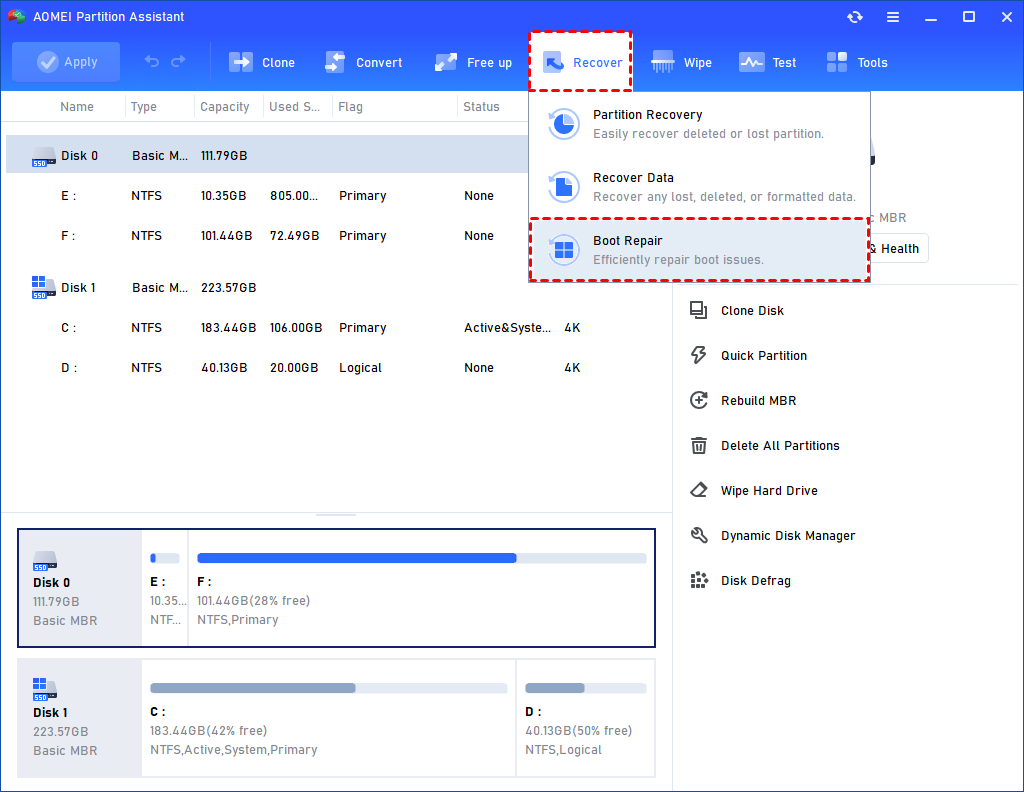
Step 3. Select the option to create a bootable disk, and follow the prompts to generate a WinPE boot repair USB.
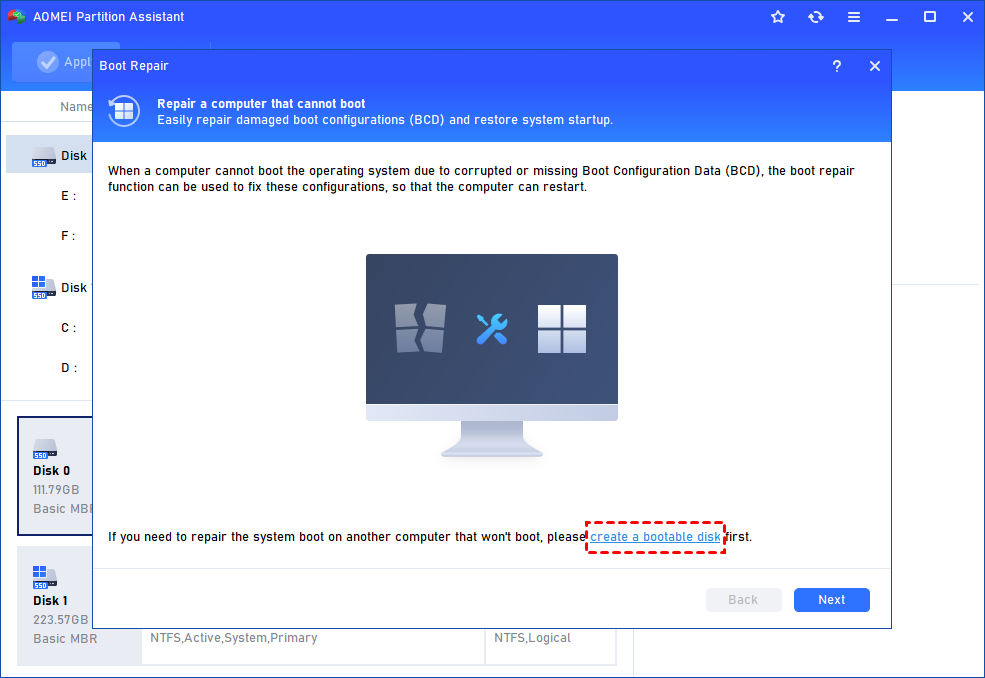
Step 4. Insert the created device into the problematic computer and boot from it. The Boot Repair tool will load automatically and begin scanning the system’s boot entries.
Step 5. After the scan, all detected boot entries will be displayed. Choose the ones that can be fixed and click “Repair”.
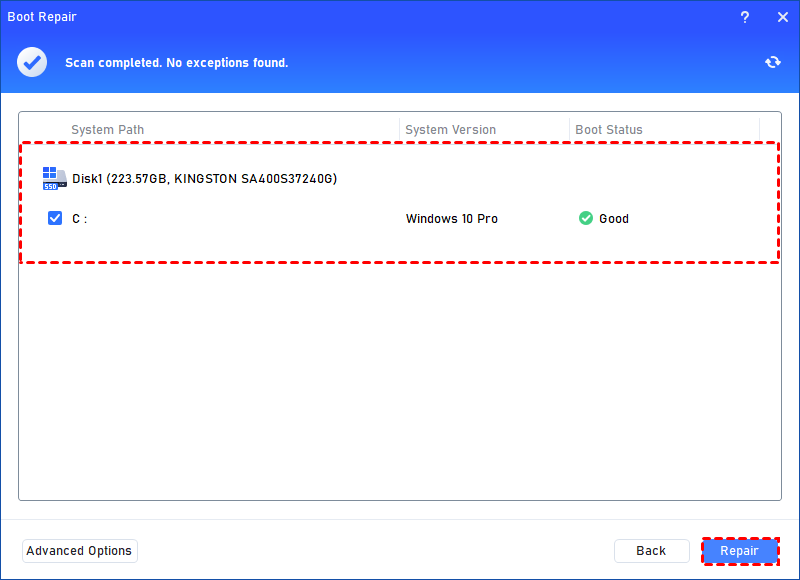
Step 6. Once the repair is complete, remove the bootable media and restart the computer from its original system drive.
Method 6: Format the Drive to Fix Severe Corruption
If the file system is destroyed, you must wipe the drive clean to make it usable again. Formatting the drive resets the file map completely.
Step 1: Make sure you have recovered your data using Method 5.
Step 2: Right-click the corrupted drive in AOMEI Partition Software and select Format Partition.
Step 3: Choose NTFS or exFAT from the file system menu and click OK.
Step 4: Click Apply and Proceed at the top left to wipe the drive clean. You can now use the drive normally.
Ending
A corrupted directory stops you from accessing your hard work. You can easily fix this communication block by repairing the file system map.
When the file or directory is corrupted and unreadable, your computer simply loses the path to your data. Native tools like CHKDSK and Windows Defender can clear out minor bugs and viruses. If the drive is heavily damaged, using AOMEI Partition Software is the best choice. It lets you recover your trapped files safely, check the hardware health, and format the broken drive so you can use it again.
FAQs
1. Does a corrupted directory mean my hard drive is dead?
Usually, no. A corrupted directory is almost always a software bug caused by pulling a USB drive out too fast or losing power. The physical hard drive is likely perfectly healthy. Once you repair the file system or format the drive, it will work normally again.
2. Will running CHKDSK delete my personal files?
The tool is designed to fix the file system without deleting your data. However, if a personal photo or document is saved directly on top of a bad health sector, the tool might block off that sector. This can cause that specific file to become corrupted or partially lost during the repair. You should always run data recovery software first.
3. Why does my external hard drive suddenly say it needs to be formatted?
This happens when the file system breaks completely and turns into a RAW drive. Windows cannot read a RAW drive, so it asks you to format it to create a new, readable map. You should decline the format prompt, use data recovery software to save your files, and then format the drive afterward.

 as a preferred
source on Google