




How to Fix Pagefile.sys Huge Issue on Windows 11/10
You may have come across a file named pagefile.sys, which is often reported to occupy a significant amount of space on the C drive. Follow this guide to learn how to fix it in several reliable ways.

By Hedy Updated on May 29, 2026


Do you keep seeing alerts that your computer is low on memory, prompting you to close programs? Or maybe your C drive is filling up due to a large pagefile.sys file. You might even find yourself restarting your PC every day—yet the issue keeps coming back.
What’s behind Windows consuming so much memory, and why does pagefile.sys grow so large? More importantly, how can you fix it? Keep reading to find practical solutions.
What is Pagefile.sys & Why is it so huge?
The pagefile is a virtual memory file stored on the C: drive by default. It remains hidden unless system files are set to be visible. When physical memory (RAM) starts running low, Windows relies on this file to maintain system performance.
Every active task—open applications, background processes, and files in use—is temporarily stored in RAM because it delivers much faster access than a hard drive. However, RAM has limited capacity. Once it begins to fill up, Windows shifts less frequently used data to pagefile.sys to free up space for active processes.
For instance, minimized browser tabs in Chrome may appear idle but still consume memory. Windows moves these inactive data segments into the pagefile, ensuring smoother performance for the tasks you are actively using. This continuous transfer is the reason the pagefile.sys file can grow significantly in size.
Now that the concept and purpose of pagefile.sys are clear, it becomes easier to understand its large size. Share this knowledge with others who might benefit, and explore the solutions that follow.
3 solutions to Pagefile.sys huge issue
Here are 3 effective solutions to fix the Pagefile.sys is huge issue on your Windows PC:
Way 1. Move Pagefile.sys to another drive
Follow these steps to relocate the pagefile.sys file and optimize system performance:
Step 1. Open Settings, then go to System > About.
Step 2. Under Related links, select Advanced system settings.
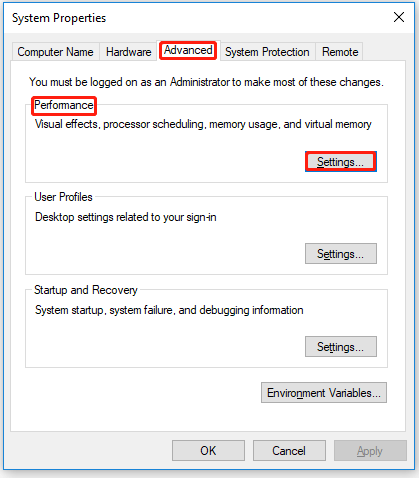
Step 3. In the System Properties window, switch to the Advanced tab. Under Performance, click Settings.
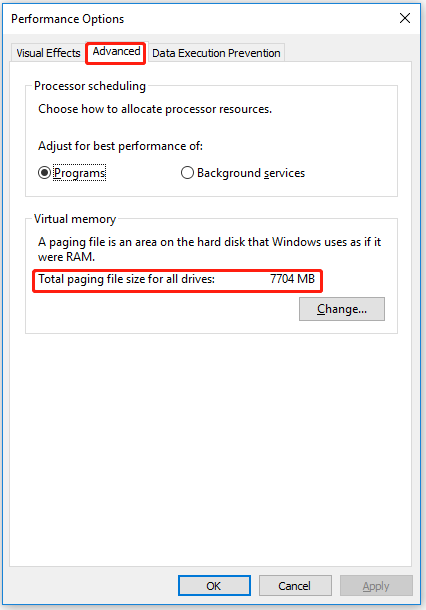
Step 4. In the Performance Options window, open the Advanced tab again. Under Virtual memory, click Change.
Step 5. Clear the checkbox for Automatically manage paging file size for all drives.
Step 6. Select the C: drive, then choose No paging file.
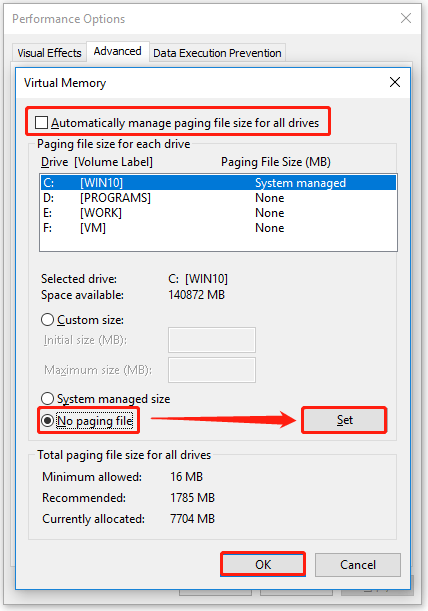
Step 7. Click Set, and confirm by selecting Yes when prompted.
Step 8. Choose the destination drive (for example, D:). Select System managed size, then click Set.
Step 9. Click OK, then Apply to save the changes.
Step 10. Restart your computer to complete the process.
Once restarted, Windows will generate a new pagefile.sys file on the selected drive, allowing virtual memory to function more efficiently and helping improve overall system performance.
Way 2. Expand C drive
Another effective solution is to increase the available space on the C drive, preventing pagefile.sys from becoming a concern. There are several ways to extend a partition, but one of the quickest and most convenient approaches is using a one-click feature.
A reliable option is AOMEI Partition Software, which allows you to automatically expand the C drive with minimal effort. This method simplifies the process, making it easy to allocate additional space and improve overall system performance without complex manual steps.
 AOMEI Partition Software
A safe and reliable disk partition management tool that helps you migrate OS to SSD or HDD, reorganize disk space, and improve overall PC performance.
Step 1. Download, install, and launch AOMEI Partition Software.
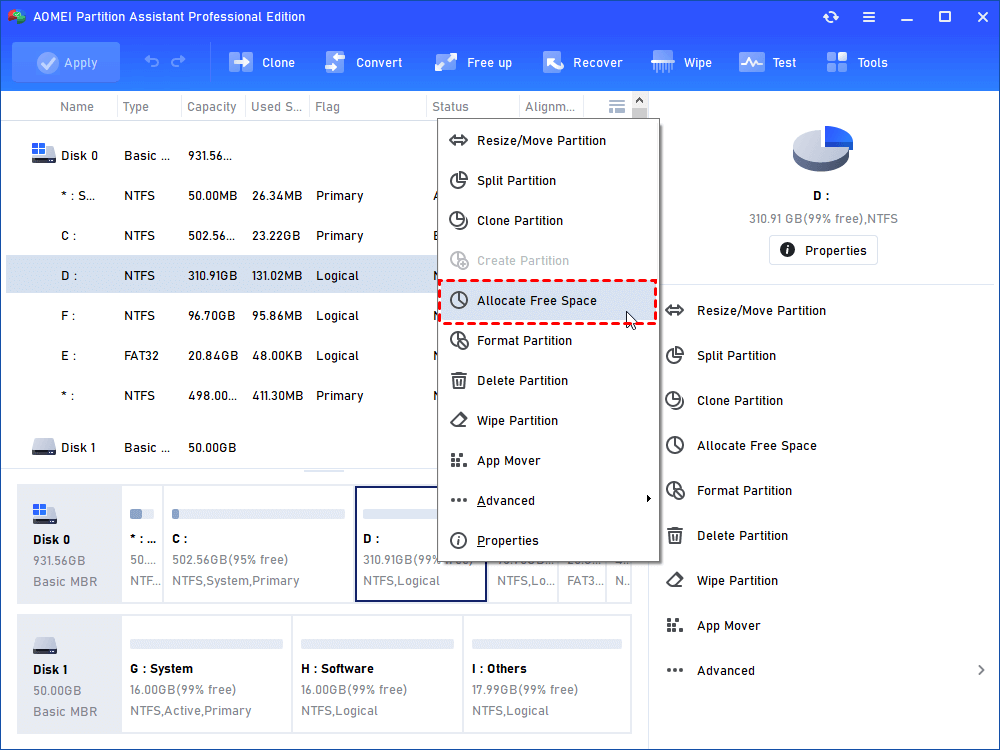
Step 2. On the visual disk map, right-click the partition that has plenty of free space (e.g., your D: drive) and select Allocate Free Space.
Step 3. A pop-up window will appear. Type in exactly how many GBs of space you wish to take from the D drive.
Step 4. In the drop-down menu below, choose to assign that free space to your C: drive.
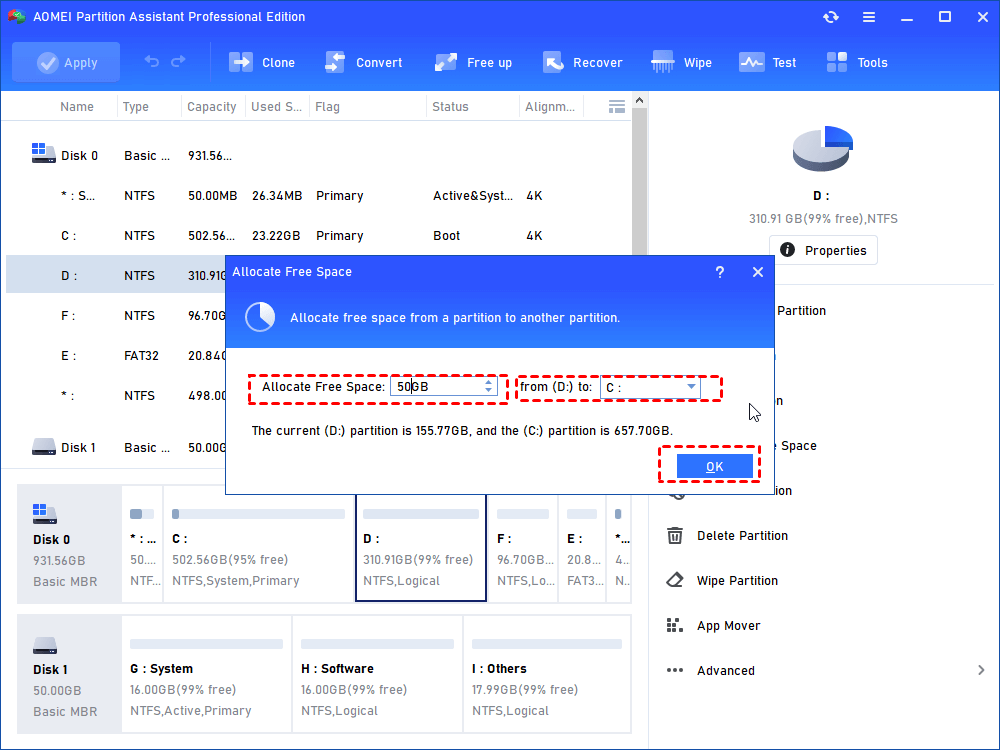
Step 5. Click OK. Then, click Apply and Proceed in the top-left corner of the software.
Way 3. Reduce Pagefile.sys Size
Instead of removing the pagefile entirely, resizing it can help enhance system speed while maintaining stability. Follow these steps:
Step 1. Type Adjust the appearance and performance of Windows in the search bar and open Performance Options.
Step 2. Go to the Advanced tab and locate the Virtual Memory section. Click Change.
Step 3. In the Virtual Memory window, uncheck Automatically manage paging file size for all drives.
Step 4. Select the system drive (usually C:). Choose Custom size, then set both the Initial size and Maximum size based on the recommended value shown under Total paging file size for all drives. Click Set.
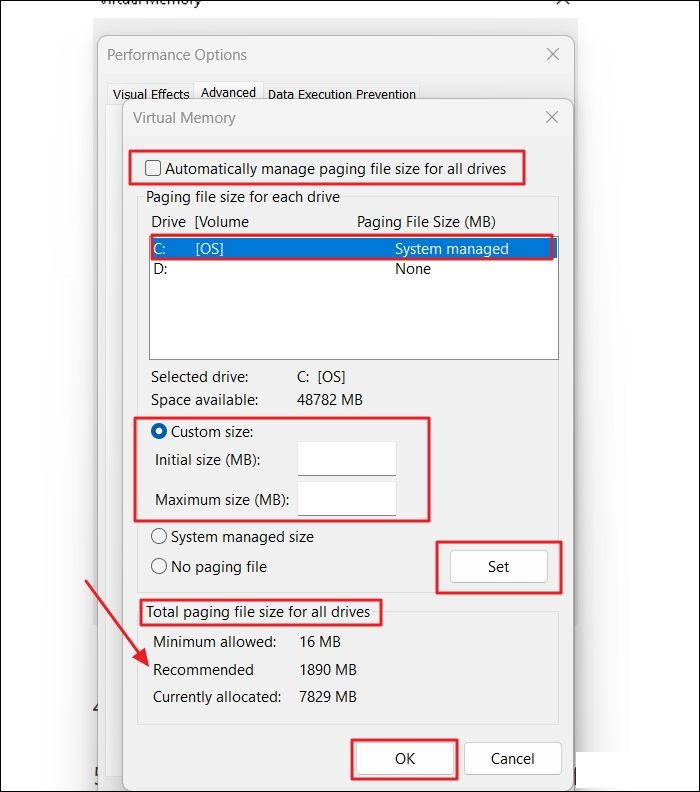
Step 5. Click OK to apply the changes, then restart your computer.
After rebooting, the adjusted pagefile size will help balance memory usage more efficiently, leading to smoother overall performance.
Is it OK to disable/delete Pagefile.sys?
Turning off or deleting pagefile.sys is generally not recommended, even if the file appears unusually large. Its size alone does not harm system performance.
In fact, disabling it can lead to serious problems. Without a pagefile, the system loses its backup memory when RAM is fully utilized. As a result, applications may crash, freeze, or fail to run properly. In some cases, overall system responsiveness may even decline instead of improving.
FAQs
★ Is Pagefile.sys safe to delete?
Can I delete Pagefile.sys safely? No, deleting pagefile.sys is not recommended. It serves as virtual memory. Removing it can cause system instability, crashes, or errors when RAM is fully used.
★ Why is my pagefile.sys over 20GB?
It grows large when your system uses heavy applications, has high RAM demands, or Windows automatically adjusts its size based on workload and memory usage.
★ Does pagefile.sys affect SSD lifespan?
Minimally. Modern SSDs are designed for high endurance. Normal pagefile usage has little impact, though excessive swapping over long periods may slightly contribute to wear.
★ What happens if I set pagefile too small?
If too small, your system may run out of virtual memory. This can lead to application crashes, system slowdowns, or error messages when RAM usage exceeds available memory.
★ Is it better to let Windows manage it?
Yes, for most users. Windows automatically adjusts pagefile size based on system needs, ensuring optimal performance and stability without requiring manual configuration.
Conclusion
In conclusion, pagefile.sys is a critical component of Windows memory management, not a problem to eliminate. Its large size simply reflects how your system handles limited RAM. Instead of deleting it, consider smarter solutions like moving, resizing, or expanding your drive. By managing it correctly, you can maintain system stability, improve performance, and avoid recurring low-memory issues without risking crashes or slowdowns.

 as a preferred
source on Google
as a preferred
source on Google