



Fixed: Hard Drive Won't Boot Windows 10 [7 Ways]
Hard drive won’t boot Windows 10? Why does this happen and how to fix it? In this guide, you will know the possible factors and learn how to fix hard drive not booting issue easily and safely.

By Hedy Updated on May 29, 2026


Automatically fix Windows 10 won't boot with hard drive
For users with limited technical experience, using professional third-party software is often the easiest and most reliable way to resolve boot-related problems. AOMEI Partition Software includes a dedicated Boot Repair feature designed to quickly fix a wide range of startup issues.
This tool can automatically detect and repair problems that may prevent a computer from booting properly, including incorrect boot order settings, outdated chipset configurations, damaged disk drivers, and other unexpected system errors. With its one-click repair process and user-friendly interface, AOMEI Partition Software provides a much simpler solution compared to performing complex manual troubleshooting steps.
 AOMEI Partition Software
A safe and reliable disk partition management tool that helps you migrate OS to SSD or HDD, reorganize disk space, and improve overall PC performance.
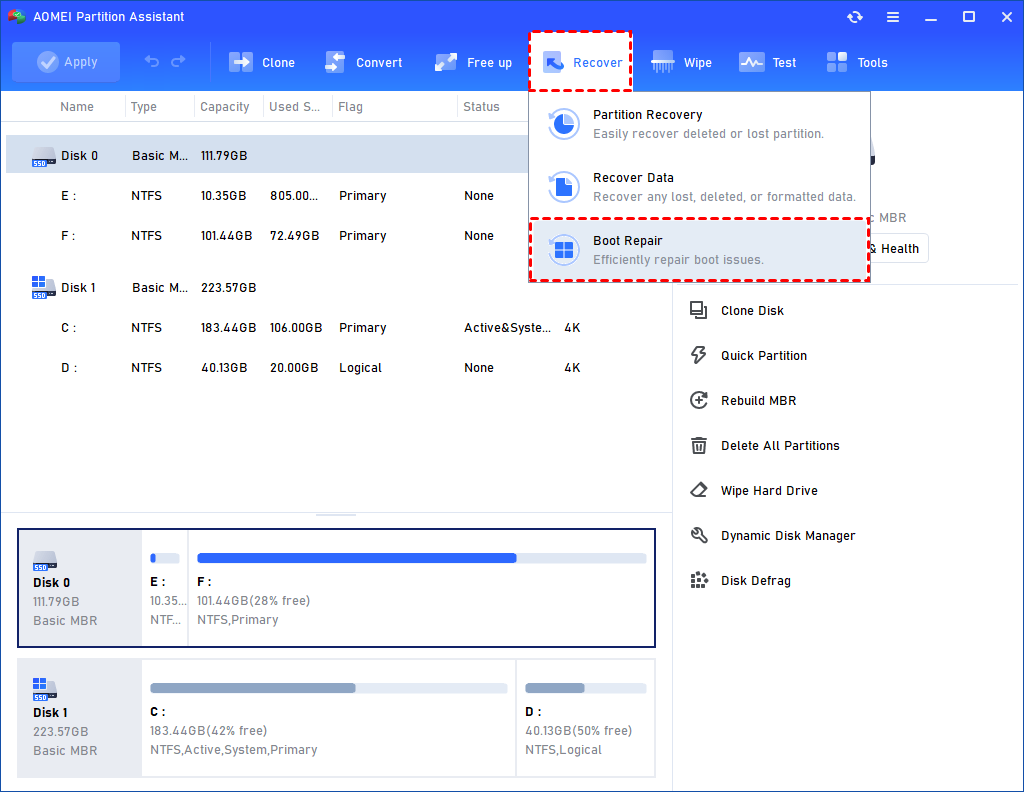
Step 1. Install and launch AOMEI Partition Software. In the Main Tab, please click the "Recover" tab and select "Boot Repair".
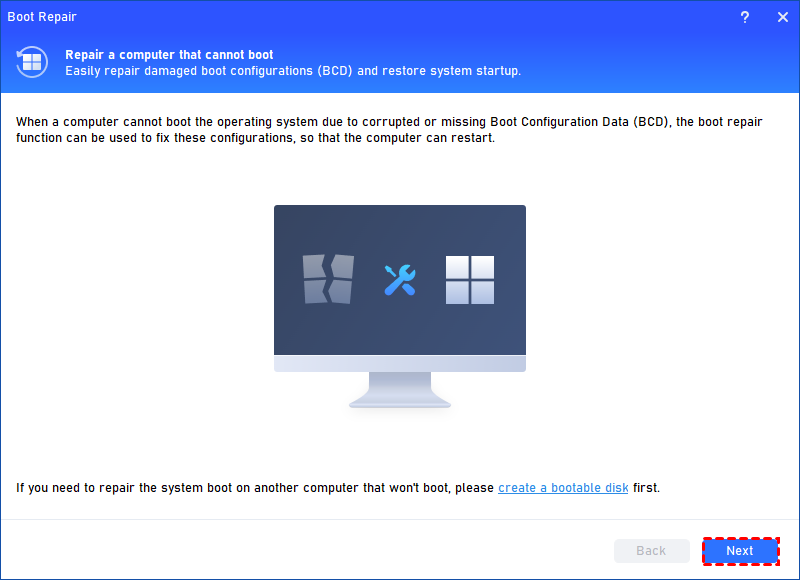
Step 2. The Boot Repair tool will pop up. If you have created a bootable media beforehand, please click "Next" to start the system’s boot entries scan process. If not, please follow the instructions to create one.
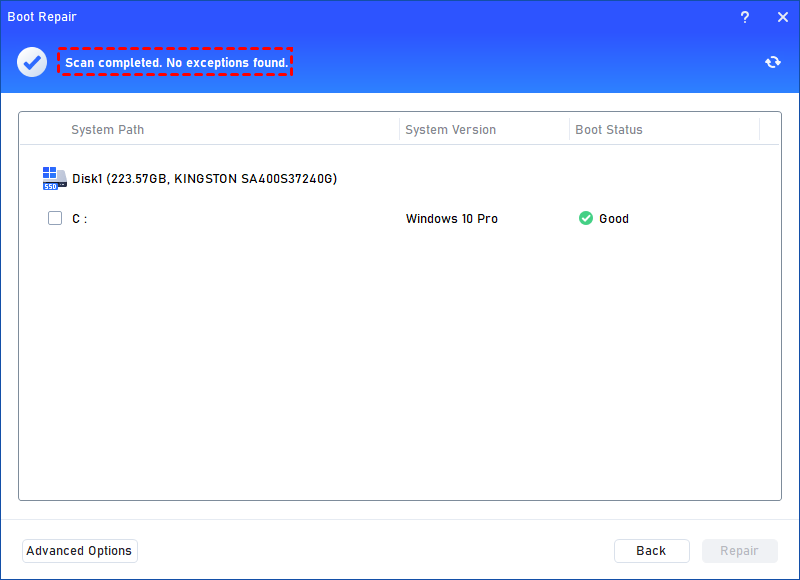
Step 3. After the process is completed, it will display the scan result: system paths, system versions, and boot status. And, all repairable boot entries will be available to select.
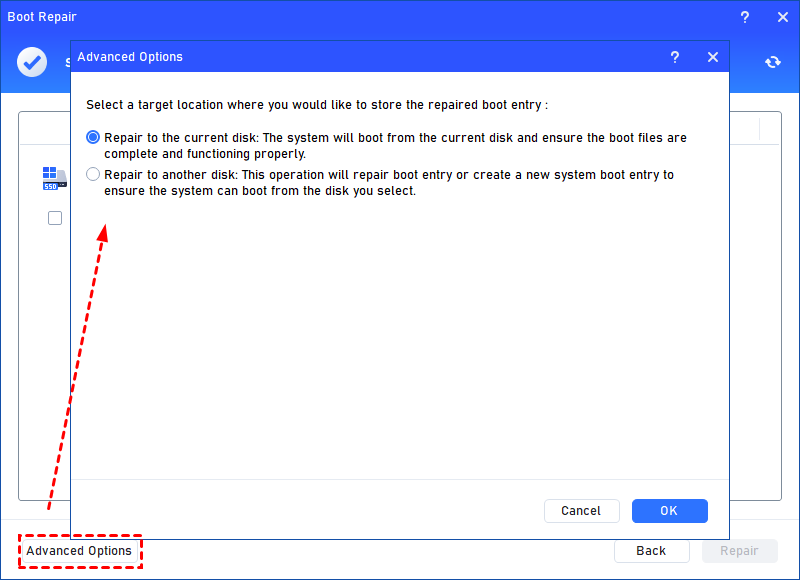
Advanced Settings: Select a location to store the repaired boot entry.
◆ Repair to the current disk: The system will boot from the current disk and ensure the boot files are complete and functioning properly. (By default)
◆ Repair to another disk: This operation will repair the boot entry or create a new system boot entry to ensure the system can boot from the disk you select.
Step 4. Select one/multiple repairable boot entries you want to repair and click the "Repair" button to start the boot repair.
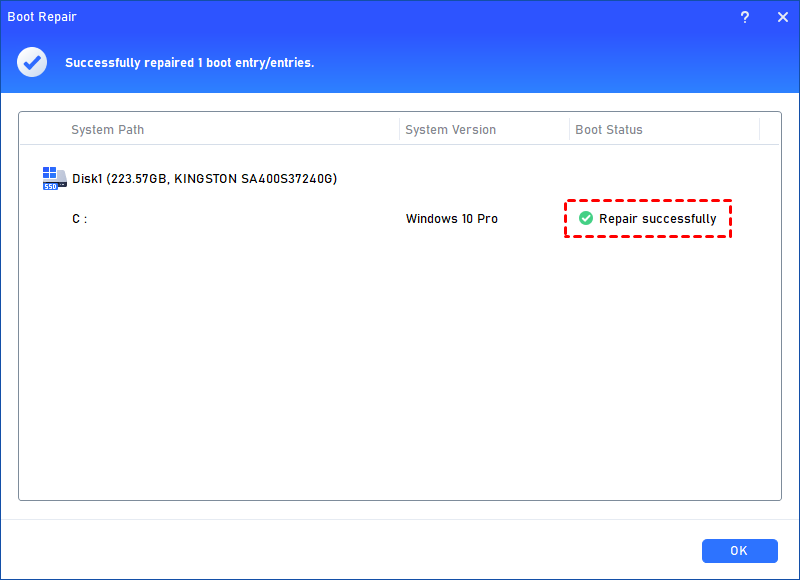
Step 5. Wait for the repair process to finish. Once it is finished, you can check the repair result. If it succeeds, you will get a "Repair Successfully" result.
How to fix Windows 10 won't boot with hard drive manually
If your Windows 10 or Windows 11 PC fails to boot after installing a second hard drive, there are several manual troubleshooting methods you can try besides automatic repair tools. Below are seven practical solutions that may help resolve the issue. Follow them one by one until your computer starts normally again.
Fix 1. Ensure the boot drive order is correct in the BIOS
The first thing you should check is whether the correct startup drive is set as the primary boot device in BIOS. If the newly installed hard drive changes the boot sequence, your computer may fail to load Windows properly.
Follow these steps to change the boot order in BIOS:
Step 1. Power on the computer and repeatedly press the BIOS hotkey, such as F2, Del, or another key specified by your device manufacturer, before Windows starts loading. This will open the BIOS setup screen.
Step 2. Go to the Boot tab, locate your system drive, and use the arrow keys together with the + key to move it to the top of the boot priority list.
Step 3. Press F10, then hit Enter to save the changes and exit the BIOS Setup Utility.
Fix 2. Check the connection between the computer and the hard drive
A loose or improperly connected hard drive can also prevent the computer from booting correctly after installing a second drive. To rule out connection issues, check whether the SATA and power cables are securely attached.
Step 1. Shut down the computer completely and remove the battery if you are using a laptop with a removable battery.
Step 2. Open the computer case with a screwdriver and carefully disconnect the second hard drive.
Step 3. Inspect the SATA cable and power cable for loose connections, damage, or faults.
Step 4. Reinstall the hard drive and firmly reconnect all cables to ensure they are properly secured.
Fix 3. Update your motherboard and disk drivers
Updating the chipset driver or disk driver can also help fix the hard drive detected in bios but won’t boot issue. In many cases, outdated or incompatible drivers may prevent the system from recognizing the newly installed drive correctly during startup.
Follow these steps to update the disk driver:
Step 1. Press Win + X to open the quick access menu, then select Device Manager.
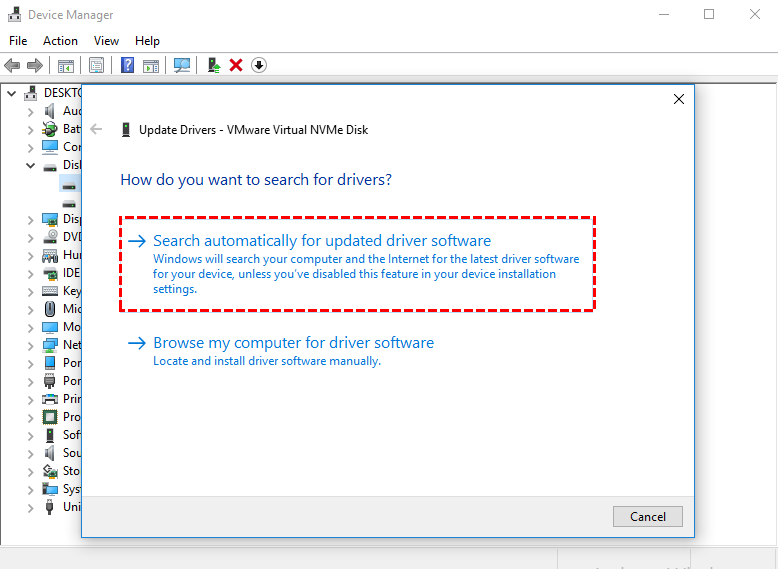
Step 2. Expand the Disk Drives category, locate the second SATA hard drive, right-click it, and choose Update Driver.
Step 3. In the pop-up window, select Search automatically for drivers and follow the on-screen instructions to download and install the latest available driver.
Fix 4. Run Startup Repair
If essential system or boot files become corrupted after installing a second hard drive, Windows may fail to start normally. In this situation, you can use Windows installation media, such as a bootable USB drive or installation disc, to run Startup Repair and fix the hard drive not booting Windows 10 issue automatically.
Follow these steps to perform a boot repair using Windows installation media:
Step 1. Insert the Windows installation USB or disc into the computer and boot the PC from that device. When prompted, press any key to boot from the installation media.
Step 2. Choose your preferred language and continue to the Install Now screen. Instead of installing Windows, click Repair your computer to access recovery options.
Step 3. Select Troubleshoot > Advanced Options > Startup Repair.
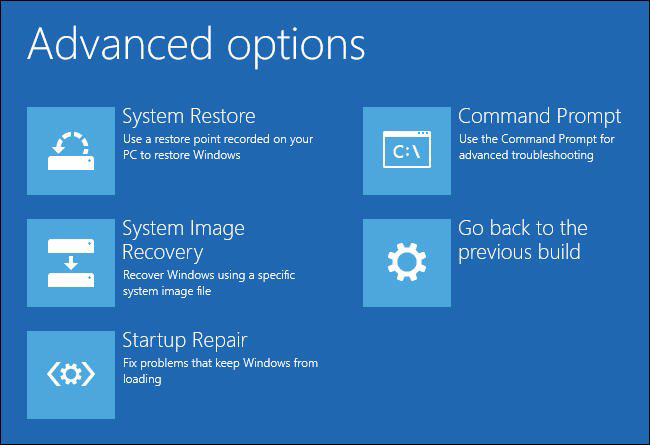
Step 4. Windows will automatically scan for startup-related problems and attempt to repair them. After the process finishes, restart the computer and check whether the system boots successfully.
Fix 5. Check the hard drive for problems
If the newly installed hard drive is corrupted or physically damaged, your computer may fail to boot properly after adding it. Running the CHKDSK utility can help detect and repair file system errors or bad sectors on the drive.
Follow these steps to check and repair the hard drive:
Step 1. Type cmd in the Windows search box. Right-click Command Prompt and select Run as administrator.
Step 2. In the Command Prompt window, enter the following command and press Enter:
chkdsk e: /f /r /x
Replace e with the actual drive letter of the hard drive you want to scan.
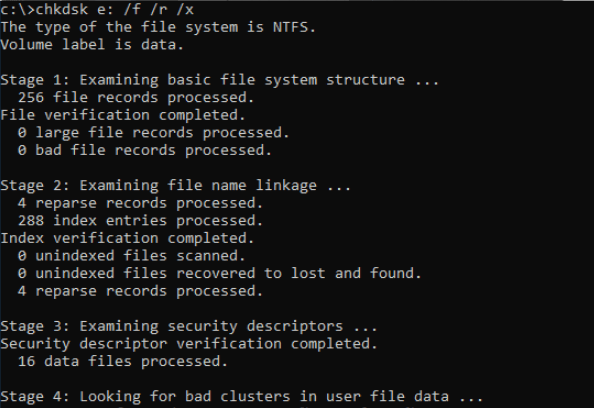
Step 3. Type Y when prompted, then restart the computer. Windows will automatically check and repair the hard drive during the next system startup.
Fix 6. Format the hard drive
Some users have reported that formatting the second hard drive helped resolve the hard drive won’t boot Windows 10 Dellissue successfully. If the drive contains corrupted partitions or an unsupported file system, reformatting it may restore normal functionality.
⚠️ Important: Formatting will erase all data stored on the selected drive. Make sure to back up important files before proceeding.
Step 1. Press Win + R to open the Run dialog box, type diskpart, and press Enter. When prompted, click Yes to allow administrator access.
Step 2. Enter the following commands one by one and press Enter after each command:
list disk
select disk 1
list volume
select volume 1
format fs=ntfs quick

Replace n with the number of the second hard drive and replace m with the partition number you want to format.
If you need the drive to use the FAT32 file system instead, run this command instead:
format fs=fat32 quick
Fix 7. Change another hard drive
If the “computer won’t boot after installing a second hard drive” issue still remains after trying all the previous methods, the hard drive itself may be faulty or physically damaged. In this situation, replacing the drive with a new one is usually the most effective solution.
You can also contact the hard drive manufacturer or a professional repair service for further diagnosis and assistance. If the device is still under warranty, consider reaching out to the official support team for repair or replacement options.
Why hard drive won't boot Windows 10?
A hard drive may fail to boot Windows 10 for many different reasons, ranging from simple configuration issues to serious hardware damage. When this happens, your computer may display errors like “Operating System Not Found”,a black screen, endless loading, or automatic repair loops.
Here are the most common causes of a Windows 10 hard drive not booting:
1. Corrupted boot files
Windows relies on important boot files such as the BCD (Boot Configuration Data), MBR, or EFI files to start correctly. If these files become damaged due to improper shutdowns, failed updates, malware, or power outages, Windows may no longer boot.
2. Hard drive failure
A failing HDD or SSD is one of the most serious causes. Bad sectors, aging hardware, overheating, or physical damage can prevent the drive from reading system files properly.
3. Incorrect BIOS/UEFI Settings
If the BIOS cannot detect the drive or the boot order is incorrect, the system may attempt to boot from another device instead of the Windows drive.
4. Corrupted Windows system files
Missing or damaged system files can stop Windows from loading. This often happens after failed Windows updates, malware infections, sudden shutdowns, or driver conflicts.
FAQS
📍 Why won't my computer boot after installing a second SSD?
Installing a second SSD may change the boot order or boot files. The BIOS might detect the new SSD first, preventing Windows from loading from the original drive.
📍 How do I boot Windows 10 from a second hard drive?
Enter BIOS/UEFI settings, set the second hard drive as the primary boot device, save changes, and restart. Ensure Windows is properly installed on the second drive.
📍 Can a hard drive cause a PC not to boot?
Yes. A faulty or damaged hard drive can prevent a PC from booting by causing missing system files, boot errors, or hardware detection problems during startup.
Conclusion
In conclusion, Windows 10 boot issues after installing a second hard drive are usually caused by incorrect BIOS boot order, loose connections, outdated drivers, or corrupted system and disk files. You can resolve the problem using tools like Startup Repair, CHKDSK, or professional software such as AOMEI Partition Software. If all fixes fail, the hard drive may be faulty and require replacement or professional inspection.

 as a preferred
source on Google
as a preferred
source on Google