




Failed to install AOMEI Backupper
Solutions for installing failure of AOMEI Backupper

By Ivy Updated on December 1, 2025


Failed to install AOMEI Backupper
This article applies to: AOMEI Backupper, all versions
Introduction:
When you try to install a new version of AOMEI Backupper with the old version uninstalled, you may receive these messages below:
Message 1:
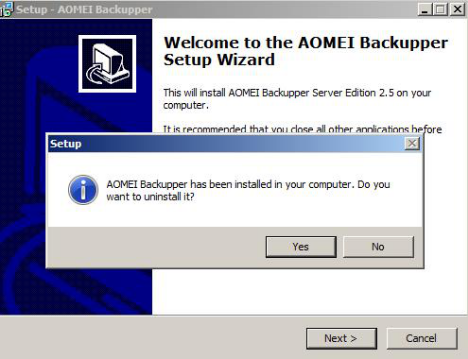
You repeatedly get the message: "AOMEI Backupper has been installed on your computer. Do you want to uninstall it?"
Message 2: When installing the new version, an error occurred while trying to rename a file in the destination directory: Move File Failed: code 183:Cannot create a file when that file already exists.

Message 3: When installing the new version, an error occurred while trying to replace the existing file: Delete File Failed:
code 5: Access is denied.
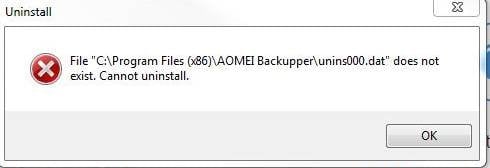
Message 4: When uninstalling the previous version, File "C:\Program Files(x86)\AOMEI Backupper\uninsooo.dat” does not exist. Cannot uninstall
These messages appear because the previous version of AOMEI Backupper has not been uninstalled completely when installing new version.
Solutions:
Method 1: for Message 2, please press Win+R to open Run box, type “CMD” to open the command prompt window, then switch to the installation directory of the software(cd C:\Program Files (x86)\AOMEI Backupper), then run “ABservice.exe –remove”. After that, please install it again.
Method 2: Please check the following items:
1. If the AOMEI Backupper folder still exists in the installation directory, please manually delete it (generally, it is under C:\Program Files (x86)). To do this, you need to close ABService.exe under Progress via Windows Task Manager. To close it, you might first need to stop “Backupper Service” under Services in Windows Task Manager. You can press Ctrl-Alt-Delete from anywhere, and you’ll see a link to start Task Manager. You can also right-click the taskbar and select “Task Manager.”
2. You also need to check and delete something in the Registry. Please press Win+R to open Run box, then type "regedit" in the box to open Registry.
(1)Locate the following and delete them:
Note: Please copy and paste the path to locate the file.
For 32 32-bit system:
HKEY_LOCAL_MACHINE\SOFTWARE\Microsoft\Windows\CurrentVersion\Uninstall\AOMEI Backupper
For 64 64-bit system:
HKEY_LOCAL_MACHINE\SOFTWARE\WOW6432Node\Microsoft\Windows\CurrentVersion\Uninstall\AOMEI Backupper
HKEY_LOCAL_MACHINE\SYSTEM\CurrentControlSet\services\ambakdrv
HKEY_LOCAL_MACHINE\SYSTEM\CurrentControlSet\services\ammntdrv
HKEY_LOCAL_MACHINE\SYSTEM\CurrentControlSet\services\amwrtdrv
(2) Locate the following path, and then delete the "amreboot" value.
Note: Please copy and paste the path to locate the file.
For 32-bit system:
HKEY_LOCAL_MACHINE\SOFTWARE\WOW6432Node\Microsoft\Windows\CurrentVersion\RunOnce
For 64-bit system:
HKEY_LOCAL_MACHINE\SOFTWARE\Microsoft\Windows\CurrentVersion\RunOnce
(3)Locate the following path, and then select and right-click "UpperFilters"-->Modify-->delete the "ambakdrv" value.
Note: Please copy and paste the path to locate the file.
HKEY_LOCAL_MACHINE\SYSTEM\CurrentControlSet\Control\Class\{71A27CDD-812A-11D0-BEC7-08002BE2092F}
If there are still any problems, please contact our AOMEI Support Team.

 as a preferred
source on Google
as a preferred
source on Google