




SD Card is Blank or Has Unsupported File Systems? 6 Fixes That Work
SD card is blank or has unsupported file system? Here are 6 fixes to try - plus a way to recover your data if needed. Let's walk through them.

By Ivy Updated on July 1, 2026


Why does my SD card say blank or unsupported files?
“Is there any way to get my memory card files back? My phone displays the following notification: SD card blank or has unsupported file system. Are you sure want to format the SD card? All data on your card will be lost! Why does my SD card say blank or unsupported files? Moreover, how can I fix this issue? Thanks.” – A user from XDA. Developers
You insert your SD card into your phone or laptop, open File Explorer, and wait. But instead of your files — you see it: "SD card is blank or has an unsupported file system."
No files. No explanation. Just an error message that seems to say your data is gone.
It's frustrating. But it's not the end of the road. This error is surprisingly common, and it's often the result of RAW file systems, bad sectors, logical damage, or even viruses - all of which are fixable.
The good news? There are several ways to fix it. In this guide, we'll walk you through the most effective solutions step by step.
How do I fix my SD card blank or has unsupported file systems?
You've got the error — now here are 6 ways to fix it. Here's how to resolve the "SD card is blank or has unsupported file systems" error and get your card working again.
Fix 1. Restart the device
The easiest way is to reboot the device first. Rebooting the device will solve most of the problems and may also fix the SD card blank.
» Please turn off the device > reboot the device, and see if the SD card starts working.
Fix 2. Show hidden files, folders, and drivers
If you’ve inserted the SD card into another device, you may have left some hidden files on the SD card. This could be incompatible with the current system. To fix this problem, please check and delete these hidden files via the following steps.
Step 1. Type “Control Panel” in the search bar to open it. Then, go to Appearance and Personalization.
Step 2. Under the File Explorer Options tab, select the “Show hidden files and folders” option.
Step 3. Tick Show hidden files, folders, and drivers and click “Apply” to save these changes.
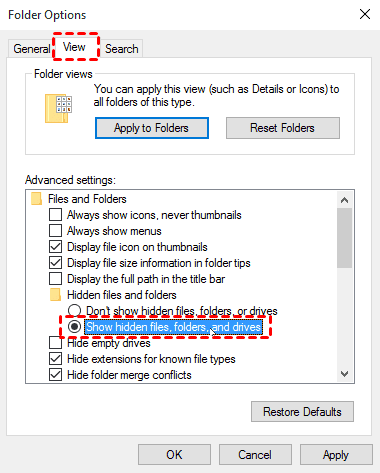
If there’re hidden files, please remove them from your SD card.
Fix 3. Run CHKDSK on SD cards
If there exist bad sectors on your SD card, it also may become blank or has unsupported file systems. Please run CHKDSK with /f, /r, /x, or /b parameters to repair errors on the volume because CHKDSK can only display the volume status and cannot fix any errors. Then you can perform SD card recovery.
Step 1. Connect your SD card to Windows via the SD card reader. Then type “cmd” in the search bar and select “Run as administrator” to open the window.
Step 2. Type “chkdsk F: /f /r /x” in the command prompt window. Please remember to replace F with the real drive letter of your SD card.
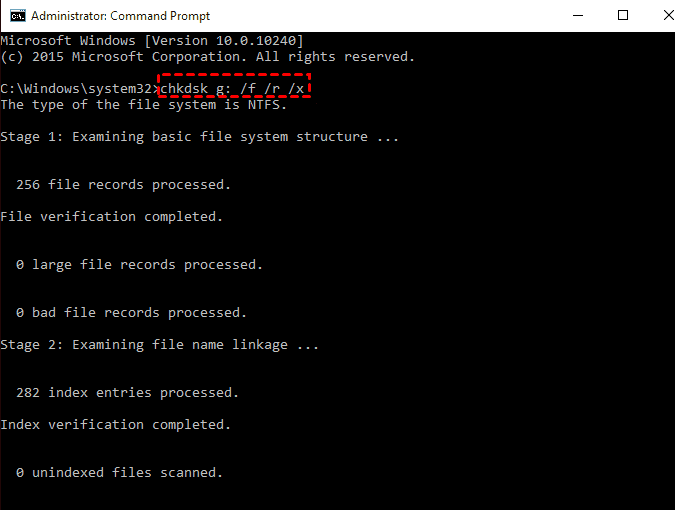
Please wait to see this notice: Windows has made corrections to the file system.
Fix 4. Run the Disk Check utility
If your SD card is blank or has unsupported file system, you can also run the Windows Disk Check utility to scan and repair errors on your SD card.
Step 1. Connect the SD card to your Windows PC. Open This PC or My Computer and right-click on your connected SD card > select Properties.
Step 2. Under the Tools tab, click the “Check” button.
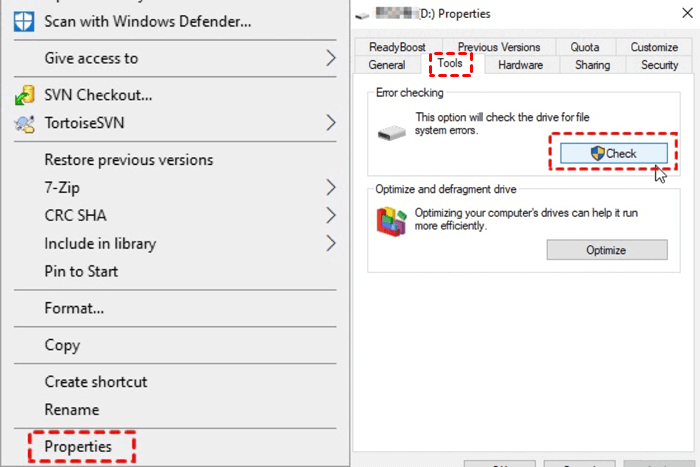
Step 3. Click the “Repair drive” button.
Fix 5. Run a full scan to remove detected viruses and malware
Malware or virus is also blamed for this issue. So you can make good use of Windows Security to remove ransomware viruses and malware as it constantly scans for malware, viruses, and security risks. Also, it will automatically download updates to keep your device safe and secure.
Step 1. Press “Win + I” to open Windows Settings and go to Update > Security > Windows Security > Virus & threat protection.
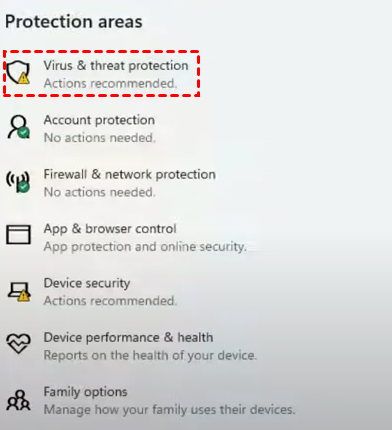
Step 2. Click the “Scan options” button.

Step 3. Select “Full scan” and click “Scan now” to begin scanning.
Fix 6. Format the SD card via Disk Management
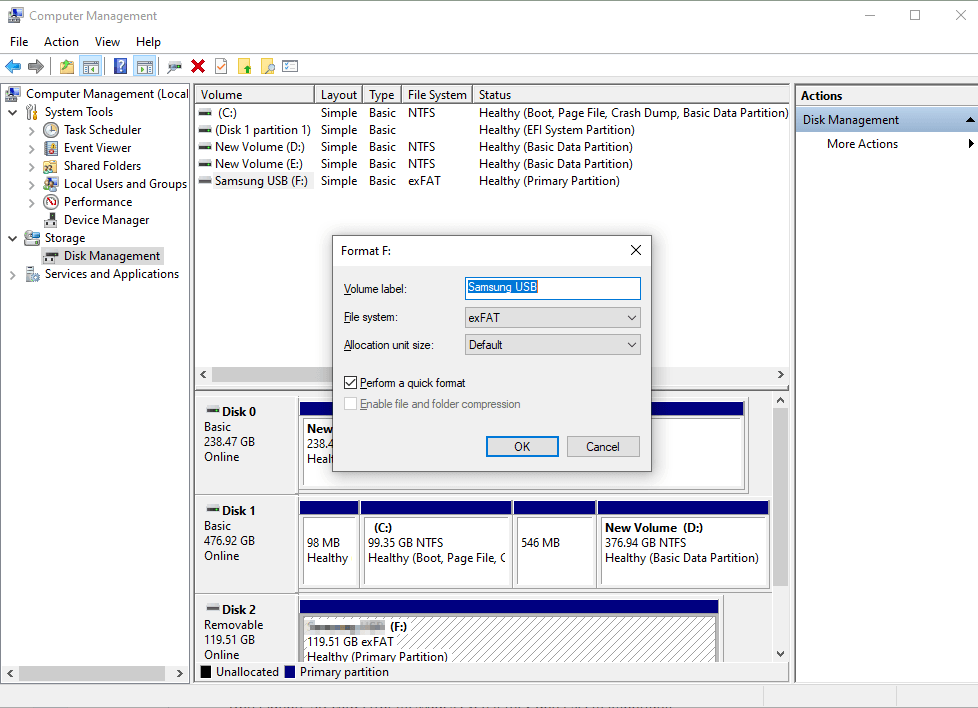
If the above fixes are useless, you can format the SD card via Disk Management because this Windows system tool is good at executing advanced storage tasks. It can also recover hidden partitions in Windows 7, 8, 10, or 11.
Step 1. Connect your SD card to Windows. Then press “Win + X” and select “Disk Management” to open this utility.
Step 2. Right-click on your SD card and click the “Format” button.
Step 3. Select the NTFS file system and click “OK” to save your changes.
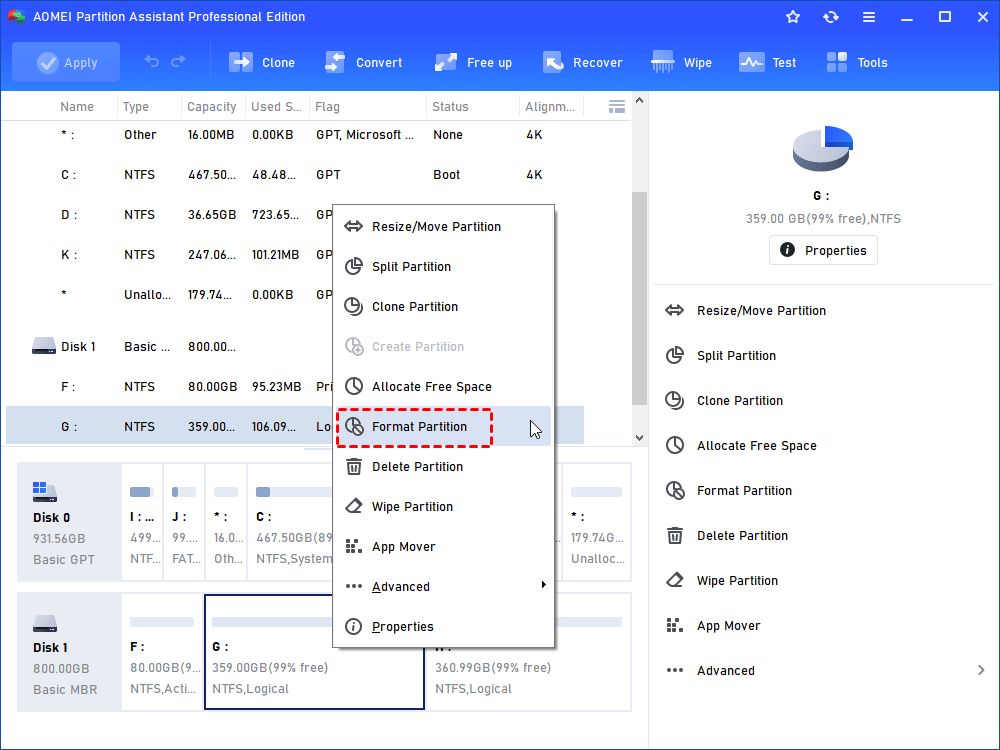
AOMEI Partition Assistant is a professional partition recovery software that can format and convert file systems as well. Here's how:
- Open AOMEI Partition Assitant after installing.
- Right-click on the selected SD card and select the “Format Partition” option.
- Select the FAT32 file system and click the “OK” button. At last, click“Apply” to save these changes, just wait patiently.
SD Card Still Accessible? Recover Data First, Fix It Later
The "SD card is blank or has unsupported file system" error usually means your card turns to RAW. When that happens, recovery software is your best option and FastRecovery is built for exactly this situation.
It can scan both healthy and damaged SD cards, whether formatted or RAW, and recover what matters. Simple interface, flexible recovery options, and no guesswork.
AOMEI FastRecovery- Dual-scan modes: Integrate Quick Scan and Deep Scan to scan hard drive for deleted files, ensuring a high success rate.
- 1000+ data types: Recover deleted or lost documents (TXT, DOC, XLSX, CSV), images (JPG, PNG, TIF, HEIC, GIF), videos (MP4, MOV, AVI, ASF, WMV), and more.
- Find your files fast: Browse by type or path; Sort, search, filter, and preview files before recovery
- Brand compatibility: Works seamlessly with SanDisk SD cards, as well as Kingston, Lexar, PNY, Sony, Transcend, and more.
- Free to try: The free edition can recover data up to 500MB – no commitment required.
- Safe & easy to use: Read-only, no data overwriting. simple, intuitve interface.
 100% Secure
Now, click the download button to get started. You can use it on Windows 11, 10, 8.1, 8, 7, and Windows Server, either 32-bit or 64-bit.
-
Don't download and install FastRecovery on the SD card where you store deleted files, as this may cause data to be overwritten.
-
Any newly added data or disk formatting can overwrite data. Please avoid these operations after deletion.
Step 1. Connect the SD card to your Windows PC. After launching FastRecovery, click Deleted Files Recovery, specifically designed for quick recovery. Or click USB/SD Card Recovery for complete recovery.

Step 2. Hover the mouse over your connected SD card and click Scan.
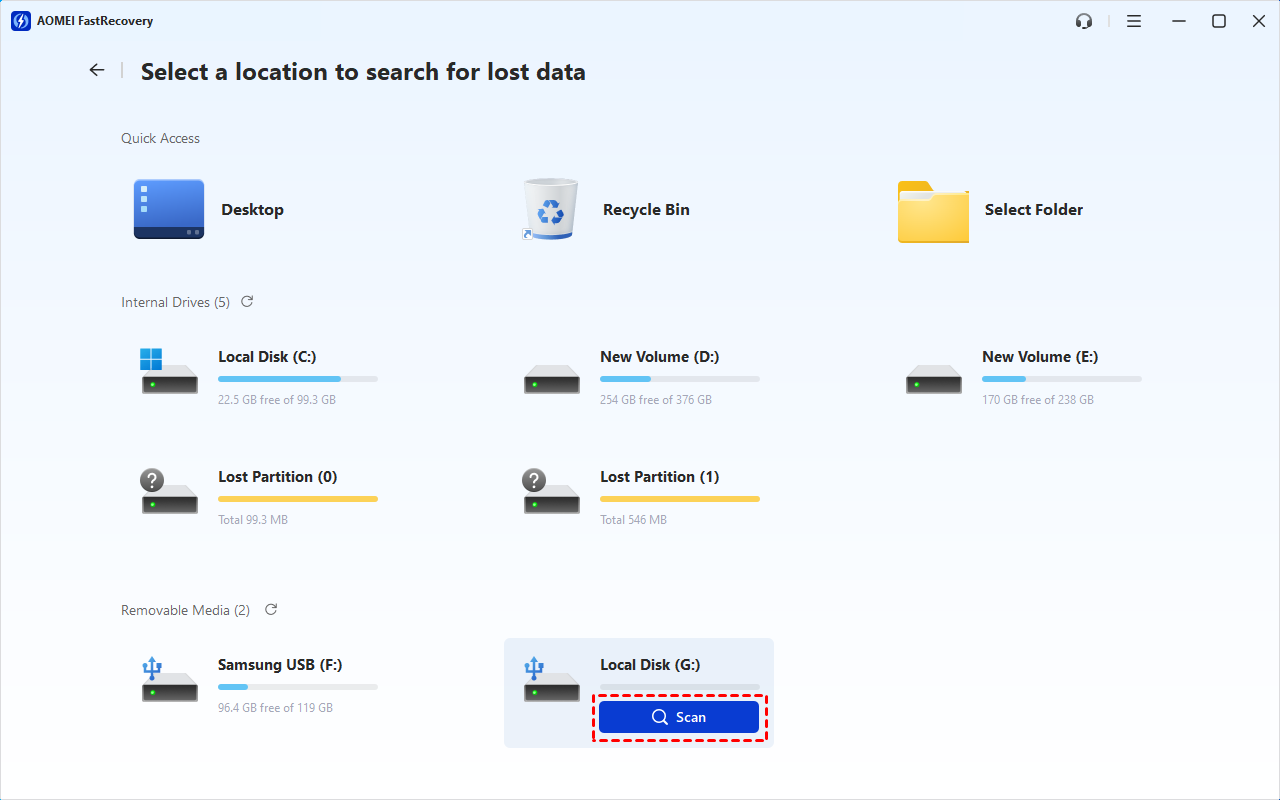
Step 3. It will start a quick scanning process automatically. Wait, and in the scanning result window, check Images, Videos, etc., data type and specific formats.
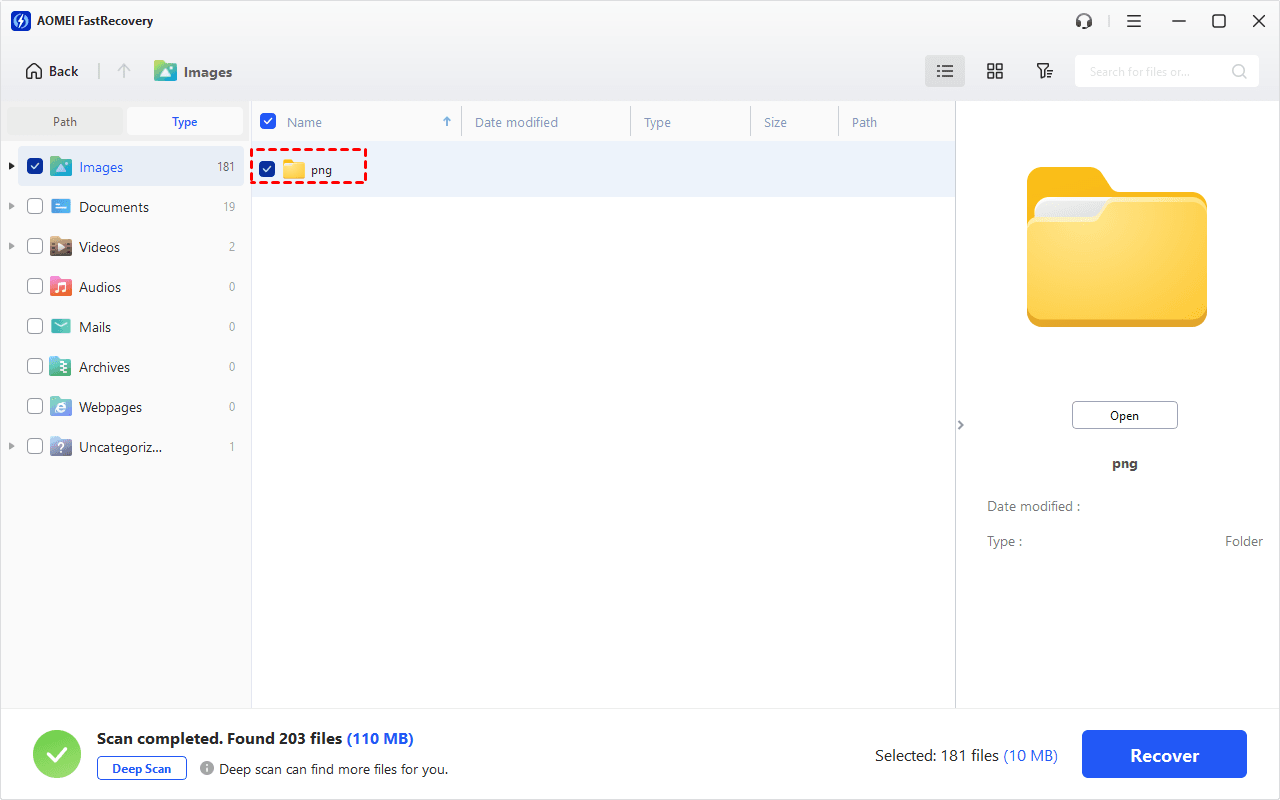
You can also expand to check Deleted Files, Recycle Bin, or Existing Files for specific files. To find files quickly, combine the following options:
-
Sort files by name, date modified, type, etc., using the column headers.
-
For faster searching, type the file name or extension (.png, .mp4) in the search box.
- Or click the funnel-shaped button to narrow your search by type or size, especially useful for large deleted files.
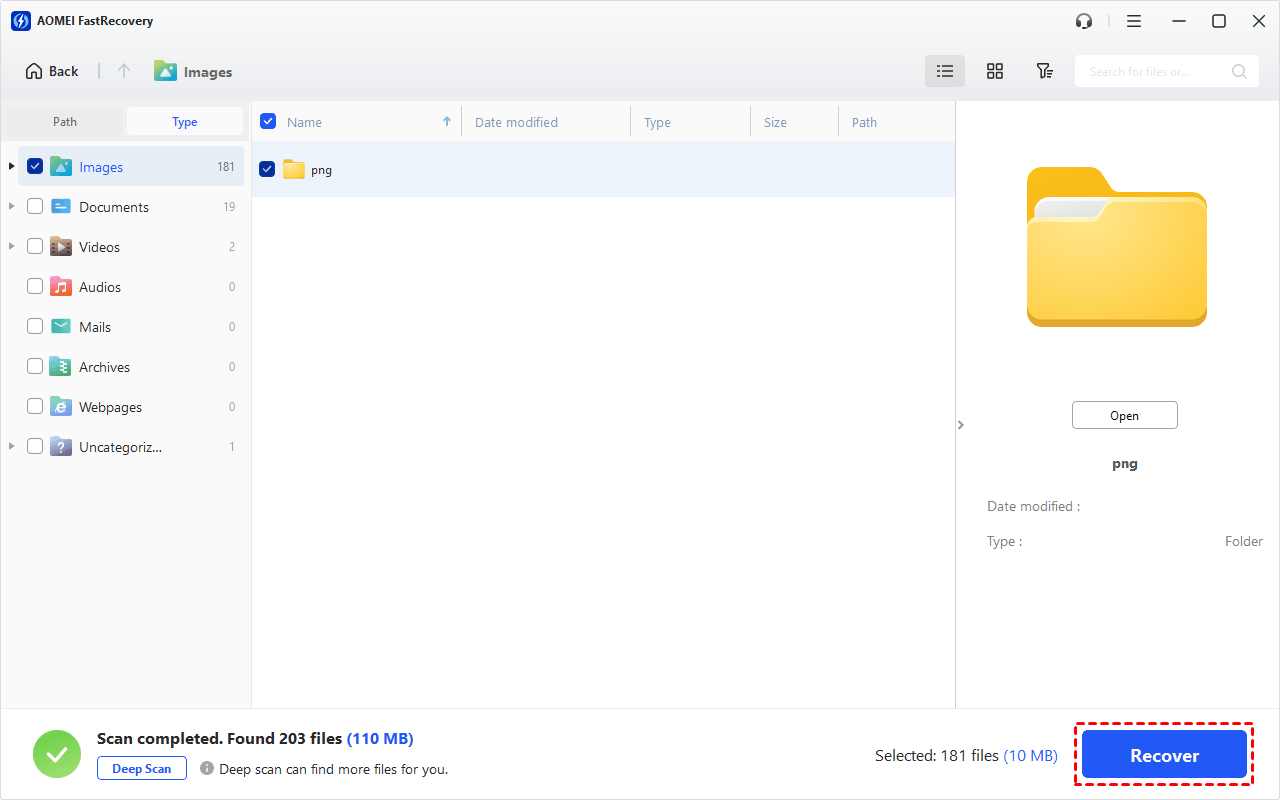
Step 4. Once found, double-click to preview files and select what you want. Then, click Recover and select a new location to get your data on the SD card back quickly.
-
Don't save recovered data to the original SD card, as it may avoid data overwriting.
-
The Free version can recover data up to 500MB. To recover all data, you need to upgrade FastRecovery to the advanced edition.
Wrapping up
With the help of 6 useful methods, you can easily fix the "SD card is blank or has unsupported file system" error. To minimize data loss, it's a wise choice to attempt RAW SD card data recovery. The most effective method is to use powerful data recovery software - FastRecovery.
Moreover, if you don’t want to suffer the second damage, you’d better make regular backups via this free Windows backup software, AOMEI Backupper. It supports daily, weekly, monthly, and even hourly backup, and backup only changed files every time.

 as a preferred
source on Google
as a preferred
source on Google