




4 Ways to Restore the Precision Folder from OneDrive to the Documents Folder
Struggling to restore the precision folder from OneDrive to the Documents folder? Explore 4 step-by-step solutions plus useful tips to keep your files safe.

By Ivy Updated on May 19, 2026


Is it possible to restore files from OneDrive to PC?
For convenience, users often use cloud storage devices to save and transfer files. After using cloud storage devices, there’s no need for you to take portable devices.
You can also access and modify your files anytime and anywhere. However, deletion is unavoidable when you’re managing OneDrive files.
Several days ago, I deleted some OneDrive files. But now, I want to get them back. So is it possible to restore files from OneDrive to PC?
If it happens to be your case, please scroll down to get more details.
How to restore the precision folder from OneDrive to the Documents folder
With feasible solutions, it’s even possible for users to restore the precision folder from OneDrive to the Documents folder. Please refer to the following approaches.
1. Restore precision OneDrive folders via a data recovery tool
OneDrive only temporarily keeps deleted files and folders for 30 days. Beyond 30 days, you’ll have no choice but to seek help from professional data recovery software to restore the precision folder from OneDrive to the Documents folder. Perhaps AOMEI FastRecovery is right for you because of the following highlights.
 AOMEI FastRecovery
- ✅ Wide Storage Devices: Support different storage devices (e.g., HDDs/SSDs, USB drives, SD cards) and NTFS, exFAT, FAT32, and ReFS file systems.
- 2️⃣Scanning Modes: Perform a quick scan automatically and integrate Deep Scan for more thorough results.
- 👍Powerful compatibility: Recover 1000+ data types, including Word, Excel, PPT, Photos, Videos, Audio, Compressed files, and so on.
- 🧬Flexible Layout: Organize and display deleted or lost files by Type or Path, allowing sorting across multiple options.
- 🔥Highlight Features: Support file filter, search, preview, and crashed PC recovery, making recovery simple and efficient.
- 👍Free data recovery, supporting up to 500MB.
 100% Secure
Download FastRecovery on your Windows 11, 10, 8, 7, or Windows Server PC to recover your chosen folder!
Step 1. After running FastRecovery, click Deleted Files Recovery, specifically designed for quick recovery. You can also select a more suitable alternative. All of them can help you retrieve your data without causing any damage.

Step 2. Hover the mouse over the partition that stores the needed folders. Then, click Scan.
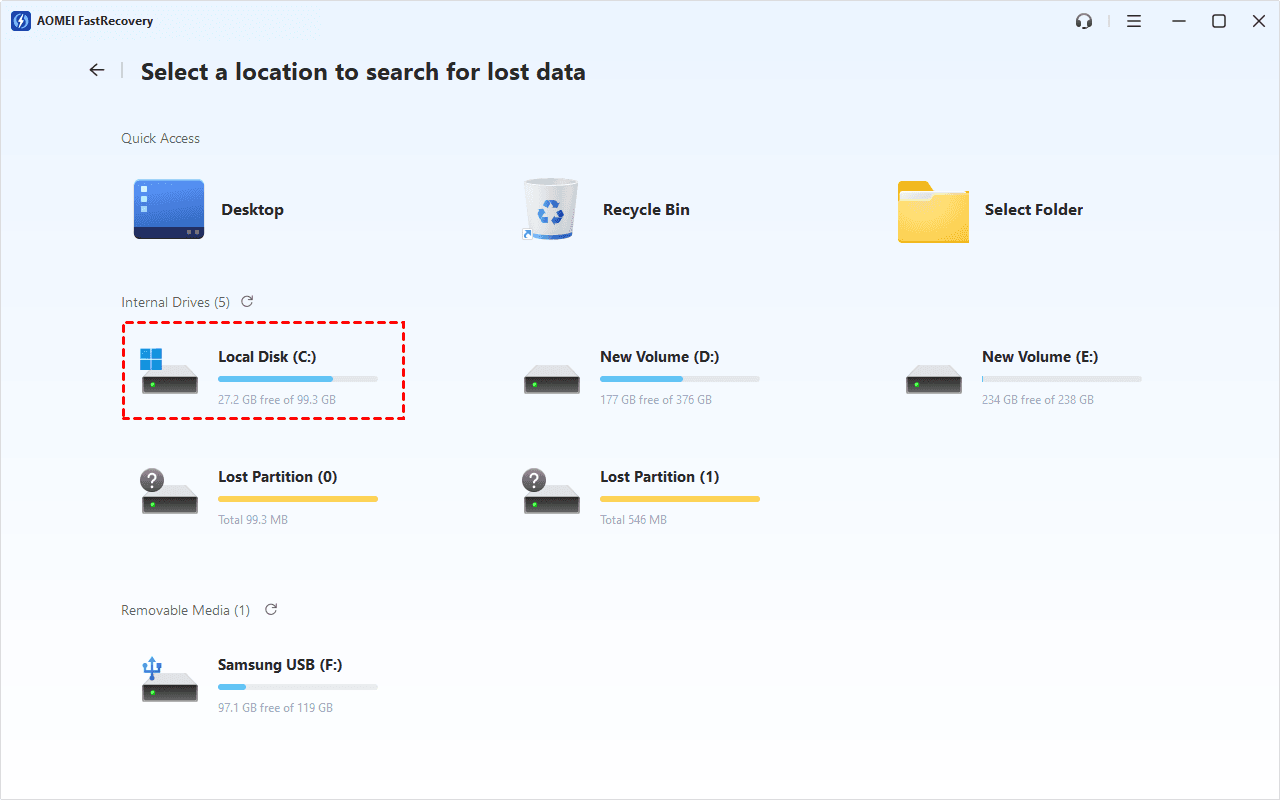
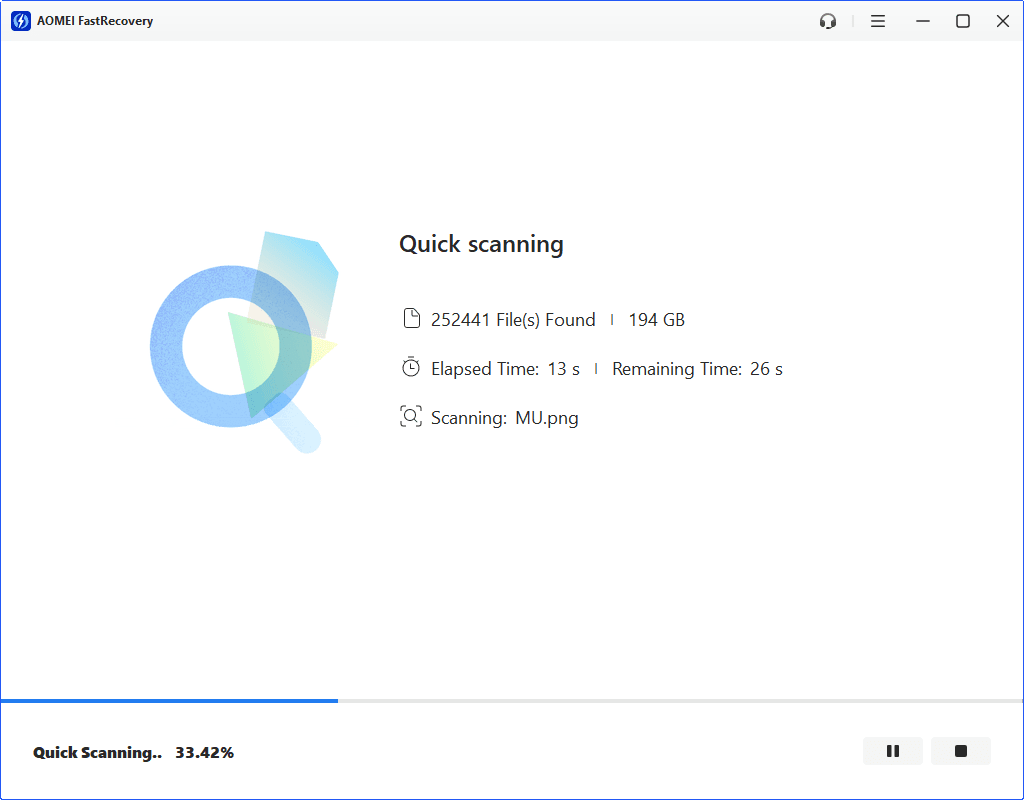
Step 3. It will automatically start Quick Scan to find deleted or lost files. You won't have to wait long. Scan time mainly depends on disk size and health, especially regarding bad sectors or file system corruption.
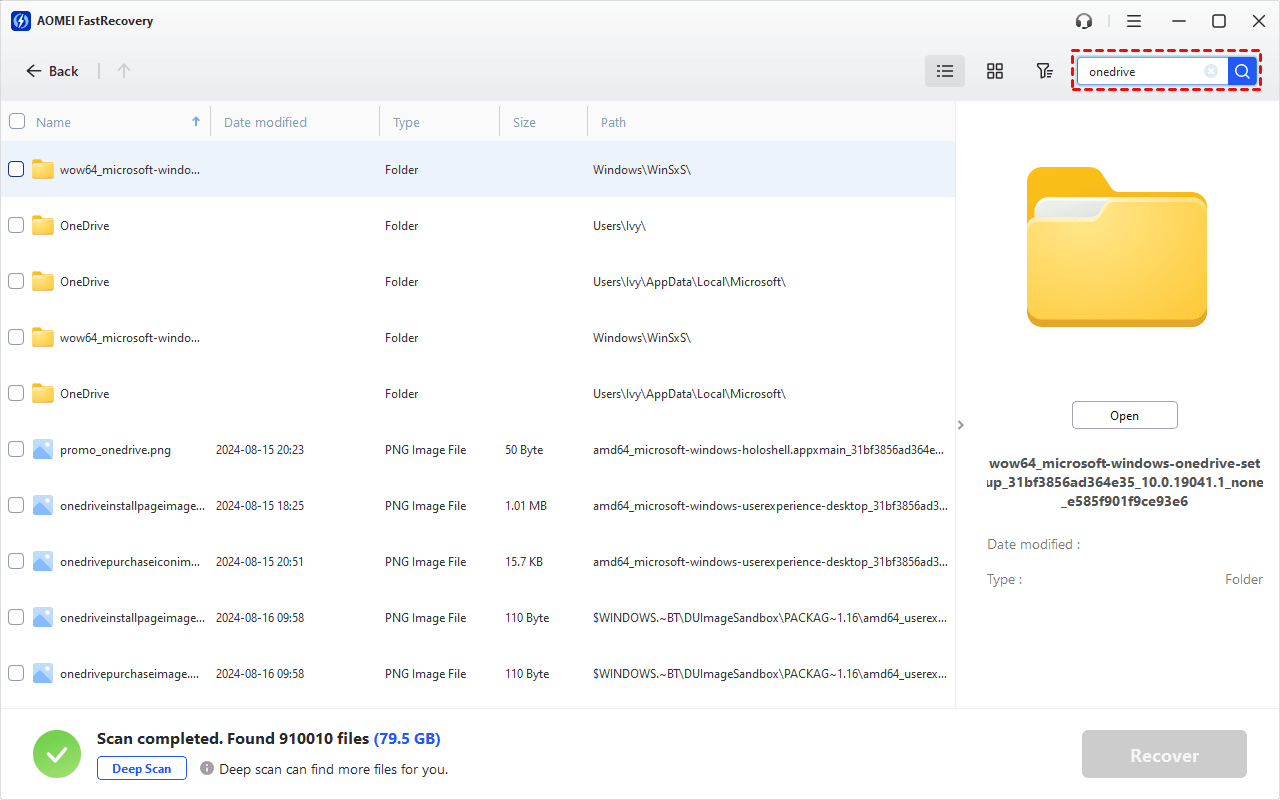
Step 4. You can type the name of the precision folders or OneDrive in the search box to locate files quickly. For safety, you can click the Preview button or double-click it to preview.
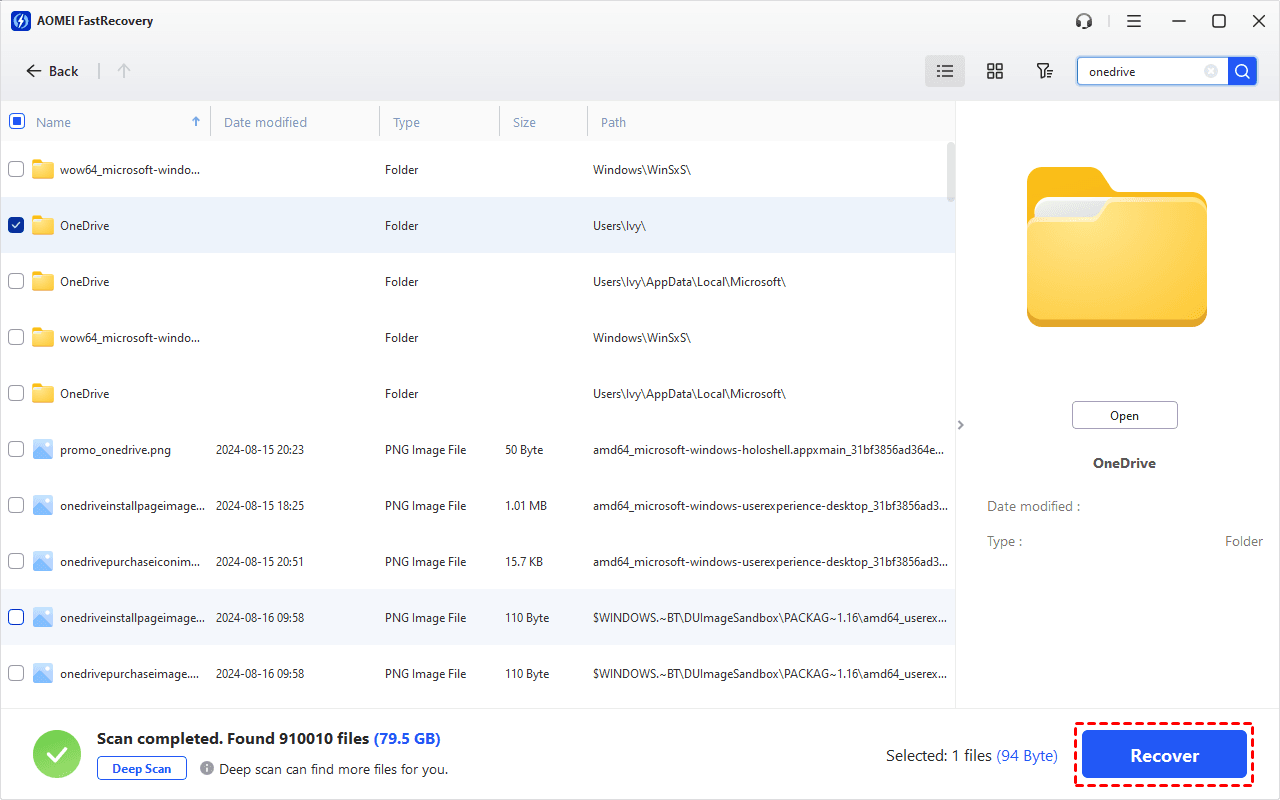
Step 5. Select the OneDrive folder and click “Recover” to save it in the Documents folder.
AOMEI FastRecovery supports you to recover deleted files or folders for free, up to 500MB. To recover all data, please consider upgrading to the advanced edition.
2. Restore OneDrive precision folders from Recycle Bin
If your deleted OneDrive files are not in the Recycle Bin beyond 30/93 days, they might be moved to the Second-stage recycle bin. Let’s show how it works.
👉 From Second-stage Recycle Bin:
Step 1. On the OneDrive Recycle Bin page, click “Second-stage recycle bin” at the bottom.
Step 2. Select your desired OneDrive folder among all the recoverable items and click the “Restore” button. Please save your restored folder in the Documents folder.
👉 From Desktop Recycle Bin:
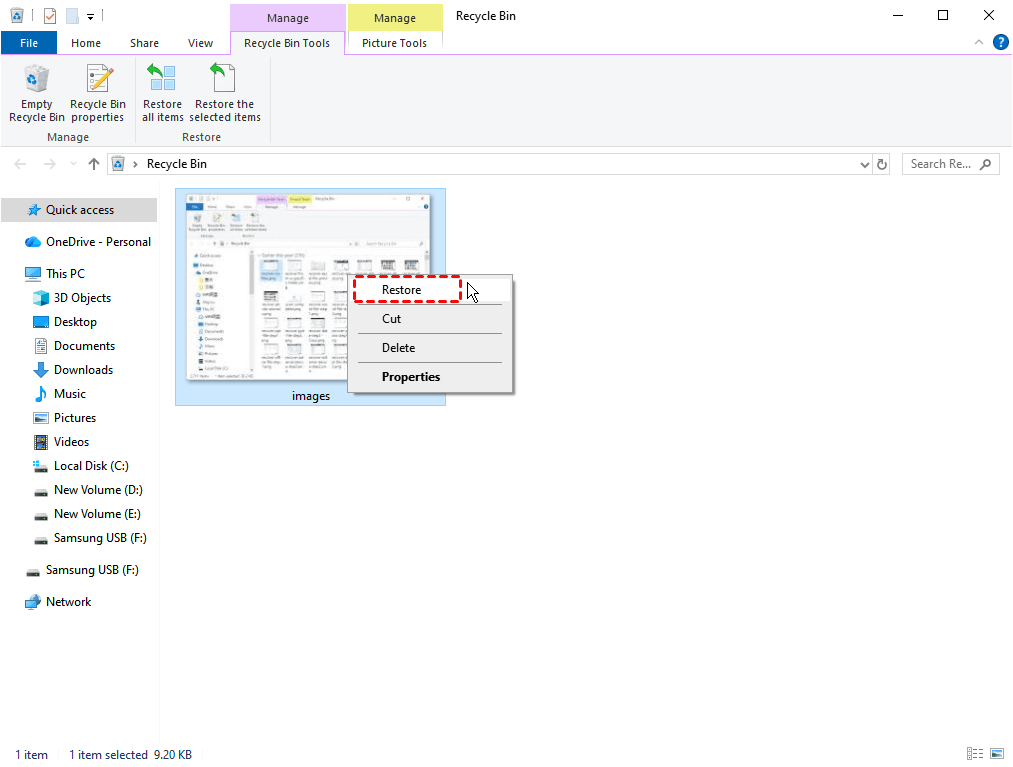
Likewise, if you’ve stored your desired folder on your Windows computer, you can also restore it from the Recycle Bin before emptying it.
Open your Recycle Bin > right-click on your wanted folder and click Restore to get it back to its original saved path. Please remember to store this folder in the Documents folder.
3. Restore OneDrive to a previous time to get precision folders
You can also restore your entire OneDrive to a previous time if many of your OneDrive files were deleted, overwritten, corrupted, or infected by malware. Microsoft 365 subscribers can undo all actions on files or folders within the previous 30 days.
Step 1. Log in to OneDrive with your account. Then click “Settings” and select the “Restore your OneDrive” option.
Step 2. On the next page, “Select a date” before deletion. Then click the “Restore” button to get your deleted files.
After restoration, you can save this specific folder in the Documents folder.
4. Restore the precision folder from local OneDrive folder
Besides, there’s another way to restore deleted files or folders in OneDrive. You can make good use of the OneDrive local folder because file deletion cannot affect the local files saved on your PC.
Step 1. Click the “OneDrive” icon at the bottom. Then, select “Settings” from the More menu.
Step 2. Under the Account tab, click the “Choose folders” button. Please remember the location of your OneDrive folder.
Step 3. Go to the OneDrive folder and move the precise folder from OneDrive to the Documents folder.
Wrapping up
Is it possible to restore the precision folder from OneDrive to the Documents folder? It seems you can. You can get four feasible approaches after reading this passage.
In brief, there’s no better way than utilizing reliable data recovery tools like FastRecovery to recover OneDrive files.
More importantly, you’re supposed to make regular file/partition/disk/systems backups using this free backup software for Windows, AOMEI Backupper Standard.

 as a preferred
source on Google
as a preferred
source on Google