




How to Recover Old Emails from Years Ago
To recover old emails from years ago, first identify whether they remain in your account, an archive, or a deleted local file. The message’s age alone doesn’t determine which recovery options are available.

By Ivy Updated on November 6, 2026


An old receipt or conversation may still exist even when it no longer shows up in your inbox. To recover old emails from years ago, first check for online copies in your email account, then look for local copies saved on your computer or an external drive.
How old a message is doesn't by itself determine whether you can get it back. An email received years ago but deleted yesterday may still be in Trash. One permanently deleted years ago may require a surviving archive or someone else's copy.
If a local Outlook archive was deleted, AOMEI FastRecovery can scan the original drive for recoverable files. Start by figuring out where your messages may still be.
Pick a Method for Where the Email May Still Be
You can go directly to the method that matches your situation.
| What you know | 👁🗨 Where to look | ✅ Where to start |
|---|---|---|
| Messages are missing from the inbox | Your online mailbox and archives | Method 1 |
| Messages were deleted from the account | The email service’s recovery features | Methods 2 - 5 |
| You saved or exported messages previously | Your computer, old drives, or backups | Methods 6 - 7 |
Method 1: Find Old Messages with Gmail Search
👍 Best for: Messages that may still exist outside your inbox.
Gmail search can locate archived messages and narrow results by date or sender. Add in:anywhere to search all Gmail folders, including Spam and Trash.
Step 1. Open Gmail in a desktop browser and check that you're signed in to the account where the email was sent.
Step 2. Enter in:anywhere before:2020/01/01 to search for messages dated before January 1, 2020.
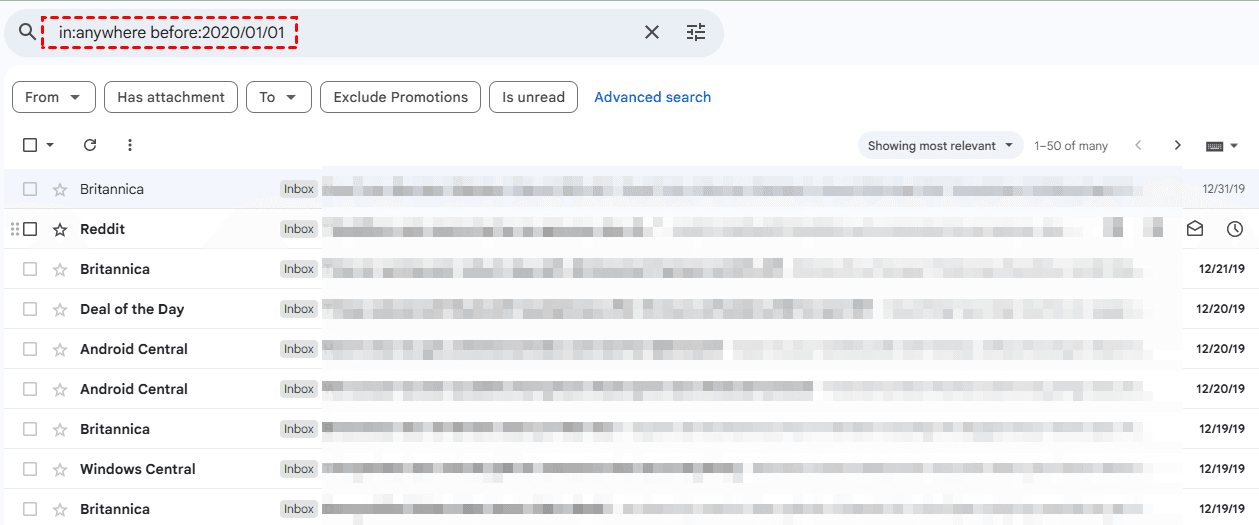
Step 3. Add a known sender or subject term to narrow the results, such as in:anywhere from:[email protected] before:2020/01/01.
Step 4. Open matching conversations and check the individual messages and attachments.
For Outlook or Yahoo, search the correct account using a remembered sender, subject, and date range. Check Archive, Sent, and custom folders as well as the inbox.
Method 2: Move Gmail Messages Out of Trash
👍 Best for: Old emails that were deleted recently and remain in Gmail Trash.
Gmail keeps deleted messages in Trash for up to 30 days unless you permanently delete them sooner. Their original delivery date does not shorten that window.
Step 1. Open Gmail on your computer. In the left sidebar, select More > Trash.
Step 2. Select the messages you want to keep, then click Move to and choose Inbox or another suitable label.
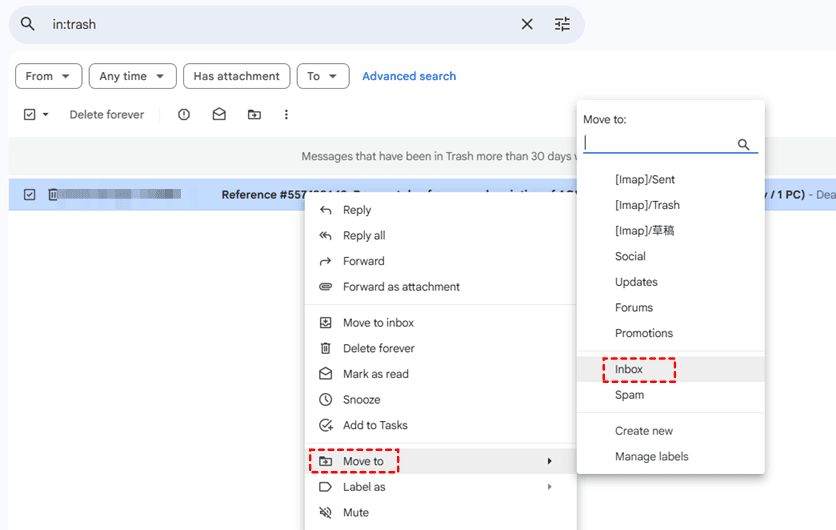
Step 3. Open the destination and confirm the messages are present.
If someone else got into your account and that's what caused the loss, use Google's account security and missing-email help. Just know it doesn't guarantee you'll get the emails back.
Method 3: Restore Outlook.com Messages from Deleted Items
👍 Best for: Outlook.com or Hotmail messages still in Deleted Items.
Deleting an email in Outlook.com moves it to Deleted Items and kept for 30 days, where you can return it to your inbox or another folder. Even a message received years ago can be restored this way if it is still there.
For personal account:
Step 1. Sign in to the correct Outlook.com account and open Deleted Items.
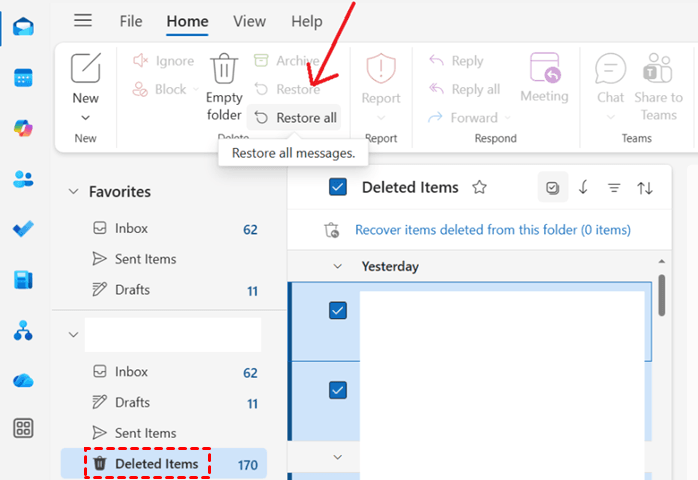
Step 2. Select the messages you want to retrieve. Choose Restore all > Restore all messages, or select another folder as destination.
For Work and school accounts:
Step 1. Open Deleted Items in Outlook.com.
Step 2. At the top of the message list, select Recover beside Recover items deleted from this folder.
Step 3. Select the messages and choose Restore.
Check their original folders, or your inbox if those folders no longer exist.
Method 4: Request Yahoo Mail Restoration
👍 Best for: Yahoo messages deleted or missing within the last 7 days.
Yahoo accepts restoration requests for recent losses, including old messages that disappeared recently. Success isn't guaranteed. The seven-day window refers to when the loss happened, not when the message was sent.
Step 1. Open the official restoration page, click Send a Restore Request.
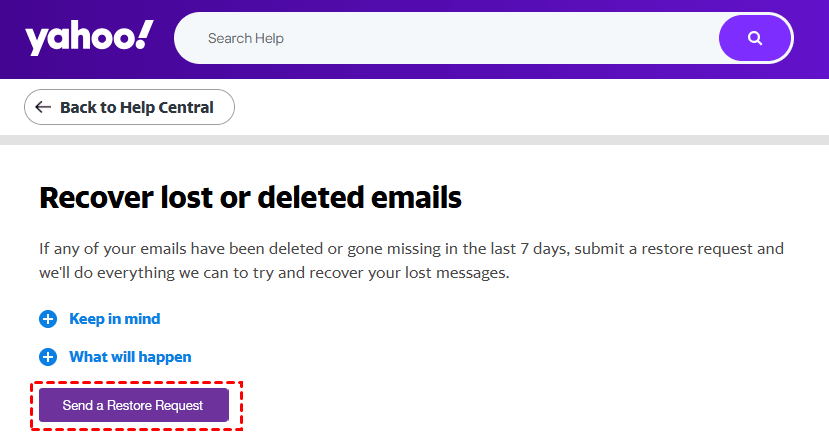
Step 2. You'll be asked to sign in. Just sign in with one containing old emails and complete the request.
Step 3. Submit the request and check the mailbox for restored messages.
Method 5: Open an Existing Outlook PST Archive
👍 Best for: A computer or external drive containing an Outlook archive or export.
A PST is an Outlook data file that stores messages and attachments outside your current mailbox. That means it can hold emails from years ago, even ones that are no longer available online.
Step 1. Locate the .pst file on your computer, old drive, or backup. In classic Outlook, select File > Open & Export > Open Outlook Data File.
Step 2. Select the PST and click Open.
Step 3. Expand its entry in the folder pane. Browse the folders and check the messages and attachments you need.
Method 6: Recover a Deleted PST with AOMEI FastRecovery
👍 Best for: An Outlook PST archive deleted from a local drive and unavailable in Windows Recycle Bin.
AOMEI FastRecovery is a reliable Windows file recovery software that can scan the drive where your PST archive was stored. It only works on local files and doesn't access Gmail, Yahoo, or Outlook servers.
 AOMEI FastRecovery
- 🧩 Scenario matching: Offer dedicated modes for different situations, whether it's deleted files, formatted drives, lost partition, etc.
- ⚡ Two Scan Modes: Quick Scan finds deleted archive fast, while Deep Scan offers a more thorough search.
- 🎬 Wide Range of Archive Formats: Recover deleted or lost archive, including PST, OST, 7Z, ZIP, RAR, etc.
- 🗂️ Flexible browsing: Browse by Type or Path, then use search or sort to narrow down the results.
- 🎁 Free recovery: The Free edition provides thumbnail preview and saves up to 500MB.
 100% Secure
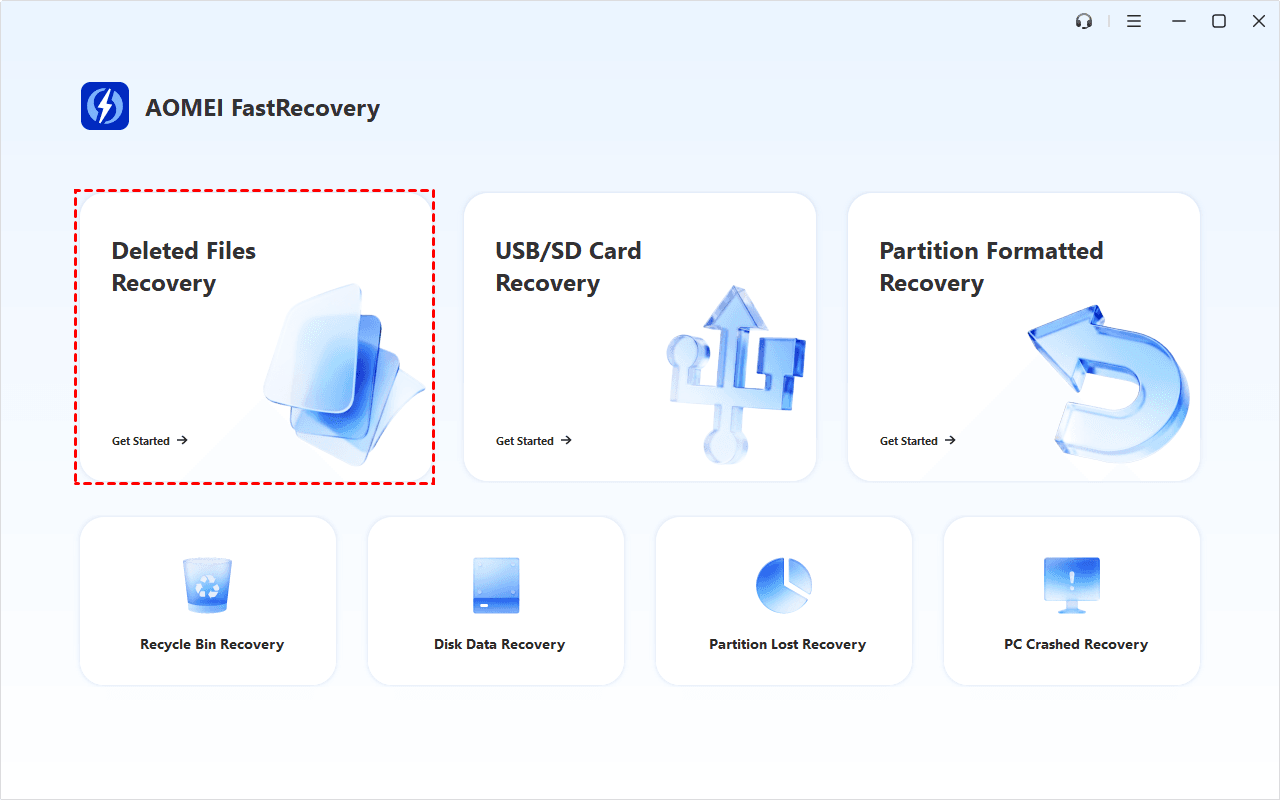
Step 1. Open AOMEI FastRecovery after installing and select Deleted Files Recovery.
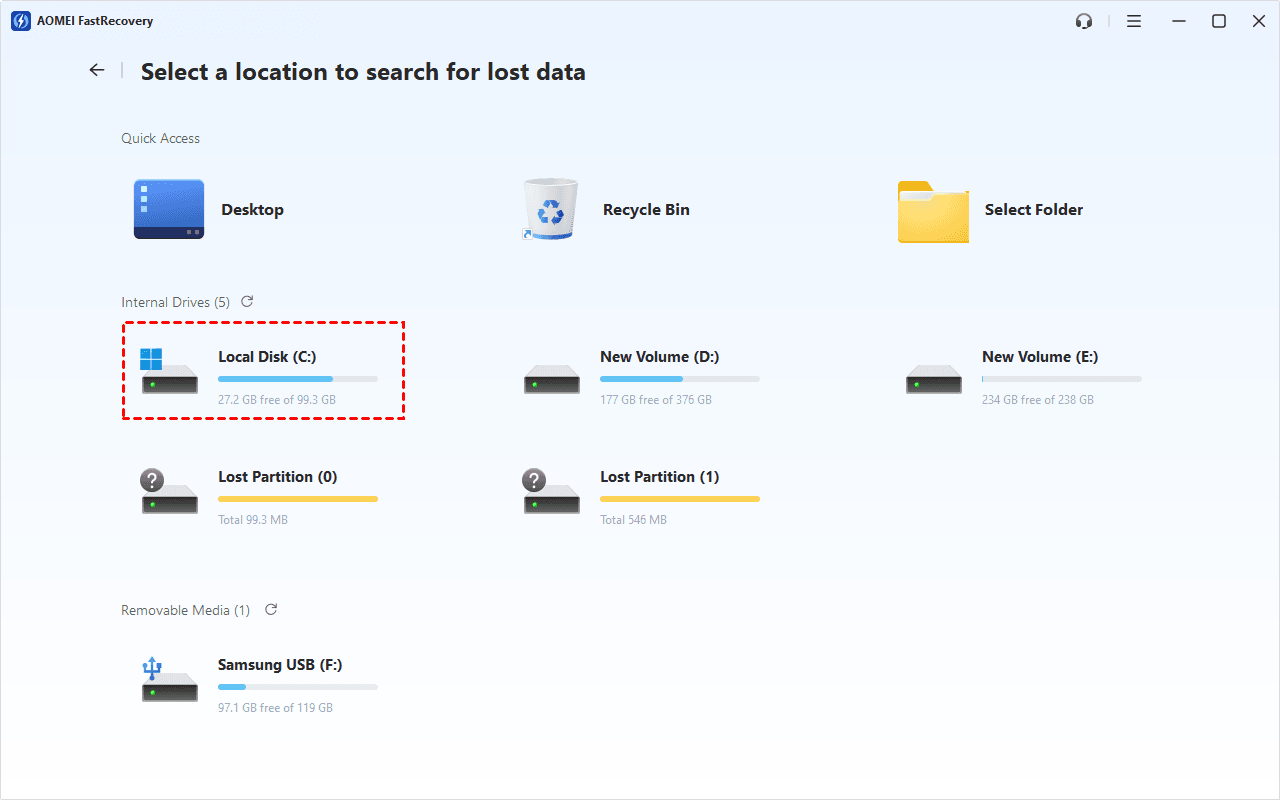
Step 2. Select the original drive where you stored the PST archive, and click Scan. Quick Scan starts by default.
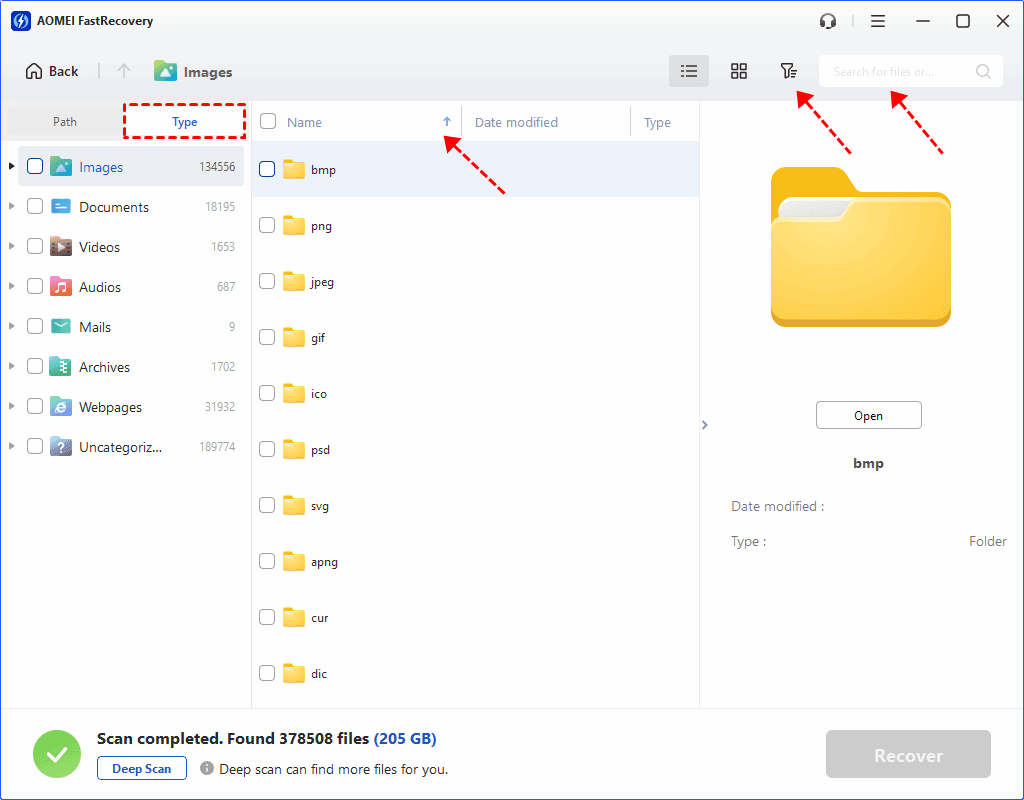
Step 3. Search for the archive’s name or .pst, then cclick the column headers to sort the results. This makes it easy to find deleted files by date, type, name, and more. Or swicth to Path and browse its original location.
Step 4. Select the PST archive and click Recover. Save it to a different drive. Another folder on the original drive is not a safe destination.
-
After Quick Scan finishes, choose Deep Scan if necessary.
-
You can also try Recycle Bin Recovery to restore permanently deleted files from Recycle Bin, whether they're still in it or were deleted again.
-
The free edition recovers up to 500MB; larger recoveries require an upgrade.
Open the recovered PST using Method 5. Check the needed messages and open important attachments to confirm they are complete.
What If No Copy Remains?
You can recover old emails from years ago when a usable copy survives in the account, a recoverable folder, or local storage. Once provider recovery periods have expired, check old archives or ask the sender or recipient for another copy.
If no copy remains and deleted local data is no longer recoverable, recovery software cannot recreate the missing messages. Once you retrieve important emails, keep an independent copy so future access does not depend on a single mailbox.

 as a preferred
source on Google