




Deleted WebM Files? 5 Ways to Recover Them Fast
Deleted a WebM file by mistake? This guide covers 5 practical recovery methods for both Windows and Mac, from simple fixes to more advanced tools. Plus, you'll find tips to prevent data loss in the future. Keep reading to get your files back.

By Ivy Updated on July 2, 2026


Can WebM files be recovered?
Losing WebM files can be frustrating, but recovery is often possible. Whether they were accidentally deleted, lost after formatting, or due to storage corruption, virus infection, etc., there are practical ways to get them back. In this section, we'll walk you through the most common causes and the solutions that work for each.
| Cause of loss | Solutions |
| 🔥 Accidental deletion | If you accidentally deleted your WebM files, check the Recycle Bin (or Trash on Mac). If the files are there, recover them. If not, you can use file recovery software to try to recover them. |
| disk formatting | If you accidentally formatted your device, don't worry. Formatting usually causes panic, but you can still recover your files. Use data recovery software to recover files from a formatted device. |
| Storage corruption | If your storage device is corrupted, it is still possible to recover your files. Use recovery software to recover and repair WebM files. |
How to recover deleted WEBM files on Windows
Losing WebM files while organizing or converting them? It's more common than you think but the good news is, recovery is often straightforward. Here are 3 practical ways to get them back on Windows.
Method 1: Restore deleted WebM files from Recycle Bin
If you’ve accidentally deleted your WebM videos, your Windows OS will automatically send them to your desktop Recycle Bin. This temporary storage place can keep recently deleted items before permanent deletion (emptying Recycle Bin or second deleting your WebM file).
You can check the Recycle Bin to recover deleted WebM files easily.
Step 1. Open the Recycle Bin
Double-click on your desktop Recycle Bin icon to open it .
Step 2. Locate WebM files and restore them
Find your deleted WebM video file > right-click on it > Restore it to its original location.
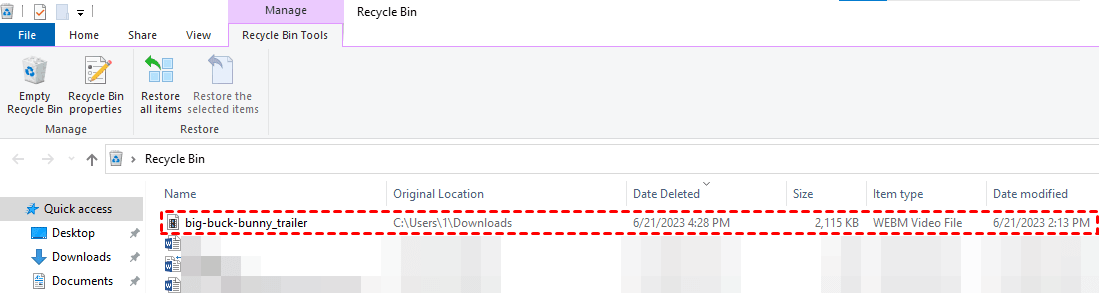
If you’ve permanently deleted your wanted WebM files, there’ll be no sign of this video in your desktop Recycle Bin. So you need to refer to another two feasible ways.

Method 2: Recover WebM Files with Data Recovery software 🔥
No backup? No problem. There's still a reliable way to recover permanently deleted WebM files. Professional video recovery software - AOMEI FastRecovery (by AOMEI Tech) is built for this.
It scans your drives and recovers lost videos, including WebM, MP4, MOV, and more, even after permanent deletion. Simple interface, powerful results. No tech skills required.
 AOMEI FastRecovery
- Dual-scan modes: Quick Scan for recently deleted files, Deep Scan for more complex scenarios. Together, they find more files and recover them with greater success.
- All major video formats: Recover lost WebM files, along with other common video formats like MP4, MOV, AVI, and more.
- Wide Range of Scenarios: Recover files from accidental deletion, Recycle Bin, formatted drive, virus attack, system crash, and more.
- Find your files fast: Browse by type or path, sort, search, filter, and preview files before recovery. No more digging through endless lists.
- Safe & easy to use: Read-only, no data overwriting. simple, intuitve interface.
- Try it with no risk: The free edition recovers up to 500MB of data - no commitment, no quality compromise.
 100% Secure
So, why wait? Don’t hesitate to download FastRecovery on your Windows 11, 10, 8, 7, or Server PC! Let’s get started recovering deleted WebM files.
Step 1. Install and launch AOMEI FastRecovery. Then, click Deleted Files Recovery, specifically designed for quick recovery.

Step 2. Hover the mouse over the C drive and click Scan. You won't have to wait long.
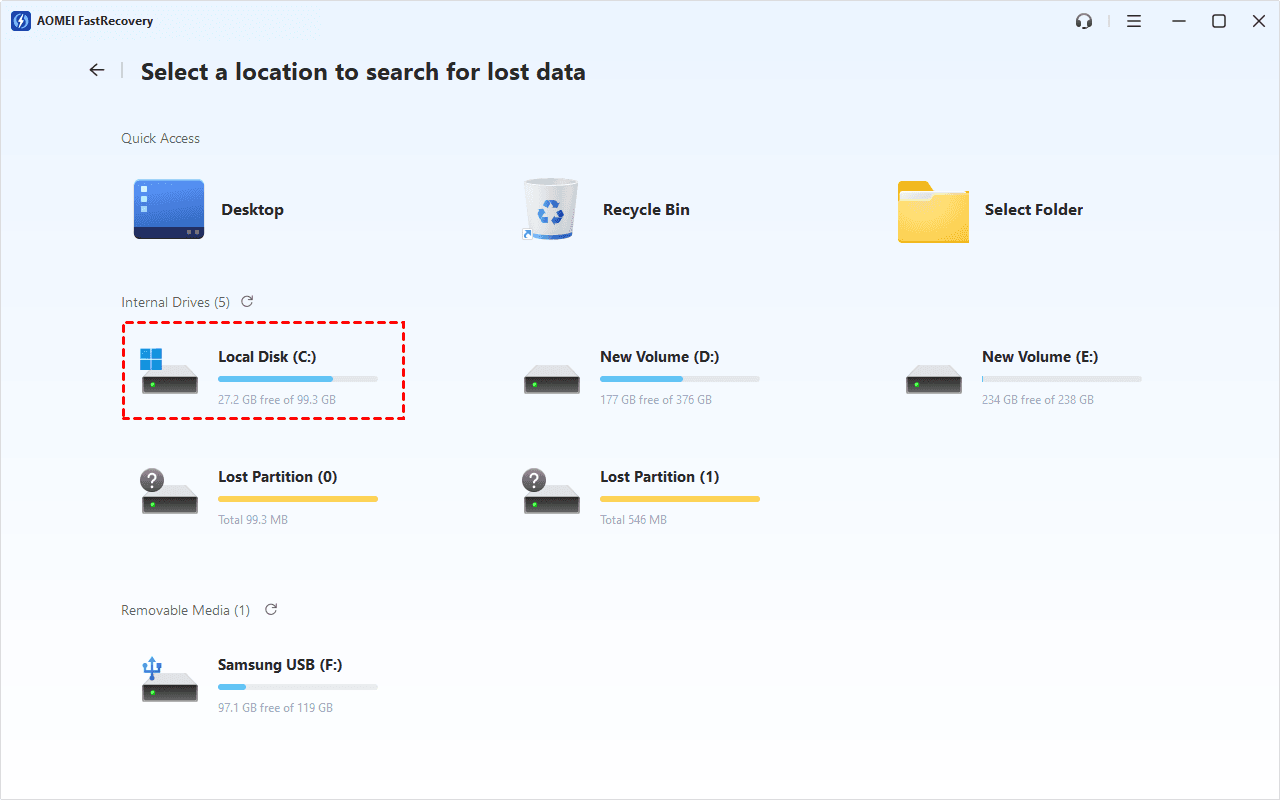
Step 3. It will start a quick scanning process automatically. Wait, and in the scanning result window, check the Videos data type and WEBM. You can also expand to check Deleted Files, Recycle Bin, or Existing Files for specific WEBM files. To find files quickly, combine the following options:
-
Sort files by name, date modified, type, etc., using the column headers.
-
For faster searching, type the file name or extension (.webm) in the search box.
- Or click the funnel-shaped button to narrow your search by type or size, especially useful for large deleted files.
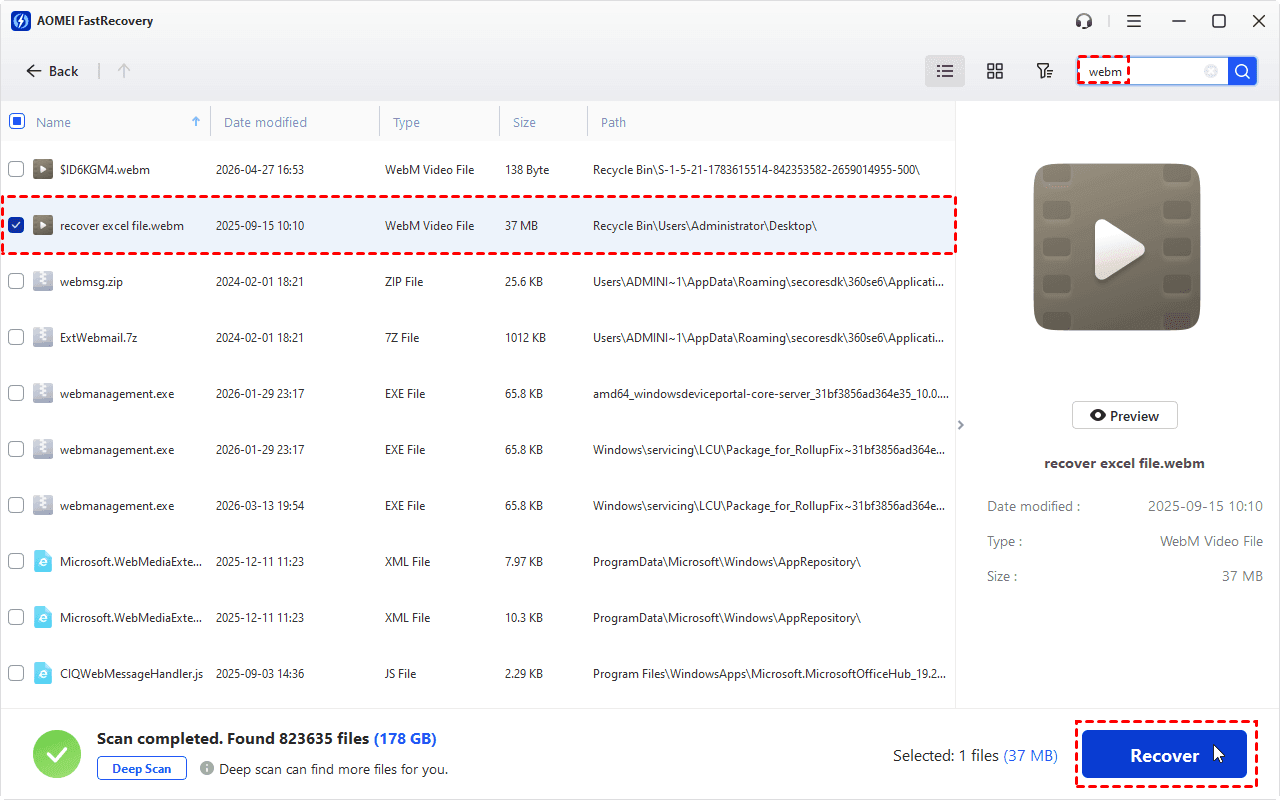
Step 4. Once found, double-click to preview WEBM files and confirm. Then, click Recover to get your videos back quickly.
- Select a new location to save your retrieved files, significantly avoiding data overwriting.
- The free edition can recover data up to 500MB. To recover all data, you need to upgrade AOMEI FastRecovery to advanced editions.
Method 3. Recover deleted WebM files via Previous Versions
If you had File History or System Protection enabled before your WebM files went missing, you may already have a backup without even realizing it.
Previous Versions lets you browse through older copies of your files and folders by date. Accidentally deleted a WebM video? Overwrote the wrong version? You can go back in time and restore the version you need.
Step 1. Press Win + E to open Windows File Explorer > right-click on the local disk that stores your WebM videos before deletion.
Step 2. Click Properties > Previous Versions > select a folder version > click Restore.
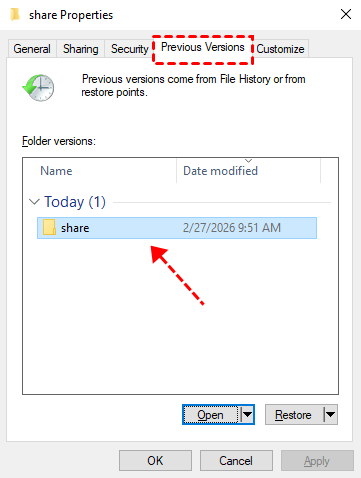
If you desire to set a new saved path, select Restore to from the Restore drop-down menu.
How to recover deleted WEBM files on Mac
If you desire to recover deleted WebM files on Mac, there’re two efficient approaches below.
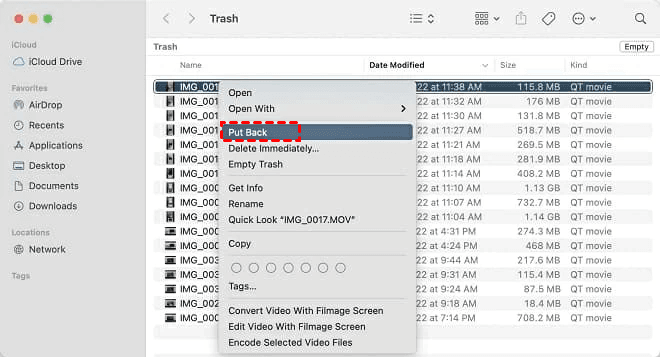
Method 1. Restore deleted WEBM files from Mac Trash
As the title suggests, this way aims to recover accidentally/recently deleted WebM files from the Mac Trash.
» Find the corresponding Trash Bin in the Dock > locate the WebM video > right-click on it > choose Put Back.
Method 2. Recover deleted WEBM files with Time Machine
For permanently deleted WebM files, Time Machine might be your treatment if you’ve created backups because it is a backup method provided by Apple that automatically creates backups at regular intervals (hourly, daily, and weekly).
-
You don’t have to launch a window if your lost files were previously stored on the desktop. To show the Time Machine icon on the desktop, go to the Apple menu > click System Preferences > Time Machine > Show Time Machine in menu bar.
Step 1. Open the window where you lost files.
Step 2. Click the Launchpad icon in the Dock, find Time Machine, and click Enter Time Machine.
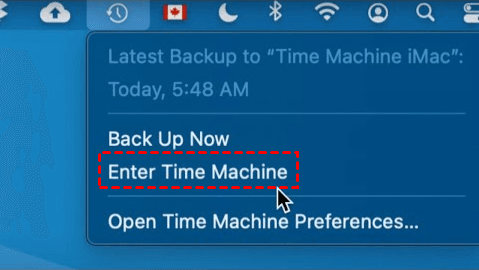
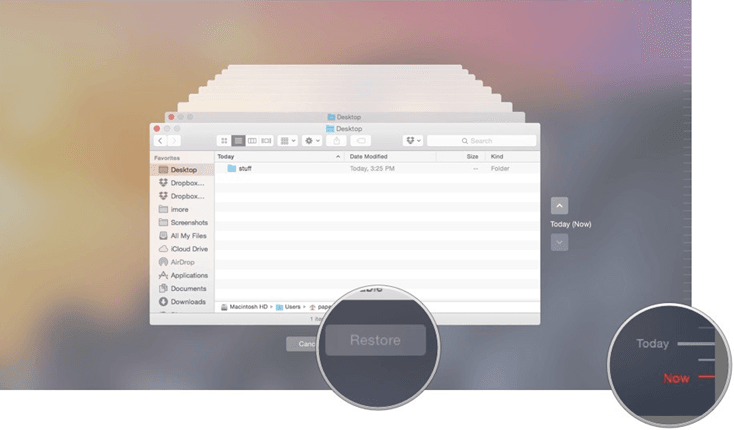
Step 3. Use the up and down arrows to locate the files you need to restore.
Step 4. Click Restore to recover your needed WebM videos, and then your lost data will come back to the previous location.
What is a WebM file & How to create a WEBM video file
What is a WebM file
WebM is an open video format specifically designed for multimedia content like audio and video. This format allows media files to be stored in a compressed manner, adhering to compression standards that optimize their performance for online streaming. Besides, users can easily identify WebM files by their file extension (.webm).
Audio-compression technologies (Opus & Vorbis) and video-compression technologies (VP8 & VP9) are integrated into WebM digital streams.
For example, Chrome, Opera, and Firefox can fully support the WebM format, enabling smooth playback of WebM files. But browsers like Safari and Internet Explorer require third-party plugins to enable WebM support.
Notably, YouTube benefits a lot because YouTube HTML5 Player relies on WebM files for streaming videos, further solidifying its prominence. And WebM is widely popular among mobile device users.
In summary, integrated audio and video compression technologies, widespread browser support, mobile compatibility have made WebM a preferred choice for online streaming and mobile media consumption.
How to create a WEBM video file
If you want to save from MP4, MKV, AVI, or other file formats to WEBM, you can use a third-party tool or online conversion tools such as Online Video Converter or Zamzar to convert your files to the WEBM video format.
As mentioned at the beginning, several web browsers such as Google Chrome, Mozilla Firefox, and Opera can play WebM files directly within the browser.
So you can effortlessly enjoy your WebM files using the on-screen controls, eliminating the need for additional software or plugins and ensuring a seamless playback experience within your web browser. Here's how to open a WebM video on your Windows PC.
» Press Win + E to open File Explorer > click Downloads > right-click on your saved WEBM video file > click Open with > select Media Player to open it.
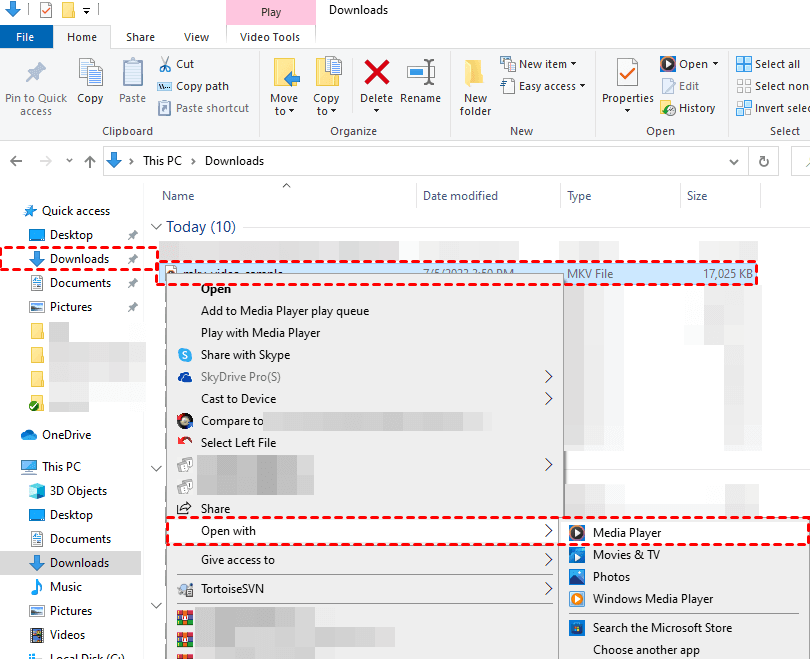
Apart from Media Player, you can also utilize File Viewer Plus, VideoLAN VLC media player, Microsoft Edge, or Microsoft Windows Media Player to open them on Windows.
Conclusion
Losing WebM files doesn’t have to be permanent. This guide has walked you through practical recovery methods - from checking the Recycle Bin and browsing Previous Versions to using professional recovery software like AOMEI FastRecovery. Whether you’re on Windows or Mac, there’s a reliable way to get your videos back.
To protect your files going forward, remember to enable File History or Time Machine, avoid using the drive after data loss, and keep regular backups. And if you ever need a quick and powerful recovery solution, AOMEI FastRecovery offers a free edition that recovers up to 500MB of data - no commitment required. Start your recovery today and keep your WebM files safe for tomorrow.

 as a preferred
source on Google
as a preferred
source on Google