




How to Recover Deleted Files on an ASUS Laptop
Learn how to recover deleted files on ASUS laptop by checking their current location and available backups. Follow practical recovery steps, choose the correct drive to scan, and avoid confusing ASUS system recovery with file recovery.

By Ivy Updated on October 29, 2026


A missing folder doesn’t always mean your files are gone for good. They may still be in the Recycle Bin, saved elsewhere, or available in an earlier backup.
If you’re wondering how to recover deleted files on ASUS laptop, start with the Recycle Bin. An existing backup offers another direct option. For files no longer available there, AOMEI FastRecovery can scan the original drive for deleted files.
Before You Start: Check Where the Files Went
If you didn’t see the deletion happen, search before running recovery software. Open File Explorer with Win + E, select This PC, and enter the filename in the search box. Try part of the name if you don’t remember it exactly.
Right-click a matching result and choose Open file location. A file found in another folder may simply have been moved. An unsuccessful search, however, doesn’t prove deletion.
Refer to this list to choose your next action:
| 🔍 What you find | 🛠️ Suitable Method | 🔑 Key requirement |
|---|---|---|
| Files remain in the Recycle Bin | Method 1 | The files haven’t been removed from it |
| Files aren’t available there or through a search | Method 2 | The original drive is detectable and stable |
| File History contains an earlier copy | Method 3 | The files were backed up before deletion |
| A traditional Windows file backup exists | Method 4 | The backup contains the missing files |
ASUS Cloud Recovery and factory recovery serve a different purpose. They restore the operating system and can delete personal files. Don’t reset or reinstall Windows to retrieve a deleted document or photo.
Method 1: Restore Deleted Files from Recycle Bin
👍 Best for: Recovering files still listed in the Recycle Bin.
The Recycle Bin holds many files deleted through File Explorer and can restore deleted files to their original folders.
Step 1. Double-click Recycle Bin on the desktop. If its icon is missing, enter Recycle Bin in File Explorer’s address bar and press Enter.
Step 2. Find the deleted files, right-click them and choose Restore. Use the search box or check Original Location to distinguish files with similar names.
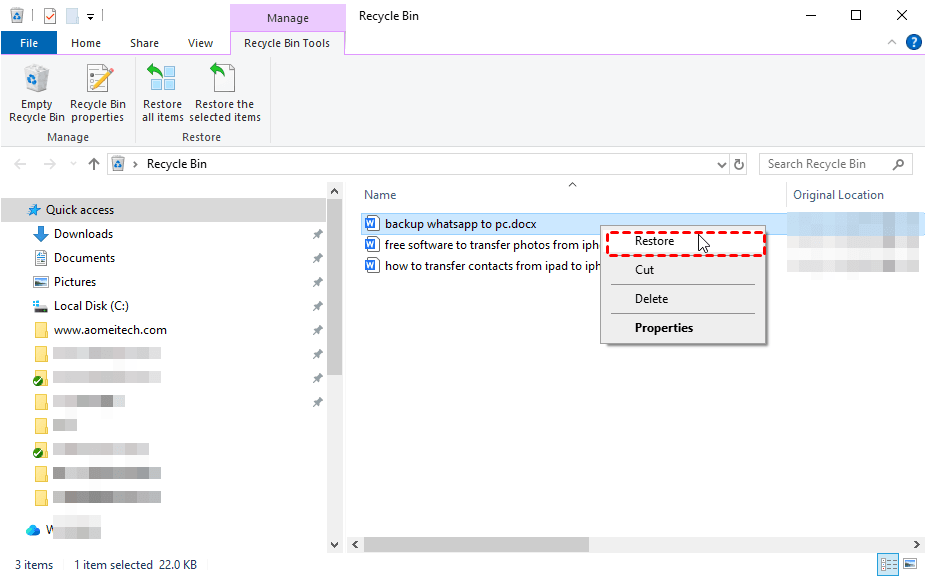
Open their original folders to confirm they’re back.
Files removed with Shift + Delete usually bypass the Recycle Bin. An emptied bin also needs another recovery method.
Method 2: Recover Deleted Files on ASUS Laptop with AOMEI FastRecovery
👍 Best for: Finding deleted files not in the Recycle Bin on a drive the software can recognize.
AOMEI FastRecovery is easy-to-use Windows file recovery software for retrieving documents, photos, and other files from an ASUS laptop.
 AOMEI FastRecovery
- 🎯 Targeted recovery: Scan the drive where you originally saved deleted files to find it.
- ⚡ Scan Fast, Then Deep: Deleted Files Recovery starts with a Quick Scan, with an optional Deep Scan if you need a more thorough search.
- 🔎 Flexible browsing: Browse by Type or Path, then combine search, filter, sort, and thumbnail previews to narrow the results.
- 💰 Free Tier: Recover data up to 500MB for free. Need more? Upgrade for unlimited recovery.
 100% Secure
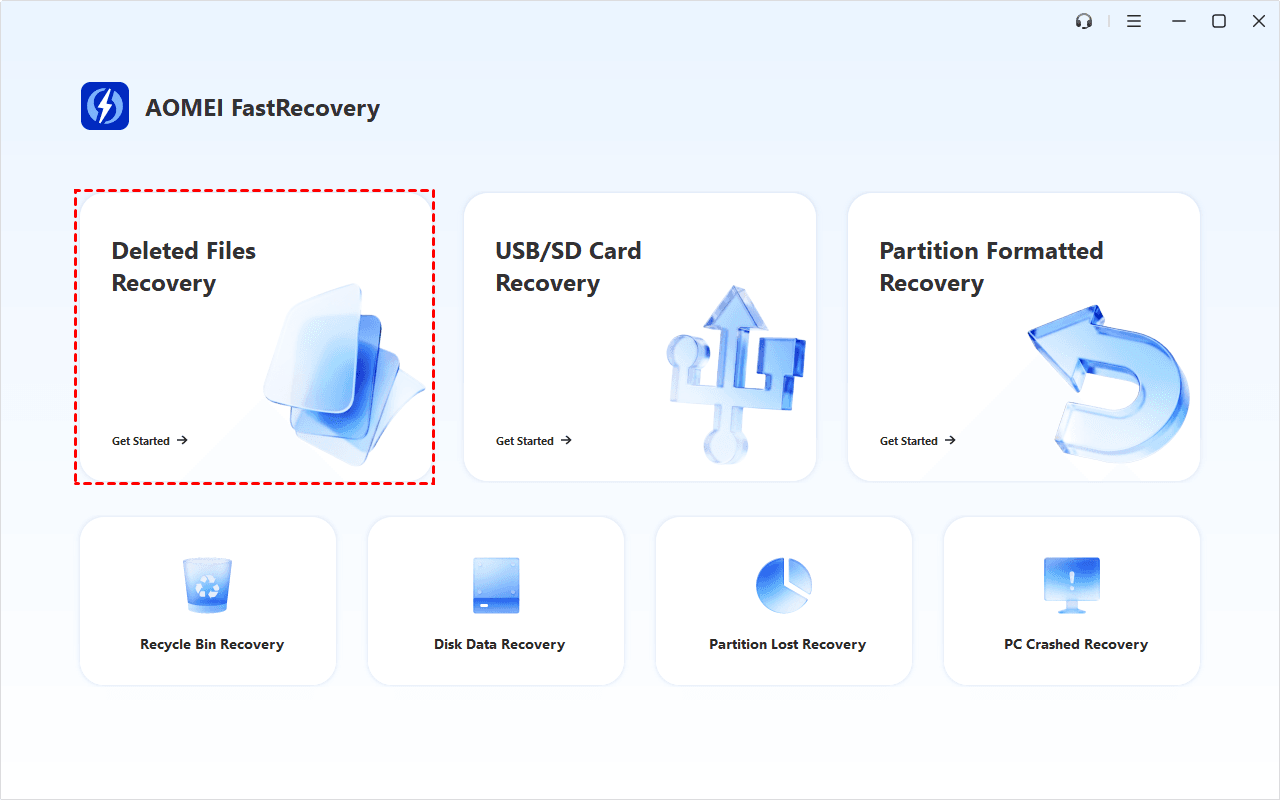
Step 1. Download and install AOMEI FastRecovery on a different drive from the one holding the deleted files. Downloading the installer also writes data and may overwrite them. Open this software and choose Deleted Files Recovery.
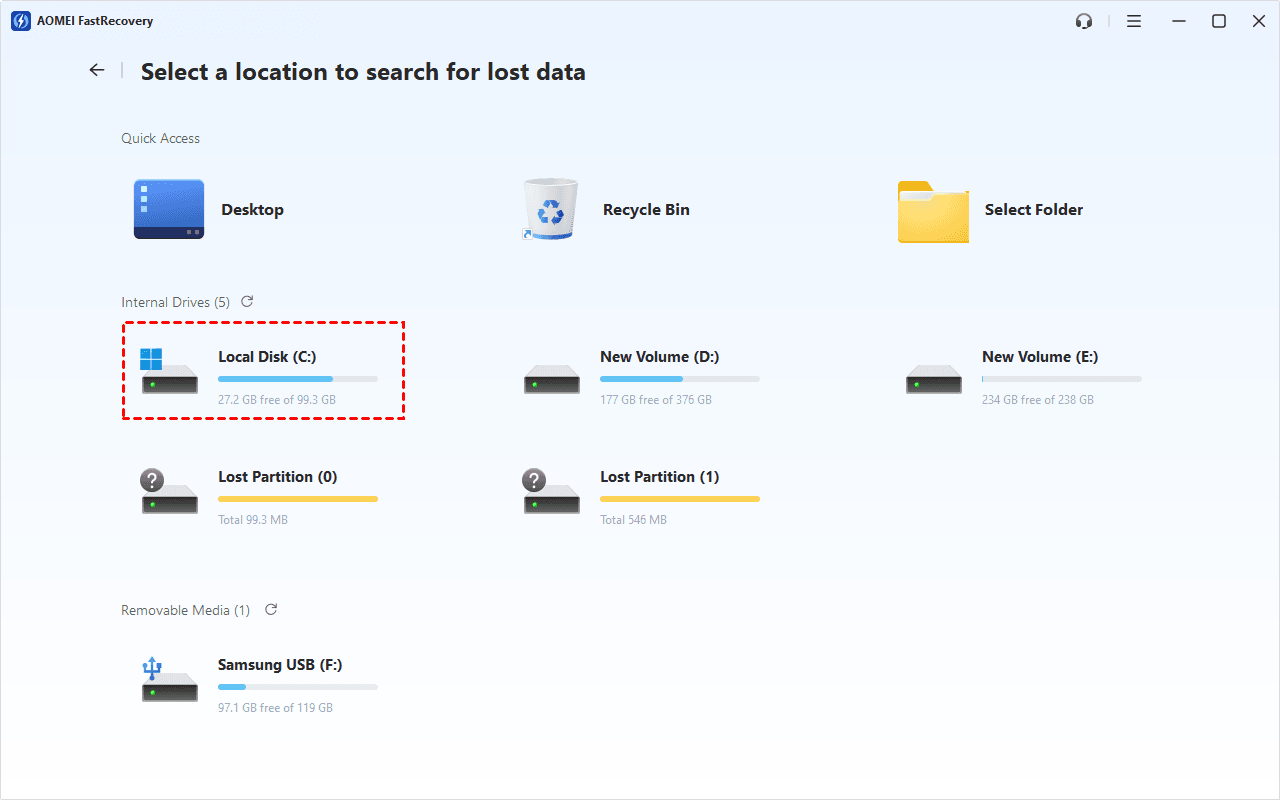
Step 2. Select the drive where the files were stored, then click Scan. It will start a Quick Scan automatically.
Step 3. Review the Quick Scan results. Under Path, look for the original folder. Under Type, browse categories, such as documents, images, videos, etc. Search for a filename or extension, fileter, or sort to narrow the list.
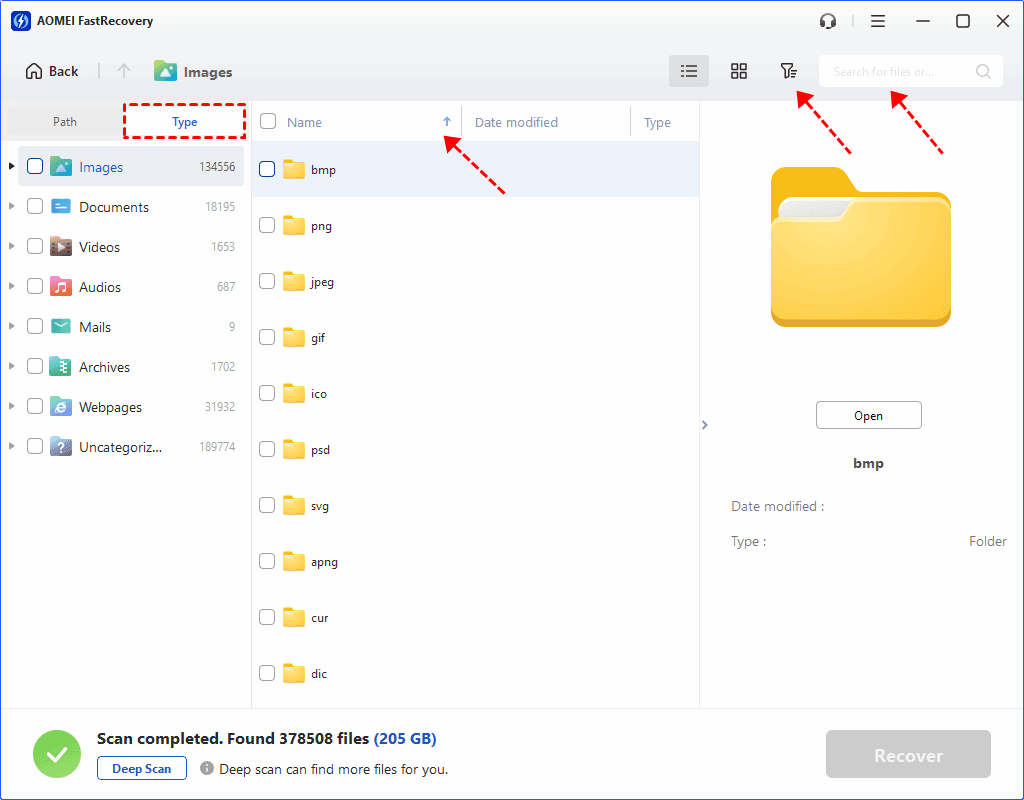
Step 4. After Quick Scan finishes, click Deep Scan if the deleted files aren’t listed. This searches more thoroughly and can take longer.
Step 5. Select the deleted files and click Recover. Choose a folder on another drive to avoid data overwritting. Another folder on the same drive isn’t a safe destination.
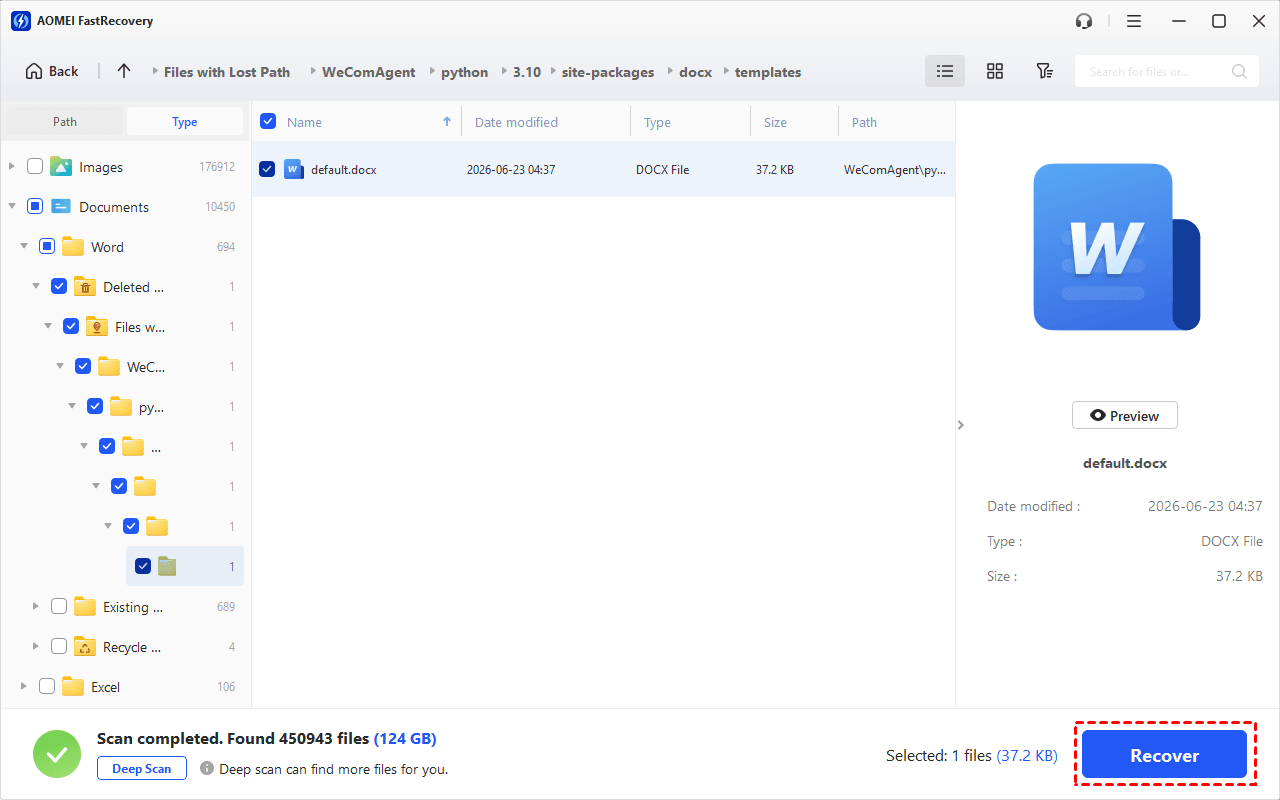
-
The free edition recovers up to 500MB. Recovering more requires an upgraded edition; full preview is also available.
-
The data stored on USB drive will be erased in the process, so it’s better to use an empty USB. Otherwise you can backup the USB drive first.
This method explains how to recover deleted files on ASUS laptop. Stop repeated scans if the drive disconnects, clicks, or shows physical damage.
Method 3: Restore Deleted Files from File History
👍 Best for: Restoring files already included in a File History backup.
File History saves previous copies of protected files and folders, making it easy to recover deleted files on ASUS laptop. If your files are included in File History backup, try it.
Step 1. Connect the drive containing your File History backup. Open Control Panel > System and Security > File History, and select Restore personal files.
Step 2. Browse to the original folder. Use the arrows to find a backup from before the deletion.
Step 4. Select the files and right-click the Restore button.
You can also click Settings and choose Restore to. Select a different drive to avoid overwriting the files you're trying to recover on the original drive.
Open the restored copies and check their completeness. If the selected version lacks recent changes, look for a later backup made before deletion.
Method 4: Recover Files from Backup and Restore (Windows 7)
👍 Best for: Retrieving files from an existing Windows backup.
Backup and Restore (Windows 7) is another backup tool built into Windows 10 and 11 that saves your user data. If your files were included in a backup, you can restore them from there.
Step 1. Connect the drive containing the backup. Open Control Panel > System and Security > Backup and Restore (Windows 7).
Step 2. Click Select another backup to restore files from. Then, select the appropriate backup and click Next.
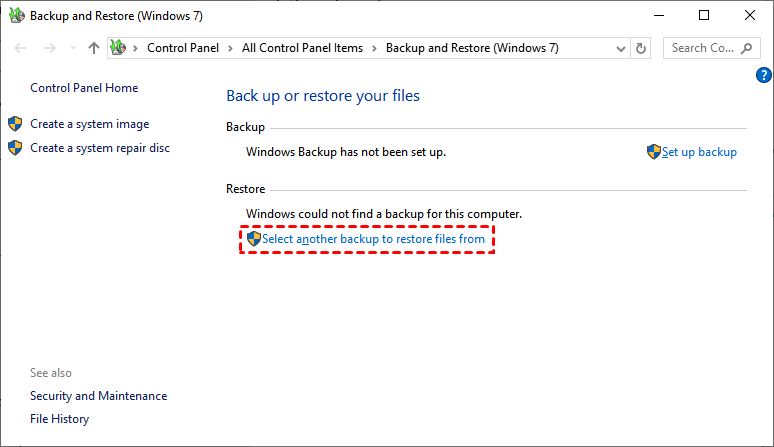
Step 3. Choose Browse for files or Browse for folders to select what you want to restore.
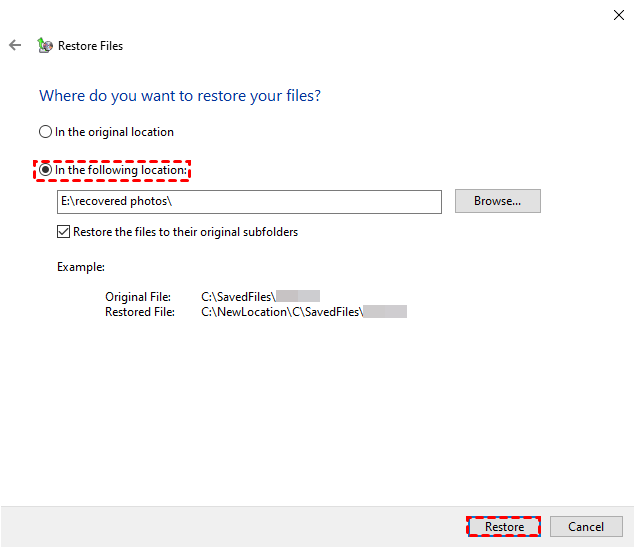
Step 5. Select In the following location and browse to another drive. Click Restore.
FAQs
Can I recover deleted files from an ASUS laptop SSD?
Sometimes. Recovery depends on whether the deleted data remains available. SSD TRIM can allow deleted storage blocks to be cleared, making recovery difficult or impossible. Disabling TRIM afterward won’t bring erased data back. Existing backups remain useful even when a scan cannot retrieve the files.
Will ASUS Cloud Recovery bring back deleted files?
ASUS Cloud Recovery restores the factory operating system. It isn’t a deleted-file recovery feature, and the process can erase data from the Windows storage device. Retrieve your files before considering a system reset.
What if my ASUS laptop won’t turn on?
A startup failure doesn’t automatically mean the files are deleted. For Windows startup problems, a separate bootable USB data recovery for Windows 10 may help. AOMEI FastRecovery’s crashed-PC recovery requires a paid edition. Physical damage or an unstable drive calls for professional assessment.
Conclusion
The best answer to how to recover deleted files on ASUS laptop depends on what remains available. Restore files from the Recycle Bin or an existing backup when possible. Otherwise, scan the original drive and save recovered files elsewhere. Confirm the files are complete, then keep a separate backup.

 as a preferred
source on Google