




How to Recover Deleted C4D Files – 3 Proven Ways
Spent hours on a C4D project and accidentally deleted it? Here are the most effective ways to recover deleted C4D - no backup needed. Keep reading.

By Ivy Updated on July 6, 2026


You spend hours on a Cinema 4D project - tweaking every detail, adjusting lighting, fine-tuning the animation. Then one day, you open your folder, and the file is just... gone.
Accidentally deleted. Overwritten. Corrupted. Or lost during a crash.
It's stressful. But don't panic - you're not out of luck. Whether you're looking for quick DIY fixes or need a more powerful solution, this guide covers the most effective ways to recover deleted C4D files.
Keep reading. Your work is worth saving.
What Exactly Is a C4D File? (And Why It Matters)
C4D files, also referred to as 3D image files, are commonly associated with Cinema 4D, a professional software developed by Maxon Computer GmbH. These files typically contain 3D models, comprising scenes with objects and various attributes such as pivot points, textures, positions, and meshes.
Cinema 4D, initially released commercially for Amiga computers in 1993 and later for Mac OS and Windows OS in 1996, offers support for the C4D extension as one of its primary file formats.
To enhance the post-production process, C4D files can be exported to video or graphics-editing software such as Photoshop, After Effects, Final Cut Pro, or Unity. These applications are frequently employed in major film and video projects, making the compatibility of the C4D file format crucial.
Despite their importance, C4D files are susceptible to data loss. Fortunately, there are multiple data recovery methods available to assist in retrieving these files.
C4D File Recovery: 5 Tips for a Higher Success Rate
Before you dive into recovery methods, a few simple tips can save you time and prevent permanent data loss. It also gives you the best chance of getting your C4D files back.
- Stop using the drive - Avoid writing new data to the drive you're recovering from. This prevents overwriting your lost files.
- Act fast - Start recovery as soon as possible. The sooner you begin, the higher your chances of success.
- Back up regularly - Save your C4D files to external drives or cloud storage. This protects you against permanent data loss.
- Start with the most effective method first - Don't try random fixes. Picking the most effective solution from the start reduces the risk of file corruption.
FastRecovery – The Best Way to Recover Deleted C4D Files
Professional recovery software is often the fastest and most reliable way to get your C4D files back. Unlike temporary workarounds or built‑in system tools, these solutions are designed specifically for data recovery - not just patching the problem.
Using recovery software might sound a bit scary at first, but tools like AOMEI FastRecovery make it surprisingly simple. You don't need to be a tech expert - just a few clicks and your files are back.
When time matters and your work is at stake, choosing the right tool from the start is the smartest move you can make.
 AOMEI FastRecovery
- 🔎 Dual-Scan Modes: Quick Scan for recently deleted files, Deep Scan for more complex scenarios. Together, they find more files and recover them with greater success.
- 📚 1000+ Data Types: Recover C4D files, along with documents (TXT, DOC, XLSX, CSV), images (JPG, PNG, GIF), videos (MP4, MOV, AVI, WMV), and more.
- 🧩 Wide Range of Scenarios: Recover files from accidental deletion, Recycle Bin, formatted drive, virus attack, system crash, and more.
- 🚀 Find Your Files Fast: Browse by type or path, sort, search, filter, and preview files before recovery. No more digging through endless lists.
- ✅ Safe & Easy to Use: Read-only, no data overwriting. simple, intuitve interface.
- 👍 Try It with No Risk: The free edition recovers up to 500MB of data - no commitment, no quality compromise.
 100% Secure
To begin the C4D file recovery process with AOMEI FastRecovery, download and install the software. Then, follow the step-by-step instructions below:
Step 1. Launch FastRecovery and click Deleted Files Recovery, specifically designed for quick recovery.

Step 2. Hover the mouse over the drive containing the deleted C4D files and click Scan to start the scanning process.
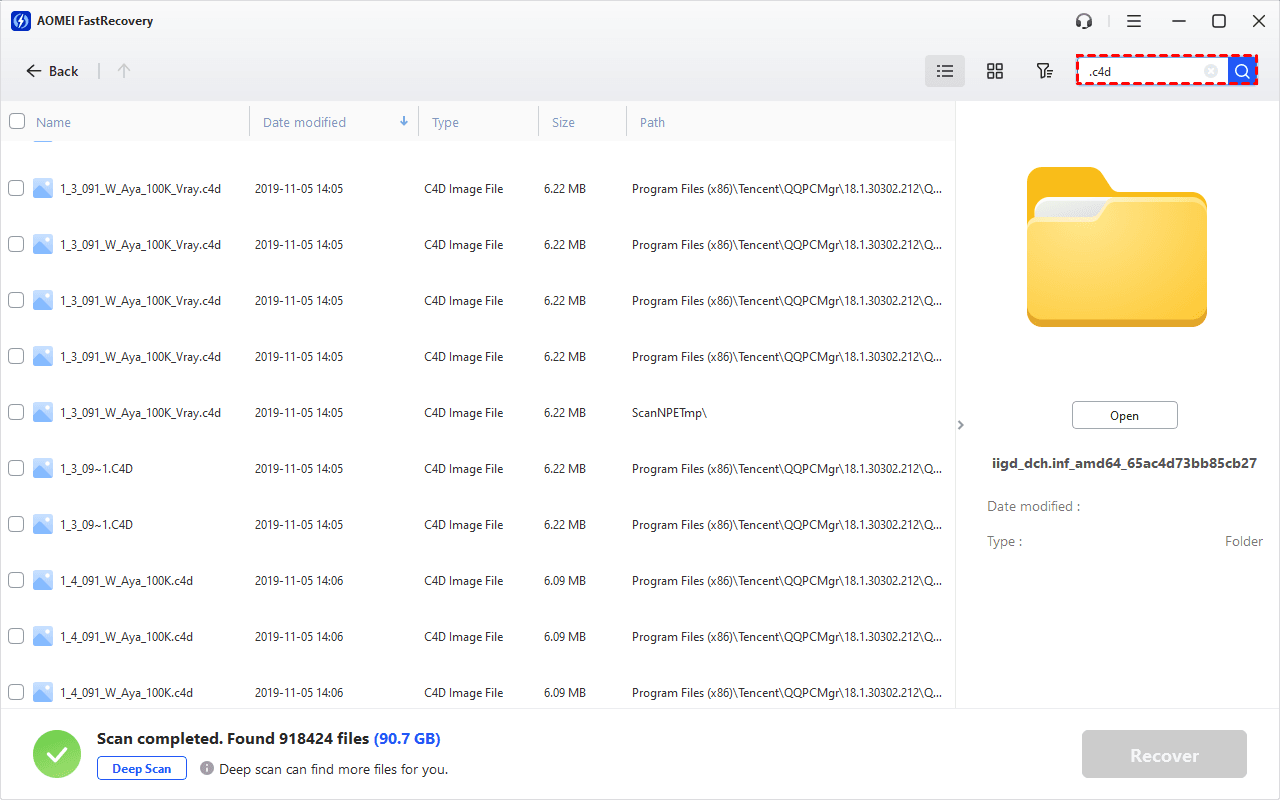
Step 3. The quick scan starts automatically. Once it finishes, type .c4d in the search box to find files quickly, as it's usually not categorized under a single "Document", "Image", etc., type.
-
Browse by Path if you remember where the C4D file was originally saved.
-
Click the Deep Scan to find more data if Quick Scan fails. It will scan every sector of the disk and take longer.
Step 3. Choose the deleted C4D files and click on Recover to get them back quickly. Select a new location to store the recovered files, preventing potential data overwriting.
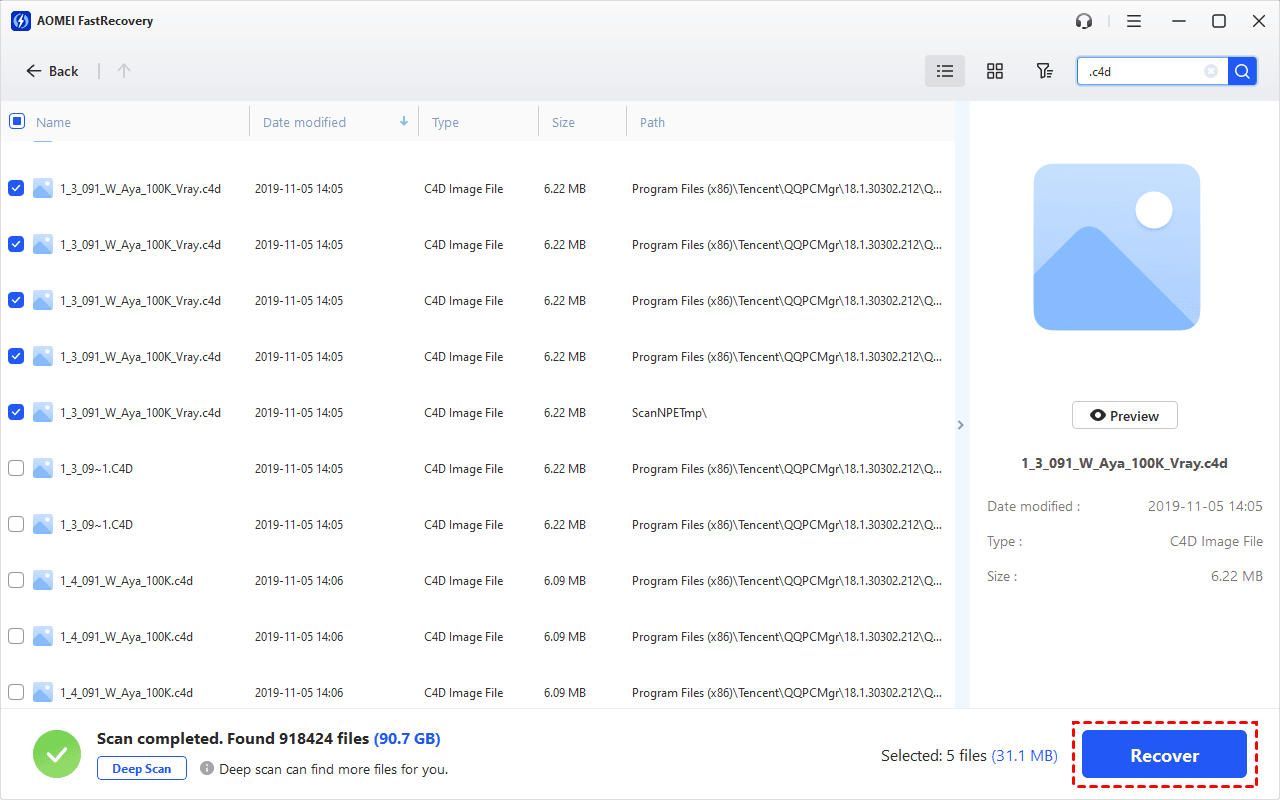
You can recover deleted C4D files from hard drive for free, up to 500MB. To recover all files, please upgrade to the advanced editions.
Recycle Bin - Recover Recently Deleted C4D Files
If you accidentally or intentionally deleted your C4D files and wish to recover them, you can retrieve them from the Windows Recycle Bin on your system. The Recycle Bin temporarily stores deleted or removed files until you empty the bin. Follow these quick steps to recover deleted files from the Recycle Bin in Windows.
1. Locate and click on the Recycle Bin icon on your desktop.
2. Once the Recycle Bin folder opens, find and right-click the C4D file you want to restore, and click the Restore option to restore files to its original location.
File History - Restore Previous Versions of C4D Files
While the Recycle Bin is a useful tool for recovering deleted files, it has its limitations. In scenarios where a C4D file is lost or missing due to system crashes, file corruption, malware attacks, and similar causes, it's advisable to explore other data recovery methods.
If you prefer not to rely on professional recovery software, an effective in-computer technique can help you retrieve your file. Follow the step-by-step instructions below:
1. Type "File History" in the Start menu and select the top result. It will navigate you to the restore window.
2. Browse through the available backups and locate the C4D file you wish to recover. Once confirmed, click the green restore button to start recovery.
You can also click Settings > Restore to select a new location to save your C4D files.
How to Recover Corrupt C4D Files
As C4D files often contain substantial data, they can become corrupted due to system crashes, network failures, and other factors.
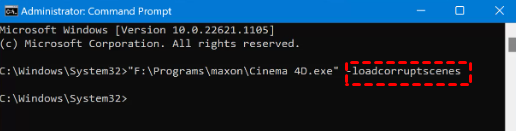
When you encounter the "Incorrect File Structure" prompt upon opening Cinema 4D, but lack access to data recovery software like AOMEI FastRecovery, you can attempt an in-computer technique.
1. Type "CMD" in the Windows search box and open it as an administrator.
2. Navigate to your Cinema 4D Program Folder, and drag and drop the Cinema 4D.exe file to the Command Prompt window,
3. Press the spacebar and paste "-loadcorruptscenes".
Utilize AutoSave in Cinema 4D for File Restoration
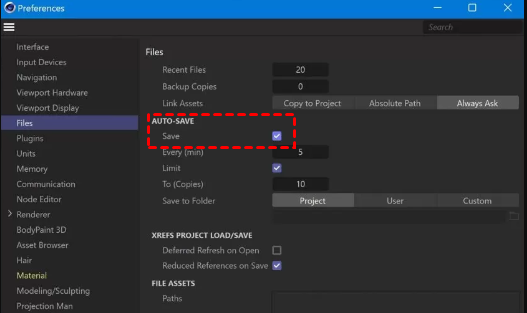
Cinema 4D includes an AutoSave feature designed to protect your work from unexpected crashes, power outages, or system errors. It automatically saves your progress at set intervals, reducing the risk of losing hours of work.
Two things to keep in mind:
#1: Check your AutoSave settings: Make sure the interval is set to something you're comfortable with. The default may not be frequent enough for heavy projects. You can go to Edit > Preferences > Files > AutoSave.
#2: Don't rely on AutoSave alone: Save iterations of your work manually and regularly. AutoSave is a safety net, not a replacement for good saving habits.
Summary
Instead of starting from scratch, FastRecovery simplifies the process of C4D file recovery. However, if your storage drive is severely damaged, it's advisable to seek professional assistance to recover data from a dead external hard drive or other storage devices before permanently losing your crucial data to virus attacks, hardware failures, or corruption.

 as a preferred
source on Google
as a preferred
source on Google