




Intenso USB Data Recovery - Get Your Files Back Fast
This guide covers two effective Intenso data recovery software - one is simple and easy to use, the other is command-line based. Choose what suits you.

By Ivy Updated on July 1, 2026


You plug in your Intenso USB stick, open File Explorer, and wait. But your files aren't there - they've simply disappeared. Or maybe you accidentally formatted the drive, and now it's empty.
It's frustrating, and it happens more often than you'd think. But here's the good news: in most cases, your data is still recoverable.
Intenso has been a trusted name in storage since 1998 - known for reliable USB sticks, hard drives, memory cards, and SSDs. But even the best hardware can't protect against accidental deletion, formatting, corruption, etc.
In this guide, we'll walk you through the essential dos and don'ts of Intenso data recovery so you can get your files back without making things worse.
Intenso Data Recovery: Dos and Don'ts
Before you start recovering files from your Intenso USB or SSD, there are a few things worth knowing. These tips can save you time and help you avoid mistakes that could cost you your data.
📌 Stop using the Device: If you experience data loss on your Intenso USB stick or any other Intenso device, the first step is to immediately stop using the drive.
📌Avoid Formatting: Formatting the Intenso USB drive will erase all data, making recovery more challenging. Full formatting permanently removes files, leaving no chance for recovery.
📌Act Quickly: The sooner you start, the better your chances of getting your files back. Every moment you delay increases the risk of overwriting the data you need.
📌Choose a Reliable Recovery Tool: Not all recovery programs are equal in terms of features and recovery rates. It's important to select a reputable recovery tool that suits your needs.
Try FastRecovery for Intenso Data Recovery
When it comes to recovering lost data from your Intenso USB drive, the right tool makes all the difference. AOMEI FastRecovery combines ease of use with powerful scanning technology - giving you the best chance of getting your files back, without any technical hassle.
 AOMEI FastRecovery
- Dual-scan modes: Integrate Quick Scan and Deep Scan to scan hard drive for deleted files, ensuring a high success rate.
- 1000+ data types: Recover deleted or lost images (JPG, PNG, TIF, HEIC, GIF), videos (MP4, MOV, AVI, ASF, WMV), audios (MP3, CDA, WAV, AIFF), and more.
- Find your files fast: Browse by type or path, and sort, search, filter, and preview deleted files.
- Versatile: Work smoothly with healthy/corrupted/formatted/infected Intenso USB drive, as well as SanDisk, Kingston, Samsung, etc.
- Free to try: The free edition can recover data up to 500MB – no commitment required.
- Safe & easy to use: Read-only, no data overwriting. simple, intuitve interface.
 100% Secure
Download AOMEI FastRecovery to get the best Intenso USB recovery tool. You can use it on Windows 11/10/8/7 and Windows Server.
1. First, connect your Intenso USB drive to your computer and open AOMEI FastRecovery after installing. Then, click Deleted Files Recovery, specifically designed for quick recovery.

2. Hover the mouse over its icon on this page. And click Scan to let it be scanned.
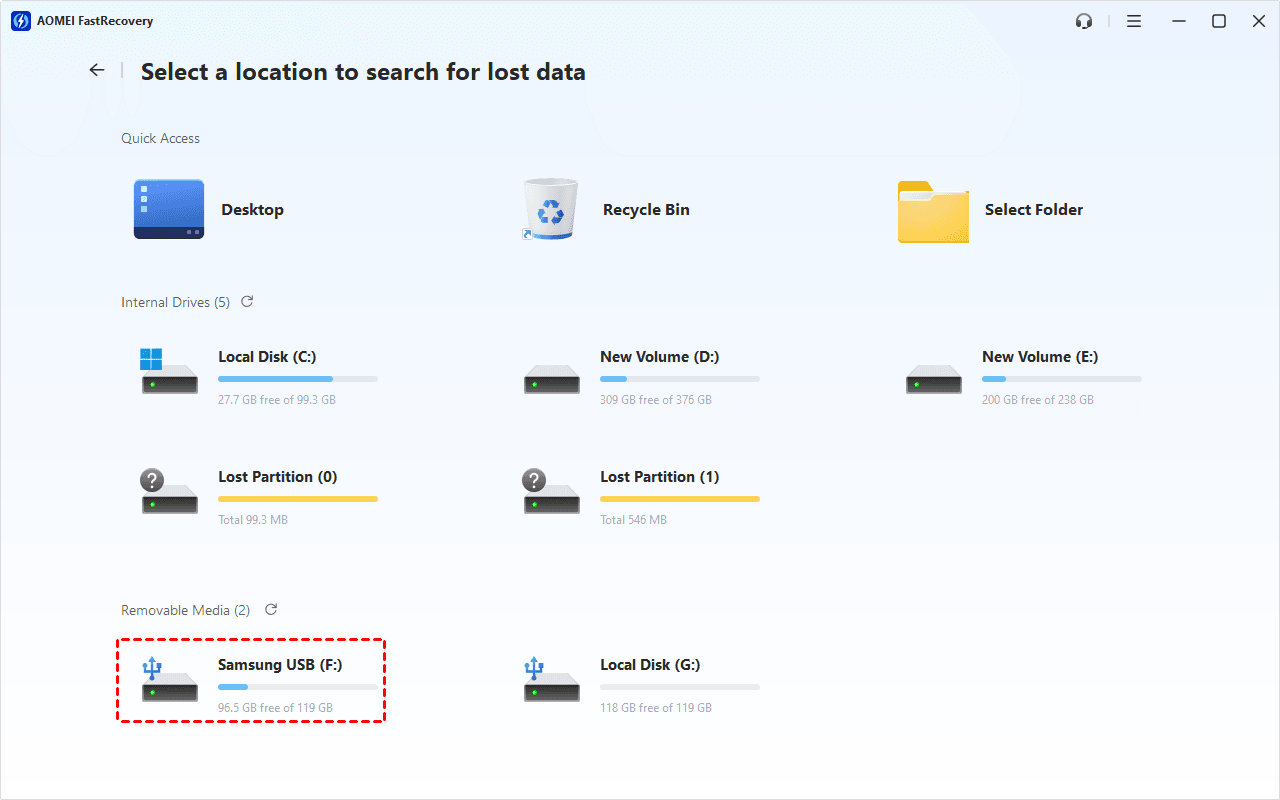
3. It will start a quick scanning process automatically. Wait, and in the scanning result window, check Images, Videos, etc., data type and specific formats.
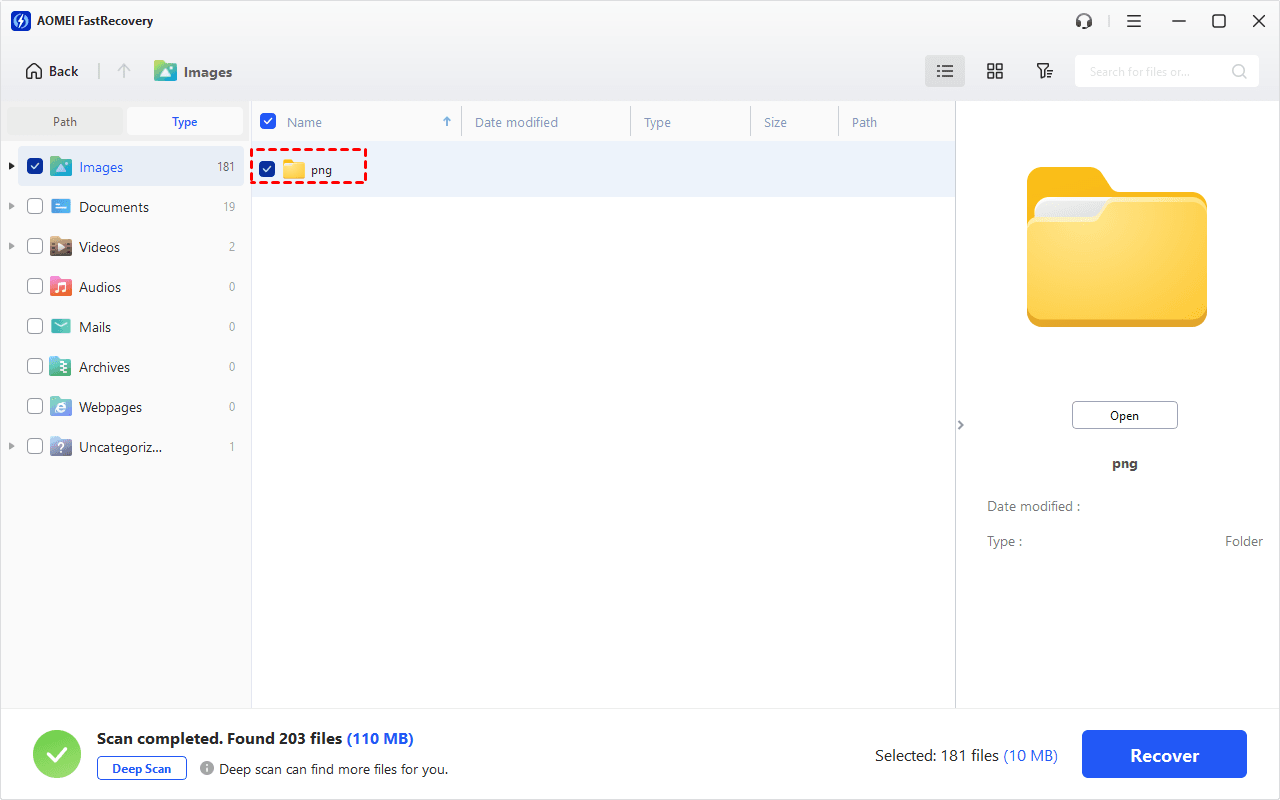
You can also expand to check Deleted Files, Recycle Bin, or Existing Files for specific files. To find files quickly, combine the following options:
-
Sort files by name, date modified, type, etc., using the column headers.
-
For faster searching, type the file name or extension (.png, docx, .mp4) in the search box.
- Or click the funnel-shaped button to narrow your search by type or size, especially useful for large deleted files.
4. Once confirmed, click Recover to get lost data back quickly. Please select a new location to save them, significantly reducing the risk of data overwriting.
Try Windows File Recovery for Intenso Data Recovery
Another option to recover deleted files from an Intenso USB flash drive is to use Windows File Recovery. This tool can be downloaded for free from the Microsoft Store and supports Windows 10 version 2004 and higher.
However, unlike FastRecovery and other market alternatives, Windows File Recovery lacks a graphical user interface, making data recovery slightly more complex.
1. Download Windows File Recovery from the Microsoft Store. Then, launch it from the Start Menu.
2. Connect your Intenso USB flash drive to your computer and in the Command Prompt window, enter the following command format:
winfr D: E:/ [/mode] [/switches]
- Replace D: with the drive letter assigned to your USB flash drive and E: with the drive letter assigned to the storage device where you want to store the recovered files.
- Specify the recovery mode and any switches you intend to use. You can choose between Regular and Extensive modes to recover files.
3. Confirm the recovery operation by entering "Y." The recovery process may take time, depending on the size of your source drive (e.g., the Intenso USB flash drive). To stop the recovery process, press Ctrl + C.
Is It Possible to Restore Data from an Intenso USB Device?
Can you recover data from an Intenso USB? It depends on what happened. Accidental deletion? Usually yes. Quick format? Still recoverable. Physical damage? That's trickier - you'll likely need professional help.
✦ Accidental Deletion: Accidentally deleting files is a common occurrence, and there's a good chance of recovering deleted files from a flash drive as long as you stop using the drive immediately.
✦ Formatting: Quick format simply marks the space as available - your data stays on the drive until it's overwritten. That means recovery is possible. Full format, on the other hand, permanently wipes the data - it's gone for good.
✦ Logical Corruption: Device corruption can make your Intenso drive inaccessible, but recovery software can still scan and restore files as long as it is still recognized. A backup is your other option.
✦ Physical Corruption: Physical corruption typically stems from electrical or mechanical issues with the Intenso USB stick's connector. In such cases, it's advisable to get help from a data recovery service for any chance of file recovery.
✦ Viruses: Many types of viruses can lead to data loss in Intenso sticks. However, reliable file recovery software offers a good chance of recovering lost files.
✦ File Transfer Errors: Abruptly stopping file transfers to or from an Intenso USB stick can result in data loss issues. While data recovery is possible in such scenarios, the recovered files may be damaged. Ideally, recovering lost files from a backup is the best solution if available.
How to Prevent Data Loss from Intenso Devices
While data loss can be frustrating, it's also common in daily life and work. However, you can take certain precautions to minimize the risk or extent of data loss. Here are some best practices to consider for preventing significant data loss from your Intenso USB flash drive:
- Regularly Create Backups: Make it a habit to create backups of your data, ensuring it's not stored in a single location. Utilize separate storage devices like flash drives, hard drives, or cloud storage for secure data preservation. In this way, you can restore files from backup in the event of a data loss issue.
- Handle Your USB Stick with Care: Flash drives are delicate and prone to physical damage. To avoid complex data recovery processes or dealing with a broken USB stick, handle it with caution.
- Utilize Anti-Virus Tools: Malware can cause unexplained data loss, so it's essential to have reliable anti-virus software installed on your computer. These tools can scan and repair connected USB drives, safeguarding against malicious attacks.
To Sum up
Dealing with data loss can be challenging, but the good news is that professional data recovery software like FastRecovery offers a reliable solution to recover files from an Intenso USB flash drive. Remember to prioritize data protection and immediately stop using your Intenso flash drive to minimize further damage.

 as a preferred
source on Google
as a preferred
source on Google