




How to Get Photos Off an Old Hard Drive Safely
Learn how to get photos off an old hard drive safely. Copy visible files, recover deleted photos with AOMEI FastRecovery, or handle access, encryption, and hardware issues.

By Ivy Updated on September 14, 2026


If you have an old hard drive full of family photos, the first thing to know is this: an old drive that won't boot, or a folder that won't open, doesn't mean your photos are gone. In most cases, they're still there, you just need to get to them the right way.
Before you install anything or type any commands, take a minute to figure out what state your drive is in. Then jump straight to the method that fits your situation.
| 👁🗨 What you see | 💡 What it usually means | 🧭 Where to go |
|---|---|---|
| Old PC won't boot, but the drive spins up fine | The drive works; Windows is the problem | Method 1 |
| Drive connects but photos are missing or deleted | Files were deleted or the drive was formatted | Method 2 |
| Drive connects but a folder says "Access Denied" | A permissions or encryption issue | Check Part 3 |
| Drive makes clicking, beeping, or grinding sounds | Possible hardware failure | Check Part 3 |
| Windows asks you to format the drive | The file system may be damaged | Cancel it |
Method 1: Copy Photos from a Working Old Drive
👍 Best for: Old drives that still show up in File Explorer, with photos that are visible and accessible.
This is the simplest and safest way to get your photos back and it works more often than people think. No software required.
Before you start, here's what you need to know:
✅ If the old PC still works, you may not need to remove the drive at all. You can copy photos over your network or with a USB drive.
✅ If you pulled the drive from a dead PC, you'll need an adapter or enclosure. The right one depends on the drive type:
- 2.5-inch laptop drives: Usually work with a SATA-to-USB cable. Some may need extra power.
- 3.5-inch desktop drives: Require an external power source. A SATA-to-USB cable alone isn't enough.
- Older IDE drives: Need a different adapter. Check the connector before buying anything.
✅ If it's already an external drive, just plug it in. If it doesn't show up, try a different USB port or cable.
✅ Photos on old drives are usually stored in the user folder of whoever used the computer, for example, Pictures, Desktop, Documents, or Downloads.
Step 1. Plug the drive into your working PC using the correct adapter, enclosure, or cable. Open File Explorer and confirm the drive appears with a letter, like D: or E:.
Step 2. Go to the user folder on the old drive. If you're not sure where the photos are, use the search box in File Explorer and type *.jpg or *.png.
Step 3. Select the photos, right-click, and choose Copy. Paste them into a folder on your working PC or another external drive. Then, open a few photos to confirm they work.
Method 2: Recover Deleted Photos with AOMEI FastRecovery
👍 Best for: Photos that were deleted, or drives that were formatted, so the files no longer appear in File Explorer.
If the photos are gone from view, copying won't help. That's when you need recovery software.
AOMEI FastRecovery is a reliable Windows data recovery tool that can recover deleted or missing files on Windows 11, 10, 8, 7, and Windows Server. It scans your drive for files that are no longer visible, then lets you preview and restore them.
 AOMEI FastRecovery
- 🔎 Quick Scan, Then Deep Scan: Start with a Quick Scan to find recently deleted photos fast. If they're missing, Deep Scan searches more thoroughly.
- 🎯 Scenario-Driven: Choose the situation you're dealing with: deleted files, partition formatted, USB/SD card, and more, each with an optimized scan mode.
- 📂 Flexible Browsing: Navigate results by image type or original folder - clean, intuitive, and beginner-friendly.
- 🚀 Pinpoint What You Need: Search, sort, and filter with thumbnail previews, so you know exactly which photo you're recovering.
- 💰 Free Tier: Recover up to 500MB for free, even on Windows 11, 10, 8, 7, and Windows Server.
 100% Secure
Step 1. Download and install AOMEI FastRecovery on your working PC. Open it and choose Deleted Files Recovery.

Step 2. Select the old drive from the list of available drives, then click Scan. Quick Scan starts automatically.
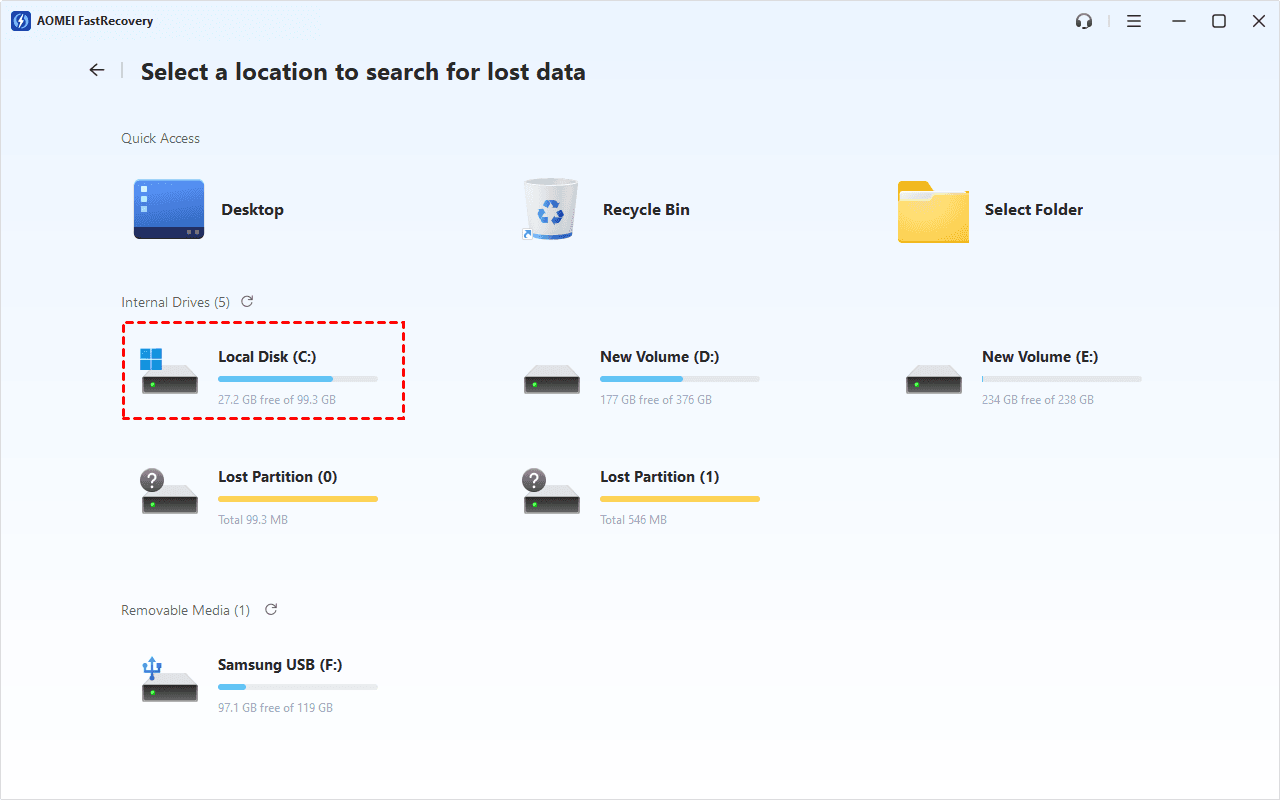
Step 3. When the scan finishes, browse the results by Type or Path. Search for file name or extension, sort the results, or use filters to find your photos quickly. Thumbnail previews let you confirm you're recovering the right files.
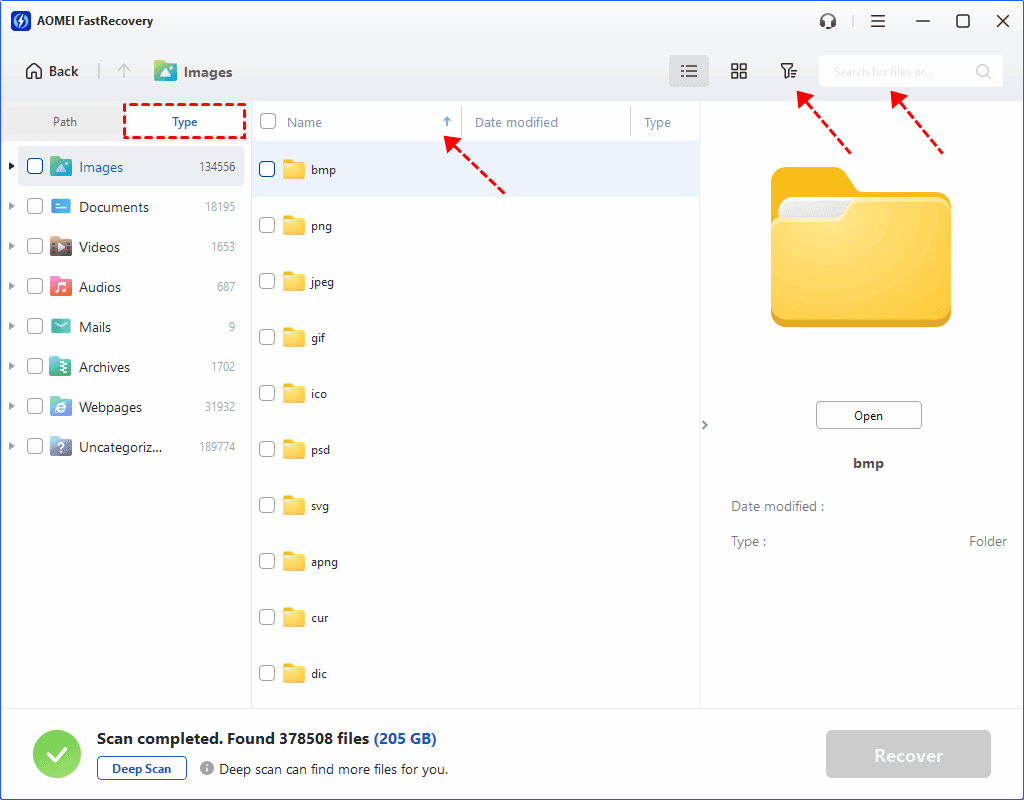
Step 4. Select the photos you want, click Recover.
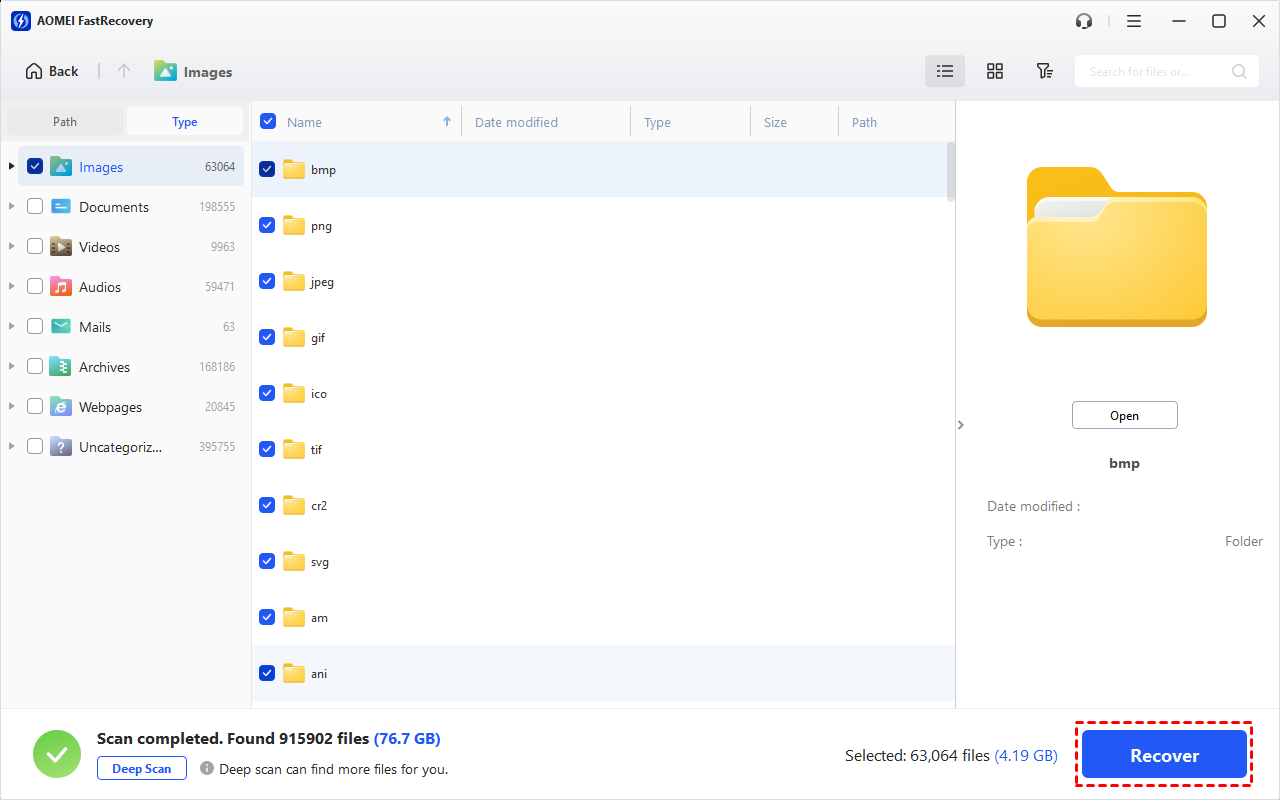
Step 5. Choose a folder on a different drive as the destination, not just a different folder on the same drive.
The free edition supports up to 500MB of recovery. For more, you'll need to upgrade.
After You Get Your Photos Back
After getting your photos back, take a few minutes to verify and protect against this happening again:
-
Open several photos to confirm they aren't corrupted. Check a mix of old and recent ones.
-
Save your recovered photos to at least two locations, for example, your PC and an external drive, or an external drive and cloud storage.
-
Keep the old drive untouched for a while. Don't format it or reuse it until you're sure everything you need has been copied.
-
Create a backup to prevent the whole situation from happening again. AOMEI Backupper Standard is a free backup software and offers a way to to set up more flexible backups.
What If the Drive Is Locked, Unreadable, or Failing?
Not every old drive problem can be solved by manually copy or a recovery software. Here's how to handle the most common roadblocks.
"Access Denied" when opening a folder
This usually means the folder is owned by a different user account, or the files are encrypted.
-
Old Windows install: You may be able to take ownership. Right-click the folder, go to Properties > Security > Advanced, and change the owner to your current account.
-
EFS-encrypted files: Taking ownership won't help. Encrypted files can only be opened with the original user's certificate or key.
-
BitLocker encrypted drive: You'll need the password or recovery key to unlock Bitlock drive. Moving the drive to another PC doesn't remove the encryption.
Don't assume recovery software can bypass encryption - it can't.
Windows asks you to format the drive
Don't click Format. A format prompt usually means Windows can't read the file system, not that the drive is empty. Try the access denied solutions above, or scan the drive with recovery software. Formatting will make things worse.
Already formatted a drive by accident? Don't worry. The type of format makes a difference. Check out unformat hard drive to learn more.
The drive makes strange noises
Clicking, beeping, or grinding sounds usually point to a hardware problem. If you hear these sound, do as suggested:
-
Stop using the drive immediately.
-
Don't run repeated recovery scans, which can cause more damage.
-
For valuable photos, contact a professional data recovery service.
If the drive is silent and connects normally, it's probably fine to keep troubleshooting.
FAQ
Can I get photos off an old hard drive if the computer won't start?
Yes, in most cases. Remove the drive and connect it to another working PC using an adapter or enclosure. Then copy the photos or scan the drive with recovery software.
Do I need recovery software to get photos off an old drive?
Not always. If the photos are still visible in File Explorer, you can simply copy them. Recovery software is only needed if the files were deleted or the drive was formatted.
Why does it say "Access Denied" when I try to open my old photos?
This is usually a permissions issue or an encryption problem. If the files aren't encrypted, you can often fix it by taking ownership of the folder. If they are encrypted, you'll need the original password or key.
What should I do if Windows asks me to format the old drive?
Don't format it. That message usually means Windows can't read the file system, not that the drive is empty. Check access permissions first, or scan the drive with recovery software.
How long does it take to get photos off an old hard drive?
Copying photos usually takes minutes. A full recovery scan can take anywhere from a few minutes to several hours, depending on the drive's size and condition.
The Bottom Line
Getting photos off an old hard drive isn't always a data recovery job. Sometimes you just need to connect the drive and copy the files. Sometimes you need recovery software. And sometimes the right move is to stop and get professional help.
Figure out which situation you're in, then jump to the method that fits. That's the safest way to get your photos back.

 as a preferred
source on Google
as a preferred
source on Google