




How to Fix Windows 11 Update Error 0x800705aa
We‘ll explore Windows 11 update error 0x800705aa, including potential reasons, associated risks, and effective solutions, alongside how to recover missing files.

By Ivy Updated on February 6, 2026


Possible Reasons Behind Windows 11 Update Error 0x800705aa
Experiencing the frustration of Windows 11 update error 0x800705aa can be perplexing, but understanding its potential roots is the first step toward resolution.
This error may arise due to corrupted system files, incomplete update downloads, or conflicts with existing software. The complexity of the Windows operating system means that multiple factors could contribute to this update error.
Identifying the specific cause is essential for effective troubleshooting and resolution.
Potential Dangers of Windows 11 Update Error 0x800705aa
While Windows 11 update error 0x800705aa itself may not pose a direct threat to your system, it can lead to complications that might affect your overall user experience.
The primary risk lies in the incomplete installation or corruption of critical system files during the update process. This can result in instability, performance issues, and potential software conflicts.
Additionally, recurrent update errors may hinder your ability to access the latest features, improvements, and security patches provided by Windows updates.
How to Restore Missing Files After Update Error 0x800705aa
AOMEI FastRecovery emerges as a reliable data recovery solution, equipped with a user-friendly interface and advanced features. Its robust algorithms ensure a high success rate in recovering missing files after encountering Windows 11 update error 0x800705aa.
 AOMEI FastRecovery
- Available in all Windows operating systems, like Windows 11/10/8/7 and Windows Server.
- Provide a clear graphical user interface and simple operating steps.
- Provide 2 advanced scanning methods: Quick Scan and Deep Scan.
- Recover more than 1000 file types, Word documents, Excel, PPT, JPG, GIF, 3FR, MP3, MP4, MOV, VWM, ANI, ZIP, etc.
- Search, filter, and preview deleted files before recovering.
- 👍Free data recovery, supporting up to 500MB.
 100% Secure
If you want to get your lost files back after upgrading to Windows 11, click on the download button to install AOMEI FastRecovery on your computer. And follow the easy 3-step tutorial to recover files:
Operating Steps for Recovery:
1. In AOMEI FastRecovery, hover the mouse over the drive where deleted files are saved, and click Scan.
2. After a Quick Scan, you can see your deleted files and other missing files, displayed by Type (default) or Path. For specific files, type the file name in the search box to search quickly.
3. Double-click the files you want to recover and confirm you are selecting the right ones. Click on the Recover button to recover lost files after upgrading to Windows 11.
4 Feasible Ways to Fix Windows 11 Update Error 0x800705aa
After recovering data, you can feel free to fix Windows 11 update error 0x800705aa in 4 useful methods.
1. Run Windows Update Troubleshooter:
Windows 11 includes a built-in troubleshooter designed to identify and fix common update-related issues.
Step 1. Open Settings, go to Update & Security, select Troubleshoot.
Step 2. Run the Windows Update troubleshooter. Follow on-screen instructions to apply fixes.
2. Clear Windows Update Cache
Corrupted update caches can lead to errors. Clearing the cache can resolve issues with the update process.
Step 1. Open Command Prompt as an administrator.
Step 2. In the Command Prompt window, run the commands "net stop wuauserv" and "net stop cryptSvc" to stop related services.
Step 3. Then, navigate to the SoftwareDistributionfolder and delete its contents. Finally, restart the stopped services.
3. Check Disk Utility for System File Integrity
Corrupted system files can contribute to update errors. The Check Disk utility can scan and repair file integrity issues.
Step 1. Open Command Prompt as an administrator.
Step 2. Run the command "sfc /scannow" to initiate the scan and repair process. Follow the on-screen instructions and allow the process to complete.
4. Perform a Clean Boot
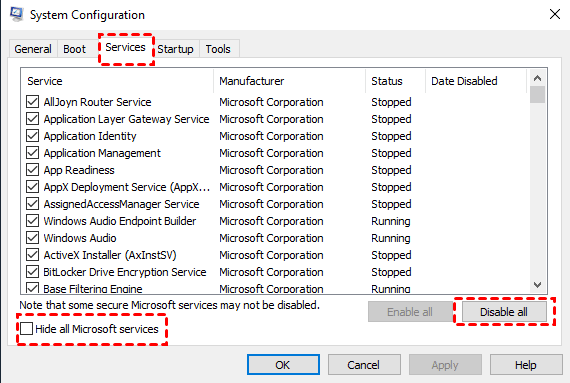
Conflicts with third-party software may contribute to update errors. Performing a clean boot minimizes interference from non-essential services and startup programs.
Step 1. Open System Configuration, go to the Services tab, check "Hide all Microsoft services," and click "Disable all."
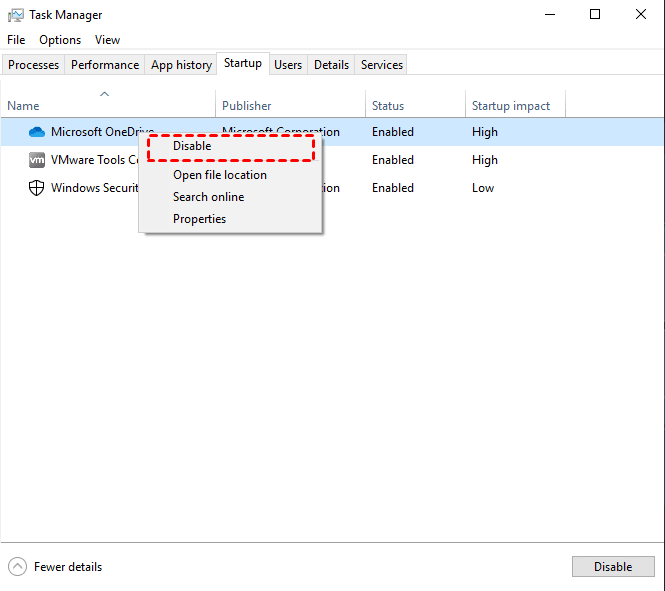
Step 2. Then, go to the Startup tab and click "Open Task Manager".
Step 3. Disable startup programs, close Task Manager, and restart your system.
In Conclusion
As we navigate the complexities of Windows 11 updates, addressing error 0x800705aa becomes a pivotal step toward a seamless user experience.
By understanding potential reasons, risks, and effective solutions, including data recovery with AOMEI FastRecovery, users can confidently troubleshoot and resolve update errors, ensuring their system remains robust and up-to-date.

 as a preferred
source on Google
as a preferred
source on Google