



How to Backup VMware Virtual Machine on ESXi or Workstation
To back up a VMware virtual machine, start with what you need to recover. This guide covers scheduled ESXi full backups, portable OVF exports, Workstation folder copies, and SQL Server backups from inside a VM.

By Ivy Updated on November 20, 2026


To backup VMware virtual machine that has to stay online, schedule a whole VM backup on ESXi or vSphere. If you can shut down the VM and only need a copy you can deploy later, export it as an OVF template. In VMware Workstation, shut down the VM and copy its files to another drive. For a SQL Server database, you can run the backup from inside the VM while it stays online.
|
🎒 What you need |
🛠️ What to do |
Can the VM stay on? |
|---|---|---|
|
An ESXi VM from a recent recovery point |
Schedule full VM backups |
Yes |
|
A vSphere VM from a portable package |
Export an OVF template |
No |
|
A Workstation VM after replacing the host |
Copy the VM folder and its virtual disks |
No |
|
A SQL Server database inside a VM |
Create a database backup in SSMS |
Yes |
Method 1: Schedule Full Backups for Running ESXi VMs
For small ESXi hosts that need to keep services running, AOMEI Cyber Backup is a solid choice. You can schedule backups from a single console without installing an agent inside each VM.
Want complete peace of mind? Set your schedule to run Full Backups so every recovery point can stand on its own. Worried about storage limits? Set a schedule to run Incremental or Differential backups after the initial full backup to save time and space.
Best of all, it's free for your setup. The Free Edition supports up to 3 standard ESXi VMs, plus a separate unlimited allowance for free ESXi VMs. Just check your host version and ensure you have enough storage space before you begin.

 AOMEI Cyber Backup
- Back up up to 3 standard ESXi VMs, plus unlimited free ESXi VMs.
- Schedule full, incremental, or differential backups to run daily, weekly, or monthly.
- Manage VMware backups from a central console.
- Save backups to local drives, external storage, or NAS, and archive backup versions to Amazon S3.
- Choose from multiple recovery options, including instant recovery, granular recovery, and more.
 100% Secure
Before creating backup task, you need to add the devices you want to backup. Then, create a new task with ESXi VMs.
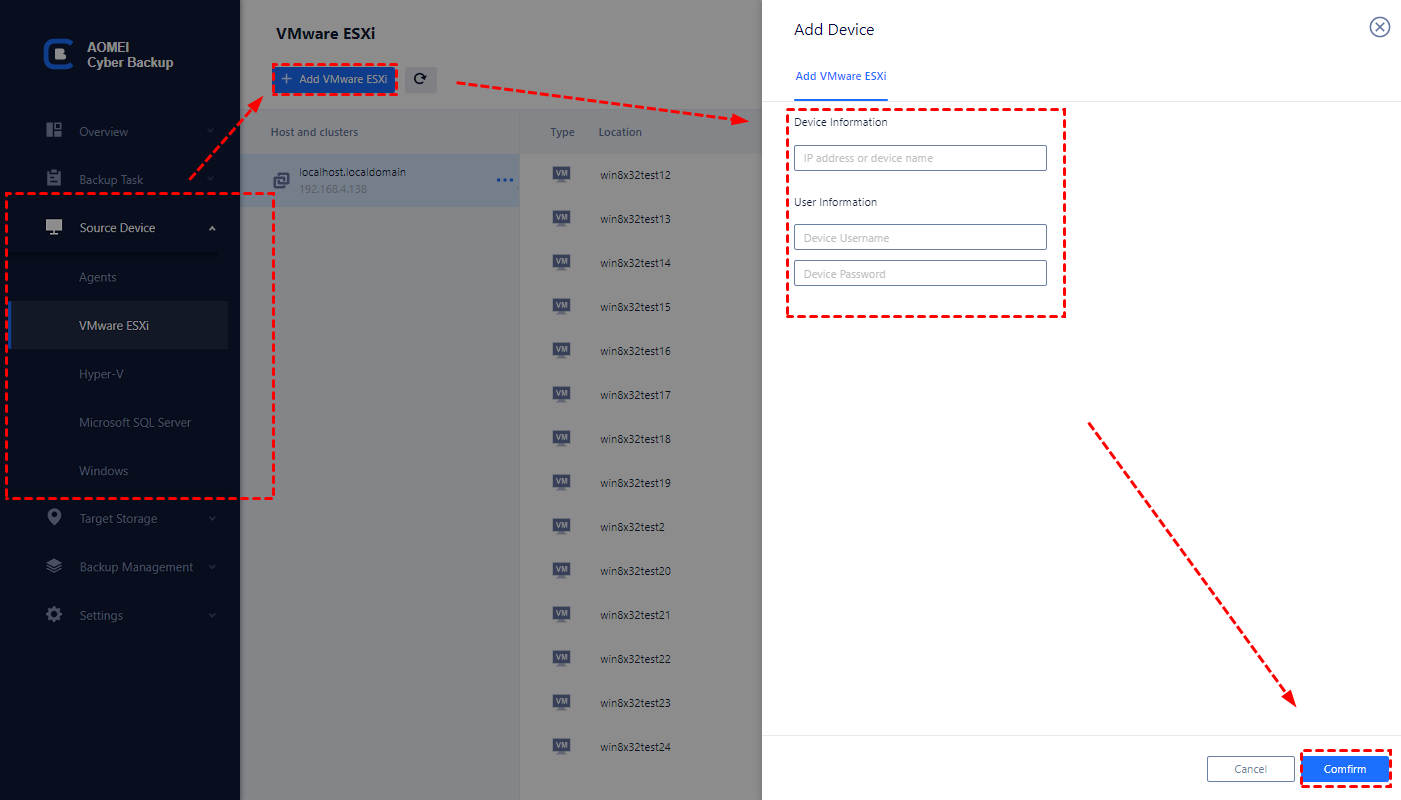
Step 1. Open AOMEI Cyber Backup and log in to your account. Then, go to Source Device > VMware ESXi > Add VMware ESXI.
Step 2. To add vCenter or Standalone ESXi, enter the corresponding IP address, username, password and click Confirm to continue.
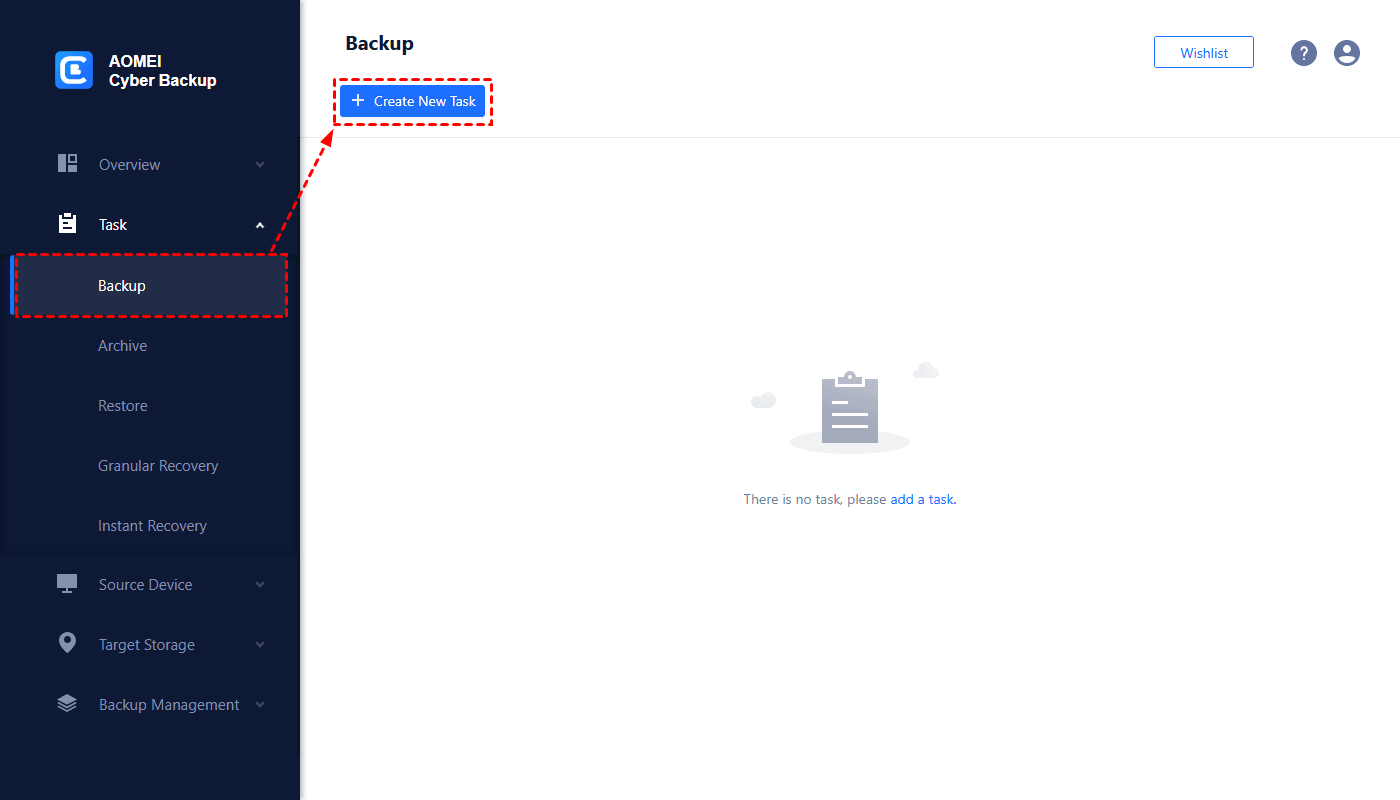
Step 3. Go to Task, expand it and select Backup > Create New Task.
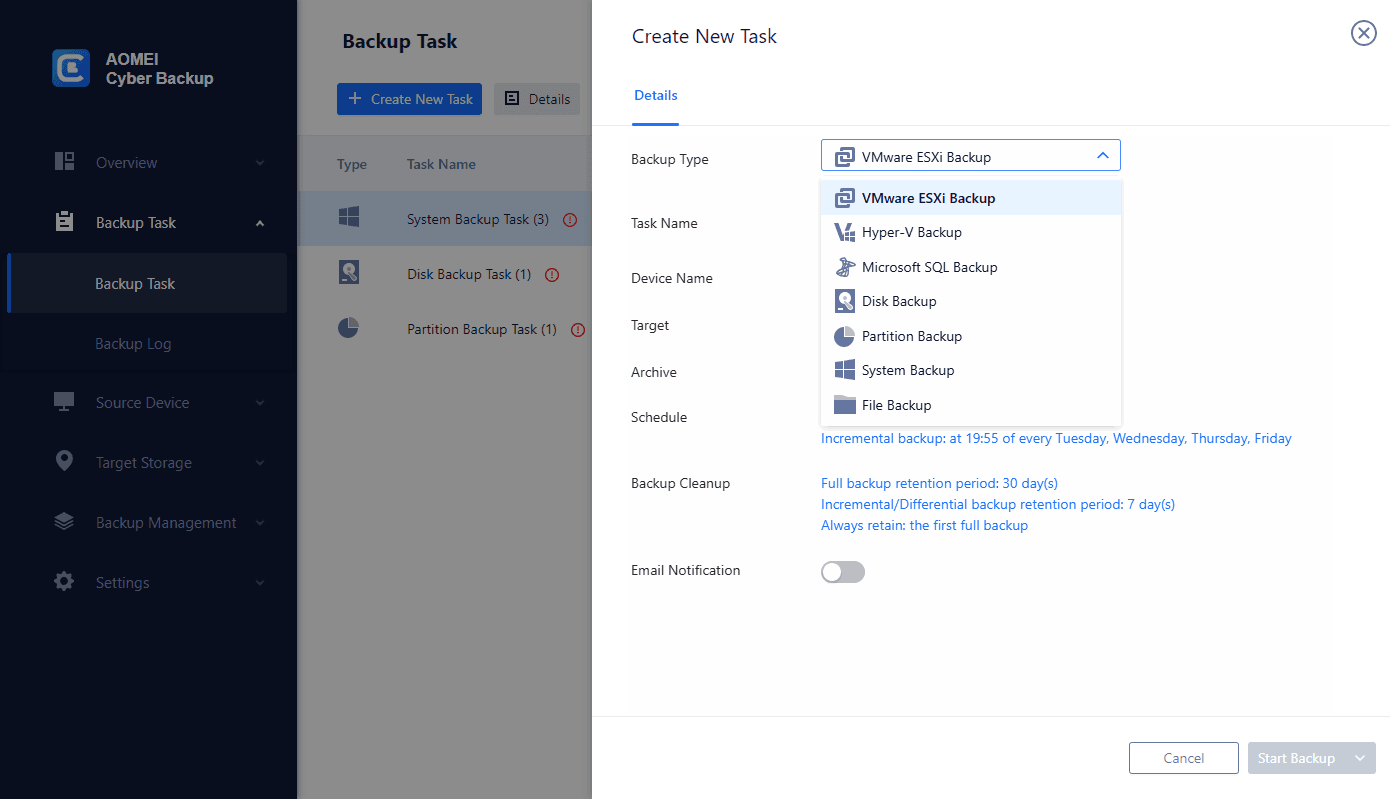
Step 4. In the wizard, select VMware ESXi Backup and enter a Task Name so you can easily tell it apart from other tasks.
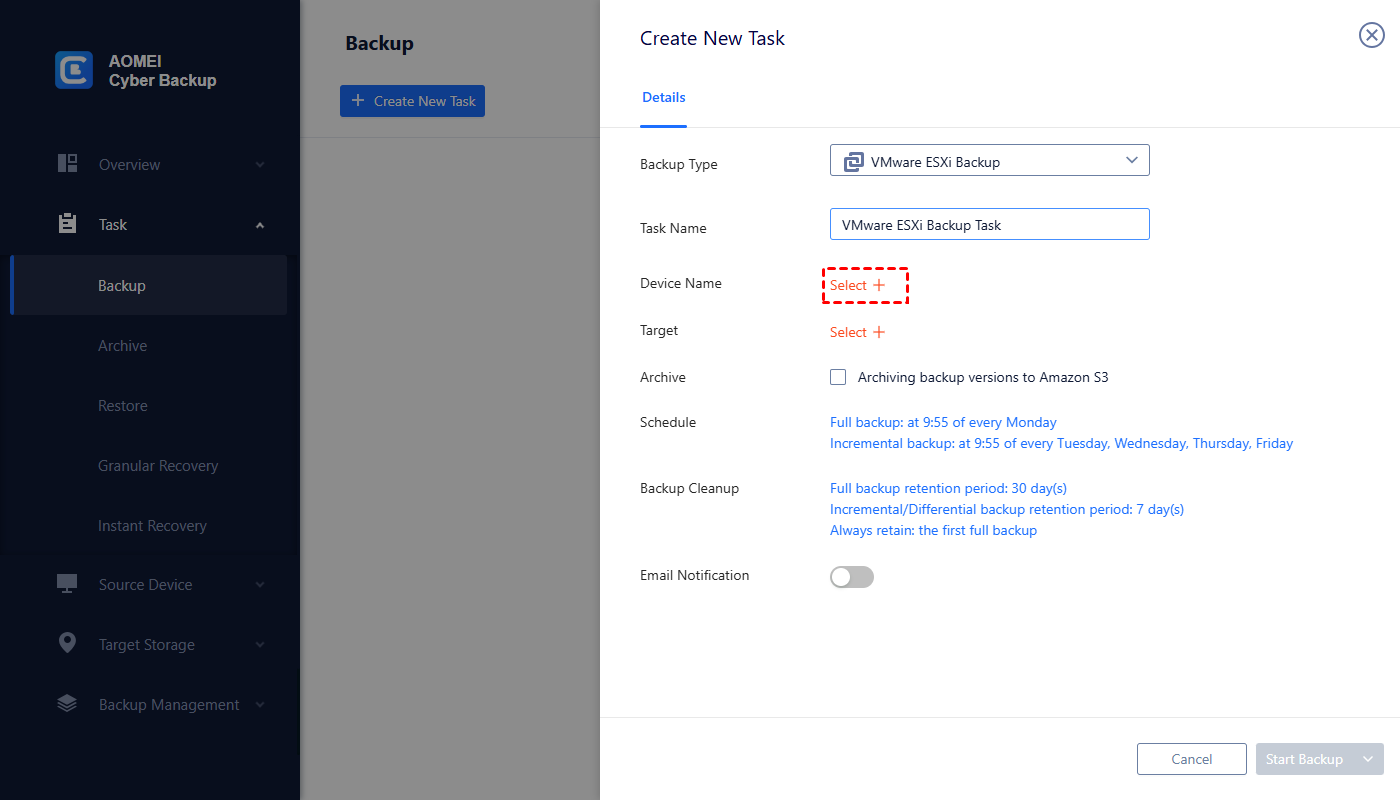
Step 5. Click Select + next to Device Name.
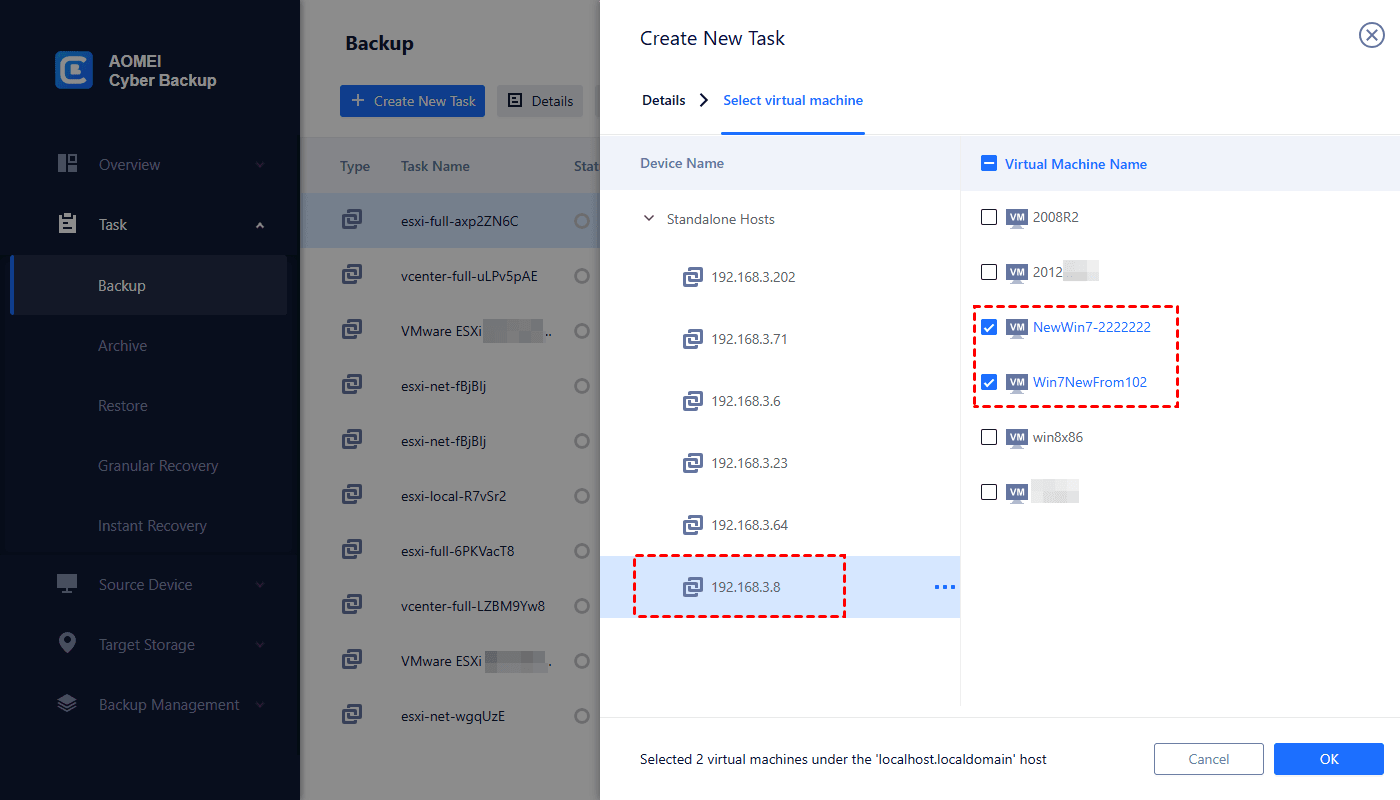
Step 6. Then, expand the Standalone Hosts, select the IP address of your host and the virtual machines you want to backup.
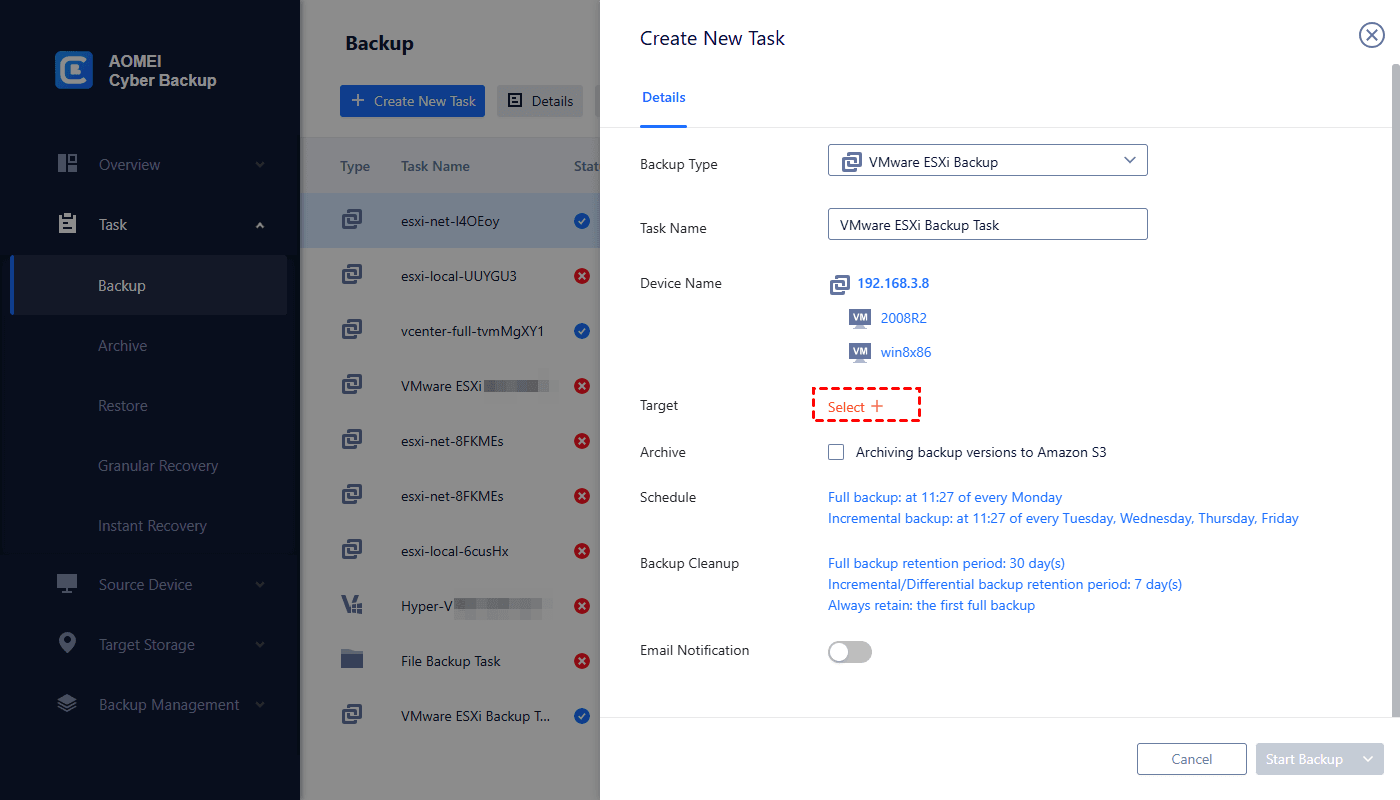
Step 7. Similarly, click Select + next to Target and choose a repository outside the source datastore. To add a new share, click Add a new network storage and enter its credentials. Or click Add a new local storage to add a folder as backup storage.
Step 8. Optionally, click the current schedule settings to edit them and click Start Backup and select Add the backup and start backup now. Check the backup task list to monitor its progress.
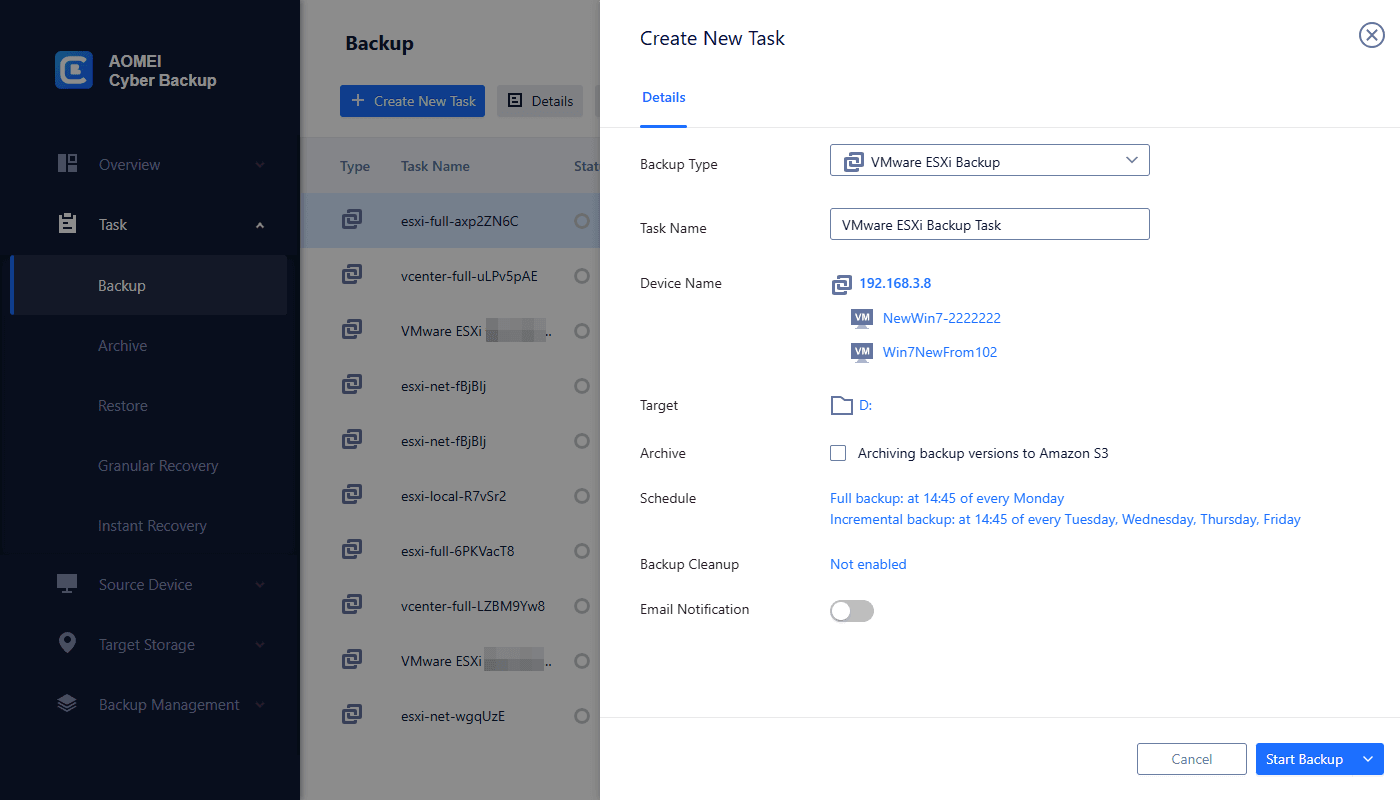
When the job finishes, open Backup Task and review the task details. Confirm that the full backup completed successfully for each selected VM.
Method 2: Export a Powered-Off vSphere VM as an OVF Template
An OVF export is handy when you’re retiring a lab host and want to bring one of its VMs up somewhere else later. Shut down the VM for the export, and keep the .ovf descriptor with the .vmdk files it references.
Step 1. Right-click the VM in the vSphere Client and select Power > Shut Down Guest OS. If the option is unavailable, shut down from inside the guest. Wait for Powered Off before opening the export menu.

Step 2. Right-click the VM and select Template > Export OVF Template. Click OK and check that the browser begins downloading the files.
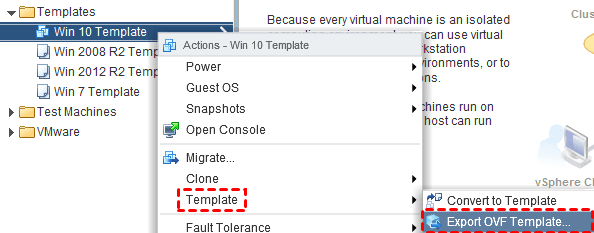
Step 3. Save the .ovf, the .vmdk files, and any accompanying downloads on a separate storage. Check that the browser has finished every download before moving the package.
Method 3: Copy a Powered-Off VMware Workstation VM
Before you back up VMware virtual machine in Workstation, open its disk settings. The .vmx file may be in the main VM folder while a second .vmdk sits on another drive. Copying just the main folder leaves that disk behind.
Step 1. Shut down the guest operating system. If the VM is suspended, resume it and shut it down. Check that Workstation shows it as powered off before copying any files.
Step 2. Open VM > Settings > Hardware and select each Hard Disk entry. Note the .vmdk path for each disk and check whether it sits outside the folder containing the .vmx file.
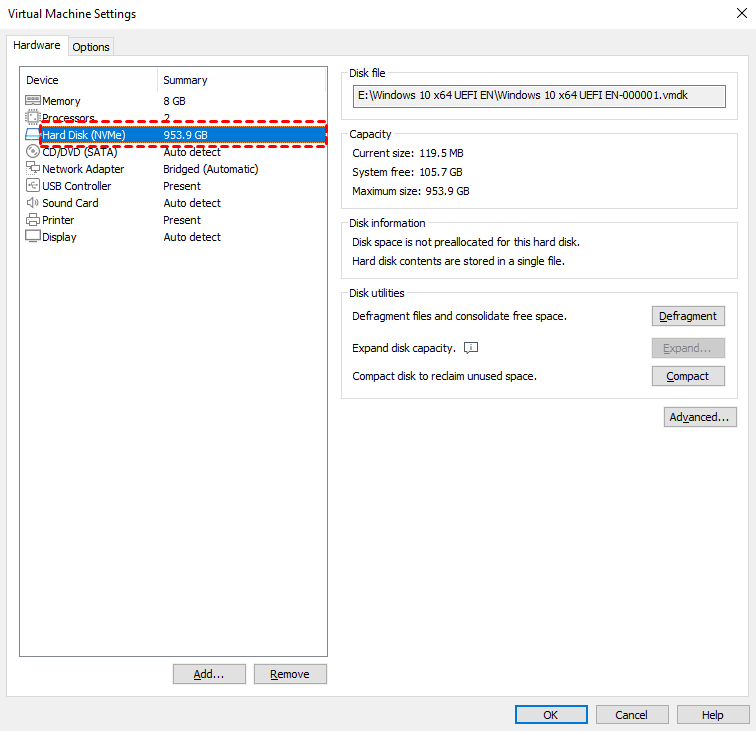
Step 3. In the host’s file manager, copy the VM folder and any separately stored virtual disks to another drive or a network share.
At the destination, check that the .vmx file, all parts of any split disks, and any existing snapshot chain files are present. For other desktop backup options, see the VMware Workstation backup guide.
Method 4: Backup Application Data from Inside the VM
When the database is what you need back, run the backup in SQL Server. Put the .bak file on a share outside the VM and make sure the SQL Server service account can write to it. Your own access to the share doesn’t tell you whether SQL Server can write there.
Step 1. Connect to the source instance in SQL Server Management Studio. Expand Databases in Object Explorer and find the database you want to protect.
Step 2. Right-click the database and select Tasks > Back Up…. Check that the Database field shows the right name.
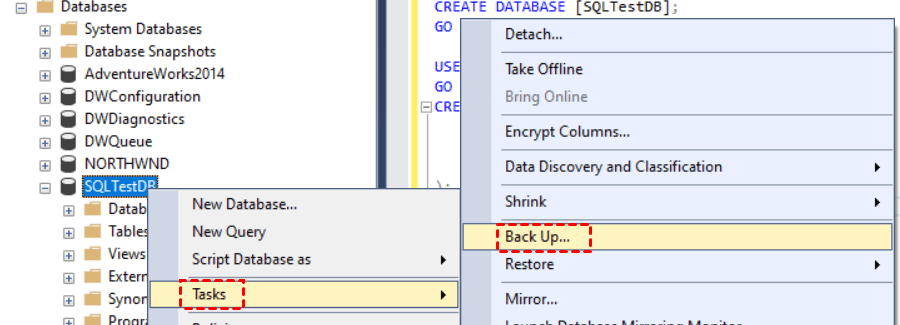
Step 3. Set Backup type to Full and Back up to to Disk. Check both settings before editing the destination.
Step 4. Under Destination, you can keep the default path or change it. To save it to a different local folder or a network share, select the existing path, click Remove, then click Add and enter the full path to the .bak file. Make sure Destination lists only the path you want to use. Click OK to run the backup.
After SSMS reports success, open the destination folder and confirm the .bak file is there.
Can You Use a VMware Snapshot as a Backup?
Use a snapshot for a short-term rollback, such as before an update. It still depends on the underlying virtual disks. If the base disk disappears, the snapshot files alone can’t rebuild the VM.
An ESXi backup job may create a temporary snapshot while it captures the VM. Once the job finishes, check for leftover backup snapshots or a consolidation alert. If shutdowns are the sticking point, see how to backup VMware virtual machines while they’re running.

 as a preferred
source on Google