



Samsung Magician “This Drive Is Not Supported” – Quick Fixes
Samsung Magician says your drive isn't supported? Find out why—and how to fix it. Plus, discover a powerful alternative tool to clone your HDD or SSD to Samsung SSD.

By Lily Updated on August 10, 2026


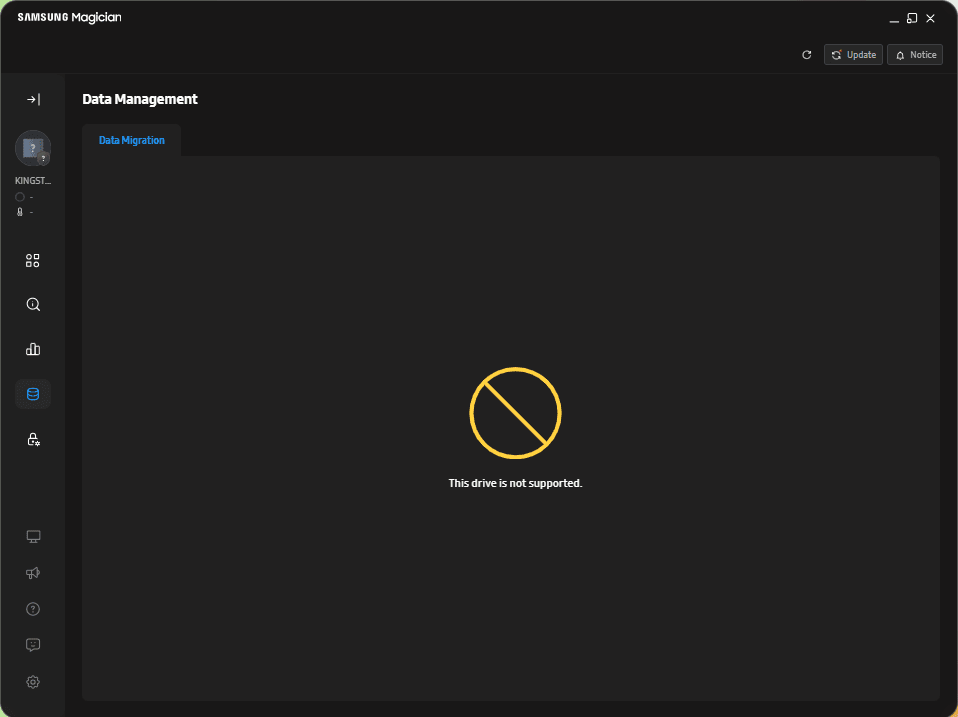
Why Samsung Magician Says “This Drive Is Not Supported”?
Seeing the message “This drive is not supported” in Samsung Magician can be frustrating—especially when you’re trying to monitor performance, update firmware, or optimize your SSD. Below are the most common reasons behind this issue:
- Non-Samsung SSD – The tool only fully supports Samsung-branded drives.
- OEM Samsung SSD restrictions – Pre-installed OEM drives may have limited compatibility due to custom firmware.
- Improper connection – The drive is not fully seated in the slot or the SATA cable is damaged.
- Outdated Magician version – Older versions may lack support for newer SSD models.
- Missing or incompatible drivers – Outdated/corrupt SATA or NVMe drivers can block access.
- Unsupported SSD model/firmware – Some older or rare models aren't supported; outdated/corrupt firmware may also cause issues.
 AOMEI Cloner
If your drive is not supported by the Data Migration feature in Samsung Magician, try the best disk cloning software - AOMEI Cloner.
How to Fix Samsung Magician “This Drive Is Not Supported” Error
If you encounter Samsung Magician “The selected drive does not support this feature”, don’t worry—there are several proven fixes you can try. Follow the solutions below step by step to restore full functionality.
Fix 1: Ensure You Are Using a Samsung SSD
The most common reason behind this error is using a non-Samsung drive. Here’s what to do:
1. Press Win + X → Device Manager → Disk drives.
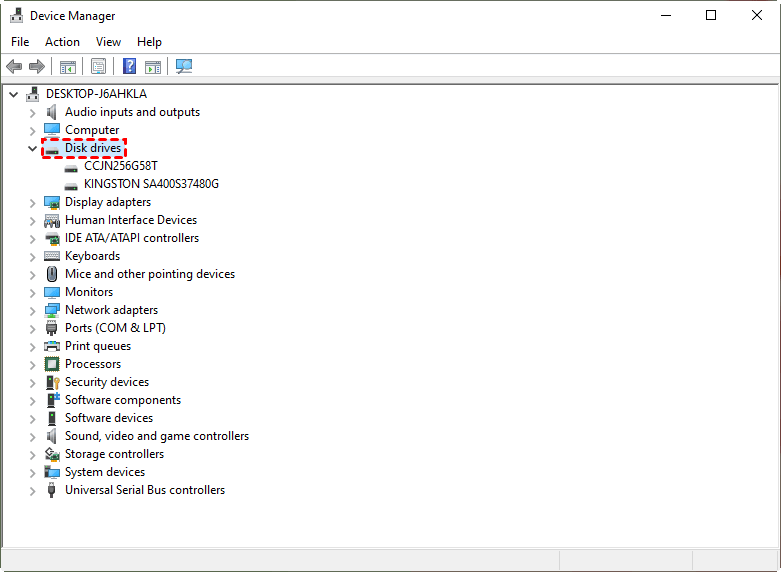
2. Check the model name of your SSD. Confirm it is a Samsung-branded SSD (e.g., 970 EVO, 980 PRO).
Tip: If your drive is not from Samsung, Samsung Magician will not support it. In this case, consider using alternative SSD management tools.
Fix 2: Reconnect Your SSD
Improper connection can cause the drive not supported error in Samsung Magician. Follow the instructions below to fix it:
- If using a SATA drive, try connecting it to a different SATA port or replacing the cable.
- If using an NVMe drive, ensure the SSD is fully inserted into the M.2 slot.
Fix 3: Update or Reinstall Samsung Magician
An outdated or corrupted installation may cause compatibility issues. Here’s how to fix it:
1. Open Samsung Magician. Click Update in the upper-right corner to install the latest version.
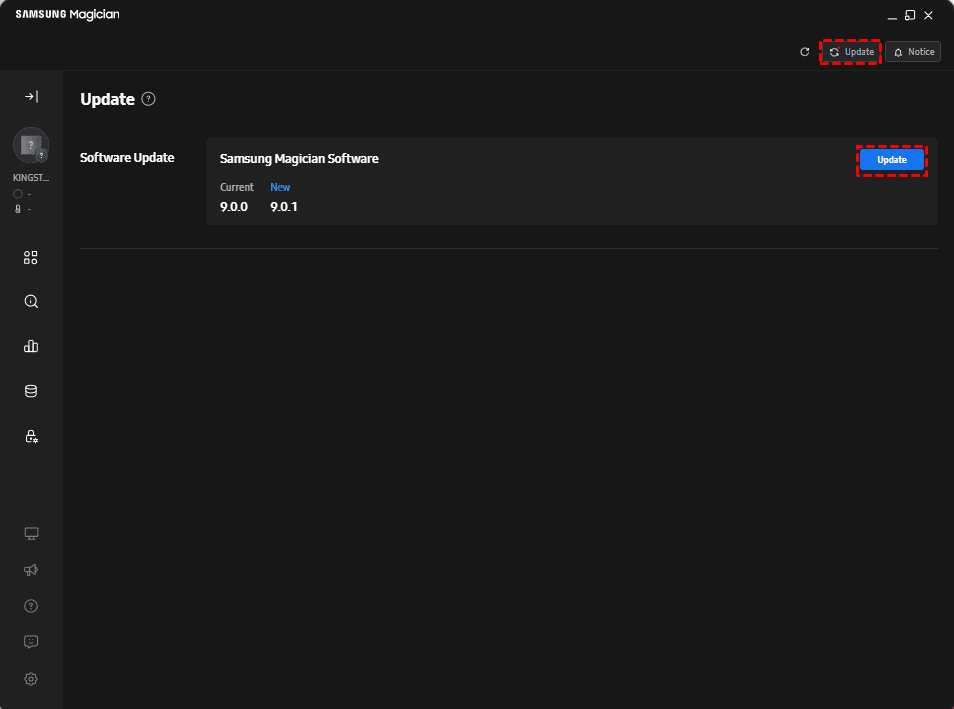
2. If updating doesn’t work, you can reinstall Samsung Magician:
- Uninstall Samsung Magician from Apps & Features.
- Download the latest version from the official Samsung website.
- Reinstall and launch the software again.
Fix 4: Update SSD Firmware and Drivers
Outdated firmware or storage drivers can cause Samsung Magician 870 EVO/990 PRO not supported. Follow these steps to fix it:
👉 Update SSD firmware:
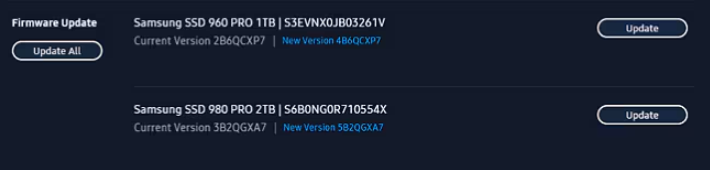
1. Launch Samsung Magician. Click Update in the upper-right corner.
2. If new firmware is available for your Samsung SSD, a message stating "New Version (Version Number)" will appear. Click on Update to proceed.
👉 Update drivers:
1. Press Win + X to open Device Manager.
2. Expand Storage controllers. Right-click your controller → Update driver.
3. Choose Search automatically for drivers. If Windows finds an update, follow the on-screen instructions to install it.
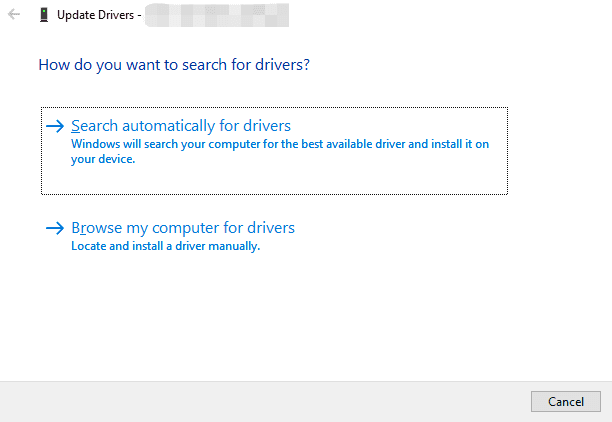
Tip: You can also install the latest NVMe or chipset drivers from your motherboard manufacturer’s website.
Fix 5: Disable RAID Mode in BIOS (If Applicable)
RAID mode can interfere with how Samsung Magician detects your SSD. Follow the steps below to disable RAID:
1. Restart your computer and enter BIOS/UEFI (usually Del, F2, or F10).
2. Locate Storage Configuration or SATA Mode.
3. Change from RAID to AHCI. Save changes and reboot.
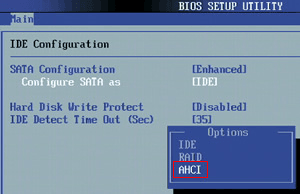
Notes:
- Switching from RAID to AHCI may require registry changes in Windows to avoid boot issues.
- Back up your data before making changes.
Alternative Tool If Samsung Magician Can’t Clone Your Drive
If Samsung Magician shows the “This drive is not supported” error when you try to access the Data Migration feature, you can switch to a reliable third-party cloning tool - AOMEI Cloner. Unlike Samsung Magician, AOMEI Cloner works with all major SSD brands, not just Samsung.
 AOMEI Cloner
- System & Disk Cloning: Easily migrate your entire OS or clone a full disk without reinstalling Windows.
- Intelligent Cloning Technology: Copies only used sectors, allowing you to clone a larger drive to a smaller SSD (as long as space permits).
- SSD Alignment Optimization: Automatically improves SSD performance and lifespan during cloning.
- Wide Compatibility: Supports Samsung, WD, Crucial, Kingston, and other SSD brands—no vendor lock-in.
 100% Secure
Download AOMEI Cloner and follow the steps below to clone HDD/SSD to Samsung SSD:
Step 1. Install and launch AOMEI Cloner. Next, go to Disk Clone.
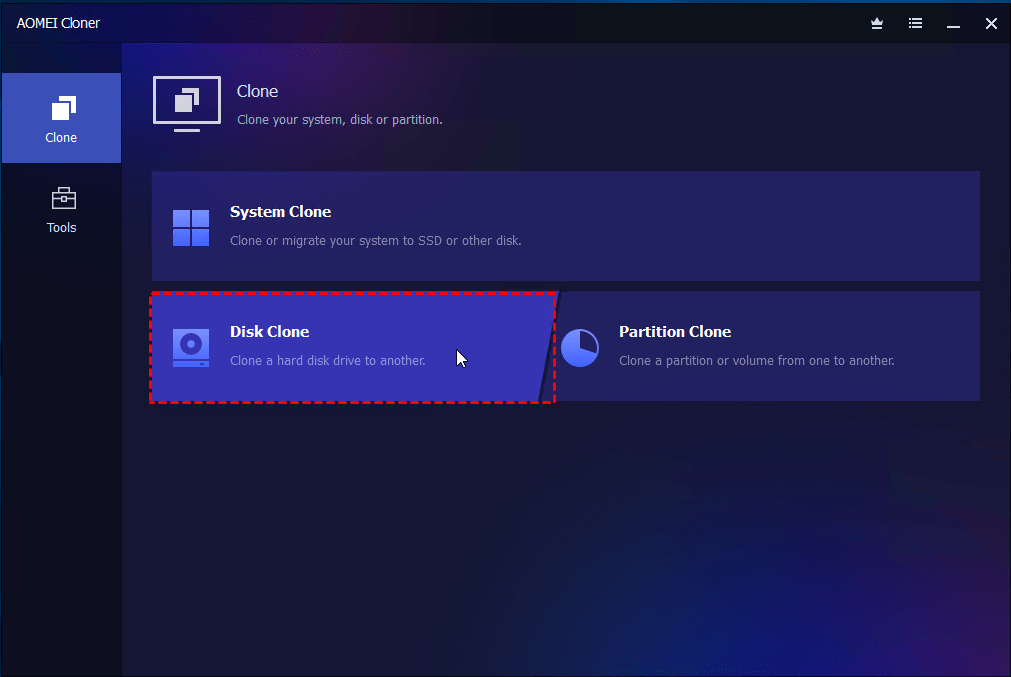
Step 2. Choose your original HDD or SSD as the source drive and select your new Samsung SSD as the target.
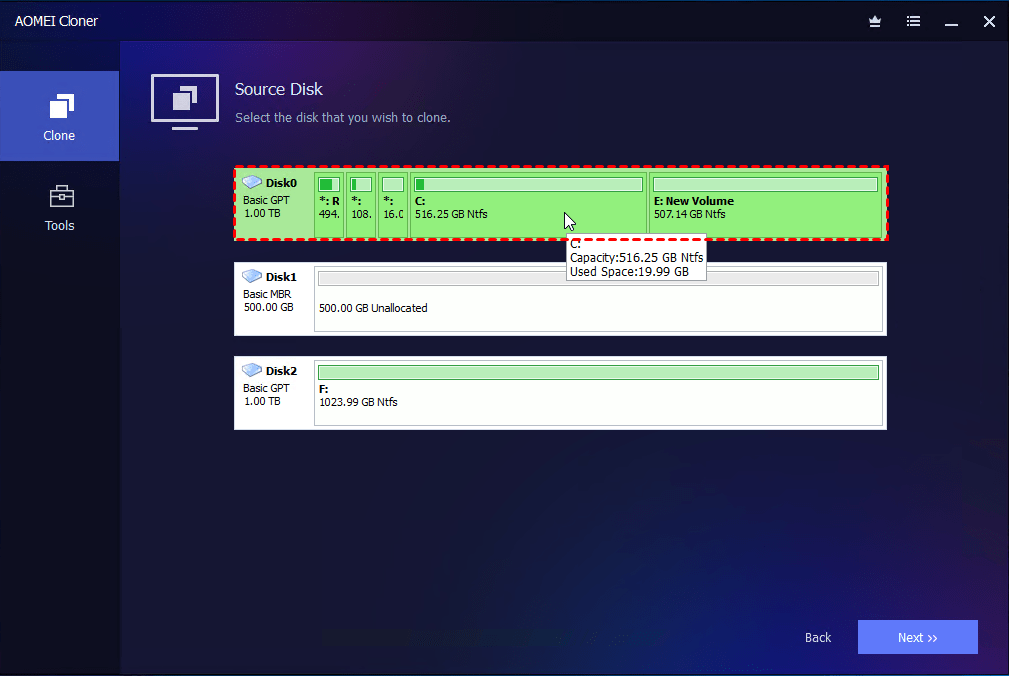
Step 3. Check the SSD Alignment option for peak SSD performance and click Start Clone.
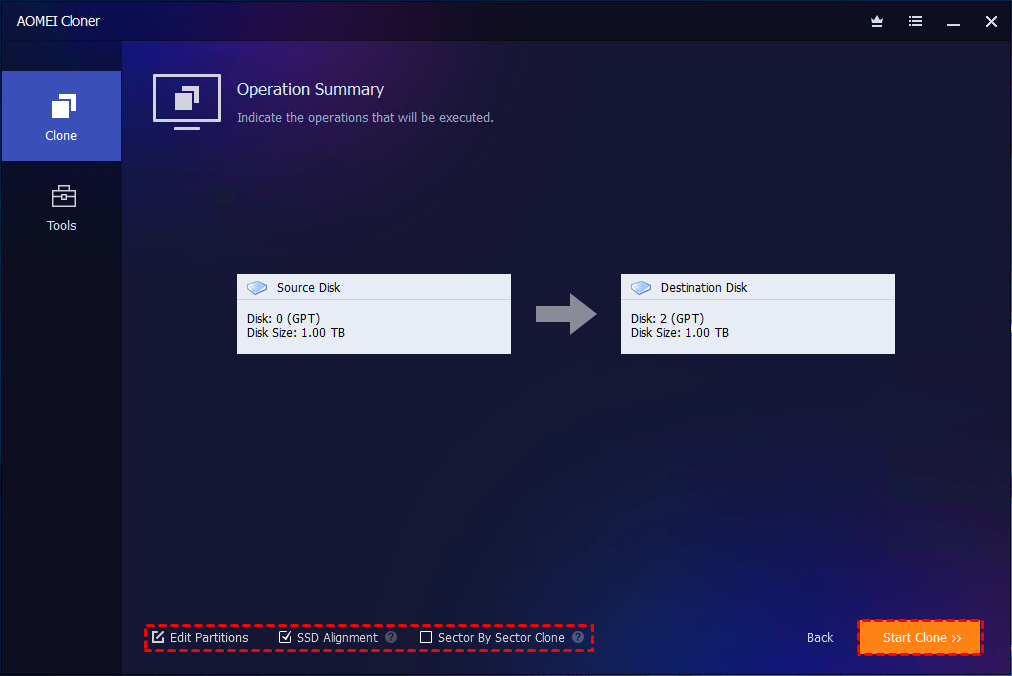
Tip: If the Samsung SSD is larger than your original drive, click Edit Partitions to adjust partition size on the Samsung SSD automatically or manually.
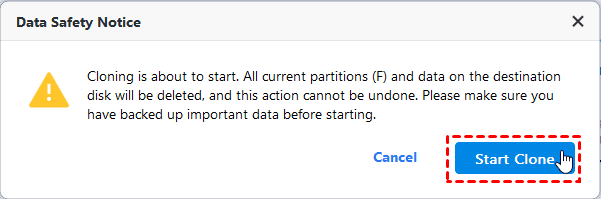
Step 4. Confirm the data loss warning and click Start Clone to initiate the cloning process.
Verdict
By applying the fixes offered in this article, you can resolve the Samsung Magician “This drive is not supported” error and regain full control over your SSD. If the issue persists, it may indicate a deeper compatibility limitation, in which case alternative SSD management tools are recommended.
If you need a tool to transfer data from the old HDD/SSD to your new Samsung SSD, give AOMEI Cloner a try. It offers broader hardware support and a smoother cloning experience—making it the best alternative for hassle-free SSD migration.

 as a preferred
source on Google
as a preferred
source on Google