



How to Clone Hard Drive Different Size [HDD -> SSD, SSD -> Larger SSD]
With a reliable cloning tool, you can easily clone hard drive of different size, such as clone larger HDD to smaller SSD, clone SSD to larger SSD, etc., and boot from the cloned drive successfully.

By Ivy Updated on August 11, 2026


Can You Clone Hard Drive to Different Size?
Yes, you can clone a hard drive to a different size, whether you're upgrading to a larger disk or migrating to a smaller SSD. The key is using reliable cloning software that can intelligently adjust partitions and copy only the necessary data instead of duplicating every sector.
Modern tools like AOMEI Cloner make this process much simpler and ensure the cloned drive is bootable.
Cloning to a Larger Drive vs. a Smaller SSD
Cloning to a larger drive is usually straightforward. The extra space on the target disk can be automatically allocated or left unallocated for later use. Many cloning tools allow you to resize partitions during the process so you can fully utilize the new capacity.
Cloning to a smaller SSD, however, requires more attention. The used space on the source disk must be smaller than the total capacity of the target disk. Instead of copying every sector, you’ll need software that supports intelligent cloning to transfer only the actual data, skipping empty space.
Common Challenges (Partition Size, Disk Layout, Boot Issues)
When cloning different size hard drives, several issues can arise:
- Partition size mismatch: Partitions may not fit properly on the target disk without resizing.
- Disk layout differences: MBR and GPT formats may cause compatibility problems if not handled correctly.
- Boot issues: The cloned drive may fail to boot due to missing boot records, incorrect BIOS/UEFI settings, etc.
- Unallocated space: After cloning to a larger disk, extra space may display as Unallocated and cannot be used until partitions are extended.
What to Prepare Before Cloning Hard Drive?
Proper preparation is essential to ensure a smooth and error-free cloning process, especially when cloning hard drive to different size. Taking a few key steps in advance can help you avoid data loss, compatibility issues, and boot problems.
📌 Check Used Space vs Target Disk Capacity:
Before cloning, compare the used space on the source drive with the total capacity of the target disk in File Explorer or Disk Management.
- If cloning to a larger drive, there are usually no limitations.
- If cloning to a smaller drive, make sure the used space is less than the target capacity.
You may need to delete unnecessary files or shrink partitions to make everything fit properly.
📌 Backup Important Data Before Cloning:
Although disk cloning is generally safe, unexpected errors can still occur. It’s strongly recommended to create a backup of your important files and save them to external drives, cloud storage, etc., to ensure your data is protected in case anything goes wrong during the cloning process.
📌 Prepare Necessary Tools (Cloning Software, Cables, Adapters):
Make sure you have everything ready:
- A compatible connection, either a SATA cable, a USB-to-SATA adapter, or an external enclosure.
- Be sure the new hard drive or SSD is properly connected to your computer.
- A reliable cloning software (e.g., AOMEI Cloner)
Not all cloning tools handle different disk sizes well. Reliable software like AOMEI Cloner offers 3 cloning solutions, along with a suite of cloning features.
 AOMEI Cloner

- Cloning scope: Clone any type of disks, such as clone large HDD to smaller SSD, clone SSD to larger SSD, clone GPT to MBR, etc, regardless of disk size. Support system cloning.
- Intelligent cloning: Only copies used sectors, faster, and bootable, especially useful when cloning large HDD to smaller SSD.
- Auto-resize partition: Automatically resizes partitions without any additional steps, making the most of your disk space.
- MBR2GPT conversion: Convert between MBR and GPT without losing data, clone GPT to MBR, for example.
- SSD optimization (4K alignment): Improve the read and write speed of SSD disk for smooth system system responsivenessand extend its lifespan.
 100% Secure
These features simplify the process, reduce errors, and ensure the cloned drive remains bootable and fully functional.
How to Clone Hard Drive to Different Size Easily [Larger or Smaller]
You may want to clone hard drive to larger drive, clone larger HDD to smaller SSD, clone SSD to larger SSD, etc., while searching “clone hard drive to different size” online. In fact, with a reliable cloning software, you can clone all of them, but with a few differences.
📌 To Clone HDD to Smaller SSD Successfully:
- Remove unnecessary files to free up more space.
- Shrink partitions before cloning.
- Use Intelligent cloning instead of Sector-by-Sector.
📌 Cloning SSD to Larger SSD with Full Capacity:
Extend partitions during cloning. Manually resizing a partition in Disk Management after cloning is complex.
📌 Extra Attention:
- For an SSD disk, be sure to enable SSD Alignment for top performance.
- For disk partition style (MBR/GPT), be sure the two disks match. If not, enable this option “Convert the destination disk from ...” to keep them consistent.
Now, follow the steps below to clone hard drive with different sizes on Windows 11. It also applies to Windows 10, 8/8.1, and 7.
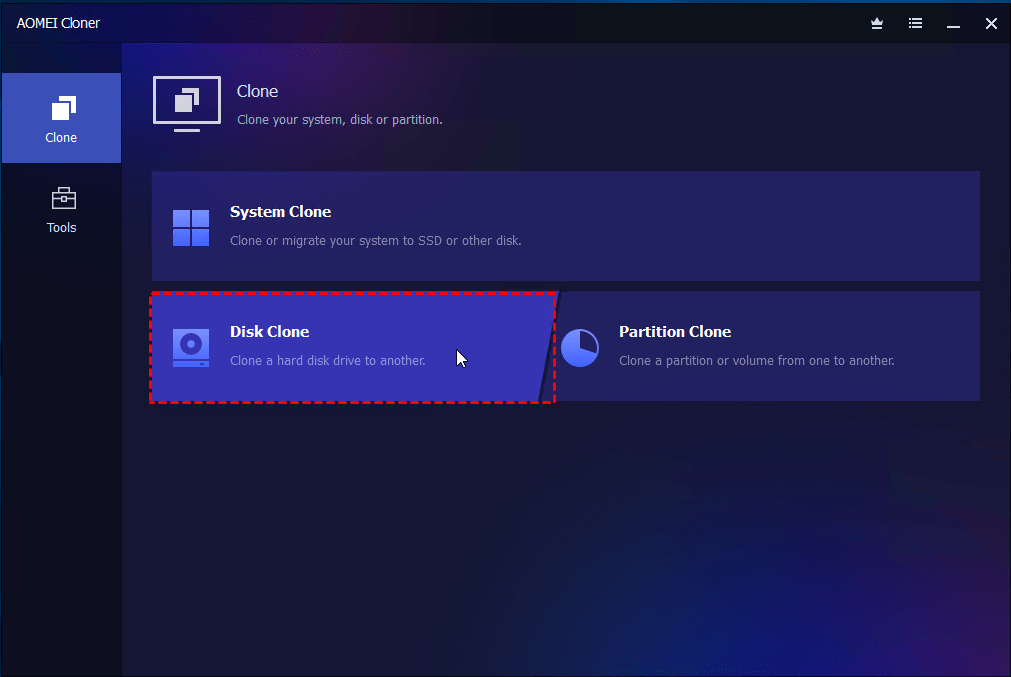
Step 1. Open AOMEI Cloner after installing. Then, click Disk Clone to clone a drive. To migrate OS only, click System Clone.
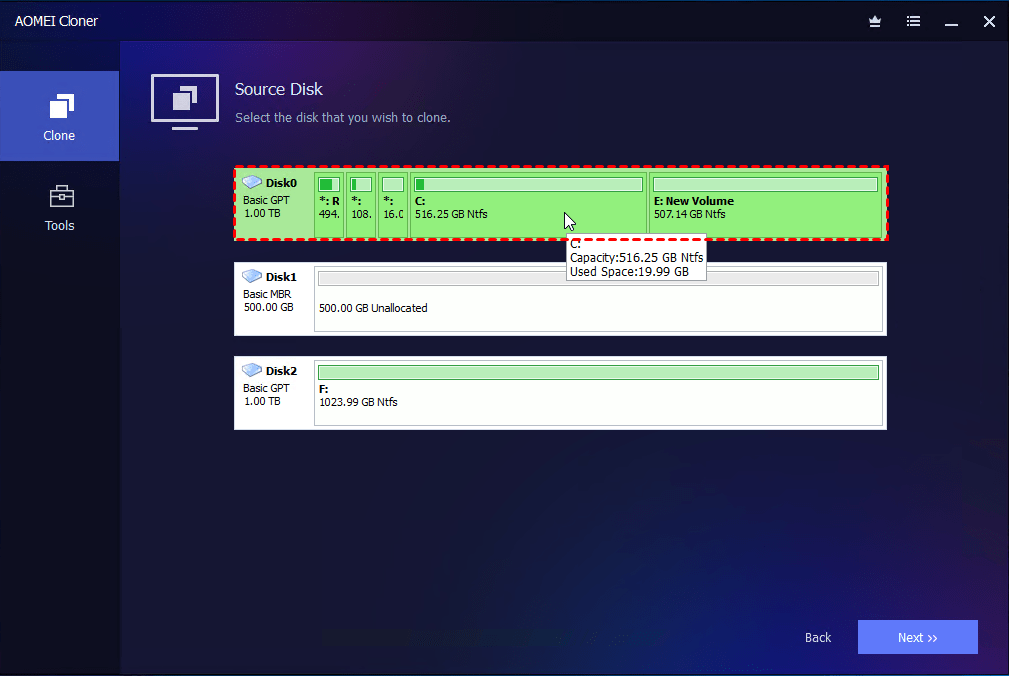
Step 2. Click Select Source Disk to choose the drive you want to clone, then Select Destination Disk to pick a new drive, larger or smaller, as the destination.
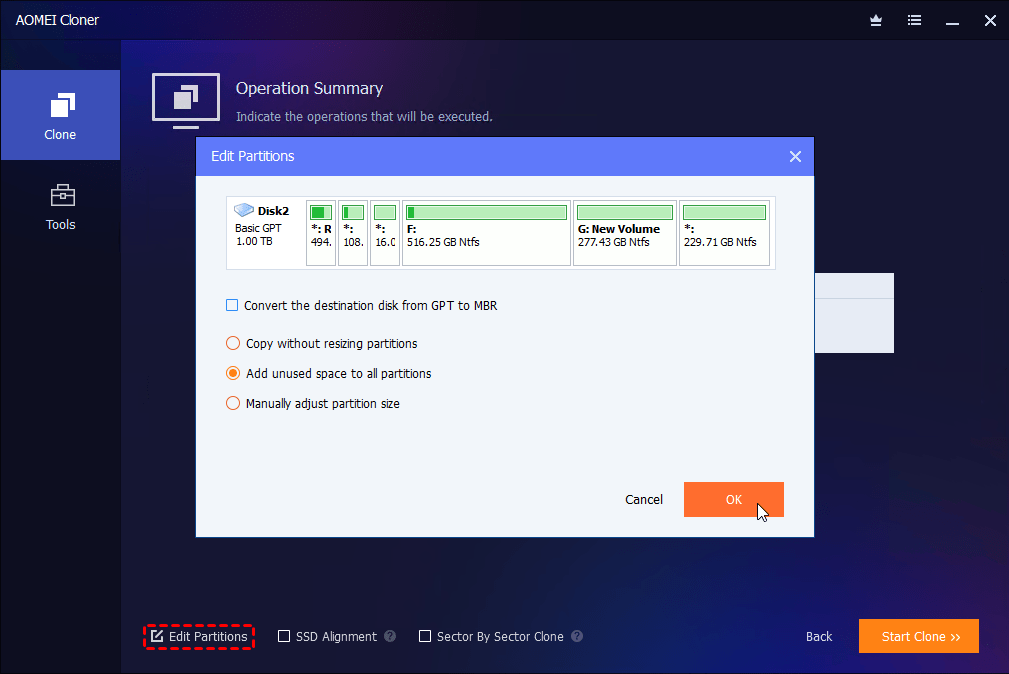
Step 3. Set up necessary cloning options in the following and click Start Clone to clone hard drive in different sizes. Note that all data on the target disk will be deleted.
- Edit Partitions: It will automatically resize new, larger drive to full capacity. Click it to confirm this and optionally convert disk types if the two disks are of different types. You can also enjoy SSD Alignment or Sector by Sector Clone
- SSD Alignment: Designed specifically for SSD drives, it boosts read and write speeds and extends the drive's lifespan.
- Sector by Sector Clone: Unchecking this option will cause the software to use the default intelligent cloning mode, particularly useful when cloning larger HDD to smaller SSD. It helps avoid missing system partitions, such as EFI system partition, BCD, etc.
After cloning, set the new hard drive or SSD as the boot drive and perform a boot test to see if the cloned drive will boot successfully.
- Press Del, ESC, F2, F12, etc., during startup to access the BIOS/UEFI settings window.
- Locate the Boot menu and set the new SSD as the first boot device.
- Press F10 to save changes and restart.
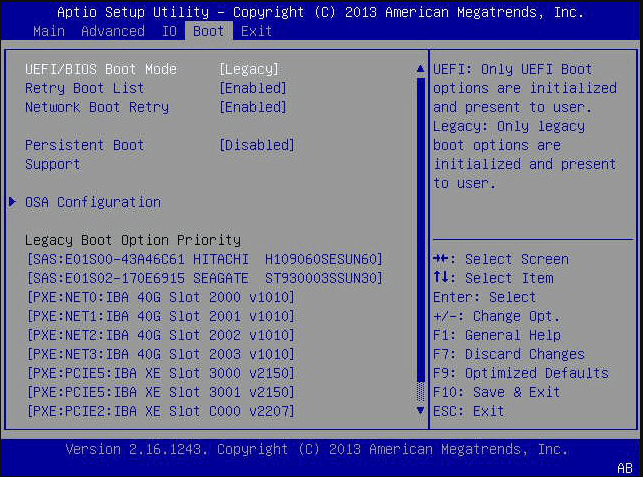
If the cloning was successful, Windows should boot normally from the new HDD or SSD. You can then physically swap the two drives inside the machine. If not, check: cloned SSD won’t boot.
Conclusion
Cloning hard drive to different size is entirely possible, whether you’re upgrading to a larger disk or migrating to a smaller SSD. With the right method, you can transfer your system, data, and applications without reinstalling everything.
For a hassle-free experience, using a reliable cloning tool like AOMEI Cloner is highly recommended. Its key features, such as intelligent cloning, edit partitions, SSD alignment, user-friendly interface, etc., make it easy to clone hard drives safely and efficiently.

 as a preferred
source on Google
as a preferred
source on Google