




Why Windows 7 Cannot Create Primary and How to Fix it?
Sometimes, Windows 7 cannot create primary partitions. This issue can stem from system limitations or disk configuration problems. In this guide, we’ll explore the reasons behind this problem and share two effective methods to successfully create primary partitions.

By Hedy Updated on May 29, 2026


Many users occasionally run into confusion when Windows 7 fails to create a primary partition using Disk Management.
For instance, one user planned to set up a dual-boot system and needed an additional primary partition for the new operating system. After shrinking the C drive through Disk Management, the newly created space was automatically assigned as a logical drive instead of a primary partition—leading to frustration.
The root of the issue lies in the limitations of the MBR disk structure. An MBR disk supports a maximum of four primary partitions, or alternatively, three primary partitions plus one extended partition. Once four primary partitions already exist, creating another is no longer possible. In cases where there are three primary partitions and one extended partition, a logical partition can be created within the extended partition—and, if needed, later converted into a primary partition.
Why Windows 7 can’t create primary partitions?
A dual-boot setup is a practical solution for users who want improved performance, enhanced compatibility, or the flexibility to run multiple operating systems on one machine. However, during installation, many encounter a common issue—Windows 7 fails to create a primary partition. Understanding the reasons behind this limitation is essential before applying a fix.
1. Partition style limitations
The problem is often tied to the disk’s partition scheme. On an MBR disk, only four primary partitions are allowed, or alternatively, three primary partitions plus one extended partition. If all four primary partitions are already in use, creating another is not possible.
In situations where the disk contains three primary partitions and one extended partition, it is possible to work within the extended partition by converting or adjusting it. Another effective approach is switching to a GPT disk, which removes this limitation and supports up to 128 primary partitions.
2. Insufficient unallocated space
Another common cause is a lack of available disk space. Without sufficient unallocated space, the system cannot create a new primary partition.
To resolve this, backing up important data is strongly recommended before making changes. You can then reformat the disk and repartition it properly. Alternatively, upgrading to a larger storage device—such as an HDD or SSD—can provide the necessary space for creating additional partitions.
With these factors in mind, the reasons behind this issue become clear. The next step is to explore practical methods to fix the problem and successfully create a primary partition.
How to fix the Windows 7 cannot create primary partition issue
When installing Windows 7 or managing disks, you may encounter the error “Windows cannot create a primary partition”.This usually happens due to MBR partition limits, unallocated space issues, or disk configuration problems. Below are practical ways to fix it and successfully create a primary partition.
Create primary partition in Disk Management
Disk Management is a built-in tool that allows users to manage disks with ease. It supports a wide range of operations, including formatting drives, creating partitions, and deleting volumes. The following steps outline how to create a new primary partition using this utility.
Step 1. Right-click on the unallocated space where the new partition will be created, then select “New Simple Volume”.
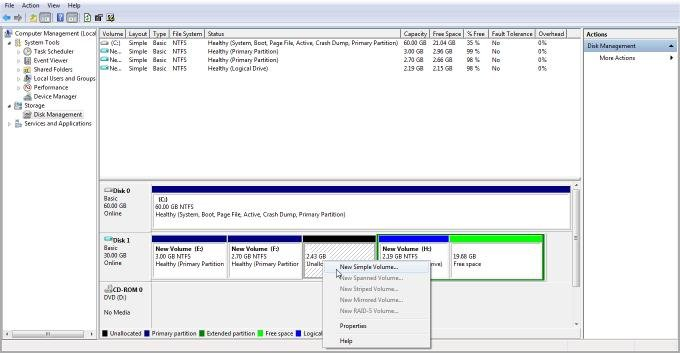
Step 2. Follow the setup wizard by clicking Next, and then Finish. Once completed, a new primary partition (for example, drive G:) will appear.
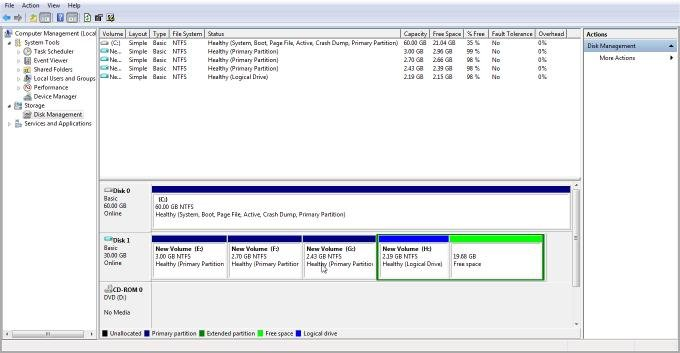
The process is straightforward, but limitations may arise depending on your disk structure. For example, if three primary partitions already exist on an MBR disk, any additional partition created through Disk Management will automatically become a logical partition. This restriction can be frustrating when a primary partition is specifically required.
Due to the constraints of an MBR disk, it is not possible to exceed the maximum number of primary partitions using this method. To bypass this limitation, advanced tools such as DiskPart or professional software like AOMEI Partition Assistant can be used to create or manage partitions more flexibly.
Create primary partition using AOMEI Partition Software
After exploring the limitations of Windows’ built-in tools, it’s worth considering a more flexible solution. A free utility like AOMEI Partition Software makes it much easier to create more than three primary partitions without complex workarounds.
 AOMEI Partition Software
A safe and reliable disk partition management tool that helps you migrate OS to SSD or HDD, reorganize disk space, and improve overall PC performance.
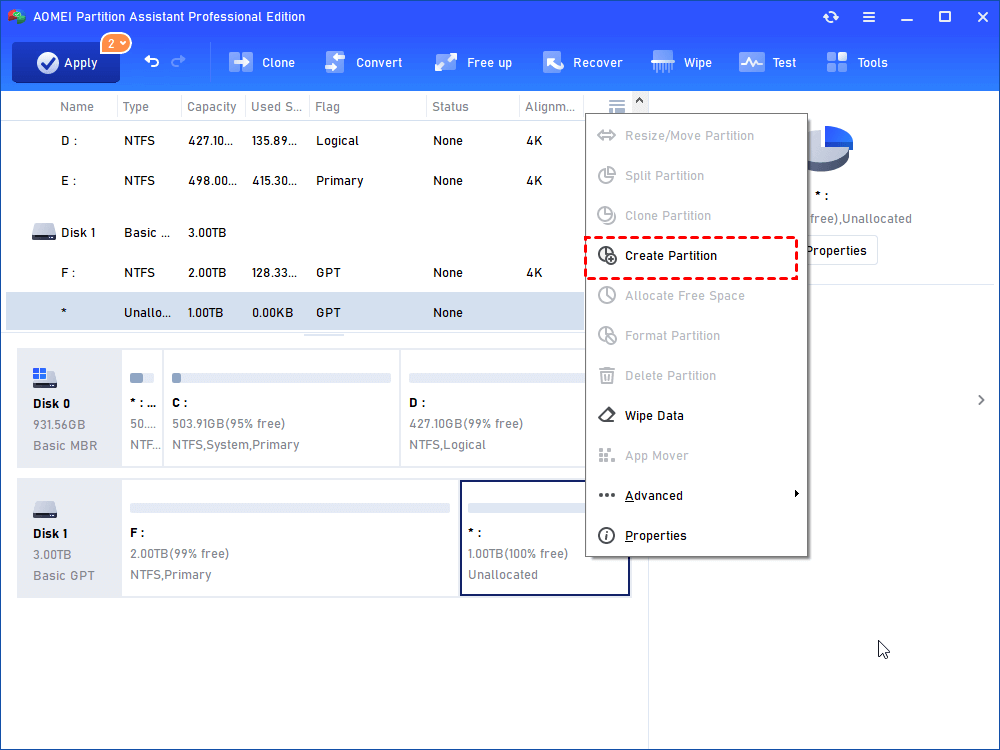
Step 1. Download, install, and launch the software. On the main interface, locate unallocated space, click on it, and choose “Create Partition”.
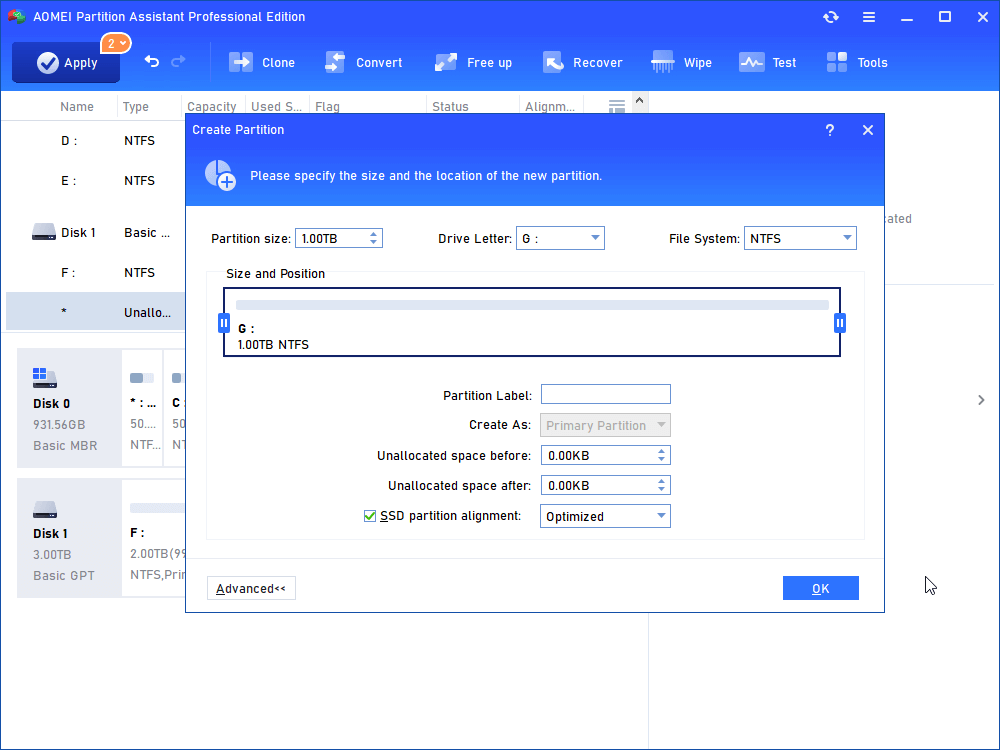
Step 2. In the configuration window, click “Advanced”, then select “Primary Partition” from the drop-down menu. Confirm your selection by clicking OK.
Step 3. Review the settings, then click Apply to begin the operation.
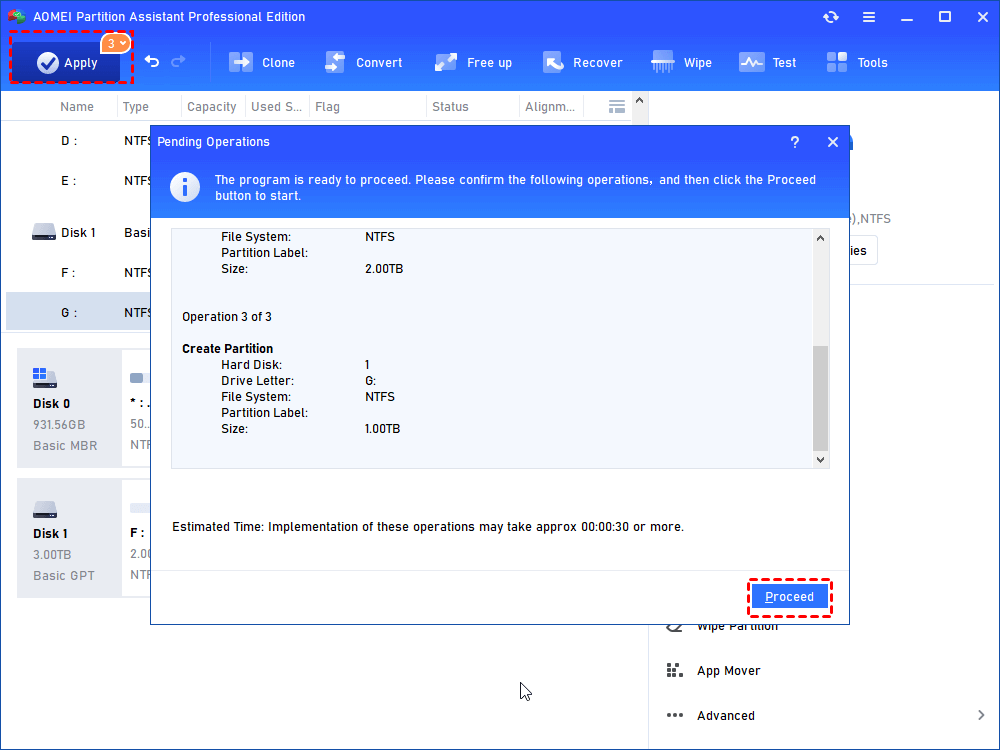
Step 4. A confirmation window will display the pending changes. Click Proceed to execute the task.
Step 5. Wait for the process to complete. Once finished, a message will confirm that all operations were successfully executed. Click OK to exit.
If there is no unallocated space available, you can convert an existing simple volume into a primary partition on an MBR disk. For users needing more than four primary partitions, converting the disk to a GPT disk is a practical and effective option.
Low disk space remains a common frustration. In many cases, it stems from poor partition planning during the initial setup. The most reliable solution is to allocate disk space wisely from the start, ensuring each partition has sufficient capacity to avoid future issues.
Tips: Create a primary partition in Windows 7 during installation
A primary partition plays a critical role in system startup. It is the only type of partition that can be marked as active and used to boot a computer. Without an active partition, the system will fail to start. While a GPT disk removes restrictions on the number of primary partitions, the following example demonstrates how to create one during the installation of Windows 7 on an MBR disk.
Step 1. After the initial setup screen appears, proceed to the installation type selection. Choose “Custom (Advanced)”, as this option is intended for installing a fresh copy of Windows.
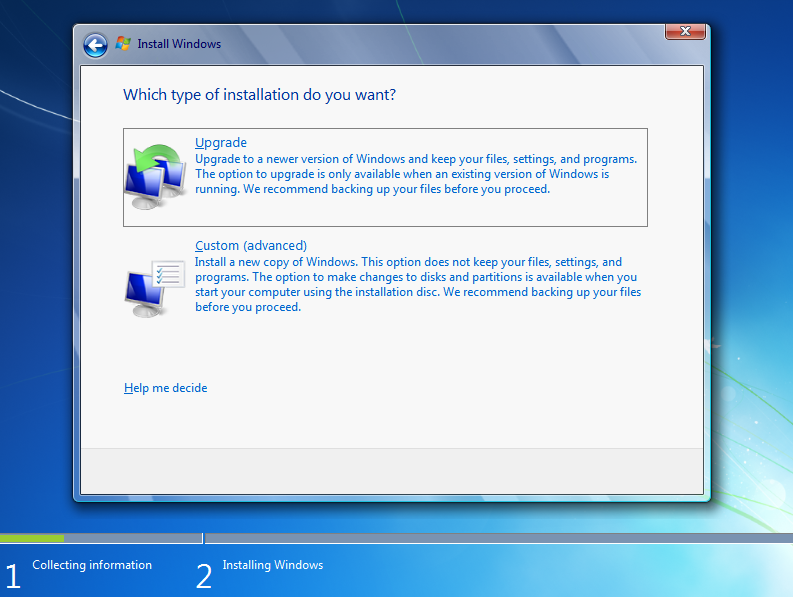
Step 2. When the Install Windows screen is displayed, press Shift + F10 to open the command prompt. Then enter the following commands in sequence:
diskpart
list disk
select disk (number)
create partition primary
active
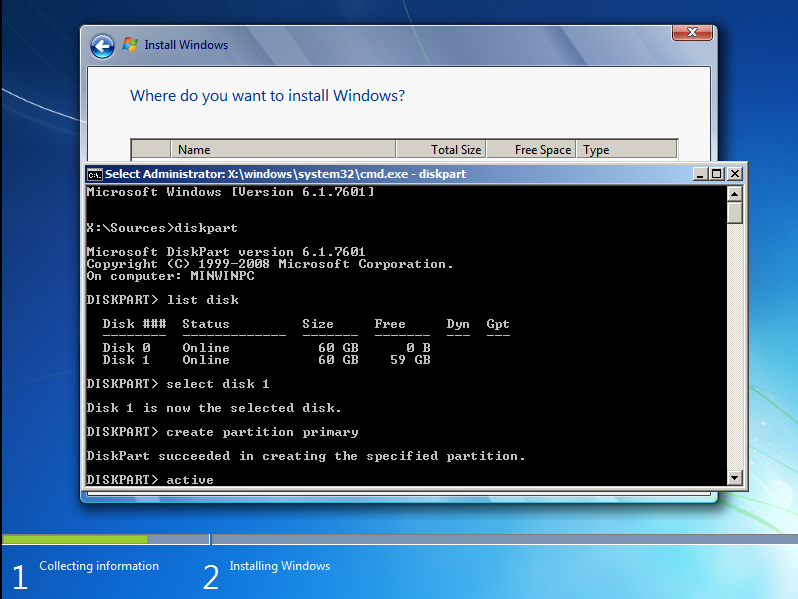
Once completed, a confirmation message will appear stating that the partition has been marked as active. You can then click Next to continue with the remaining installation steps.
Conclusion
Can’t Create a Primary Partition in Windows 7? If Windows 7 refuses to create a primary partition, there are practical ways to work around the limitation. This guide has outlined two effective approaches: using the built-in Disk Management tool or turning to a third-party solution.
Both options can get the job done. However, third-party software such as AOMEI Partition Software offers greater flexibility, more advanced features, and a smoother experience—especially for users who prefer a simple and intuitive interface.

 as a preferred
source on Google
as a preferred
source on Google