




How to Use Windows 10 Repair USB to Fix Boot Issues?
A Windows 10 repair USB helps you resolve startup problems when your PC fails to boot. This article will guide you to create one and use it to access advanced troubleshooting tools and repair corrupted system files effectively.

By Irene Updated on June 3, 2026


🌟 Quick Look: Windows 10 Repair USB Guide
A Windows 10 repair USB acts as a "digital first aid kit," allowing you to boot your PC and fix system errors even when Windows fails to start. This guide highlights how to create and use one using AOMEI Partition Software for advanced recovery.
✔️ Key Takeaways
-
Essential Emergency Tool: Every PC owner should have a repair USB ready before a crash occurs to fix blue/black screens, boot loops, and corrupted files.
-
AOMEI Partition Software Benefits: Unlike standard recovery drives, this tool offers a user-friendly interface to manage partitions, rebuild MBR, and repair boot entries directly from a WinPE environment.
-
Versatility: You can create the repair USB on any working computer to fix a different, non-booting PC. It supports Windows 11, 10, 8, 7, and Server editions.
-
Two Primary Repair Methods:
-
Boot Repair: Automatically scans and fixes damaged boot entries.
-
Rebuild MBR: Specifically fixes "Operating System Not Found" or "Invalid Partition Table" errors by restoring the Master Boot Record.
-
-
Safe to Use: Operations like "Rebuild MBR" are generally safe and do not delete personal data, though they only fix boot-code issues, not missing system files.
✔️ How to Use It (3-Step Summary)
-
Create: On a working PC, launch the software, select "Make Bootable Media," and follow the prompts to format your USB drive.
-
Boot: Insert the USB into the broken PC. Restart and enter the BIOS/UEFI (usually by pressing F2, F12, or Del) to set the USB as the primary boot device.
-
Repair: Once the software loads, use "Boot Repair" for startup issues or right-click your disk and select "Rebuild MBR" to fix boot sector errors.
✔️ Pro Tip
If the repair tools fail to fix the system, the repair USB can also be used to perform a clean reinstallation of Windows or to restore the system to a previous working state using a Restore Point.
How to create a Windows 10 repair USB?
Creating a Windows 10 repair USB is a practical way to fix system issues when your PC cannot start normally. A reliable tool like AOMEI Partition Software makes the process simple, even for beginners. It offers features such as “Make Bootable Media” to enter a Windows PE environment and repair your system efficiently.
Compared with many tools, it stands out for its ease of use and flexibility:
- It supports Windows 11, 10, 8, and 7, including Server editions
- It has a clear, user-friendly interface with guided steps
- It can create bootable media directly from your current system
- It even allows running Windows on a Mac when needed
Before you start, make sure you are prepared:
- Download a Windows 10 ISO file from Microsoft (optional if using an existing system)
- Prepare a USB drive and back up important data
- Install the software on a working computer
Once ready, launch the tool, choose the bootable media feature, and follow the on-screen instructions. Within a few steps, your repair USB will be ready to help you troubleshoot, recover, or manage your system with ease.
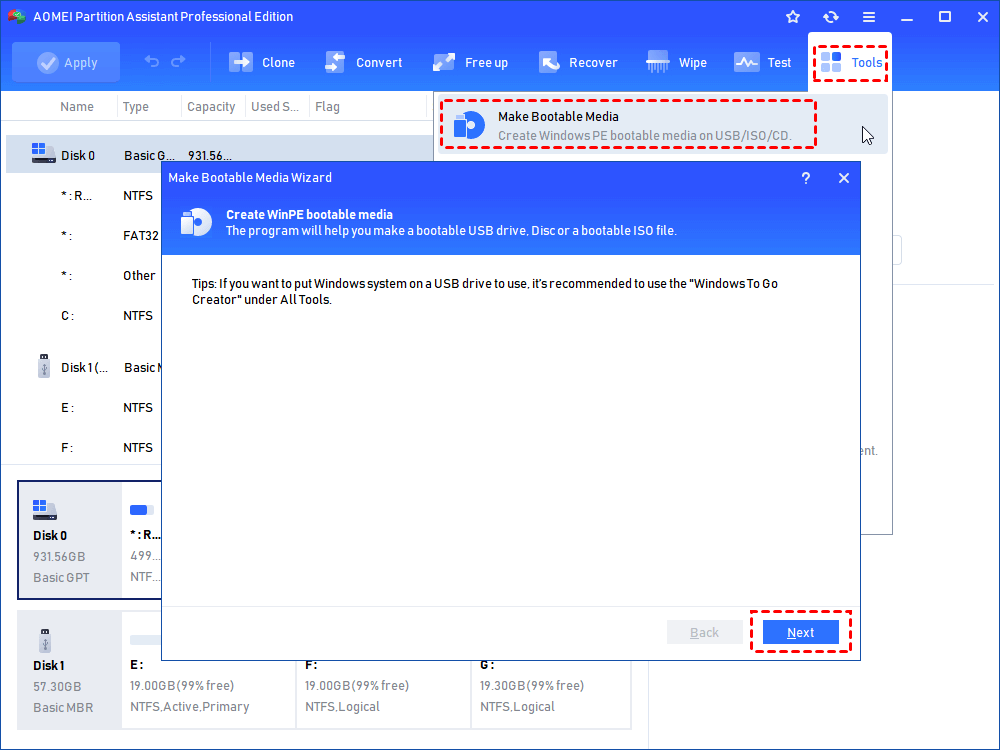
Step 1. Launch this bootable USB utility, click "Tools" > "Make Bootable Media" on the main interface.
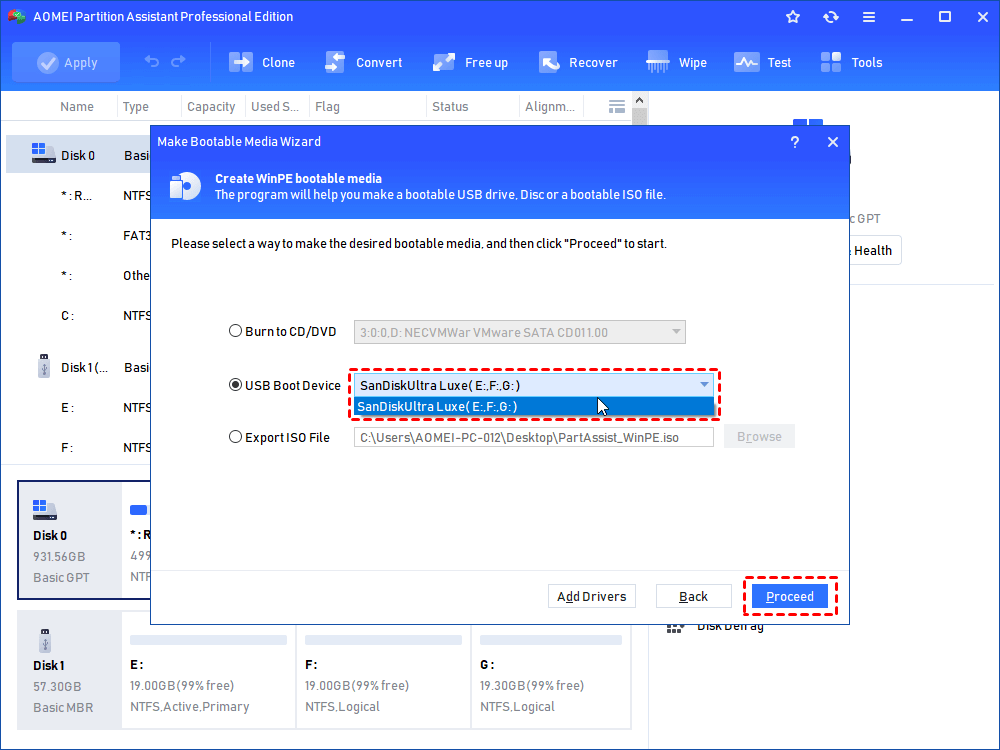
Step 2. Tick "USB Boot Device" or "Burn to CD/DVD" and select your device. Then click "Proceed".
Step 3. There is a warning prompt, click "Yes" to confirm the operation.
Then waiting for the proceess to finish. And you can insert this USB to a computer that can't boot up. Refer the steps of enter BIOS in the above part to boot the PC from the USB. You will see the AOMEI Partition Software main interface, it can helps you to rebuild MBR, check partition, and manage all connected hard drive.
How to repair Windows 10 from USB?
Way 1. Perform a boot repair with Windows 10 repair USB
A Windows bootable USB is very useful when your computer fails to start normally. It gives you access to recovery tools so you can diagnose and fix problems without entering the system.
Here are common situations where a bootable USB can help perform boot repair:
- Startup failure or boot loop: When your PC keeps restarting or shows errors like “Automatic Repair couldn’t repair your PC”, or "your PC device needs to be repaired."
- Corrupted system files: If important boot files are missing or damaged, preventing Windows from loading.
- BCD errors: Issues with Boot Configuration Data can stop the system from starting.
- Black screen after login or update: When Windows loads improperly due to failed updates or driver issues.
- Disk or partition problems: Errors in the system partition can block the boot process.
- Virus or malware attacks: Malicious programs may damage boot files or system settings.
- Hardware changes: Replacing a hard drive or SSD may require boot repair to restore system access.
In these cases, a bootable USB lets you access repair options like Startup Repair, Command Prompt, or system restore, helping you fix the issue quickly and safely.
Step 1. Insert the Windows 10 repair USB and run AOMEI Partition Software on a working PC. Boot the PC that cannot boot into WinPE. Then click "Recover" and choose "Boot Repair".
.png)
Step 3. It will automatically load the Boot Repair tool and start the boot entries scan process. All boot entries will be displayed.
.png)
Step 4. Select the repairable boot entries you want to repair and click the "Repair" button to start the repair.
.png)
Step 5. Once the repair is successful, you can remove the bootable disk and boot the PC from the original system drive.
.png)
Way 2. Rebuild MBR with bootable USB to repair Windows 10
Rebuilding the MBR (Master Boot Record) is necessary when the boot sector is damaged or missing, which prevents Windows from loading properly. Below are common cases where you may need to rebuild the MBR:
- “Operating System not found” error: The system cannot locate the OS due to a broken or missing MBR.
- “Missing operating system” message: Often appears when the boot record is corrupted.
- “Invalid partition table” error: Indicates incorrect or damaged partition information in the MBR.
- “Error loading operating system”: The system fails to read boot data correctly.
- Black screen with blinking cursor: A typical sign that the boot process cannot proceed.
- MBR damaged by malware or virus: Some malware specifically targets the boot sector.
- Incorrect disk operations: Actions like improper partitioning or cloning may overwrite the MBR.
- System crash or sudden power failure: Can corrupt boot-related data, including the MBR.
In these situations, rebuilding the MBR using recovery tools or a bootable USB can restore the boot structure and allow Windows to start normally again.
Step 1. Connect the Windows 10 repair bootable USB and power on your PC. When the manufacturer’s logo appears, press the appropriate key to enter the BIOS setup.
Step 2. Navigate to the Boot tab and set the bootable media as the first boot device. Save your changes and restart the computer.
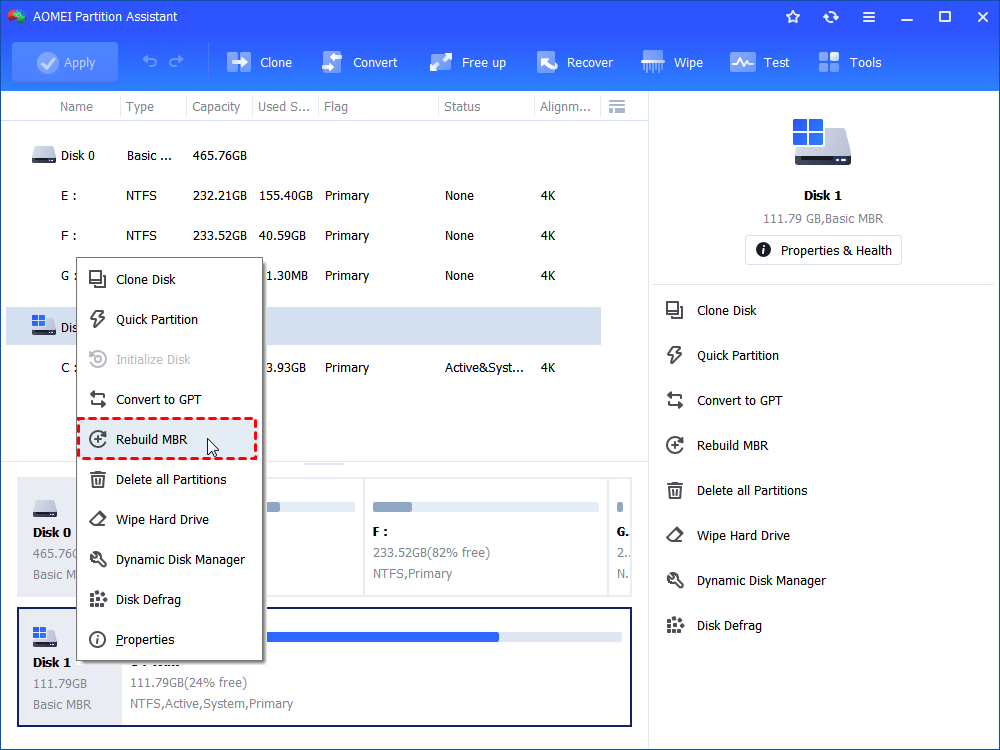
Step 3. Right-click the disk that requires repair and choose “Rebuild MBR” from the pop-up menu.
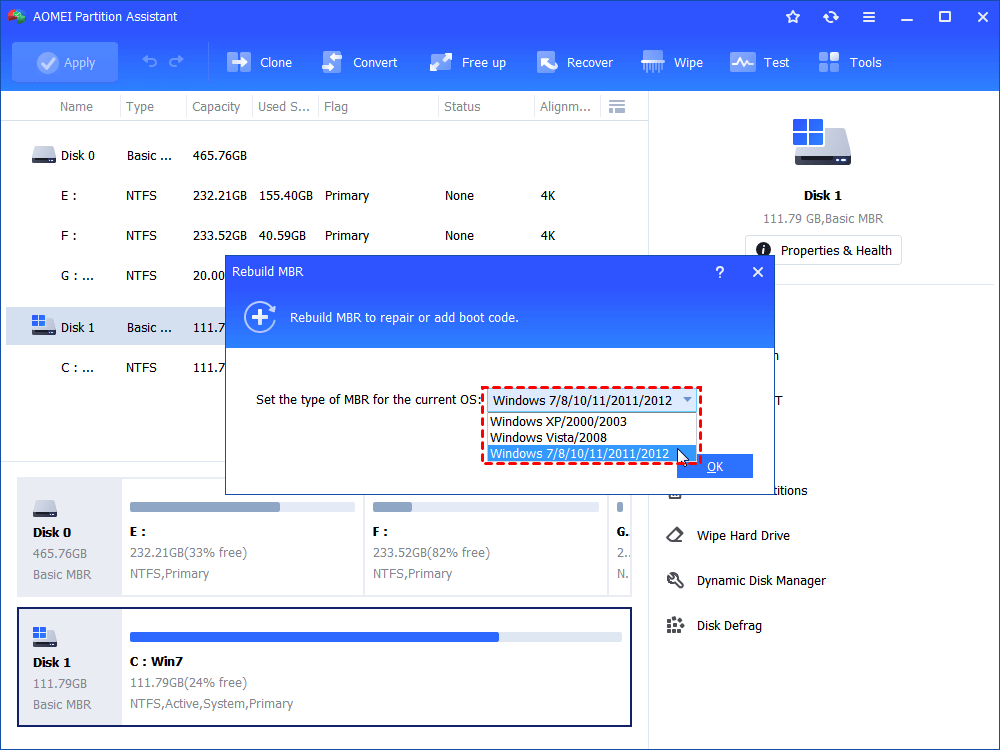
Step 4. In the following window, select the appropriate MBR type for your operating system. Once chosen, click “OK” to proceed.
Step 5. Finally, click “Apply” on the toolbar to execute the rebuild operation and restore the MBR.
🔔 Important notes:
● The “Rebuild MBR” operation is usually safe and does not delete your data. However, if it is performed incorrectly, your computer may fail to boot. It is advisable to fully understand the process before proceeding.
● Rebuilding the MBR is designed to fix problems caused by damaged MBR code only. It cannot resolve boot issues that result from missing operating system files or other important system files.
What is Windows 10 repair USB?
A Windows 10 repair USB is a simple tool you can create to help fix your computer when it is not working properly. You can think of it as a digital first aid kit for your PC. It is made by using a regular USB flash drive and a special program to turn it into a bootable device. This allows your computer to start from the USB instead of its usual system, even if it cannot load the normal desktop.
When you plug this USB into a broken computer, it gives you access to several powerful tools:
-
Startup Repair: It automatically searches for and fixes problems that prevent Windows from loading.
-
System Restore: It lets you roll your computer back to a time when it was working perfectly.
-
Reinstall Windows: If the software is too damaged to save, you can use the USB to wipe the system and install a fresh version of Windows 10.
-
Disk Management: Tools like AOMEI Partition Software can be added to a repair USB to fix complex disk errors, recover lost partitions, or rebuild the Master Boot Record if your computer cannot find the operating system.
Every computer owner should have one ready before a disaster happens. If your screen stays black or you see a blue error screen and cannot get to your settings, this USB is often the only way to get back into your system.
You can create one for free using a working computer and the official tool from Microsoft. For more advanced repair options, you can use AOMEI Partition Software to create a specialized bootable drive that helps manage your hard drive partitions and troubleshoot hardware issues.
Conclusion
Creating a Windows 10 repair USB is a simple but very useful step to protect your computer from unexpected problems. It gives you a reliable way to access repair tools when your system cannot start normally. With the help of tools like AOMEI Partition Software, the process becomes easy and suitable even for beginners. Once you have prepared the USB in advance, you can quickly handle issues such as startup errors, damaged system files, or MBR problems without panic. This small preparation can save a lot of time and help you recover your system more smoothly. In short, having a Windows 10 repair USB ready is a smart and practical choice for keeping your computer safe and easier to maintain.
FAQs
🗨️ Can I repair Windows 10 from USB?
Yes, you can. A Windows 10 repair USB allows you to boot your computer and access recovery tools like Startup Repair, System Restore, and Command Prompt. These tools can help fix boot errors, corrupted files, and other system issues.
🗨️ Can I create a system repair disc on a USB in Windows 10?
Windows 10 does not directly create a “system repair disc” on a USB like it does for CDs or DVDs. However, you can create a similar tool by using a bootable USB drive through the Media Creation Tool or third-party software, which provides the same repair functions.
🗨️ Can I create a Windows 10 repair USB on another computer?
Yes, you can create it on any working computer. You just need a USB drive and a tool like the Windows Media Creation Tool or AOMEI Partition Software. The USB can then be used to repair another PC.
🗨️ How to repair corrupted Windows 10?
You can repair it by booting from a Windows 10 repair USB and trying these options:
- Run Startup Repair to fix boot problems
- Use System Restore to go back to a working state
- Run commands like SFC or DISM to repair system files
- Reset or reinstall Windows if needed
🗨️ How do I uncorrupt my PC?
Start by identifying the issue. You can boot into recovery mode or use a repair USB to access tools. Try repairing system files, restoring the system, or rebuilding the MBR if the problem is related to boot errors. If the damage is serious, resetting or reinstalling Windows is often the most effective solution.

 as a preferred
source on Google
as a preferred
source on Google