



How to Upgrade PS4 Hard Drive without Losing Data
How to upgrade PS4 hard drive without losing data? It is entirely achievable with the right approach. Follow this guide here to know how to complete the upgrade effortlessly.

By Hedy Updated on March 20, 2026


About PlayStation 4 (PS4)
The PlayStation 4 (PS4), introduced by Sony Computer Entertainment in 2014, serves as the next-generation successor to the PS3, marking the eighth installment in the PlayStation console lineup. Renowned for its immersive experiences, the PS4 also supports the highly acclaimed PlayStation VR headset, delivering one of the top virtual reality experiences available. In 2016, Sony released the PlayStation 4 Pro, a premium version featuring enhanced hardware for smoother gameplay and richer graphics. Beyond gaming, the PS4 doubles as a versatile entertainment hub, allowing users to stream movies, play music, and enjoy a wide range of multimedia content.
Why need to upgrade PS4 hard drive?
Upgrading your PS4 hard drive is often recommended for several practical reasons:
◈ More storage space: The original PS4 HDD usually comes with 500GB or 1TB. Modern games are huge, often 100GB+, so upgrading gives you room for more games, DLC, and apps without constantly deleting content.
◈ Faster load times: Replacing the stock HDD with an SSD or a higher-speed HDD significantly reduces game loading and system boot times. Games start faster, and performance in open-world games improves.
◈ Improved system performance: Over time, HDDs can slow down due to fragmentation. A new drive, especially an SSD, makes the PS4 feel snappier overall.
◈ Reduce wear and tear: Older drives are more prone to failure. Upgrading ensures better reliability and prevents potential data loss.
◈ Future-proofing: With the release of PS4 Pro and larger game updates, a bigger, faster drive helps your console keep up with demanding games and media needs.
How to upgrade PS4 hard drive without losing data
Upgrading your PlayStation 4 (PS4) hard drive without losing data is totally doable—you just need to follow the right steps carefully. Below is a clear, step-by-step guide to help you upgrade safely.
Part 1: Backup your data
Before making any changes to your PS4's hard drive, it's crucial to back up your data. This ensures that you don't lose your game saves, settings, and downloaded content.
✍ Use an external storage device:
1. Connect an external USB drive to your PS4.
2. Go to Settings > Application Saved Data Management.
3. Select Saved Data in System Storage > Copy to USB Storage Device and choose the games you want to back up.
✍ Use PS plus cloud storage:
1. If you have a PS Plus subscription, your game saves may already be backed up to the cloud.
2. Check under Settings > Application Saved Data Management > Saved Data in Online Storage to confirm.
Part 2. Prepare the new hard drive
1. Choose a compatible hard drive:
● Your new PS4 hard drive should be a 2.5-inch SATA hard drive or SSD with at least 500 GB of storage.
● SSDs provide faster load times but are more expensive.
2. Backup your current drive (optional):
If you're replacing your PS4’s internal drive, you might want to clone the old drive to the new one using cloning software (like Macrium Reflect) connected via USB to your PC. This step is optional but ensures you have everything exactly as it was before.
Part 3. Install the new hard drive
Step 1. Always power off your PS4 completely before opening it.
Step 2. Find the hard drive bay cover on your PS4 (it’s usually on the side or bottom, depending on your model).
Step 3. Unscrew the hard drive and remove it.
Step 4. Install the new hard drive into the bay and screw it back in.
Part 4. Reinstall the PS4 system software
After replacing the hard drive, you’ll need to reinstall the PS4 system software. You can do this using a USB drive.
Step 1. Format a USB drive to FAT32 or exFAT.
Step 2. Create a folder on the USB drive named PS4. Inside the PS4 folder, create another folder named UPDATE.
Step 3. Download the latest PS4 firmware from Sony’s website and save the update file (named PS4UPDATE.PUP) into the UPDATE folder.
Step 4. Insert the USB drive into your PS4 and boot it up.
Step 5. The PS4 will recognize the update and begin the installation process. Follow the on-screen prompts.
Part 5. Restore your data
Once the system software is installed, you can restore your data.
1. Restore from cloud storage:
If you backed up your game saves to the cloud (via PS Plus), go to Settings > Application Saved Data Management > Saved Data in Online Storage > Download to System Storage to restore them.
2. Restore from external storage:
If you used an external drive, go to Settings > Application Saved Data Management > Saved Data in USB Storage Device > Copy to System Storage.
Part 6.Reinstall games
You can now reinstall any games you want from the PlayStation Store or from disc. If you backed up game data, your progress should be saved.
Tips to upgrade PS4 hard drive without losing data
When upgrading your PS4 hard drive, maintaining data integrity and system performance is critical. AOMEI Partition Software offers a powerful Disk Defrag feature that helps optimize your existing drive before migration. Disk defragmentation reorganizes fragmented files and consolidates free space, ensuring that your game data, system files, and saved settings are stored in contiguous blocks.
By running Disk Defrag prior to cloning or transferring your PS4’s hard drive:
🔎 Maximized data transfer efficiency: Files are arranged sequentially, making the cloning process faster and smoother.
🔎 Reduced risk of data loss: Fragmented files are less likely to cause errors during migration.
🔎 Improved system performance: A defragmented drive runs more efficiently, helping your PS4 load games and apps faster once the new drive is installed.
Essentially, Disk Defrag prepares your PS4’s current hard drive for a safe, seamless upgrade, ensuring you can switch to a larger or faster drive without losing any saved games or settings.
 AOMEI Partition Software
A free and reliable disk partition software that helps you resize partitions, migrate OS, convert disks, and optimize PC efficiently.
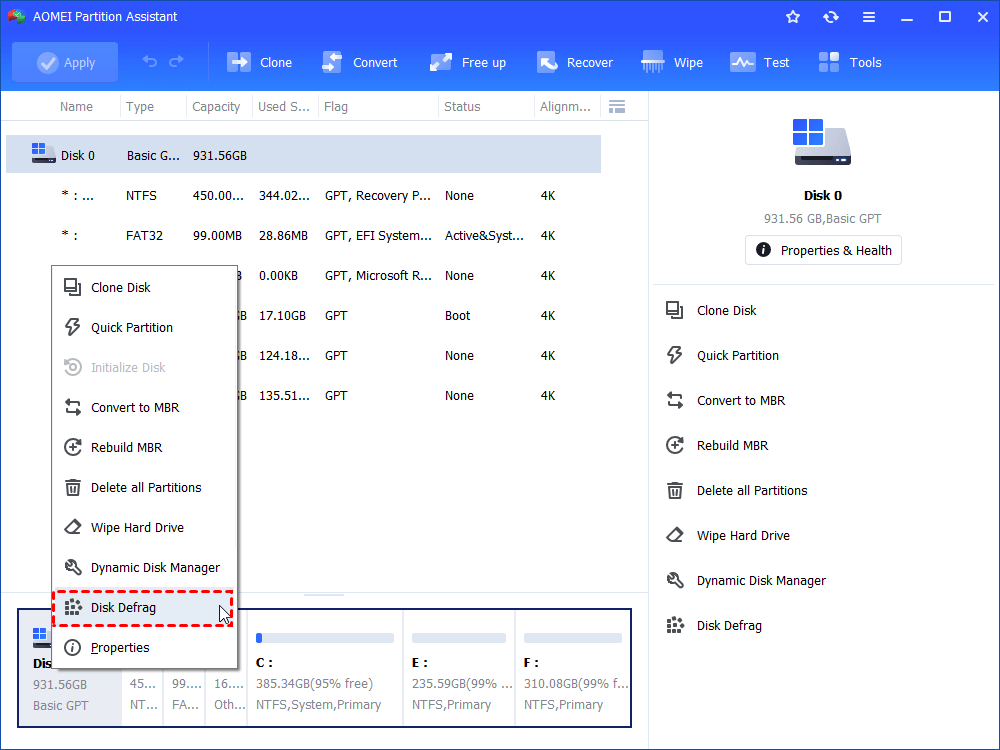
Step 1. Install and launch AOMEI Partition Assistant, right-click on the disk and select the "Disk Defrag" function.
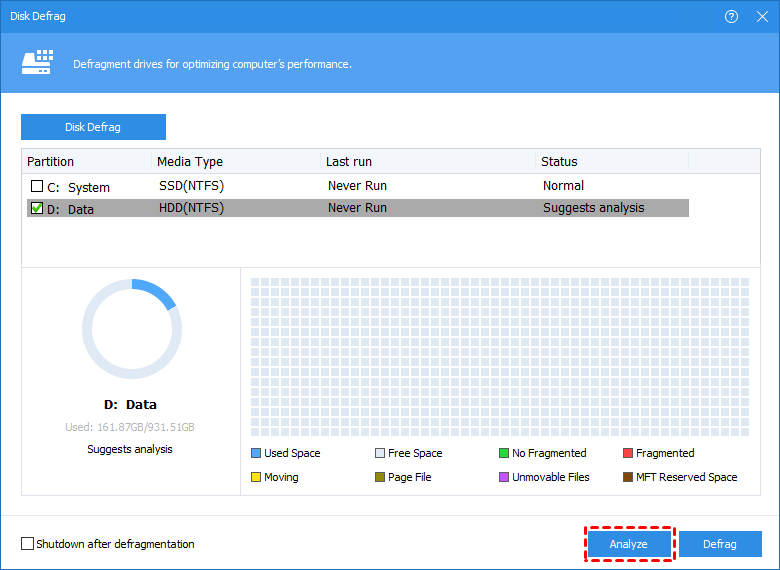
Step 2. Check the partition needed to be analyzed, and click "Analyze". You need to check the partition, not select it. This function currently only supports NTFS partitions, so it will only list NTFS partitions on SSD, HDD, and USB drives.
Tip: You can click "Pause" to halt the process and resume later, or click "Stop" to end the analysis process completely.
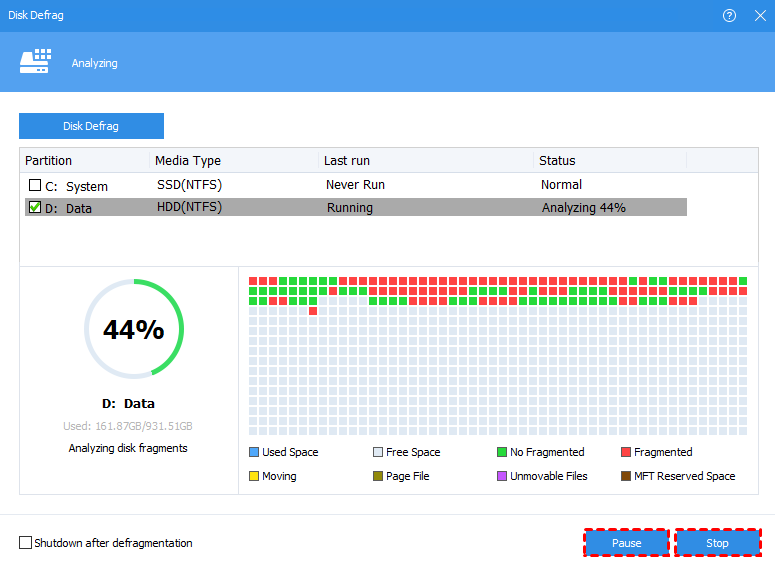
Step 3: The program will score the partition based on the fragmentation rate when the analysis is over.
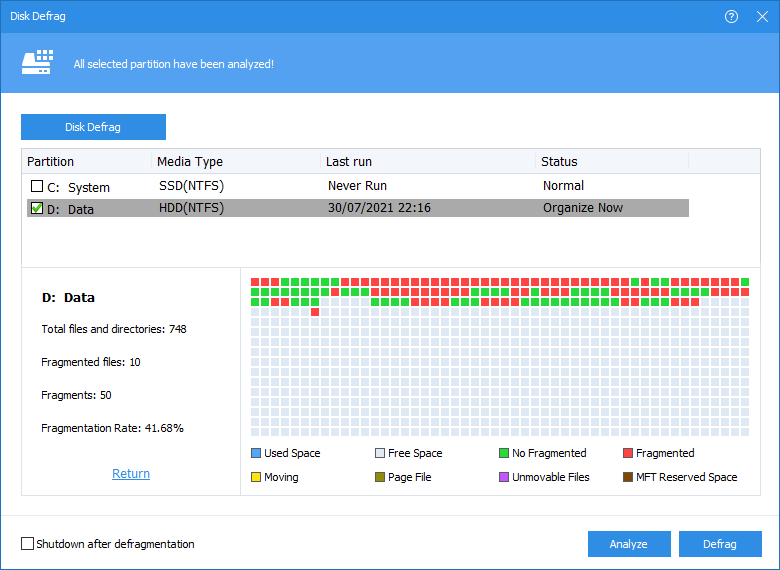
Step 4. After the analysis is finished, you can click on "Details" to see more information about the analysis results:
•Total files and directories•Fragmented files•Fragments•Fragmentation Rate
Step 5. Click the "Defrag" button to start the defragmentation.
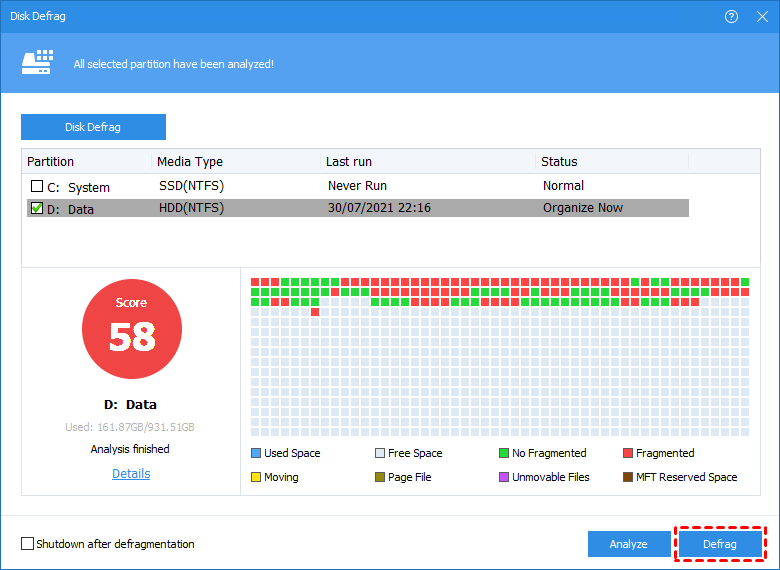
Tip: You could click "Pause" to halt the procedure and resume later, or click "Stop" to terminate the process completely.
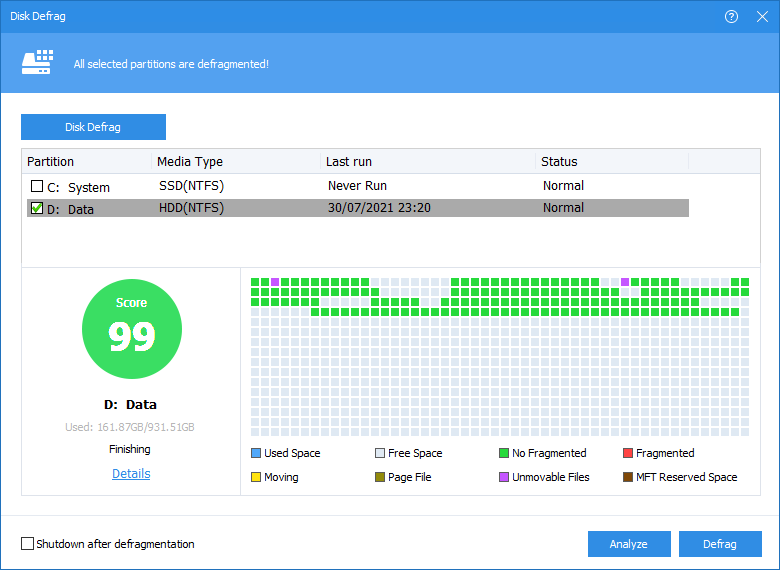
After the defragmentation is completed, the partition will be scored according to the defragmentation result.
Conclusion
Upgrading your PS4 hard drive enhances storage, speed, and overall performance while reducing wear on older drives. By backing up data, installing a compatible HDD or SSD, and using tools like AOMEI Partition Software’s Disk Defrag, you can safely migrate your system without losing saved games or settings. This ensures a faster, more reliable gaming experience and future-proofs your console for larger games and multimedia needs.

 as a preferred
source on Google
as a preferred
source on Google